 Chris Tully
Improvements in this Release:
- Scene visibility data for obfuscated regions has been optimized into a tree data structure, for faster processing.
A new recursive handler has been written to traverse this data, with significant speed gains.
- Reference data has been indexed for faster retrieval, and also stored in memory as global variables, to eliminate wait times due to disk access.
- Draw distance has increased from 6 steps in front of the player, to 9.
Colour textures can scale to accommodate drawing in these distant regions.
Dithered B&W textures cannot scale, however. These will be drawn up to 4 steps away, then Patterns will be drawn in place of textures for further distances, as it is not worth the effort creating new art assets for such little screen real estate.
- Two texture sets are now included, in 8-Bit colour, and dithered Black & White: Brick and Stone Walls.
- There are three stacks (apps) included in this release: the FPS Demo itself, a top-down “rogue-like” Map, and a Message history window.
These stacks cooperatively send messages between each other to run commands and update status.
- Improved development and debugging tools.
- Stability improvements.
Why Make Such a Thing?
I like the design and feel of the old Classic Macintosh GUI (resolution of 512x342, Black & White). It’s clean, simple, and minimal, but can achieve much with the limited controls it offers.
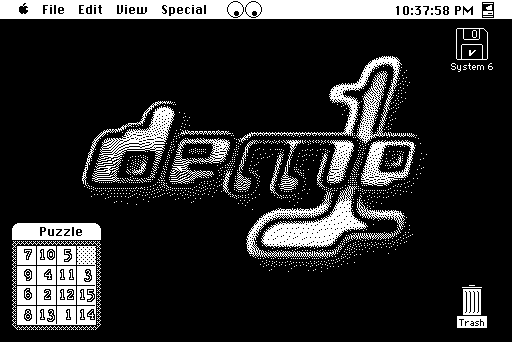
Some amazing games were developed for the platform in its heyday, and many were very innovative, making the most of the unique features the Macintosh offered over the competition.
However, many of those games were made before the FPS genre (and video gaming as a whole) rapidly evolved through the 1990s.
It would be nice to have an FPS game for System 6 era machines with a few more modern quality of life features, and standardized conventions, while also adhering to period Macintosh design rules, and aesthetics.
Being a vintage Mac enthusiast, I eventually got around to giving HyperCard a go, working through tutorials, and seeing what all the fuss was about. About the same time, I was playing through Doom RPG (developed in the mid 2000s for pre ”smart” mobile phones), and thought that it could just about be recreated with the tools that HC offered.
This project only receives a fraction of my time these days. Life happens, but I continue to learn new skills along the way, and I’m proud to release something of quality to show for the time invested.
It’s also been a hell of a lot of fun creating it!
This release has focussed primarily on improving performance, with only a few new features entering the mix.
The long term goal is to have something approximating Doom RPG, including its feature set of:
- different classes of monsters (with simple path-finding),
- items / ammo / health system,
- weapons / damage + melee,
- interactable terminals and NPCs with text dialog,
- locked doors + keys,
- environmental hazards (fires to be put out, debris to be cleared),
- a simple shop / trade & inventory system,
- different floor types (e.g. lava),
- scripted events (moving NPCs, destructible walls & map layout changes),
- palette based HUD elements,
- transparent impassable walls (windows & bars),
- hidden doors, secret areas & easter eggs!
Maybe one day, even multiplayer could be implemented over AppleTalk. The technology exists!
Because this is developed in HyperCard, with scripts written in the almost 40 year old interpretive language HyperTalk, performance is not great. But one advantage is that HyperTalk syntax is so close to natural language, it’s easy for non-programmers to read through, learn, and make their own changes. Please do!
That fact that I was drawn to create this project in HC says something about its enduring legacy.
Can This Run on Original Hardware?
Technically Yes, practically No.
This project has been developed with Basilisk II & MinivMac, and performs best within these emulators.
All work completed so far has been done within the confines of Hypercard 2.4 (circa 1998) which does officially support machines as far back as the 1986 Macintosh Plus.
While the code does execute on authentic hardware, I would have no clue how long the scripts in this stack would take to compute on the venerable 68000 CPU.
It is best enjoyed in an emulator, with the horsepower of a modern machine behind it.
System Requirements
This demo requires:
- HyperCard 2.4.1 minimum.
- System 6.0.8 to Mac OS 9.2
- 4MB RAM or higher
- Screen resolution 512x342 or higher.
Additional tools are required if you want to customize the stack with your own textures.
See the “How to Add Additional Textures” chapter for more info.
It is recommended to run this demo on either the Basilisk II or MinivMac emulators.
It may run on authentic vintage hardware, but at such a slow speed as to not be playable.
The following Resolution and Colour combinations are available:
Resolution | Colour | B&W |
512x342 Best for B&W All-in-One Macintoshes. | 🗸 | 🗸 |
512x384 Best for the Macintosh Colour Classic. | 🗸 | x |
640x480 Good for Mac II and most other colour capable models into the 1990s. | 🗸 | x |
The B&W texture set currently only supports the smallest resolution mode.
How To Play
If using an emulator, follow the relevant guides to get started:
- MinivMac- https://www.gryphel.com/c/minivmac/start.html
- Basilisk II - https://www.emaculation.com/doku.php/basilisk_ii_setup
Remember to attach the “First Person Demo” disk image alongside your boot disk.
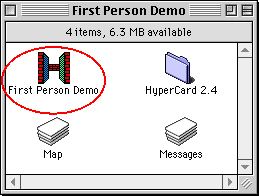
Once you arrive at the Desktop, double click on the “First Person Demo” disk icon to view the contents, and double click on the “First Person Demo” file.
When running on MinivMac, increase the emulator speed by holding Ctrl+S, and while still holding down Ctrl, press A for “All Out” speed.
Also try disabling “AutoSlow” in the same menu (W).
Upon opening, the Stack will detect the screen resolution of your machine and configure itself for the best experience.
When the “Thinking...” message disappears after a few moments, you should be at the Load Level Prompt.
There are currently 5 levels. Type in a number from 1 to 5 and click OK. The level should load after a moment.
The controls are:
- ↑ - Move Forward
- ↓ - Move Backward
- ← - Look Left
- → - Look Right
- z - Strafe Left
- x - Strafe Right
You can load a new level, or switch between video modes that your machine supports at any time by using the “Game” menu.
Check out the Technical White Paper to learn how the code works.