 Jake Wachlin
Over the last few weeks I've been pouring a lot of the work into the web UI, and I wanted to walk through the features that have been added. They've come together very nicely, supporting the workflows I use MetaShunt for.
The whole thing runs in the browser over WebSerial — no desktop install, no Python, just a Chrome/Edge/Chromium tab and a USB cable. Get measuring in seconds. Or, if you don't have a MetaShunt, use the demo unit feature (more on that later) now, and check it out here!
Additional Plots
A single current-vs-time trace is fine for eyeballing a waveform, but it hides the structure of the current consumption. The UI now includes a small stack of derived charts that display that structure directly, and help the user identify where to focus on their current reductions efforts.
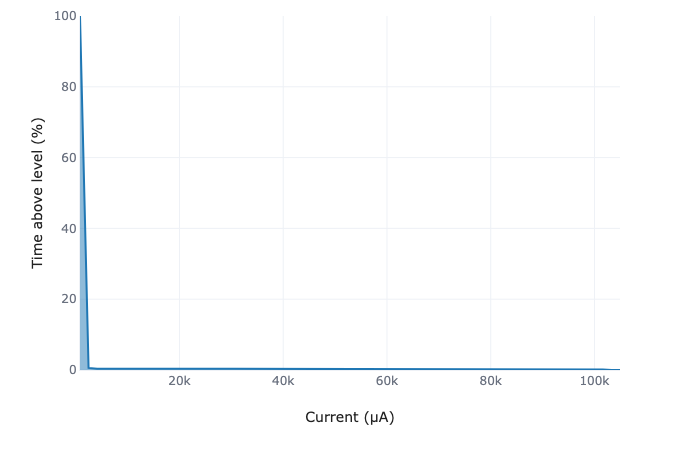
There's an occupancy curve (cumulative time spent above each current level) — the fast way to see "this device spends 99% of its life at 1.5 µA and 0.1% of its life at 100 mA."
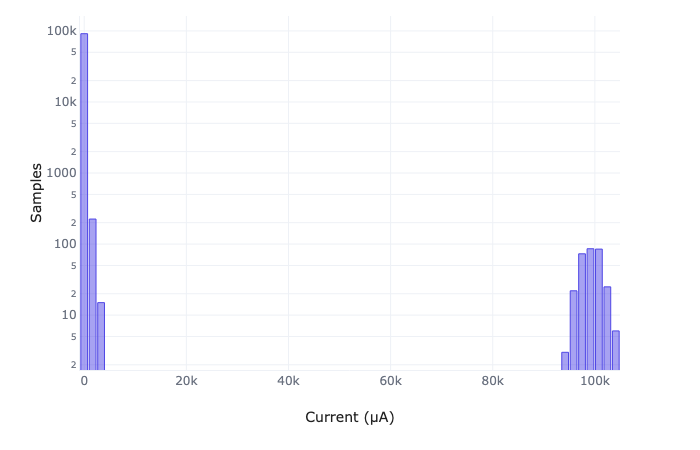
Next to it, a current-distribution histogram on a log y-axis so the rare-but-important high-current bins don't get crushed flat against the sleeping majority.
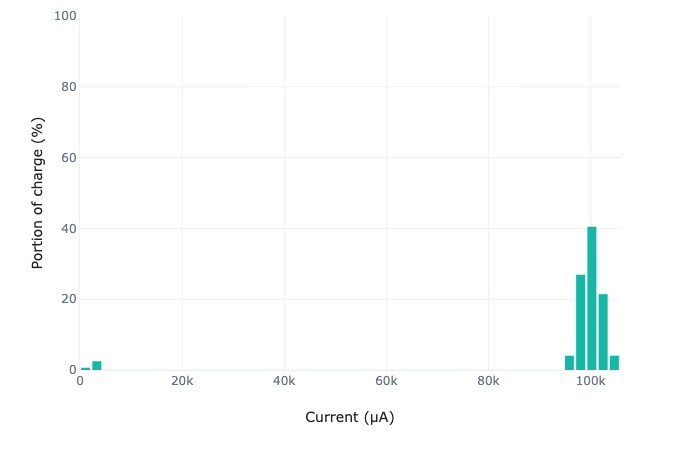
Then a charge-share plot by current bin: instead of "how often am I at each level," it shows "what fraction of my total charge is burned at each level," which is the plot that tells you where to optimize first. In this example, even though most of the time is spent sleeping, most of the charge is consumed by short, high current bursts.
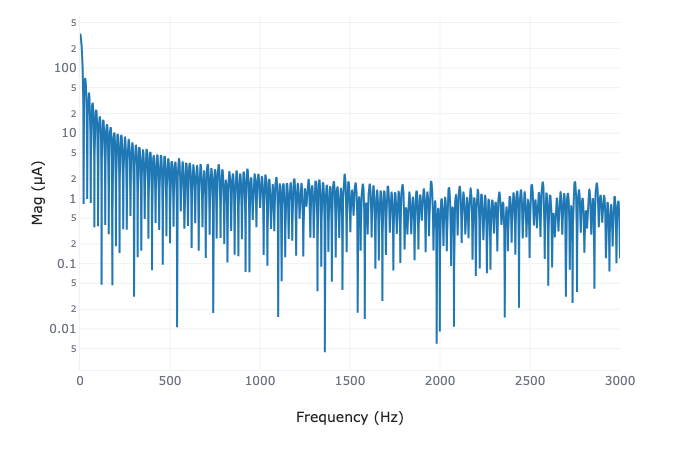
There's also an FFT spectrum for when you're hunting periodic issues or noise impacts. It won't compute over decimated data (more on that next) — that would be meaningless — but for a clean continuous run it can help you debug periodic issues.
Decimation Support
Long captures are where profilers can struggle. At 6 kHz, a couple minutes of sampling is a few hundred thousand points, and plotting the whole thing gets sluggish fast. The UI now has a proper decimation mode to handle this without losing the parts that matters: the profile shapes, wakeup timing, and total energy used.
You enable decimation with one button and pick a relative-change threshold (0.1% to 10%). The decimator emits a new point only when the signal wanders beyond that threshold relative to the last decimated point — or after a max span, so perfectly stable current still gets compressed instead of ballooning. Crucially, every emitted point is the time-weighted average over its interval, so the area under the curve — the integrated charge — is preserved.

The compression numbers are shown, too: a small pill in the stats bar shows the active intensity, how many raw points came in, how many survived decimation, and the estimated memory the compressed store requires. The sliding live view always stays full-resolution; decimation only affects what's retained and what you export. Slide the threshold up to 10% for maximum compression, or down to 0.1% to limit the compression level.
Data Labeling
Captures are only as useful as your ability to understand them. The UI has a two-click region label system plus quick point labels, both rendered straight onto the current plot.
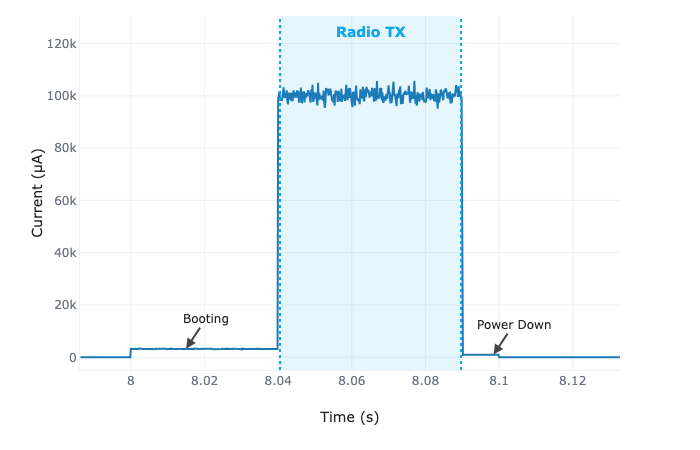
Click "Add Region Cursors," click a start and end boundary on the current plot, and you get a shaded region with a prompt to name it — "Radio TX," "Boot," "Flashing." The name sits right on the plot, so a capture is self-documenting when you come back to it (or email it to a colleague). For a single spike or event, click directly on the trace and type a label at that exact sample; it's anchored with an arrow so it survives zooming and panning.
Demo Data Mode
One of the most useful little additions doesn't involve the hardware at all, but it's one of the fastest ways to kick the tires on the whole interface. A "Start Demo" button streams synthetic, realistic data through the exact same pipeline as the real MetaShunt — same plotting, same decimation, same labelling, same import/export — without needing a device plugged in.
The demo waveform represents a low-power node with a periodic wakeup: it sleeps at ~1.5 µA for eight seconds, then runs at around 3.2 mA for 40 ms, spikes to 100 mA for 50 ms, tails off to 1 mA, and drops back to sleep. Every level has ~2% Gaussian noise on it. It's generated at 6 kHz in a background worker, meaning the whole UI is exercised at full data rate.
Why bother when you have real hardware? A few reasons: it's a zero-risk way to demonstrate the tool, it exercises the full pipeline on any machine (including one without the board), and it makes testing of new UI changes trivial — you get a repeatable, known waveform. Finally, for prospective customers, this allows them to check out the interface without yet buying a MetaShunt.
Device Modeling
Probably the most capable new feature: you can now build an expected power model and overlay it directly on the measurement, so you can hold reality up against your design intent. It's a fairly complete modellng hierarchy in the browser — components (name, mode, current draw) compose into stages (how long each state lasts), stages into threads, threads onto a regulator rail (switching or linear, with efficiency and quiescent draw), and the rail onto a battery (Li-Ion or coin cell, with capacity and internal resistance). This is all based on my embedded power modellng Python tool here.
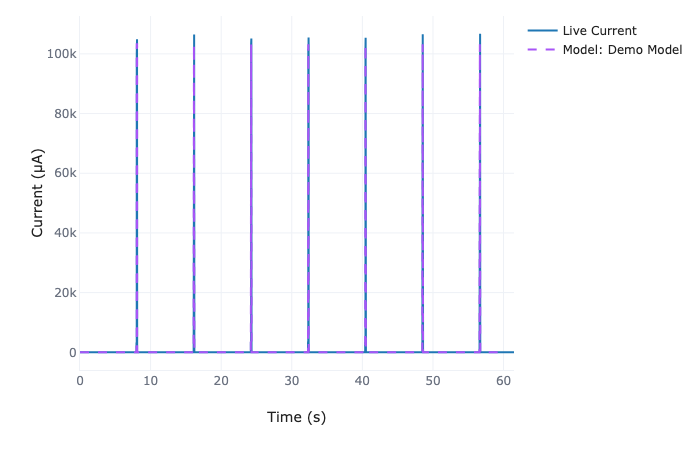
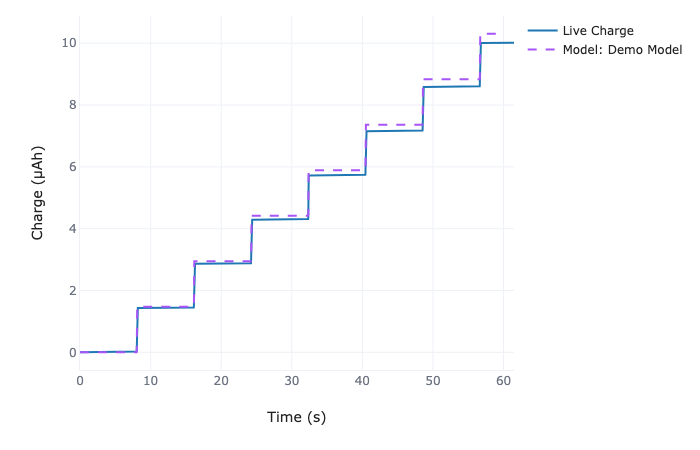
You chain those together in the UI, hit "Generate Model," and a dashed violet trace appears on the Current and Charge plots right next to the live measurement. The simulator runs the usual event scheduler — when the next thread stage boundary hits — and the charge trace integrates alongside, so you're comparing energy, not just shape.
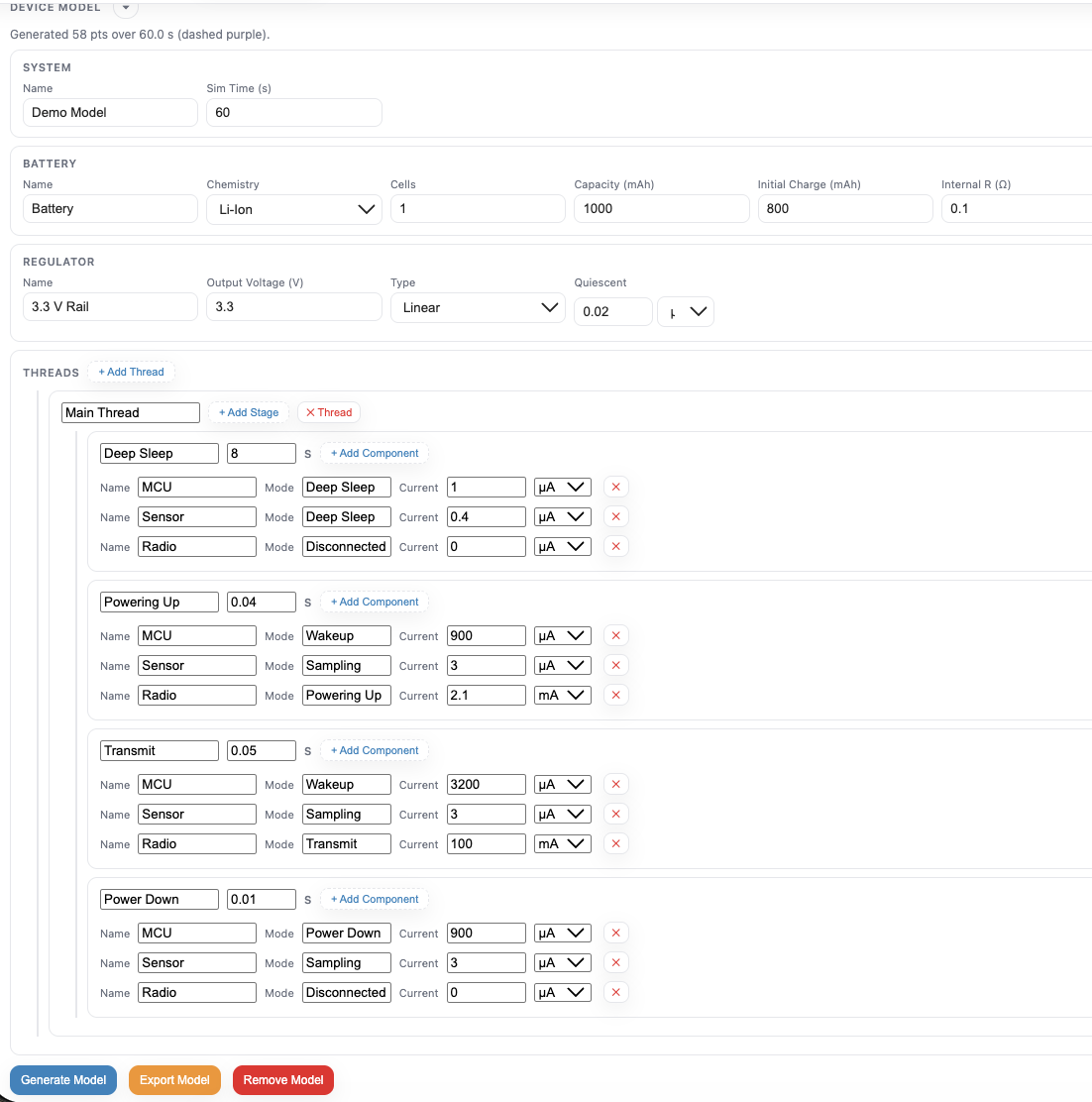
Models export to a JSON file and can be loaded back in, so a model design is a shareable, version-able artifact. And since it's just a file with full import/export support, the "Load Device Model" path means a colleague can open your model, tweak one stage, and compare without re-entering the whole thing.
Log Import, Export, and Comparisons
Last but not least: comparing previously captured data against a new measurement trace. The prior Web UI app had this ability, but it was highly limited. This update comes with a number of improvements.
First, one nice touch — "Export CSV" lets you name the log, and the app remembers that name as a label.
The previous version only allowed loading of a single prior log. You can now load in multiple prior captures side by side, each with its own color and a sensible default label (re-nameable right in the import dialog). Each imported log gets its own row of controls for nudging time offset and charge offset, so you can line up two runs that started at different wall-clock times. The plots below show real data from a Nanosleeper connected to MetaShunt, comparing a full, non-decimated measurement to two measurement traces decimated at different levels (1% and 10%). As you can see, the decimation maintains the profile shapes and charge consumption, while greatly compressing the data stored.
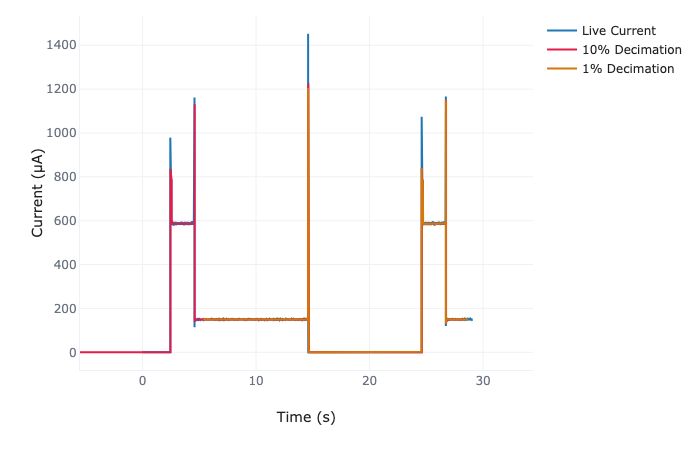
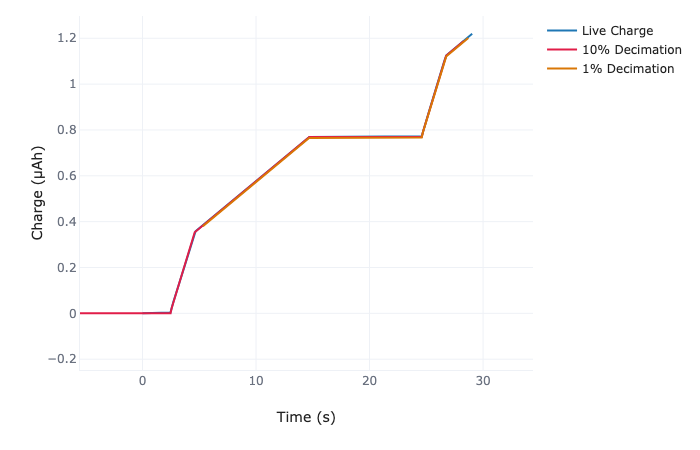
And for the tedious part — manually finding the right time alignment — there's a "Re-Fit Data" helper: it cross-correlates the imported log against the live capture to find the time shift that aligns the two signals, then zeros the charge baseline at t=0. It runs automatically on import when it can. The result is that comparing "what I measured then" against "what I measured now" (or against a golden run) becomes much faster.
Discussions
Become a Hackaday.io Member
Create an account to leave a comment. Already have an account? Log In.