 Dan Julio
It's a clock so it's pretty easy to operate :-) It has a power/wifi-reset button and a web-based control panel.
The button - a remotely mounted copy of gCore's power button - serves a few purposes.
- Short press to turn on
- Short press to turn off
- Medium press (greater than 2 seconds, less than 5 seconds) to reset the Wi-Fi to the factory default (Access Point) setting
- Long press (longer than 5 seconds) to activate gCore's built-in PMIC power-off (Useful if the ESP32 crashes or locks up)
By default the clock presents an Access Point named NixieClock-NNNN where NNNN is a set of 4 hexadecimal characters from the ESP32's unique MAC address. There is no password initially, but you can add one later. To access the clock's control panel, connect a desktop computer or mobile device to that network. The clock runs a mDNS responder that lets is respond to an URL of "nixie.local" so you don't have to worry about IP addresses. Navigating to that location will bring up the main control panel.
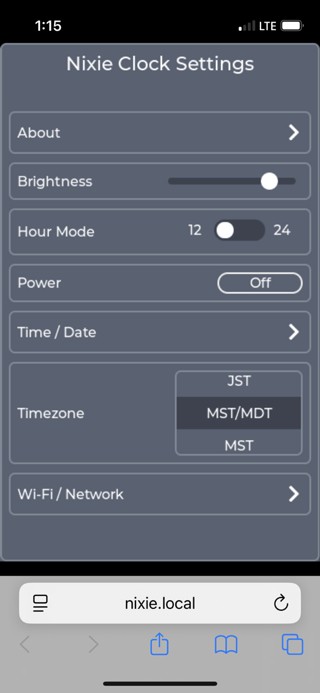
Most of the controls are self-explanatory.
About displays firmware versions, network information, memory utilization and the like.
Brightness allows setting the LCD backlight brightness.
Power lets you remotely turn the clock off.
Timezone lets the clock automatically handle daylight savings time and what hour offset to use when getting the time remotely from the "pool.ntp.org" server.
Time / Date allows manually setting the clock, either using the host computer's clock or manually through the keypad.

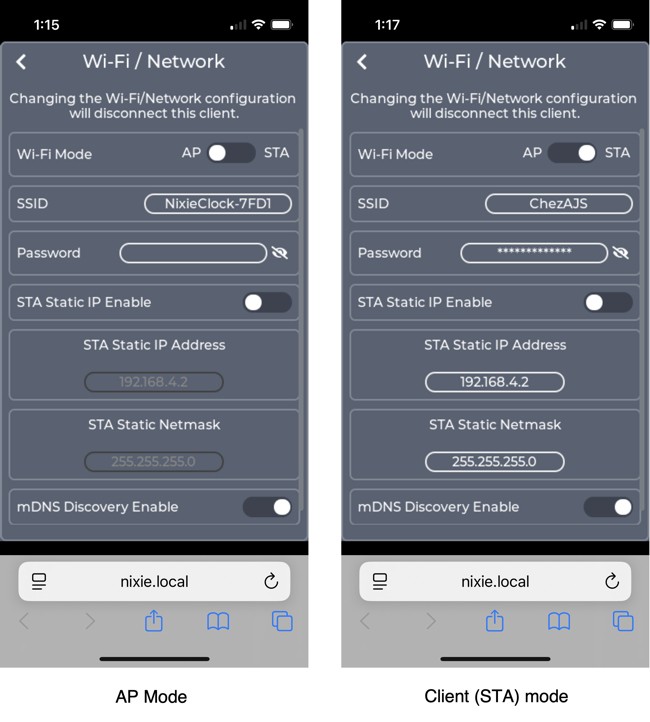
Wi-Fi / Network allows configuring the clock to connect to an existing Wi-Fi AP so it can access the time server and also, if necessary, giving it a static IPV4 address.
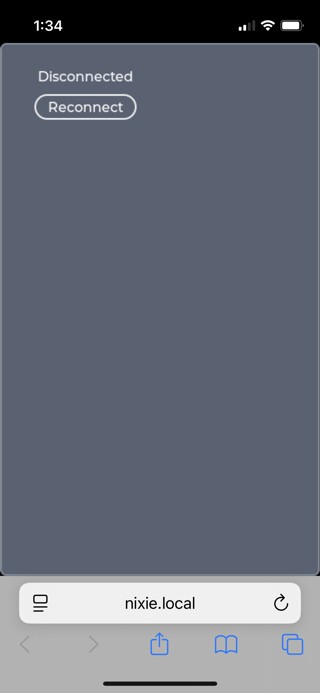
The web-browser control panel can remain resident in the browser and will allow reconnecting to the clock when the connection is interrupted.
Discussions
Become a Hackaday.io Member
Create an account to leave a comment. Already have an account? Log In.