Ai-Thinker

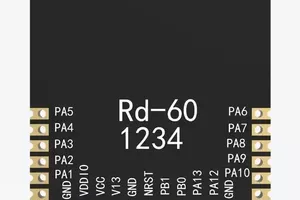
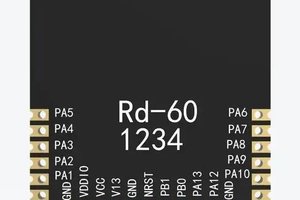
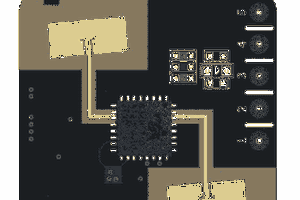
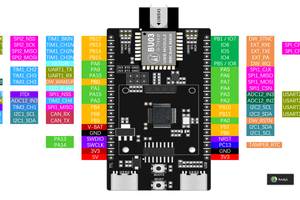
1. Appearance and Pinout of Rd-03L
Pinout Description
Note: The debug interface and programming interface cannot be connected simultaneously.
Debug Interface (TTL - USB Debugger)
Programming Interface
2. How to Use Rd-03L
2.1 Download the PC Tool and Related Resources
PC Tool Download: Click to download
Or visit the Rd-03L Docs page on Ai-Thinker's official site for more resources: Rd-03 Series
2.2 Module Wiring
Connect the Rd-03L module to the TTL adapter as shown below:
2.3 Module Installation
The Rd-03L radar module should be wall-mounted at a height of 1.5–2 meters. The installation orientation is shown in the diagram:
- X-axis: 0°
- Z-axis: 90°
- Y-axis: perpendicular to the X-Z plane (i.e., the normal direction)
When mounted at 1.5m height, Rd-03L's default motion detection range forms a cone with an 8m length in the normal direction and ±60° angle in horizontal and tilt directions.
2.4 Quick Start with PC Tool
Note: The PC Tool and serial tool cannot be used at the same time.
1. After completing wiring (step 2) and installing the radar module (step 3), open the PC Tool.
- Click the refresh button in the bottom left.
- Select the corresponding COM port, set the baud rate to 256000, then click Connect Device.
- Once connected, click Auto Threshold Generation.
The radar will start scanning the environment. Ensure no humans are present in the detection range during scanning. Scan time can be set between 120–240 seconds. After scanning, thresholds will be applied automatically. Click the top right Close button to finish.
Once the scan is complete and thresholds are applied, each range gate’s trigger and hold thresholds will be adjusted automatically by the algorithm.
You can further customize:
- Minimum and maximum detection distances: Must be set as multiples of 0 or 0.7 (max = 8.4m)
- Distance reporting frequency: Must be 0 or multiples of 0.5, max = 8Hz
- Status reporting frequency: Must be an integer multiple of distance reporting frequency (e.g., if distance is 4Hz, status can be 4Hz or 8Hz)
- Response speed: Normal or fast (affects how quickly the sensor reacts to motion)
- No-person reporting delay: Time it takes to switch from "person detected" to "no person", range = 10–120s
- Energy values for each range gate
- Triggered gates will turn the indicator red and display the target status as "Human Present", along with the distance
- The software will also estimate average operating current based on the set reporting frequencies
- Test Instrument: Current Analyzer — KEYSIGHT N6705C
After setting the parameters, click Write to Sensor to complete the configuration.
2.5 View Data via PC Tool
Once parameters are configured, use the Target Info panel on the left to view real-time radar data. Click Start to view information such as:
Higher reporting frequency = higher current and power consumption. Lower frequency = lower power usage and extended battery life.
3. Power Consumption Test
The ultra-low power performance of Rd-03L is mainly achieved by adjusting the reporting frequency. Ai-Thinker provides reference test results using professional current analysis instruments:
- Test Instrument: Current Analyzer — KEYSIGHT N6705C
Status Report Frequency | Distance to Merchant Report Frequency | Battery Test | Unit |
0.5 | 0.5 | 57.424 | JA |
1.0 | 1.0 | 89.405 | HA |
1.5 | 1.5 | 123.323 | JA |
20 | 2.0 | 160.775 | HA |
2.5 | 2.5 | 201.553 | HA |
3.0 | 3.0 | 263.593 | MA |
3.5 | 3.5 | 276.602 | HA |
4.0 | 4.0 | 318.577 | HA |
4.5 | 4.5 | 349.955 | HA |
5.0 | 5.0 | 384.512 | HA |
5.5 | 5.5 | 407.668 | HA |
6.0 | 6.0 | 445.577 | HA |
6.5 | 6.5 | 487.062 | JA |
7.0 | 7.0 | 512.436 | JA |
7.5 | 7.5 | 537.261 | JA |
8.0 | 8.0 | 553.117 | JA |