 Katsumi
MachiKania can run on ClockworkPi's PicoCalc. You can run MachiKania without any soldering.
To run MachiKania on PicoCalc
First, obtain a PicoCalc. Please order it from the ClockworkPi website. As of August 2025, it typically takes about 2–3 months from ordering to delivery, so be patient.
Insert the target Raspberry Pi Pico into the socket on the PicoCalc. You can use either of the following types: the H-type, which already has pin headers attached, or the standard type. The H-type can be inserted as-is. For the standard type, you'll need to solder 20-pin headers on both sides before use.
- Raspberry Pi Pico
- Raspberry Pi Pico W
- Raspberry Pi Pico 2
- Raspberry Pi Pico 2 W
- (When you purchase a PicoCalc, a Raspberry Pi Pico H is included, so you can use it as-is.)
MachiKania can be downloaded from its GitHub releases page. From the available ZIP archives, please select 'machikania-pc-xxx.zip' (where xxx is the version number). This archive contains all the necessary files.
To install MachiKania, first turn off the ResTouch and flip it over. Connect a micro B USB cable to your PC. Then, using a thin stick such as a toothpick, press the white 'BOOTSEL button' on the Raspberry Pi Pico through the gap on the back of the ResTouch while simultaneously connecting the micro B connector.

A drive named 'RPI-RP2' or 'RP2350' will appear on your PC. To install, simply drag and drop the 'phyllosoma_kb.uf2' file—found in the ZIP archive mentioned above—onto that drive. However...
- For Pico, select the files from the "pico_picocalc" directory.
- For Pico W, select the files from the "pico_w_picocalc" directory.
- For Pico 2, select the files from the "pico2_picocalc" directory.
- For Pico 2 W, select the files from the "pico2_w_picocalc" directory
Finally, copy the following files and directories from the downloaded ZIP archive to your MMC/SD card:
- "MACHIKAP.INI" file
- "LIB" directory
- "samples" directory
Edit the "MACHIKAP.INI" file if necessary. For detailed configuration, refer to the documents in the "document" directory of the ZIP archive. However, if you just want to launch MachiKania for now, the default settings should be fine.
With that, you're ready to run MachiKania on PicoCalc.
Launching MachiKania
After completing the steps above, turning on the PicoCalc should launch MachiKania. It will look like the image below.

Now that the editor has launched, you can start writing BASIC programs right away. You can also load a program by pressing the “F1” key. The image below shows the program list that appears after pressing “F1” and navigating to the “SAMPLES” directory.

In the file selection screen, pressing the up or down arrow keys will move the highlighted selection, indicated by a blue arrow. To load the selected file, press the “Enter” key. Once the program is loaded, it will appear as shown in the example below.

To run the program, press the “F4” key. The result of executing “RAYTRACE.BAS,” as shown in the image above, is displayed at the top of this page.
Precautions when using the PicoCalc version of MachiKania
As mentioned in the readme.txt, there are several precautions to keep in mind. First, regarding the keyboard, please note the following points:
- "Shift + Right" and "Shift + Left" cannot be used, so use "Alt + Right" and "Alt + Left" instead.
- Since there are no "Page Up" and "Page Down" buttons, use "Alt + Up" and "Alt + Down" instead.
- If you want to use "Home" and "End" without the Shift key, press "Alt + Tab" and "Alt + Del" respectively.
The buttons used to control MachiKania are emulated through the keyboard. The arrow keys correspond to the directional buttons, the spacebar acts as the "Fire" button, and the Enter key functions as the "Start" button. If you want to change these key mappings, edit the MACHIKAP.INI file.
To stop a BASIC program during execution, press the Ctrl+Alt+Del keys simultaneously. This will interrupt the program. However, in loops that do not use any commands like PRINT, the program may not respond to the interruption.
Experience the high-speed execution of MachiKania
MachiKania is characterized by its ability to execute BASIC programs at high speed. It runs at about half the speed of C and several times faster than Python. Try running the sample program "MADELBR.BAS" to experience it.
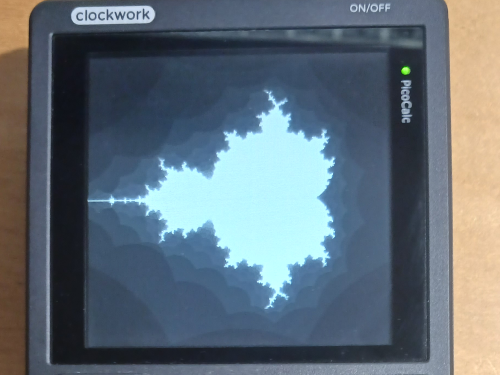
This is a port of "mand.bas" originally written for MMBasic, adapted for use with MachiKania. While MMBasic takes about five minutes to render the entire image, MachiKania completes it in just over ten seconds. This difference is due to MMBasic executing programs in an interpreted format, whereas MachiKania processes them using a compiler-based approach.
To use GPIO with PicoCalc
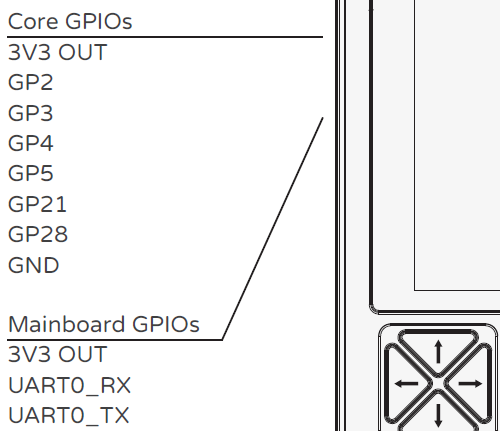
On the left side of the PicoCalc unit, there are terminals connected to the GPIO port, which can be used. The PicoCalc manual includes the following description:
As you can see, GP2, GP3, GP4, GP5, GP21, and GP28 are available along with 3.3 V and GND. In addition, "UART0_RX" can be used as GP1 and "UART0_TX" as GP0. However, when using GP1 (UART0_RX), you must set the internal board’s "SEL1" DIP switch to "M_UART_RX". Failing to do so may result in device malfunction.