 Makerinator

Introducing Backdrop Box
I’ve fallen down the delightful rabbit hole of painting minis. After painstakingly finishing tiny dragons and heroic warriors I realized something tragic… They were just sitting on my desk, surrounded by coffee mugs and charging cables. Hardly the epic display their adventures deserved!
Enter my shiny new Bambu Labs P1S. It’s a huge upgrade from my old Ender 3 Pro and an amazing Christmas gift from my Mother-in-Law (thanks Paula!). With a sleek new printer and a spark of inspiration, I decided it was time to give my minis the home they deserved.
I stumbled across a “display case contest” and the challenge was irresistible. Thus, the Backdrop Box was born. I totally thought I could finish this in an afternoon. Spoiler: I was hilariously wrong.
This thing pushed me to my limits. My original plan was to create something folks could tweak and use for themselves. If you have a 5th generation iPad Mini, you’re in luck! Otherwise? I think you’ll be able to tweak the design, but I make no guarantees.
This guide is for the brave souls who want to try making their own Backdrop Box. Before you begin though, I suggest watching the video. You really need to understand the journey of how I got here.
Stuff I Used
- 3D Printer (duh!)
- Roughly 300g of your favorite filament
- An old tablet that isn’t getting used
- Tablet charging cable (I suggest a right angle cable)
- White LED Strip (Look for pure white LED’s, not RGB White. Also make sure you get something that can be cut.)
- Soldering Iron and Solder
- Heat Shrink Tubing
- Barrel Jack Connector - This is for your LED strip power supply. Confirm the size you need before buying.
- 22 AWG Wire (UL2464 ) - Mine was left over from another project and came from AliExpress.
- Wire Strippers
- Super Glue
- Calipers
- A free OnShape account
Step 1: Prepare Your Tablet
Before diving into the build, let’s make sure your tablet plays nice with the Backdrop Box app. After all, there’s no sense in wasting good materials only to find out your tablet isn’t up to the task. You’ll want to download the app - it’s called Backdrop Box (big surprise, right?) - and it’s available on all the major app stores:
Yes, I even went through the effort of getting it onto the Fire Store. This would be the perfect project for a dusty old Fire tablet that isn’t being used.
Once you’ve installed the app, open it up and tap the gear icon. This lets you adjust the number of rows and columns in your display.
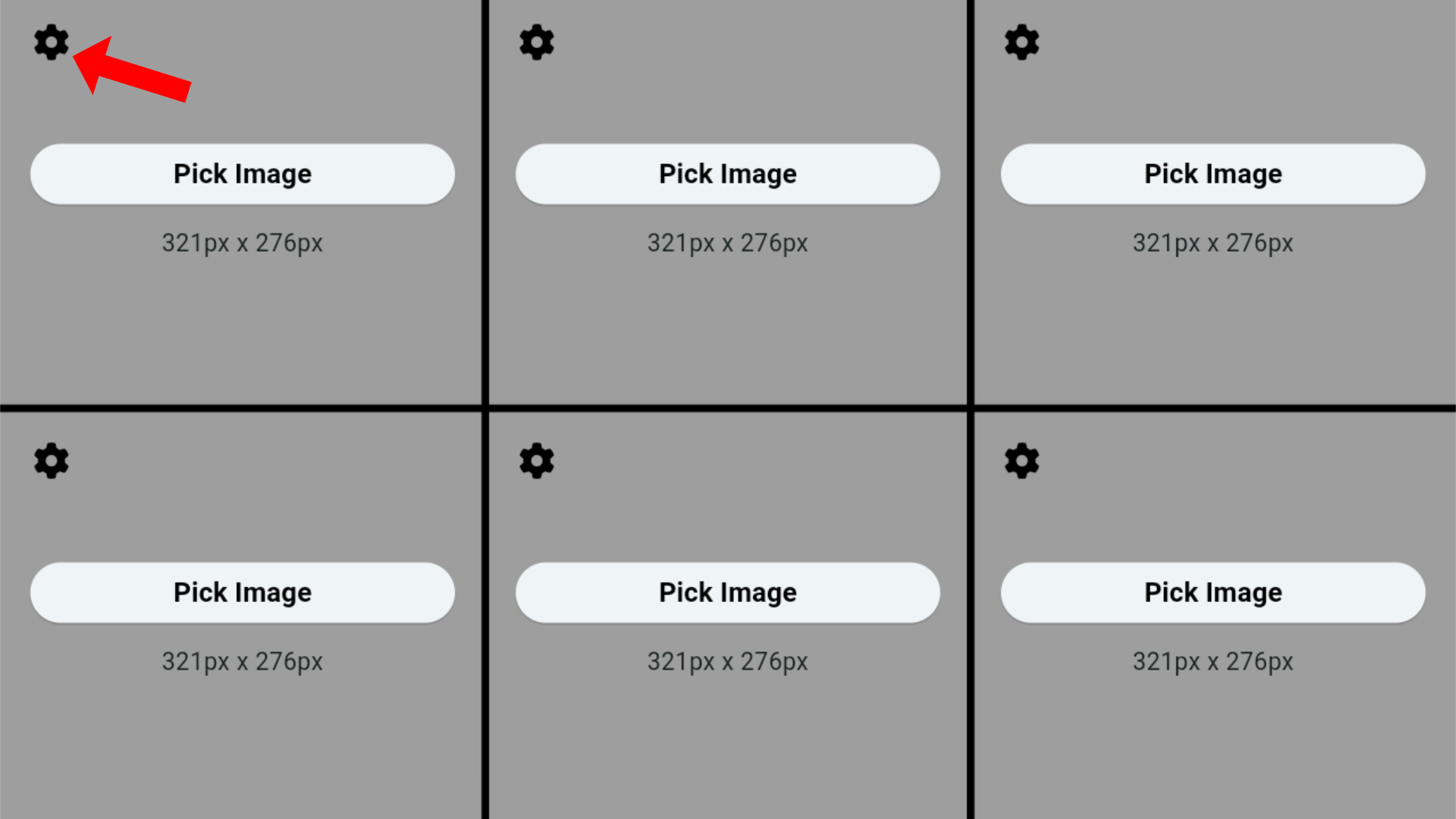
This will bring up a dialog box where you can tweak the layout to suit your minis.
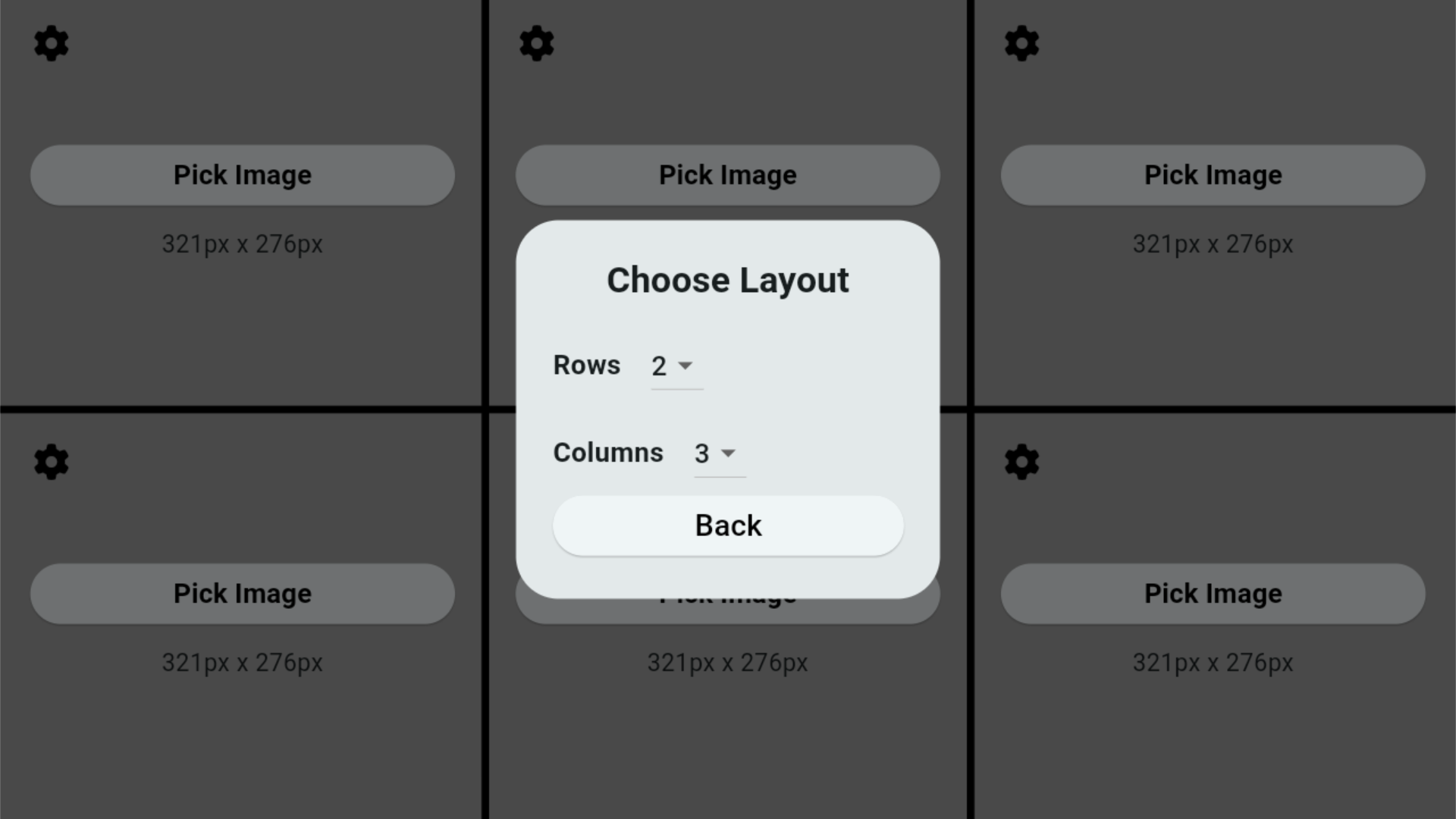
Take some time to play around with the settings until you find the perfect setup for your collection. You’ll want to settle on a layout before moving on to the next step.
If you’re using an older tablet, the crop feature might take a bit of time. Be patient and let it work its magic.
During testing, I used a 2022 Kindle Fire HD 8 with 2GB of RAM. When cropping, the back of the tablet got so hot I was concerned it might become an actual fire tablet. It worked fine though, and would totally be a viable option.
My trusty 5th gen iPad mini handled the task like a champ. That’s what I’ll be using for the rest of this project… Mainly because the Fire has already been recruited for another experiment.
Once you’re done, your app should look something like this:
Step 2: Customize the CAD Design
For this step, you’ll need a free OnShape account. I’ve done my best to keep everything parametric. Translation? You can tweak a few variables and the model should magically rebuild itself. That being said, this was my first time doing an entirely parametric design so your mileage may vary.
Sign Up for OnShape
An OnShape account is free if you’re a hobbyist and don’t mind all of your models being public. It’s completely browser based and there’s no software to download. It’s the most user-friendly CAD software I’ve ever seen.

 Colin Russell-Conway
 Sarah Petkus
 Paczkaexpress
 kaj
kaj