 Paul
PaulQuick Start (≈1 minute)
You don’t need to compile anything.
- Download the ready-to-flash firmware from the Releases.
- Run FlashTool.exe (included).
- Open the Setup desktop tool → send your Wi-Fi credentials over USB (no typing on the touchscreen).
- Reboot → tap Speak → enjoy the first fully offline weather report spoken by TinyTTS.
That’s your first “wow” moment — the moment the screen becomes a voice.
What You’re Building
A clean, modern weather station with a three-day outlook, a clock, and a rotating inspirational quote — all displayed on the CrowPanel.
But with one twist:
Every piece of information can be spoken aloud with natural neural speech generated directly on the TinyTTS module.
- No MP3 files.
- No cloud APIs.
- No licensing servers.
- Just your device speaking text you send to it.
This makes the project both a finished build and a perfect template for your own voice-enabled ideas.
Voice Samples (What You’ll Actually Hear)
The lines below are real examples the device can speak:
- “Today’s temperature is 23 degrees, partly cloudy.”
- “Expect light rain in the next hour.”
- “Humidity 42 percent. Pressure 1016 millibars.”
- “It’s 18:45. Enjoy your evening.”
- “Quote of the day: Courage is a habit.”
TinyTTS speaks any UTF-8 text the firmware sends.
You’re not limited to fixed phrases — this is real generative speech on an MCU.
Why This Build Feels Special
- Instant builder payoff — it talks immediately after flashing.
- Fully offline neural speech — privacy by design, zero cloud dependency.
- Simple architecture — ESP32-S3 for data/UI, TinyTTS for voice.
- Effortless extensibility — change the text templates, add new triggers, or feed new data sources.
- A “gateway project” — once you hear the voice, ideas start multiplying fast.
Hardware & Software Requirements
This project uses only a few components — a display module, the TinyTTS kit, and a speaker.
Hardware
- ELECROW CrowPanel Advance (5" or 7", ESP32-S3 with built-in touchscreen display)
- TinyTTS Kit (neural TTS module with the model and software preinstalled)
- Small speaker or amplified speaker
- USB-C cable for flashing and power
- 4-pin UART cable (CrowPanel ↔ TinyTTS)
Software
- ESP-IDF 5.4 (toolchain and idf.py)
- Python 3.8+ for the Wi-Fi setup tool
How the Voice Pipeline Works
TinyTTS is a compact neural text-to-speech module — a small microcontroller-based board with embedded TTS software — designed to bring natural, on-device speech to hardware products and DIY projects.
Unlike systems that rely on prerecorded audio files or cloud APIs, TinyTTS generates speech fully offline, in real time, directly on the module.
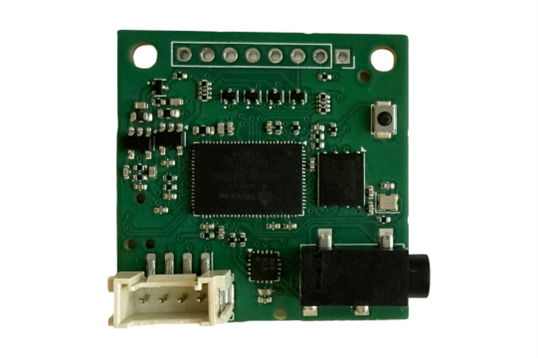
It receives short text messages over UART and outputs natural speech in real-time.
Because the voice is generated dynamically, the device can speak anything the firmware provides: updated weather data, different forecast patterns, localized time phrases, or custom messages you design. There’s no need to store or manage audio files, and no internet connection is required for speech.

UART Protocol
- 115200 baud, 8N1, UTF-8
- Format: SPEAK:<text>\n
- Recommended max phrase length: ~200 characters
- Typical latency for short phrases: tens of milliseconds until playback
TinyTTS does not require an internet connection.
Only the weather/quote fetch uses Wi-Fi; all speech synthesis runs locally.
Connecting the Hardware
Connecting the hardware is simple and takes only a few minutes.
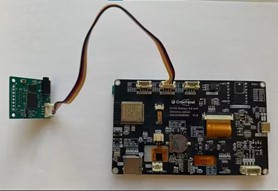
- Use the 4-pin UART cable to link the CrowPanel to the TinyTTS module
- (TX → RX, RX → TX, 5V, GND).
- Plug your speaker into the TinyTTS audio output.
- Power the CrowPanel through USB-C.
- After flashing the firmware and sending the settings from the desktop Setup tool, the device will automatically communicate with TinyTTS and start generating speech.
System Overview
The device consists of two main parts working together:
- CrowPanel (ESP32-S3) — handles the UI, connects to Wi-Fi, fetches weather and quotes, keeps time in sync, and prepares short text messages.
- TinyTTS module — receives those text messages over UART and generates natural speech completely offline.
CrowPanel updates the display, retrieves data from OpenWeatherMap, and converts it into short text phrases such as “Today’s temperature is 23 degrees, partly cloudy.”
TinyTTS then takes this plain text, runs it through its onboard neural model, and outputs natural-sounding speech to the speaker.
Even though the device uses the internet for weather and quotes, all voice generation happens locally — the speech never depends on cloud services.
This simple architecture keeps the project reliable, fast, and easy to extend with new spoken messages or additional screens.
UI & Screens
The interface is built with LVGL and organized into four simple screens.
Weather comes first, since it’s the main purpose of the device, while the remaining screens provide useful supporting functions.
Weather Screen
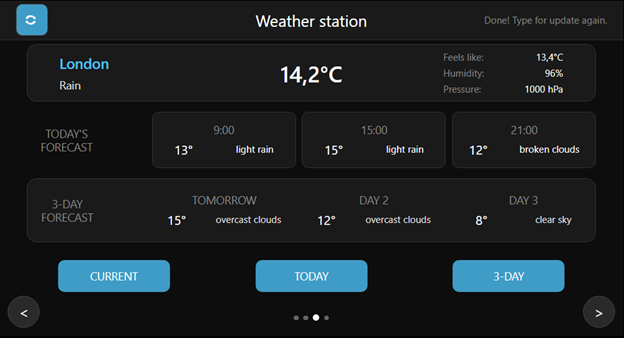
The Weather screen is the heart of the project.
It shows:
- current temperature and conditions,
- “feels like,” humidity, and pressure,
- a short-term forecast for today,
- and a three-day outlook.
Quotes Screen
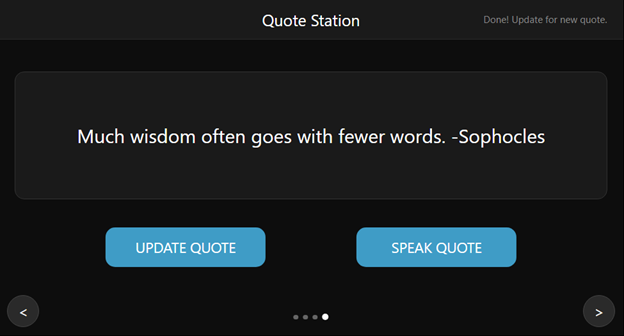
Displays a short inspirational quote that updates automatically.
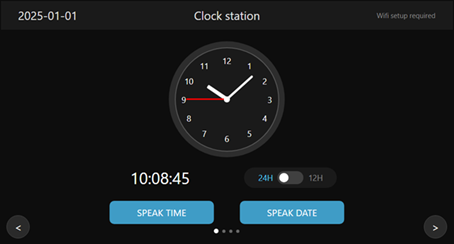
Clock Screen
A clean digital clock with the current date.
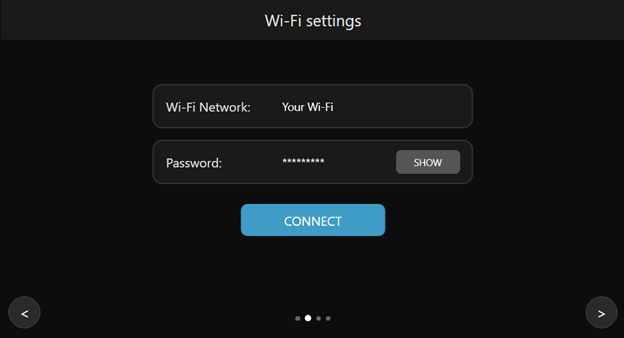
Wi-Fi & Status Screen
Shows the connection status and indicates whether weather data can be updated.
Most configuration happens through the desktop Setup tool, so this screen stays minimal and unobtrusive.
Building & Flashing the Firmware
For the quickest start, use the prebuilt images described in the Quick Start section above.
If you prefer to build the firmware yourself, clone the repository and follow the instructions in the project’s README — it includes all details on compiling with ESP-IDF, flashing, and configuring the build options:
1. Clone the repository.
2. Install ESP-IDF 5.4 and set up the environment.
3. Configure the project if needed (for example, display size or API behavior).
4. Build and flash the firmware to the CrowPanel.
5. Reboot the device and proceed with configuration using the desktop Setup tool.
All detailed steps, commands, and configuration notes are available in the project’s README.
Setup Tool
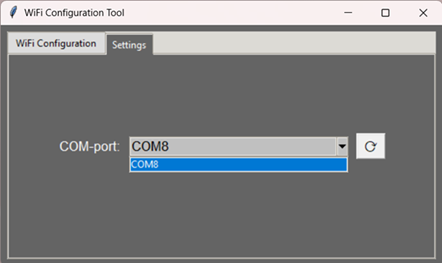
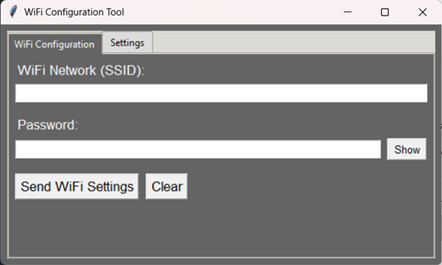
The project includes a small desktop Setup tool that sends all required settings to the CrowPanel over USB — no typing on the touchscreen is needed.
- Select the correct COM port,
- enter your Wi-Fi network name and password,
- and send everything to the device in one click.
Weather & Quotes Services
The device retrieves weather data from OpenWeatherMap and loads inspirational quotes from a public, key-free online source. Speech generation remains fully offline — TinyTTS does not require any cloud access.
API keys
- The quotes service does not require any API key — the device simply requests a quote from a public endpoint.
- A demo OpenWeatherMap key is included for quick testing.
You can run the demo without entering or configuring anything.
For long-term personal use, replace it with your own free key (instructions in the README).
If the quote service is unavailable, the device falls back to a small built-in list.
If you build your own version
For a personal or long-term setup, it’s recommended to replace the built-in OpenWeatherMap key with your own free key to avoid hitting shared rate limits.
Instructions for inserting your own key are provided in the project’s README.
If the quote service becomes temporarily unavailable, the device falls back to a small built-in local list — so the Quotes screen is never empty and can always be voiced.
Extending the Project
This project is meant as a starting point.
TinyTTS can speak any text you send to it, which makes it easy to turn the weather station into something much more powerful.
Here are a few directions you can explore:
- Voice alarms and reminders
Announce temperature at a specific time, trigger a spoken alert, or read daily summaries.
- Smart-home integrations
Use MQTT or local HTTP requests to speak sensor values, door events, or system status messages.
- Alternative data sources
Read news headlines, stock updates, air quality, or your personal calendar — anything that can be expressed as text.
- Custom message templates
Rewrite weather reports, change the phrasing, or add localized time/date formats.
- Educational projects
A great demo for teaching embedded systems, UI development, voice synthesis, or IoT basics.
With TinyTTS doing all speech generation locally, you can create fully offline devices that feel interactive and personal.
Make It Yours (3 Ready-Made Directions)
1) Voice Alarms
Have the device speak at a schedule:
- “It’s 7 AM. Temperature is 12 degrees. Have a good morning.”
2) Smart Home Announcements
MQTT → CrowPanel → TinyTTS
- Door opened
- PM2.5 above threshold
- Washer finished
3) Custom Data Sources
Replace weather with:
- Air quality
- CO₂ levels
- Energy meters
- News headlines
- Calendar events
Anything you can express as text, TinyTTS can voice.
FAQ
Does the speech really happen offline?
Yes. TinyTTS performs real neural speech synthesis on-device.
Do I need to compile the firmware?
No — ready images included. You can compile later if you want.
Can I change the phrasing?
Absolutely. Just modify the text messages the CrowPanel sends.
Can I add my own sensors?
Yes — and they can all speak.
Repository & Credits
All source code, ready-to-flash images, the Setup tool, and wiring notes are available in the project’s GitHub repository.
GitHub: https://github.com/Grovety/CrowPanel_TTS_clock-weather-quote_station
TinyTTS module: