 Adam Wakelin
This log will continue to be updated on a semi-regular basis as this project progresses*
The first machine that I will be attempting to Coreboot is a 2010 Macbook Pro, 13" Unibody shell. By factory default, it boasts an Intel P880 "Core 2 Duo" processor, 4 gigabytes of installed DDR3 SDRAM, a 320-Gigabyte HDD, and an Nvidia GeForce 320M GPU. The laptop also comes with a backlit keyboard, a multi-touch glass trackpad, and as Apple called it: a "glossy" display with 1280x800 native resolution.
The model number is specifically the A1278, also known as A1278-2531 or Macbook (8 ' 1) respectively.
The full technical specifications can be found here. Keep in mind that there are multiple nearly-identical models manufactured in both 2010 and 2011, with slightly different technical specifications. The website linked has a far more detailed summary of the specifications of this particular model.
This particular MacBook I was using had not booted in over 7 years. It was covered in a layer of dust, but when I opened the lid, the keyboard and screen were surprisingly clean. I found the MagSafe charger next to the MacBook and plugged it in. After letting it charge for a few minutes, I pressed the power button, and it booted up perfectly with the classic Mac chime!
The MacOS desktop took a little while to load, but it booted without any issues! Obviously, because it is such an old laptop, it had a difficult time opening and closing apps, but it ran Mac OS surprisingly well. All of the icons and animations still worked, it just had trouble opening anything in under 30 seconds.
In addition to Coreboot, (if this flash is successful) I will also be installing an SSD with a lightweight Linux distro to significantly improve the speed and snappiness of the Mac. (I don't use Arch by the way)
(I tested TAILS as it was the only boot drive I had on hand, and it ran butter smooth without issue through the USB 2.0 port. If I use this as a daily driver Linux machine I will probably use Zorin, Mint, or another Debian distro)
After consulting Apple's forums, I found a quick method to reset the password by invoking the command "resetpassword" in the Bash Shell while the Mac was in Recovery Mode, which can be accessed by holding down the "options" key immediately after booting.
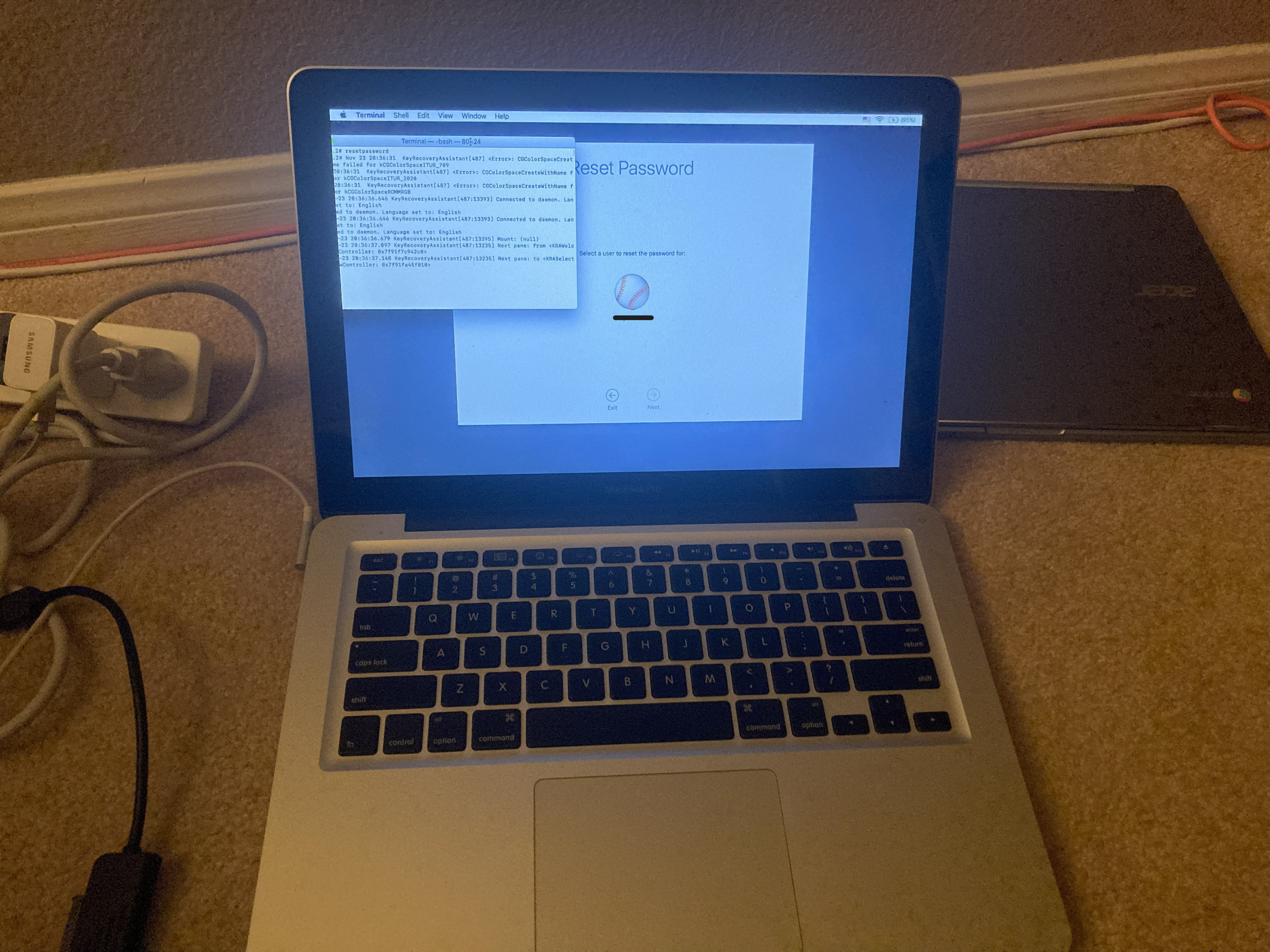 Resetting the password in Bash Shell, which was a surprisingly painless and straightforward process. I think that there must have been some other security feature that was disabled that allowed me to do this. I was logged out of the Mac OS drive and was able to reset the password without any other credentials.
Once I had successfully changed the password, I felt safe to give the MacBook a proper shutdown as I now had Administrator access and did not need to worry about locking myself out.
Once the MacBook was powered off, I felt safe removing the backplate to take pictures of the hardware stickers and look for the BIOS/UEFI chip. (It is unlikely that I will be doing any external flashing via clip because of the surface mounted components surrounding the chip) I just needed to take pictures for reference for now, so as soon as that was complete, I reinstalled the backplate. The internals seemed surprisingly clean and intact, except for some suspicious particles on top of the battery. (I will reinspect the battery at a later time)
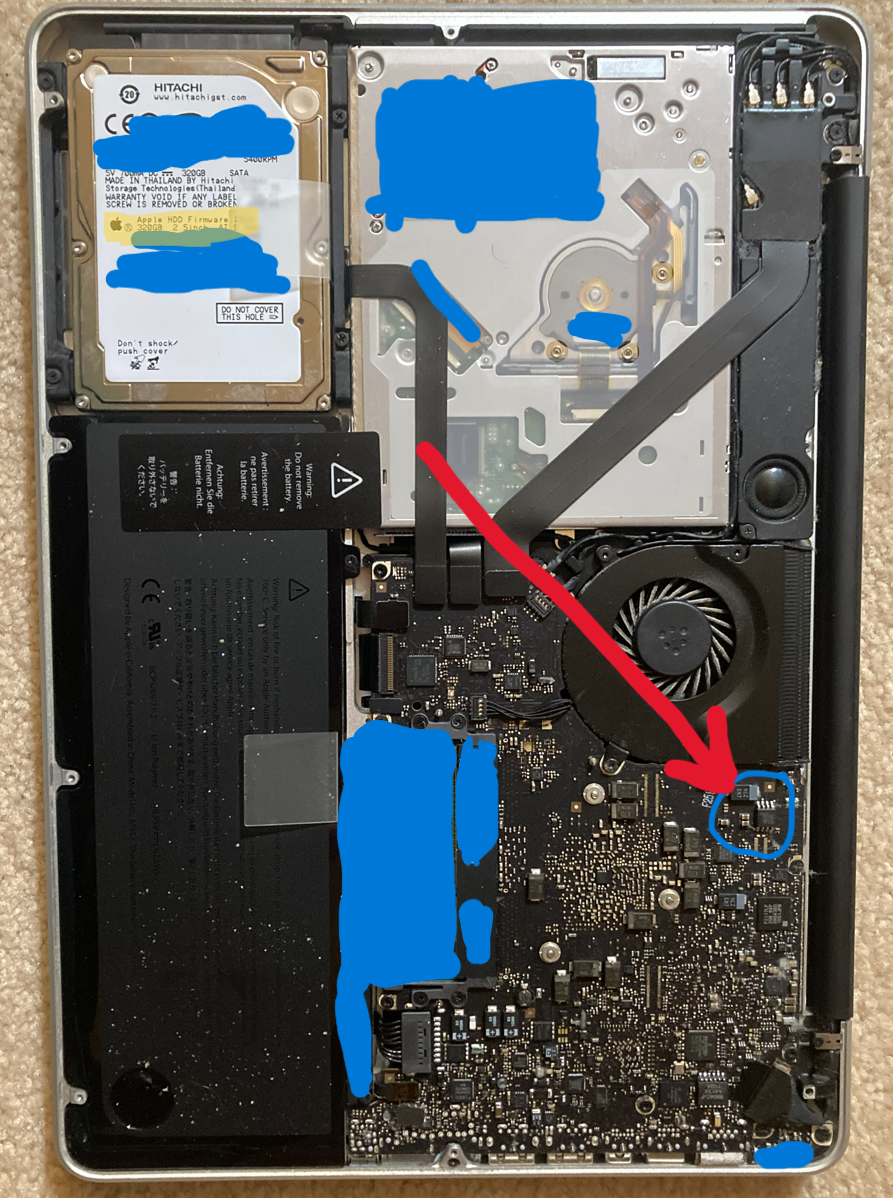
It took a while to find the chip based on the motherboard's model number, but after referencing some technical resources, I found the location of what is listed as the BIOS/UEFI chip on the motherboard.
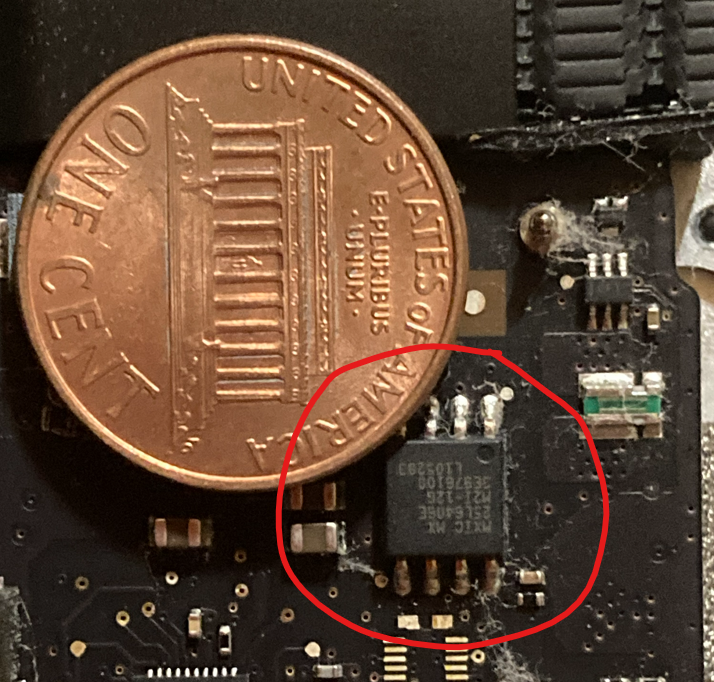
Here are some images of the BIOS/UEFI chip that I took, with a penny for scale.
This log will continue to be updated on a semi-regular basis as this project progresses*
Discussions
Become a Hackaday.io Member
Create an account to leave a comment. Already have an account? Log In.