 Adam Wakelin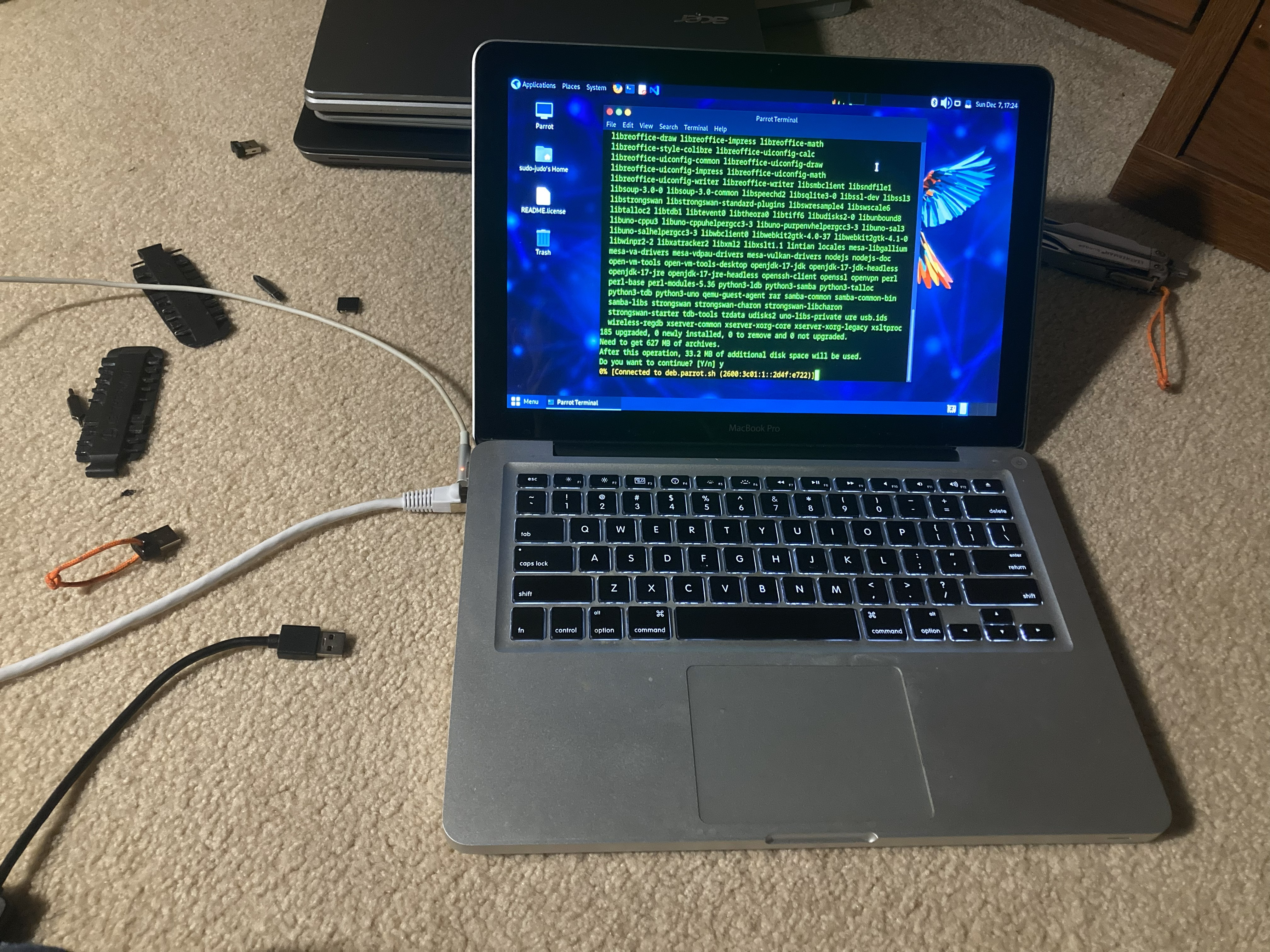
For the internal flashing process for Coreboot, the user should be running Linux on the target machine so that they can access the Shell with full system privileges, and to have access to "coreboot-utils", a package that contains the tools and dependencies for Coreboot flashing. (I'm not going to get into the specifics; use whatever floats your boat, but just know that I will be using Debian with APT) This can be accomplished by flashing Linux to a bootable USB drive, OR by flashing Linux to a hard drive and inserting it into the chassis. (Full guide below)
*In my opinion, if you are Corebooting your machine, you really shouldn't be using MacOS on it anymore. It's pretty much pointless to go through all of this trouble JUST to go right back to MacOS, with all of it's bloat and guardrails. It's like if you converted your tricycle to a mountain bike, just to add training wheels all over again.
To install Linux, you should remove the drive from the MacBook and connect it to another computer using a SATA to USB adapter, which you can find on Amazon. From there, flash the ISO of your choice using BalenaEtcher or Rufus (please message me if you need help with this) There are other ways you can do this, but the goal here is to have a drive installed in the MacBook with Linux on it.
*If you are removing your hard drive, please read this next part carefully, because Apple's hard drive enclosures are a tad bit fragile.
Step 1: Remove the backplate to access the internals. The hard drive slot is located underneath the right palmrest.
Step 2: Carefully remove the screws on the side bumper closest to the optical drive. There are two screws per bumper, one on each side. Before the drive can be removed, you need to loosen the screws and remove the bumper. We only need to remove one bumper, which is the one closest to the optical drive. Leave the other bumper inside if you would like.
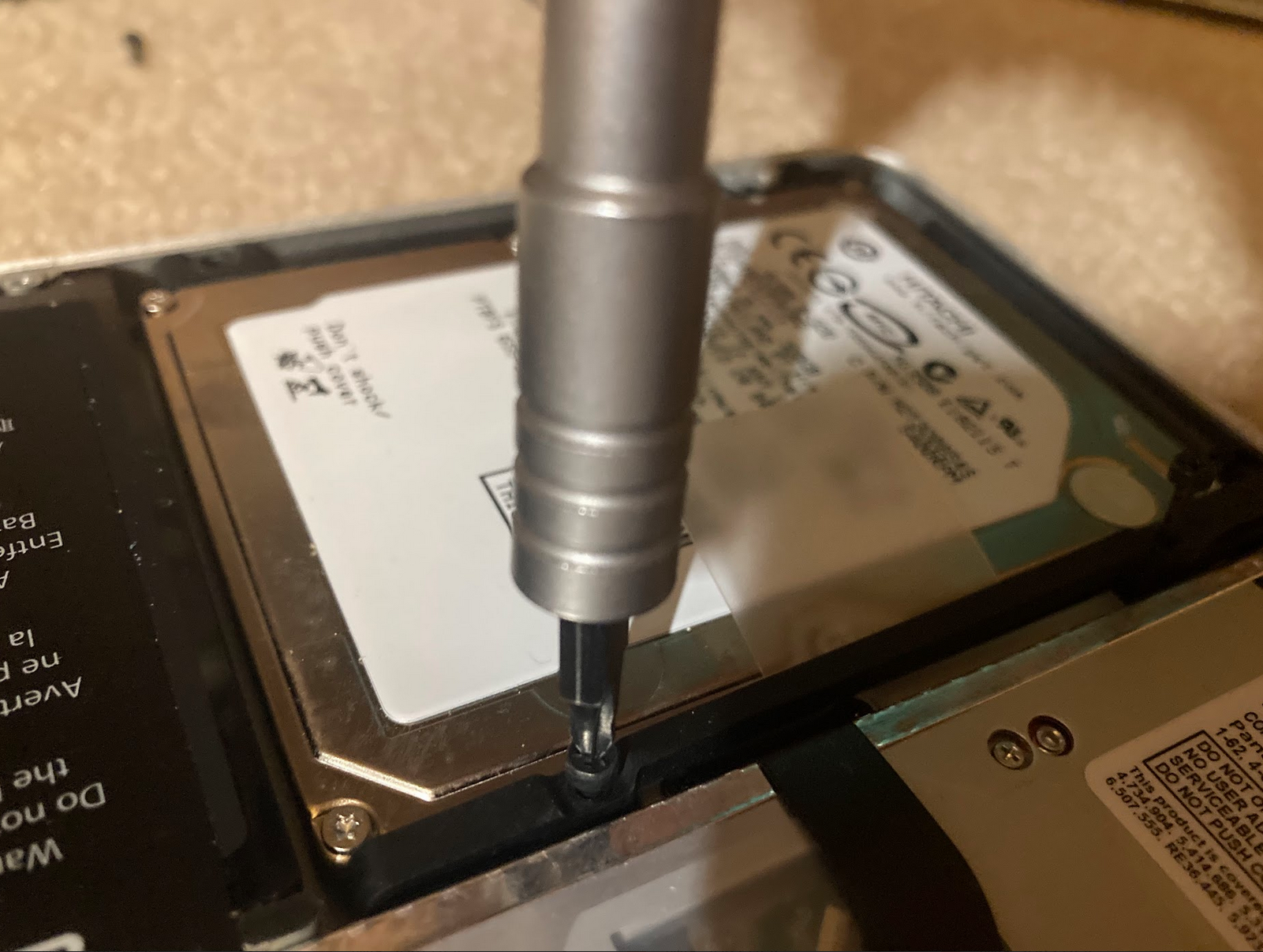
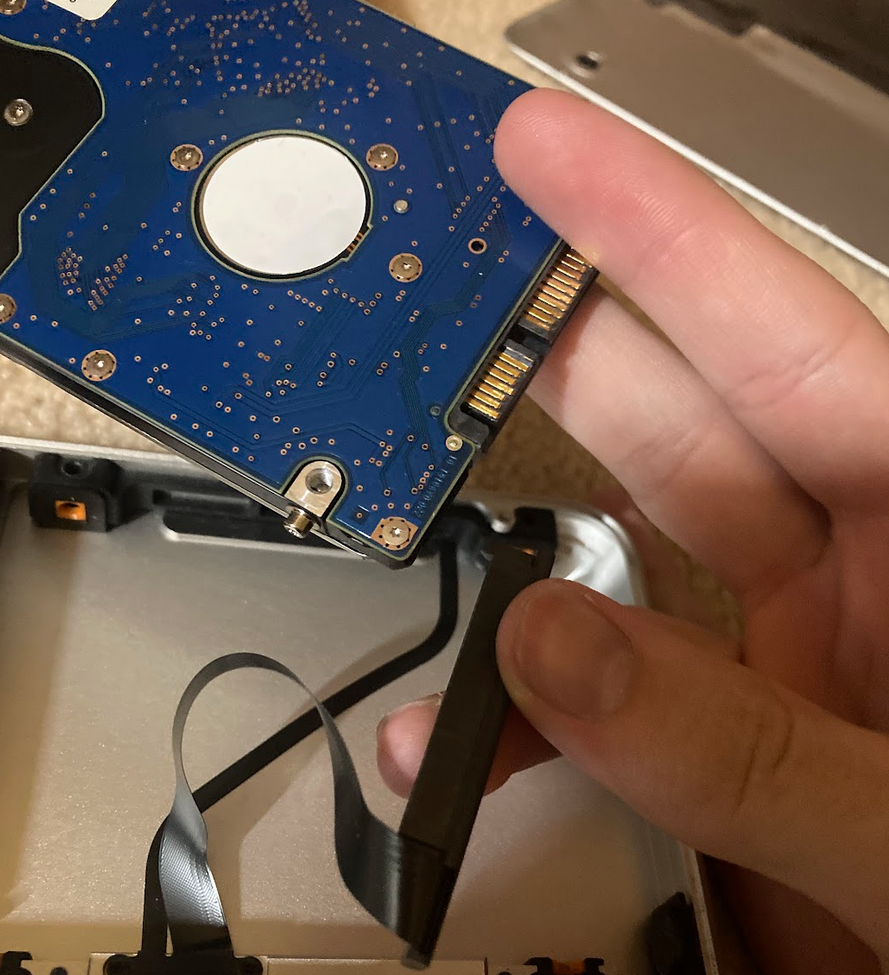
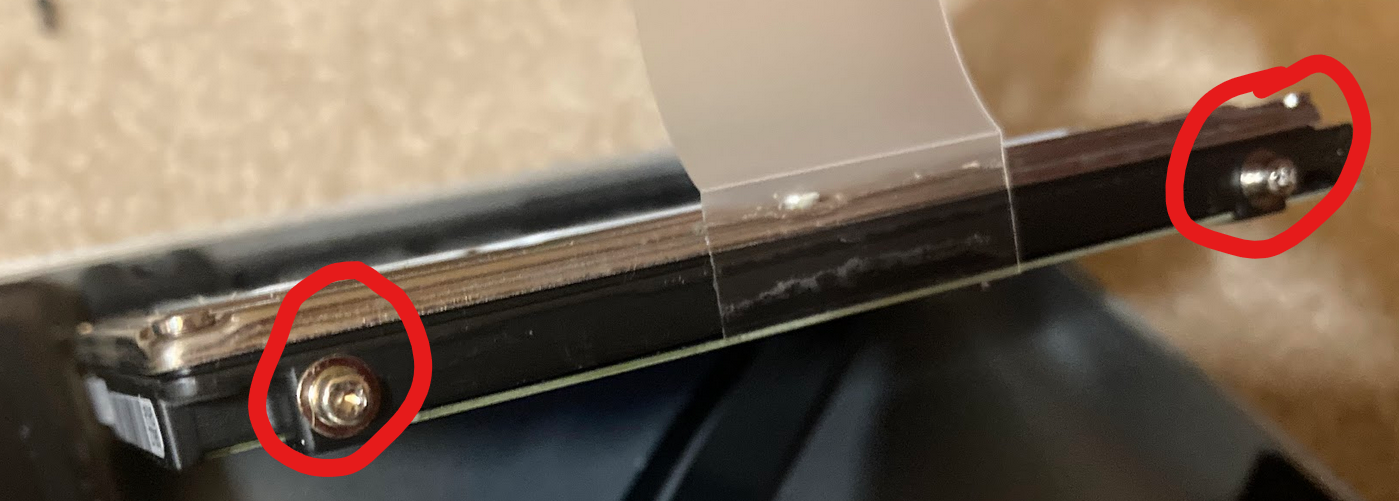
Step 4: As you can see in the image below, Apple installs small cylinder-head screws into the sides of the drive. The bumper we removed is designed to clamp down on these screw heads to hold the drive into place. If you don't want your drive to rattle around inside, you need to remove these from the factory drive and screw them onto your new drive.
Step 5: Once you have transplanted the cylinder-head screws onto your new drive, you can reattach the ribbon cable and slowly lower it into the slot again. I put Linux on the drive shown below beforehand, so now all I have to do is put it inside the MacBook and boot it.
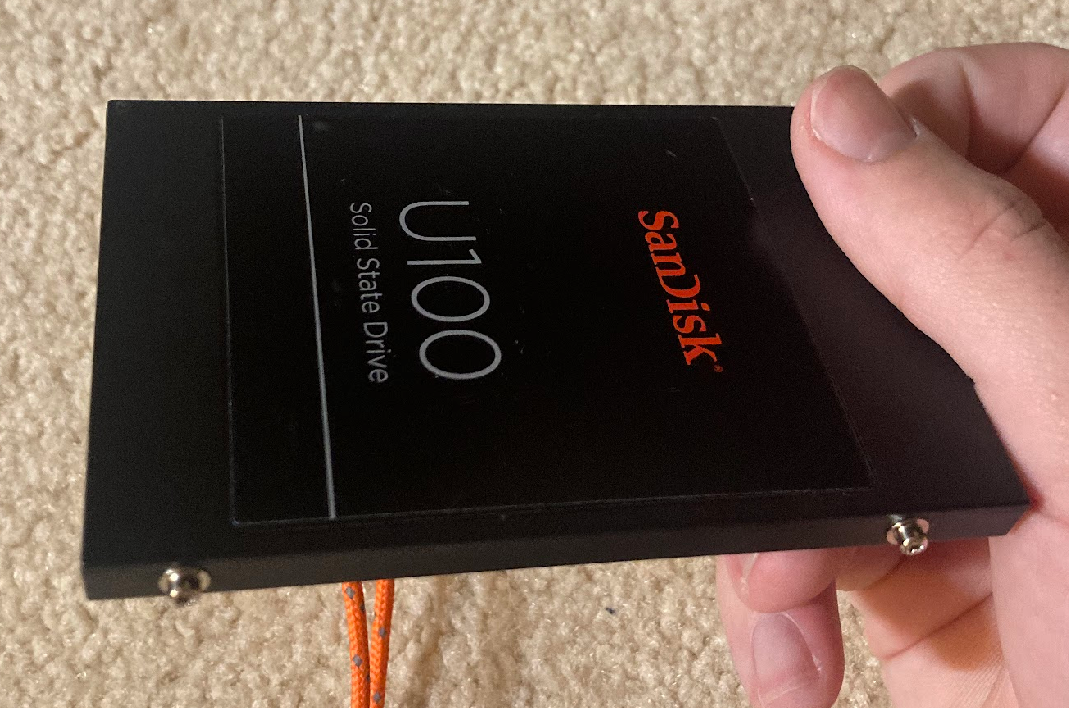
Step 6: Reinsert the bumper and SLOWLY tighten. Keep in mind that not only are you tightening the bumper onto the chassis, but the bumper is widening to squeeze the drive the more you tighten it. You should only tighten until it is snug, or it will just become a matter of which part snaps first. When done, reinstall the backplate.
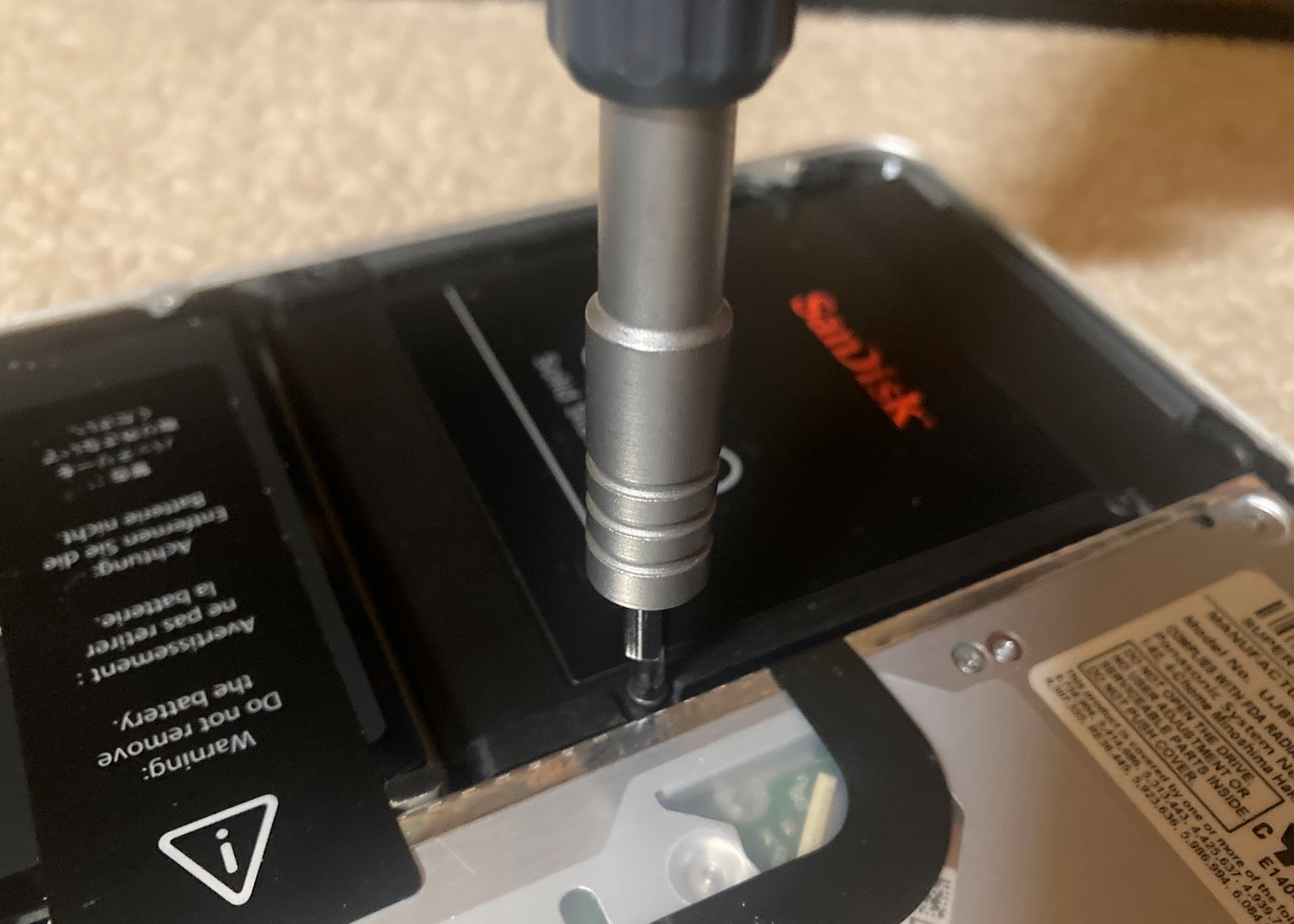
Step 7: If you did everything properly, your newly-installed drive should be connected and installed properly. Now just boot up the computer, select the drive in the EFI, and cross your fingers!
At this point in time, we should have our MacBook running some version of Linux (or Arch, if that's what you REALLY want) for the next steps. If you need more help, privately message me. I am currently probing the internals in the shell so I have a baseline for the next log. I will post the next log soon, and hopefully I will include some basic probing you can conduct in the Shell with FlashROM to test your chip and back up your flash layout.
Discussions
Become a Hackaday.io Member
Create an account to leave a comment. Already have an account? Log In.