mircemk

Recently in one of my previous videos,I introduced you to the 7 inch Elecrow Pi Terminal and how to make an SDR radio with it. This time I will present you with a very simple way to make a beautiful weather dashboard with current weather, 5 day weather forecast and 5 day meteogram graph. The original project and idea are from the given github page (https://github.com/infinitel8p/weather-forecast?tab=readme-ov-file) and all the credit goes to the author of this project.
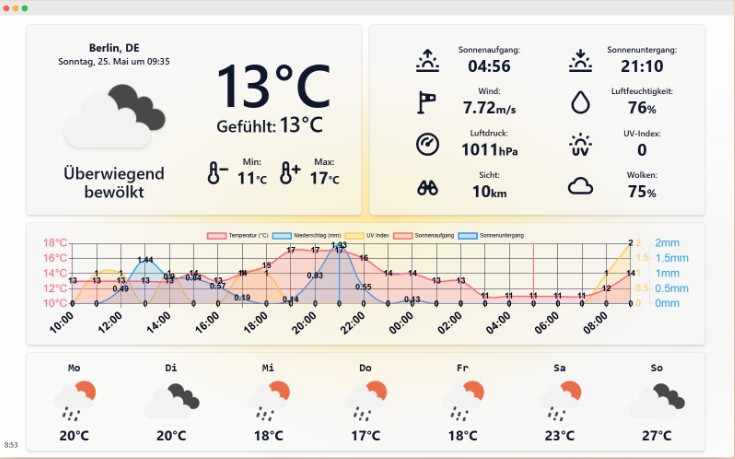
I have previously developed many projects in this area, so based on that experience I decided to modify this project in the best possible way. The program is developed in Astro wich is a JavaScript web framework optimized for building websites. I tested the device on the latest Raspberry Pi OS Debian 64bit, but it works great on older 32 bit versions of the OS.
I performed the development and testing on a Raspberry Pi 5 board and a standard PC monitor, and then I just transferred the SD card to the Elecrow Pi Terminal which uses Raspberry Pi CM4 without any modifications, except for setting the appropriate resolution according to the display.
Below I will explain in detail how to install and configure the weather dashboard:
First, we open a Terminal window and clone the project from GitHub with the command:
(git clone https://github.com/infinitel8p/weather-forecast.git)
This creates a folder named weather-forecast in: /home/pi
We need to replace certain files with the given ones to make the changes. The files that need to be replaced are:
WeatherChart.jsx
index.astro
and global.css
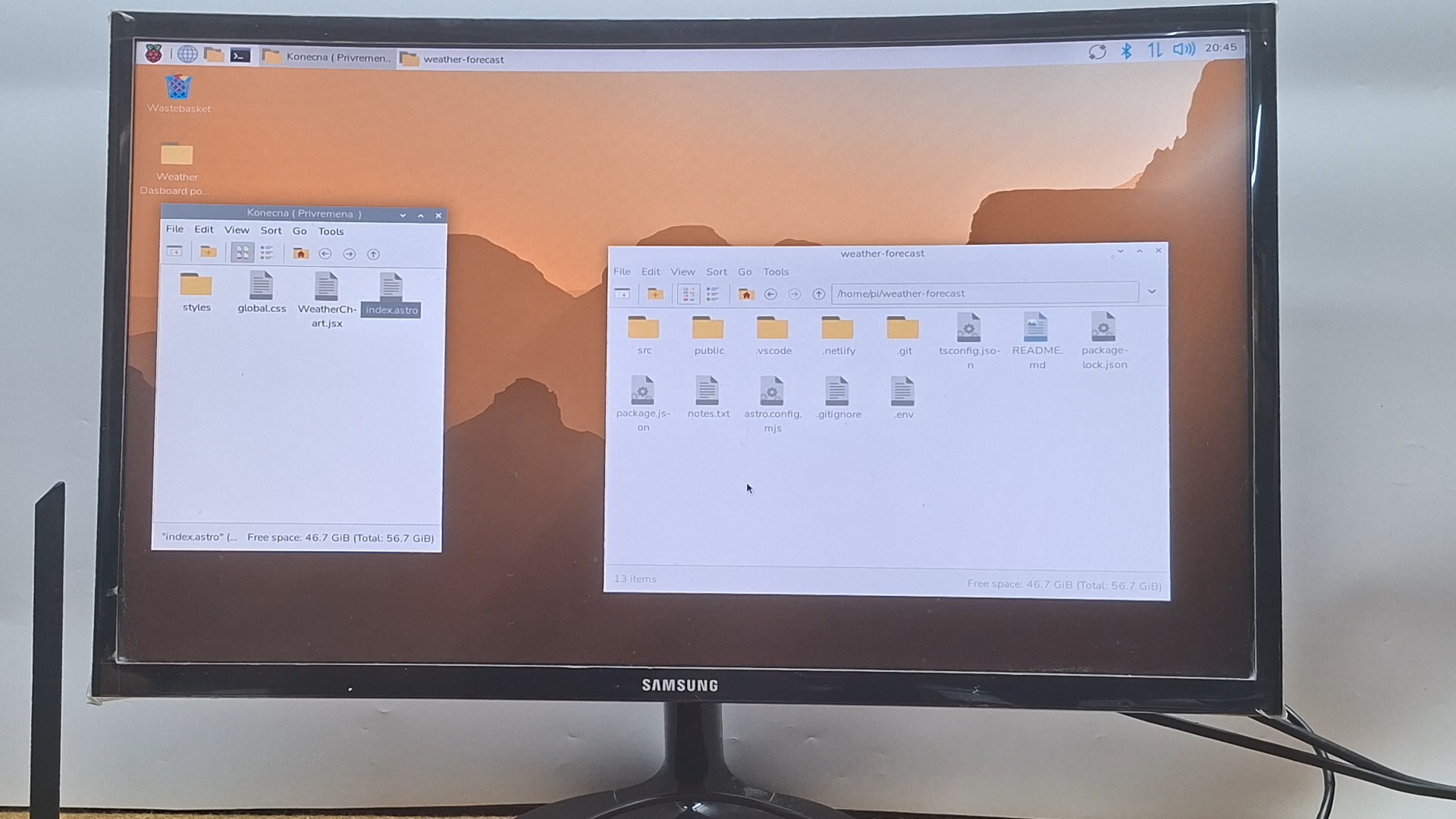
- Index.astro is placed in /home/pi/weather-forecast/src/pages
- WeatherChart.jsx is placed in home/pi/weather-forecast/src/components
- global.css is replaced in /home/pi/weather-forecast/src/styles
Next, in the .env file, we enter the Free Api key that we previously created on the openweathermap page. Now in notes.txt you need to enter data for the place Latitude, Longitude, Country and State.
Next is the installation of support: In the Terminal, run the command
(npm install), Then go to https://nodejs.org/en/download
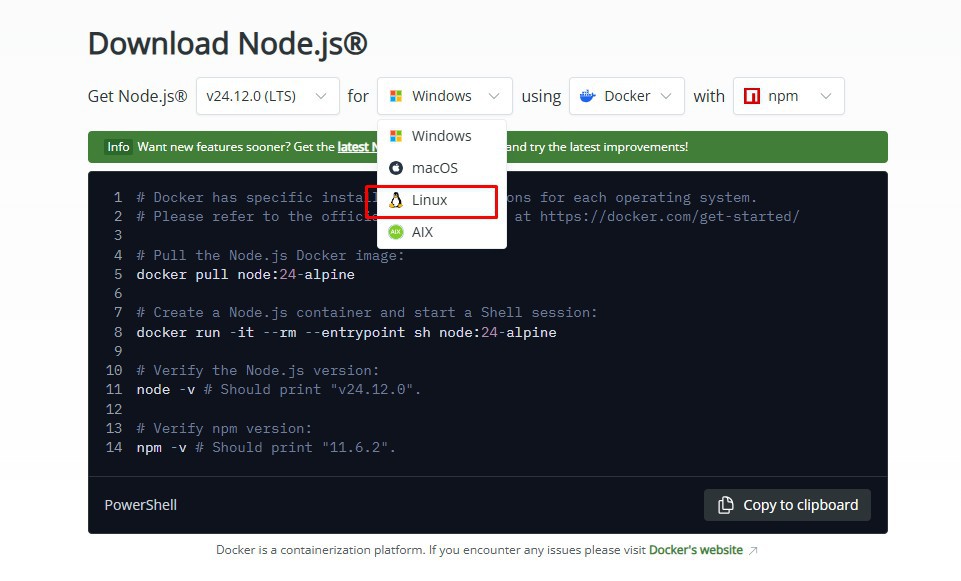
Here we select the Linux OS and run the given script in the Terminal.
When the installation of the support is complete, we can start the program.
In the Weather-forecast folder in the terminal, we write: (npm run dev).
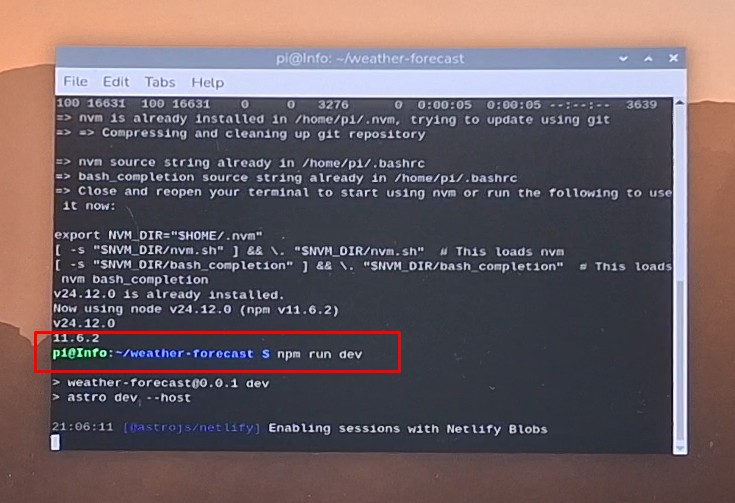
Now, by right-clicking on LOCAL (address), we select open in URL. This opens the program within the browser, and to switch to full screen, we need to press F11.
Next we insert the prepared micro-SD card into the Elecrow Pi Terminal device and start it. When starting the program and entering data, I use a standard keyboard and mouse, but it is desirable to use a mini Bluetooth keyboard-mouse combination for compactness. In the coming period, I will also create a simple script to start the program automatically when the Operating System starts. In fact, this weather dashboard is a Web-based interface, so the size is automatically adjusted according to the screen resolution. So without modifications, it can be started in fullscreen on displays with different resolutions.
Now let's see how the device works in real conditions. Immediately after starting the program, data is downloaded from the openweathermap page and displayed on the display. Changes compared to the original are:
- English language instead of German
- Using the Free API key from OpenWeatherMaps instead of the One Call API key which gives more information but is paid
- The most important change is the graph for the next 5 days, unlike the previous one which covered a 24-hour period.
- And small changes in the colors and overall appearance
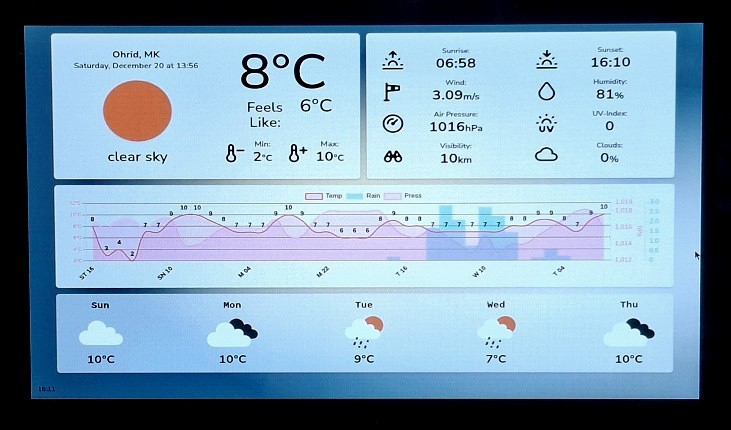
The upper left part shows the basic data about the current weather conditions. Here you can find information about the place to which the forecast applies, a graphic display of the weather conditions through a large icon, the current temperature,...
Read more »
 Alan Campbell
 mark gunderson
 Etienne