 konstantine
Introducing a camera I created that turns reality into pixel art! 👾📸**
This camera is designed to capture unique, low-resolution, retro-style pixel art photos. Both the 3D model and the code were fully written by me — this is the very first version (v1) of the project.
At this stage, my goal was to create the simplest and most affordable option possible, making it accessible to everyone. I plan to release updates in the future, including an internal battery, a screen, and additional functionality.
To build this current version, you only need 4 parts that you likely already have at home or can buy very cheaply:
components | Amazon | AliExpress |
|---|---|---|
esp32 cam + TTL programmer | ||
6x6mm button | ||
Type-C to 5v | ||
Wire |
🛠 Assembly Instructions (Build Guide)
Here is the step-by-step guide to assembling your own Pixel Art Camera.
Required Tools:
- Soldering Iron (Essential)
- Hot Glue Gun or Super Glue
Step 1: Uploading the Code
Before assembling the hardware, we need to get the "brain" working.
- Connect your ESP32-CAM to the computer using the USB-TTL programmer (the "bottom part" that usually comes with the board).
- Open Arduino IDE on your computer.
- Select the correct board and port, then upload the code provided in this repository.
- Once the upload is successful, disconnect the device from the computer and remove the ESP32-CAM board from the USB programmer unit. We only need the top camera board for the assembly.
Step 2: Preparing the Components
Now, let's get the wires ready.
- Type-C Port: Solder two wires to the Type-C breakout board (Female).
- One wire to the V (VCC) pin.
- One wire to the G (GND) pin.
- Button: Solder two wires to the legs of the tactile button.
Step 3: Case Assembly
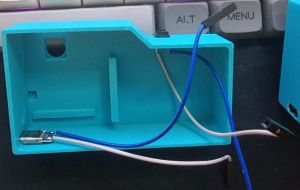
- Mounting Peripherals First:
- Glue the Type-C breakout board into the designated slot on the bottom-left.
- Glue the Button into the slot on the top-right.
- Tip: Make sure the glue is dry and the parts are secure before proceeding.
![]()
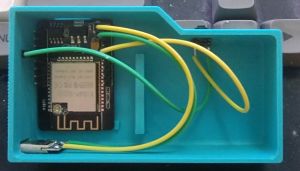
- Mounting the Main Board:
- Place the ESP32-CAM into the case.
- ⚠ CRITICAL CHECK: Before applying any glue, insert your SD card into the slot. Ensure it slides in and out freely and isn't blocked by the case walls. If you glue the board incorrectly, you might not be able to insert or remove the card later!
- Once aligned, secure it with a small amount of glue.
- ⚠ CAUTION: Apply glue only to the corners (top corners and bottom area near the antenna). Do not get glue on the electrical components in the center!
Step 4: Wiring
This is the most critical part. Follow these connections carefully:
- Power Connection (Type-C to ESP32):
- Connect the Type-C V (5V) wire to the 5V pin on the ESP32-CAM.
- Connect the Type-C G (GND) wire to the GND pin on the ESP32-CAM (usually located right next to the 5V pin).
- ⚠ WARNING: Double-check the polarity! Connecting positive to negative will damage the board.
- Button Connection:
- Connect one wire from the button to GPIO 13.
- Note: GPIO 13 is the 4th pin from the top on the side where the 5V pin is located.
- Connect the second wire from the button to any GND pin on the board.
![]()
- Connect one wire from the button to GPIO 13.
Step 5: Power Up!
Once everything is soldered and secured, close the case and put SD card on top left side. Connect the camera to a Power Bank or a USB wall charger using a Type-C cable to start using it.
📖 Quick Start Guide (User Manual)
⚙ How to Turn On & Use
- Power On: Connect the camera to a power source (Type-C cable or Power Bank).
- Activate: After plugging in, you MUST press the button once to wake up the system.
- Shoot: Press the button to take a photo. 1 Click = 1 Photo.
🚦 LED Indicators (What the lights mean)
- 📸 1 Short Blink: Photo taken (Stored in temporary memory/buffer).
- ⏳ Solid Light (Long): Writing photos to the SD card. WAIT.
- ✅ 2 Fast Blinks: Saving complete. Safe to unplug.
- ⚠ Strobe / Chaotic Blinking: Error! SD card is missing or not inserted correctly.
- 💤 3 Slow Blinks: Camera is going to sleep (Auto-off).
💾 How Saving Works (Important!)
To allow fast shooting, the camera uses a "buffer" (temporary memory). Photos are NOT saved to the SD card instantly.
Writing to the SD card starts automatically only when:
- Buffer Full: You take 15 photos in a row.
- Session End: You stop shooting and wait for 10 seconds.
Note: The writing process takes a few seconds depending on the number of photos.
⚠ CRITICAL WARNING: PREVENT PHOTO LOSS
Please read carefully to avoid losing your images.
Photos are held in the processor's RAM before they reach the SD card.
⛔ NEVER disconnect the power cable or remove the SD card:
- While the light is SOLID (Writing in progress).
- While the light is OFF but you just finished shooting (The camera is still buffering and waiting for the 10-second timer).
When is it safe to unplug? You must wait until the solid light turns OFF and gives 2 FAST BLINKS.
If you unplug the camera or remove the card before this specific signal, all photos currently in the buffer will be permanently deleted.
important!!!
The camera saves all captured photos in BMP format, which is often not ideal for posting on social media. To solve this, I created a script called upscale.bat. Simply place this file on your SD card.
When you run the script, the computer will automatically do the following:
- Create a new folder with today's date.
- Create 3 subfolders inside:
- Originals: Stores the raw BMP files.
- Converted: Converts photos to JPEG format for easy sharing.
- Upscaled: Artificially enlarges the images by 4x. This increases the image size to make details more visible (note: it increases dimensions, not quality).