 Julius Curt

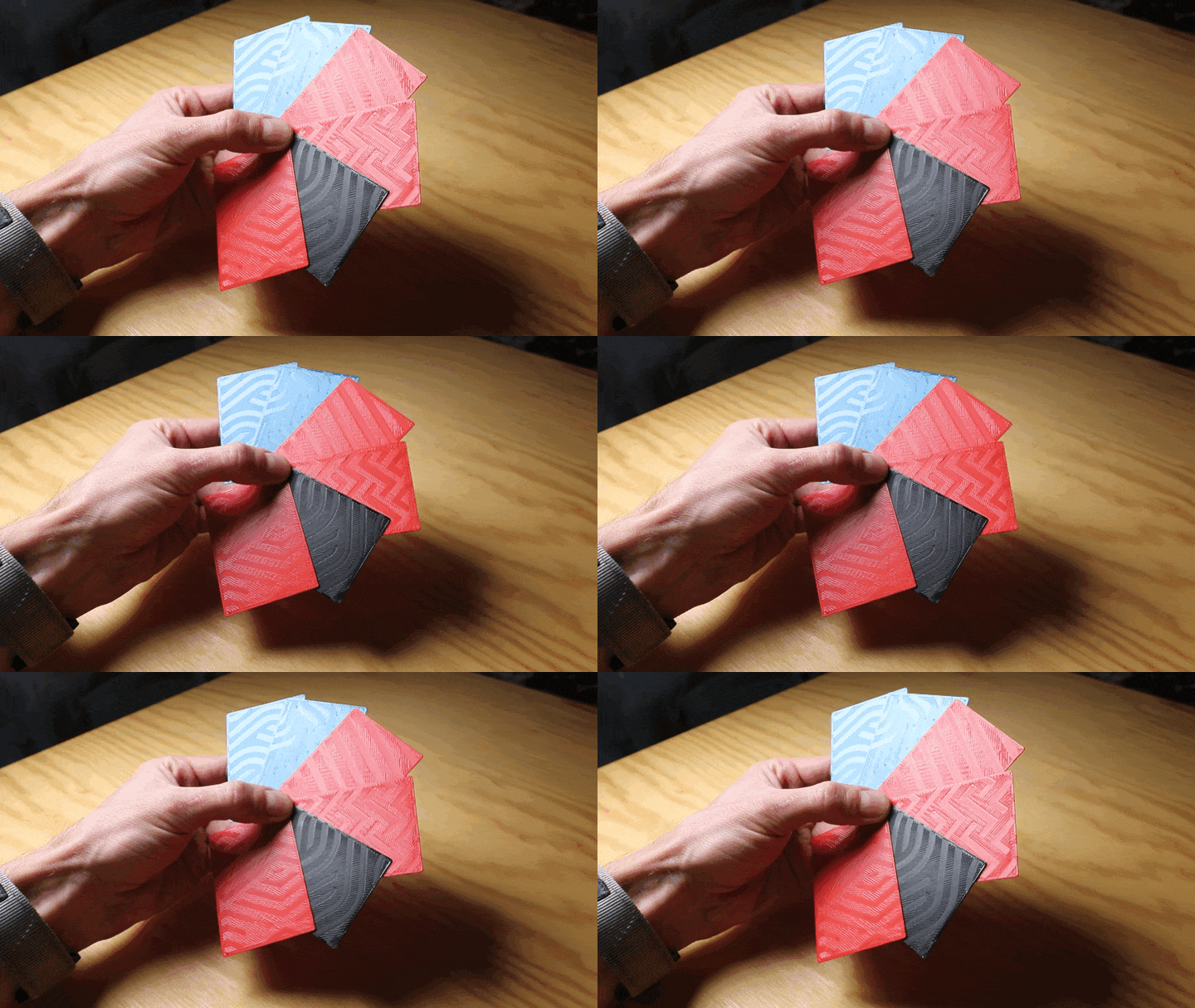
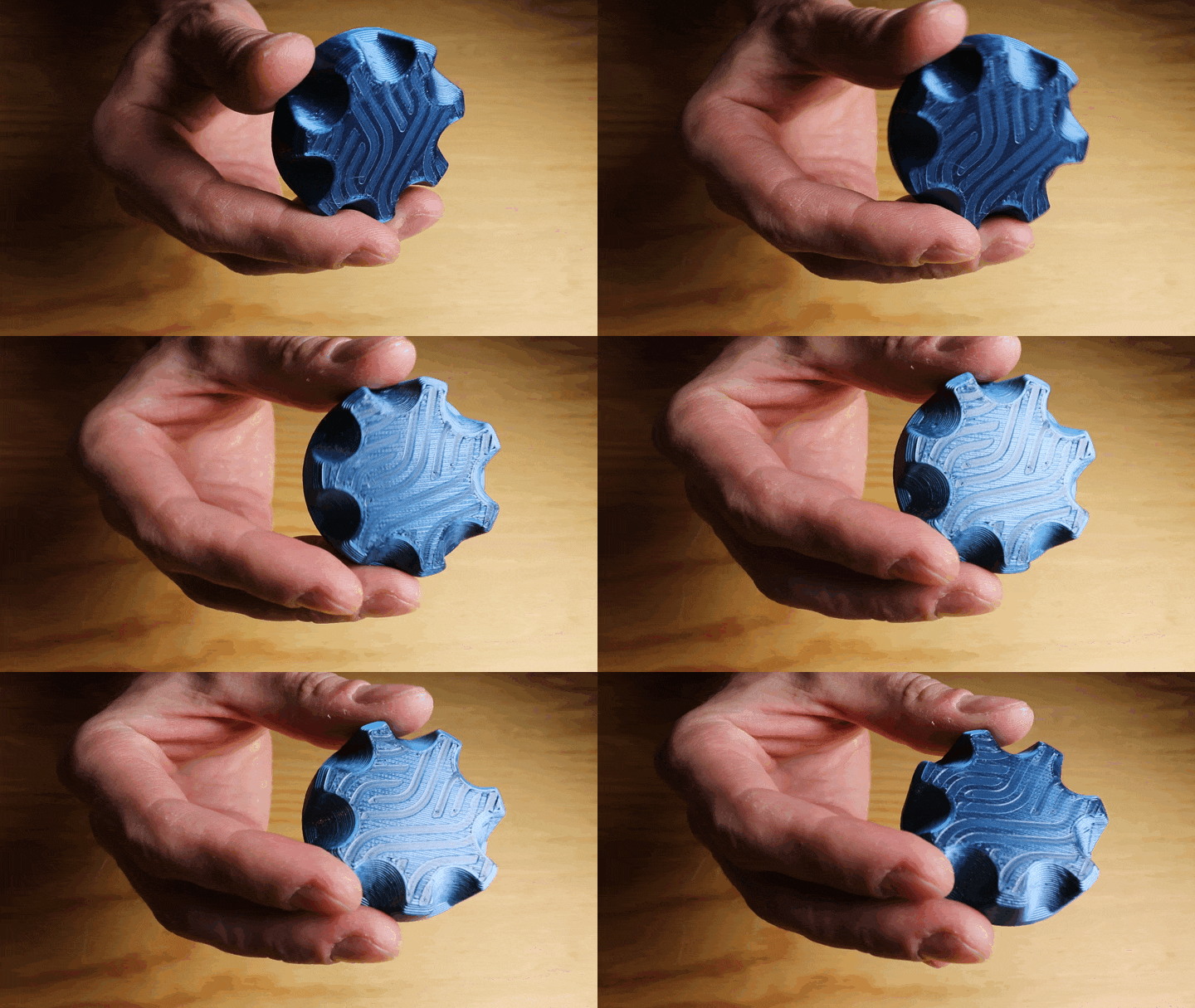
Ironing in 3D printing slicers can only be applied to entire layers, but used selectively (restricted to some specific graphics rather than full layer), it could be a useful tool in adding texture, patterns or various graphics (e.g. logos) to the top layer of a print without introducing other colors and without adding further thickness to the printed part.
To achieve this on my unmodified printer, I devised an easy, convenient way:
- Add the graphics in CAD as a 1-layer tall extrusion on the topmost layer
- Enable ironing in the slicer (PrusaSlicer for now)
- Apply a post-processing python script that deals with the rest
The script
After we tricked the slicer into generating ironing only above our graphics (because that's now the topmost layer), the script will strip extrusions for that entire layer, then bring the ironing moves down to the real top layer, plus a small offset. This offset is a constant at the top of the script and is probably dependent on your printer. There's a sweetspot where the ironing is visible with minimal overflushed edges.
- Extracts all ironing move blocks from the top layer
- Automatically detects layer height and Z position
- Converts flat travel moves into proper retract/lift/travel/lower sequences
- Positions ironing moves at the optimal height for surface polishing
- Replaces the entire top layer with only the ironing passes
Instructional
Go to the Github page. Here you'll find the up-to-date script, step-by-step instruction of how to use it and a collection of sample vector patterns (svg).
To apply it on your own models, you'll need to edit those models in CAD (or Blender) and add the desired graphics as a 1-layer extrusion on the topmost layer.
In PrusaSlicer (the only one I tested this for), make sure you enable Ironing for the Topmost surface only and set the ironing Flow rate to 0%.


 Inne
Inne
 Zoé
Zoé
 Saurabh Datta

 jon.knutton
This is awesome!
I'm excited to try this out for labeling things and experimenting with mechanical things that can utilize this.
BTW: I tried using this with CrealityPrint and it gives an error. I believe that is on the slicer, as some settings (file name output, for example) seemingly have no effect.