 Roni Bandini

SenseCAP Watcher
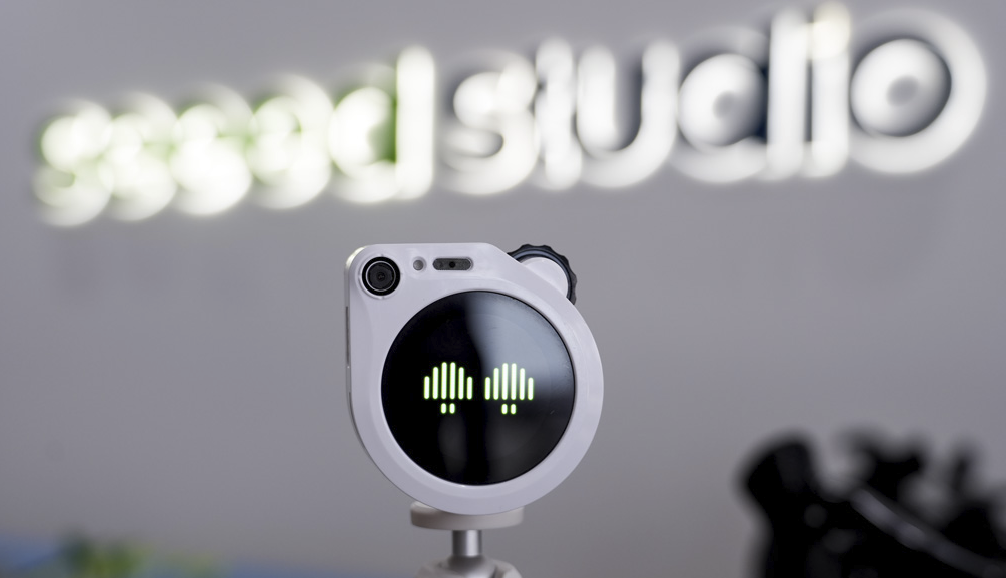
SenseCAP Watcher is an AI observer developed by Seeed Studio to monitor anomalies within a space and trigger actions. It includes a camera, touchscreen, speaker, microphone, WiFi, Bluetooth, RGB LED, I2C, UART, and a rotary knob with a button.
It connects via WiFi to an app called SenseCraft, where the device can be configured.
So how do you make SenseCAP Watcher detect a drone?
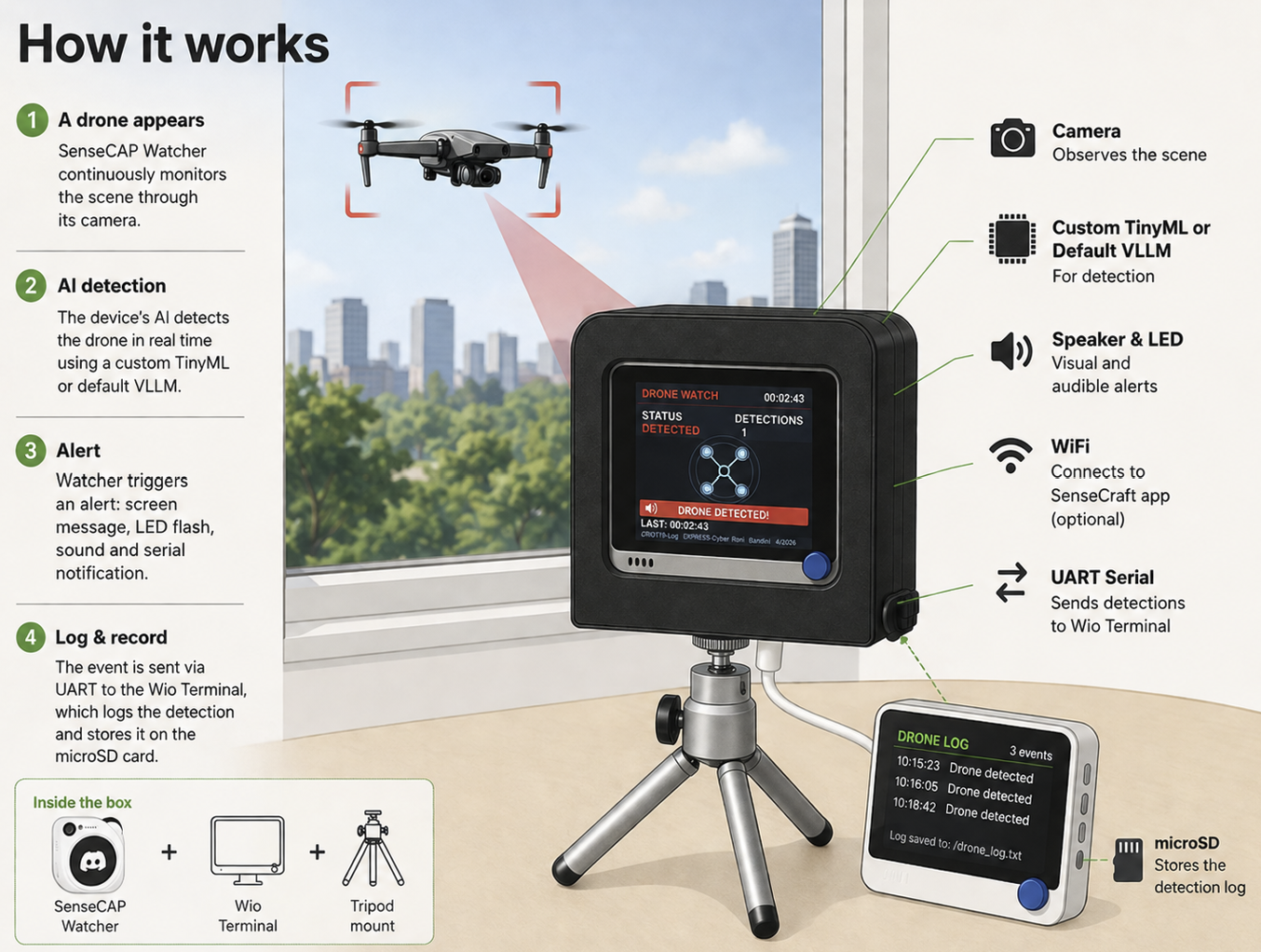
- Open the app
- Pair the device and select SenseCAP Watcher (the app supports multiple devices)
- Describe, in natural language, what to detect and how to react
Example: “If you see a drone, notify”
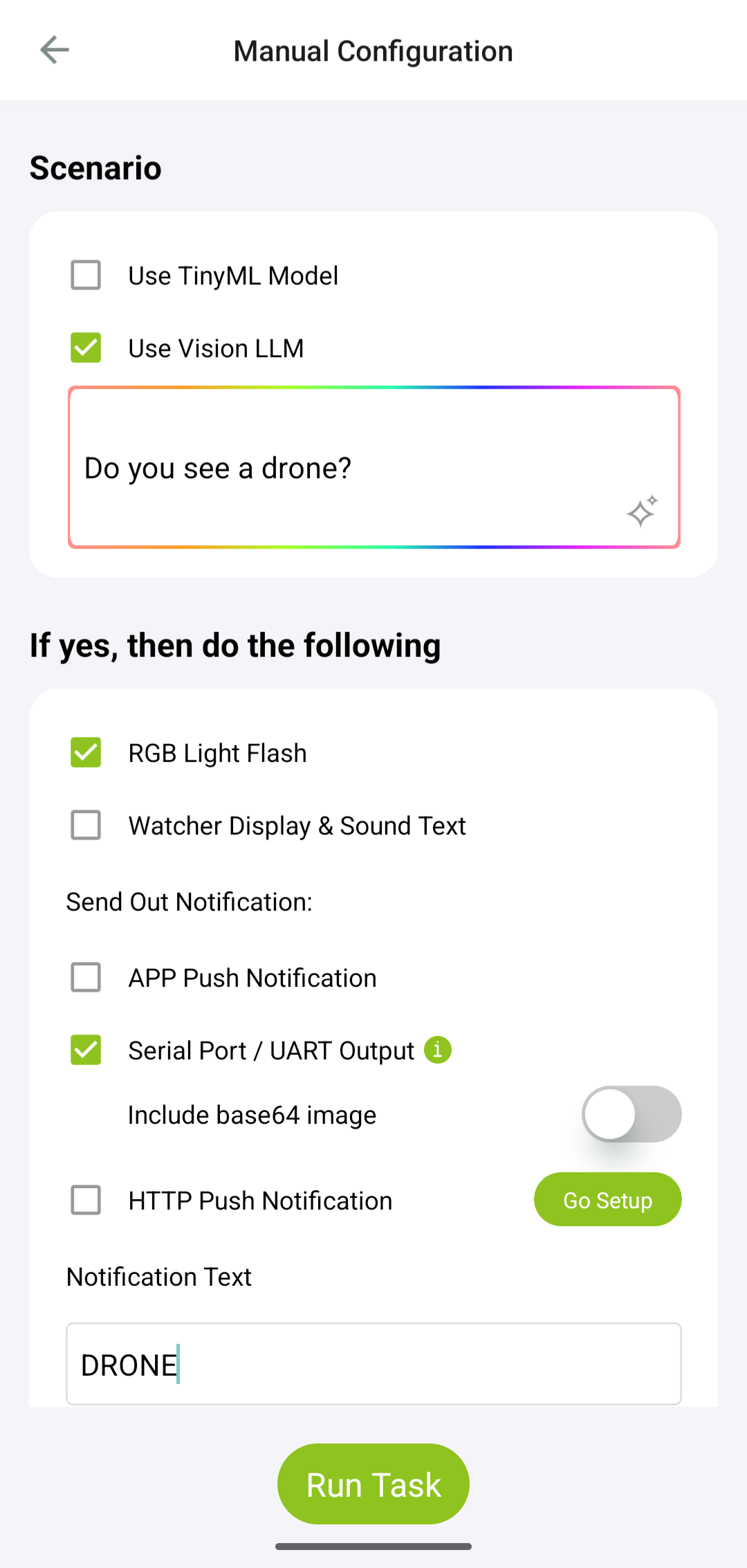
SenseCAP creates the task and enables a Details Config button. There you can choose whether to use a TinyML model or a Vision LLM. You can train a custom model for non-standard detections or rely on the Vision LLM for common objects. Since drones are a standard object, no additional ML work was required.
You can then define how the device reacts: LED flash, on-screen message with sound, push notification to the app, HTTP notification, or even UART serial output. You can also configure capture frequency and task duration.
Wio Terminal
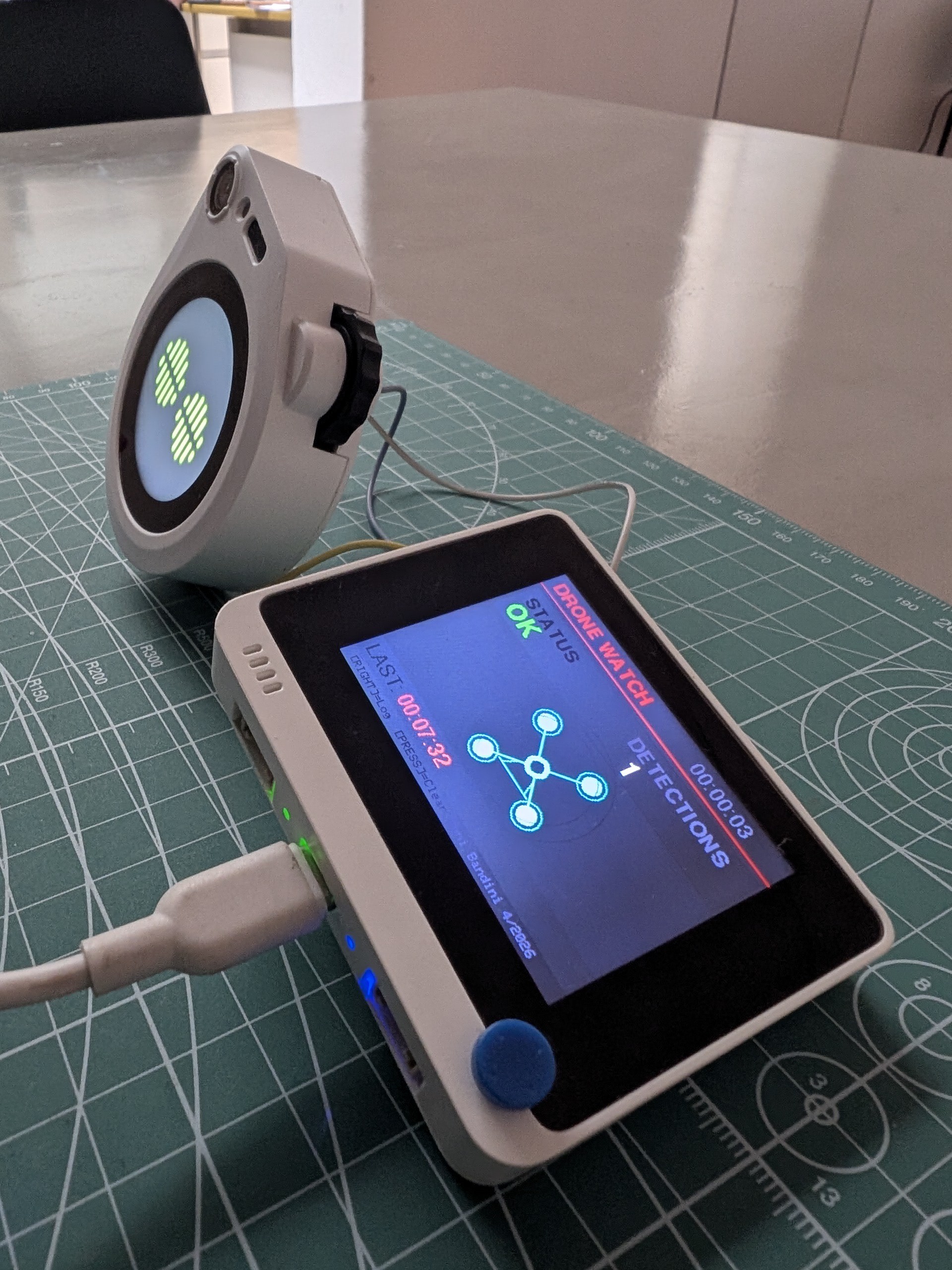
SenseCAP supports multiple interconnection options, including serial communication. I connected it to another Seeed Studio device: the Wio Terminal, which I had previously used for a MasterMind game project. The Wio Terminal is based on a SAMD51 and includes a screen, buttons, buzzer, light sensor, IR, microSD, and GPIO.
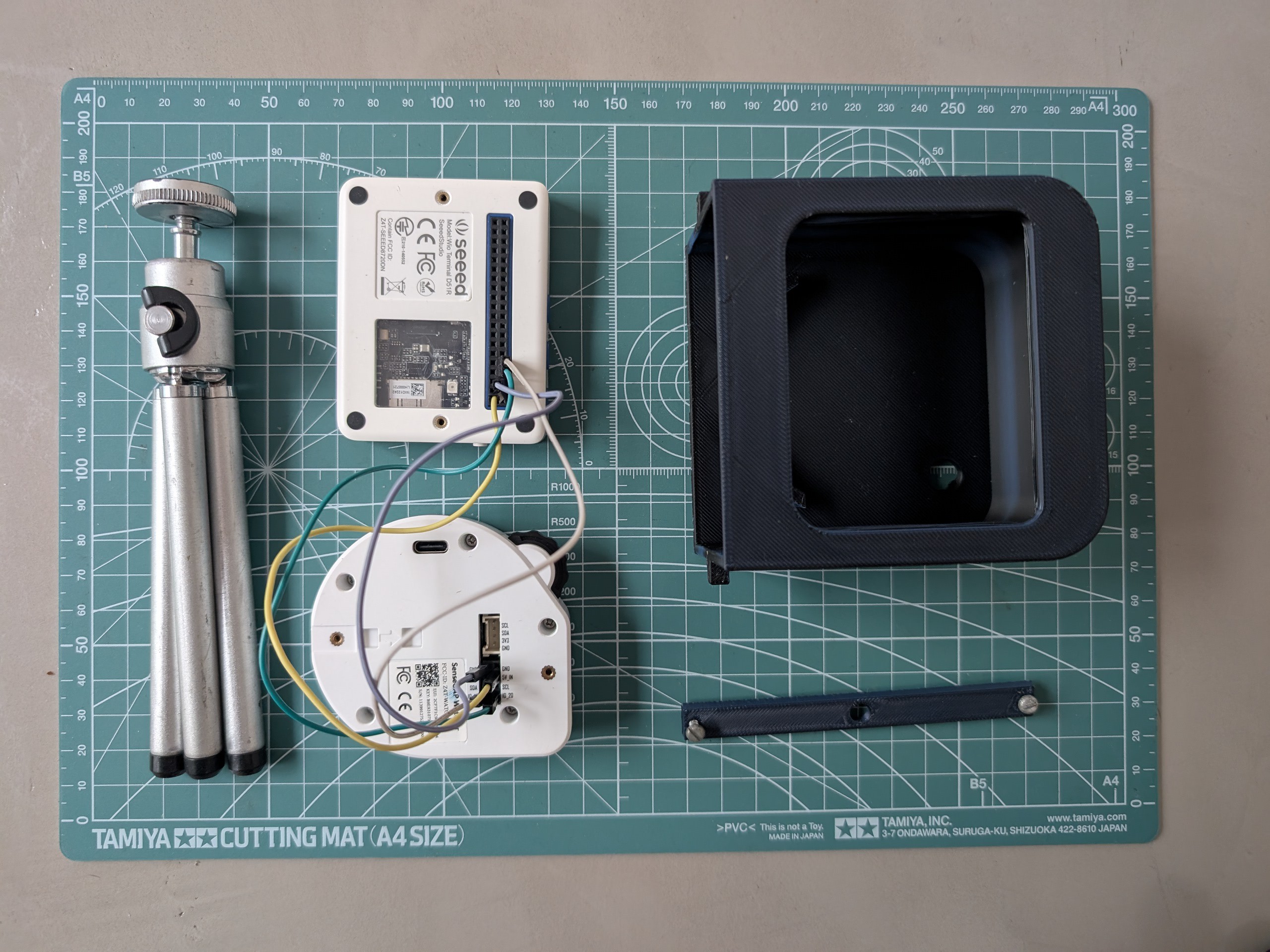
I connected both devices using male-to-male jumper wires so that powering the Wio Terminal also powers the SenseCAP. I added two additional wires for UART serial communication.
Circuit
- GND → GND
- 5V → 5V
- Watcher pin 19 → Wio pin 10
- Watcher pin 20 → Wio pin 8
Enclosure
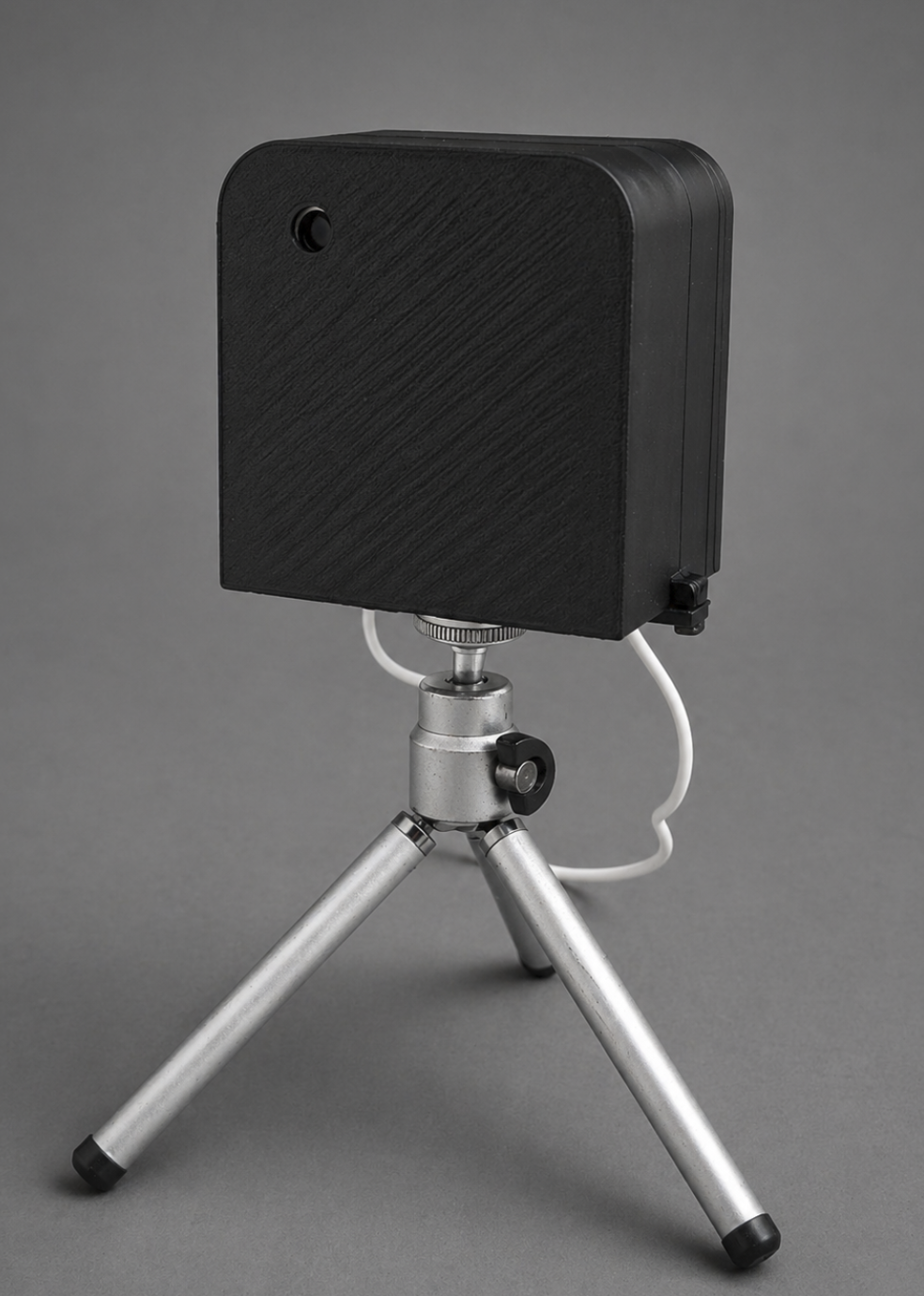
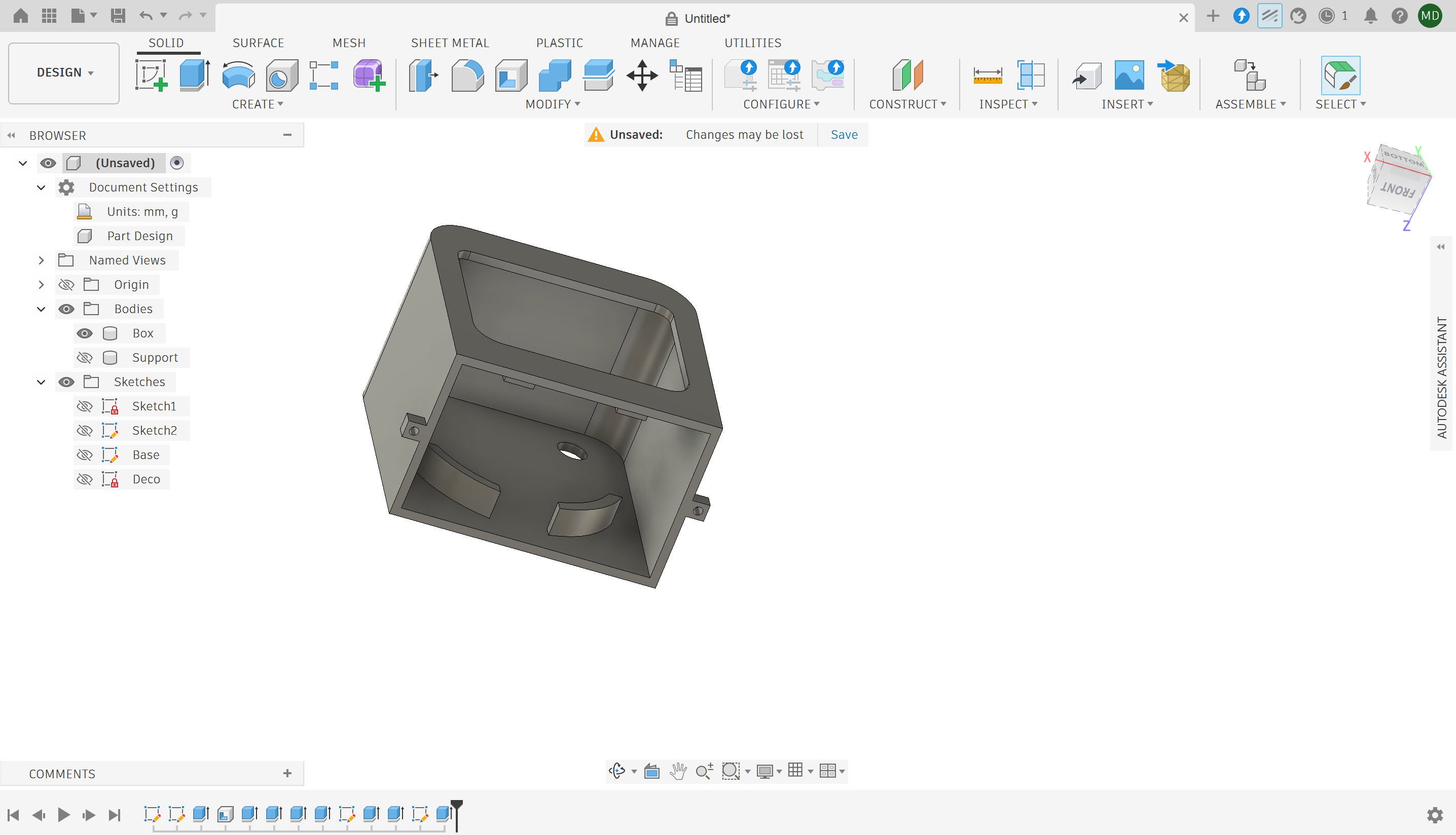
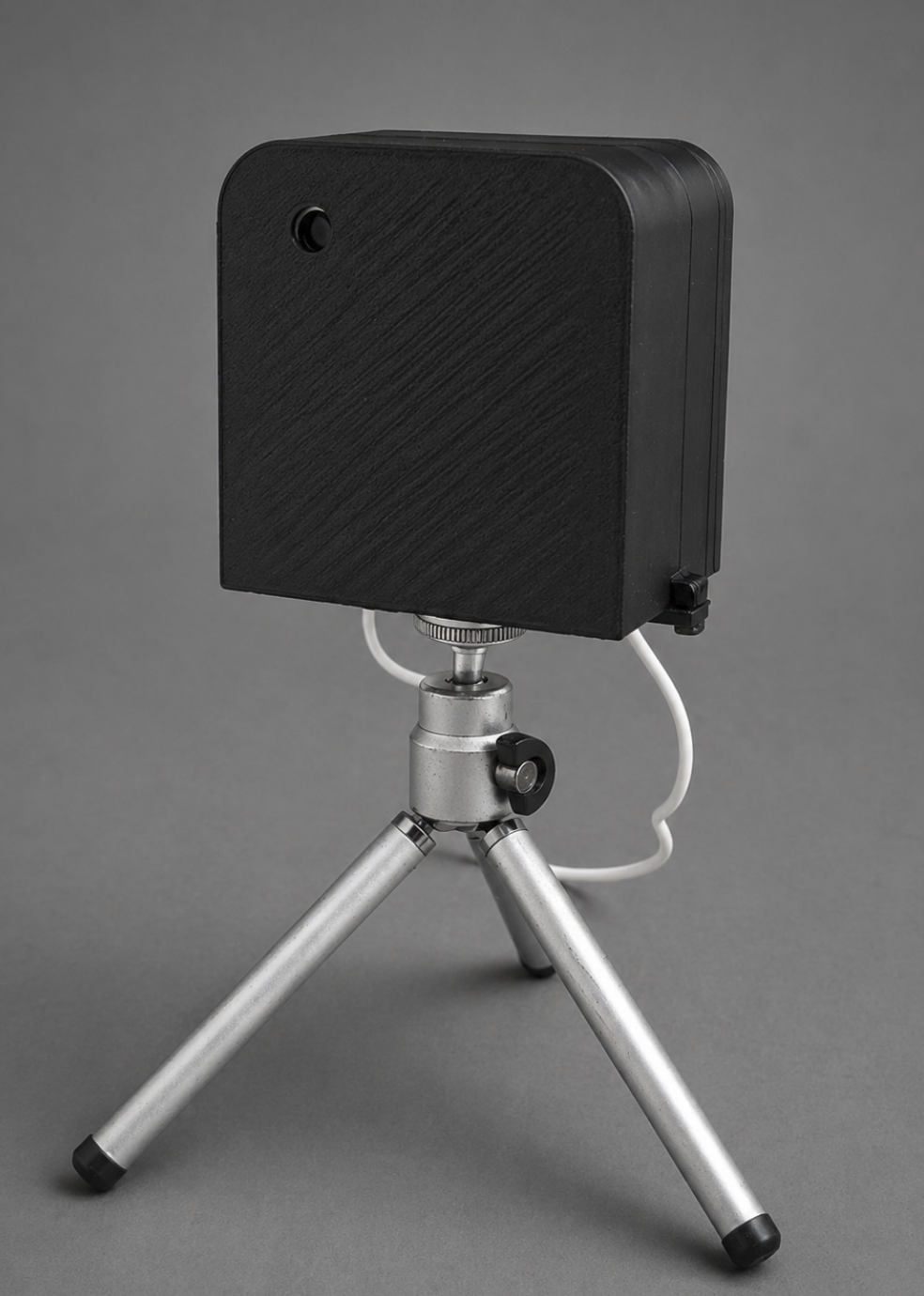
Using Fusion 360, I designed an enclosure to house both boards, with a base compatible with a standard photography tripod mount.
Software
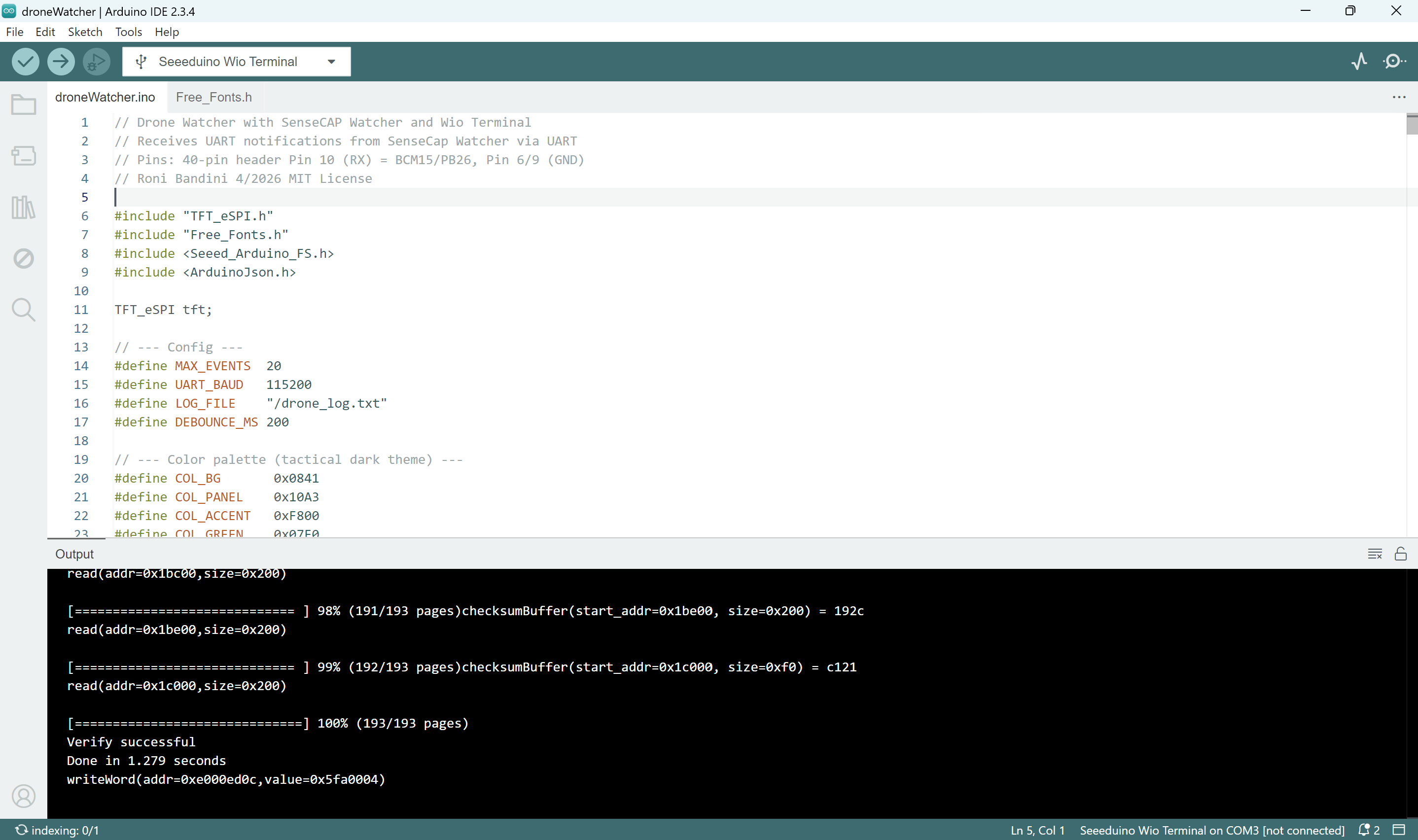
In Arduino IDE, add the board manager URL: https://files.seeedstudio.com/arduino/package_seeeduino_boards_index.json
Select Seeeduino Wio Terminal
Install libraries:
#include <Seeed_Arduino_FS.h>
#include <ArduinoJson.h>
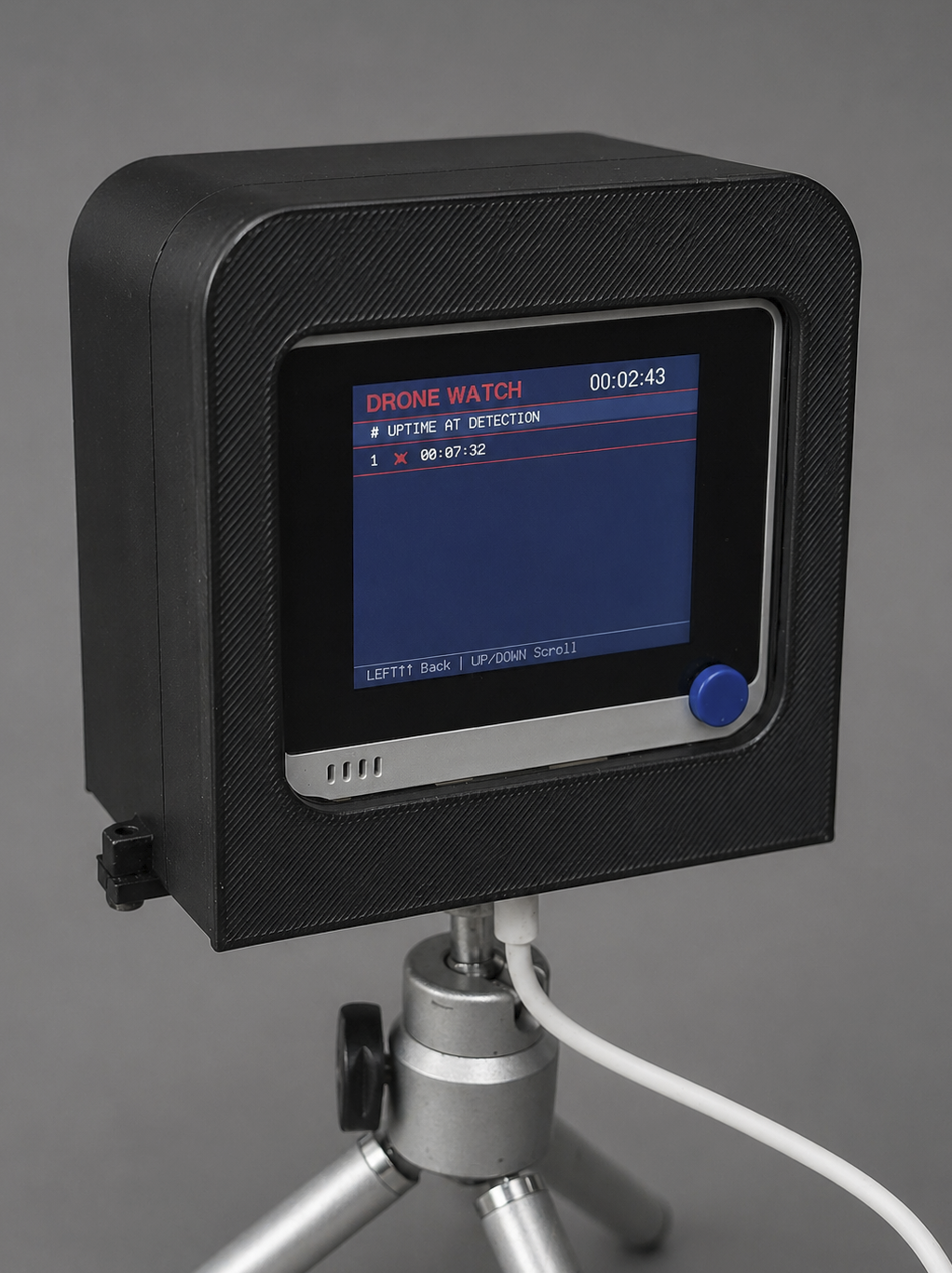
On the Wio Terminal, I implemented an Arduino application to monitor the serial communication. When a drone detection event is received, it logs the event and displays it on screen.
Usage
Operation is straightforward. The screen displays a log of detected drone events. Using the right button, you can scroll through the log, and pressing the button clears it. All detections are stored on the microSD card at:
References
https://wiki.seeedstudio.com/sensecraft-ai/tutorials/sensecraft-ai-pretrained-models-for-watcher/ https://wiki.seeedstudio.com/Wio-Terminal-Getting-Started/