Close
0%
0%

Print "Hello World" Using ESP Thermal Printer

Print "Hello World" Using ESP32-S3-BOX-3 and Thermal Printer

Similar projects worth following
0 followers

Introduction

Thermal printers are everywhere.

Whether you're printing shopping receipts, restaurant bills, parking tickets, shipping labels, or queue tokens, chances are you've interacted with a thermal printer at some point. Unlike traditional inkjet or laser printers, thermal printers produce text by selectively heating special thermal paper, eliminating the need for ink cartridges or toner.

Because of their speed, reliability, and low operating cost, thermal printers have become one of the most popular output devices in embedded systems and IoT applications.

If you've ever wanted to add a printer to your Arduino or ESP32 project, you'll be happy to know that it's much easier than it might seem.

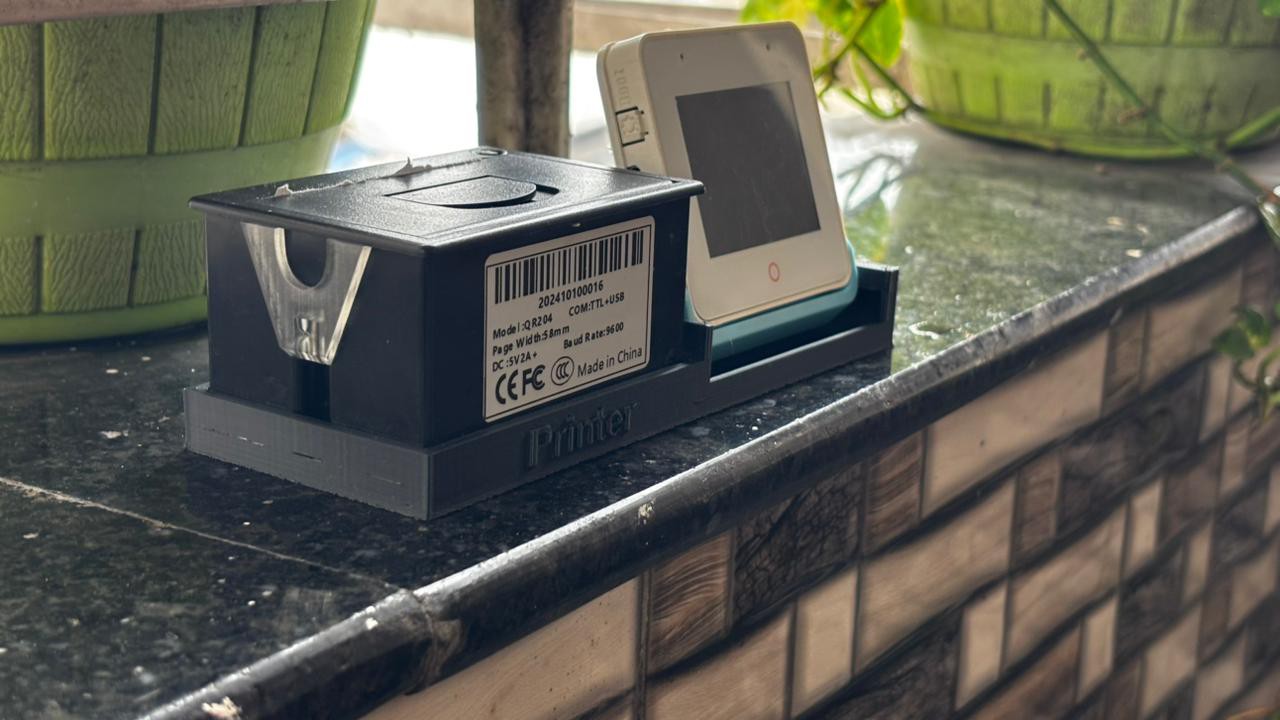
In this tutorial, we'll interface a QR204 Thermal Printer with the ESP32-S3-BOX-3. Rather than building a complicated billing system or receipt printer, we'll start with the simplest possible example.

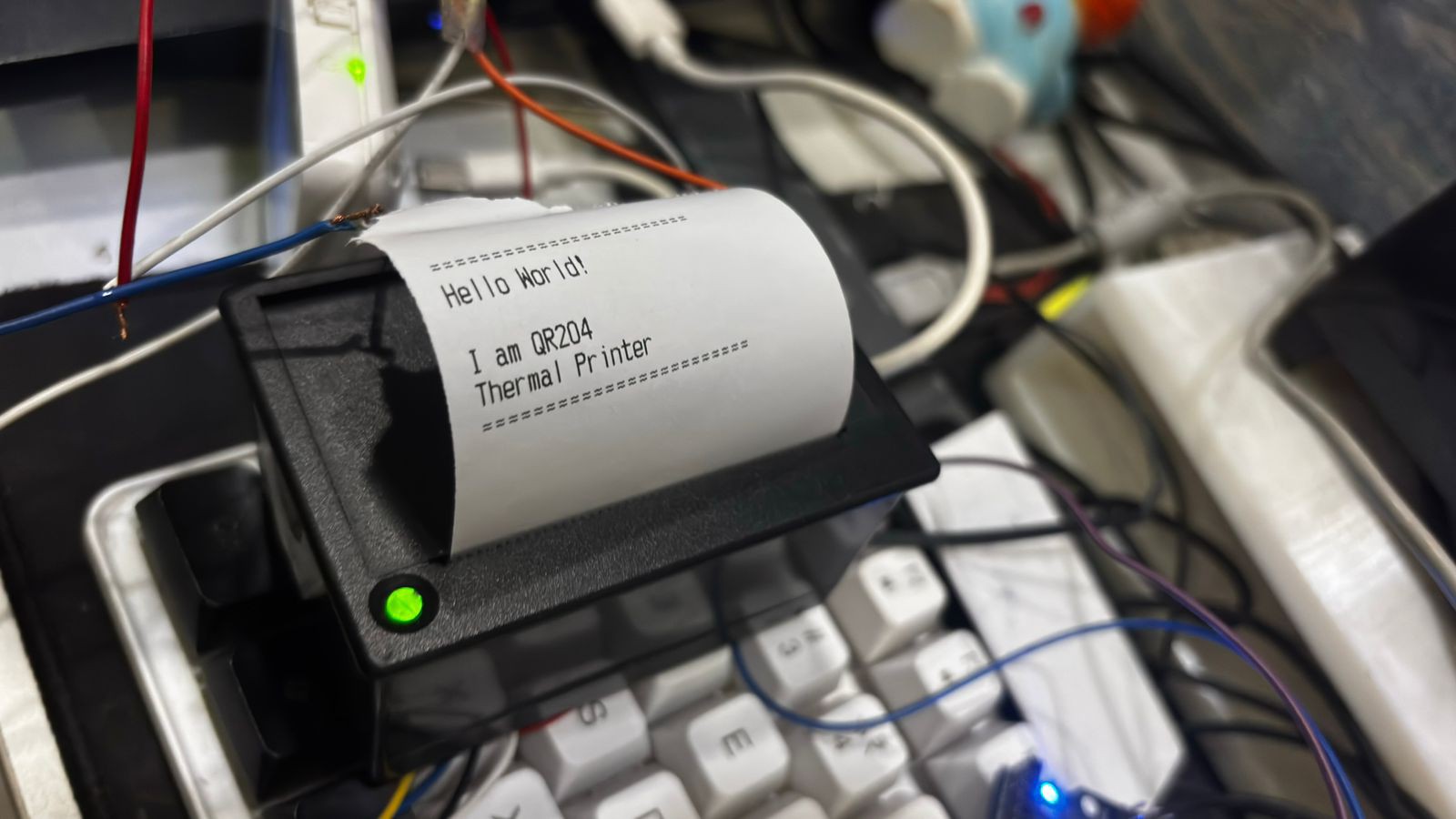
Whenever the on-screen Print button is pressed, the ESP32 sends text to the thermal printer over a UART serial connection. The printer immediately prints:

Hello World!I am QR204Thermal Printer

Although this example is intentionally simple, it introduces one of the most important concepts when working with embedded printers—serial communication.

Once you understand how text is transmitted to the printer, you'll be able to create much larger projects, including:

  • Point-of-Sale (POS) systems
  • Billing machines
  • Restaurant ordering systems
  • RFID attendance receipts
  • Inventory labels
  • Visitor passes
  • Smart ticketing systems
  • Medical reports
  • IoT data loggers
  • Portable receipt printers

Think of this project as the first building block toward professional thermal printing applications.

Why Use the ESP32-S3-BOX-3?

The ESP32-S3-BOX-3 is much more than a standard ESP32 development board.

It combines a powerful dual-core ESP32-S3 processor with a high-quality touchscreen display, USB Type-C connectivity, wireless networking, and excellent graphics support, making it an ideal platform for Human Machine Interface (HMI) projects.

Instead of relying on external buttons and displays, the touchscreen allows us to build interactive interfaces with very little hardware.

For this project, the touchscreen acts as our print button. A single touch triggers the printing process, making the demonstration clean, intuitive, and beginner-friendly.

Why Thermal Printers?
Thermal printers offer several advantages over conventional printers.

  • Fast printing speeds
  • Quiet operation
  • No ink or toner required
  • Low maintenance
  • Compact size
  • Low power consumption
  • Easy UART communication
  • Widely used in commercial applications

Since most embedded thermal printers communicate using simple serial commands, they are incredibly easy to interface with microcontrollers such as the ESP32.

Project Overview

The overall workflow of the project is extremely straightforward.

User TouchesPrint Button        │        ▼ESP32-S3-BOX-3        │UART SerialCommunication        │        ▼QR204 Thermal Printer        │        ▼PrintsHello World!I am QR204Thermal Printer

The ESP32 continuously monitors the touchscreen.

As soon as the Print button is pressed, it sends standard ESC/POS initialization commands followed by the text that we want to print.

The printer receives the serial data and immediately begins printing.

Because thermal printers internally interpret standard ASCII characters, printing text is almost identical to writing data to the Serial Monitor.

This makes thermal printers one of the easiest peripherals to integrate into an embedded project.

Features

This project includes:

  • Interactive touchscreen interface
  • One-touch printing
  • UART communication
  • ESC/POS printer initialization
  • Beginner-friendly Arduino code
  • Compatible with QR204 thermal printers
  • Easy to expand for larger applications
  • Fast printing
  • Low hardware complexity
  • Perfect starting point for embedded printing projects

Understanding the QR204 Thermal Printer

Before connecting any wires, it's useful to understand how the printer works....

Read more »

  • 1 × ESP32 S3 Box 3
  • 1 × ESP32 S3 Box 3
  • 1 × QR204 Thermal Printer
  • 1 × QR204 Thermal Printer
  • 1 × Jumper Wires

View all 6 components

  • 1
    Understanding the Hardware

    Now that we've covered the project overview, let's assemble the hardware.

    One of the best things about this project is that it requires only two main devices:

    • ESP32-S3-BOX-3
    • QR204 Thermal Printer

    Unlike many printer projects that require shields or complicated driver boards, the QR204 communicates directly using UART, making it extremely beginner-friendly.

    Before making any connections, let's briefly understand the purpose of each component.

    ESP32-S3-BOX-3

    The ESP32-S3-BOX-3 serves as the brain of the project.

    It is responsible for:

    • Running the Arduino program.
    • Detecting touch events on the display.
    • Sending UART data to the printer.
    • Displaying the printer status.
    • Managing the user interface.

    Since the board already includes a high-quality touchscreen display, we don't need external push buttons or LCD modules.

    This allows us to create a clean Human Machine Interface (HMI) using only the built-in display.

    Image Placeholder:ESP32-S3-BOX-3 Development Board

    QR204 Thermal Printer

    The QR204 is a compact thermal printer capable of printing plain text, receipts, QR codes, barcodes, and graphics.

    Instead of using ink cartridges, it prints by heating specially coated thermal paper.

    Some advantages include:

    • No ink required
    • High-speed printing
    • Low maintenance
    • Quiet operation
    • Compact size
    • UART interface
    • ESC/POS command support

    Since the printer communicates using UART, interfacing it with an ESP32 is remarkably simple.

    Understanding UART Communication

    One of the most important concepts in this project is UART communication.

    UART stands for Universal Asynchronous Receiver Transmitter.

    It is a serial communication protocol that allows two electronic devices to exchange data one byte at a time.

    Unlike SPI or I²C, UART requires only two communication lines:

    • TX (Transmit)
    • RX (Receive)

    Think of UART as a one-way conversation.

    The ESP32 "speaks" by transmitting data through its TX pin.

    The printer "listens" by receiving data through its RX pin.

    Whenever the ESP32 sends a character, the printer immediately prints it.

    For example:

    PrinterSerial.println("Hello World!");

    Each character is transmitted individually:

    HelloWorld!

    The printer receives these characters and prints them exactly as they arrive.

    This simplicity makes UART one of the easiest communication methods for beginners.

    Understanding the Wiring

    The QR204 printer requires only a few connections.

    QR204 Printer

    ESP32-S3-BOX-3

    RX

    GPIO43 (TX)

    TX

    GPIO44 (RX) (Optional)

    GND

    GND

    VCC

    External 5V Supply

    Image Placeholder:Complete Wiring Diagram

    Notice something interesting.

    The printer's RX pin connects to the ESP32's TX pin.

    This often confuses beginners.

    The reason is simple.

    The ESP32 is transmitting data.

    The printer is receiving data.

    Therefore:

    ESP32 TX        │        ▼Printer RX

    Similarly,

    ESP32 RX        ▲        │Printer TX

    Although the printer's TX pin isn't required for this simple project, connecting it allows future two-way communication if needed.

    Powering the Thermal Printer

    One of the most common mistakes beginners make is trying to power the thermal printer directly from the ESP32.

    Thermal printers draw a relatively high current, especially while heating the print head.

    Because of this, it is strongly recommended to power the QR204 using a stable external 5V power supply capable of supplying sufficient current.

    The ESP32-S3-BOX-3 should continue to be powered through its USB Type-C connection.

    Keeping the printer and ESP32 power supplies stable helps prevent unexpected resets during printing.

    Tip: If your printer behaves erratically or the ESP32 restarts while printing, inadequate power is often the first thing to check.

  • 2
    Preparing the Arduino IDE

    With the hardware assembled, the next step is preparing the Arduino development environment.

    If you've already worked with ESP32 boards before, most of these steps will feel familiar.

    If this is your first ESP32 project, don't worry—we'll go through everything step by step.

    Install the ESP32 Board Package

    Open the Arduino IDE.

    Navigate to:

    File → Preferences

    Locate the field labelled:

    Additional Boards Manager URLs

    If it's empty, paste the following URL:

    https://espressif.github.io/arduino-esp32/package_esp32_index.json

    Click OK.

    Next, open:

    Tools → Board → Boards Manager

    Search for:

    ESP32

    Install the latest board package published by Espressif Systems.

    Image Placeholder:Installing ESP32 Board Package

    Select the Correct Board

    Connect the ESP32-S3-BOX-3 to your computer using a USB Type-C cable.

    Now navigate to:

    Tools → Board

    Select:

    ESP32S3 Dev Module

    or

    ESP32-S3-BOX-3

    depending on the board definitions available in your installed package.

    Next, select the correct COM port from:

    Tools → Port

    Installing the Required Libraries

    This project uses only a few libraries.

    Open:

    Sketch → Include Library → Manage Libraries

    Install:

    • LovyanGFX
    • LGFX_AUTODETECT

    The following libraries are already included with the ESP32 board package:

    • HardwareSerial
    • Wire
    • SPI

    So no additional installation is required for those.

  • 3
    Uploading the Program

    Open the Arduino sketch provided with this tutorial.

    Before uploading the code, verify the UART pin definitions:

    #define TXD2 43
    #define RXD2 44

    These correspond to the UART pins used to communicate with the QR204 printer.

    If your hardware uses different pins, simply update these values.

    Now click the Verify button.

    If no compilation errors appear, click Upload.

    The upload process typically takes less than a minute.

    Once complete, the ESP32 will automatically restart and display the main screen with the Print button.

    In the next section, we'll walk through the program itself, explain how the code communicates with the printer, and perform our very first thermal print.

View all 6 instructions

Enjoy this project?

Share

Discussions

Does this project spark your interest?

Become a member to follow this project and never miss any updates