 Arnov Sharma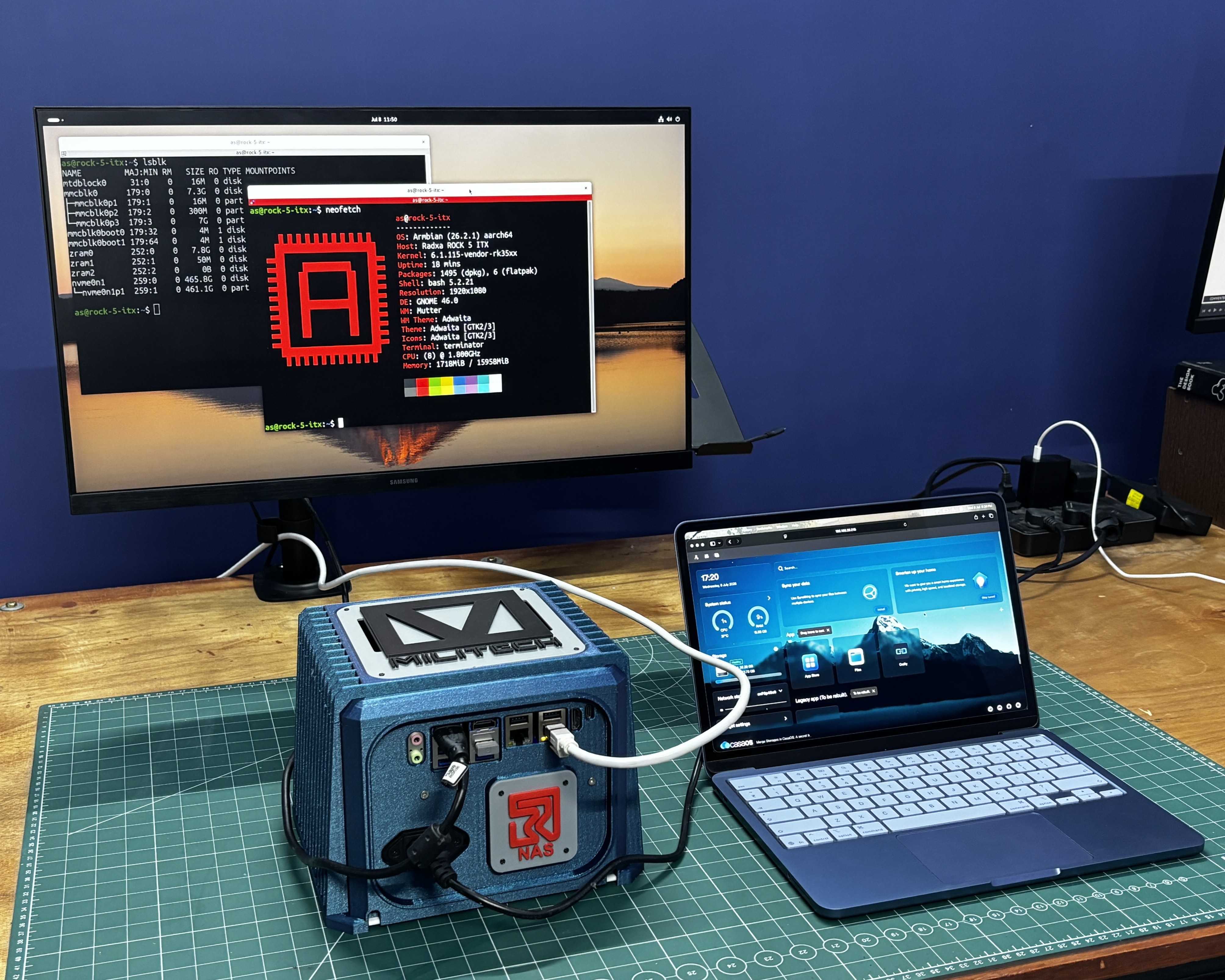
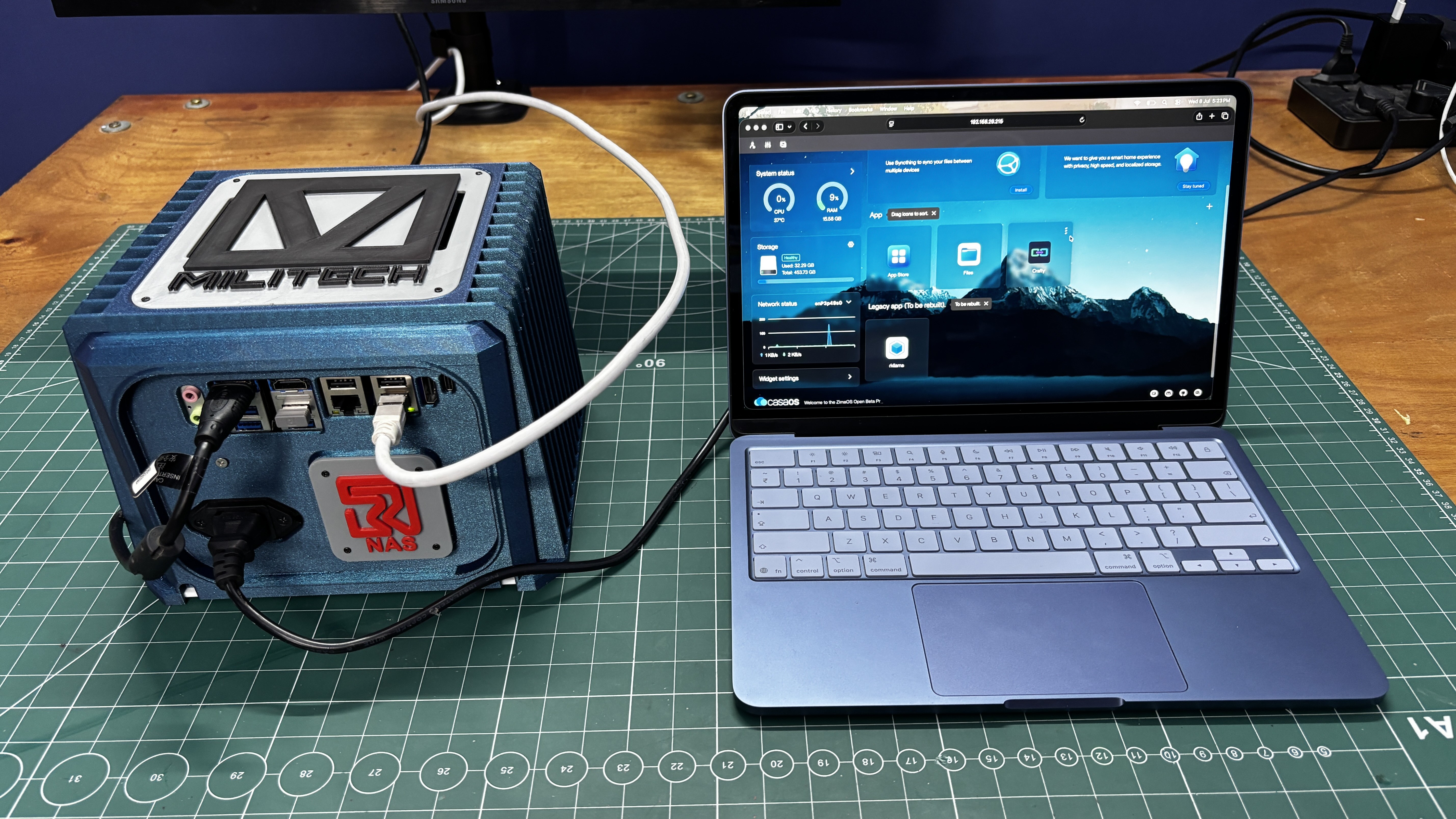
I'm running Armbian as the main operating system, with CasaOS installed on top of Debian to handle the NAS features. With CasaOS, all files stored on the NVMe drives can be accessed from any device on the local network using a clean and user-friendly web interface.
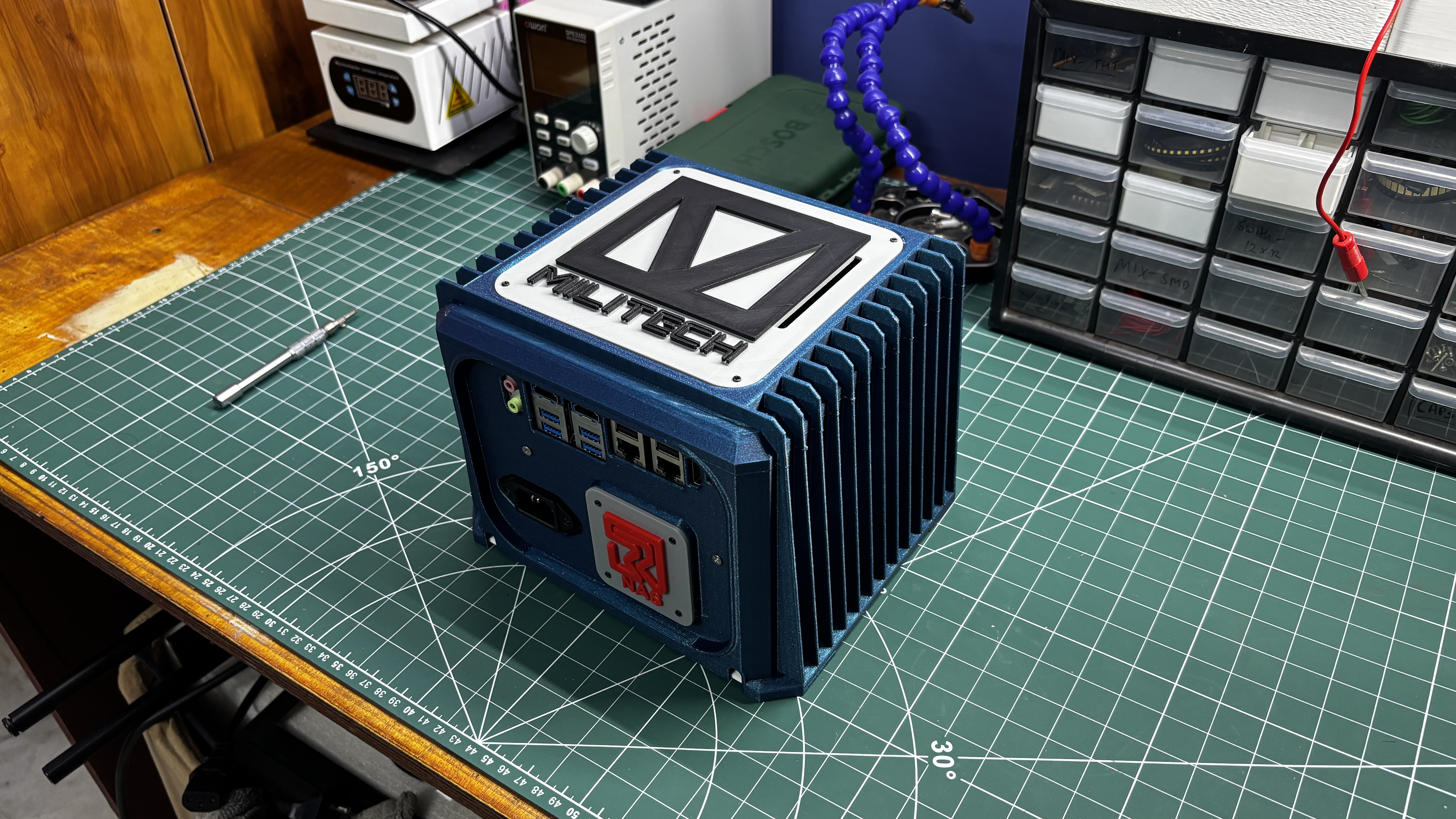
For this project, I wanted an industrial, rugged look inspired by fanless heatsink enclosures. Instead of using an off-the-shelf case, I designed my own enclosure featuring large fins that mimic a heatsink. They're purely aesthetic, but they give the NAS a unique industrial appearance.
This Article Covers the complete build of this project, which includes the assembly steps, setting up Casa OS, and other processes. Let's get started.
MATRIALS REQUIRED
These were the components used in this project.
- Radxa ROCK 5 ITX Board
- ATX Power Supply
- 3D printed parts
- M2 screws
- NVME SSD
- HDMI MONITOR
HARDWARE- RADXA ROCK 5 ITX BOARD
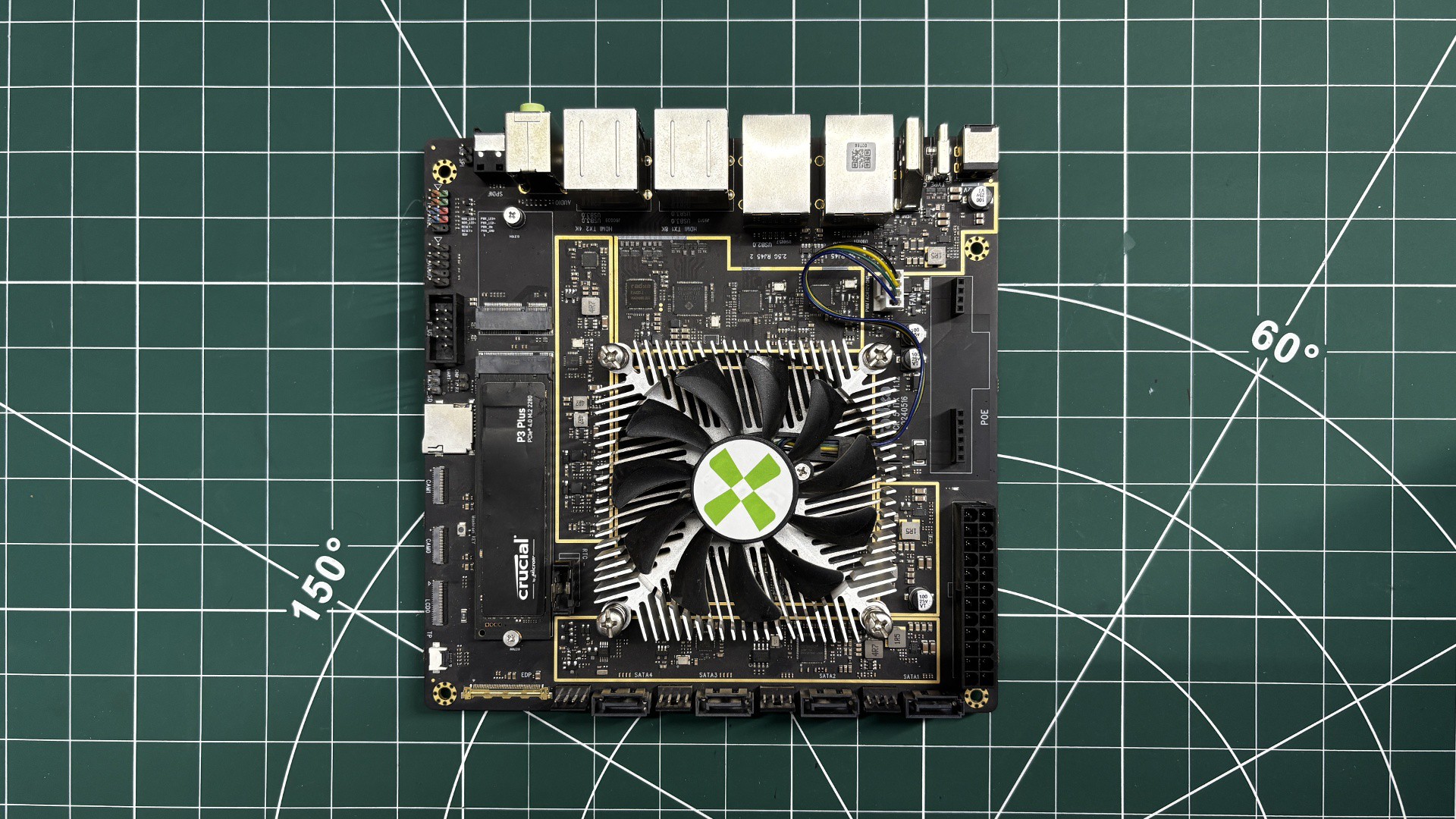
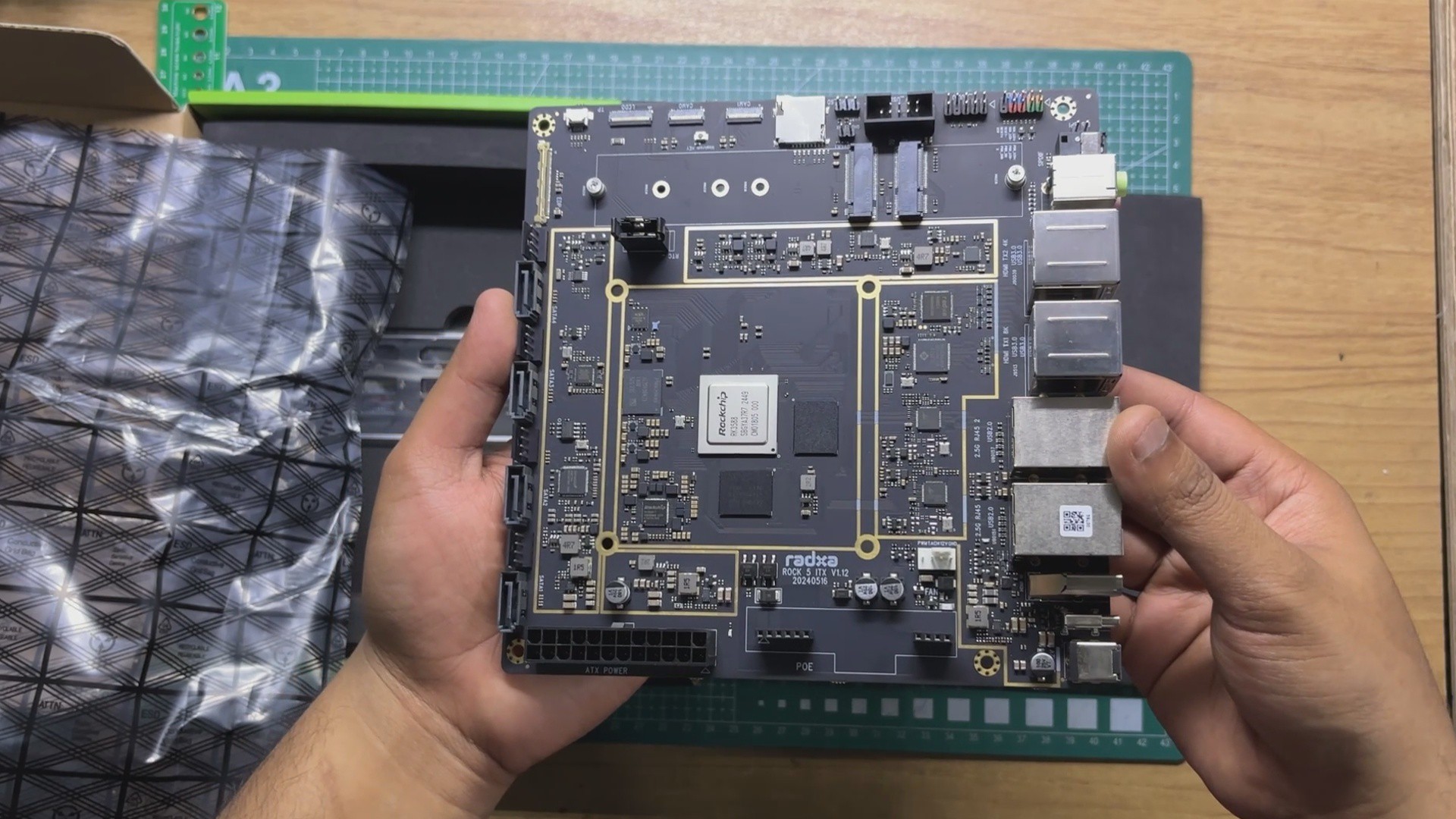
The star of this project is the Radxa ROCK 5 ITX, a powerful single-board computer built around the Rockchip RK3588 SoC. It features an octa-core CPU consisting of 4× Arm Cortex-A76 performance cores and 4× Arm Cortex-A55 efficiency cores, delivering an excellent balance of performance and power efficiency for everything from NAS applications to edge computing and self-hosted services.
This Board comes with onboard LPDDR5 16GB RAM, an M.2 M-Key slot for high-speed NVMe SSDs, multiple SATA ports for storage expansion, 2.5 Gigabit Ethernet for fast networking, USB 3.0 connectivity, HDMI output, 40-pin GPIO expansion, and a standard 24-pin ATX power connector, making it feel much more like a compact desktop motherboard than a traditional single-board computer.
For this project, Radxa generously provided the hardware, including the ROCK 5 ITX board, the official heatsink, and the official power adapter. A huge thanks to the Radxa team for supporting this build.
Radxa has been developing high-performance ARM-based single-board computers for makers, developers, educators, and embedded applications for many years. Their product lineup ranges from compact development boards to desktop-class SBCs like the ROCK 5 ITX, making ARM computing more accessible for hobbyists and professionals alike. Their focus on open hardware, active software support, and powerful Rockchip-based platforms has made them a popular choice within the maker and homelab communities.
Do check them out for more cool hardware.
RADXA ROCK 5 HEATSINK ASSEMBLY
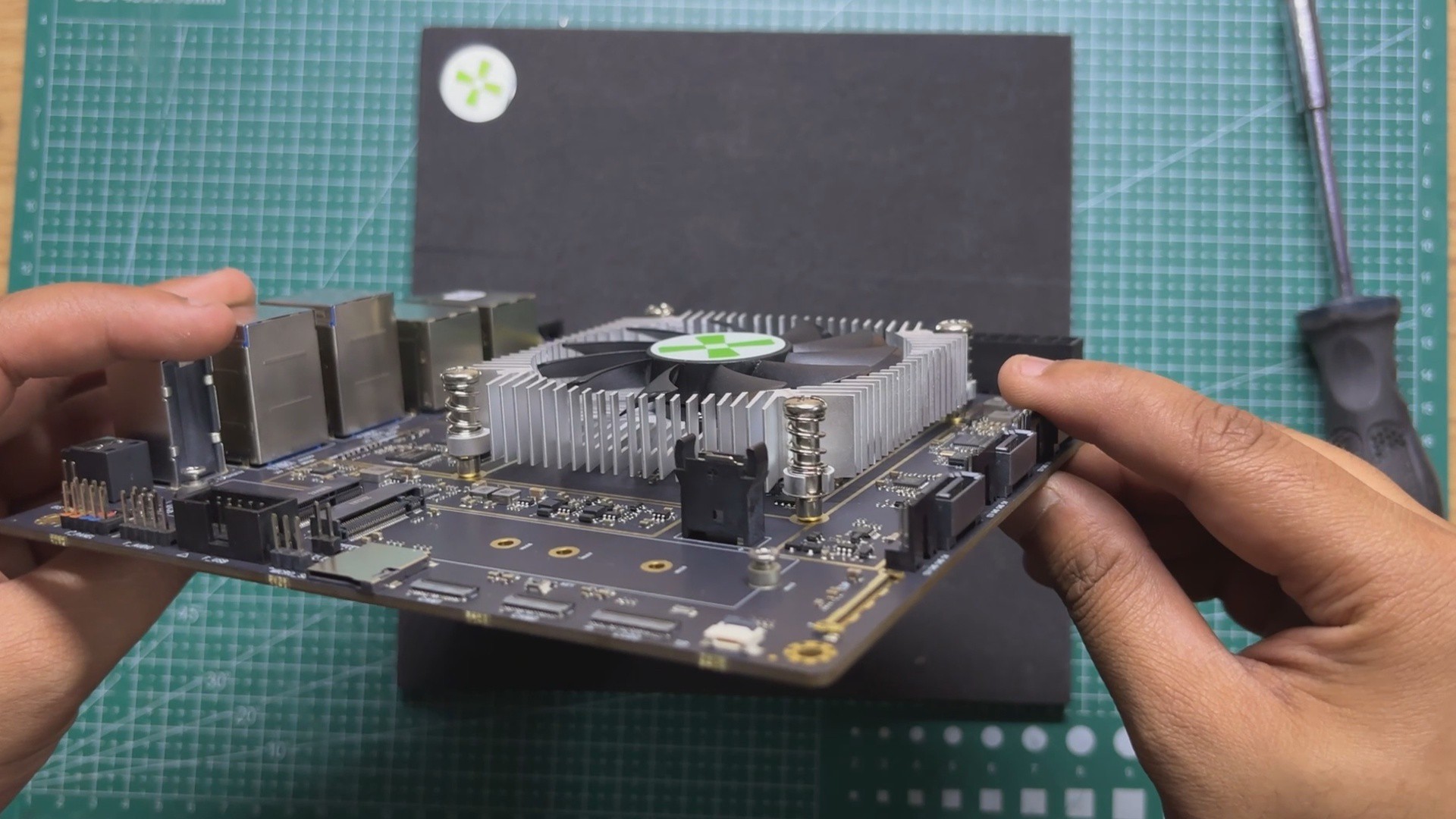
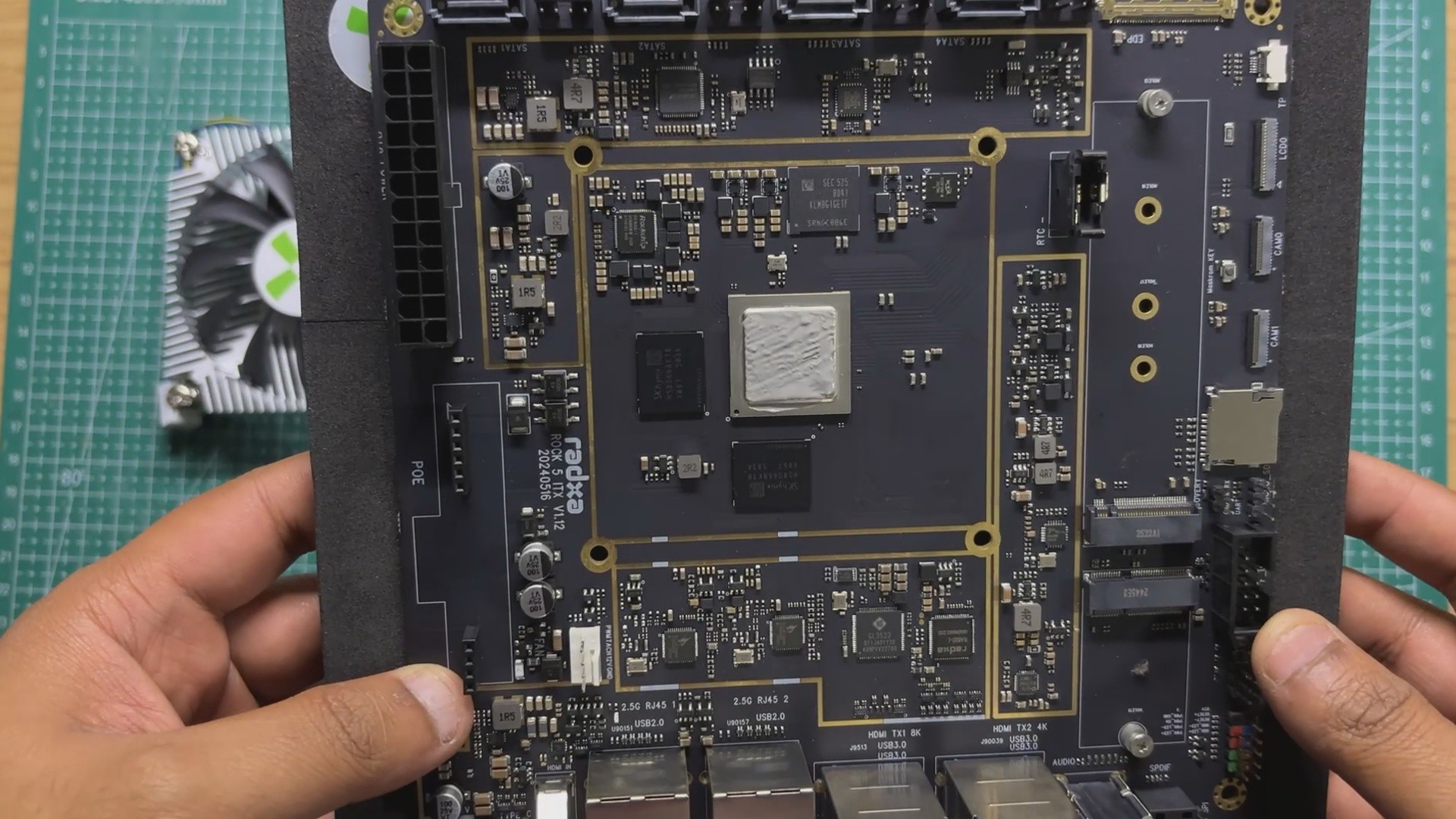
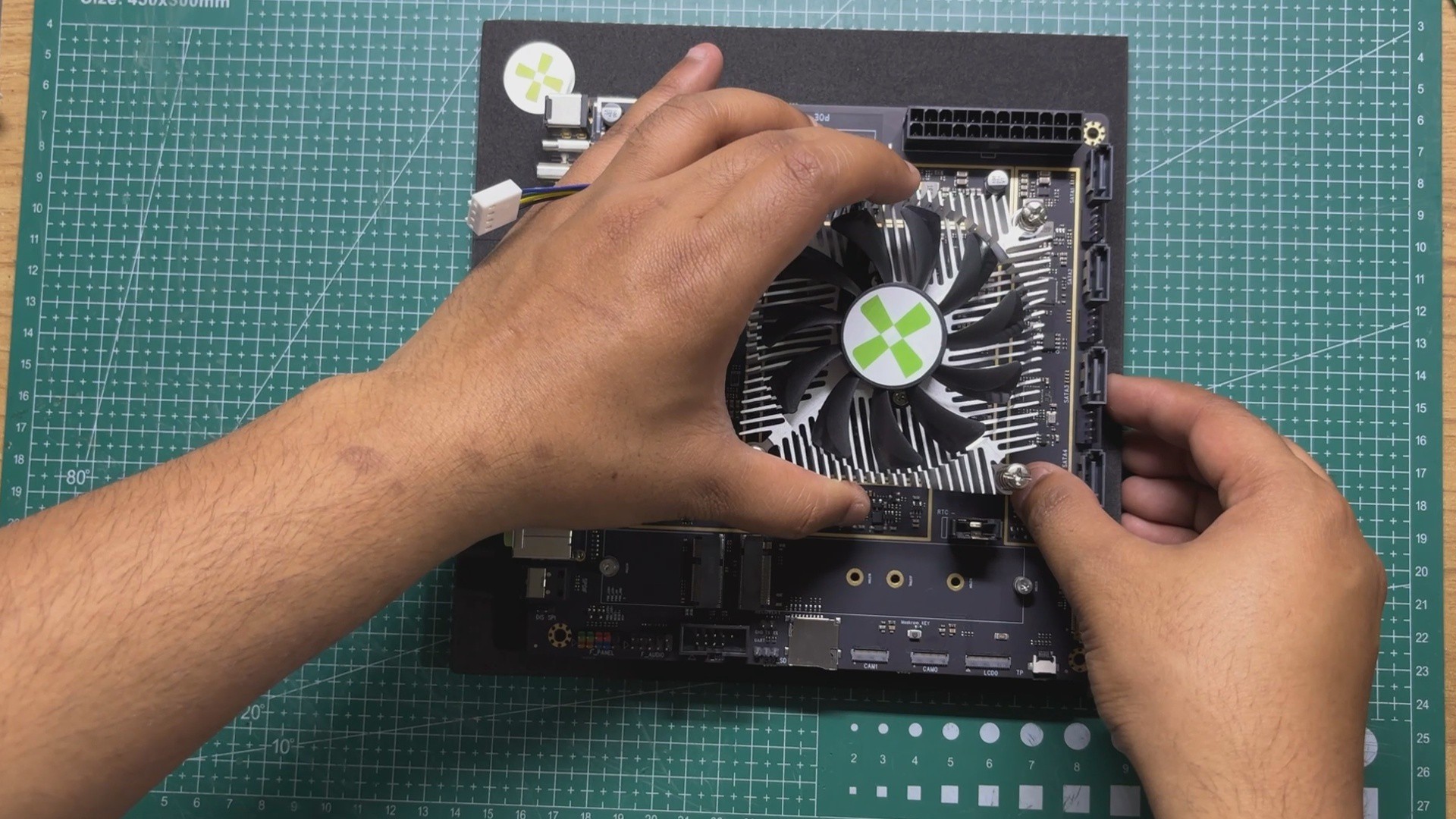
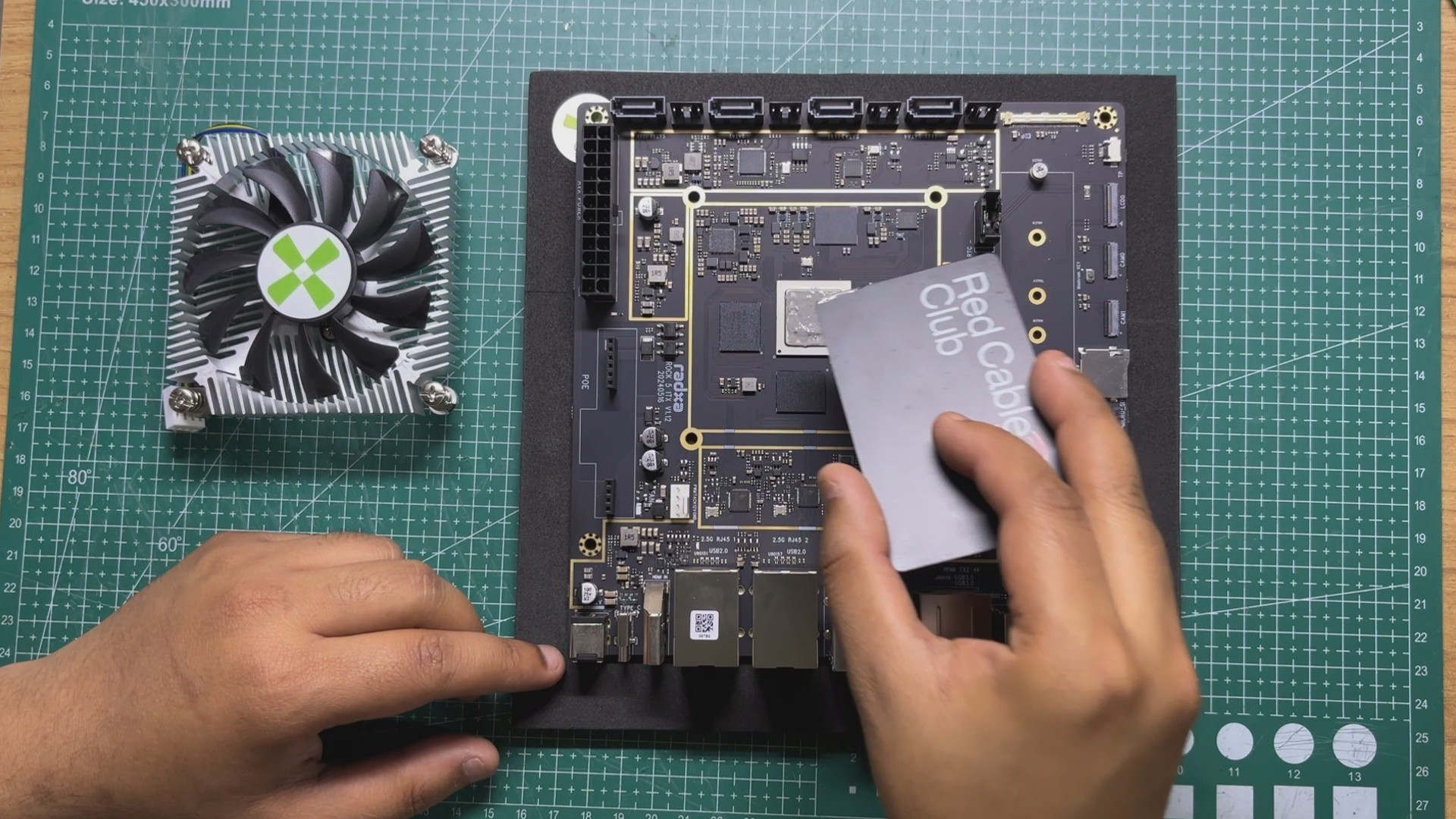
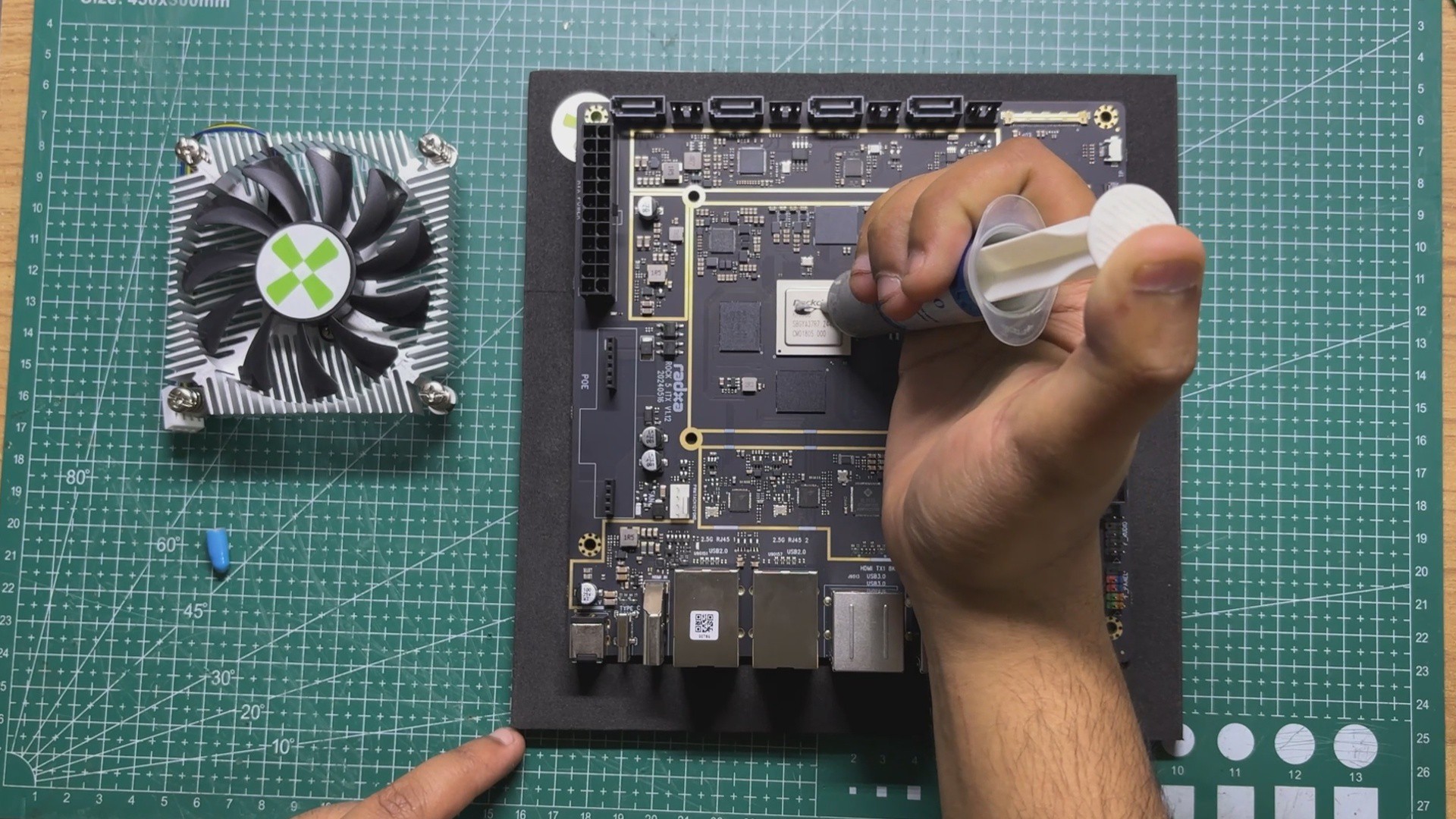
We begin the initial hardware setup of the Radxa ROCK 5 ITX by installing the official heatsink. First, we apply a thin, even layer of thermal paste over the Rockchip RK3588 SoC, using a plastic card to spread the paste uniformly across the surface.
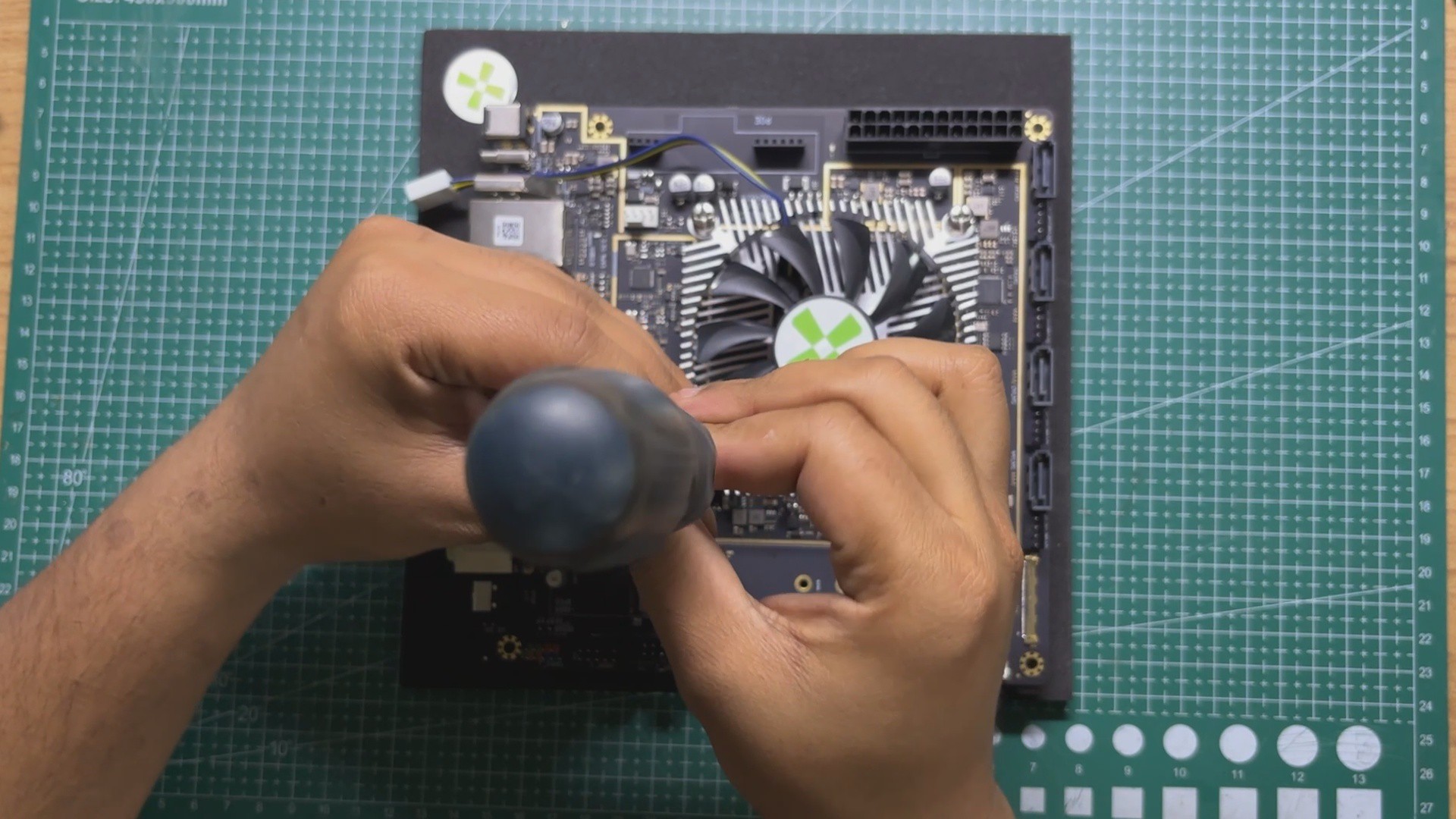
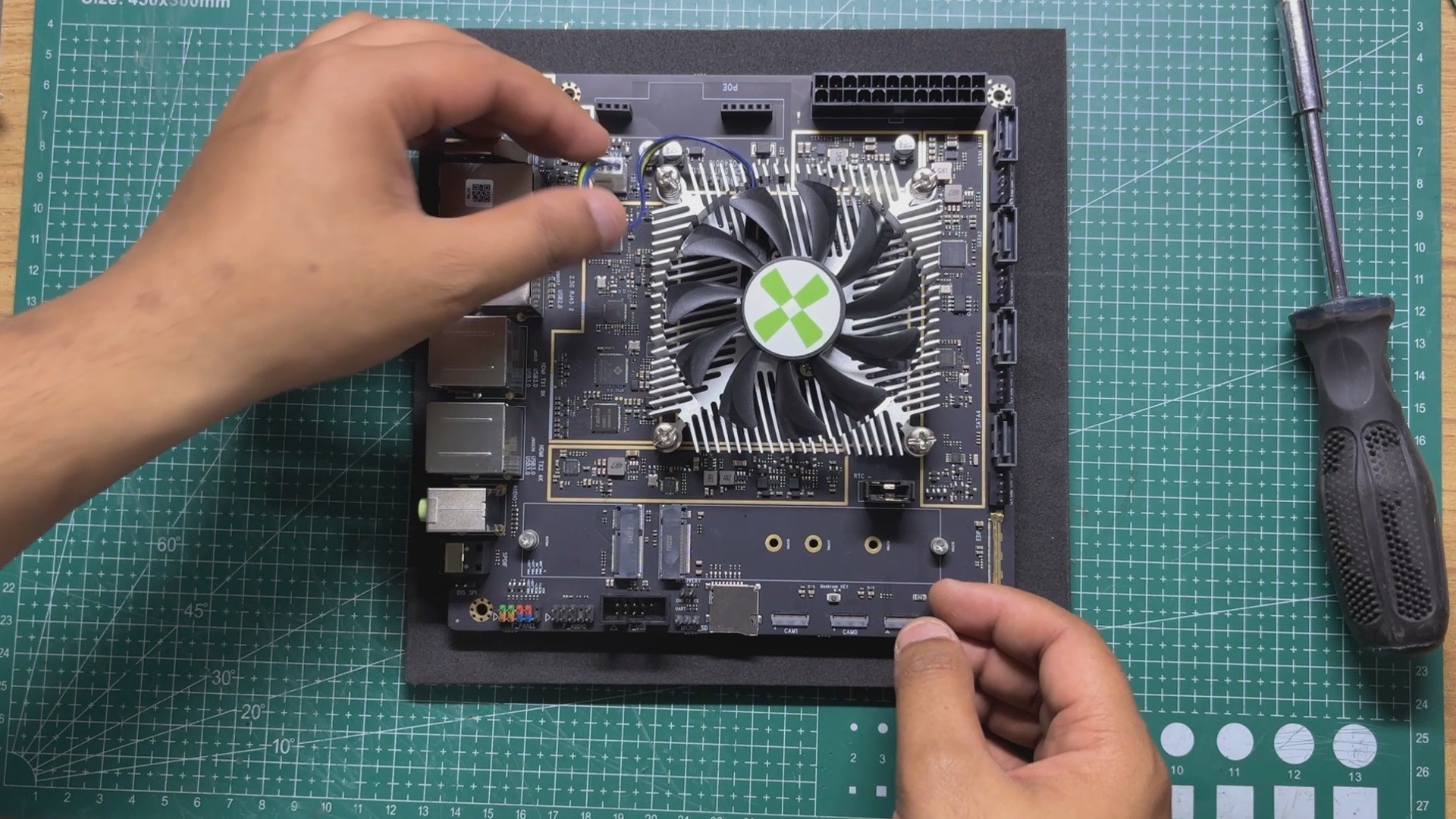
Next, we carefully position the heatsink over the processor, aligning its mounting holes with the corresponding screw holes on the board. Once everything is lined up correctly, we tighten the screws evenly to secure the heatsink in place and ensure good thermal contact.
Finally, we connect the heatsink's cooling fan to the dedicated fan header on the ROCK 5 ITX. With the heatsink securely mounted and the fan connected, the hardware setup is complete, and the board is ready for its first boot.
HARDWARE- ATX POWER SUPPLY
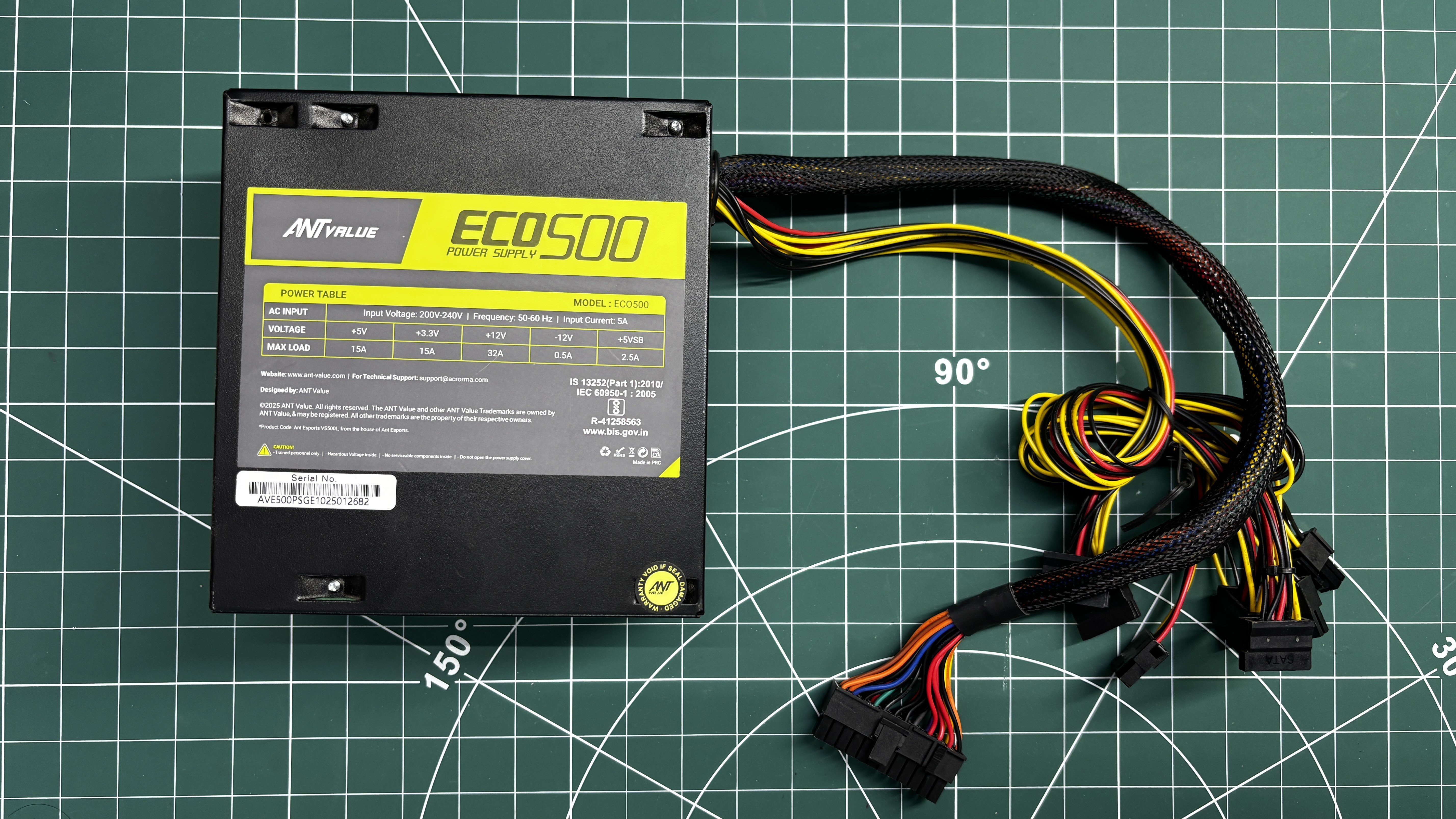
For the power source, I decided to use a standard ATX power supply. In this build, I'm using a 500W ATX PSU, which is definitely overkill for the power requirements of the system. However, I already had it lying around, so it made more sense to use it instead of buying a dedicated power supply.
One of the advantages of the Radxa ROCK 5 ITX is that it features a standard 24-pin ATX power connector, allowing the power supply to plug directly into the board without the need for adapters or custom wiring. This makes the entire setup incredibly simple, clean, and reliable.
Using an ATX power supply also means the NAS can be powered directly from AC mains, making it feel much more like a traditional desktop or server rather than a typical single-board computer. It also leaves plenty of power headroom for future upgrades, such as adding more SATA SSDs, USB peripherals, or other expansion hardware.
ENCLOSURE DESIGN
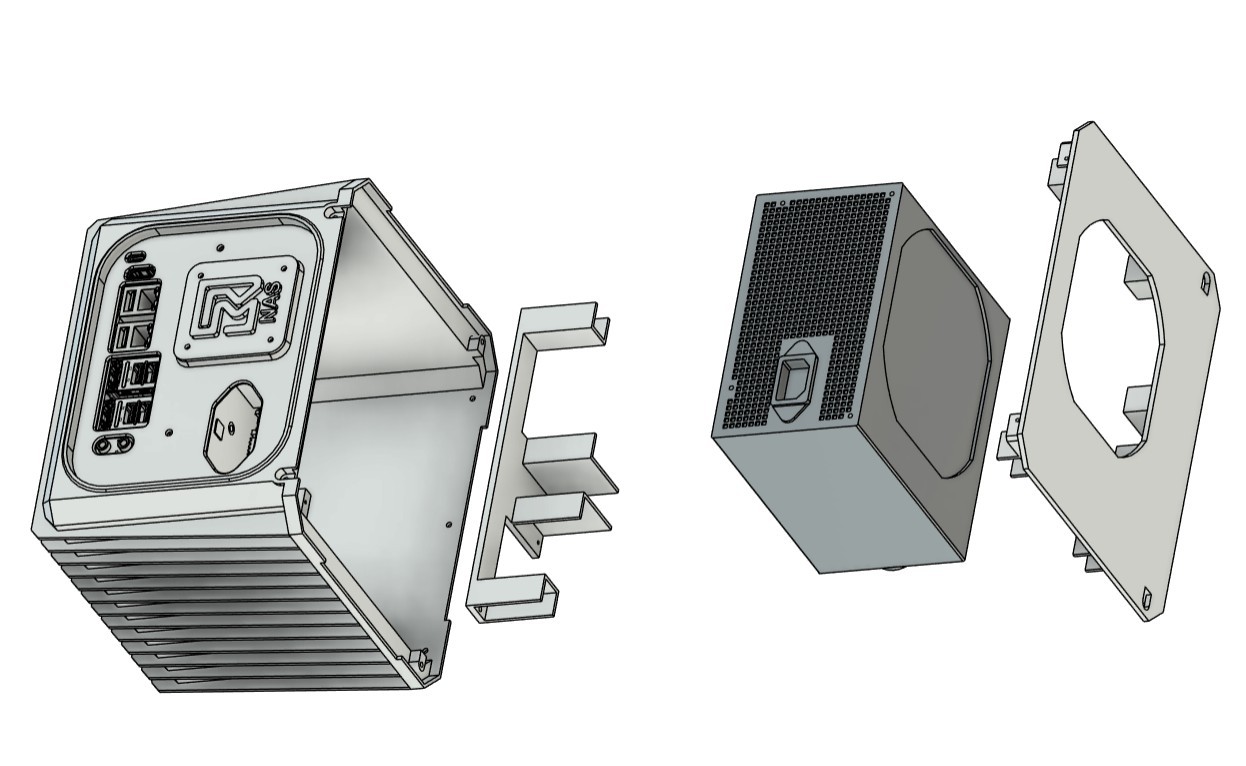
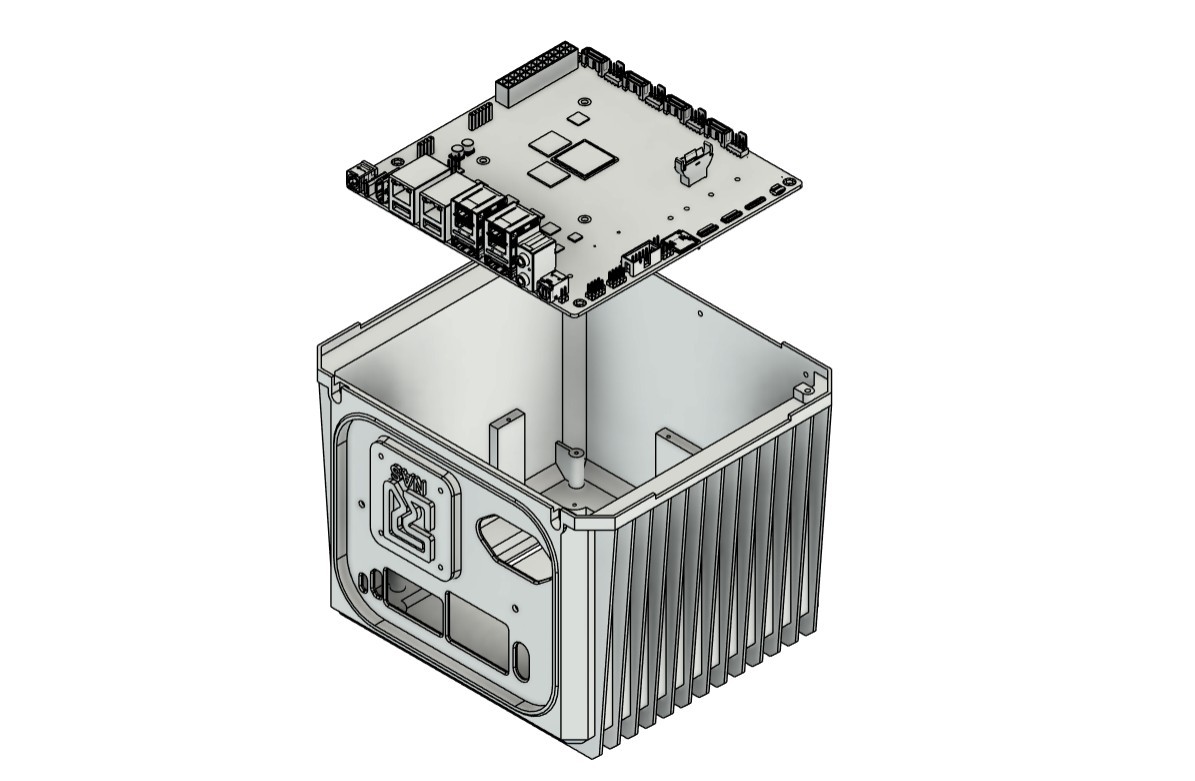
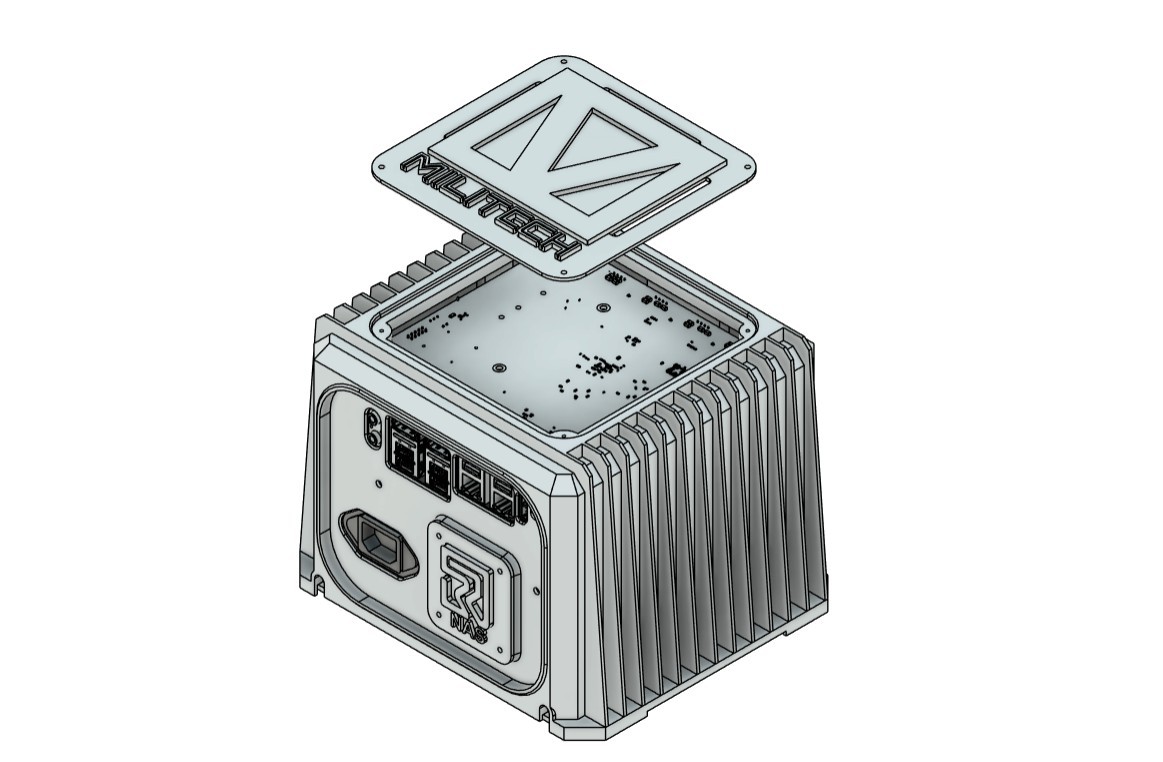
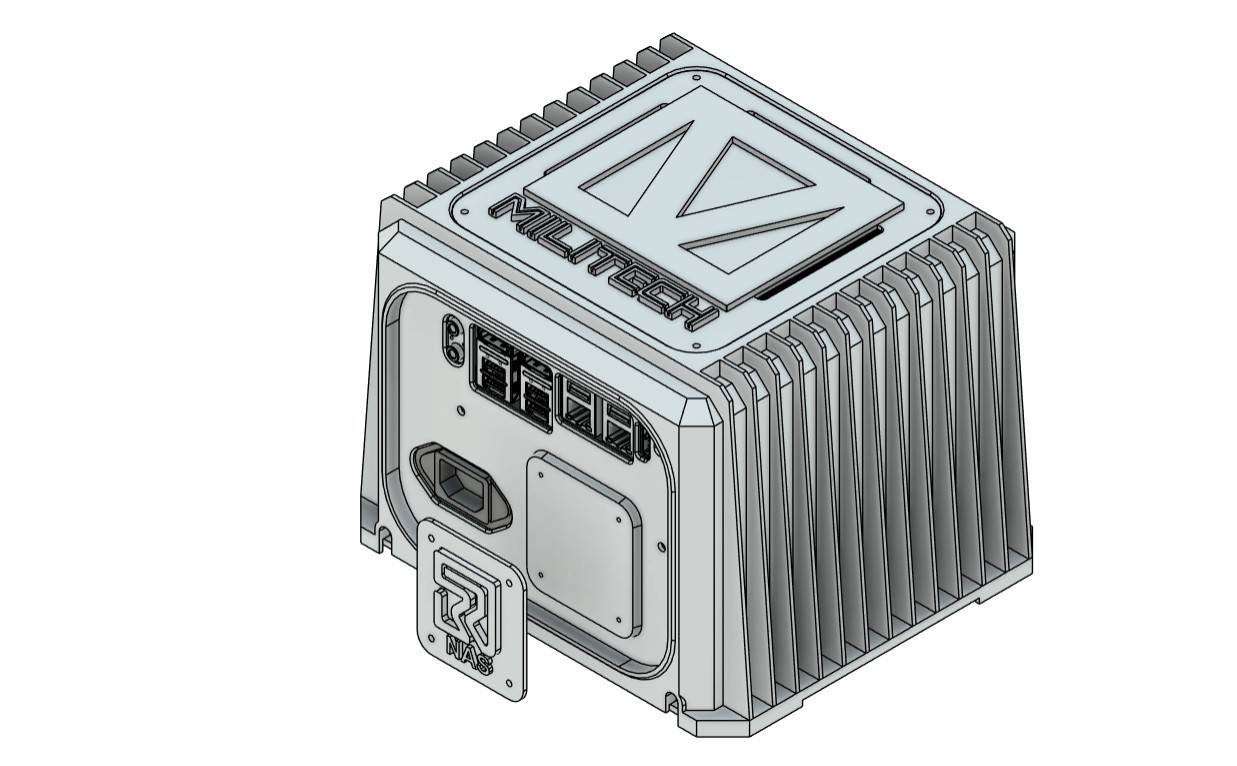
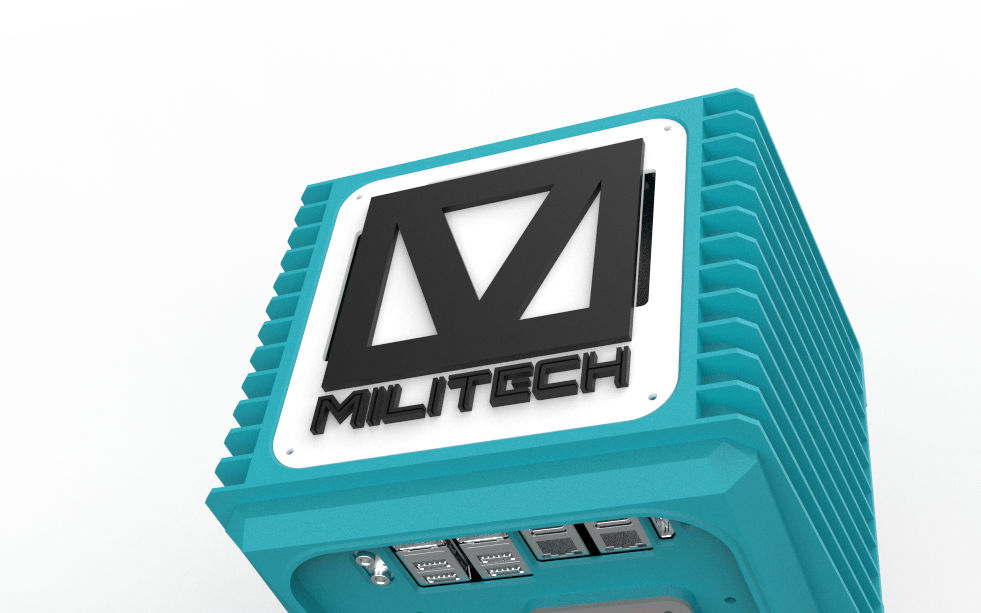
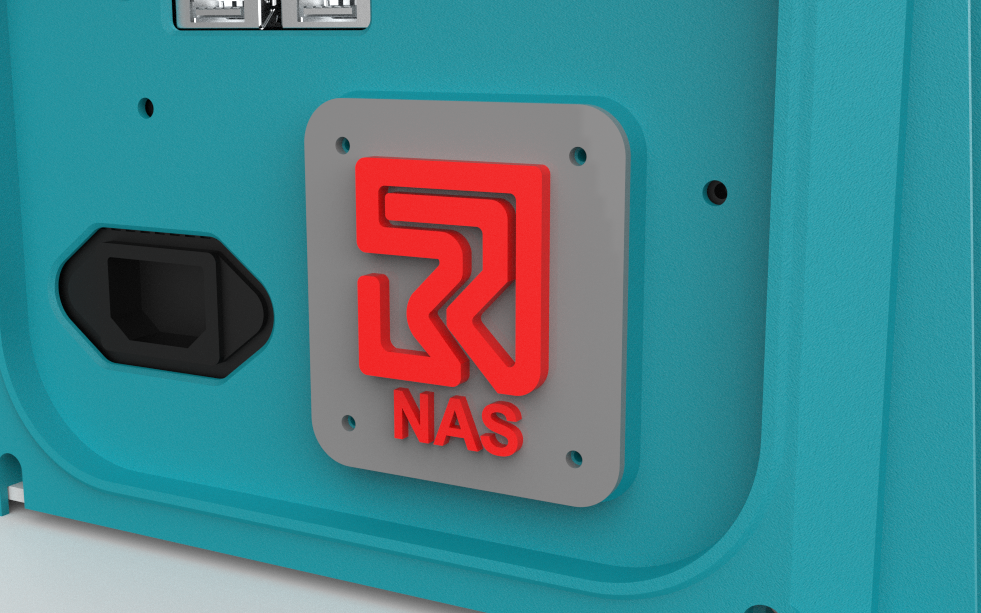
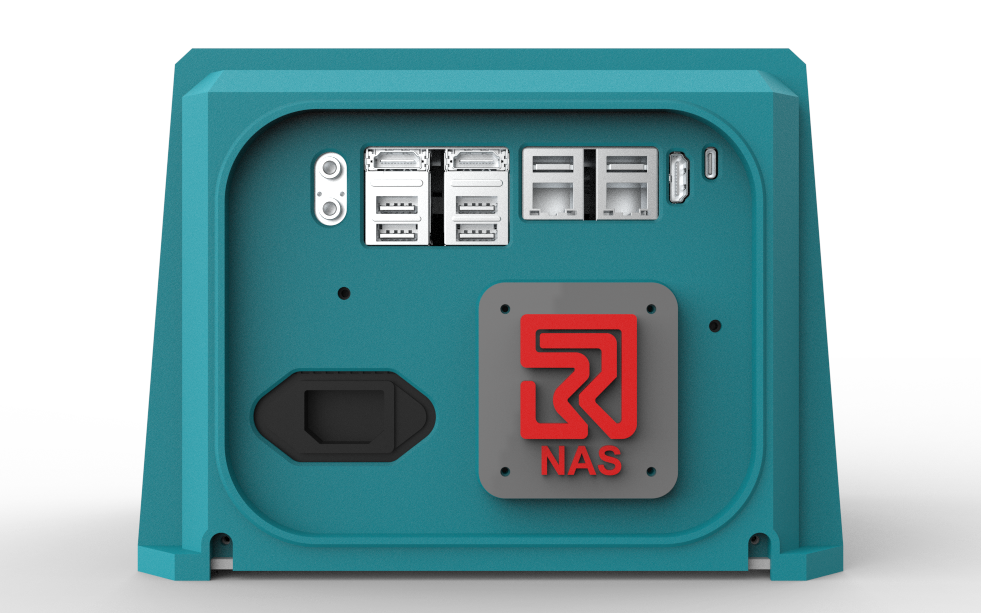
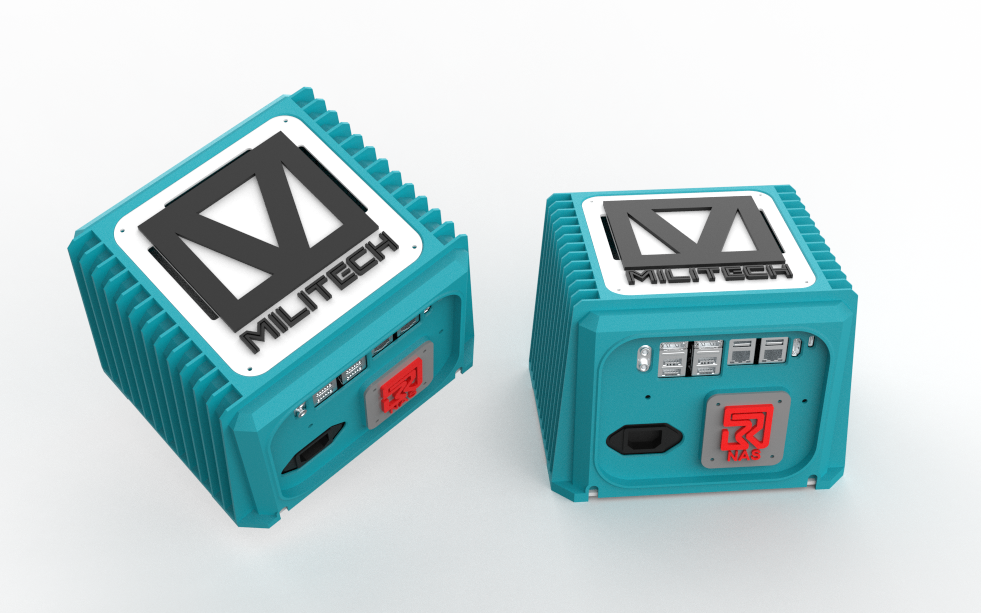
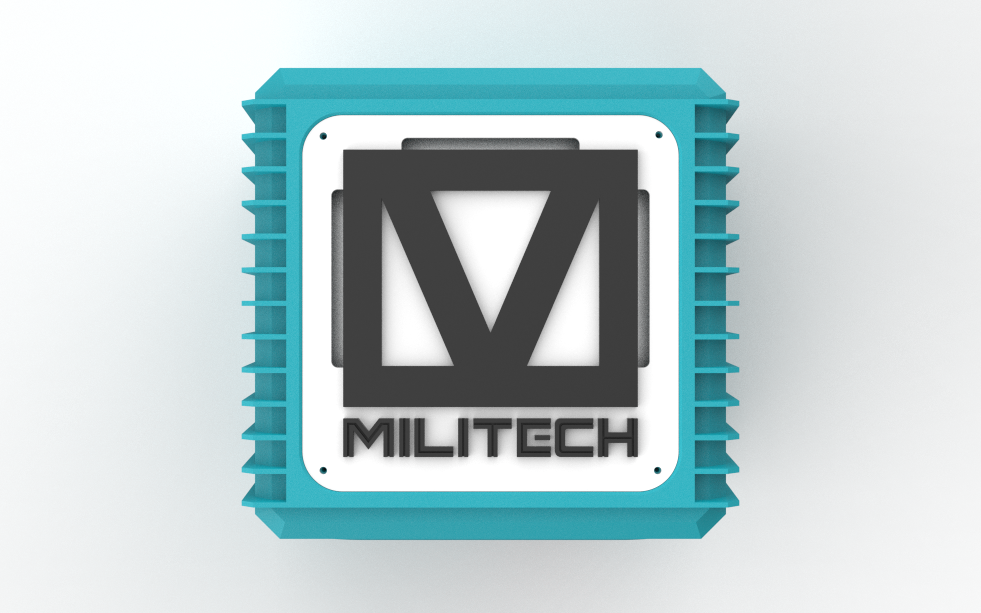
For the design of this project, my goal was simple: create a single enclosure that could house both the Radxa ROCK Pi 5 ITX board and a standard ATX power supply.
I designed a box-style enclosure with fins running all around the outside. These fins resemble the ones you'd typically find on metal fanless enclosures, where they're used to dissipate heat. In my case, however, they're purely aesthetic—they're added because they give the enclosure a rugged, industrial look.
The enclosure consists of two main parts: the main body, which holds the Radxa board and the ATX power supply, and a bottom cover that closes everything up and gives the build a clean finish.
On the left side, I added cutouts for all of the Radxa's I/O ports, along with the AC input for the power supply, making everything easily accessible from the outside.
The top panel serves two purposes. First, it improves airflow with ventilation openings, and second, it ties the whole design together aesthetically.
I had recently been playing Cyberpunk 2077, so I borrowed some inspiration from its futuristic industrial design language. That's why you'll notice the Militech logo on the top panel and the Relic logo below the I/O ports—just a couple of small Easter eggs for anyone who's played the game.
Inside the enclosure, I also designed a dedicated PSU mounting bracket. It sits above the Radxa board and securely holds the ATX power supply in place, preventing it from moving around inside the case.
3D PRINTED PARTS
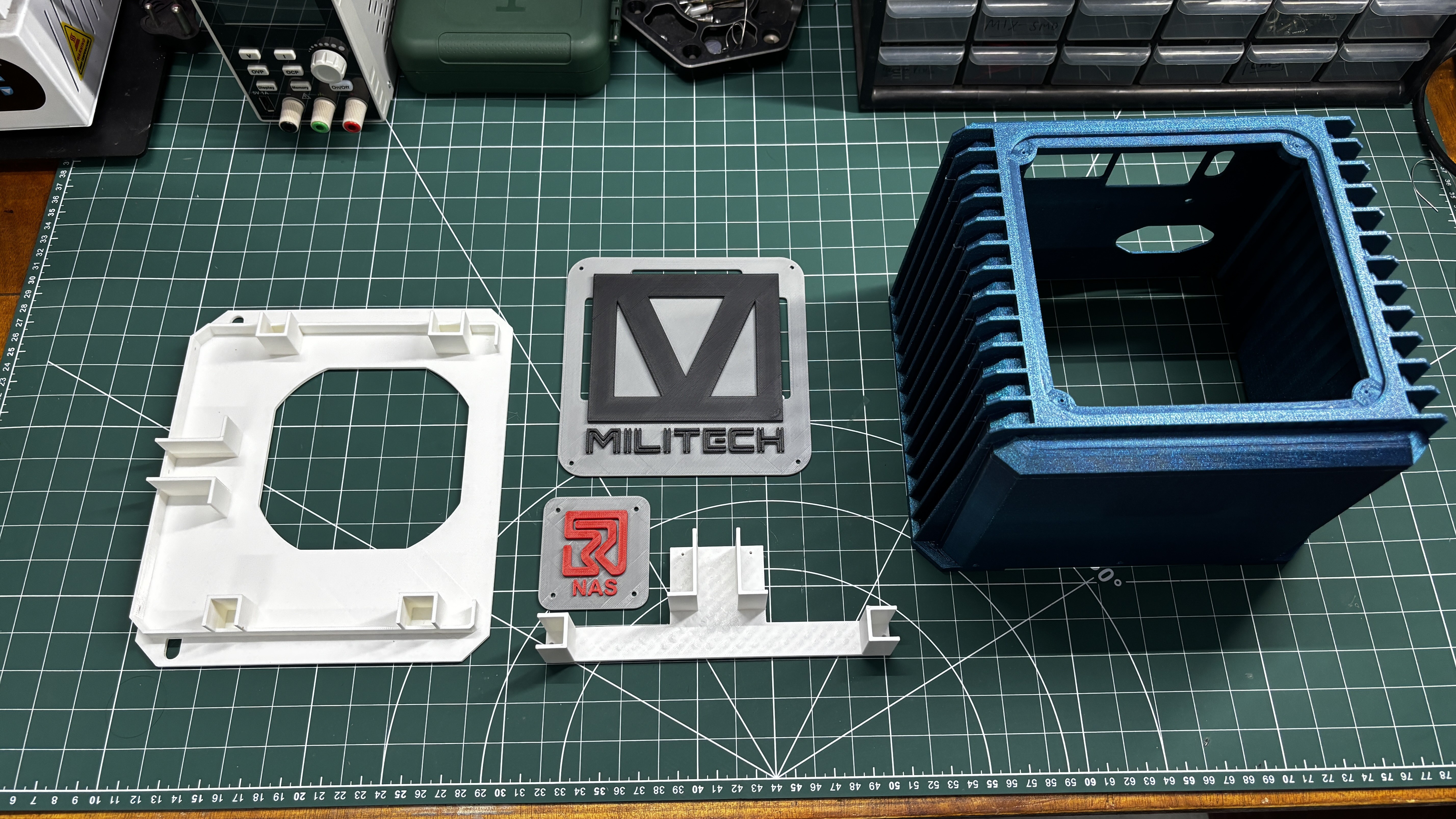
After completing the 3D model, all the parts were exported as mesh files and printed on my Anycubic Kobra S1 3D printer.
The main enclosure was printed using Galaxy Peacock PLA, which gives the NAS its distinctive metallic-looking finish. The bottom lid and PSU mounting bracket were printed in White Hyper PLA.
For the finishing touch, I wanted the Militech and Relic logos to be printed in two colors. The interesting part is that my printer doesn't have a multi-material system, so here's the trick I used.
I first printed the base of both logos in Grey Hyper PLA. Once the printer reached the layers where only the raised logo remained, I paused the print and manually swapped the filament. I switched to Black Hyper PLA for the Militech logo and Red Hyper PLA for the Relic logo. After resuming the print, the result was a clean dual-color print, all on a single-extruder printer.
It's a simple trick that works surprisingly well if you're patient.
That said, I'd still recommend using a multi-color printer if you have one, as taking too long to swap the filament can sometimes reduce layer adhesion between the color changes.