 Dzmitry Dydyshka
Prerequisite
Getting a device connected and the PSU-EXT Dashboard open follows the Installation section of the psu-ext-software README.
The Tour
From there, here's where the dashboard itself stands today: a three-column grid built from a catalog of six widget types:
- Single Value (displays a live SCPI reading);
- Single Toggle (switches something on or off using SCPI commands);
- Protection Control (watches a threshold and flags whether it's tripped);
- External Triggers (hardware input pins to SCPI actions);
- Timer Queue (runs a queue of timed relay actions);
- Chart (plots SCPI query over time)
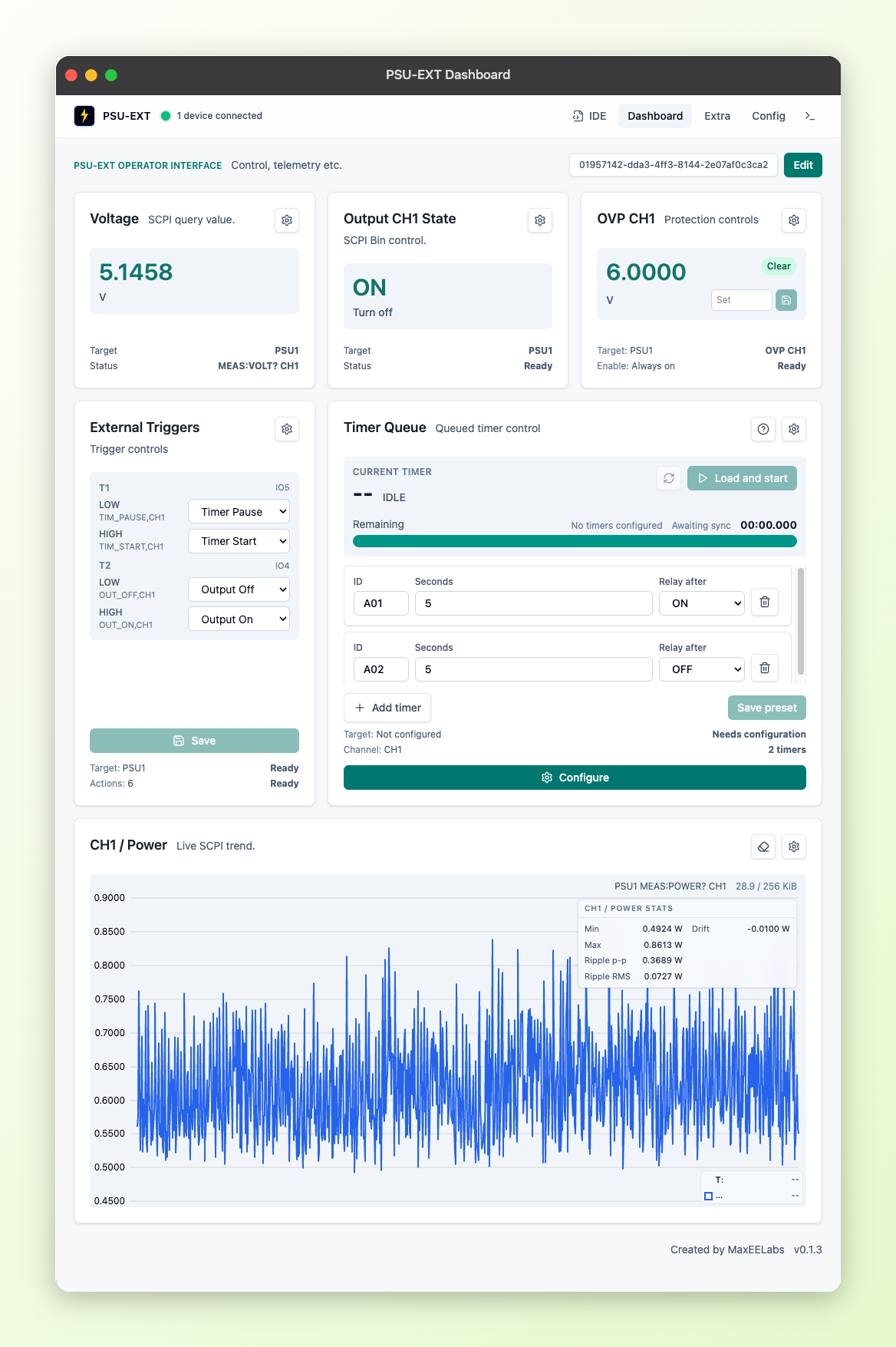
PSU-EXT Dashboard WIth All Types of Widgets
Getting the Grid Ready to Look Around
A toolbar "Edit"/"Done" (1) button unlocks dragging, deleting, and adding widgets. The Add widget catalog (2) lists eight entries mapped to the six widget types (three of those eight are the chart's fixed sizes). "Reset" (3) restores the default layout
Whatever layout you build persists locally in the browser.
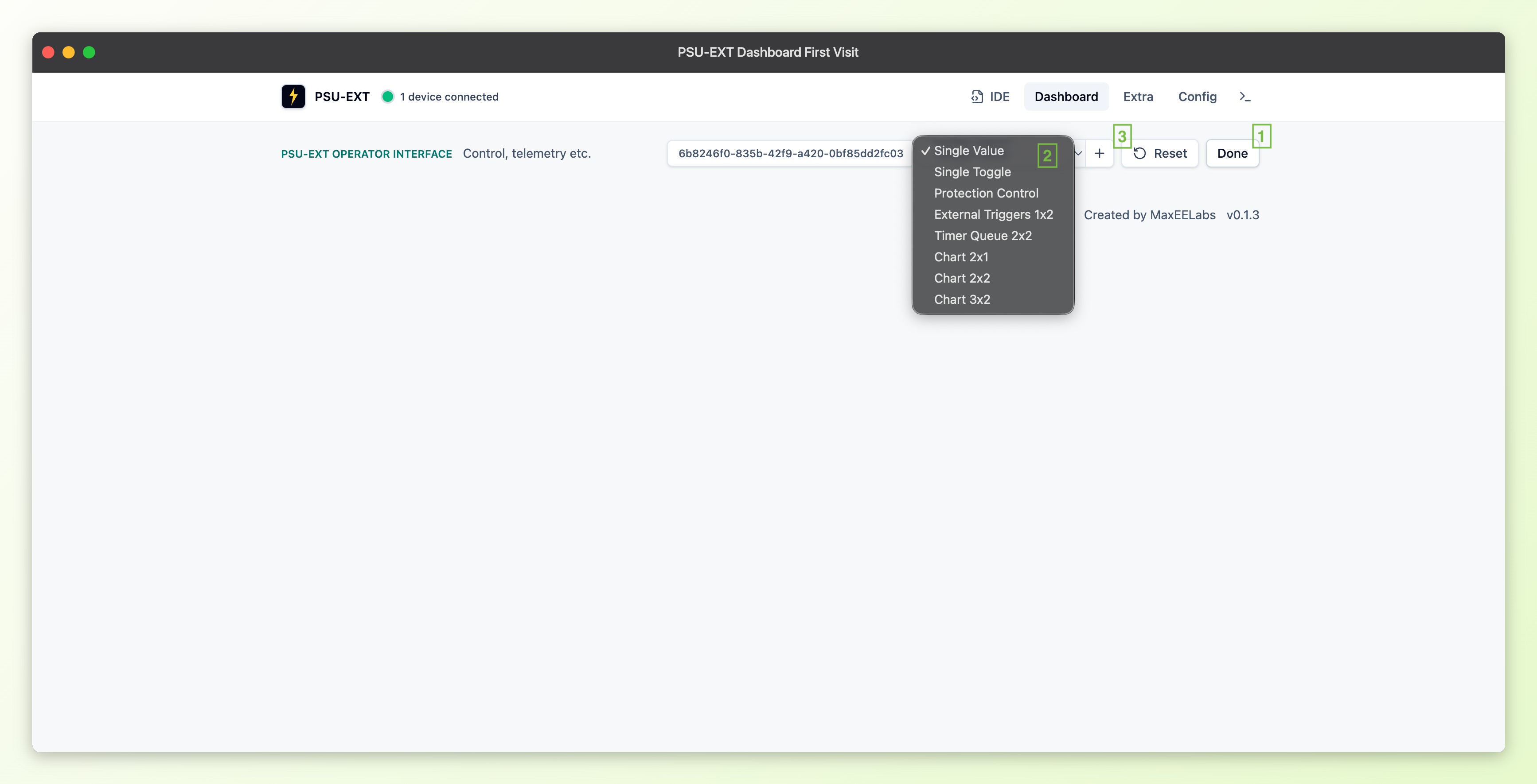
PSU-EXT Dashboard First Visit
One fact applies to every widget type before we tour them individually: each widget picks its own target device independently, so a single dashboard isn't locked to one PSU-EXT unit. You can mix cards pointed at different connected devices on the same grid.
Single Value and Single Toggle: The Two Simplest Widgets
Single Value and Single Toggle are the two simplest widgets on the grid, both sized 1x1.
Single Value is a read-only display of one cached SCPI query result: a number plus a unit label, for example "5.1431 / V".
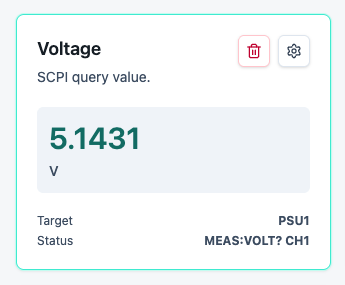 Single Value Widget | 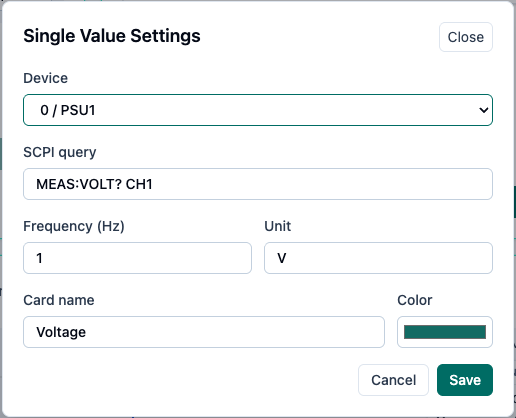 Single Value Widget Settings |
Single Toggle is a button that turns something ON or OFF — enabling a channel's output, say — and shows which state it's currently in: it checks a SCPI status query to know whether the thing it controls is ON or OFF right now, and clicking it sends one SCPI command for ON and a different one for OFF.
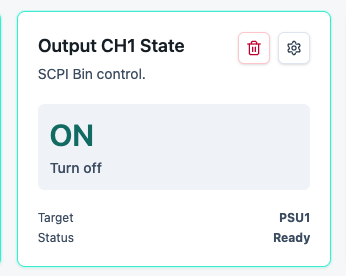 Single Toggle Widget | 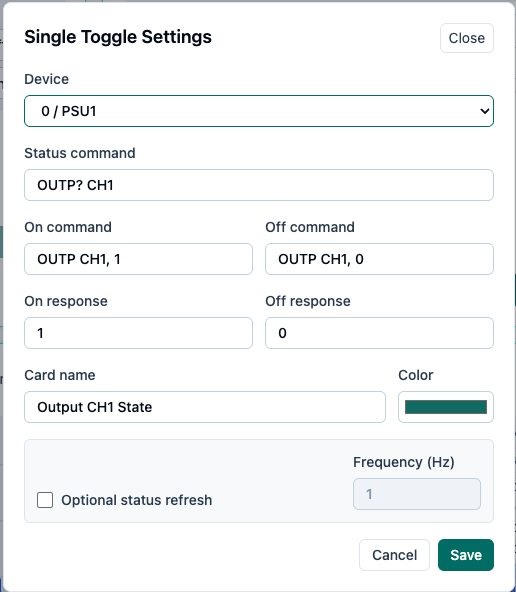 Single Toggle Widget Settings |
Protection Control
Protection Control is a 1x1 widget for one threshold — a voltage or current limit, set in an editable field with a Save button next to it. The PSU-EXT decides when that threshold's been crossed; the widget polls the device's reported trip state and shows it as a Tripped/Clear badge.
Each widget instance is single-purpose: it's tied to one protection key and one SCPI query/set-command pair. Watching OVP (over-voltage protection) and OCP (over-current protection) on the same channel takes two separate widget instances on the grid, not one widget with two thresholds.
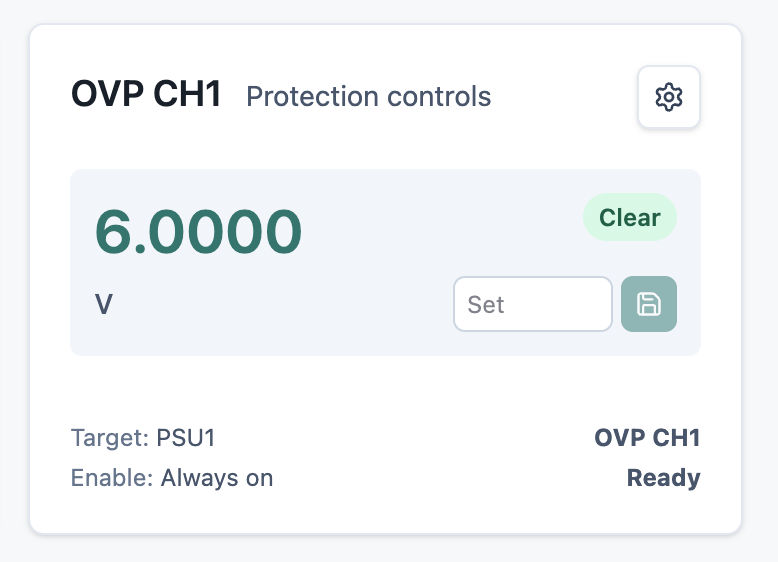 Protection Control Widget | 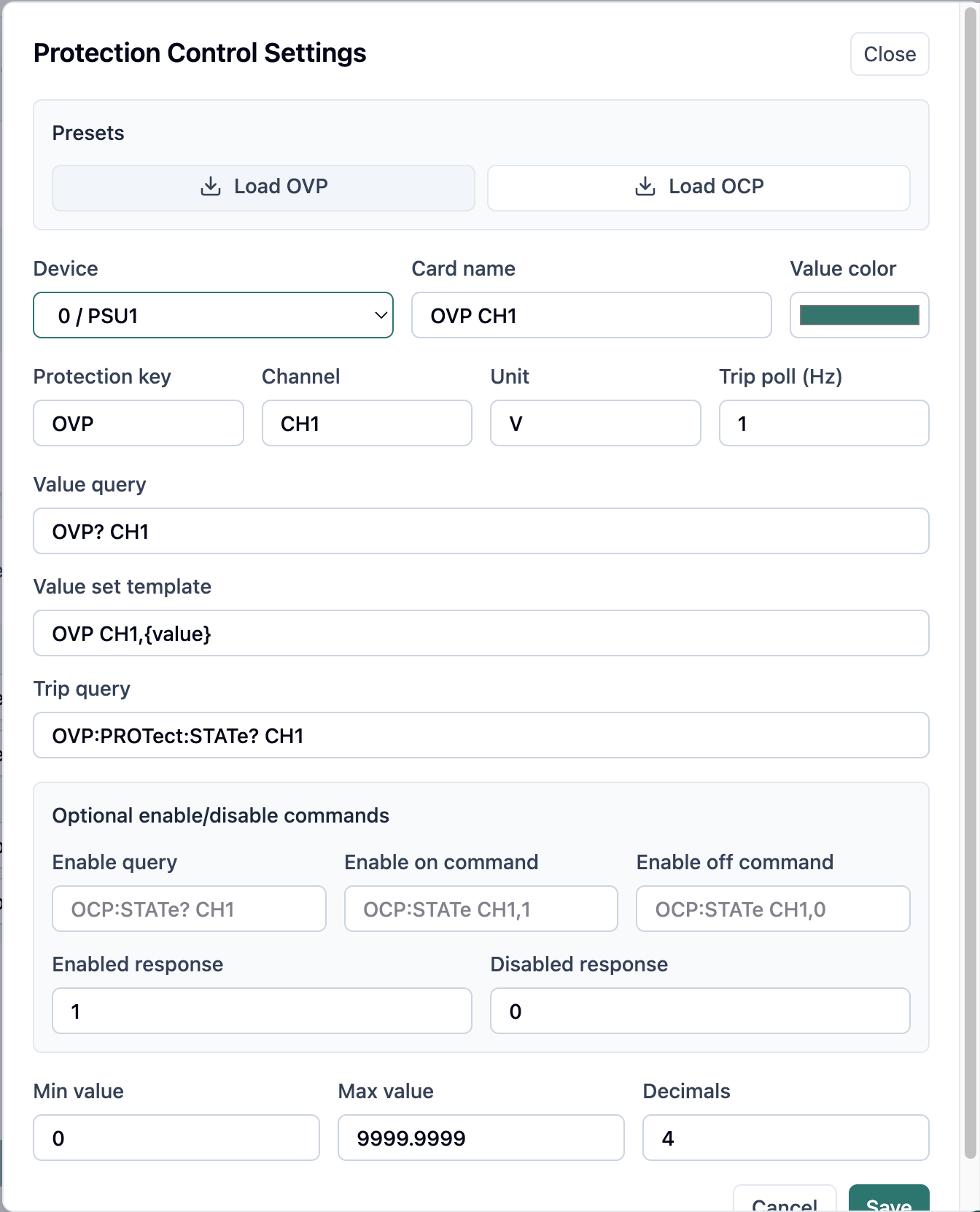 Protection Control Widget Settings |
External Triggers: Reading Hardware Inputs Into SCPI Actions
External Triggers is a 1x2 widget that reads two physical trigger inputs placed on PSU-EXT device — T1 on IO5 and T2 on IO4 — into SCPI actions. Each input has a LOW state slot and a HIGH state slot, four slots total, and each slot picks an action from a configurable list (defaults include Output On/Off/Toggle and Timer Start/Pause/Toggle) or None.
On the board itself, T1 and T2 are broken out at connector J4: a 4-pin (2x2), 2.54 mm-pitch header, silkscreened "T1" and "T2," so the two inputs are easy to find by eye.
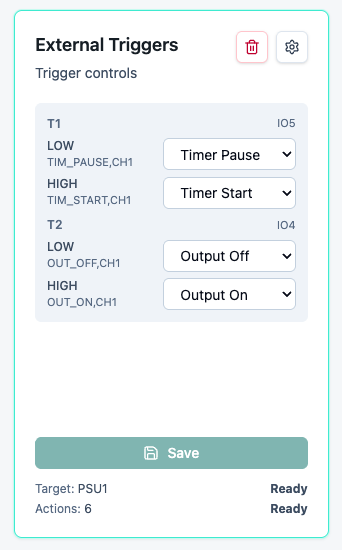 External Trigger Widget | 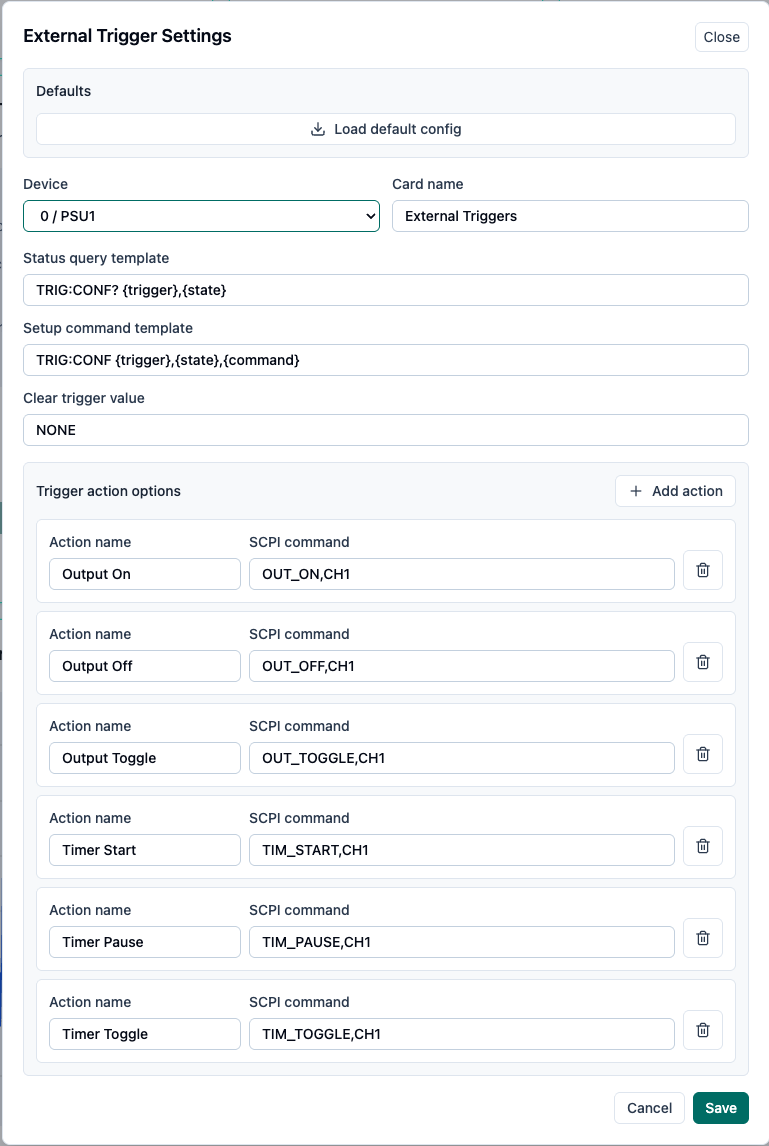 External Trigger Widget Settings |
Timer Queue: An Ordered List of Timed Actions
Timer Queue is a 2x2 widget that lets you queue up to ten timed relay actions in sequence, so you can cycle an output on and off over a schedule without writing a script. The code caps it at:
MAX_TIMERS = 10
The widget's config is hardcoded to CH1, so every timer in the queue acts on CH1's output relay — the same relay that Single Toggle's "CH1 Output" example switches. Each timer carries an ID of up to three characters, a duration in seconds, and a relay-after setting of ON or OFF: once that timer's duration counts down, CH1's output relay switches to whichever of those two states the timer was set to.
A timer must be saved as a preset and loaded onto the device before Load-and-start actually runs it — the widget makes that explicit, showing "Preset not loaded" until you've loaded it, then "Loaded on device" once it is.
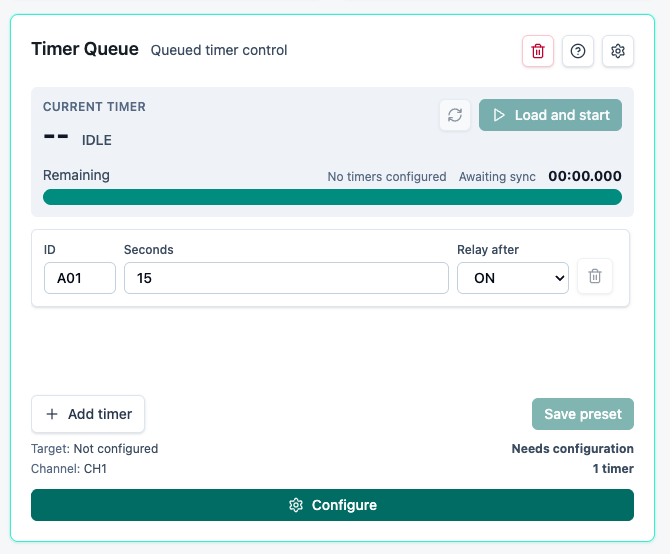
Timer Queue Widget
Chart: Trends Over Time, in Three Fixed Sizes
Chart comes in three fixed sizes — 2x1, 2x2, and 3x2.
Each chart plots one or more SCPI query series over time, and each series carries its own device, query, and line color.
History is capped to a local byte budget, and the widget shows how much of that budget is currently used right in the header — "43.7/ 256 KiB" in one of our captures, for example. An eraser-icon action clears that history. There's also an optional statistics panel on this widget.
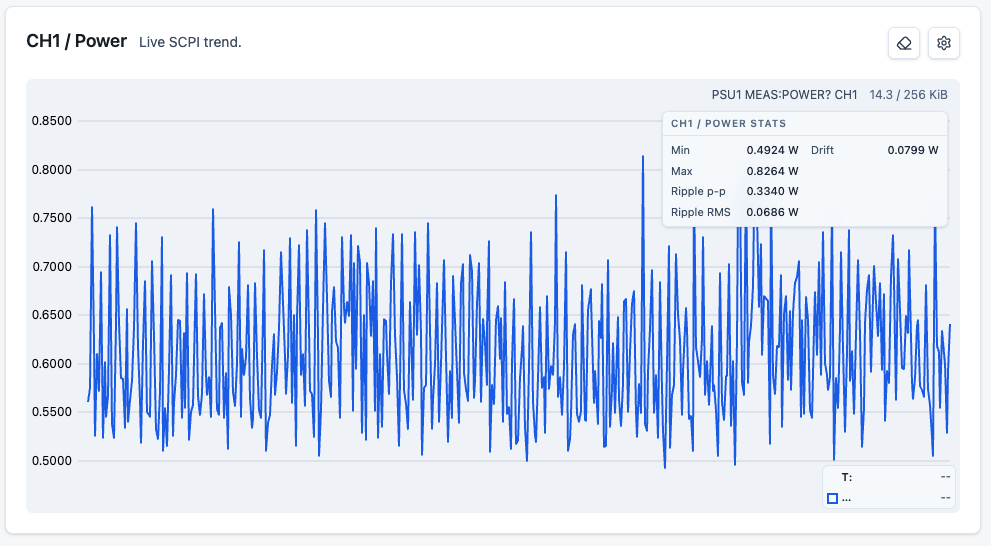 Chart Widget | 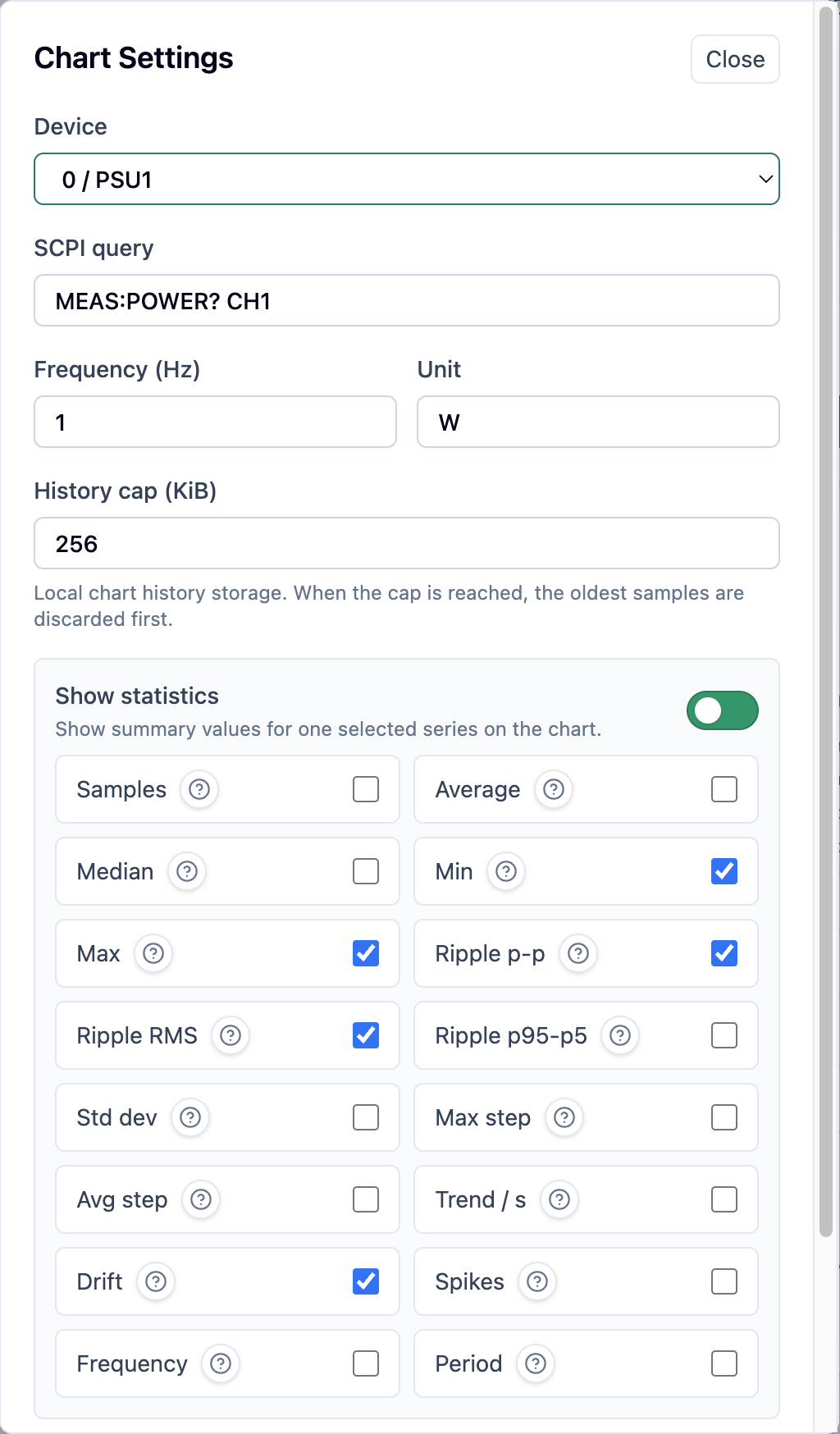 Chart Widget Settings |
Follow Along on Crowd Supply
If you're interested in PSU-EXT, subscribe to our pre-launch page on Crowd Supply: crowdsupply.com/maxeelabs/psu-ext
Discussions
Become a Hackaday.io Member
Create an account to leave a comment. Already have an account? Log In.