 Roni Bandini

Introduction
Under the pretext of ensuring public safety, cities have become saturated with cameras that use AI to detect people. These systems record human presence, reconstruct movement patterns, and compromise privacy in environments where opting out is rarely possible.
Adversarial patterns are a technique for testing how combinations of shapes, colors, and textures affect machine learning algorithms. Depending on the model and the experimental conditions, certain patterns may reduce detection confidence or cause a detection to fail.
The challenge is determining which designs affect which models, and under what conditions.
Inspired by the work presented at No Recognition, including its demonstrations at Black Hat and DEF CON 26, I developed a simple utility to explore this problem experimentally.
How It Works
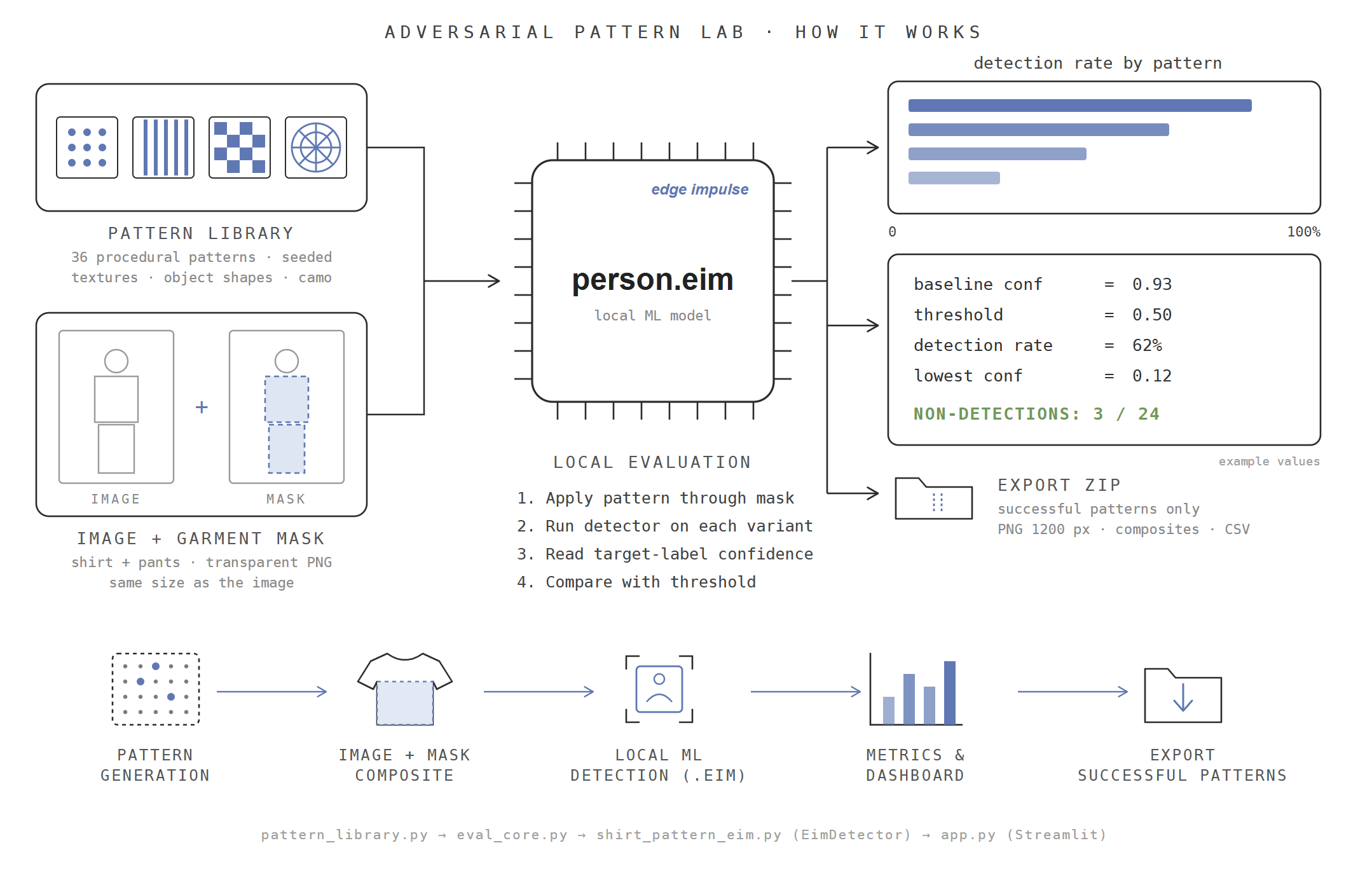
Drawing on published research and previous experiments, the utility generates patterns using a variety of visual motifs. Parameters include pattern categories (geometric shapes, animals, objects, camouflage, and others), pattern size, repetition, the number of variants per pattern, and the detection threshold.
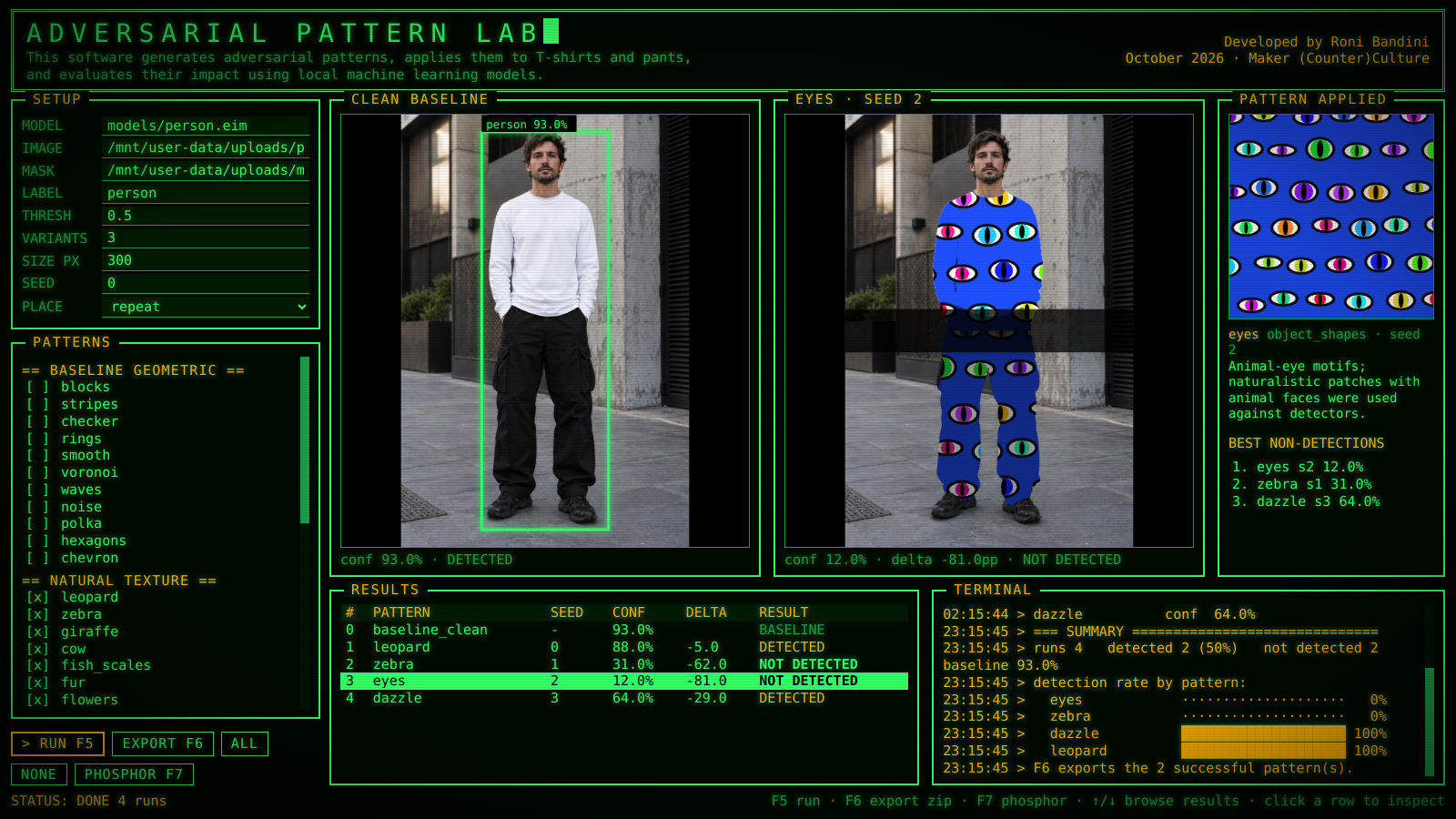
The utility applies patterns to clothing in a photograph and submits both the original and modified images to a locally running machine learning model. It then compares detection results, records relevant metrics, and saves the generated patterns and evaluation data for further analysis.
The exported artwork can also be used as a starting point for textile printing.
Creating the Mask
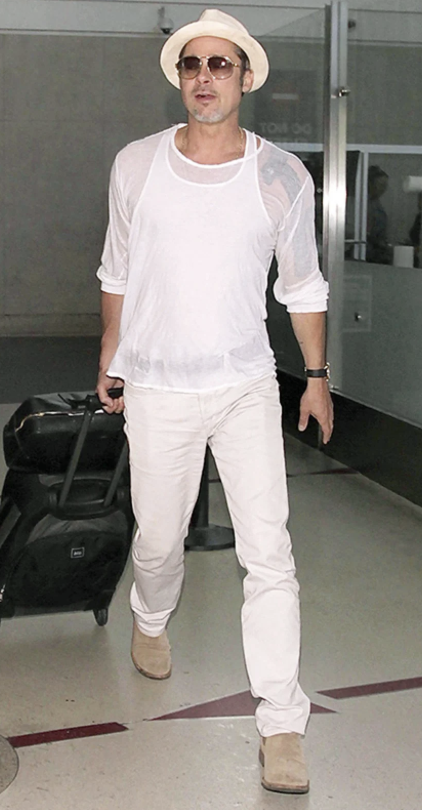
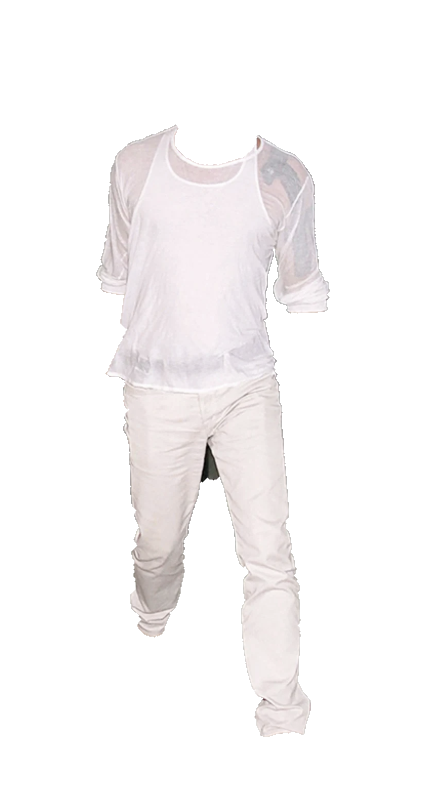
Creating a clothing mask is a straightforward process:
1. Open the original photograph in Photoshop or a similar image editor.
2. Use the Magnetic Lasso or another selection tool to trace the outline of the clothing.
3. Create a new image with the same dimensions as the original photograph.
4. Copy the clothing selection into the new image.
5. Remove the background, leaving the clothing isolated against a transparent background.
6. Export the result as a PNG file, preserving its transparency and original dimensions.
The resulting mask defines the region used for the image-processing experiment.
Obtaining the Model
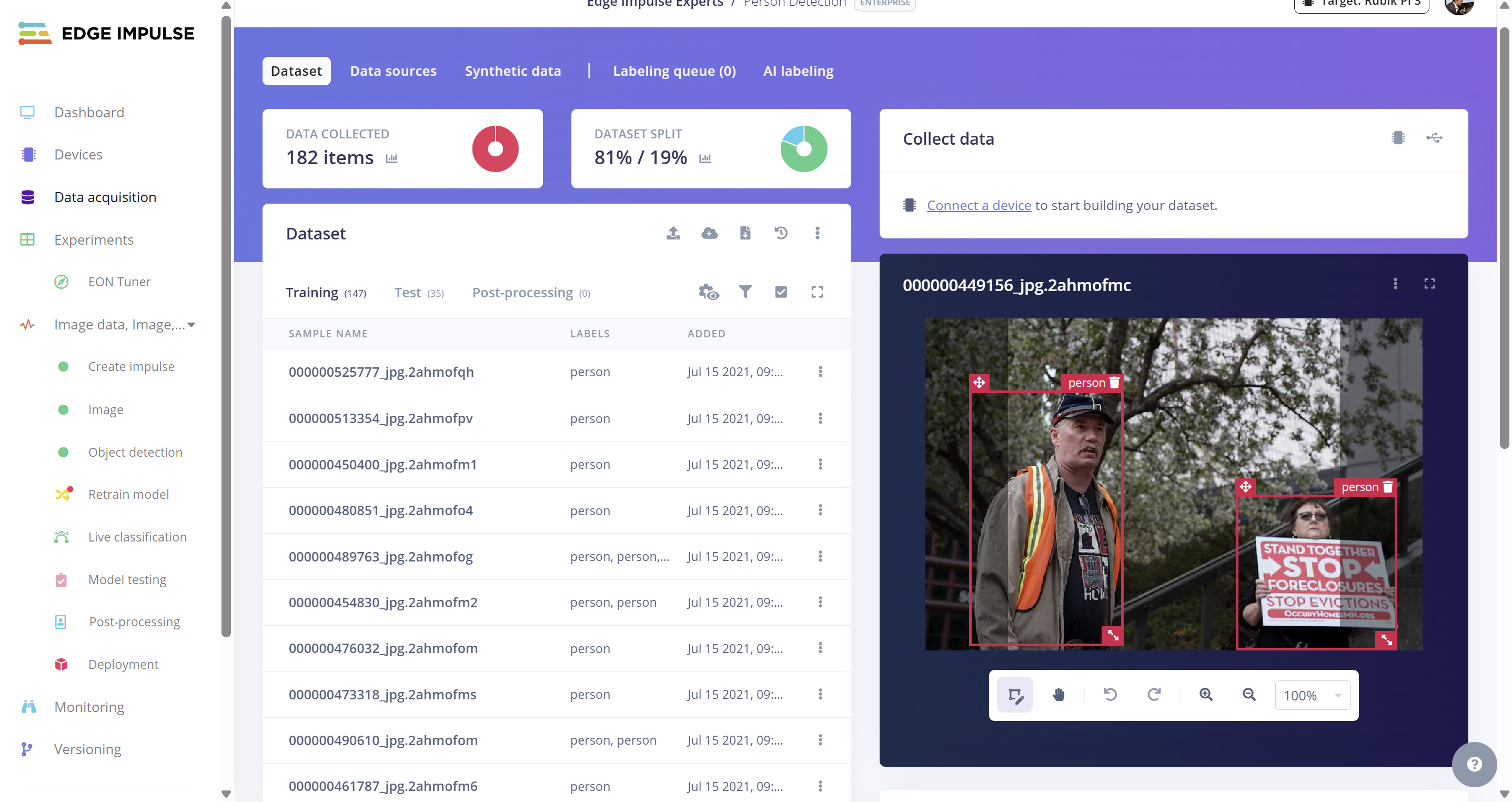
The simplest approach is to clone the reference model project and deploy it as an Edge Impulse Linux .eim model for the appropriate hardware architecture. In my case, the target architecture is x86, since the hardware platform is a LattePanda IOTA.
Software Installation
Open a terminal and install the required dependencies.
1. Update the system and install audio dependencies
sudo apt update
sudo apt-get install -y portaudio19-dev
pip install pyaudio --break-system-packages
2. Install the Edge Impulse Linux Python package
python3 -m pip install edge_impulse_linux --break-system-packages
3. Install Python image-processing libraries
pip install opencv-python numpy
4. Install Node.js
sudo apt install curl -y
curl -fsSL https://deb.nodesource.com/setup_lts.x | sudo -E bash -
sudo apt install nodejs -y
5. Install the Edge Impulse CLI tools
sudo apt install build-essential python3 -y
sudo npm install -g edge-impulse-linux --unsafe-perm
sudo npm install -g edge-impulse-cli --unsafe-perm
6. Authenticate and download the model
edge-impulse-linux-runner
Follow the prompts to log in and select the appropriate project. The runner downloads the model automatically.
Running the Software
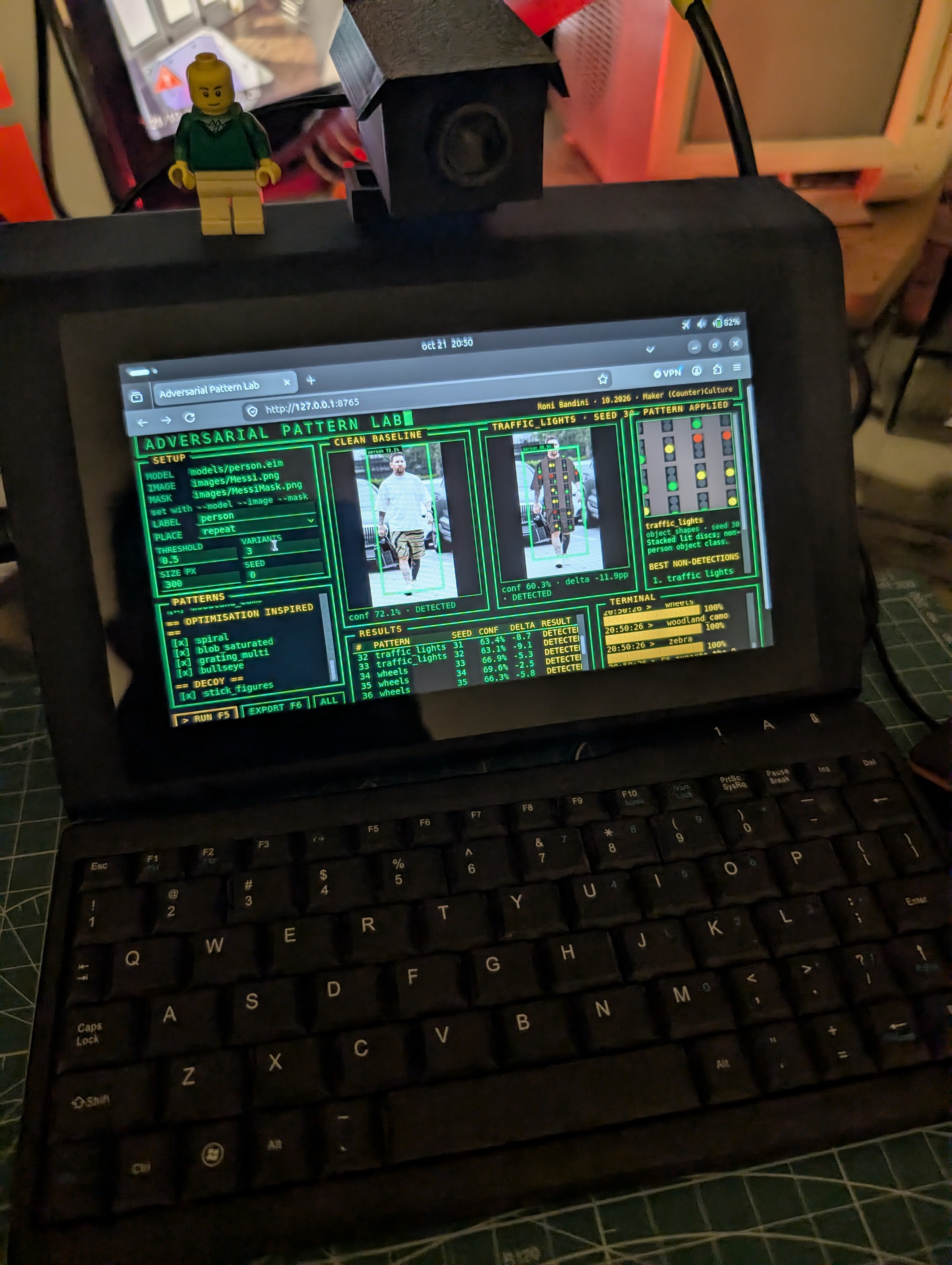
Graphical interface
The graphical version requires only a few command-line arguments, since the remaining parameters can be configured through the interface.
python3 app.py \
  --model models/person.eim \
  --image images/Messi.png \
  --mask images/MessiMask.png
Text interface
The text-based version accepts its configuration through command-line arguments. If an argument is omitted, the corresponding default value is used where supported.
python3 textMode.py \
  --image...
Read more »