 Eric
EricIf it was a slip-up, something done by someone else, or a format you carried out yourself before realizing the files still mattered, the thought of losing important data can hit hard. Still the situation isn’t always as hopeless as it seems. It’s still possible to recover files from a formatted Mac hard drive.
Whether recovery works is matter of how the drive was formatted, the type of storage (HDD or SSD), and whether the underlying data has been overwritten.
What is Hard Drive Formatting?
Creating or modifying the file system of a hard drive is what we call formatting. Every storage drive has a file system structure that governs how data is arranged and tracked on the disk. Without a file system, the macOS is unable to read or write the data stored on the drive.
Modern Apple Silicon or T2 Macs support the following file systems – APFS, HFS+, and FAT, or exFAT, which are also commonly used on Windows systems. macOS can also read data from NTFS-formatted drives out of the box, but it doesn’t allow writing to NTFS disks unless additional software is used.
On a Mac, drives are formatted using Disk Utility, but the recovery outcome depends heavily on how the erase is performed and what type of storage is involved.
Standard Erase (Default in Disk Utility)
The most common formatting method – when you erase a drive using Disk Utility with no advanced options, macOS recreates the file system metadata (usually APFS) without actively overwriting existing data. The files become invisible to the operating system, but the underlying data blocks may still exist until overwritten. Recovery is often possible.
Secure Erase (Legacy HDDs only)
On older Macs with traditional hard drives, Disk Utility used to offer secure erase options that overwrote data multiple times. These options are no longer available for SSDs because modern flash storage manages data internally. When secure overwrite is used on an HDD, software recovery is effectively impossible.
Erase Assistant / Encrypted Erase (Apple silicon & T2 Macs)
On modern Macs, internal drives are encrypted by default using APFS and FileVault. When you erase a Mac using Erase Assistant or erase an encrypted APFS volume, macOS destroys the encryption keys instead of overwriting data. This renders the data permanently inaccessible, even if the physical data blocks still exist. Recovery is not possible in this scenario.
Note: Remember that recovery is usually possible after a standard erase, but not after performing an encrypted erase on modern Macs.
Is Recovery Possible Even After Formatting?
Yes, it’s possible because formatting a hard drive is just setting it up to use a specific file system – by recreating file system metadata and partition maps. Formatting makes files inaccessible by removing file system references & metadata, but does not immediately overwrite all data.
While it may seem like everything on the drive is wiped clean, in reality the data may still be there as long as the following conditions are met:
• You performed a quick format (default on Mac unless you use the Erase Assistant option).
• The drive you formatted is an HDD and not an SSD.
| Drive Type | Typical recoverability after format | Main limiting factor |
| HDD (spinning) | Often recoverable if not overwritten; many files can be restored with recovery tools | Overwrites, secure‑erase passes, physical damage |
| SSD (flash) | Often not recoverable after TRIM or secure erase; possible only if TRIM was disabled and blocks untouched | TRIM, wear‑leveling, controller remapping, encryption |
How to Recover Files from a Formatted Hard Drive? (Without Backup)
There are several ways to recover deleted files on a Mac but when you’re dealing with a formatted hard drive, it’s best to use a Mac data recovery software. But first, stop using the formatted drive immediately to prevent the existing data from being overwritten.
Stellar Data Recovery Professional for Mac is a reliable tool to recover lost or deleted files from various data loss scenarios such as accidental formatting, deletion, file overwriting, file corruption, and more. It makes recovery from APFS and HFS+ formatted partitions super easy.
- Download, install, and launch the software on your Mac.
- Select the type of files you want to recover.
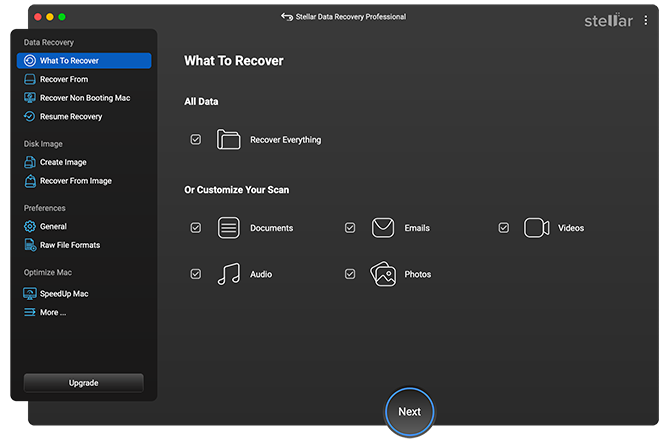
- Select the formatted volume to scan for your lost files.
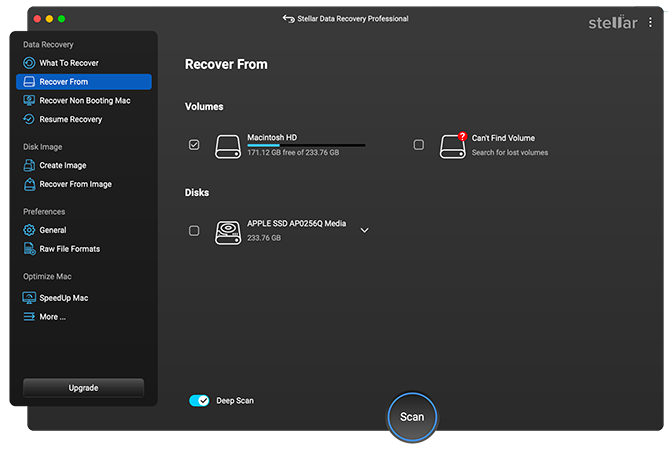
- Run the Scan to detect the recoverable files.
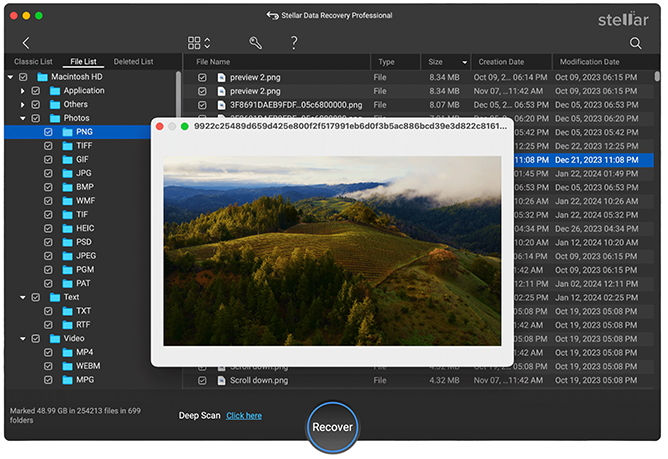
- Preview the recovered files, select the ones you want to retrieve and hit Recover.
How to Recover Files from a Formatted Drive Using Backup?
Time Machine is a built-in feature designed to backup and restore files on your Mac. It can incrementally back up your data to an external storage drive, or a network-attached storage (NAS) device. If you had Time Machine enabled on your Mac before the formatting, recovery feels almost too easy.
- Open the folder where the file originally existed.
- Click the Browse Time Machine icon in the menu bar.
- Scroll back through snapshots to find the file.
- Select it and click Restore.
iCloud, Dropbox, and Google Drive are popular cloud-based options for their ease of access. But these backup tools are only of use if you’ve already backed up your data (before formatting your hard drive). Cloud backup service providers also keep version histories of your saved files and let you restore them with ease.
Summing Up
To recover files from a formatted Mac hard drive is not a lost cause but your chances of success totally depend on how the drive was erased and the type of storage you’re using. A standard format using Disk Utility still leaves room for recovery. The key is to act fast, stop using the formatted drive immediately and choose the right recovery path.
Discussions
Become a Hackaday.io Member
Create an account to leave a comment. Already have an account? Log In.