Close
0%
0%

Hardware Data Logger

Easily extendable data logging platform with STM32F103RBTx, WiFi, microSD storage, LCD with four buttons, UART, and pulse counters.

Similar projects worth following
Modular and Reusable Design: The mainboard features multiple connectors connected in parallel where cards are placed. These cards are used for data acquisition, handling, and storage other cards can be added as needed. For example, if a larger MCU is required to handle more processing, only that specific card needs to be replaced, saving time and money.

Based on the STM32 (main chip), ESP32 (sending data to a remote host), and remote processing (Grafana, InfluxDB + MQTT on a Raspberry Pi).

The device uses cheap, easily accessible components and is easy to build.

High-level logic (e.g., layouts with data presented on the LCD) can be completely developed, tested, and visualized in a PC simulation or in Python-based integration tests. Both use a PC-build variant of the firmware.

The development environment is containerized in Docker, meaning faster setup and no need to install tools manually.

GitHub: https://github.com/RobertGawron/HardwareDataLogger

Hardware

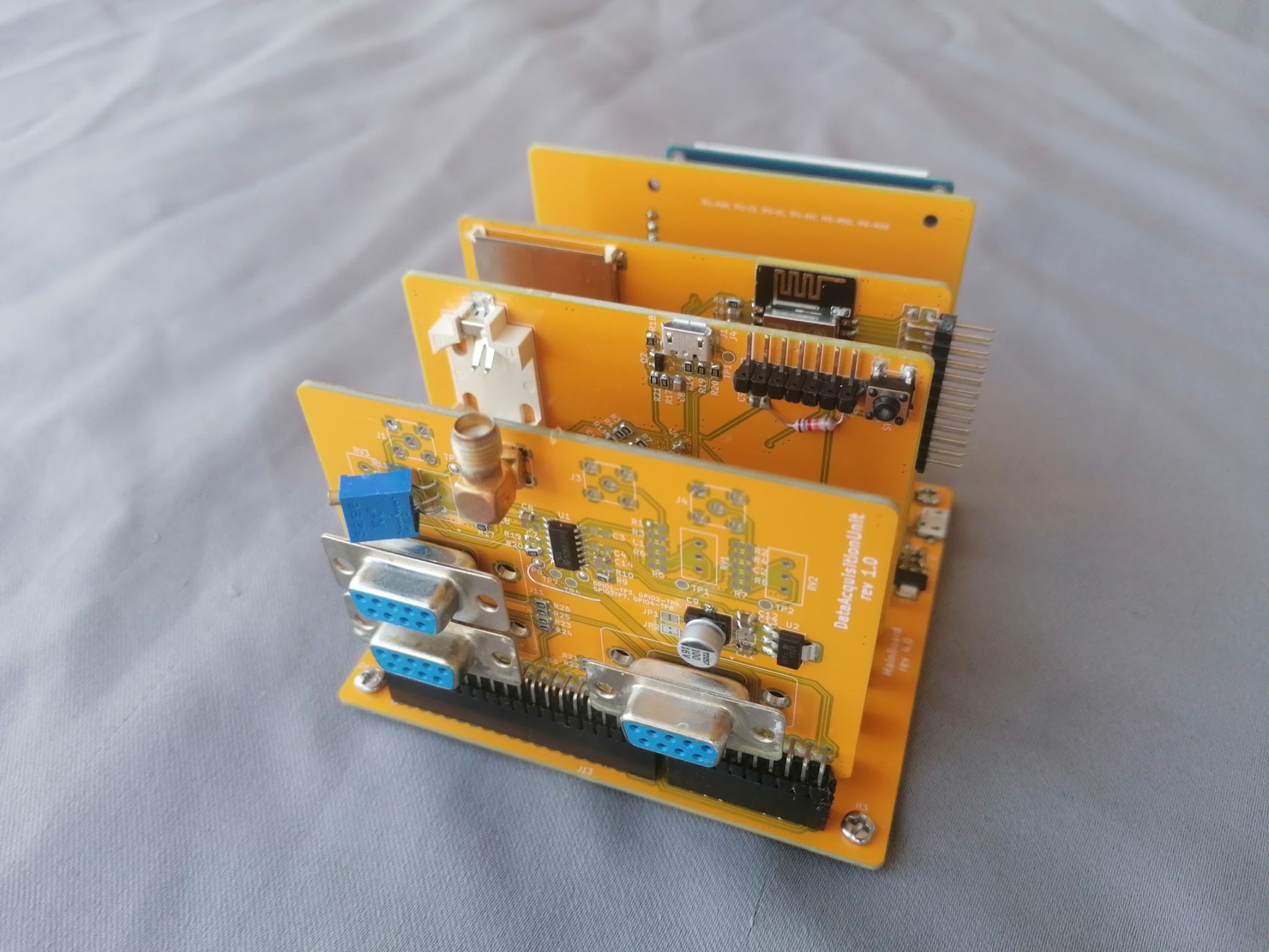
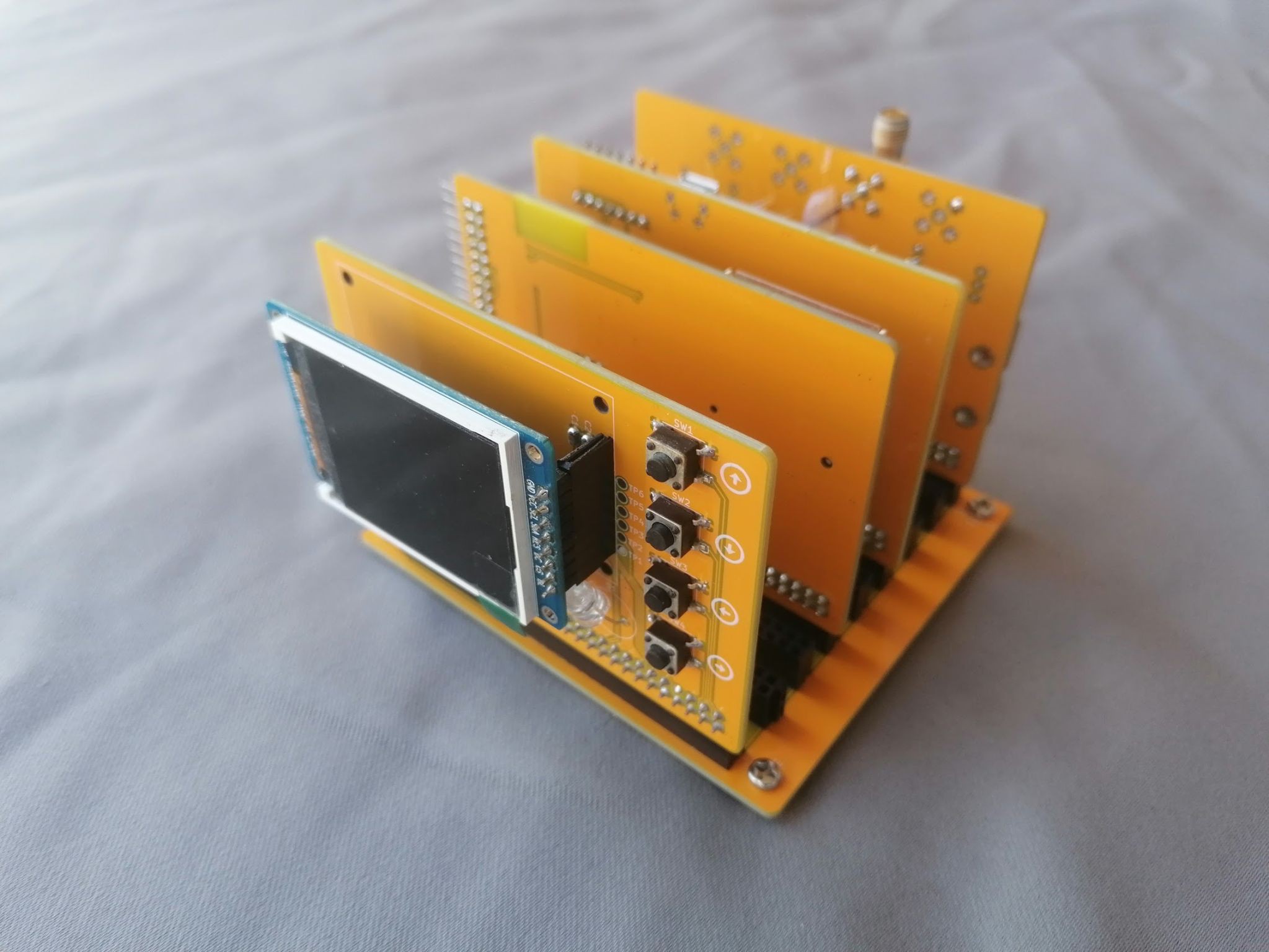
The idea is to have a mainboard with parallel slots where cards can be placed. These cards can serve various purposes, such as including microcontrollers, sensors, storage, or other functionalities as needed.

Mainboard serves as a base to dispatch all the signals to other boards; currently, there are:

  • A card for data processing with an STM32F103RBTx chip [circuit].
  • A module for storing data on an SD card and transferring it via WiFi (ESP32-WROOM-32E) to other devices, such as a Raspberry Pi [circuit].
  • An acquisition card with four pulse counter inputs and three UART sockets [circuit].
  • user communication module with an LCD and four push buttons; the LCD adjusts its brightness based on ambient light [circuit].

On the mainboard, slots are available for almost all of the STM32F103RBTx pins (GPIO, I2C, SPI, CAN, etc.), so it is easy and possible to use them when developing new cards.

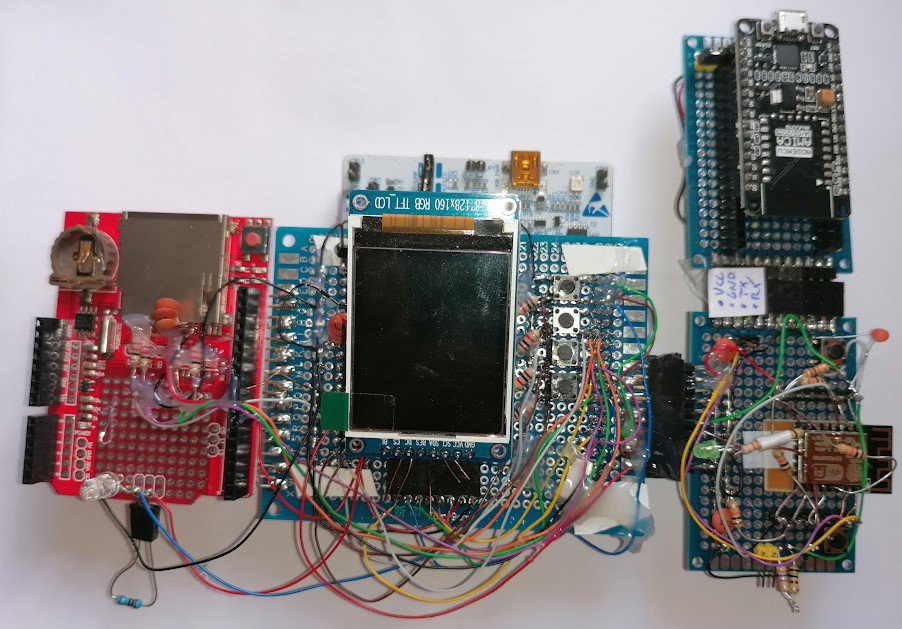
PCB production is so cheap nowadays that I think there's no point in etching at home, but the device is simple and the first versions were made on a breadboard.

All PCBs were done in KiCad.

Software

STM32F103RBTx

TThe main microcontroller, handling data acquisition, processing, storage, and user interaction.

  • Toolchain: C++23, C, STM32 VS Code Extension, CMake, Ninja.
  • More info.

ESP32-WROOM-32E

Used for data transfer via WiFi and will support FOTA (Firmware Over-The-Air) in the future.

DevOps

It's good to let the machine handle the tedious work of checking code quality, freeing up more time for the useful and interesting parts of software development.

  • Toolchain: Unit tests (Google Test, Google Mock), code coverage (LCOV), static code analysis (Cppcheck), Docker (for both local development and CI), GitHub Actions (CI).
  • More Info

Simulation

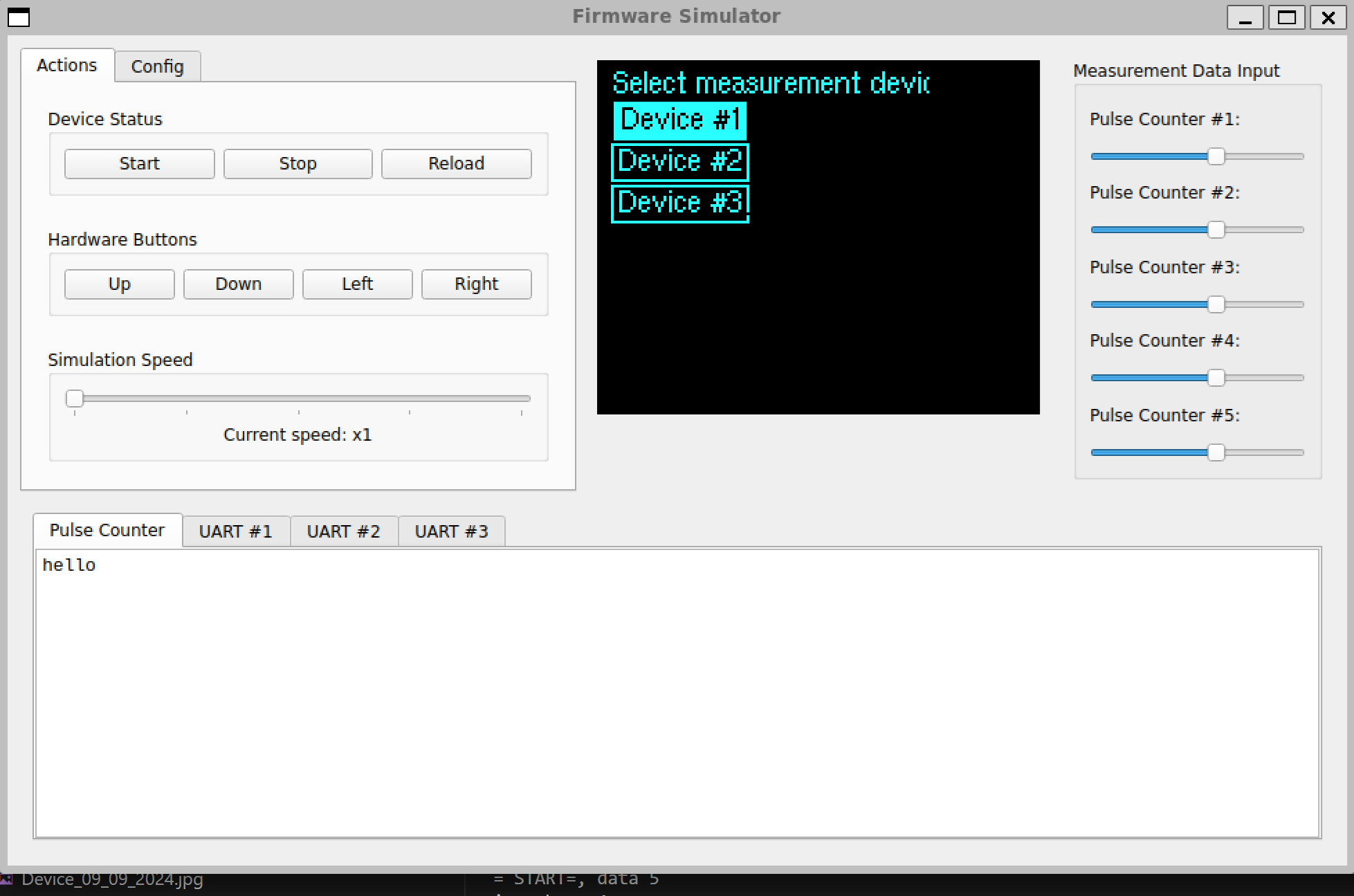
Embedded development is cool, but constantly flashing the target device for software logic, like the user interface, is time-consuming and frustrating. To make it easier, I made a simulation tool that runs the firmware directly on a PC. This allows all high-level logic- such as what’s displayed on the LCD, what data is sent via UART or saved to the SD card, user interaction via buttons, and data parsing-to be tested without needing the actual hardware.

While this simulation handles the firmware, speed of execution isn't a concern since it focuses solely on high-level logic. For hardware or driver-related issues, traditional methods like using an oscilloscope or logic analyzer are still necessary, as the simulation cannot be used.

Below is a screenshot from the simulation.
System Tests

Unit tests are good (they are used in this project as well, along with code coverage), but they don't test the software as a whole. This is especially important here where there are multiple nodes (STM32, ESP8266, remote host). To fill this gap, fully automated integration tests were added.

Documentation

UML diagrams were made using PlantUML.
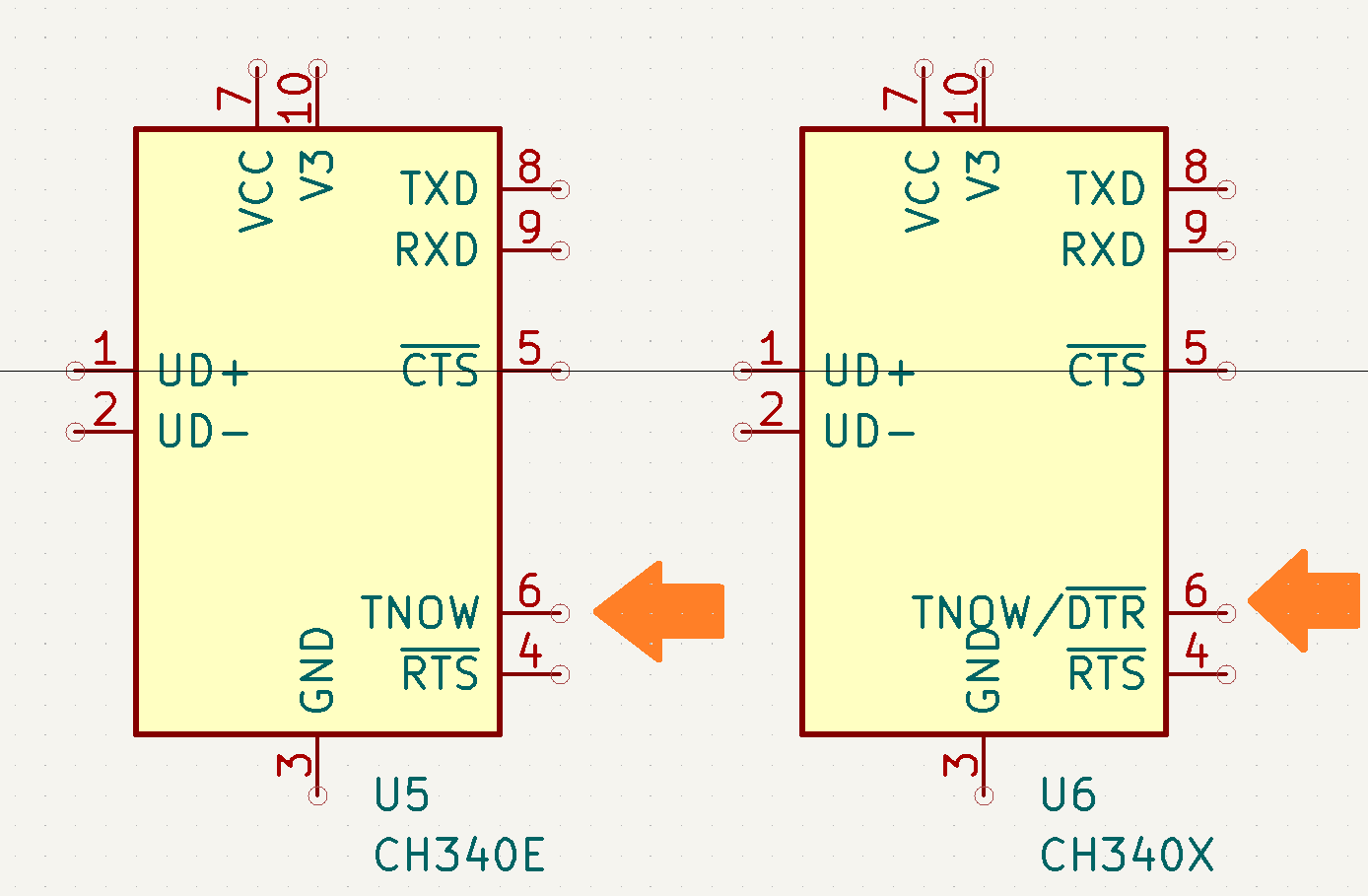
  • I ordered the wrong CH340 chip, but it still kind of works.

    Robert Gawron01/21/2026 at 12:41 0 comments

    CH340s are cheap Chinese USB-to-UART chips that are, well… cheap and easy to solder. They come in various variants, where the last letter indicates which exact variant it is (CH340B, CH340C, CH340G, CH340E, CH340R, CH340T). I bought one to make an onboard programmer for an ESP chip here. 20 pieces for 7 euro was a good deal!.

    To make a programmer fully automated (no need to push buttons), we need UART and two pins to drive ENA and GPIO0 of the ESP module. The trick is that UART chips have RST and DTR lines that can be connected to those pins on the ESP and then driven by the flashing tool on the host PC.

    So far, so cool - except that I bought a CH340E, and it’s the only one in the family that doesn’t have a DTR pin :P

    So I have to push a pin on the board manually to flash the device (at least only one, because the RST pin is there and that part works fine).

    In the next revision I will use CH340X and follow this tutorial  - it seems that with this version there is no need for extra transistors logic (but I will left place for them on the PCB anyway)

    Nevertheless, the programmer is working - just not in a fully automated way. So for a first try, I’m kind of okay with it.

  • ​Flashing and debugging STM directly from a docker container makes setup easier.

    Robert Gawron01/18/2026 at 18:52 1 comment

     I have tried to use docker heavily to make automatic setup of tests etc., but there was still one and most important thing that I couldn't do - at the end of the day it's an embedded project and the chip needs to be flashed, debugged, etc. Configuring this from Docker to be easily clickable from VS Code seemed hard. Also there is a need to access physical devices (USB based programmers for STM/ESP chips) from the docker image which seemed hard too. 

    Finally I made it possible and this post is about this.

    Pros

    • Installation of all tools is automated, no need to manually install on a host PC a compiler, tools to debug, flash, etc.
    • No conflicts between versions of toolchain between different projects, all is inside a Docker container. No error-prone environment variables etc.

    Cons

    • At the startup of VS Code one needs to click to switch to docker container in Visual Studio Code, it's annoying.
    • When using USB devices (here it's ST Link programmer for example) they need to be mapped to Docker image each time they are plugged in. I've just bought a cheap USB hub to have many USB sockets to avoid the need to disconnect the device.

    tl;dr - is it worth it? I would say 50:50.

    Now let's get to details, we will need:

    • Docker desktop
    • Visual Studio Code

    This manual is for Windows. While docker in theory hides host OS specific subjects... well not always. When dealing with hardware or for example line endings, we will have host OS specific issues.

    We need to have Docker desktop running, then we install in VS Code the "Dev Container" extension.

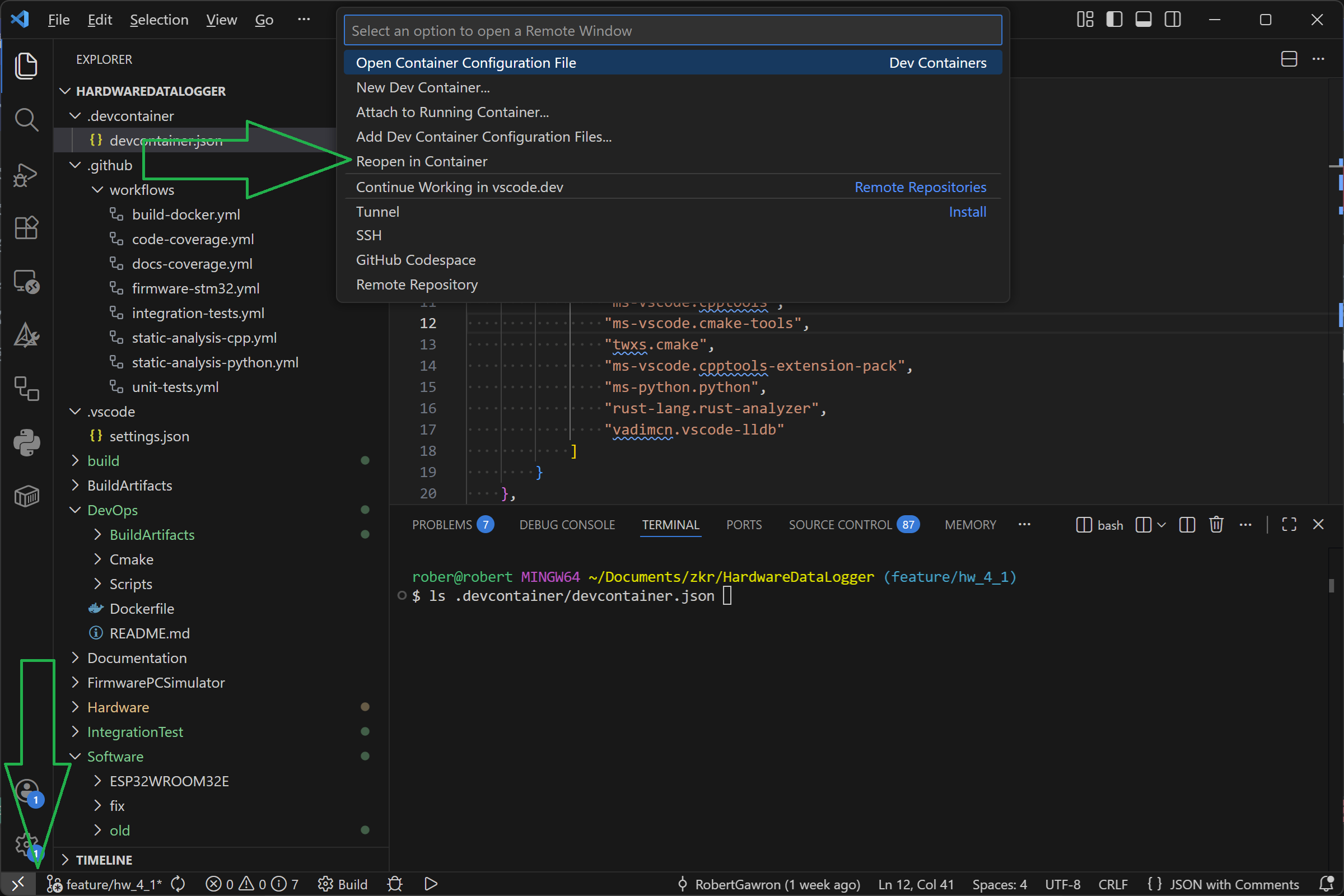
    Now we need in the root directory of the project to add this configuration: .devcontainer/devcontainer.json

    {
        "name": "STM32 Logger Development",
            "dockerComposeFile": "../docker-compose.yml",
        "service": "dev",
        "workspaceFolder": "/workspace",
            "customizations": {
            "vscode": {
                "extensions": [
                    "ms-vscode.cpptools",
                    "ms-vscode.cmake-tools",
                    "twxs.cmake",
                    "ms-vscode.cpptools-extension-pack",
                    "ms-python.python",
                    "rust-lang.rust-analyzer",
                    "vadimcn.vscode-lldb"
                ]
            }
        },
            "postCreateCommand": "echo 'Dev container ready! Open HardwareDataLogger.code-workspace'",
            "shutdownAction": "stopCompose",
            "containerEnv": {
            "DISPLAY": ":0",
            "WAYLAND_DISPLAY": "wayland-0",
            "XDG_RUNTIME_DIR": "/mnt/wslg/runtime-dir",
            "PULSE_SERVER": "/mnt/wslg/PulseServer",
            "QT_X11_NO_MITSHM": "1",
            "QT_QPA_PLATFORM": "xcb"
        }
    }

    This will tell the "Docker Container" extension which docker image we want to build (note the location of the .yaml file, service and workspace - those are the important things, the rest is not very important).

    Now we can restart VS Code and click on the icon "><" in bottom right and from the palette on the upper center select "Reopen in Container". The VS Code will restart.

    We are now running VS Code inside the container, meaning when we build, flash, debug, etc. we are using toolchain from the docker, not from host PC. The configuration of toolchain to debug, flash, etc. is as usual in VS Code (at least I think - I still learn it so I will not post about it for now, I'm still trying to make...

    Read more »

  • Execution time from 1h to 4 minutes - CI time on GitHub.

    Robert Gawron01/07/2026 at 19:14 0 comments

    Long story short, it's about parallelization and the use of cache.

    The context is that a year ago I made many CI jobs to test and verify the quality of the code and one of them uses CodeChecker, a powerful but RAM/CPU-greedy tool. This was because my machine isn’t powerful enough to run it locally (even though the project’s codebase is small). This way, I could push to GitHub and the CI job would verify code quality and give me results as an HTML file.

    It was good -GitHub gives a lot of CPU/RAM power for free- but over time I added more code to check (I was thinking: why not statically analyze unit tests too? It's weird but why not :). And I didn’t know when it happened (build was always failing due to linter's findings). Recently I saw that the build was failing because it was killed by GitHub due to RAM/CPU usage!! There were no results either, so the whole idea of crunching the data remotely failed.

    I tried to optimize and finally I’m happy with the results: 1h -> 4min. But there were many steps to make it work. They are more or less in chronological order.

    Optimize Dockerfile

    I removed what I no longer need (for me it was include-what-you-use, because well, I will no longer include anything - I will use C++20 modules anyway, but that’s a different story). Using multi-stage builds where the most frequently modified parts are at the end can help too. Good to cleanup but this didn’t give me a lot.

    Split GitHub's CI .yaml files into multiple ones

    The syntax of the .yaml GitHub uses is a huge boilerplate. The indent-based nature of .yaml doesn’t help either. I was just not capable of fixing one big yaml. It's like that now. No gains, but very useful for the next step. 

    Build caching

    Saved me 10 minutes—very useful!

    The idea is that if the Dockerfile was not modified from a previous build, it will not be rebuilt - a cached copy of what was built will be used.

    It works in a way that the principal build does the building if needed; other jobs wait for it. If no changes for me it takes ~20 sec. If there were changes (very rare), full build, me me its ~10min. Because I almost never update Docker file I almost always finish in the first case so I'm now saving 10min (previously it was always 10 minutes).

    One negative is that each of those parent jobs will have their build artifacts with them. There is no single place to get all build artifacts from a commit. I would prefer to have a tree-like structure with a node as a build name and subnodes of build artifacts.

    Matrix jobs

    This doesn’t speed up things but is helpful in the next steps. This avoids boilerplate code in .yaml, as a simplified example:

    strategy:
      fail-fast: false
      matrix:
        include:
          - name: Business Logic
            make_target: test_biz
          
          - name: Device
            make_target: test_dev
            
    steps:
    
      - name: Run Unit Tests
        run: |
          "cd /workspace/build && cmake -G Ninja -DCMAKE_BUILD_TYPE=Debug .. && ninja ${{ matrix.make_target }}"

    Parallelize the static analysis

    This is the game changer with execution down to 4 minutes!!

    The thing is CodeChecker uses compile_commands.json, generated by CMake. I have a "main" CMake that includes parent CMakes, and CMake will just put every cpp/hpp used by any projects he is able to build inside compile_commands.json.

    We need separate compile_commands.json for every executable and run parallel builds for each of those executables. It's not eassy to generate compile_commands.json, but I've found a trick gow to make it:

    We can run CMake like that (note that I use ${{}} trick from previous step):

    cmake -G Ninja -DEXPORT_SINGLE_JSON=${{ matrix.target }} -DCMAKE_BUILD_TYPE=Debug .. && ninja CMakeFiles/cstatic


     Then in the CMake I have:

      if(DEFINED EXPORT_SINGLE_JSON AND EXPORT_SINGLE_JSON STREQUAL "${TARGET_NAME}")
            message(STATUS "Enabling compile_commands.json export for: ${TARGET_NAME}")
            set_target_properties(${TARGET_NAME}...
    Read more »

  • Avoid vtable, big RAM/flash gains, upgrade to C++23

    Robert Gawron01/04/2026 at 19:08 0 comments

    I've gained 5.97% (9584 bytes) of flash and 8.29% (1696 bytes) of RAM, mainly by completely removing usage of virtual functions, but probably also because I've moved to C++23 and used its features and updated GCC to the latest stable version (because C++23 is still a bit under development on the GCC/Clang side).

    In this post I will give a cool example of how I've avoided virtual functions and used (a bit pointlessly but it's in compilation time) modern C++23 features. 

    The thing is that I've structured my application into three layers: BusinessLogic, Device and Driver. All HAL related code is in Driver. There I have for example SdCardDriver, UartDriver and other classes that wrap/hide low level hardware subjects.

    Previously I've created for each of such class an abstraction class, so I had ISdCardDriver, IUartDriver etc with all pure virtual methods.

    For the build of the firmware, the Driver's classes inherited from it (and implemented its methods using HAL's methods). For the build of PC simulation (the firmware for testing and simulation can be run on PC, no need for hardware, I've presented this in previous entries) I have a different set of Drivers that implemented the same abstraction classes (and they provide mocks too). 

    Depending on whether I was building binary for ARM or binary for PC I've switched the compiler and the Driver folder that I used so the correct set of drivers would be used.

    So far so good, it works and is correct, but now all those methods are virtual and it adds a bit of time of execution and binary size (under the hood compiler adds virtual table and in runtime checks what methods it should call).

    I've realized that I could do better :)

    Now I don't have those abstraction classes at all, I didn't need them. Build for ARM has its folder with hpp/cpp that uses HAL and build for PC has its own too. The idea of switching folder with drivers depending on build type stays the same. Common logic (like enums etc.) that are used by both AR/PC variants were extracted to common headers so that there is no duplication.

    And that could be the end but C++23 has a nice feature... concepts.

    An example of concept from project's code:

        template <typename T>
        concept SdCardDriverConcept =
            std::derived_from<T, DriverComponent> &&
            requires(T driver,
                     std::string_view filename,
                     FileOpenMode mode,
                     std::span<const std::uint8_t> data) {
                // File operations
                { driver.openFile(filename, mode) } noexcept -> std::same_as<SdCardStatus>;
                { driver.write(data) } noexcept -> std::same_as<SdCardStatus>;
                { driver.closeFile() } noexcept -> std::same_as<SdCardStatus>;
            };

    For each driver I've added concept that checks (during compilation) if the driver implements all needed methods, for example:

       class SdCardDriver : public DriverComponent
        {
          //...
        };
    
        static_assert(Driver::Concepts::SdCardDriverConcept<SdCardDriver>,
                      "SdCardDriverConcept must satisfy the concept requirements");

    It's a static assertion. It's not needed here, if one class doesn't implement all that is needed the build would fail anyway, anyway nice to have it.

    Before all those optimization:

    Memory region         Used Size  Region Size  %age Used
                 RAM:        6608 B        20 KB     32.27%
               FLASH:       35916 B       128 KB     27.40%

    After:

    [22/22] Linking CXX executable HardwareDataLogger_STM32F103RBTx.elf
    Memory region         Used Size  Region Size  %age Used
                 RAM:        4912 B        20 KB     23.98%
               FLASH:       28088 B       128 KB     21.43%

  • HW rev 4.1

    Robert Gawron01/02/2026 at 16:50 0 comments

    The new HW version has many minor fixes. Some of them are interesting, so I'll share them in this post.

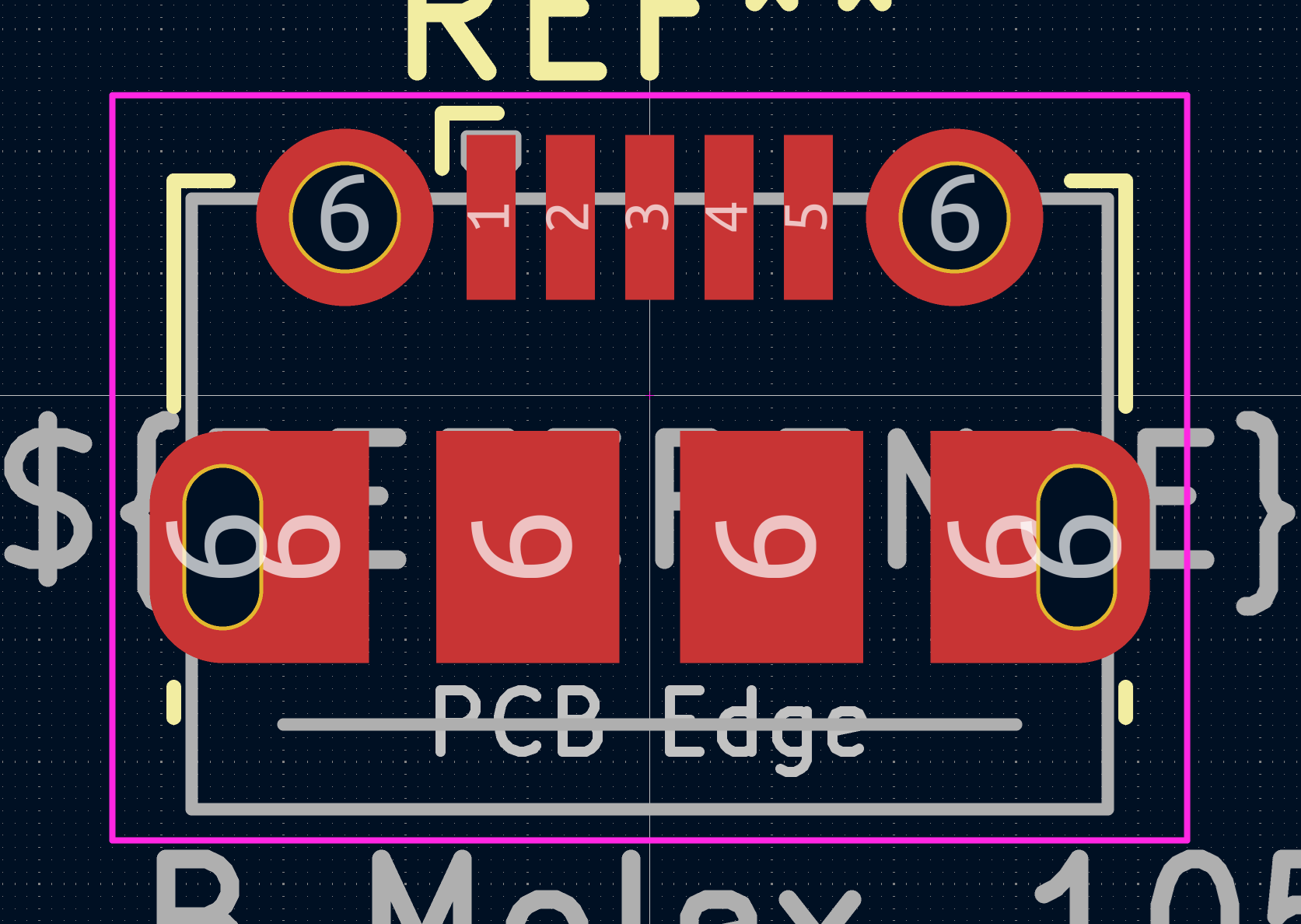
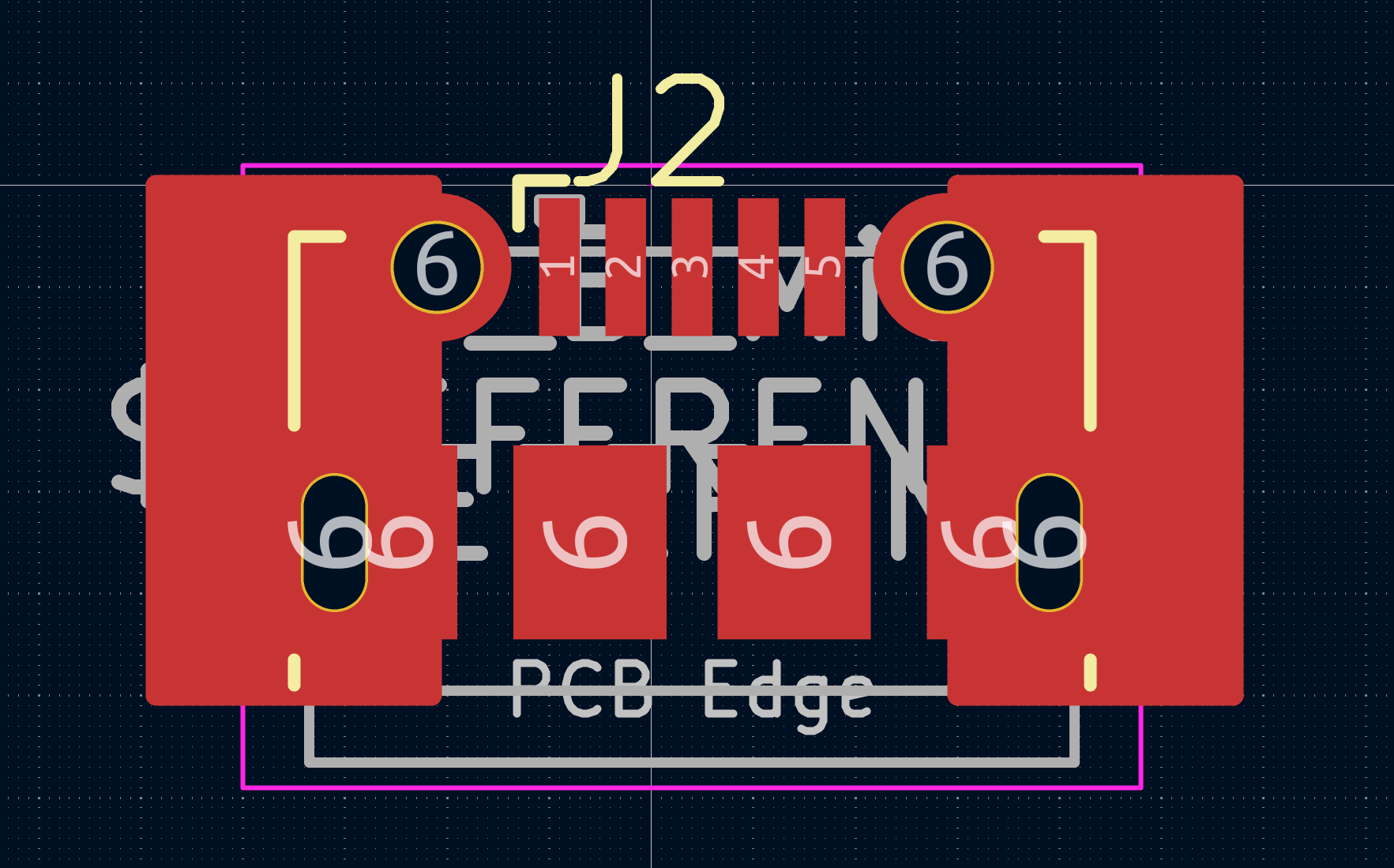
    First, the USB connector used for the power supply ripped off, and I don't have a soldering iron here, so the device doesn’t work. lol. The thing is, micro USB is small, its pads are small (mostly surface-mounted), but the forces when the cable is plugged, unplugged, or moved are huge.

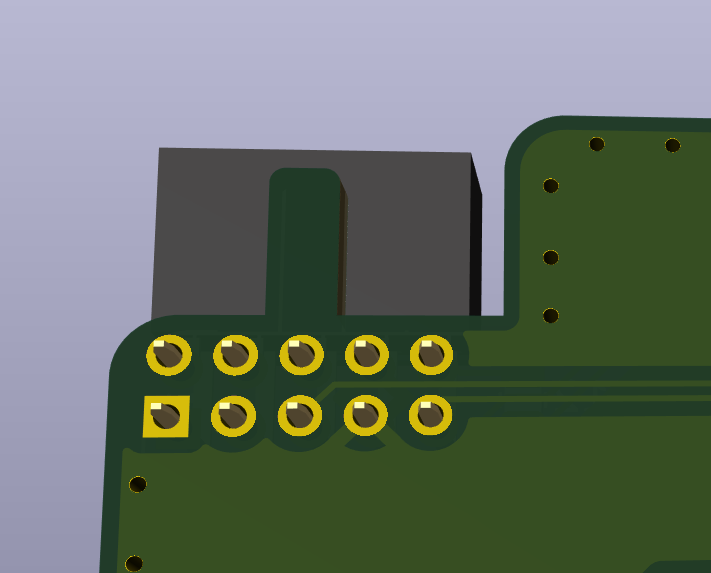
    The fix is to make much bigger pads for soldering the shield of the connector, so the mechanical stress is better dissipated. This is shown in the image below (original USB connector from KiCad libraries vs. the new one I made).

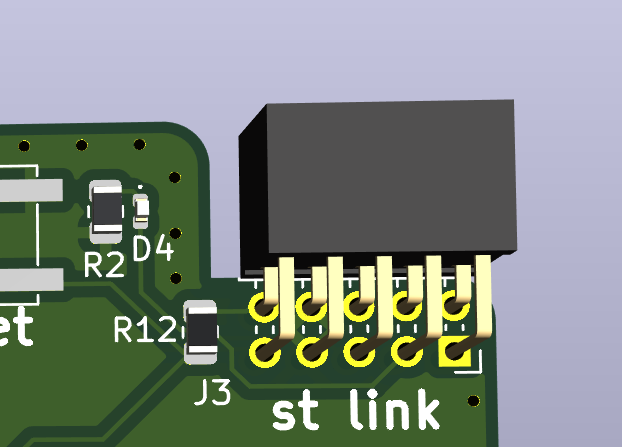
    Second, I added a proper STLINK connector to the PCB. In the previous version, I just added a pin header but didn't care which pin was which, so I later had to use wires to connect the device to the programmer. It was annoying and looked lame. BTW, I also added a dent so the STLINK can only be inserted the right way.

    The STM chip on the device always uses its own power supply; it's not powered from the STLINK. In case that could be a problem (I don't think so, but who knows-I have a cheap STLINK clone), I added an LED on my PCB between the STLINK's 3V3 and GND. It’s used to simulate the STM’s power consumption and as an indicator that the STLINK is connected.

    Third, I switched the ESP. It's no longer an ESP8266 but an ESP32-WROOM-32E. This is because I want to write its code in Rust, and Rust doesn't support the ESP8266 as it's an old chip.

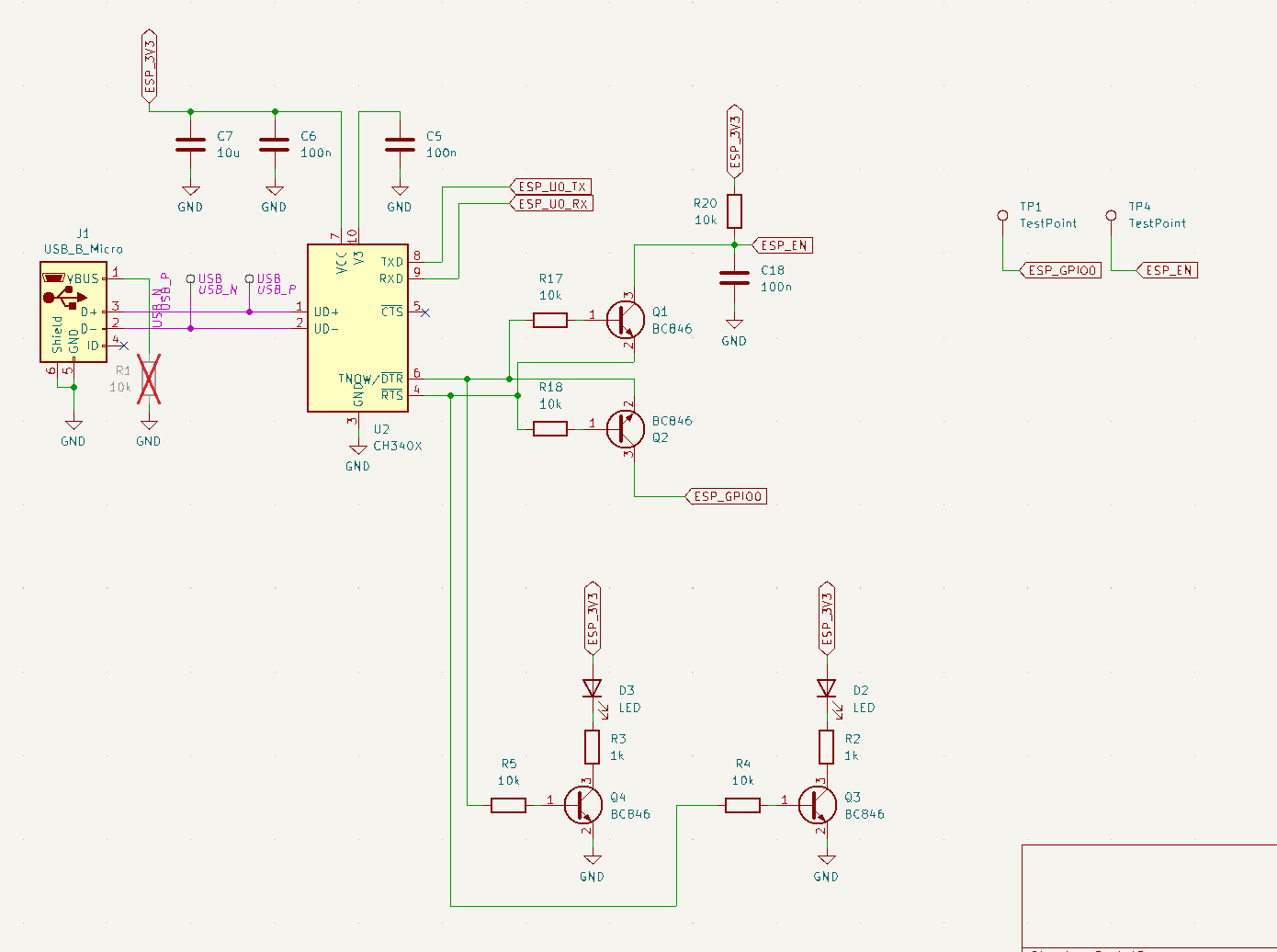
    To make flashing the ESP easier (as with the STM, wires are error-prone), I've added on the board a USB programmer for the ESP. It's based on the CH340X, which I find very cool because it's much cheaper than an FTDI chip and easy to get in an easy-to-solder package. An extra feature I added is two LEDs to show the state of RST and GPIO0 - this should be helpful for debugging whether the flashing is working at all.

    he circuit is as bellow, it's not tested.

    Fourth, all cards are now 1cm shorter while keeping all the previous functionality. I realized all those PCBs next to each other looked so empty - there was so much unused space on the boards.

    I also added TVS diodes to ESD-protect the device from whatever is connected via the UART and pulse counter connectors. The diodes are added to all the pins on the SD card as well.

  • Short update

    Robert Gawron12/27/2025 at 21:01 0 comments

    This is a short update, I will post technical details in next posts:

  • Using docker context for easier deployments on RasberryPI

    Robert Gawron09/14/2025 at 16:04 0 comments

    I have reworked the part of this project related to the visualization of the collected measurements via the web interface. Now it's easier to deploy to Raspberry Pi and better documented. I've also cross-tested it with data from my other project because the code for the ESP32 in this project is still not finished.

    Previously, I planned to use Ansible to deploy the Docker images to the Raspberry Pi, but I found this tool to be overkill. Instead, I found something much easier, but with its limitations: docker context.

    The idea is that normally (without changing anything) Docker deploys containers on the local machine (where it runs). This can be changed, however, thanks to contexts. All that is needed is to generate SSH keys to access the remote machine without a password and then, on the local machine, run:

    docker context create pi --docker "host=ssh://user@host_to_deploy"
    docker context use pi

    Now we build locally but deploy, start containers, and debug them remotely.

    It's super easy, but there is a problem. I use prebuilt Docker images for all the building blocks, and when I deploy them, it deploys just the images. All local files from the repository (including configuration) are not deployed because they are not part of those images (Docker downloads them from the Internet). That means that the images are not configurated.

    Later on, I just log in to each of the images (Node-RED, InfluxDB, and Grafana) via web browser (I have chosen the software in a way that all can be configured via web browser) and configure tokens, etc. I’ve explained this in the manual. So the configuration of the containers is not in the Git repo and needs to be done again when deploying to a new machine. But it’s easier and good enough, I think.

    Normally, when a container is restarted, its content reverts to the original state, meaning all modified files are reset. That wouldn’t be good here because after each such restart, I would need to reconfigure everything. But fortunately, there’s something called Docker volumes. It’s possible to configure which file locations are persistent between restarts.

    What’s even more interesting is that AFAIK those volumes are available as a regular folder on the host machine, in this sense on RasberryPi, because that's where they are installed.

    I think I could create a private repo with a backup of those folders, private because in theory it contains sensitive things like authentication tokens. That way, if the SD card of my Raspberry Pi fails and I need to recreate the OS image from scratch later on, I can just deploy using docker context and apply the volumes, therefore restoring the old configuration.

    Another thing that would be possible with Ansible but isn’t possible with Docker contexts is that I can’t preconfigure the Raspberry Pi - for example, manually install Docker on it. I need to do it manually now.

    Maybe in the future I will return to the idea of using Ansible, but for now, it's good enough for me as it is.

  • Assembling hardware version 4.0

    Robert Gawron06/28/2025 at 10:32 0 comments

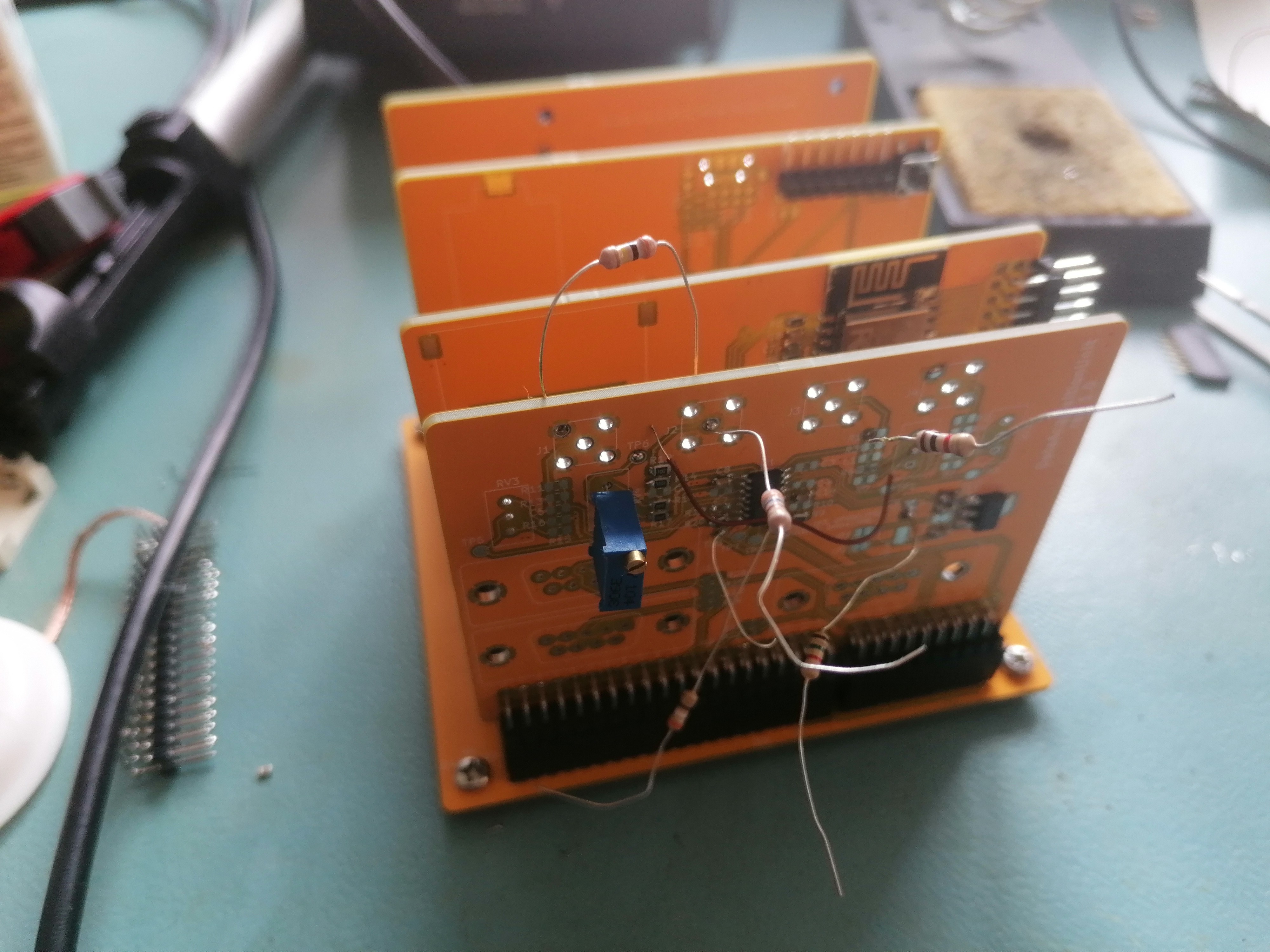
    It's been a long time since I posted anything here, but I've started building the new version. While the software remains the same, the new hardware is built in a modular way. There's a main board with multiple parallel slots (each one is identical) and cards that can be plugged into it.

    The cards are:

    • CPU: STM32 board with some minimal peripherals

    • Storage: ESP32 that will send data outside, SD card slot

    • Acquisition: BNC connectors, UART connectors

    • HMI: display, keyboard, phototransistor to detect how much to dim the display at night

    The idea is that, in this way:

    • if one part needs changes or redesign, the other parts can still be used

    • new boards can be added in the future

    • PCB manufacturing in China is so cheap these days that it's economically reasonable

  • Simulating STM32 and ESP8266 Firmware on a PC

    Robert Gawron12/27/2024 at 10:38 0 comments

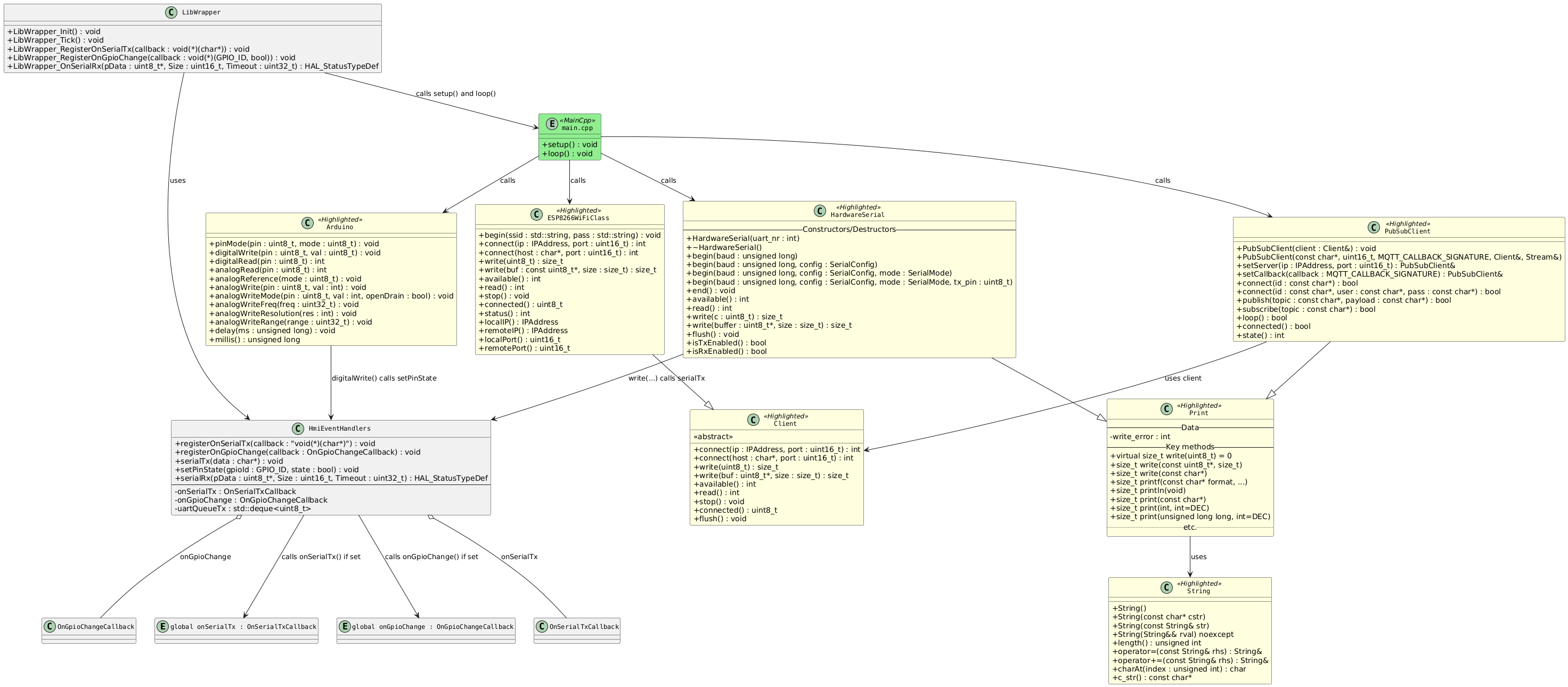
    This project involves an STM32 and an ESP8266 microcontroller, which communicate with each other via UART. Previously, I created a simulator for the STM32's firmware that allows me to run and test it on a PC. In this post, I will share my progress in simulating the ESP8266 firmware.

    Below you can see an emulated ESP code that is just echoing what it received on UART and is blinking an LED (the yellow circle at the bottom of the display represents an LED connected to an ESP pin).

    The Idea

    I think the approach is always the same:

    1. Identify Code to Simulate: Check which parts of the code need to be simulated. Likely, this includes all project-specific code but excludes libraries that handle hardware communication.
    • Write Mock Implementations: Take the code and ALL header files it includes (libraries too). Then, create .cpp files for .hpp files that were taken without their source code – these will be the mocks.

    Why is it better to compile the code with .hpp files of the libraries we want to stub? They could just be copied and modified; maybe this would be easier?

    Well, no. If the .hpp file is modified (for example, if a new version of the library is used), the simulation build will simply fail to compile (the implementation in .hpp and .cpp will not be aligned), and we will know that our simulation is not up to date.

    However, this is problematic here because (which is not good) in many headers of Arduino libraries, the .hpp has methods with their bodies not in the .hpp or .cpp. For example, in HardwareSerial.h:

    class HardwareSerial: public Stream
    {
    public:
        size_t getRxBufferSize()
        {
            return uart_get_rx_buffer_size(_uart);
        }
    };

     uart_get_rx_buffer_size() comes from uart.h, so now we need to stub not only HardwareSerial.h but also uart.h. If uart.h has method bodies in the .h file rather than in a .c file, this process repeats. In the end, there was too much work, and I just copied the headers and cleaned them a bit. It’s not perfect but good enough.

    The diagram below presents the results. In yellow are mocked files from Arduino libraries, in green the emulated code, and in grey additional classes to provide an API for the simulation. The code is compiled into a .so library that is used by the GUI in Python.

    Functionalities

    There are not many functionalities for now, only simulation of GPIO and UART (both send and receive). How is it done?

    To send data to the firmware via UART, there is a method in the .so library:

    HAL_StatusTypeDef LibWrapper_OnSerialRx(
        const std::uint8_t *pData,
        std::uint16_t Size,
        std::uint32_t Timeout);

     It puts the data into a queue, and then HardwareSerial reads this data. The objective is that the simulated main.cpp code uses HardwareSerial but doesn’t know whether the data comes from a real UART or this simulated method.

    It’s a bit trickier when the simulated code needs to change GPIO state or send some data back. How would the simulation know that the state has changed (to show it on the screen to the user)? There are at least two ways:

    • Polling: The simulation periodically checks the state of the UART and GPIO mocks. This is not ideal because we would need to poll very frequently to get good precision.
    • Callback: The simulation registers a callback function with the mocks. On state change, the mock calls the callback. The callback points to a method in the simulation that, in the end, updates the screen. This is not ideal because code with callbacks can be difficult to debug and may crash at runtime if poorly written.

    I used the second method. It’s implemented in the HmiEventHandlers class.

    That’s all. I’m pretty happy with the results, although it is not complete.

    Link to the commit.

  • Automated Raspberry Pi Deployments with Docker Buildx and Ansible

    Robert Gawron12/23/2024 at 18:21 0 comments

    In this post, I will describe how I set up a Docker container on my PC (x86) to cross-compile Docker containers for Raspberry Pi. I will also discuss Ansible, a tool for automating the deployment and configuration of remote machines. I use it to configure the Raspberry Pi and install the images I build locally.

    Project Setup

    For this cross-compilation, we need two Docker configurations: one to build target images and another to define what those target Docker images are, to configure them (what is installed in them). Here's the project structure:

    ├── Host
    │   ├── Dockerfile
    │   ├── README.md
    │   ├── ansible
    │   │   ├── README.md
    │   │   ├── files
    │   │   │   ├── docker-compose.yml -> /workspace/docker-compose.yml
    │   │   ├── inventory
    │   │   ├── playbook.yml
    │   │   └── roles
    │   ├── bake.hcl
    │   ├── docker-compose.yml
    │   └── scripts
    │       ├── docker_export.sh
    │       ├── entrypoint.sh
    │       └── mount_ssh.sh
    ├── Target
    │   ├── Dockerfile
    │   ├── README.md
    │   ├── Test
    │   │   ├── README.md
    │   │   └── test.py
    │   └── docker-compose.yml

    The idea is that in the Host/ we build our builder container and once we are logged into it the configs to build target (Target folder) are mounted inside it.

    Host Container Setup

    Surprisingly, not much needs to be done for the host container. Docker is already equipped with an image for cross-compilation (docker:dind). I created this simple Dockerfile (along with docker-compose.yml to specify which external files are available inside the container), and it works perfectly:

    FROM docker:dind
    
    # Install QEMU for ARM cross-platform builds and other necessary packages, along with Ansible
    RUN apk add --no-cache \    qemu qemu-system-x86_64 qemu-system-arm \    bash curl git python3 py3-pip \    ansible \    rsync \    dos2unix
    
    COPY ./scripts/*.sh /workspace/
    RUN dos2unix /workspace/*.sh
    RUN chmod +x /workspace/*.sh
    
    # Set the working directory inside the container
    WORKDIR /workspace
    
    # Set the default command to bash
    CMD ["/bin/bash"]

    Once I log into the container, I have access to all the necessary files:

    .
    ├── Dockerfile
    ├── README.md
    ├── ansible
    │   ├── README.md
    │   ├── files
    │   │   ├── docker-compose.yml -> /workspace/docker-compose.yml
    │   ├── inventory
    │   ├── playbook.yml
    │   └── roles
    ├── docker-compose.yml
    ├── docker_export.sh
    ├── entrypoint.sh
    └── mount_ssh.sh

    Building for Raspberry Pi

    Inside this builder container, I use a docker-compose.yml configured for building images for the Raspberry Pi. The only modification from my last post (when I tested them locally on a PC) is that I hardcoded the platform: linux/arm64 directive for each service, specifying the target architecture for Buildx (this could also be configured in a .hcl file but I didn’t look into that).

    To build and extract the images into .tar files, I run the following command:

    docker buildx bake --file docker-compose.yml && docker_export.sh

    Now we are ready to deploy those exported .tar images.

    Deploying Images with Ansible

    Ansible is a tool that executes a list (called a playbook) of tasks on remote machines via SSH, much like a person would. So instead of doing the configuration each time, this tool does it automatically.

    These tasks can be grouped into reusable blocks (roles), many of which are open source. For example, to set up Docker and Docker Compose on the Raspberry Pi, I used the ansible-docker role.

    Here is an example of how I run Ansible:

    ansible-playbook -i ansible/inventory ansible/playbook.yml

    What Ansible Does on the Raspberry Pi

    Ansible performs the following steps on the Raspberry Pi (steps are skipped automatically if no modifications are needed):

    • Sets up the necessary directories.
    • Installs Docker.
    • Uploads the generated .tar image files.
    • Starts the Docker containers with the uploaded images.

    It's all automated!

    Notes


    I find Ansible to be slow, however,...

    Read more »

View all 25 project logs

Enjoy this project?

Share

Discussions

Similar Projects

Does this project spark your interest?

Become a member to follow this project and never miss any updates