Close
0%
0%

Mini-PI Media Server

Mini-PI Media Server for use on home network or as a wifi access point to stream media from

Similar projects worth following
"A Swiss Army knife media server on a £15 computer"
packing:-

DLNA streaming to any device on the network
Cloud sync (Google Drive / MEGA / OneDrive) — upload once, all Mini-Pi servers sync down automatically
Family media distribution network for the cost of a few Pi Zeros
Auto MKV → MP4 conversion with hardware encoding
Torrent downloading with Transmission (seeding-aware)
Client-side EQ and audio effects
Wi-Fi access point mode (fully portable)
Power-loss recovery
Web interface

...all running on a Pi Zero 2 W that costs less than a couple beers !

The Mini-Pi Ecosystem: Pro-Grade Media on a £15 Computer

The Mini-Pi Media Server transforms a Raspberry Pi Zero 2 W into a Swiss Army knife media appliance with ultra low power consumption. Whether it's on your home network, a hotel room, or keeping a car full of kids entertained, Mini-Pi delivers a seamless streaming experience with zero subscription costs.

1. Core Media & Download Engine

  • Universal Streaming: Powered by a tuned MiniDLNA instance, streaming HD video (NOT 4K), music, and photos to Smart TVs, game consoles, and mobile devices.
  • Integrated Downloads: Optional Transmission support lets you download content directly into the media library — seeding-aware, so encoding never starts until you're done sharing.
  • Unified Storage: A centralised directory keeps DLNA, Samba, and the Web UI perfectly in sync — no ghost files or broken paths.

2. Cloud Sync & Family Distribution Configure Mini-Pi with a shared Google Drive, MEGA, or OneDrive account and turn a £15 Pi into a node in a family-wide media network:

  • Upload media to the cloud once, from anywhere
  • Every Mini-Pi server on the same cloud account syncs it down automatically within 30 minutes
  • The protected Web folder is completely untouched by the encoding pipeline — what comes down from the cloud stays exactly as-is
  • You could Pre-configure a Pi Zero 2 W, post it to a family member, and they're on the same shared library instantly

3. Intelligent Automation

  • Smart MKV Watcher: A persistent systemd service monitors your Video folder via inotify — the moment a new MKV lands, encoding triggers automatically. No more waiting until midnight.
  • Hardware Encoding: Remuxes H264 sources instantly (stream copy, no quality loss). Re-encodes HEVC and other formats using the VideoCore GPU on Pi Zero 2 W, with automatic fallback to software encoding on Pi 5 and other hardware.
  • Power-Loss Recovery: Partial encodes are cleaned up automatically on reboot — it picks up where it left off.
  • USB Auto-Sync: Plug in any USB drive with Video, Pictures, or Music folders and the server automatically rsyncs to internal storage.
  • Nightly Rotational Sync: Pull only the last X months of media from a primary NAS, keeping your mobile library fresh without hitting SD card limits.

4. Web Interface

  • Various backgrounds can be set or even upload your own across Samba.
  • QR code device onboarding — point a phone / tablet camera, connect to WiFi, stream
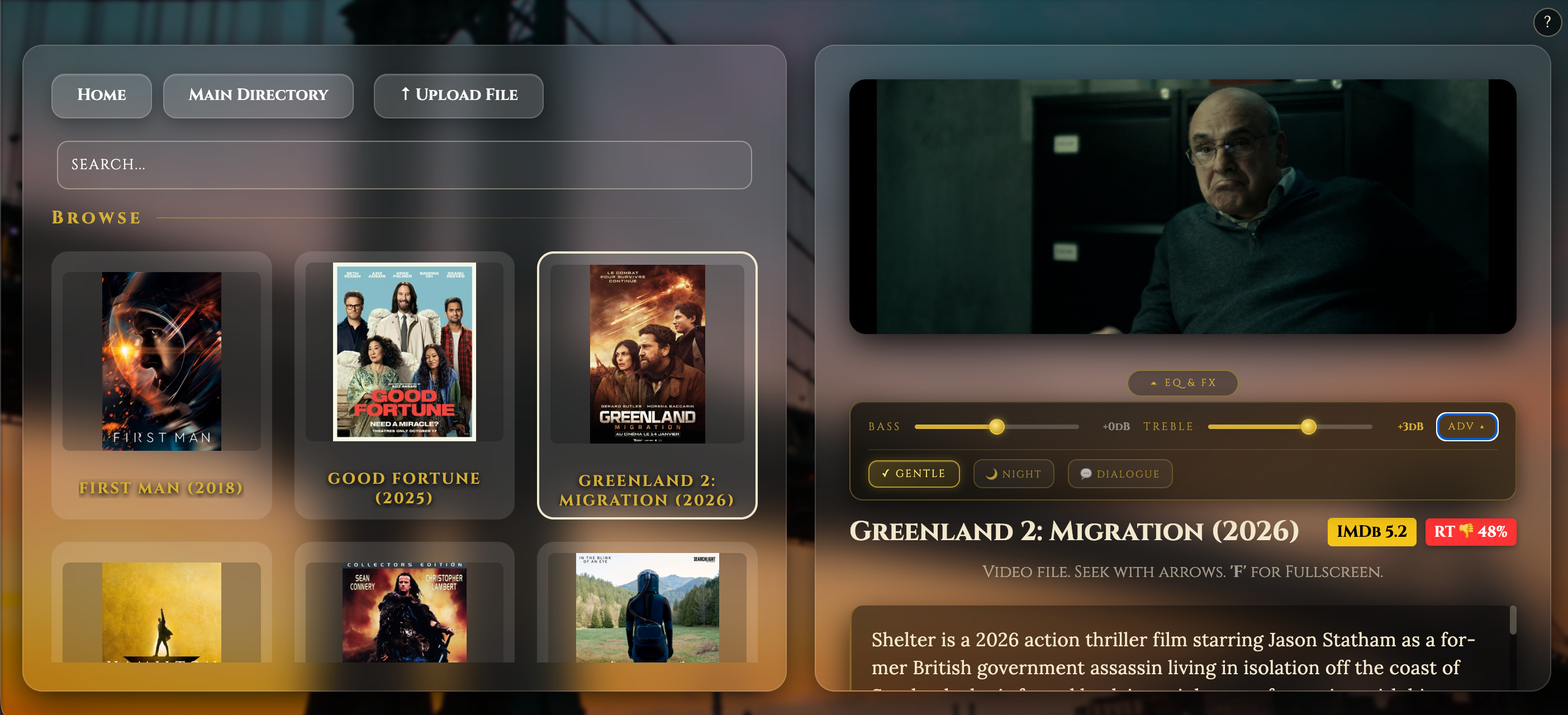
  • Rich interactive gallery with poster art, synopsis overlays, IMDB ratings, and Rotten Tomatoes scores — fetched automatically by a nightly metadata scraper.
  • Resume playback: the browser remembers where you left off.
  • Lock-screen music controls for high-fidelity audio playback.
  • Upload directly from any device to Music, Pictures, or Video — no technical skills needed.
  • Client-side EQ and audio effects: zero load on the Pi, per-device settings in the browser.

5. Networking & Resilience

  • Optional WiFi Access Point Mode: Creates its own wireless bubble while routing internet through Ethernet — fully portable, works anywhere.
  • Cockpit Management: Full web-based admin — terminal, file system, and services without ever touching SSH.
  • One-command install and upgrade: keeps your existing settings intact on upgrade.

Demo video of the web server :-
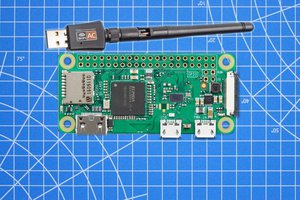
  • 1 × Flirc case for Pi Zero 2 w A nice case to finish the project off
  • 1 × SanDisk 128GB Extreme PRO microSDXC card High performance SD card. dont cheap out. although the Kioxia Exceria Plus U3 is also a good card
  • 1 × Micro USB lead well you do want to power the device, right ?
  • 1 × SanDisk Ultra 256GB Dual Drive A USB and Micro USB pen drive to transfer your videos and music from a pc onto the PI but you can copy media across the network via samba to the Pi server
  • 1 × Micro Usb to Ethernet Lan Adapter With 3 USB Ports for Raspberry Pi Zero - White USB to Ethernet with 3x usb ports. Can be purchased from amazon for around £15

View all 6 components

  • Version 6.1 is now available

    diddy6 hours ago 0 comments

    Added .vtt subtitle support in a web browser for media files - now web viewing users can have English subtitles whilst watching media. Only English subtitles at this time.

    Dependant upon the DLNA client (Smart TV), .srt subtitles can be viewed across the network whilst watching media locally via dlna.
    Scraper now pulls down .srt subtitles for media if there is no present .srt file at 5am scan as well as movie art, movie synopsis, IMDB rating and Rotten Tomato score.

    All .srt files and .vtt files are named the same as the media file.

    mkv-2-mp4 conversion now promotes not just the mkv file but also the .srt subtitle file from transmission directories and re-encode mkv to mp4 and also convert .srt to .vtt subtitles as well.

    Mkv-Watcher now logs less but more relevant info into the system log for the systemd service.
    Added screen aspect ratio for viewing media. this is remembered by the web browser
    Fixed upload file button with a progress bar popup when adding a new media file

    You can download / upgrade by running the following on the Raspberry Pi (either SSH into the Pi or on the actual Pi) :-

    wget -qO- https://raw.githubusercontent.com/diddy-boy/mini-pi-media-server/main/install.sh | bash

  • Version 6.0 is out

    diddy04/28/2026 at 15:12 0 comments

    Version 6 Update :

    • Midnight systemd encoding timer replaced by a mkv-watcher service  — encoding now triggers the moment a file is ready via inotify if a file changes in the /var/lib/minidlna/Video folder and sub folders or if a 5 minute mark is reached and the files are not locked. Users no longer have to wait until midnight for encoding media to start
    • Transmission seeding aware — won't encode until the user stops seeding after downloading
    • Power-loss recovery — mkv 2 mp4 encoder picks up where it left off on reboot and removes the part completed file and restarts encoding.
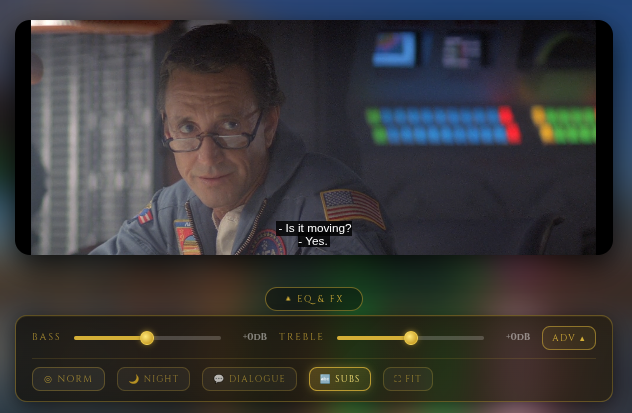
    • Client-side EQ and audio effects — zero load on the Pi, per-client settings in the web browser. screen shot below

    mkv-watcher.sh

    A persistent systemd service that monitors /var/lib/minidlna/Video for new video files.

    Triggers:

    • inotify — fires instantly when a new MKV lands in the Video folder directly or in a Transmission subfolder via close_write or moved_to events
    • Boot-time sweep — on startup, immediately checks for any unprocessed MKVs left over from a previous interrupted session
    • Periodic sweep — every 5 minutes checks subfolders for files no longer held open by Transmission (seeding finished), acting as a catch-all for anything inotify cannot detect

    Guards against:

    • Transmission incomplete downloads (.part files ignored)
    • Files still being written or seeded (stability check — 3 consecutive size-stable passes before triggering)
    • Double conversion (lock file check before triggering)
    • Stuck PROMOTING_ files from a previous power loss (cleaned on startup)
    • inotify process death (systemd Restart=on-failure with RestartSec=10)

    File stability check: Before triggering conversion, the watcher confirms the file is fully written by checking it is not held open by any process (lsof), passes 3 consecutive size-stable checks 30 seconds apart, and passes ffprobe validation.

    mkv-2-mp4.sh

    A one-shot conversion script triggered by the watcher (or manually via systemctl start mkv-conversion).

    Phase 1 — Promote: Scans all subfolders under the Video directory for completed Transmission downloads and moves them up to the root Video folder ready for conversion. Skips the protected Web folder (Google Drive sync). Only promotes subfolders containing exactly one video file — multiple files are left for manual review. Uses a PROMOTING_ prefix during the move for power-loss protection.

    Phase 2 — Convert: Processes every *.mkv in the Video folder sequentially:

    • Detects video codec, audio codec, and source bitrate via ffprobe
    • H264 source — stream copy (remux only, very fast, no quality loss)
    • HEVC/other source — re-encodes using hardware encoder (h264_v4l2m2m) on a Pi Zero 2 w with VideoCore GPU, with adaptive bitrate scaled to 70% of source (clamped 1.5Mbps–4Mbps)
    • Hardware fallback — if hardware encoding is not present like on a pi 5, automatically falls back to software (libx264) encoding.
    • Audio — copies AAC streams as-is, transcodes everything else to AAC 128k
    • All output files include -movflags +faststart for browser streaming compatibility
    • Uses a CONVERTING_ prefix during encode for power-loss protection — partial files are cleaned up on next run

    On completion logs:

    • Output file frame rate (content fps)
    • Encoding speed (encoder fps and realtime multiplier)
    • Output file size

    Post-conversion:

    • Resets permissions (775, minidlna:minidlna)
    • Restarts MiniDLNA to index new files
    • Lock file released, allowing the next 5-minute sweep to pick up any queued files

    You can download / upgrade by running the following on the Raspberry Pi (either SSH into the Pi or on the actual Pi) :-

    wget -qO- https://raw.githubusercontent.com/diddy-boy/mini-pi-media-server/main/install.sh | bash

  • Version 5.2 is now available

    diddy04/26/2026 at 12:11 0 comments

    Project Update: Enhanced Media Automation & Robust Transcoding

    The mkv-2-mp4.sh script, which runs as a scheduled midnight systemd task, has been overhauled to improve automation, reliability, and hardware efficiency. This script acts as the "cleanup crew" for the Mini Pi Media Server, ensuring all new downloads are standardized for DLNA streaming.

    Key Features of this Update:

    • Intelligent "Promotion" Phase: The script now automatically scans Transmission download subfolders. If a folder contains exactly one video file, it "promotes" it to the main library, deletes the leftover clutter (NFOs, samples, etc.), and removes the empty directory.
    • Power-Loss Protection: To prevent file corruption during a power failure, the script now uses a PROMOTING_ or CONVERTING_ prefix for temporary files. The final filename is only applied upon successful completion of the move or transcode.
    • Adaptive Hardware Encoding: It leverages the Raspberry Pi's hardware acceleration (h264_v4l2m2m). The script now calculates an adaptive bitrate—aiming for 70% of the source quality—to balance file size and visual fidelity dynamically.
    • Smart Fallback Logic: If the hardware encoder fails , busy or running on a Raspberry Pi 5, the script automatically falls back to a multi-threaded software encode (libx264) with a specialized mobile-friendly resolution (960x540) to ensure the task finishes.
    • Automated Library Maintenance: After processing, the script handles the "housekeeping" by resetting permissions for the minidlna user and restarting the service to trigger an immediate library re-index.

    Workflow Logic:

    1. Locking: Prevents multiple instances from running simultaneously.
    2. Stream Copying: If the source is already H.264/AAC, it copies the streams without re-encoding to preserve 100% quality and save CPU.
    3. Cleanup: Automatically deletes the original .mkv files only after a successful .mp4 conversion is verified.

    You can download / upgrade by running the following on the Raspberry Pi (either SSH into the Pi or on the actual Pi) :-

    wget -qO- https://raw.githubusercontent.com/diddy-boy/mini-pi-media-server/main/install.sh | bash

  • Mini-Pi Media server in the car

    diddy04/07/2026 at 18:21 0 comments

    Multiple streaming to two tablets in the car all from the Pi zero 2 w running from the cars electrics

  • Version 5.1 is now available

    diddy04/01/2026 at 22:43 0 comments

    Version 5.1 is out

    Fixes for displaying on mobile devices

    Fixed small bug with titlebar icon not displaying

    added a couple more background pictures that can be set.

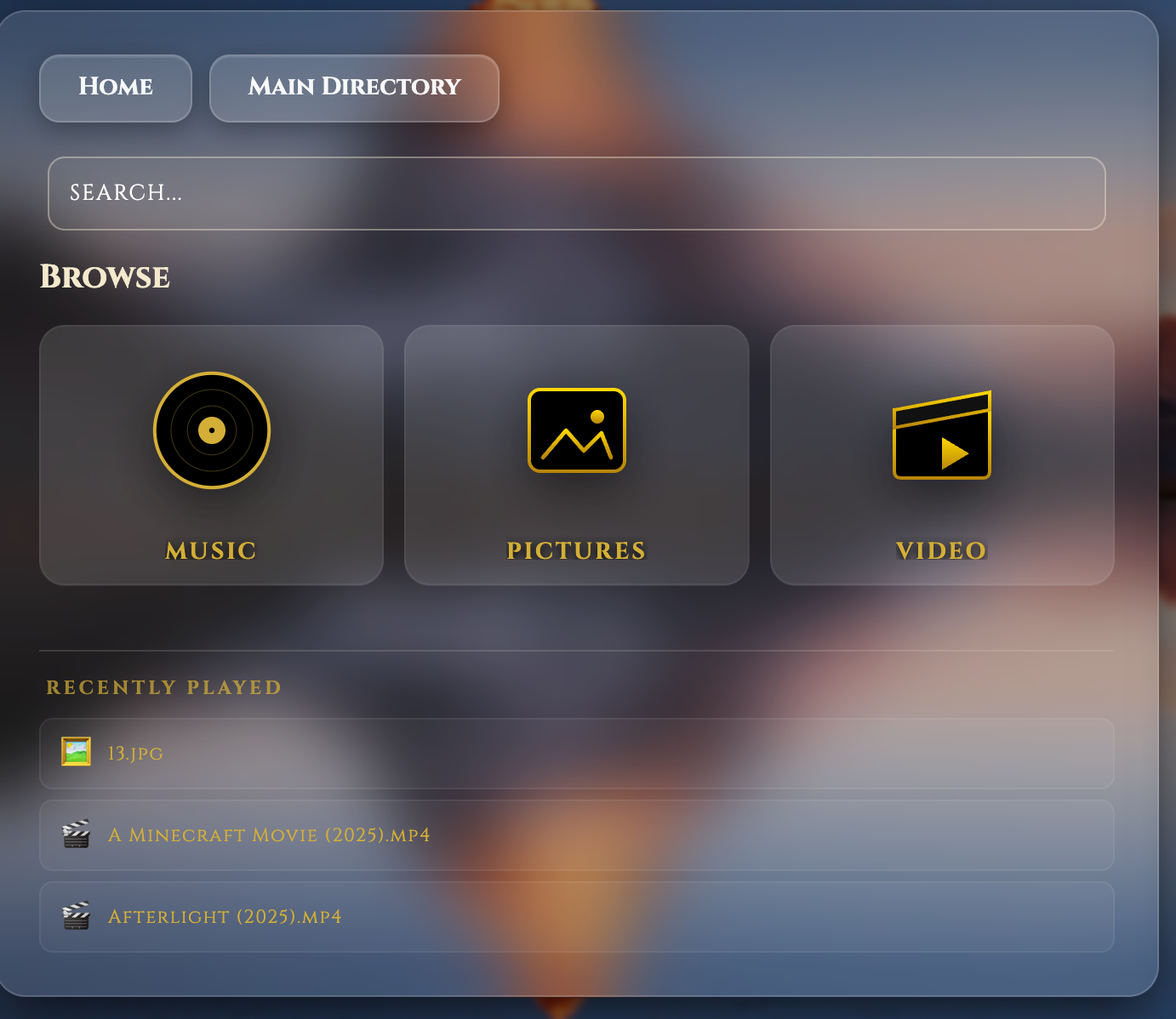
    Added a recently viewed list to the file listing view based on previous use.

    You can download / upgrade by running the following on the Raspberry Pi (either SSH into the Pi or on the actual Pi) by copying :-

    wget -qO- https://raw.githubusercontent.com/diddy-boy/mini-pi-media-server/main/install.sh | bash

  • Quick FAQ

    diddy03/13/2026 at 08:31 0 comments

    Mini-Pi Media Server: Quick FAQ

    • Q: Which Raspberry Pi models are supported?
      • A: It is highly optimized for the Pi Zero 2 W (£14), but fully supports Pi 3, 4, and 5.
    • Q: Can I use an external hard drive?
      • A: Yes but only to synchronise from! The project includes an Auto-USB sync feature. Plug in a drive with "Video", "Music", or "Pictures" folders, and it will automatically sync media into the pi's media library.
    • Q: Does it support 4K?
      • A: The Zero 2 W handles 1080p HD effortlessly (up to 4 streams). For 4K, we recommend using a Pi 4 or 5 with an Ethernet connection. Streaming over wifi at this bandwidth is just asking for pain.
    •  Q: Do I need to be a Linux expert to install it?
      • A: No. It’s a one-command install. Just run the script from our GitHub and it handles the entire stack setup for you.
    • Q: How do I manage the server?
      • A: It comes with Cockpit Web Admin pre-installed. You can manage files, check system health, and terminal into the Pi directly from your web browser—no SSH knowledge required.

  • Beating the Pi Price Hike: Why 512MB is all you need for HD Streaming

    diddy03/13/2026 at 08:11 0 comments

    With the recent news of a second price spike for high-RAM Raspberry Pi models, many makers are feeling priced out of the home server hobby. If you’re looking at a £100+ price tag for a Pi 5 just to stream some movies, I have some good news: You're overspending.

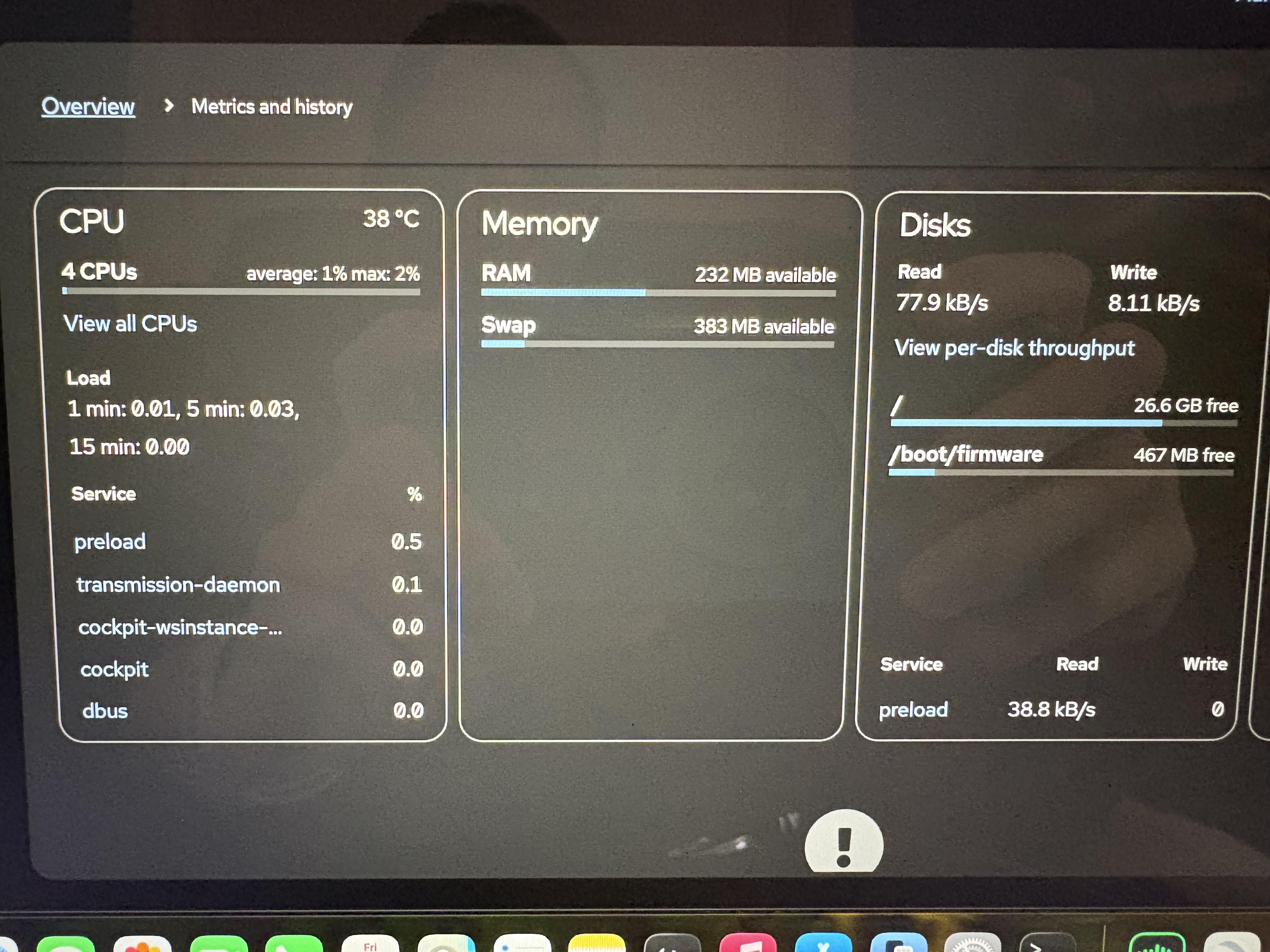
    I captured this screenshot from the Mini-Pi's Cockpit dashboard during a stress test.

    The Setup:

    • Hardware: Raspberry Pi Zero 2 W (£14).
    • Load: 4 separate devices (Tablets/Phones) all streaming different HD content simultaneously.
    • The Result: Look at those metrics!

    The Proof is in the Data:

    • CPU Load: A staggering 0.01 average. The quad-core 64-bit chip in the Zero 2 W isn't even breaking a sweat.
    • Memory: Despite having "only" 512MB of RAM, the system still has 232MB available. My software stack is tuned to ensure the OS doesn't bloat, leaving plenty of room for MiniDLNA and Samba to do their jobs.
    • Temperature: Running cool at 38°C in a Flirc case—no expensive active cooling or massive heatsinks required.

    Stop Paying the "AI Tax"

    The price hikes on the Pi 4 and 5 are driven by global demand for high-density LPDDR4 RAM used in AI. But a media server doesn't need 8GB of RAM to move packets of video data.

    Mini-Pi proves that with the right software optimization, the £14 Zero 2 W is still the undisputed Budget King of home media.

    Don't upgrade your hardware—optimize your software.

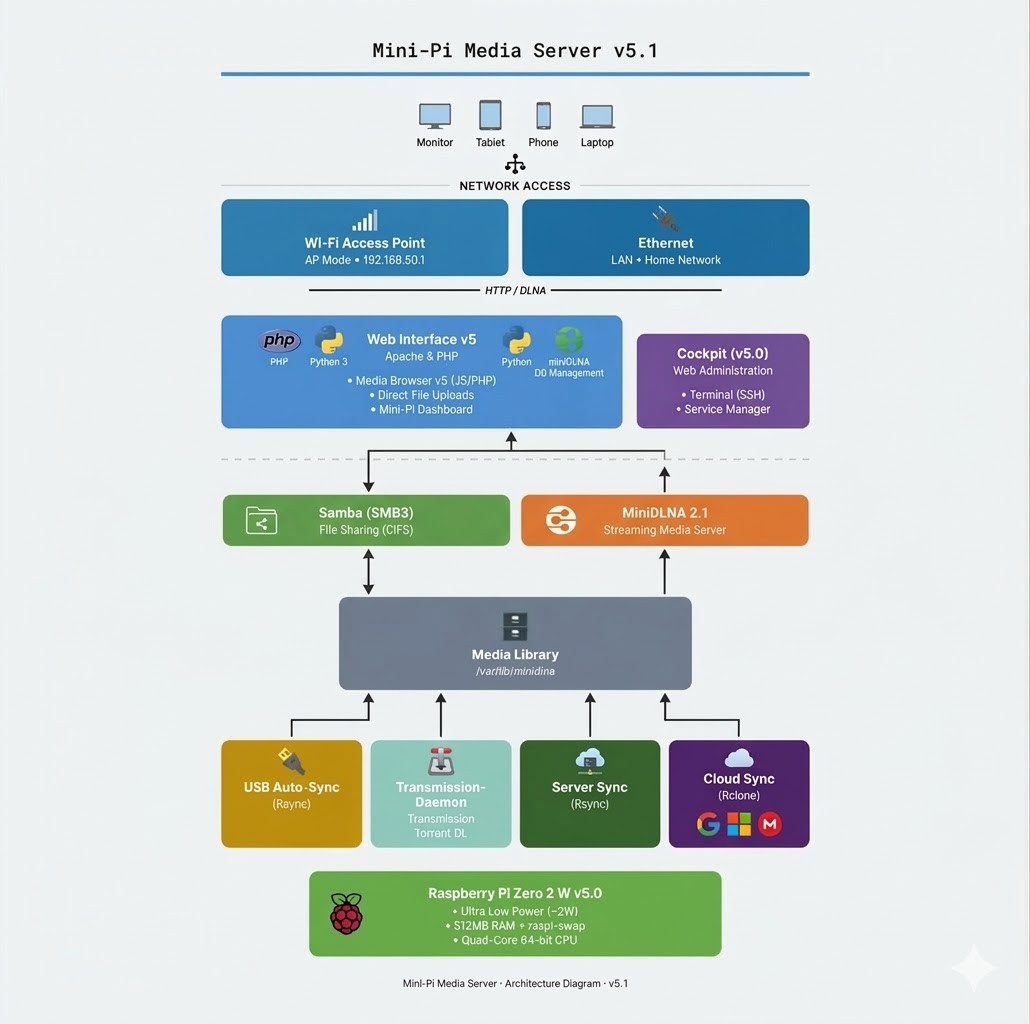
  • Architecture Diagram layout

    diddy03/07/2026 at 10:57 0 comments

  • Mini Pi Media Server: Version 5 is Here!

    diddy03/06/2026 at 22:27 0 comments

    Version 5 introduces a major overhaul with a focus on a cleaner UI, better performance, and expanded features.

    What’s New?

    • Fresh Branding: A new "Pi-Play" logo now serves as the default background for new browser visits.
    • Refined UI:
      • Smoother Transitions: Polished animations when changing backgrounds.
      • Reduced Bloat: Optimized index.html for faster loading.
      • Stealth Mode: Click the branding logo to toggle the visibility of the "Easy Connect," "Select Background," and "System Status" buttons for a minimalist look.
    • Integrated Torrent Downloader: A built-in way to manage downloads directly from the dashboard.
    • Improved Installer: Optimized scripts for seamless version upgrades.

    How to Use the Torrent Downloader

    1. Navigate to Downloads on your dashboard.
    2. Login: Use username pi and password pi.
    3. Add Torrents: Click the Add Folder icon on the left, paste your magnet/torrent link, and you're set.
    4. Automation: The system downloads in the background (you can close the tab) and automatically saves files to your Video folder.
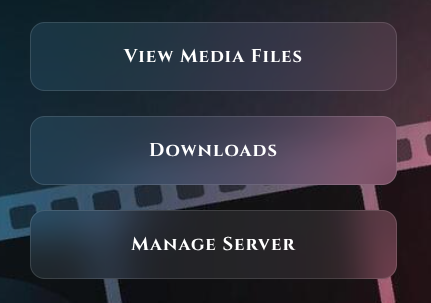
    Pro Tip: To organize your library, select Manage Server to enter Cockpit. Use the Navigator to browse to /var/lib/minidlna/Video to rename or move files. The Media Scraper runs daily at 5:00 AM to fetch metadata for your new content.

    Disclaimer: This tool is intended for legitimate use cases. The developer is not liable for how users choose to utilize this software.

    Download or Upgrade Now

    Run the following command in your terminal (via SSH or directly on the Pi) to launch the installer:

    wget -qO- https://raw.githubusercontent.com/diddy-boy/mini-pi-media-server/main/install.sh | bash

  • Mini-Pi Media Server v5.0 – UI Overhaul in Progress

    diddy03/04/2026 at 11:14 0 comments

    Mini-Pi Media Server v5.0 – A Complete UI Overhaul

    Version 5.0 marks a major milestone for the Mini-Pi Media Server project. This isn’t just another incremental update — it’s a full visual and user-experience redesign aimed at making the system feel less like a collection of scripts and more like a polished media appliance.

    The new interface introduces smooth focus and fade transitions inspired by modern living-room media platforms, giving the home screen a clean, cinematic feel. Navigation between Media, Torrent Downloader, and Web Server management now flows with subtle animations rather than hard page switches.

    Background customization has also been upgraded with seamless cross-fade transitions, replacing abrupt image changes with a more refined visual experience.

    System feedback has been reimagined as well. Status popups now use a glass-style aesthetic, and the system load indicator LED has been enhanced to pulse and change colour dynamically based on real-time CPU usage — turning raw metrics into ambient visual feedback.

    To keep the interface clean, secondary controls such as “Select Background” and “Easy Connect” are now tucked behind the branded icon, creating a simplified front page while still keeping advanced features easily accessible.

    In addition to the UI redesign, Version 5.0 integrates a built-in torrent downloader that writes directly to the MiniDLNA video directory. Newly downloaded content becomes instantly available to the DLNA server, Samba shares, and the Apache web interface — creating a seamless download-to-stream pipeline.

    Version 5.0 represents a shift in philosophy for the project: from functional media server to refined, self-contained media appliance.

    More screenshots and details coming soon.

View all 47 project logs

  • 1
    how to setup / update

    Instructions to set up :-

    do the usual raspberry pi imager stuff and set the settings with a name of mini-pi (ideally this name).

    set the wifi to your wifi (and password) and set the user as pi and set to use ssh services.

    Then write the image

    once done place the SD card / USB pen driver into the pi, power up the pi and log into your router to find the mini-pi ip address (or use a network tool like fing or angry ip scanner).

    SSH into the raspberry pi (using ssh pi@<THE IP ADDRESS OF THE PI>

    once logged into the Raspberry Pi, run this single command that downloads, unzips and installs the media server software all in one command by :-


    wget -qO- https://raw.githubusercontent.com/diddy-boy/mini-pi-media-server/main/install.sh | bash

    This will then run the installer which pulls down the most recent build which unzip's and run's the setup / configuration.

    you will be prompted for a samba user password (its easy to use the same password as your ssh login).

    you can select to :-

    Configure WiFi as an access point (if you run this then an ethernet connection has to be used to stream at home).

    you can at any time in the future, run ./reconfigure-wifi.sh from within the mini-pi directory.

    Configure Cloud syncing (Using either Google Drive, One Drive or MEGA)

    you can at any time in the future, rcploe-setup.sh from within the mini-pi directory.

    Configure syncing from a server every night

    then you can press enter to reboot.

    All setup now. have fun.

    if you are updating, its similar.

    just ssh into the raspberry pi and run the above command to download and install again or if you just want to reinstall run 'sudo ./pi-setup/mini-pi-setup.sh'

View all instructions

Enjoy this project?

Share

Discussions

diddy wrote 02/04/2026 at 11:19 point

Version v4.3 contains a fix for the Pi 5's Wi-Fi and its known firmware issues with Trixie. If anyone is testing this on Trixie, let me know if it's working for you also

  Are you sure? yes | no

Similar Projects

Does this project spark your interest?

Become a member to follow this project and never miss any updates