Close
0%
0%

How to Make AI Pin | Real Life Jarvis

The ESP32S3 Sense is configured to use its onboard camera for capturing images. Using the AI model, it then generates a response.

Similar projects worth following
This project is built using the Seeed Studio XIAO ESP32S3 Sense board. It connects with a Telegram bot to receive commands and interact with the user. Once a query is sent, the device captures an image and forwards it along with the question to the Gemini AI API. The response is then delivered back to the user directly on Telegram. This is a great project for students, as it combines IoT and AI concepts, making it perfect for hands-on learning and even as a college project.

From a technical perspective, the ESP32S3 Sense is configured to use its onboard camera for capturing images. It connects to Wi-Fi, communicates with Telegram servers, and handles secure HTTPS requests to Google’s Gemini API. Base64 encoding is used to transfer image data along with the text query. The code manages camera frames, parses API responses using ArduinoJson, and sends AI-generated replies to Telegram. This setup demonstrates practical integration of hardware, networking, and AI services in a compact Io

Greetings everyone, and welcome to my project tutorial. Today, I'll guide you through the process of creating an AI Pin.

Project Overview:

This project is built using the Seeed Studio XIAO ESP32S3 Sense board. It connects with a Telegram bot to receive commands and interact with the user. Once a query is sent, the device captures an image and forwards it along with the question to the Gemini AI API. The response is then delivered back to the user directly on Telegram. This is a great project for students, as it combines IoT and AI concepts, making it perfect for hands-on learning and even as a college project.

From a technical perspective, the ESP32S3 Sense is configured to use its onboard camera for capturing images. It connects to Wi-Fi, communicates with Telegram servers, and handles secure HTTPS requests to Google’s Gemini API. Base64 encoding is used to transfer image data along with the text query. The code manages camera frames, parses API responses using ArduinoJson, and sends AI-generated replies to Telegram. This setup demonstrates practical integration of hardware, networking, and AI services in a compact IoT system.

Although this prototype was built with off-the-shelf components, similar precision parts can be sourced from JLCMC to improve stability and durability. 

Now, let's get started with our project!

AI PIN CUTOUT.pdf

Adobe Portable Document Format - 71.16 kB - 09/07/2025 at 09:57

Preview

  • 1 × XIAO ES32S3 SENSE
  • 1 × 3.7V LI-PO Battery
  • 1 × Slider Switch

  • 1
    Step 1: Arduino IDE Set-up + Telegram Bot
     

    For Arduino IDE Setup Follow these steps:

    1. Open Arduino IDE on your computer.
    2. Go to File > Preferences.
    3. In the Additional Board Manager URLs field, paste this link:
      https://raw.githubusercontent.com/espressif/arduino-esp32/gh-pages/package_esp32_index.json
    4. Then click OK.
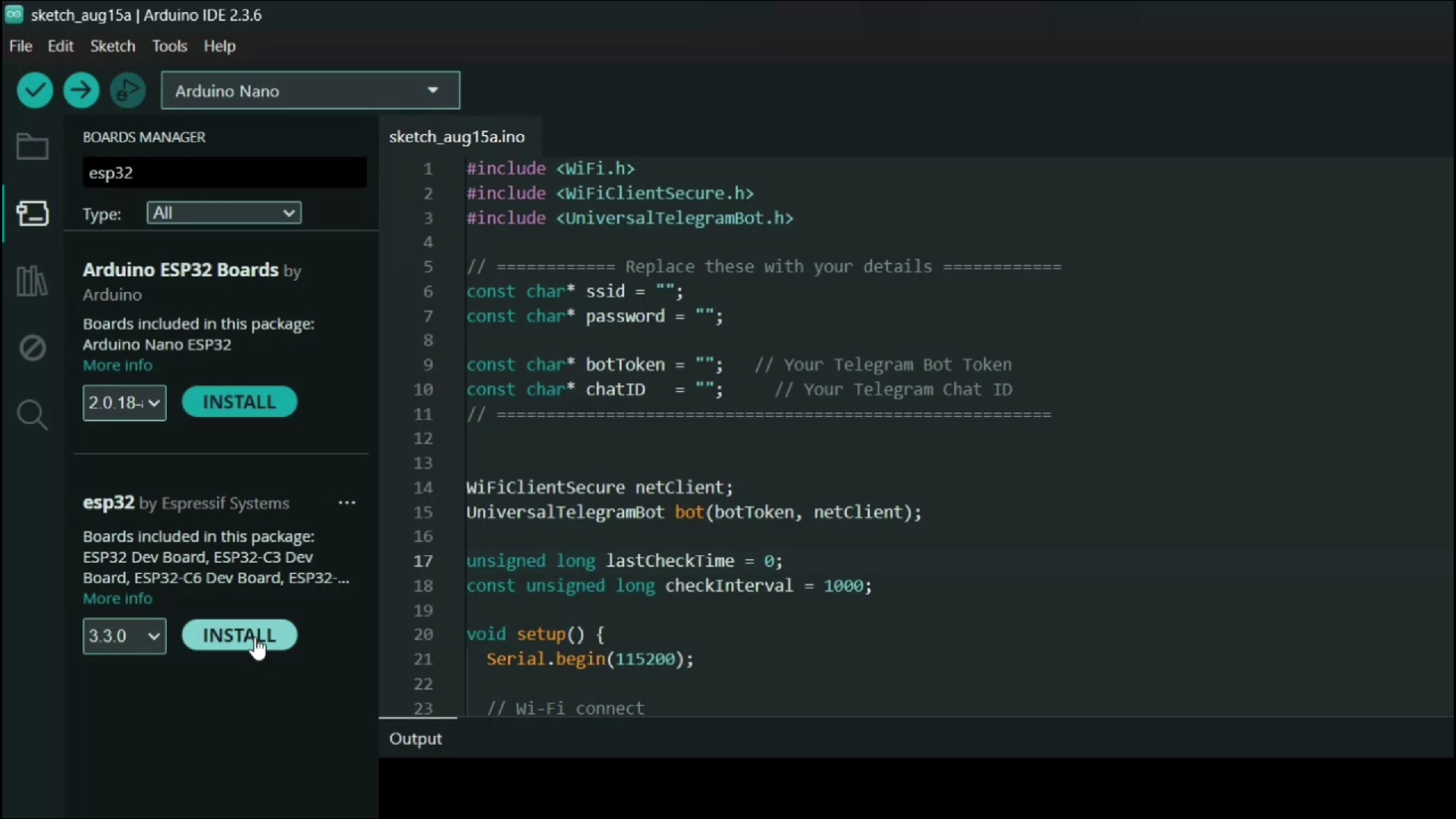
    5. Next, go to Tools > Board > Board Manager.
    6. Search for ESP32, then click Install.

      Now install the required library:

      1. Open Sketch > Include Library > Manage Libraries.
      2. Search for UniversalTelegramBot.h.
      3. Install it.

      Create a Telegram Bot:

      1. Open the Telegram app on your phone.
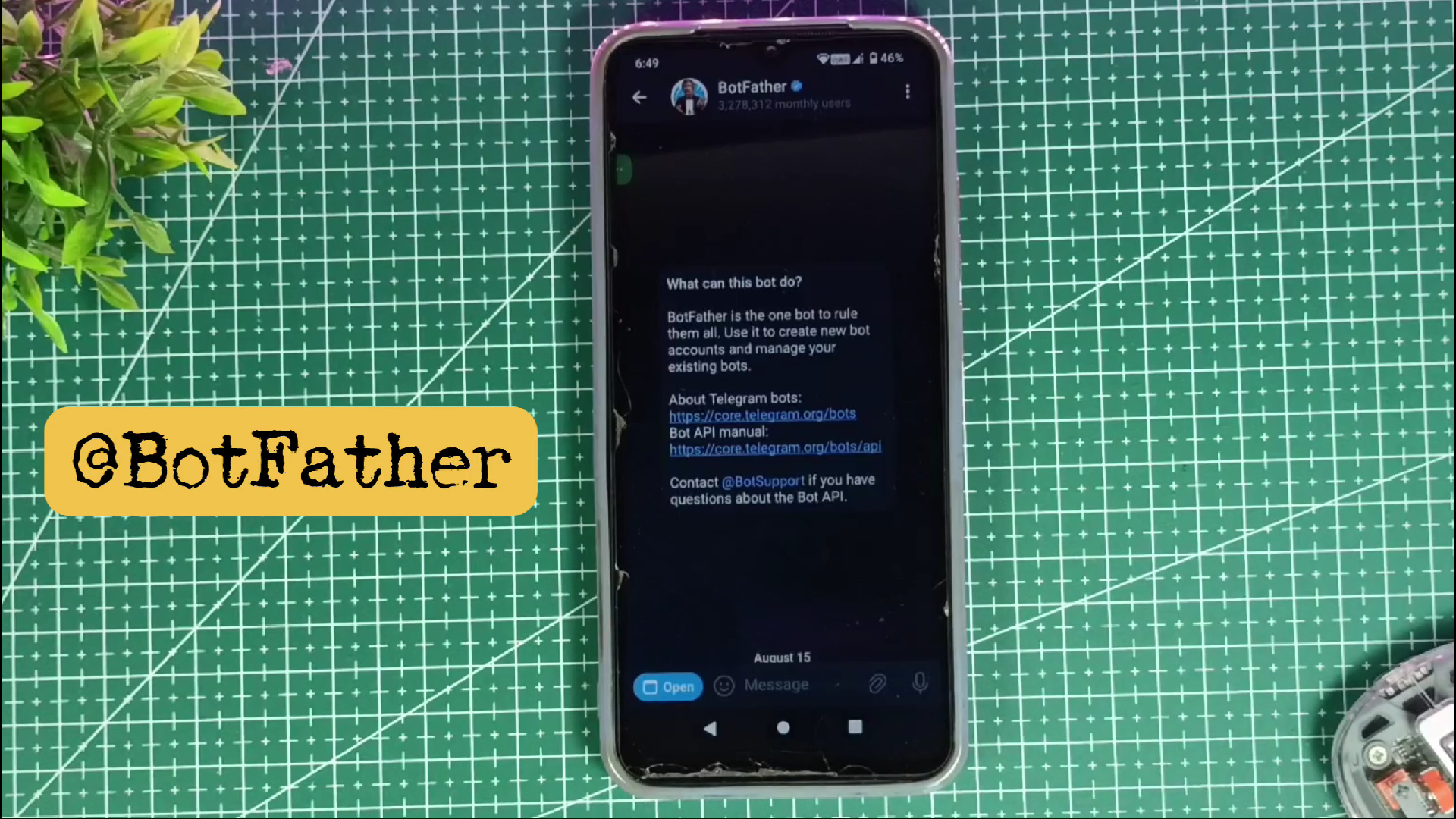
      2. Search for @BotFather (the official Telegram bot creator).
      3. Start a chat and type /newbot.
      4. Give your bot a name and a unique username.
      5. BotFather will generate a token for your bot. (Copy and save this token; we will use it in the Arduino code.)
    1. 2
      Step 1: Part 1: Basic Coding

      About this step:

      we’ll write a code that allows our Telegram bot to take a command from the user and reply with a simple pre-set message

      Code:

      #include <WiFi.h>
      #include <WiFiClientSecure.h>
      #include <UniversalTelegramBot.h>
      
      // ============ Replace these with your details ============
      const char* ssid = "WIFI_NAME";
      const char* password = "WIFI_PASSWORD";
      
      const char* botToken = "TELEGRAM_BOT_TOKEN";   // Your Telegram Bot Token
      // ========================================================
      
      // Setup secure WiFi client for HTTPS
      WiFiClientSecure netClient;
      UniversalTelegramBot bot(botToken, netClient);
      
      unsigned long lastCheckTime = 0;
      const unsigned long checkInterval = 1000; 
      
      void setup() {
        Serial.begin(115200);
      
        // Wi-Fi connect
        WiFi.begin(ssid, password);
        Serial.print("Connecting to WiFi");
        while (WiFi.status() != WL_CONNECTED) {
          delay(500);
          Serial.print(".");
        }
        Serial.println("\nConnected.");
      
        netClient.setInsecure();
      
        Serial.println("Telegram Bot started.");
      }
      
      void loop() {
        // Periodically check for new messages
        if (millis() - lastCheckTime >= checkInterval) {
          checkTelegramBot();
          lastCheckTime = millis();
        }
      }
      
      void checkTelegramBot() {
        int numNewMessages = bot.getUpdates(bot.last_message_received + 1);
      
        while (numNewMessages) {
          for (int i = 0; i < numNewMessages; i++) {
            String chat_id = String(bot.messages[i].chat_id);
            String text    = bot.messages[i].text;
      
            Serial.print("Received: "); Serial.println(text);
      
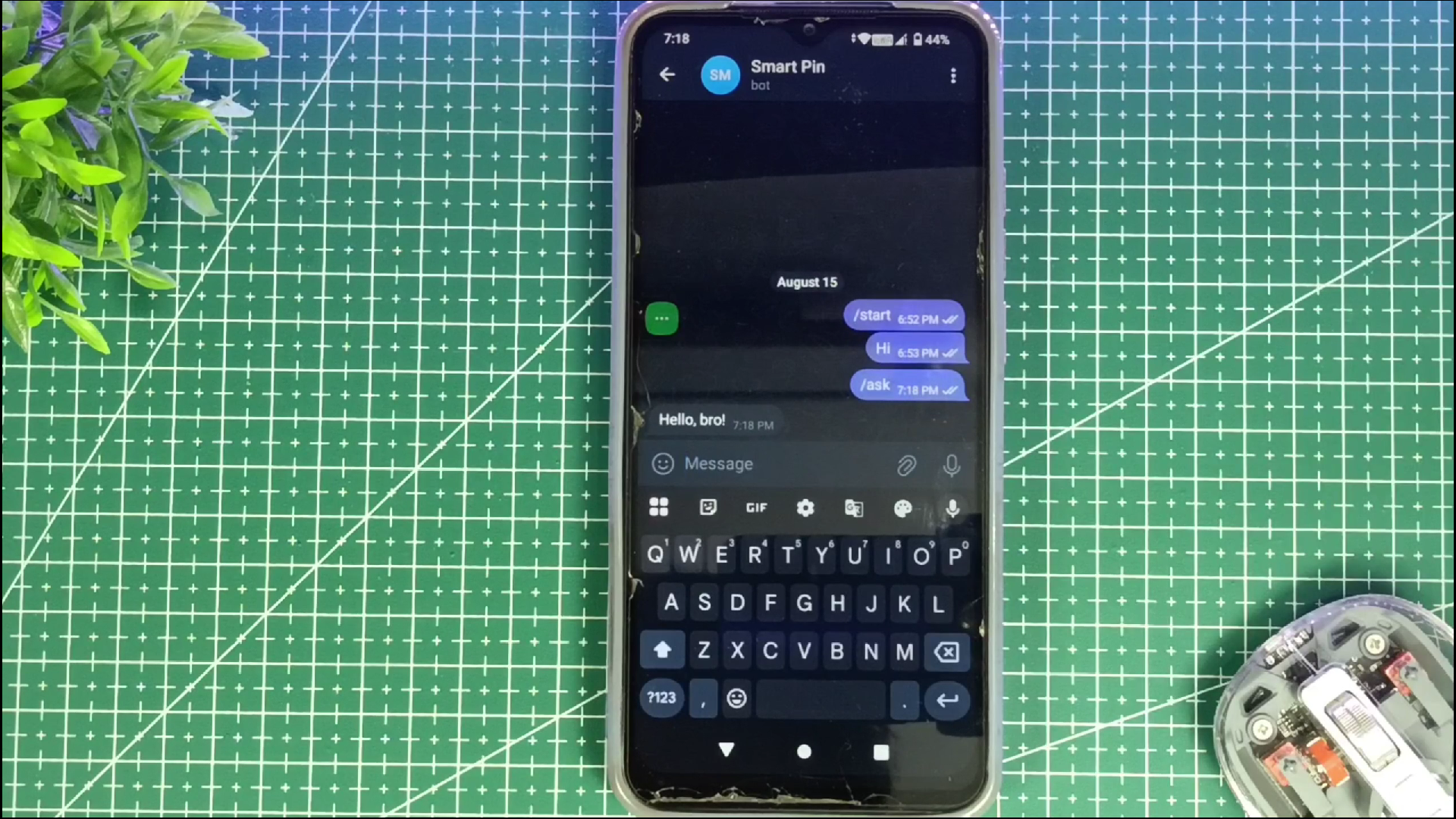
            if (text == "/ask") {
              String response = "Hello, bro!";
              bot.sendMessage(chat_id, response, "");
              Serial.println("Sent reply: Hello, bro!");
            }
          }
          numNewMessages = bot.getUpdates(bot.last_message_received + 1);
        }
      }

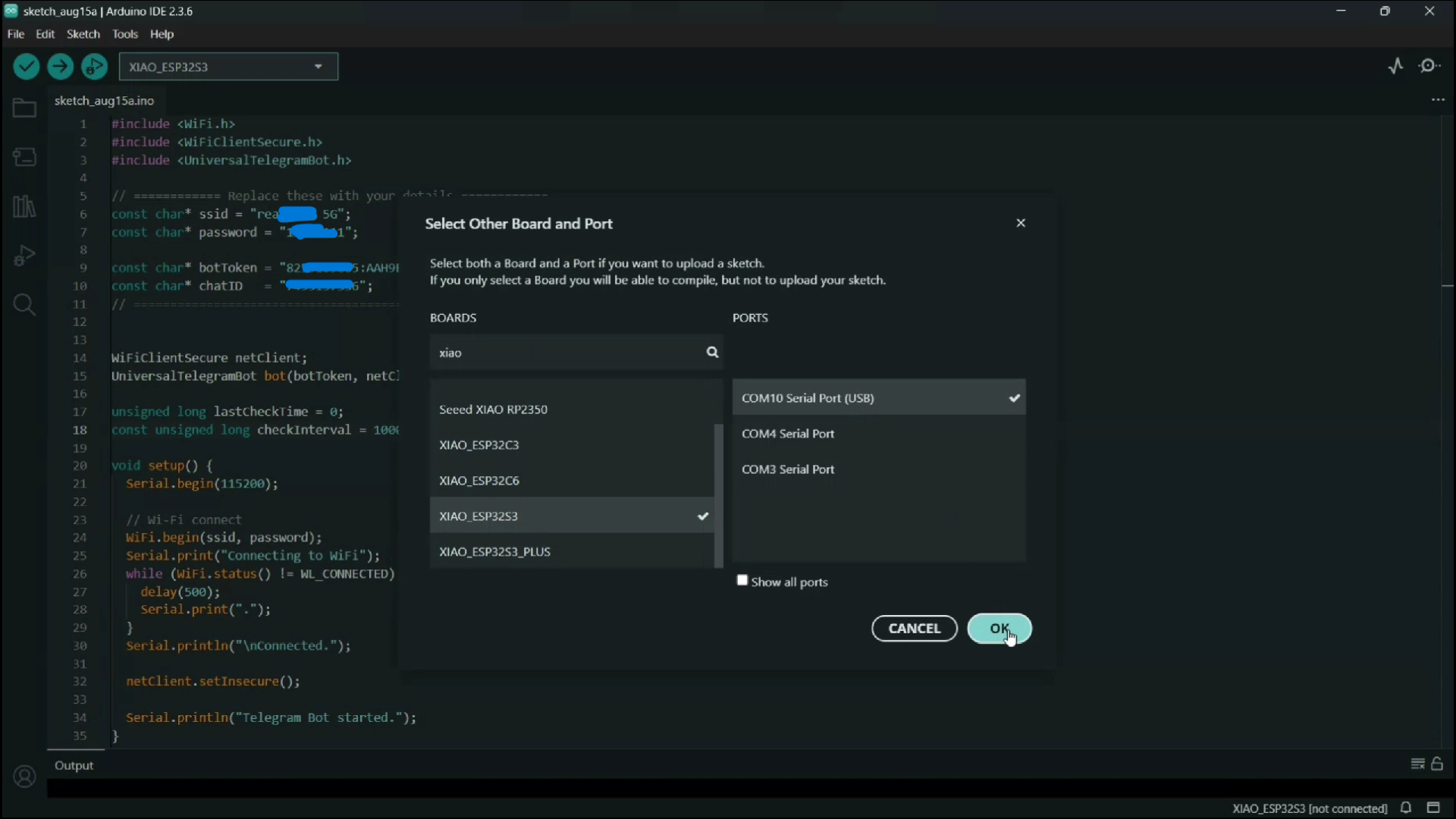
      Connect the board to your computer using a USB-C cable. With the Arduino IDE open and your code ready, ensure you have selected the correct board and port by navigating to the Tools menu. Then, click the Upload button (the right-arrow icon) to begin compiling and flashing the sketch to the XIAO ESP32S3. 

    2. 3
      Elevate Your Electronic Projects - JLCMC

      JLCMC is your one-stop shop for all electronic manufacturing needs, offering an extensive catalog of nearly 600,000 SKUs that cover hardware, mechanical, electronic, and automation components. Their commitment to guaranteeing genuine products, rapid shipping (with most in-stock items dispatched within 24 hours), and competitive pricing truly sets them apart. In addition, their exceptional customer service ensures you always get exactly what you need to bring your projects to life.

      They have everything you need for your next project:

      1. Custom Linear Guide ShaftsPrecision-engineered for applications like 3D printing, CNC machines, and industrial automation.
      2. Aluminum ProfilesVersatile, durable framing solutions—perfect for machine enclosures, workstations, and custom assemblies.

      To show their support for our community, JLCMC is offering an exclusive $70 discount coupon. This is the perfect opportunity to save on high-quality components for your next project. Don’t miss out—visit https://jlcmc.com/?from=RBL to explore their amazing range of products and grab your discount coupon today!

    View all 9 instructions

    Enjoy this project?

    Share

    Discussions

    Does this project spark your interest?

    Become a member to follow this project and never miss any updates