Close
0%
0%

DIY Mini UPS For WiFi Router (Easy To Build)

Stay connected during power cuts! A compact, affordable Mini UPS that keeps your WiFi router running when the electricity fails.

Public Chat
Similar projects worth following
Frequent power cuts are a daily challenge in many areas, especially in villages. One of the first things to stop working during an outage is the WiFi router, disconnecting everything — from online classes and meetings to entertainment and communication.

To solve this, I built a Mini UPS (Uninterruptible Power Supply) for WiFi Routers — a compact, affordable, and reliable tool that ensures uninterrupted internet even when the electricity goes out. It’s simple, efficient, and designed to be accessible for students, makers, and professionals alike.

This project is a perfect fit for anyone who values continuous connectivity—whether you live in a rural area with frequent power cuts or just want a handy tool in your tech setup.

In villages and towns where electricity cut-offs are a daily challenge, one of the first things to go down is the Wi-Fi router. This means no internet for online classes, no work calls, no streaming, and no communication with the outside world. For students like me, it was more than an inconvenience—it was a barrier.

That’s why I designed a Mini UPS as a tool for routers. It’s not just another electronic build—it’s a problem-solving tool, compact and efficient, that ensures your router keeps running during power failures. While big inverters power everything in a home, this tool is built with one focused purpose: keeping the internet alive.

Using Autodesk Fusion 360, I created a professional-grade enclosure that neatly fits all the electronics while keeping the build compact and durable. The design is practical, easy to assemble, and affordable—making it accessible to students, makers, and anyone who depends on uninterrupted connectivity.

It solves a real-world problem with simplicity and reliability. It proves that sometimes the best tools are not the biggest or most complex—they’re the ones that quietly save the day when you need them most.
3s Battery Pack.jpg

Connection For Making 3s Battery Pack

JPEG Image - 77.43 kB - 10/22/2025 at 10:09

Preview

Mini UPS Connection.jpg

Full Connection of Mini UPS

JPEG Image - 58.11 kB - 10/22/2025 at 10:08

Preview

Mini UPS Cover.stl

For 3D Printing

Standard Tesselated Geometry - 58.29 kB - 10/22/2025 at 09:11

Download

Mini UPS Body.stl

For 3D Printing

Standard Tesselated Geometry - 264.14 kB - 10/22/2025 at 09:10

Download

  • 1 × Battery Capacity Indicator
  • 3 × 18650 Rechargeable Battery
  • 1 × DC Female Jack
  • 1 × SPDT on/off Switch
  • 1 × XT60 Male Connecter

View all 8 components

  • 1
    CAD & 3D Printing

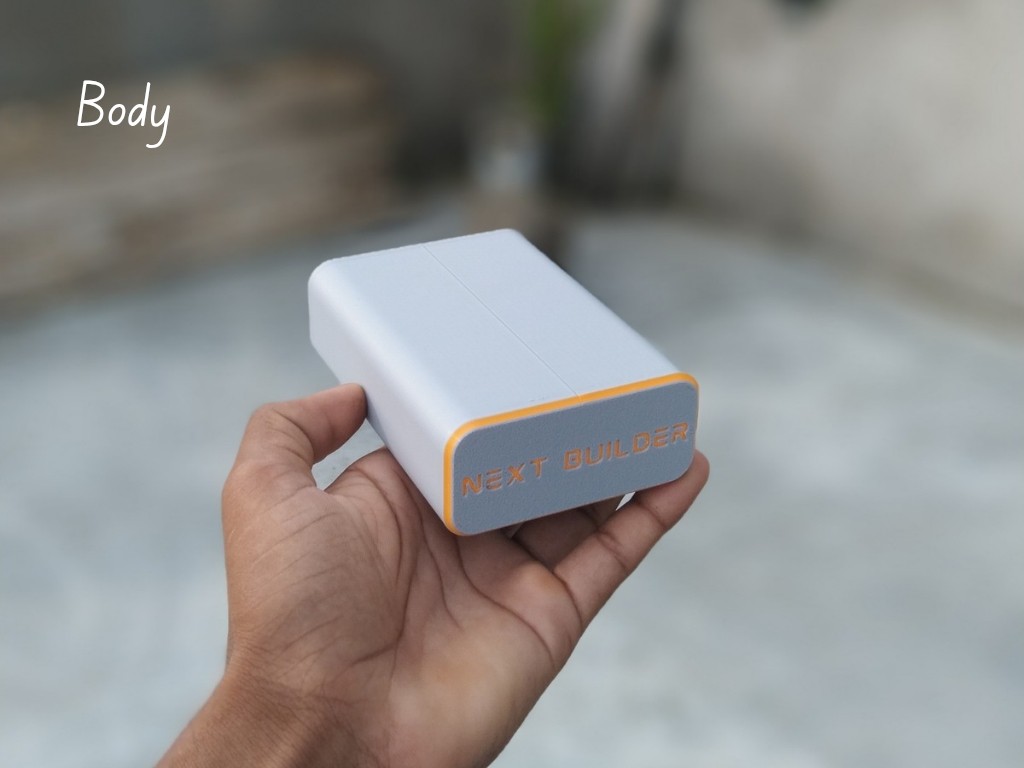
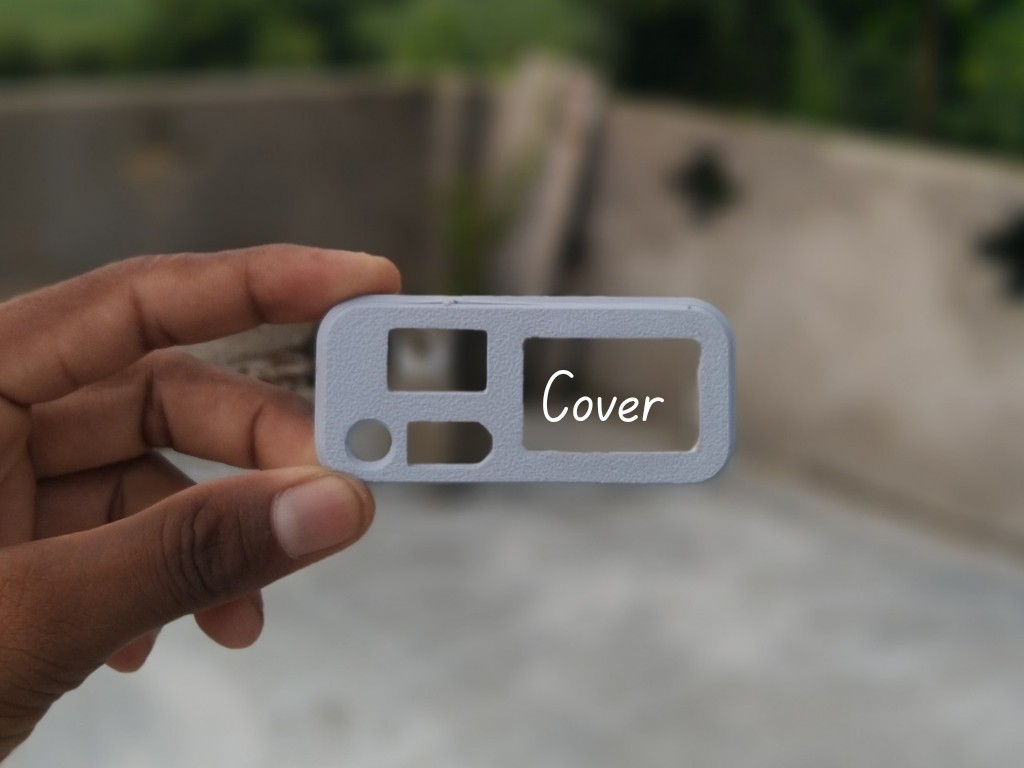
    To start this project, I designed this diy mini WiFi UPS CAD using Fusion 360. It’s a simple and compact design that’s easy to print and assemble. For 3D Printing, You can directly download the required STL files below:

    1. Body.stl
    2. Cover.stl

    For 3D printing, I Recommend PCBWay, a professional 3D printing service known for its high precision, affordable pricing, and wide range of material choices. They support advanced technologies like SLA, SLS, MJF, and FDM, delivering smooth and durable parts that are ideal for both prototypes and final builds.

    One of the best things about PCBWay 3D printing is their fast turnaround time and reliable worldwide shipping, making it super convenient for hobbyists, students, and professionals alike. Whether you’re just getting started or working on a serious engineering project, PCBWay is a great choice.

    👉 Use the link to get an exclusive discount on your first 3D printing order from PCBWay

  • 2
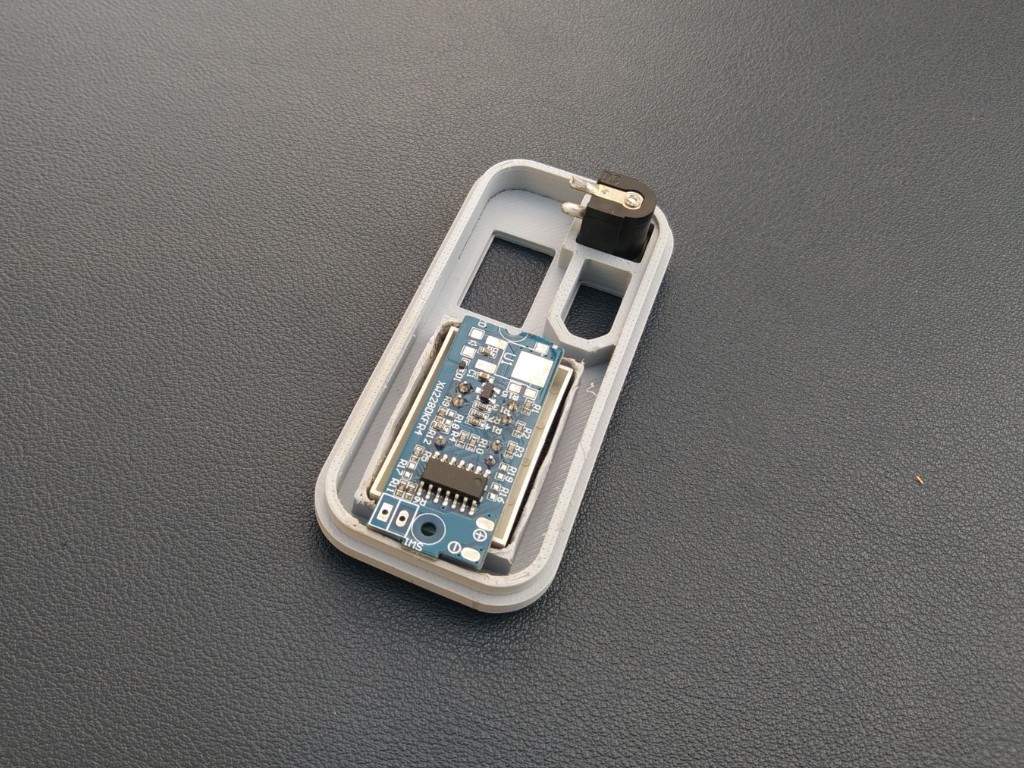
    DC Jack Assembly

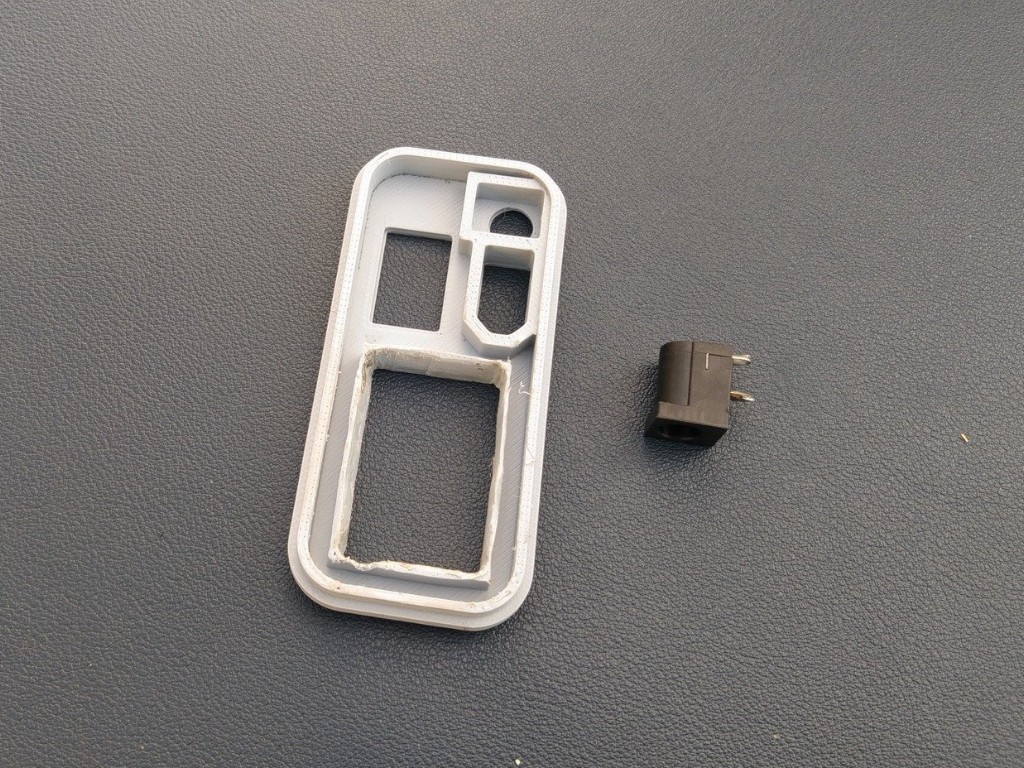
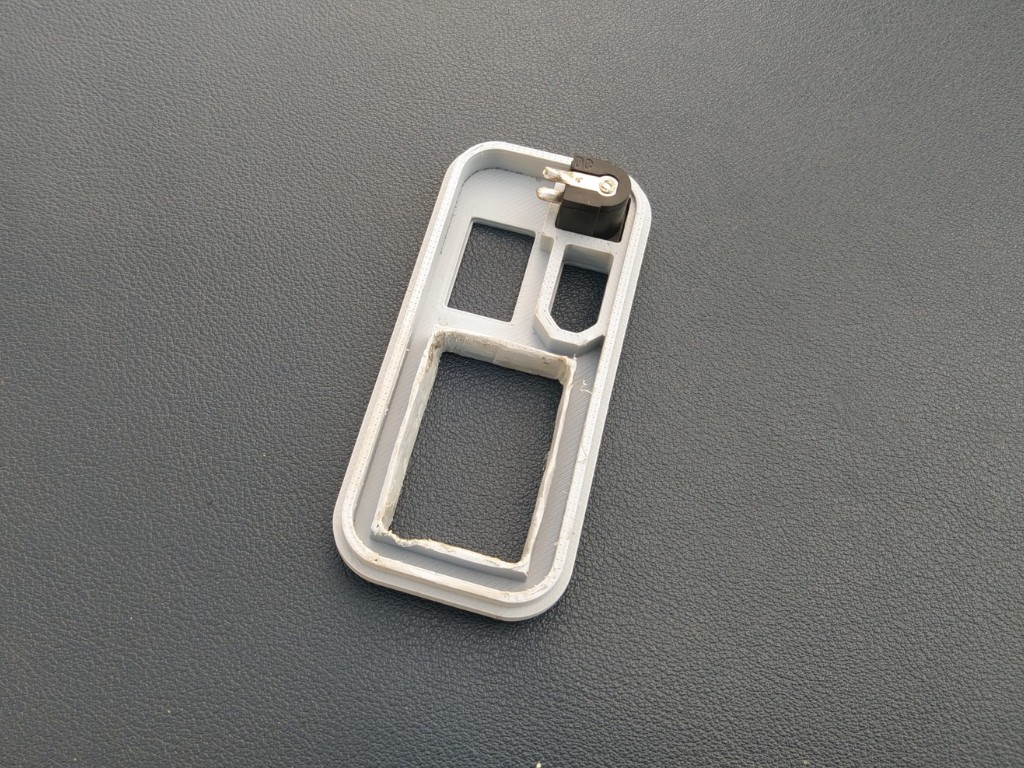
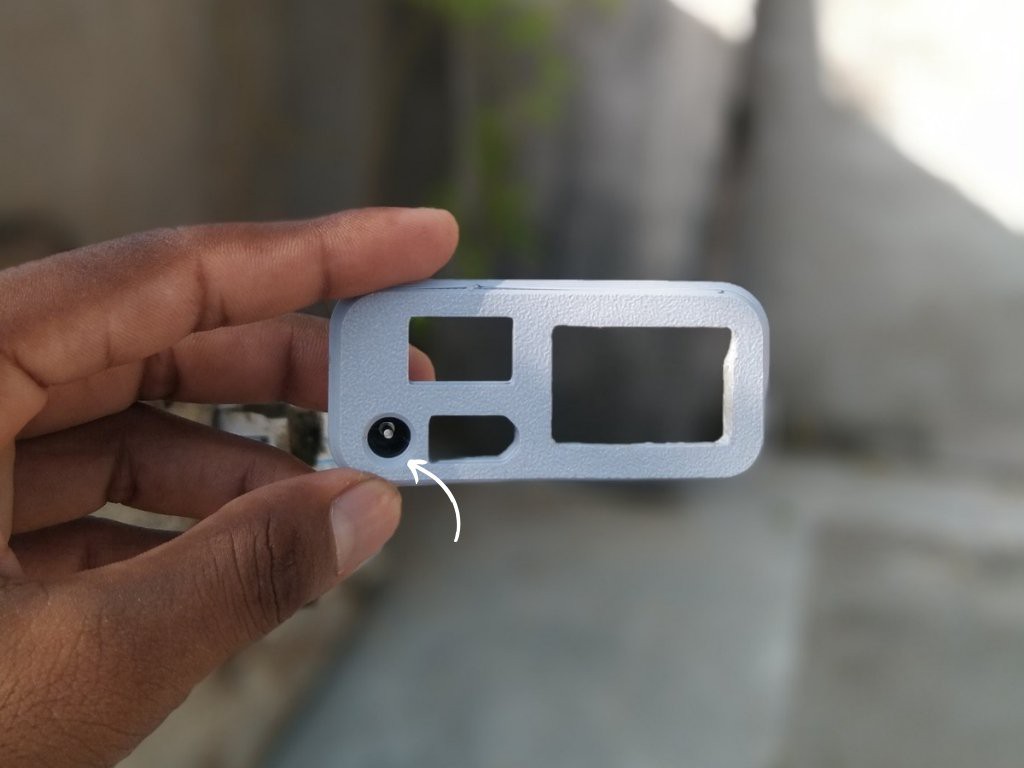
    Insert the DC 5525 female jack into its dedicated slot on the cover and secure it with a small amount of super glue, making sure the orientation is correct

  • 3
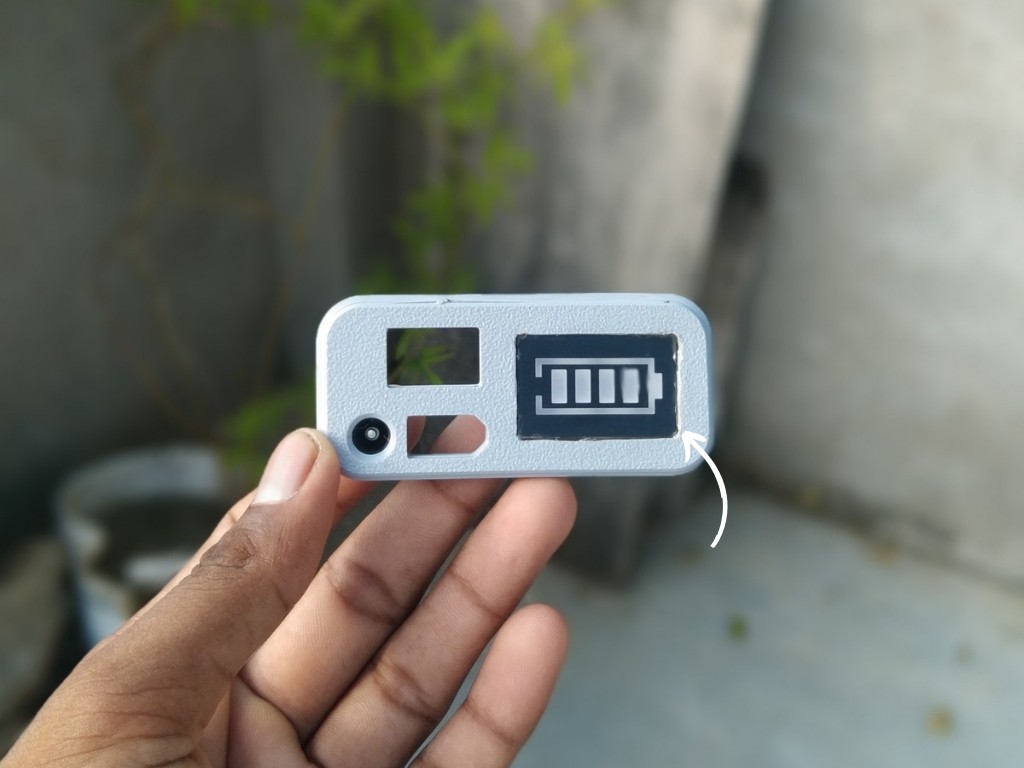
    Capacity Indicator Assembly

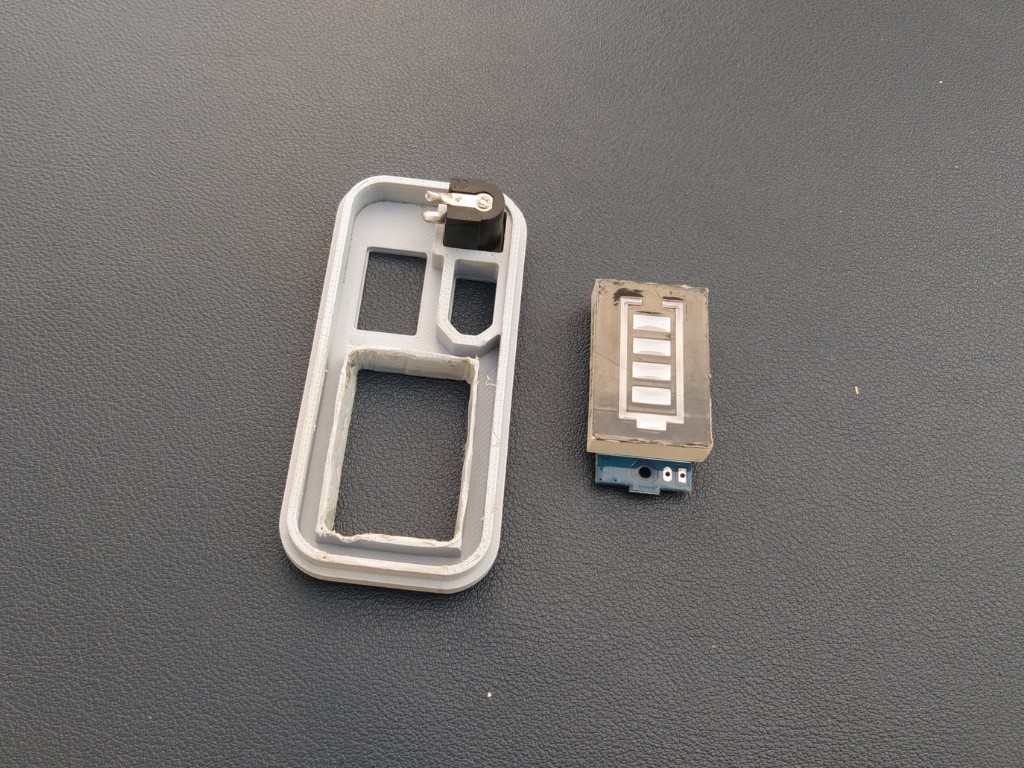
    Place the battery capacity indicator module into its slot on the cover and fix it with a small amount of super glue, ensuring it sits flush and aligned.

View all 13 instructions

Enjoy this project?

Share

Discussions

Similar Projects

Does this project spark your interest?

Become a member to follow this project and never miss any updates