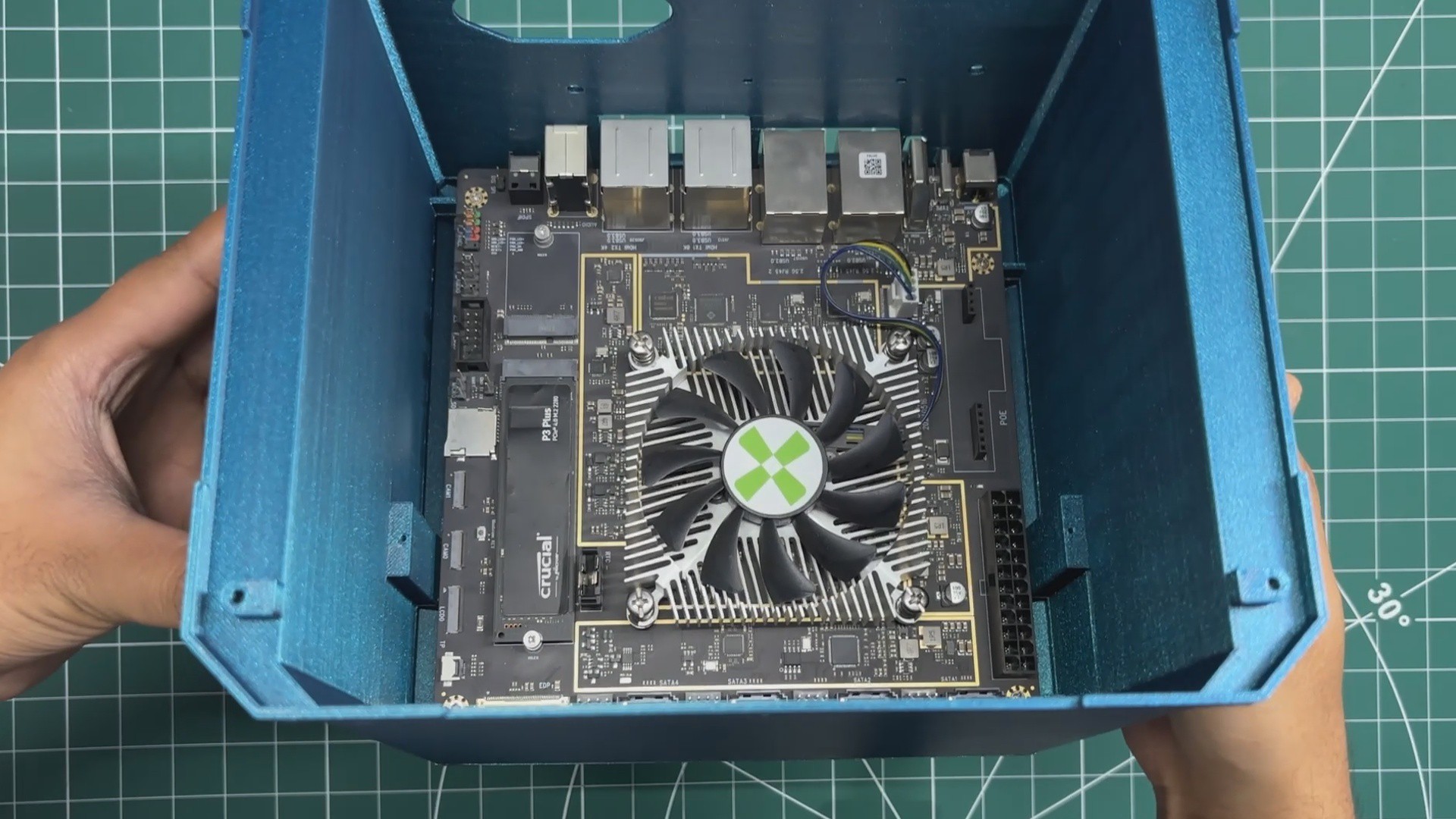
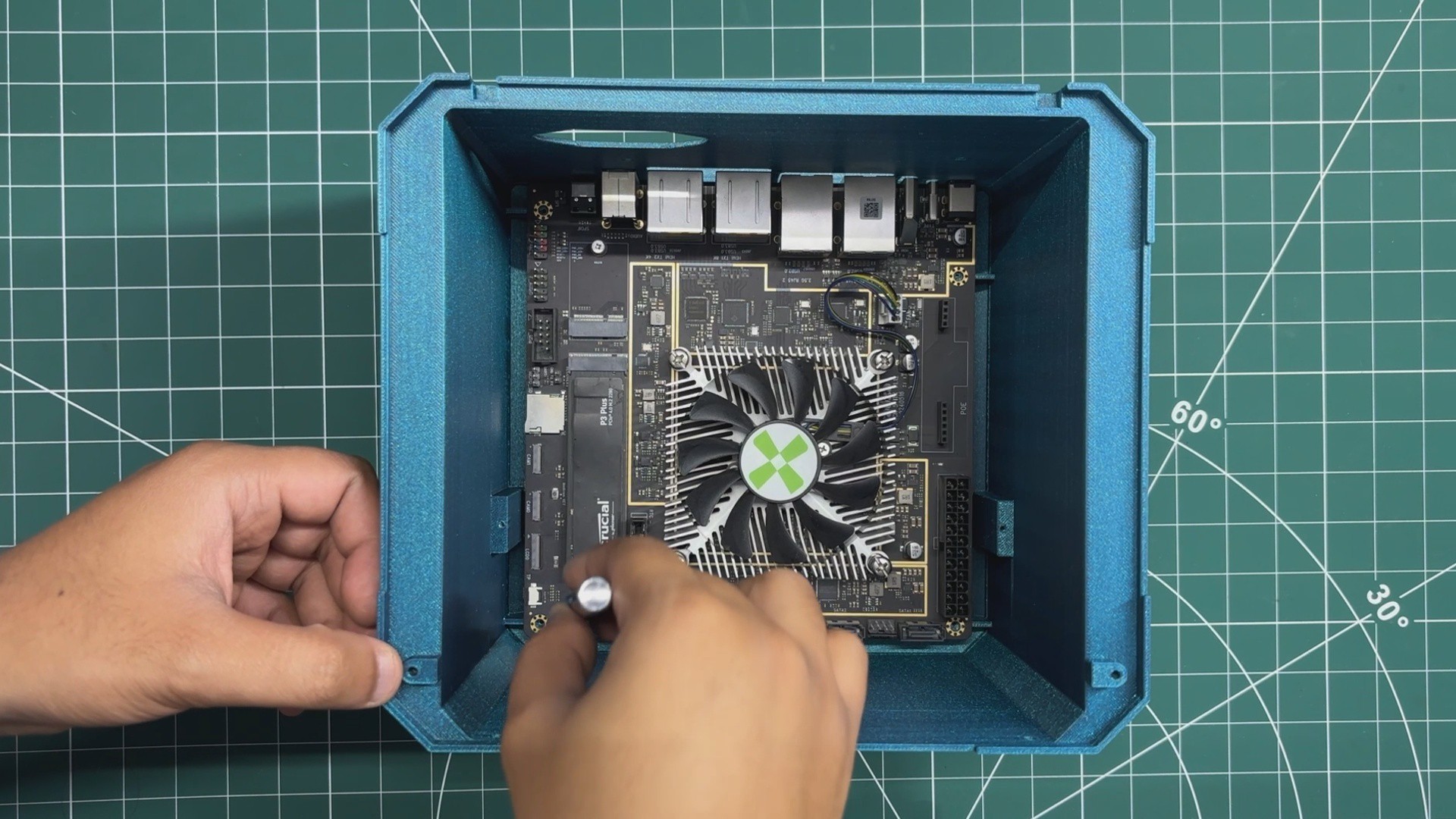
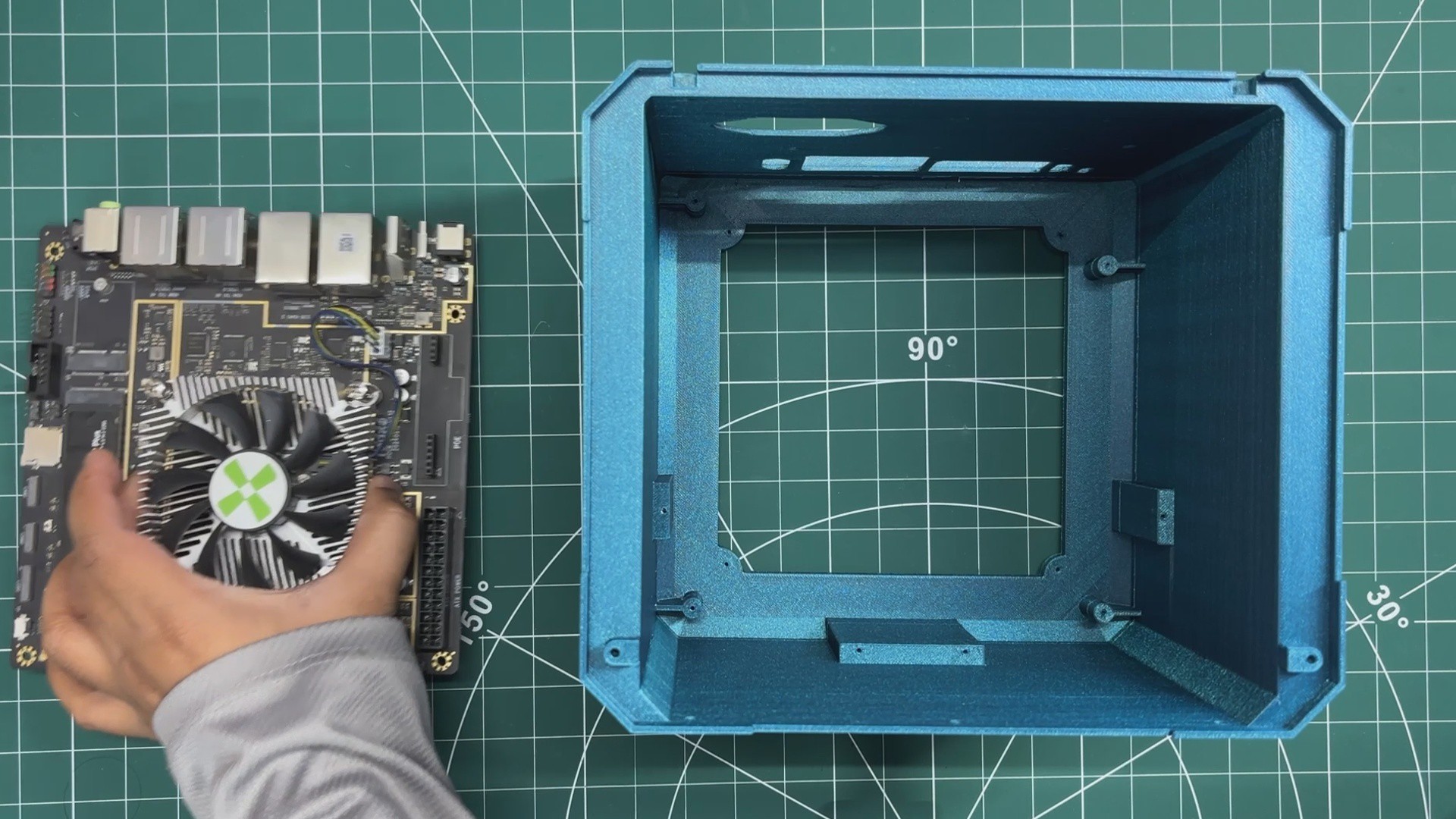
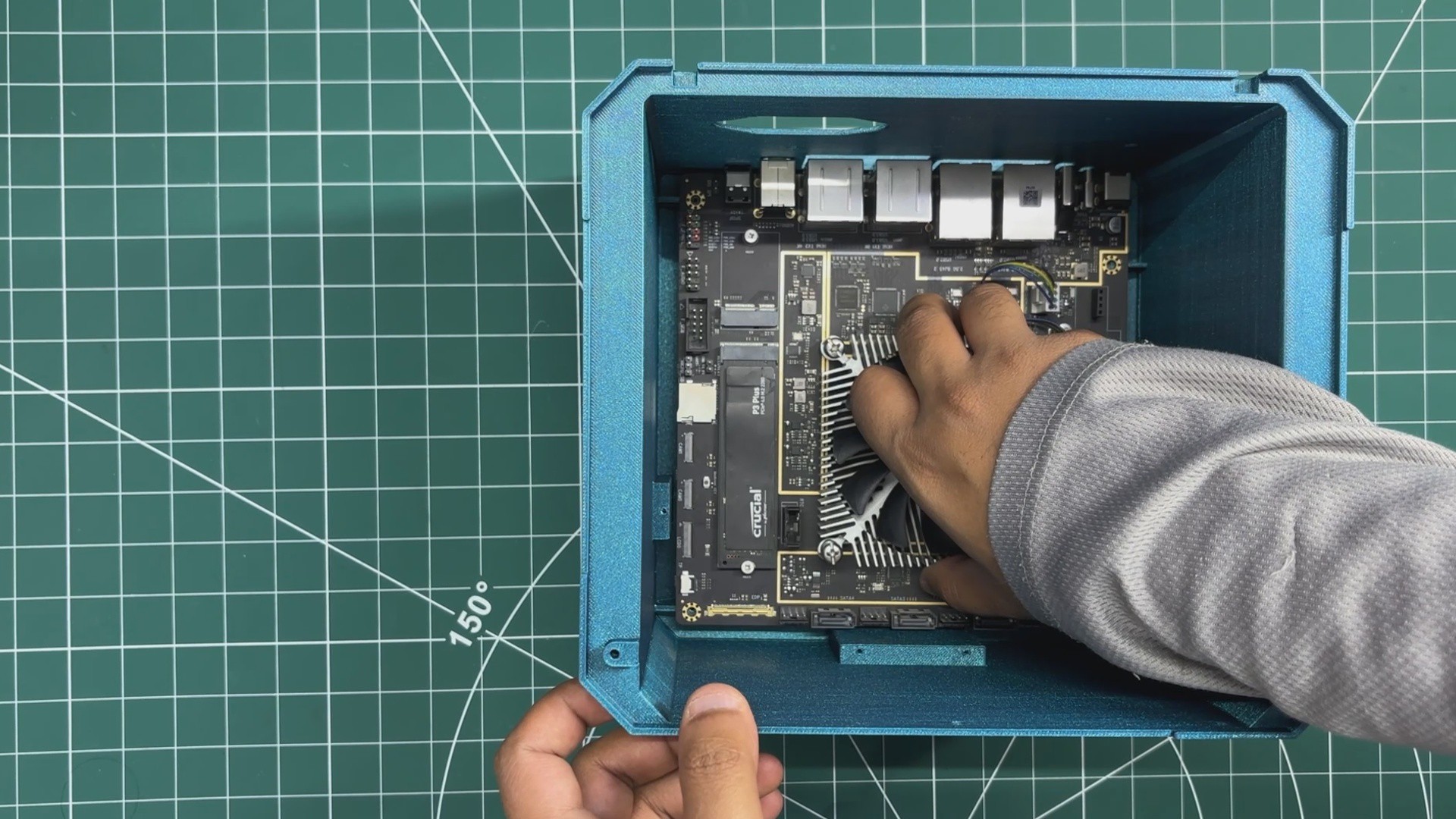
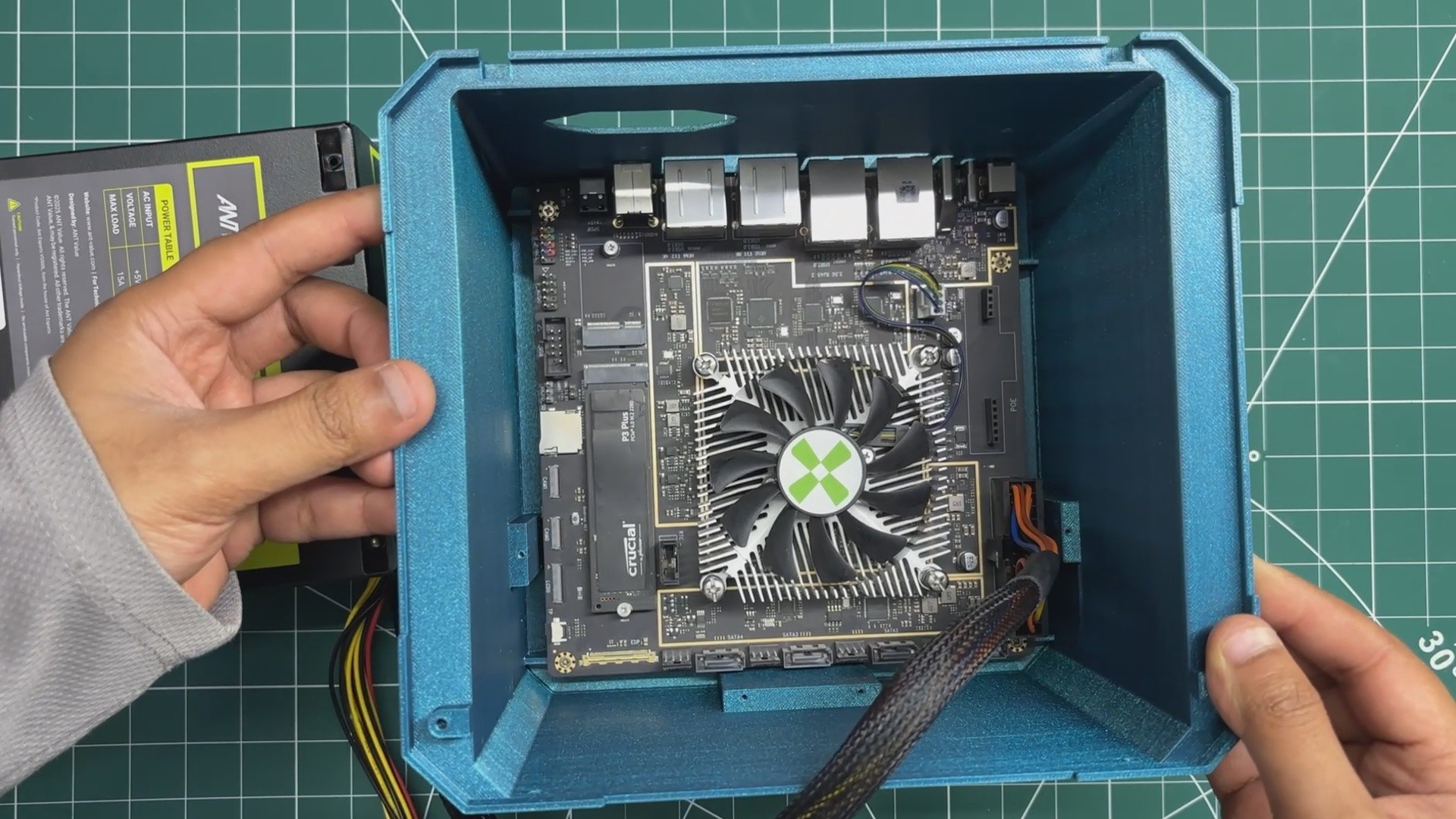
We begin the assembly process by placing the Radxa ROCK Pi 5 ITX board inside the enclosure, aligning it with the mounting bosses.
Once it's properly positioned, we tighten the board in place using four M2 screws.
2
POWER SUPPLY ASSEMBLY
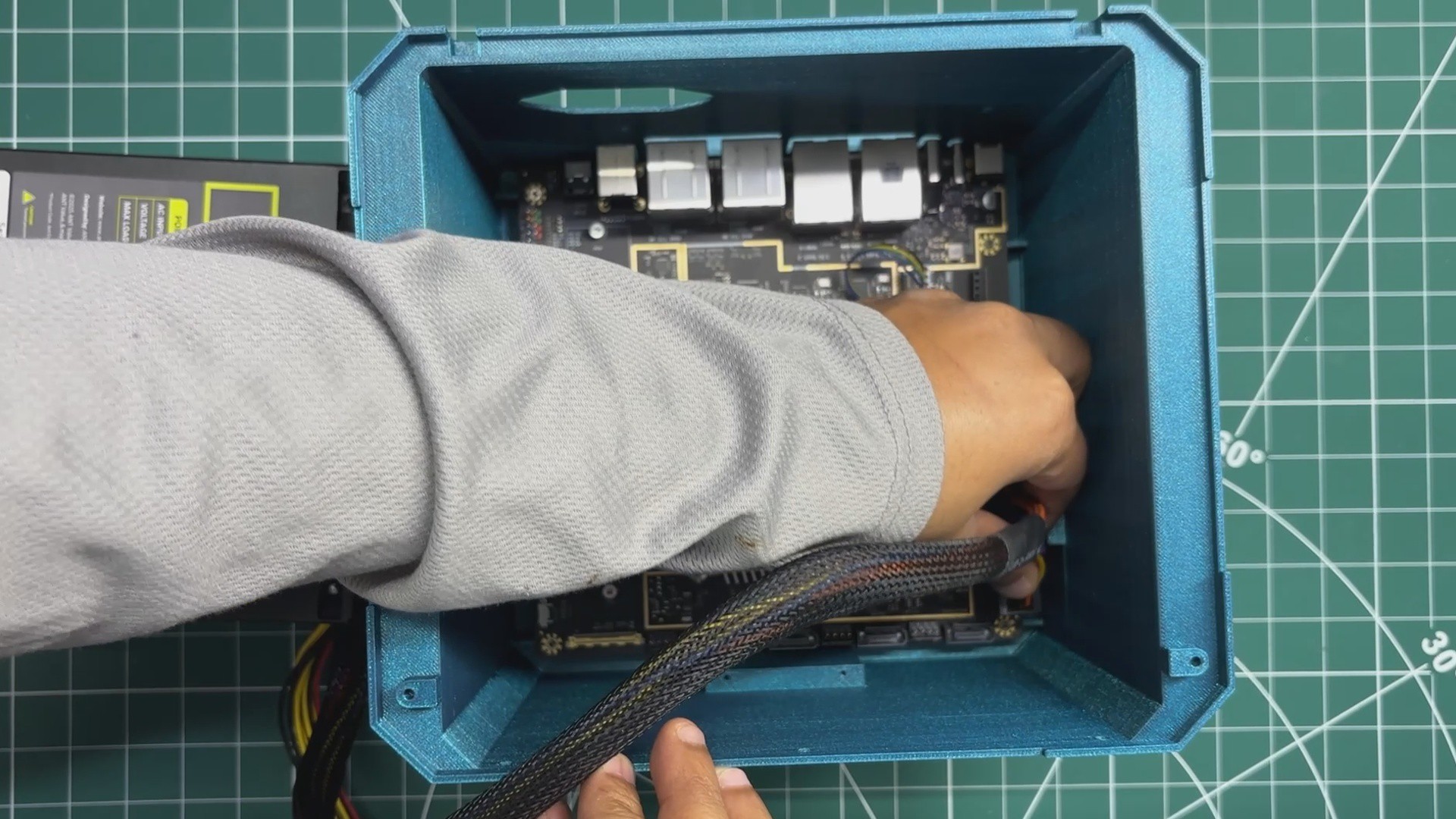
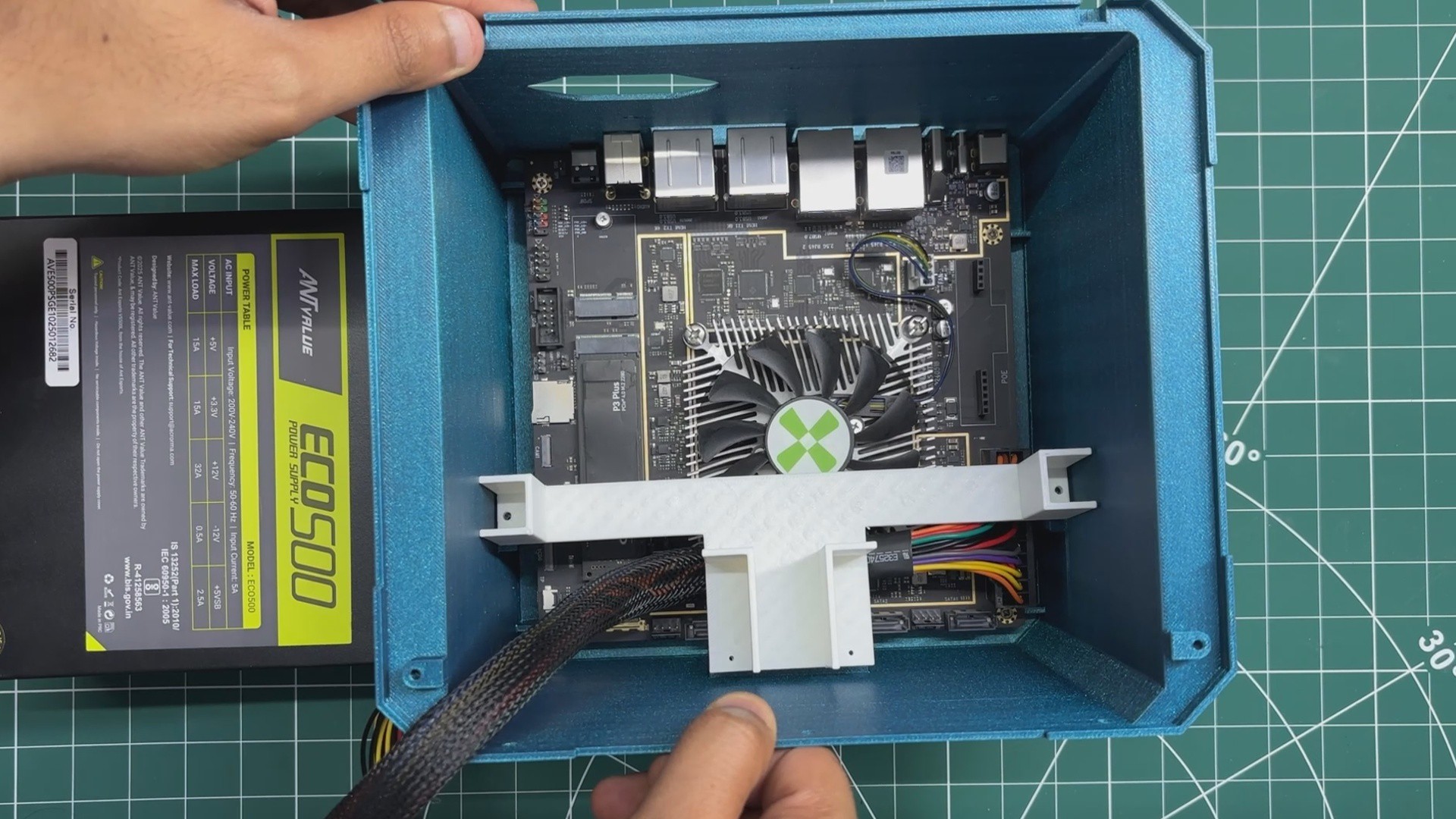
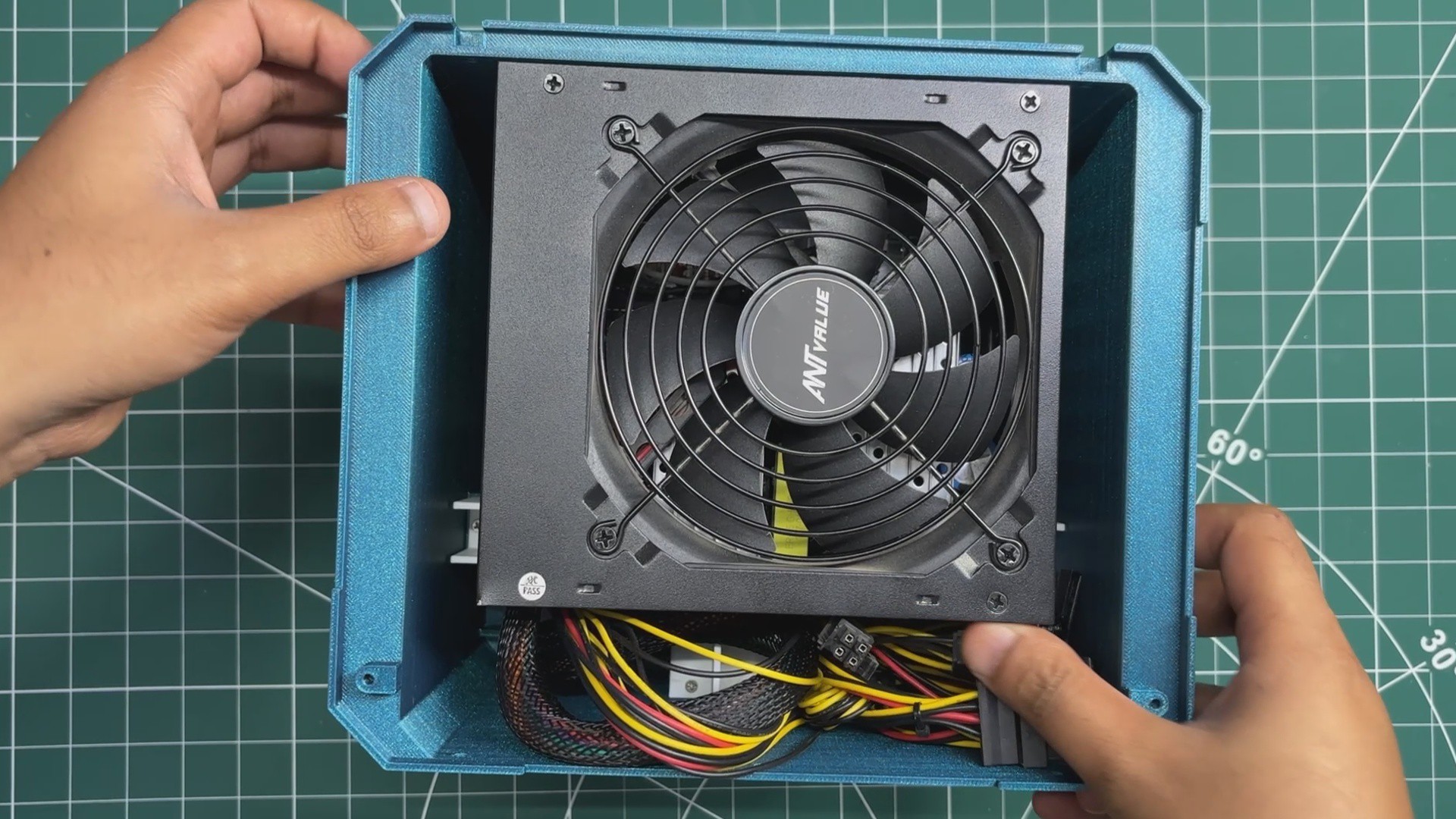
For the power supply assembly, I first connected the 24-pin ATX power connector from the power supply to the ATX connector on the Radxa ROCK Pi 5 ITX board.
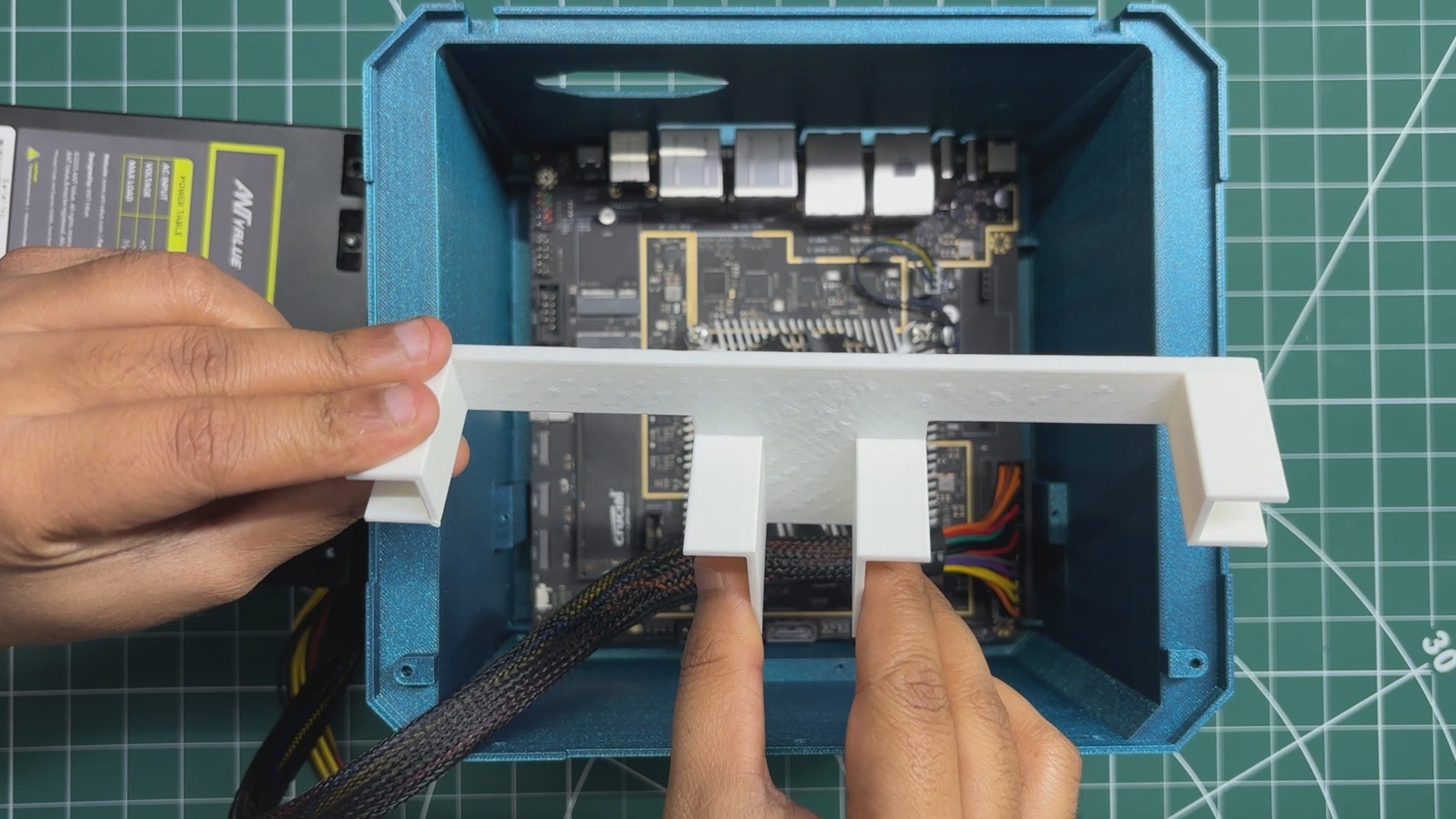
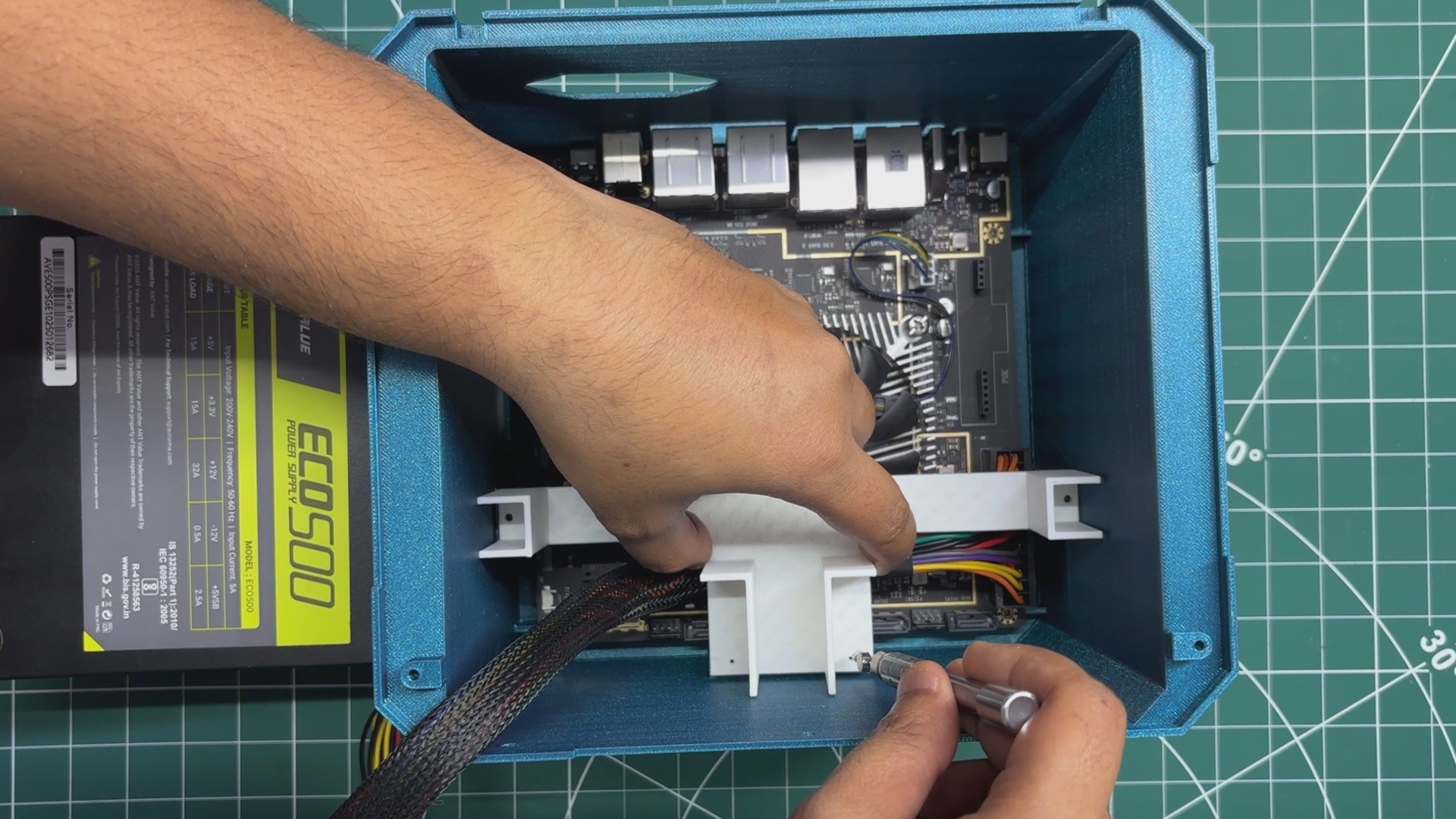
Next, I took the PSU mounting bracket and placed it in its designated position inside the enclosure, aligning it with the mounting bosses located just above the Radxa board.
I then secured the bracket using four M2 screws.
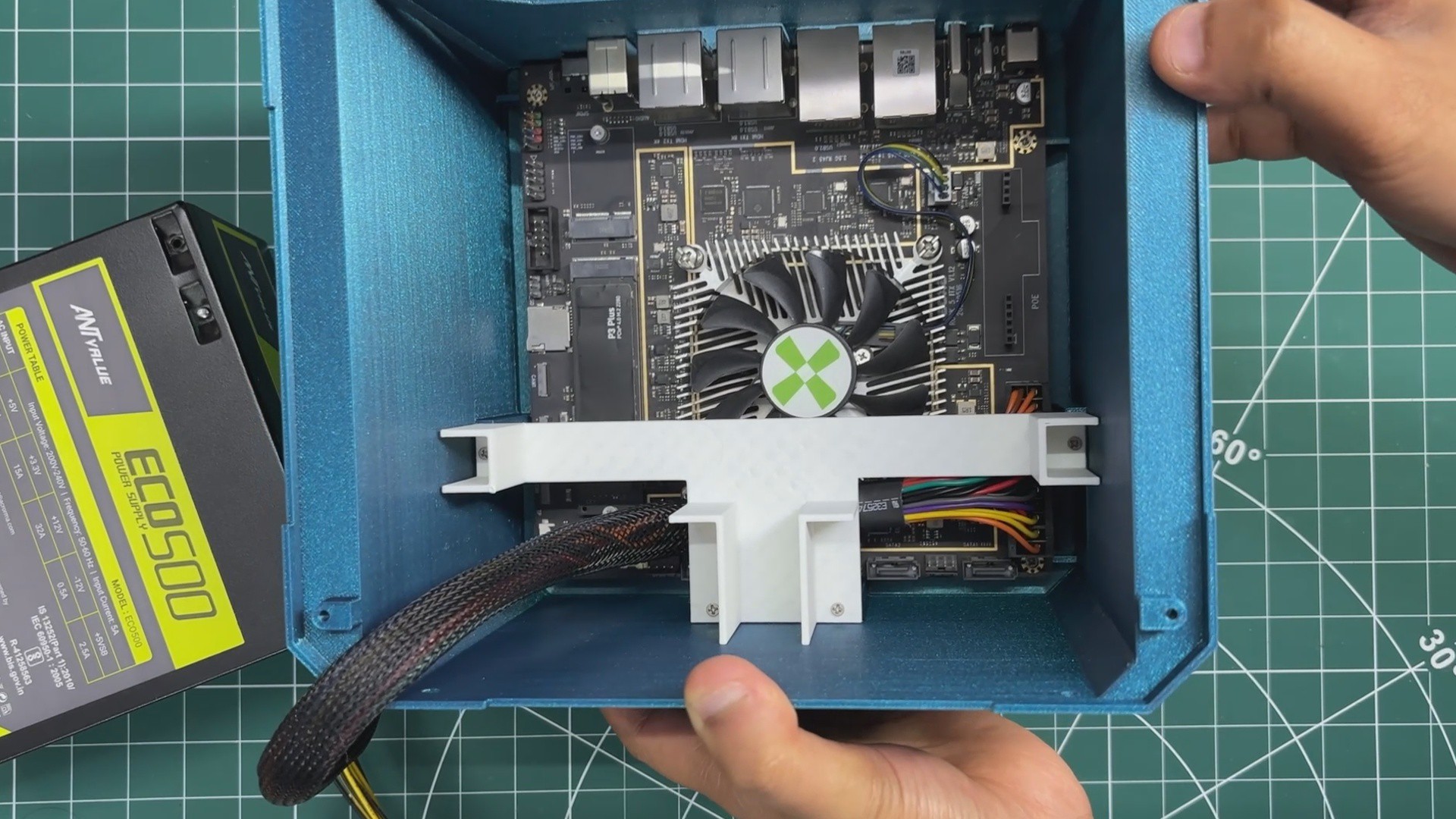
With the mounting bracket installed, I positioned the power supply on top of it.
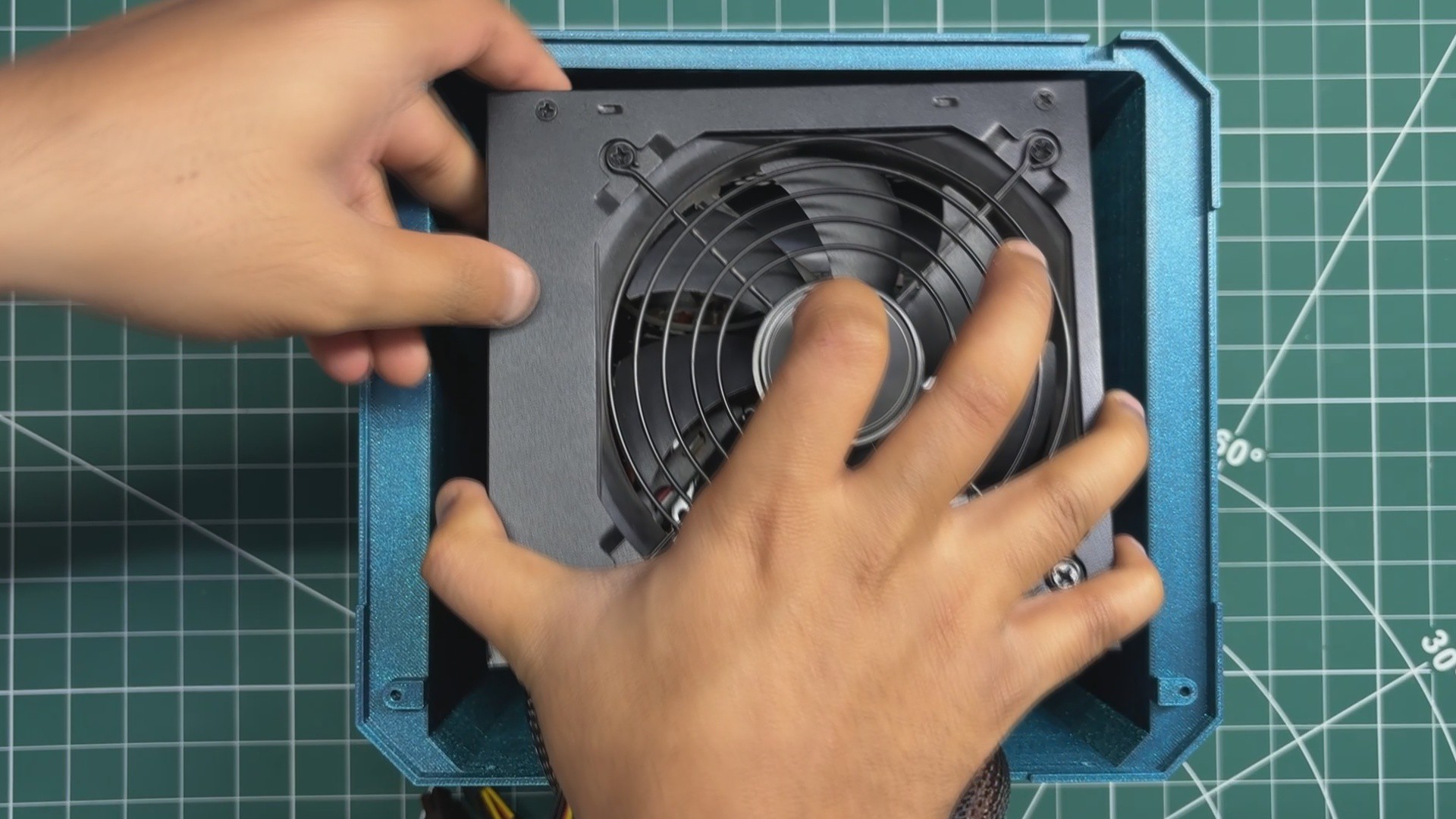
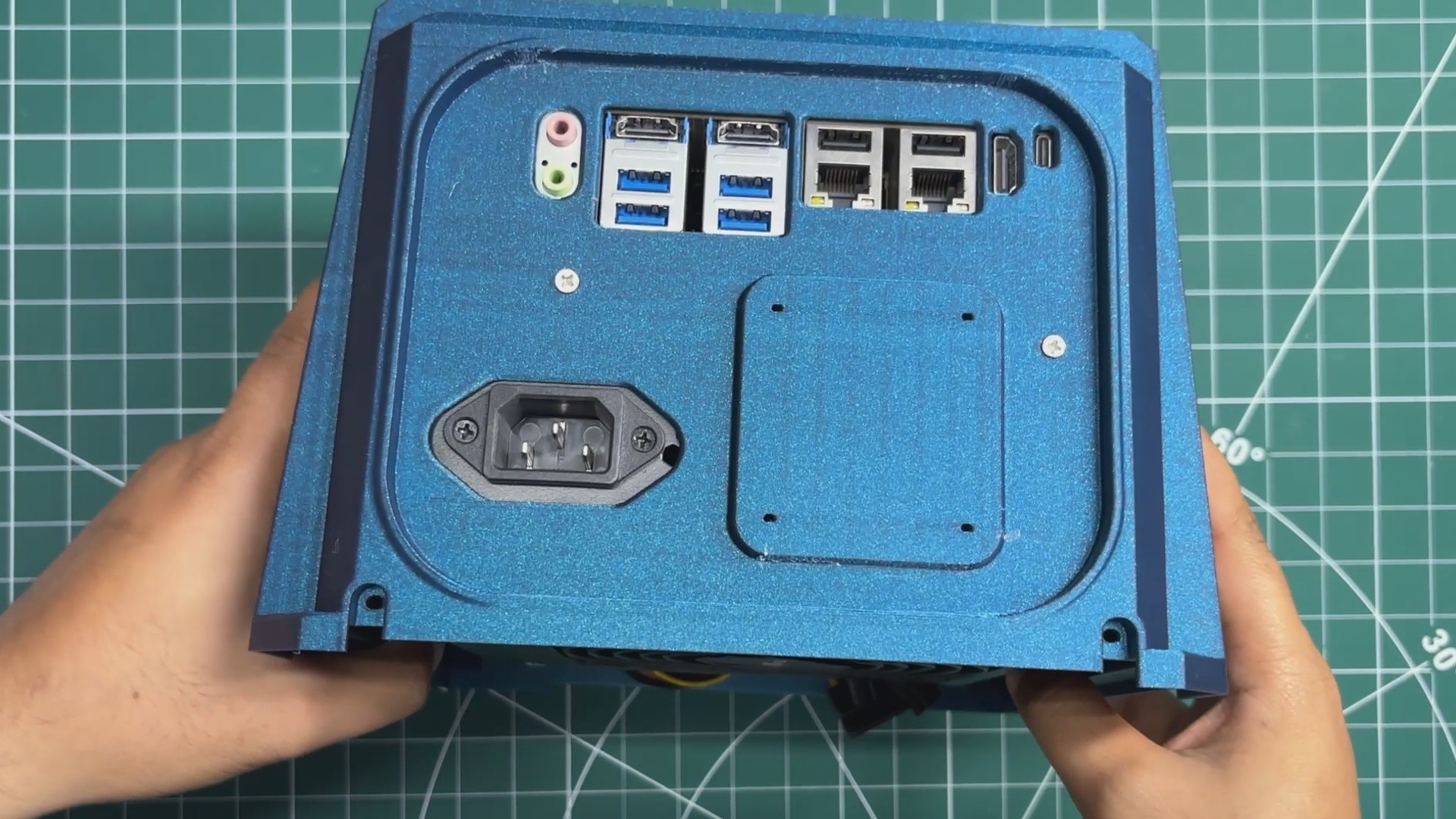
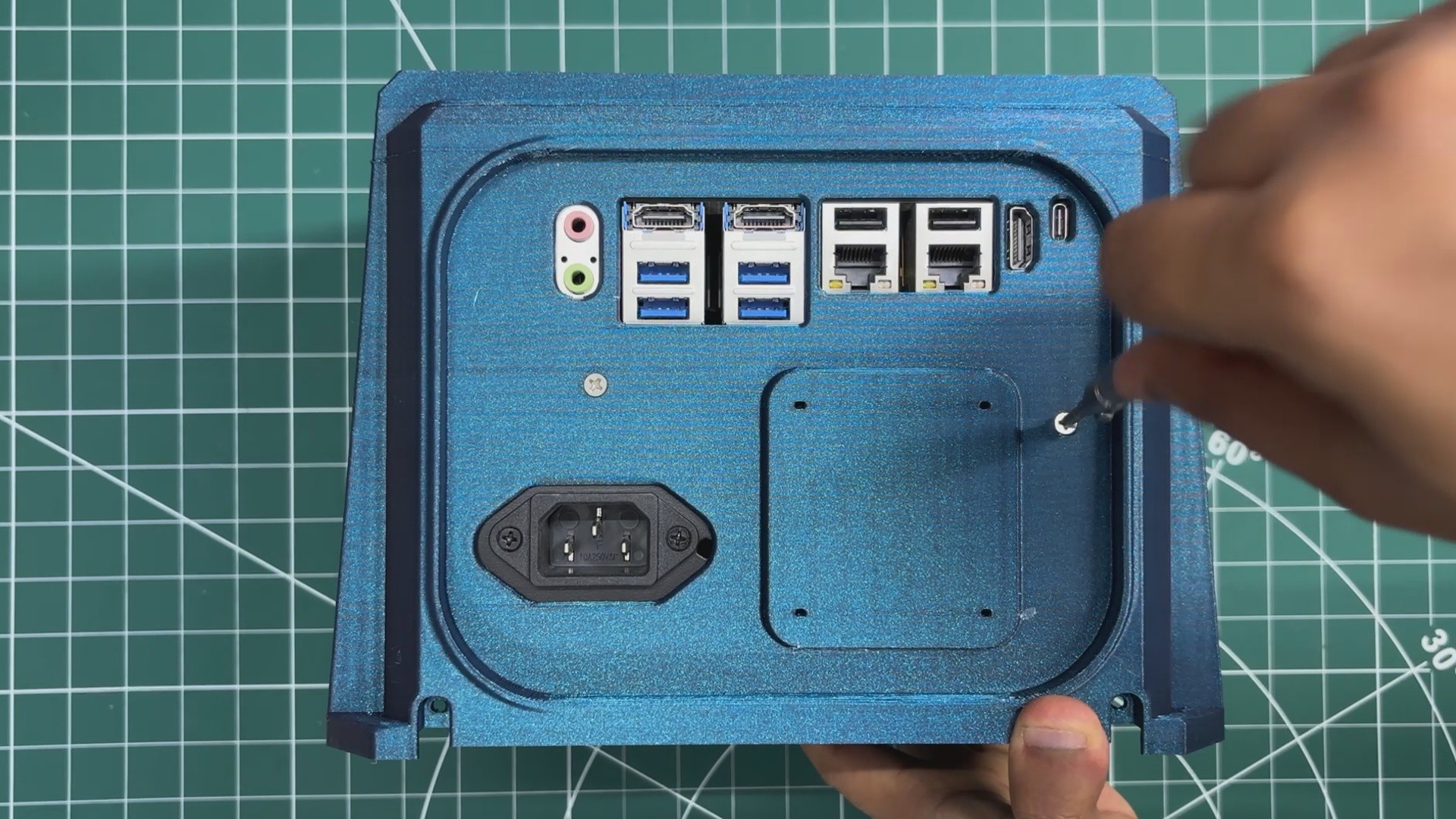
I then flipped the enclosure over so that the I/O side was facing upward. After aligning the mounting holes of the power supply with the corresponding holes in the enclosure, I secured the power supply using the supplied M3 screws.
While installing the power supply, I made sure that its cooling fan was facing outward. This allows the fan to draw fresh air directly from outside the enclosure, ensuring proper airflow and cooling.
3
LID ASSEMBLY
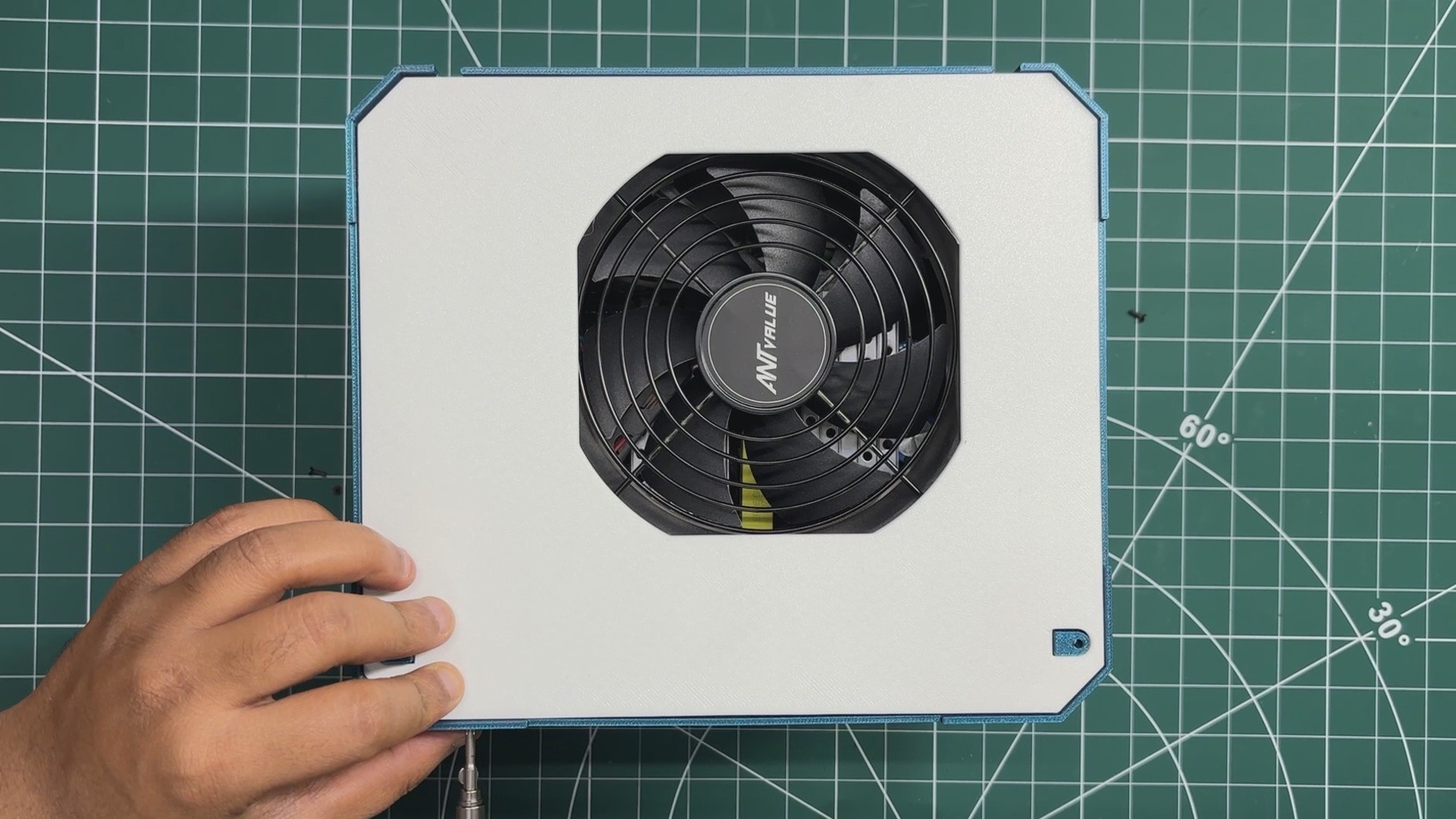
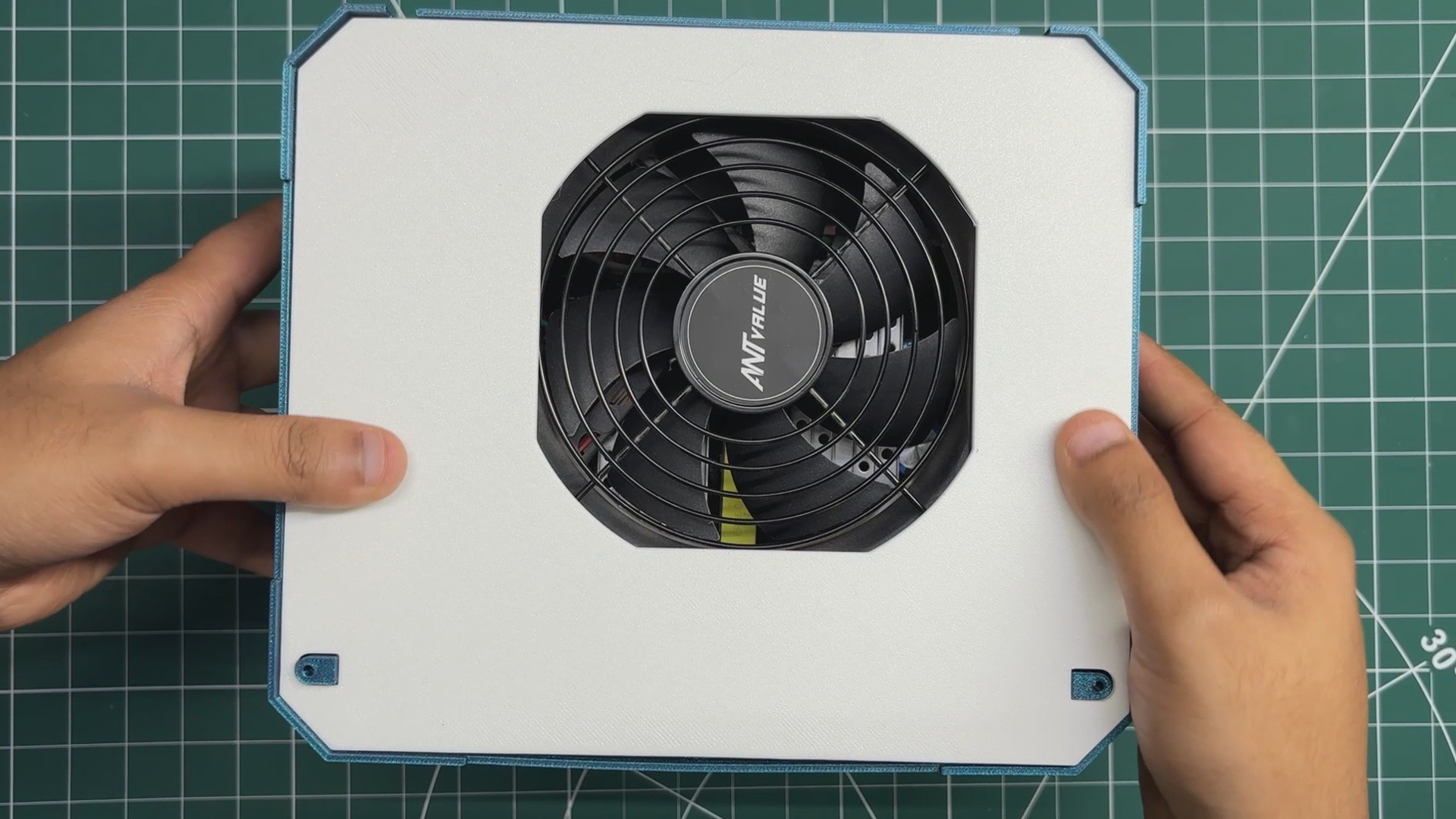
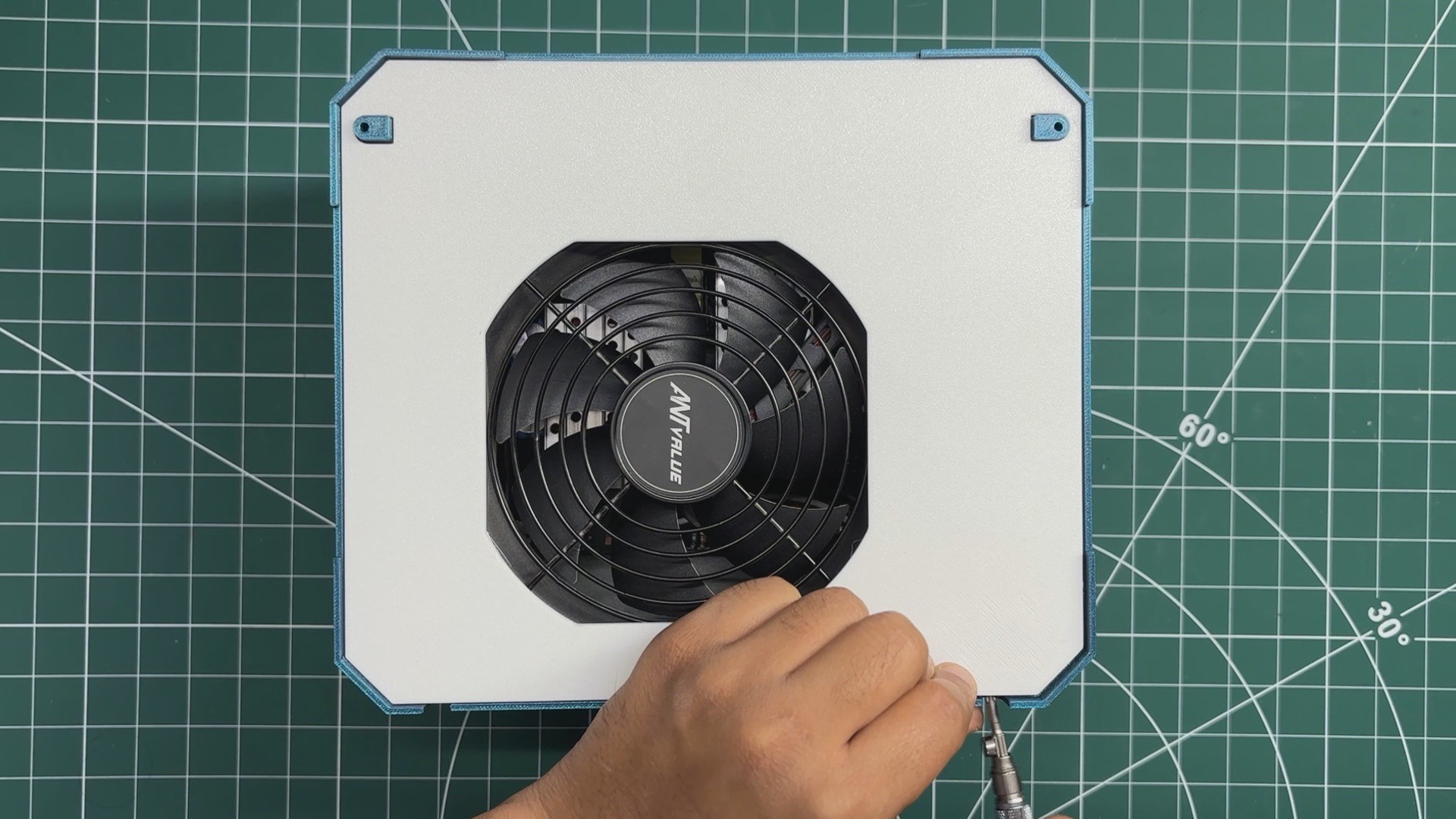
From the bottom side, I positioned the lid body onto the main enclosure. While placing it, I made sure to align the fan opening on the lid with the cooling fan of the power supply.
Once everything was properly aligned, I secured the lid to the main enclosure using six M2 screws.
4
GREEBLE PARTS ASSEMBLY
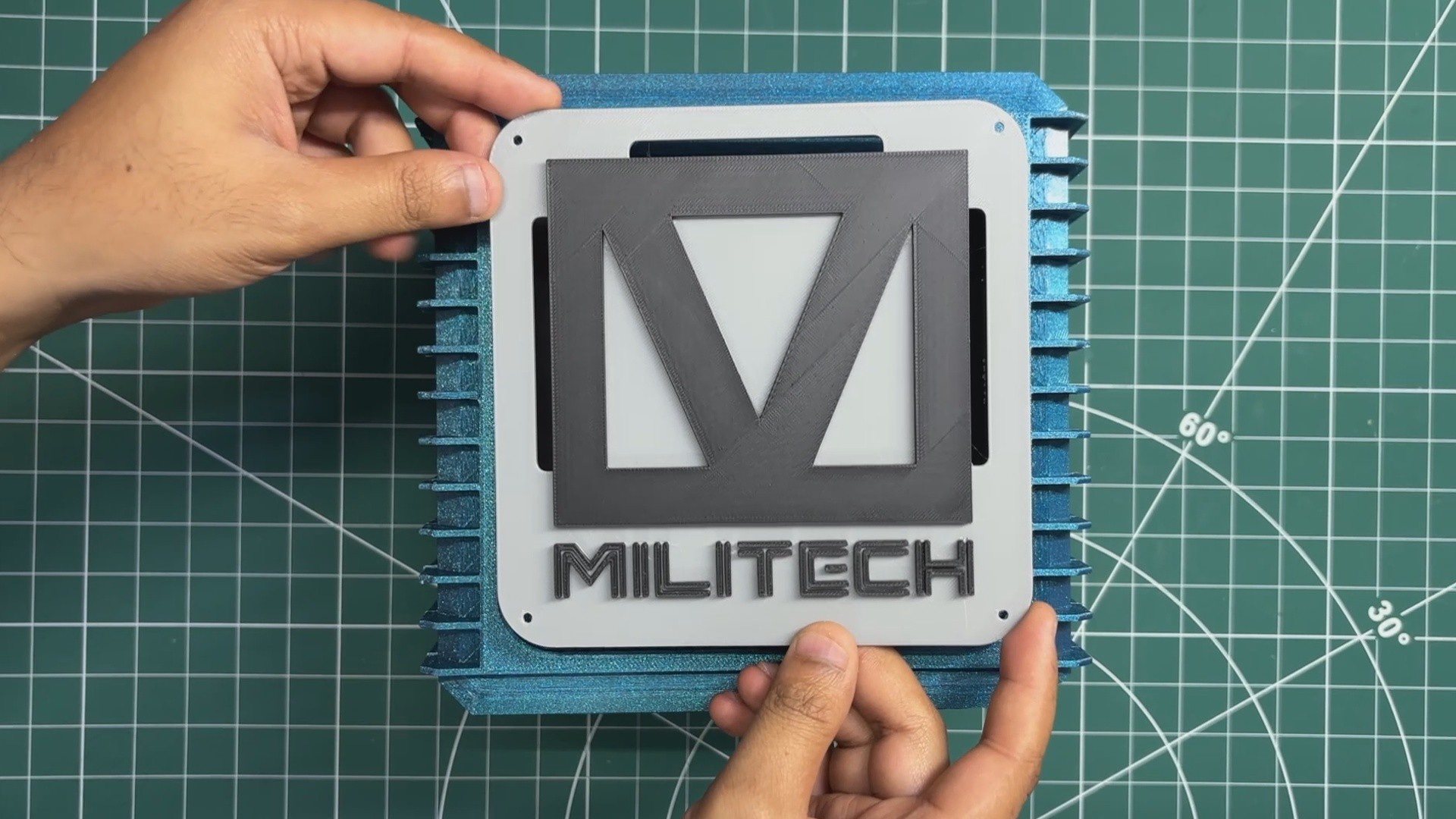
The final step was assembling the greeble parts, which consist of the two decorative logos, Relic Nas Logo and Militech Top Lid.
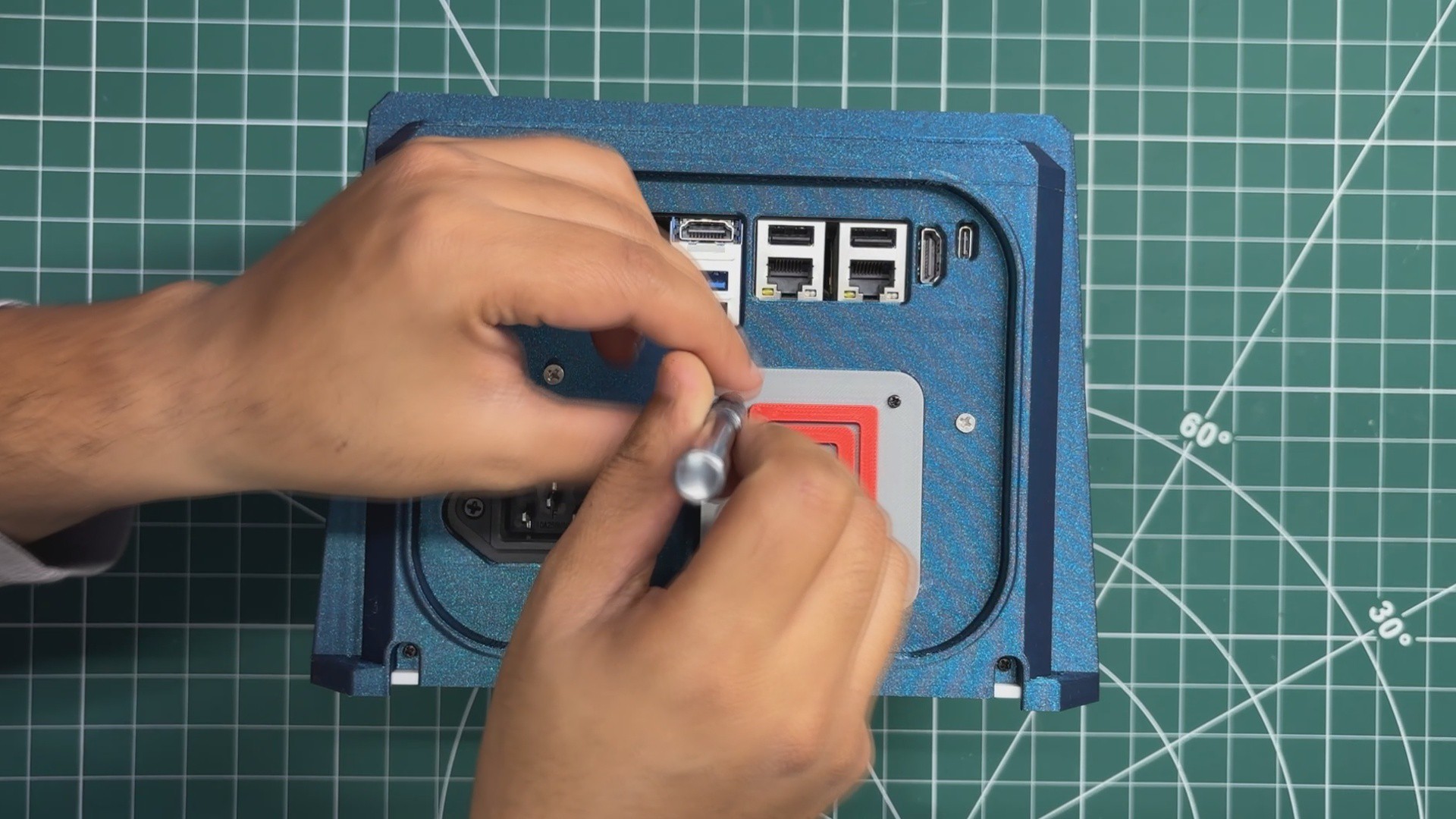
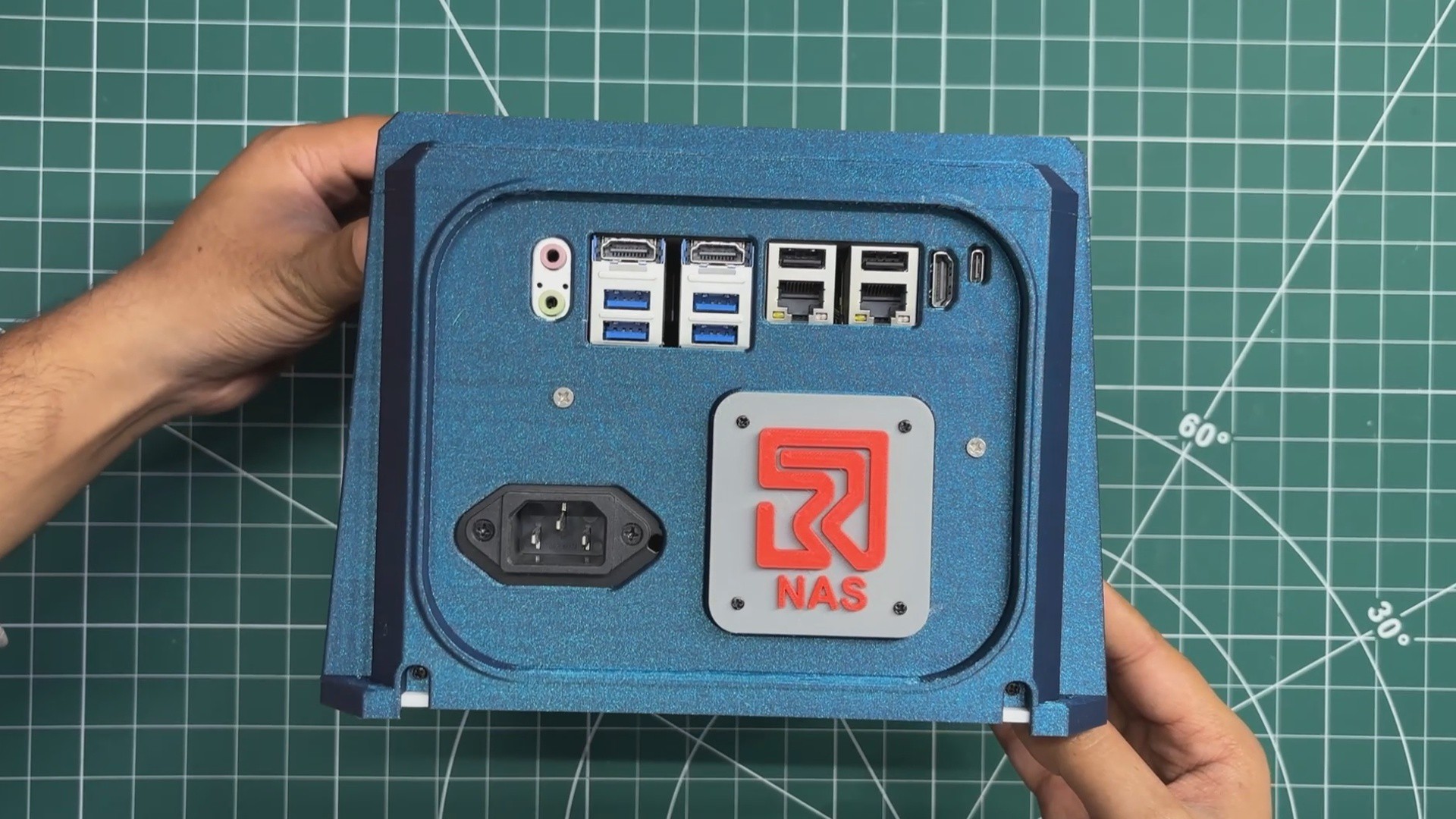
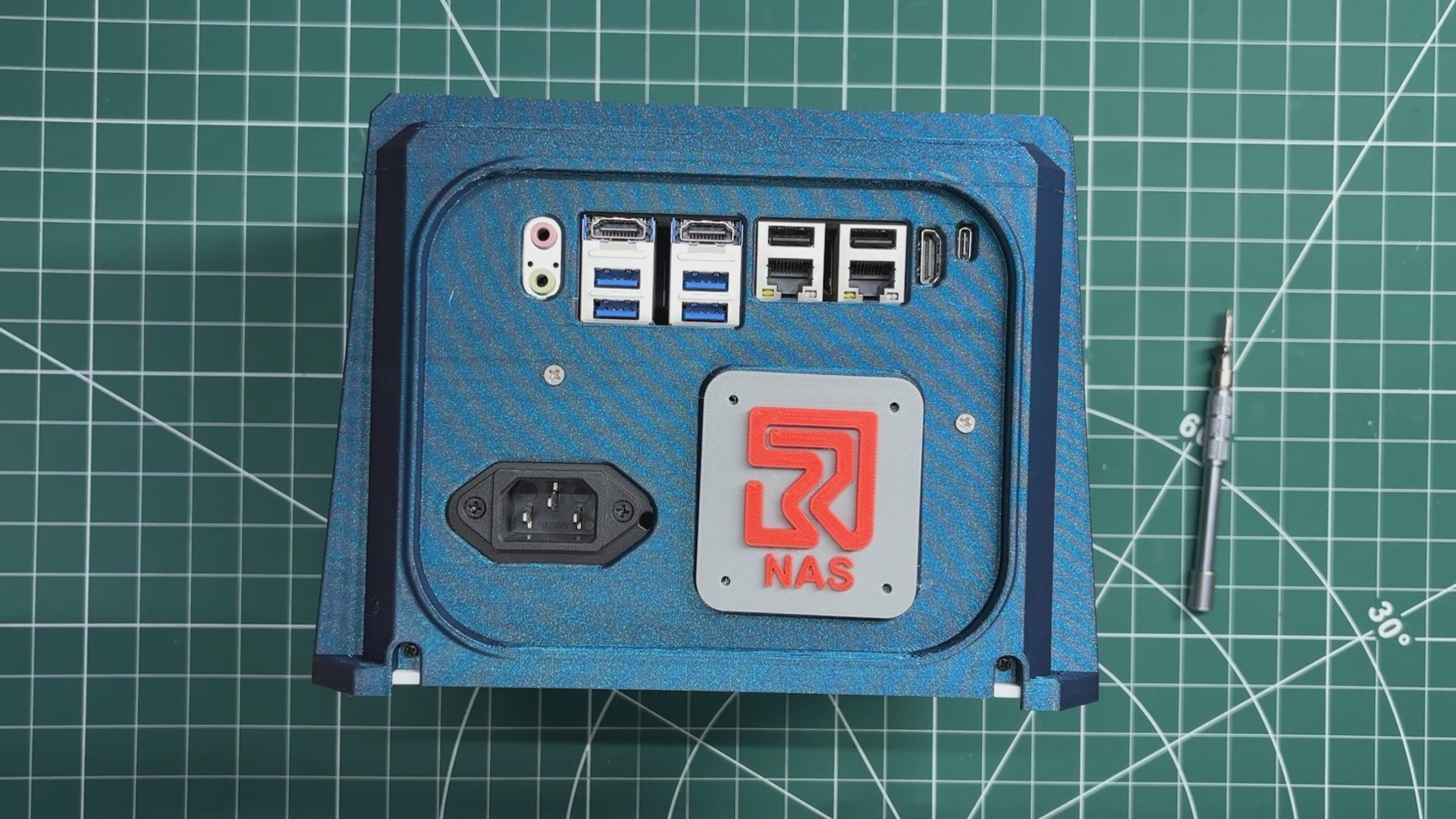
I started with the Relic logo, positioning it just below the I/O port opening on the enclosure. The enclosure already includes four mounting holes for the logo, so I simply aligned the logo with these holes and secured it using four M2 screws.
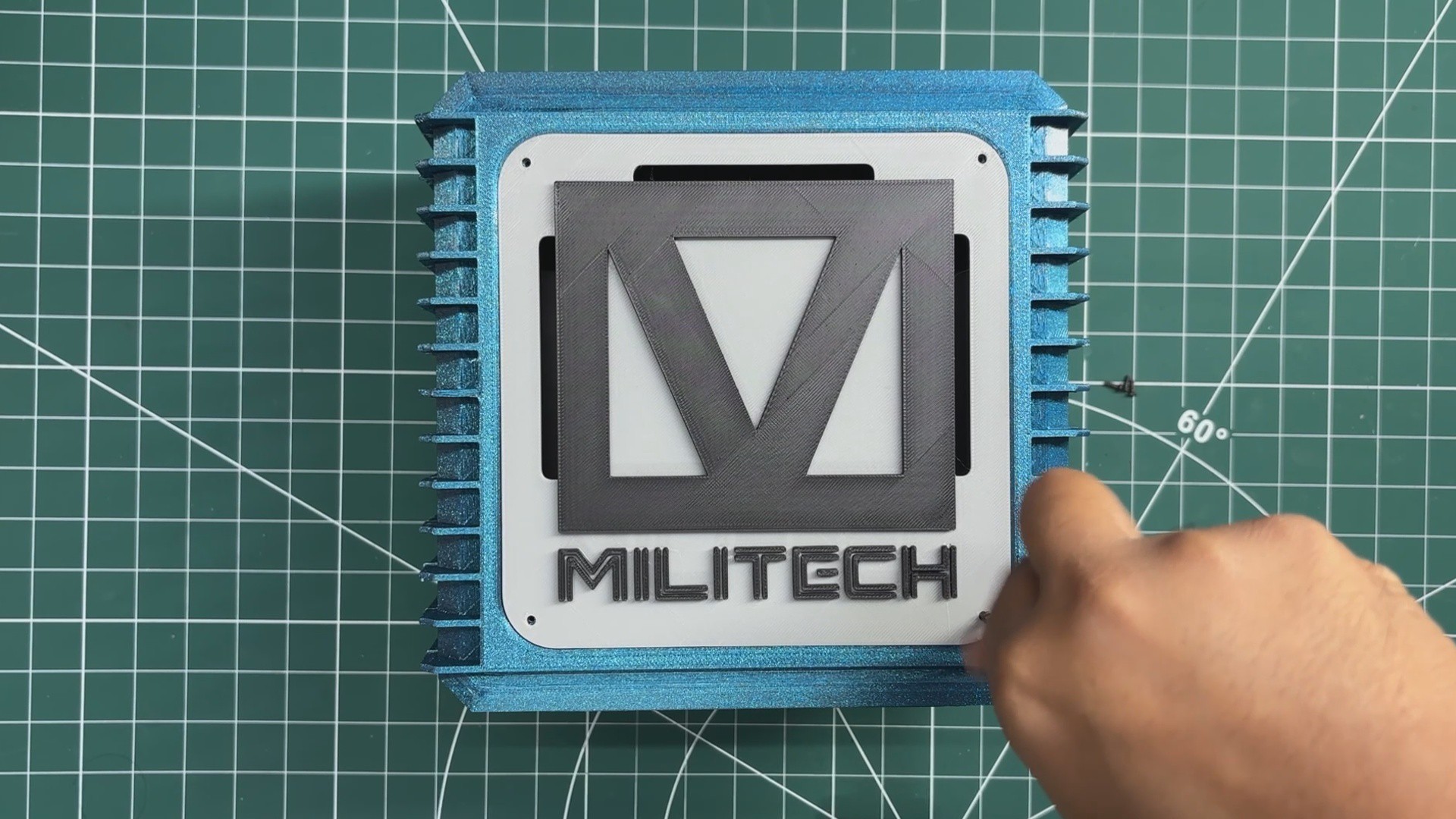
Next, I positioned the Militech logo panel on the top of the enclosure.
After aligning it with the mounting holes, I fastened it in place using another four M2 screws, completing the assembly of the MILITECH NAS.
5
ASSEMBLY RESULT
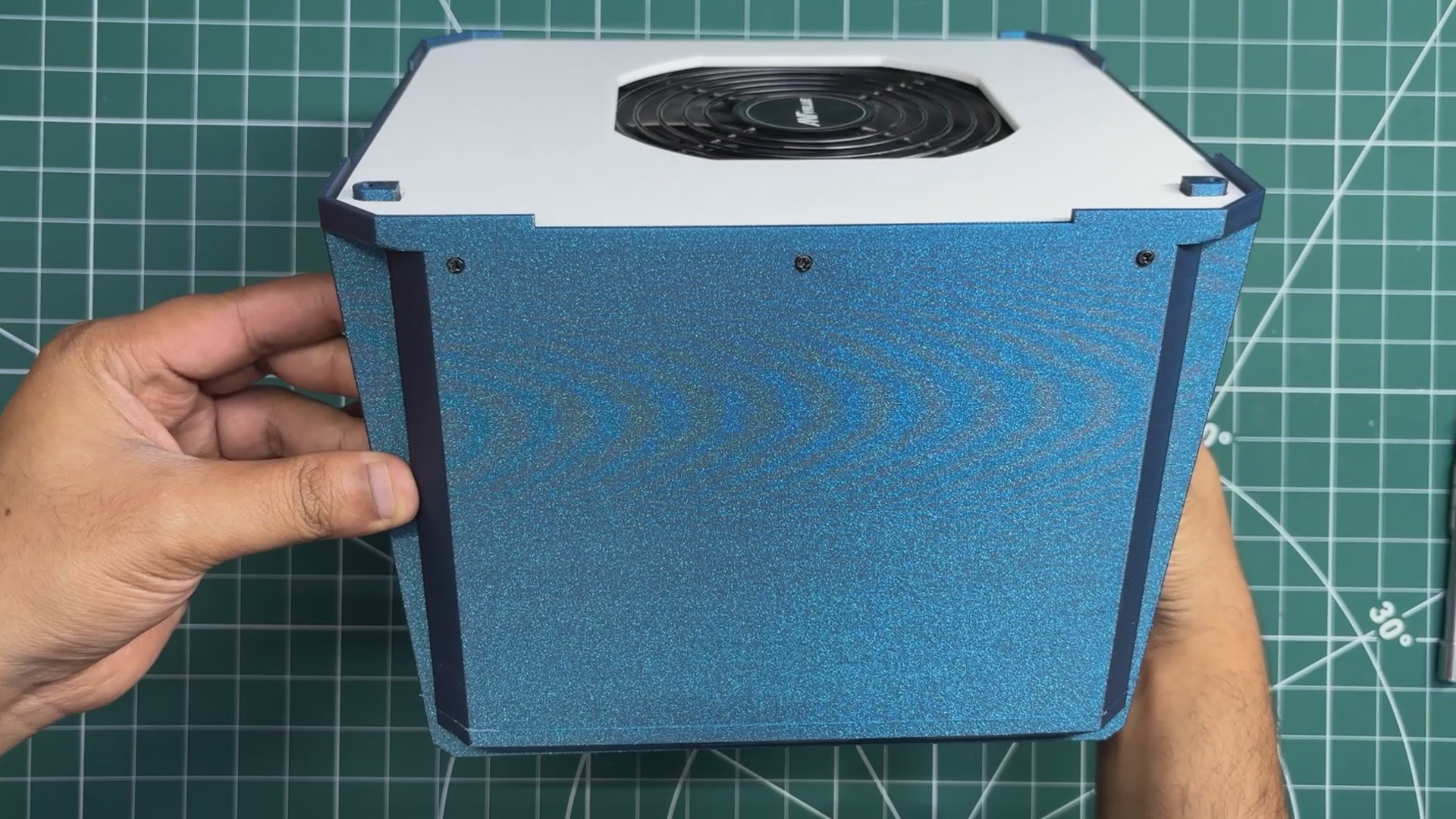
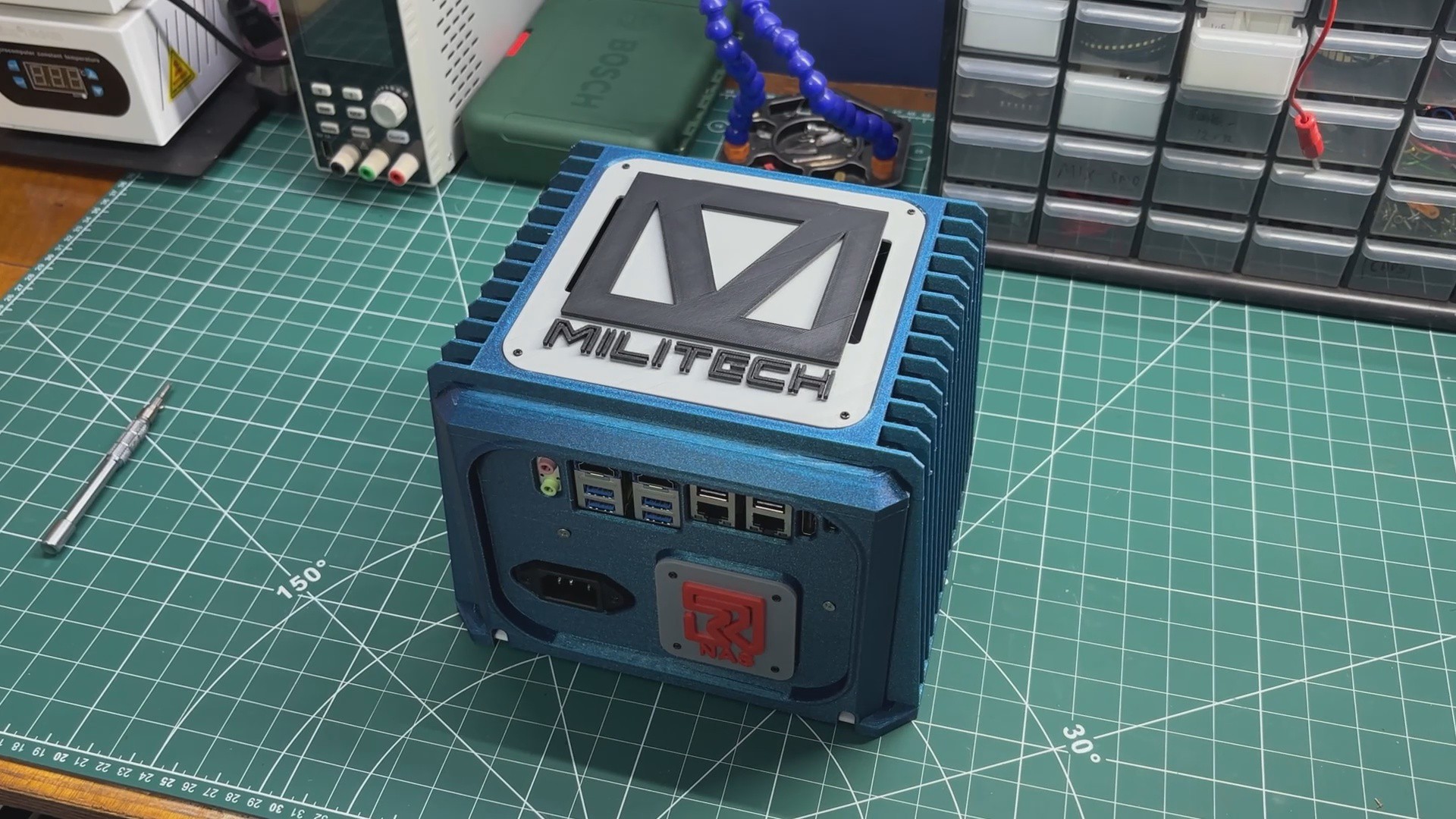
Here's the end result of this build: MILITECH NAS, a DIY NAS with an industrial, rugged aesthetic inspired by the Cyberpunk universe. The enclosure features the iconic MILITECH logo on the top, while the side panels incorporate heatsink-inspired fins that give the system a more aggressive, industrial look. Although these fins are purely aesthetic, they add a lot of character to the overall design.
The assembly process itself was fairly straightforward, with all of the components fitting neatly into the enclosure. With the hardware build now complete, it's time to move on to the software side of the project—installing the operating system, configuring the NAS, and putting the system through a series of performance and functionality tests.
6
OS- ARMBIAN
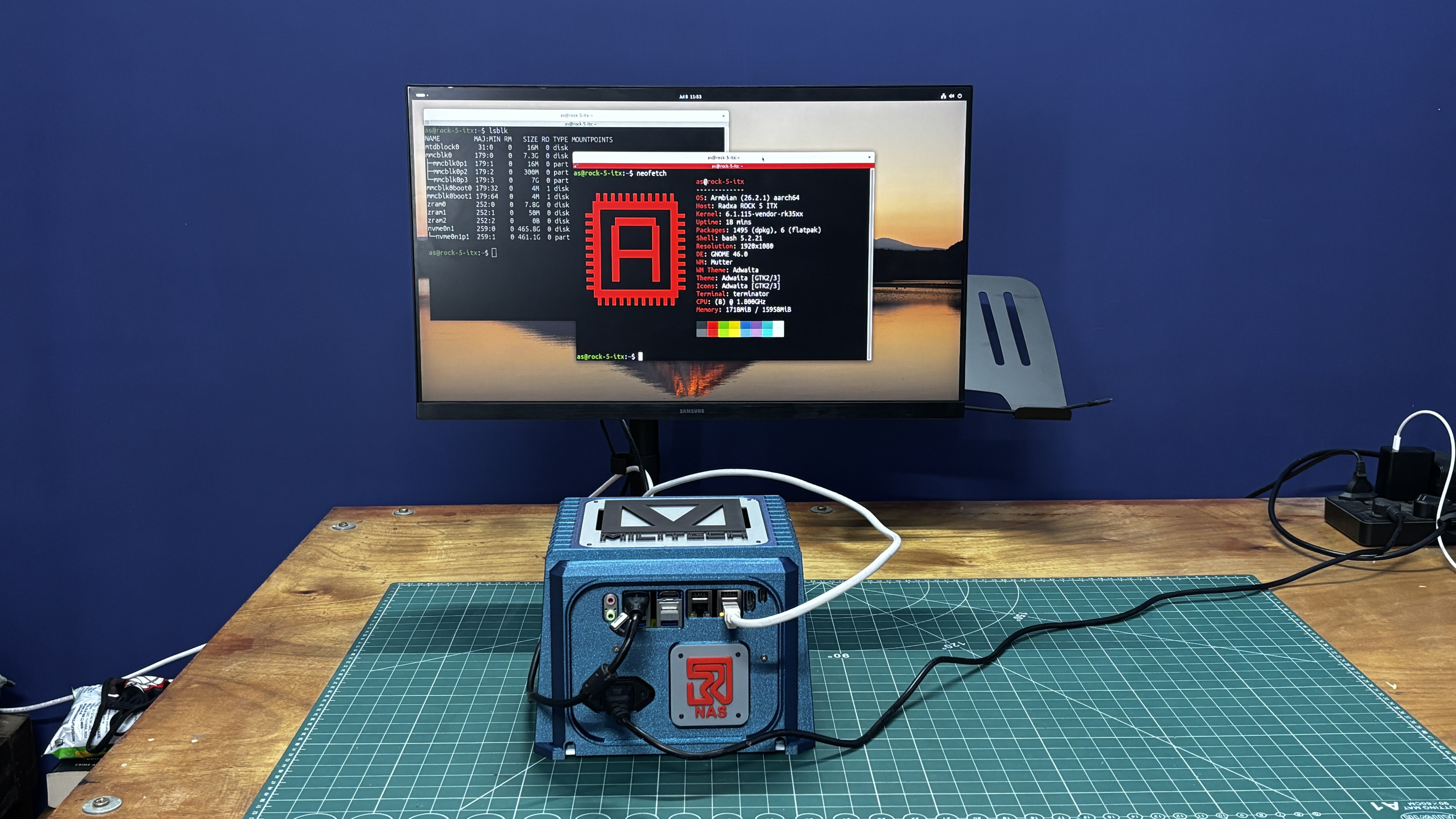
For the operating system, I went with Armbian, a Linux distro specifically optimized for ARM-based single-board computers. It's one of the most popular choices in the SBC community, offering excellent performance, stability, and long-term support. Paired with CasaOS, it provides a reliable and responsive platform for running NAS applications, self-hosted services, containers, and much more.
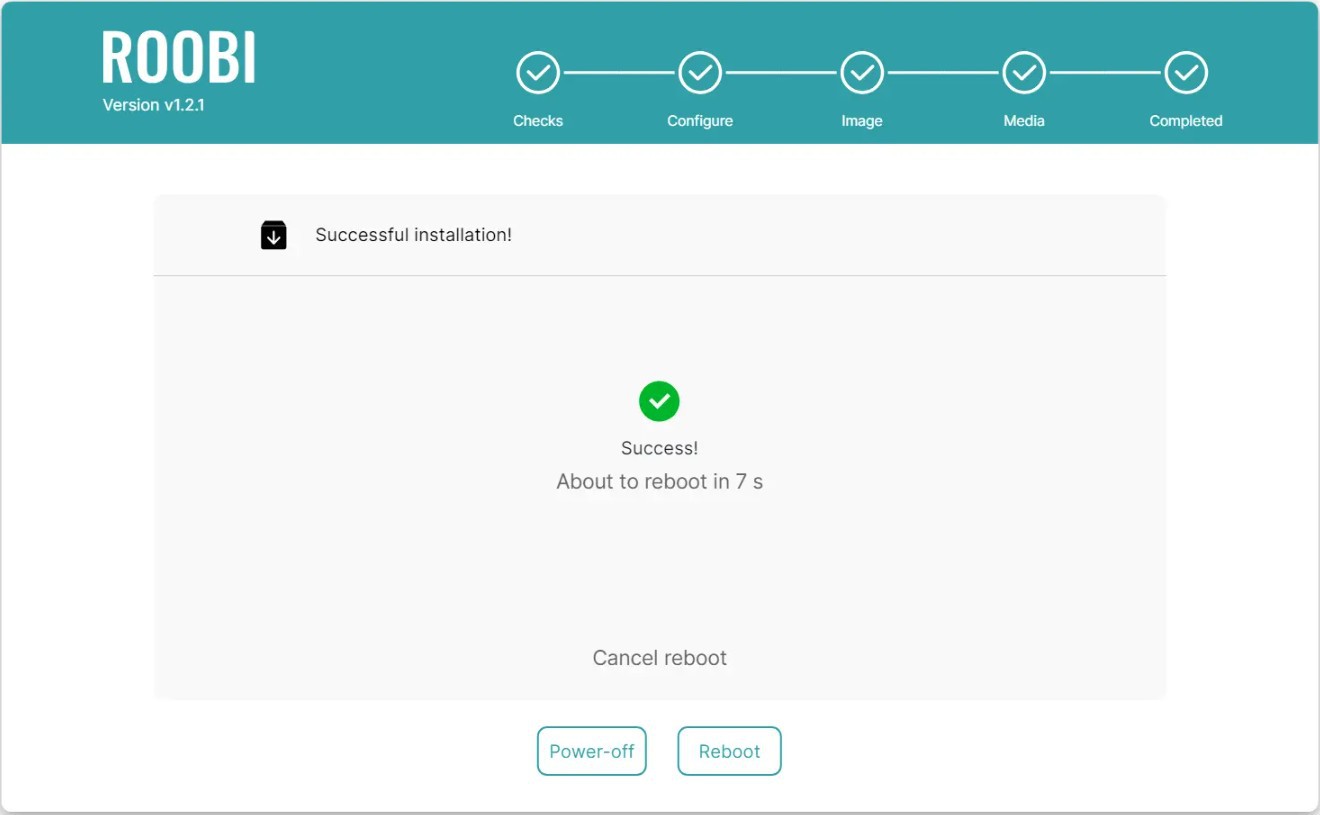
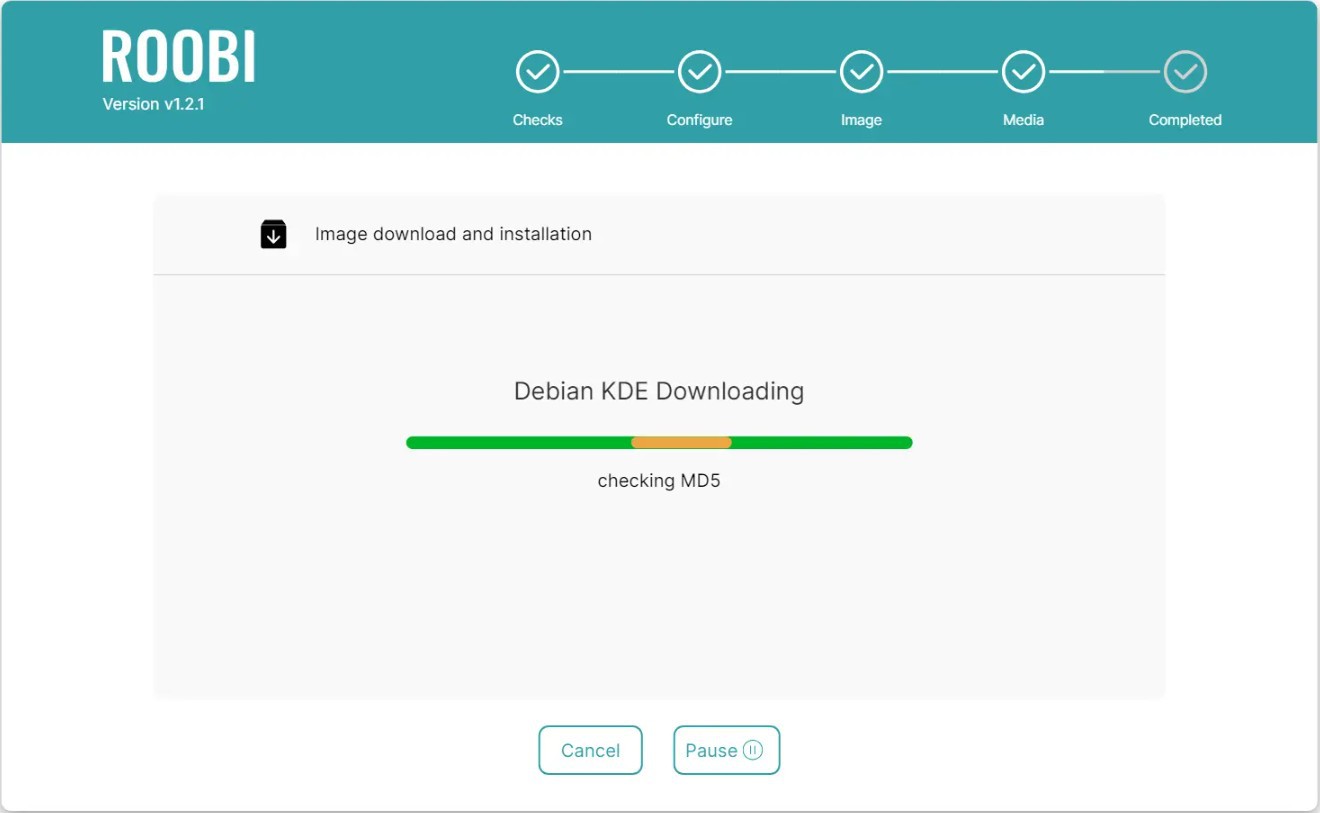
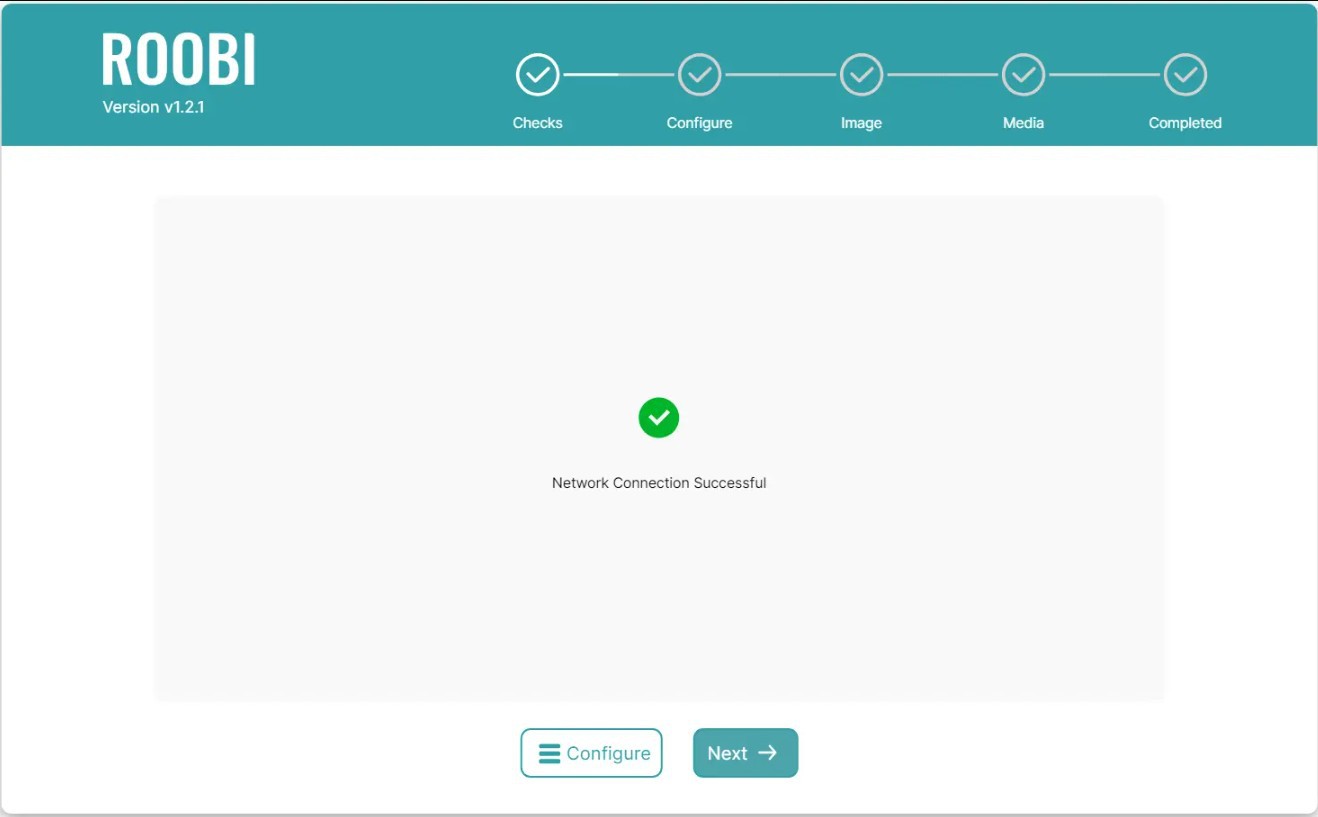
The installation process was also very straightforward. The ROCK 5 ITX comes with Roobi OS, an installation utility similar to the Raspberry Pi Imager. Instead of running from an SD card, it's pre-installed on the onboard eMMC, allowing you to install an operating system without needing another computer.
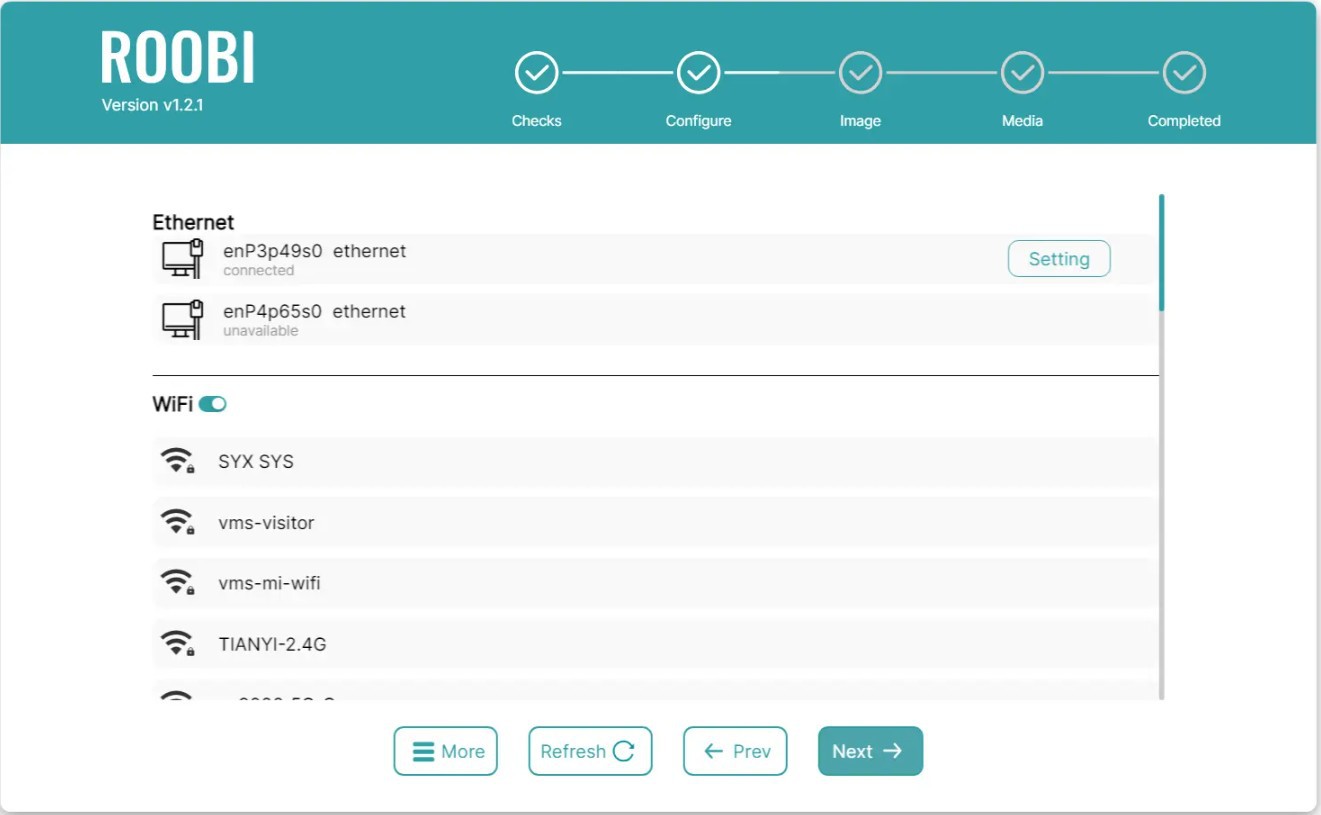
To get started, we simply connected an Ethernet cable and the official Radxa power adapter to the ROCK 5 ITX. Once powered on, the board booted directly into the Roobi OS interface. Since it was connected to the internet via Ethernet, Roobi automatically established a network connection and displayed a confirmation message, allowing us to proceed with the installation.
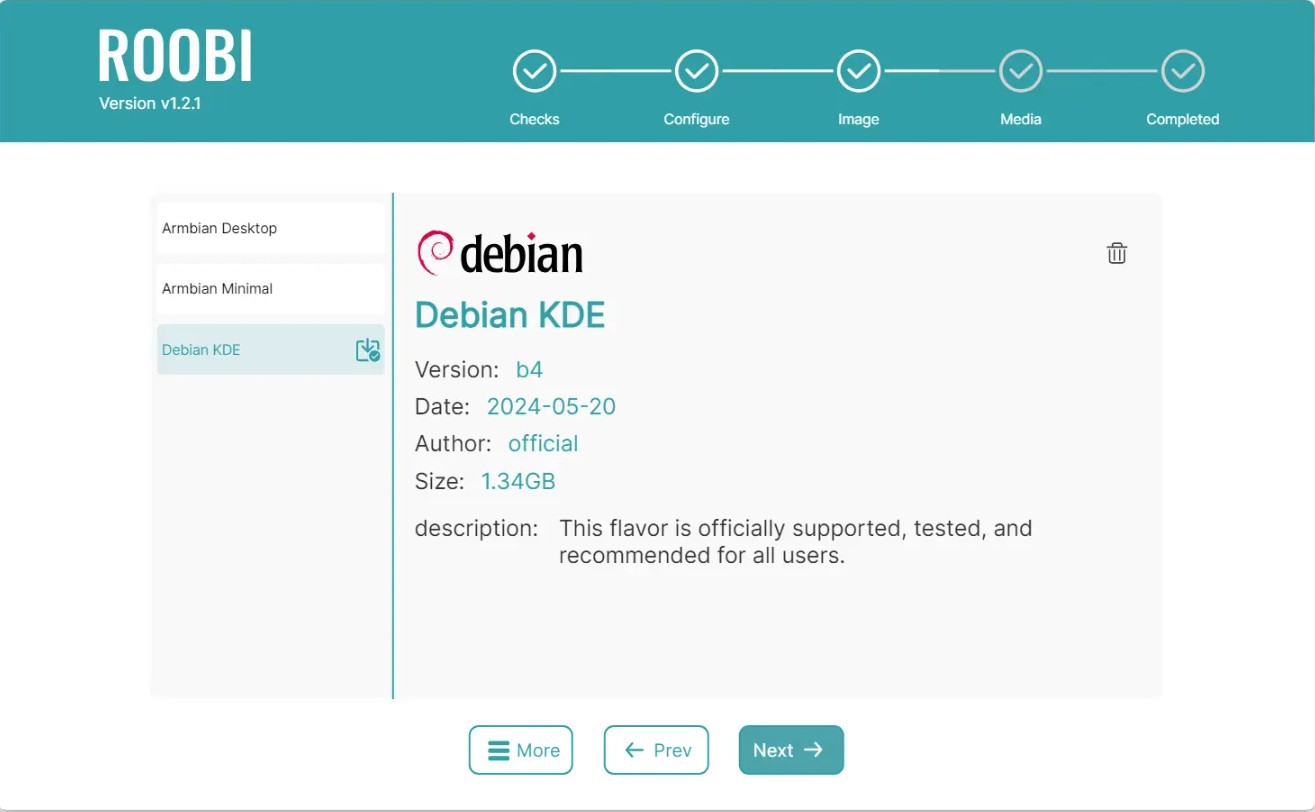
The next step was selecting the operating system. We chose Armbian, although several other options were available, including Radxa OS, Debian, Android, and more.
After selecting the operating system, we chose the destination drive where it would be installed. In our case, that was the NVMe SSD. Roobi then downloaded the selected operating system directly from the internet and flashed it onto the SSD automatically.
Depending on your internet speed, the entire download and installation process takes around 10–20 minutes. Once the installation is complete, the board reboots directly into the newly installed operating system.
Overall, Roobi makes the OS installation process incredibly simple and beginner-friendly, eliminating many of the manual steps that are typically involved when setting up a Linux-based single-board computer.
8
GEEKBENCH 6 SCORE
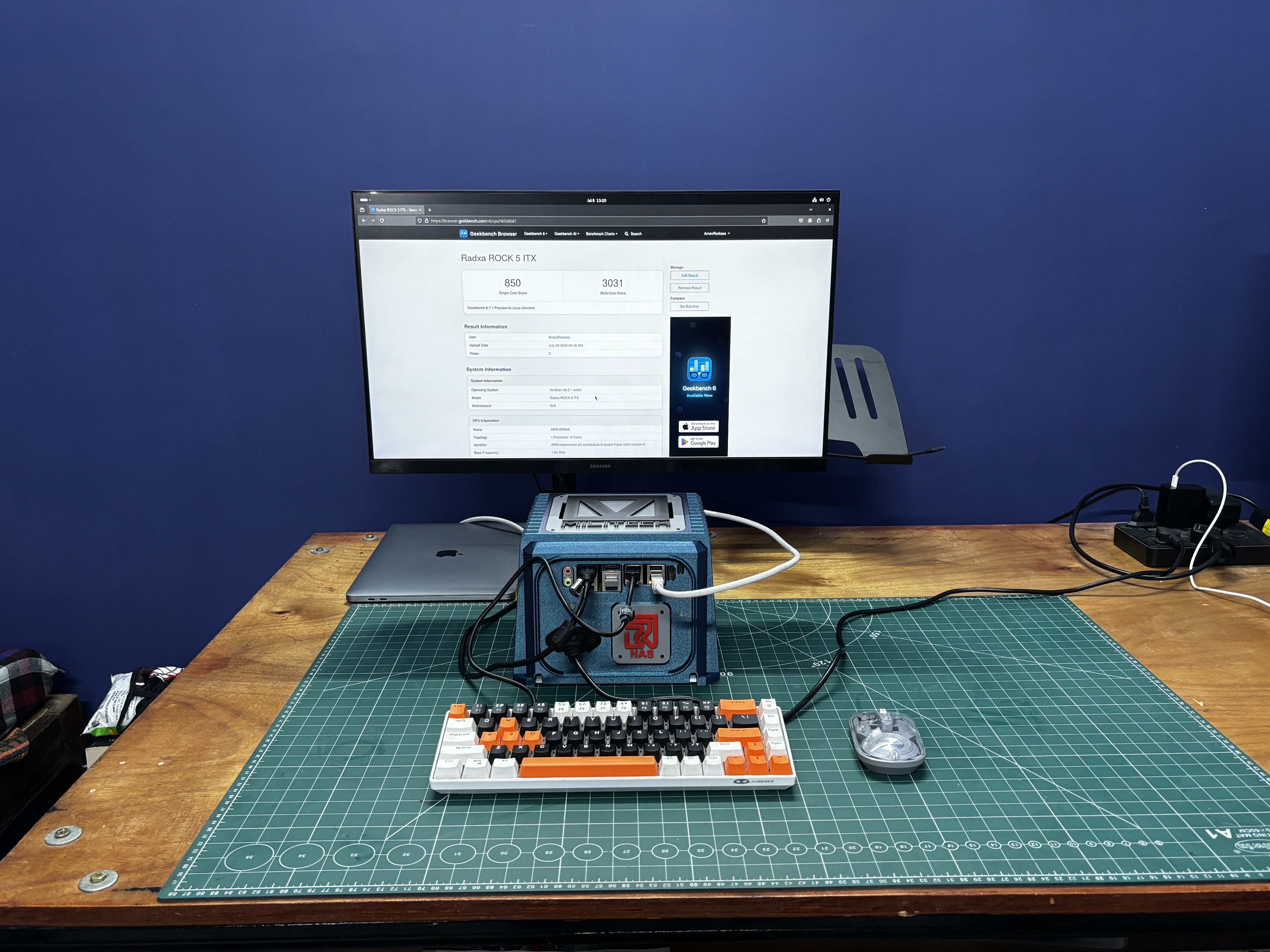
After setting up the operating system, the first thing I wanted to do was benchmark the system using Geekbench 6.
There are two ways to install Geekbench 6. The first is to install it directly through their site.
The second option is to install Pi-Apps, a popular application manager for ARM-based Linux systems. Pi-Apps provides an easy way to install hundreds of applications, including software, utilities, games, media players, development tools, and much more. Geekbench 6 can also be installed directly through Pi-Apps.
To install Pi-Apps, simply run the command below in the terminal.
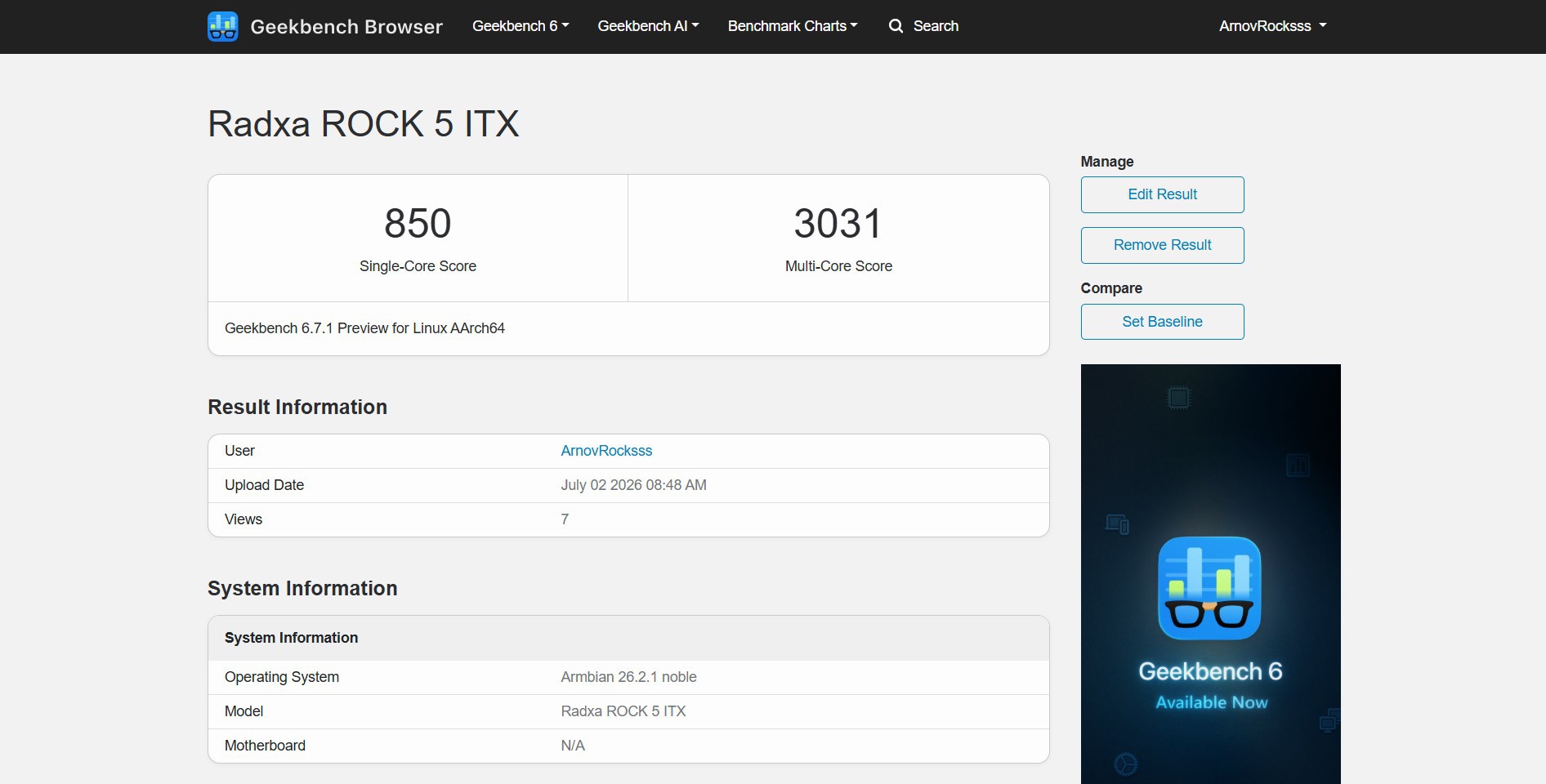
After running Geekbench 6 on the Radxa ROCK 5 ITX, the system achieved a single-core score of 850 and a multi-core score of 3031, which is a very respectable result for an ARM-based single-board computer.
This level of performance makes it well suited not only for NAS applications but also for self-hosted services, containers, media streaming, lightweight virtualization, and other homelab workloads. (or for playing HALF LIFE 2)
9
CASA OS- SETTING UP
We used Armbian as the base operating system, layered with CasaOS, a lightweight and intuitive platform designed for personal cloud and home server environments. CasaOS simplifies NAS management by offering a clean web-based interface and one-click installation for popular Docker apps like Plex, Jellyfin, and Nextcloud.
It’s open-source, easy to set up, and ideal for users who want powerful functionality without the complexity of traditional NAS systems. With support for shared folders, remote access, and elegant file management, CasaOS turns any Linux-based device into a versatile and user-friendly storage hub.
SETTING UP CASA OS
Installing CASA OS is a super straightforward process.
To begin, we run the following command to update the system and ensure that our operating system is up-to-date.
sudo apt update && sudo apt upgrade -y
Next, we install dependencies such as curl and other required tools if they are not already present.
sudo apt install curl wget -y
Next, we begin the installation script: CasaOS has a simple one-liner script for installation.
curl -fsSL https://get.casaos.io | sudo bash
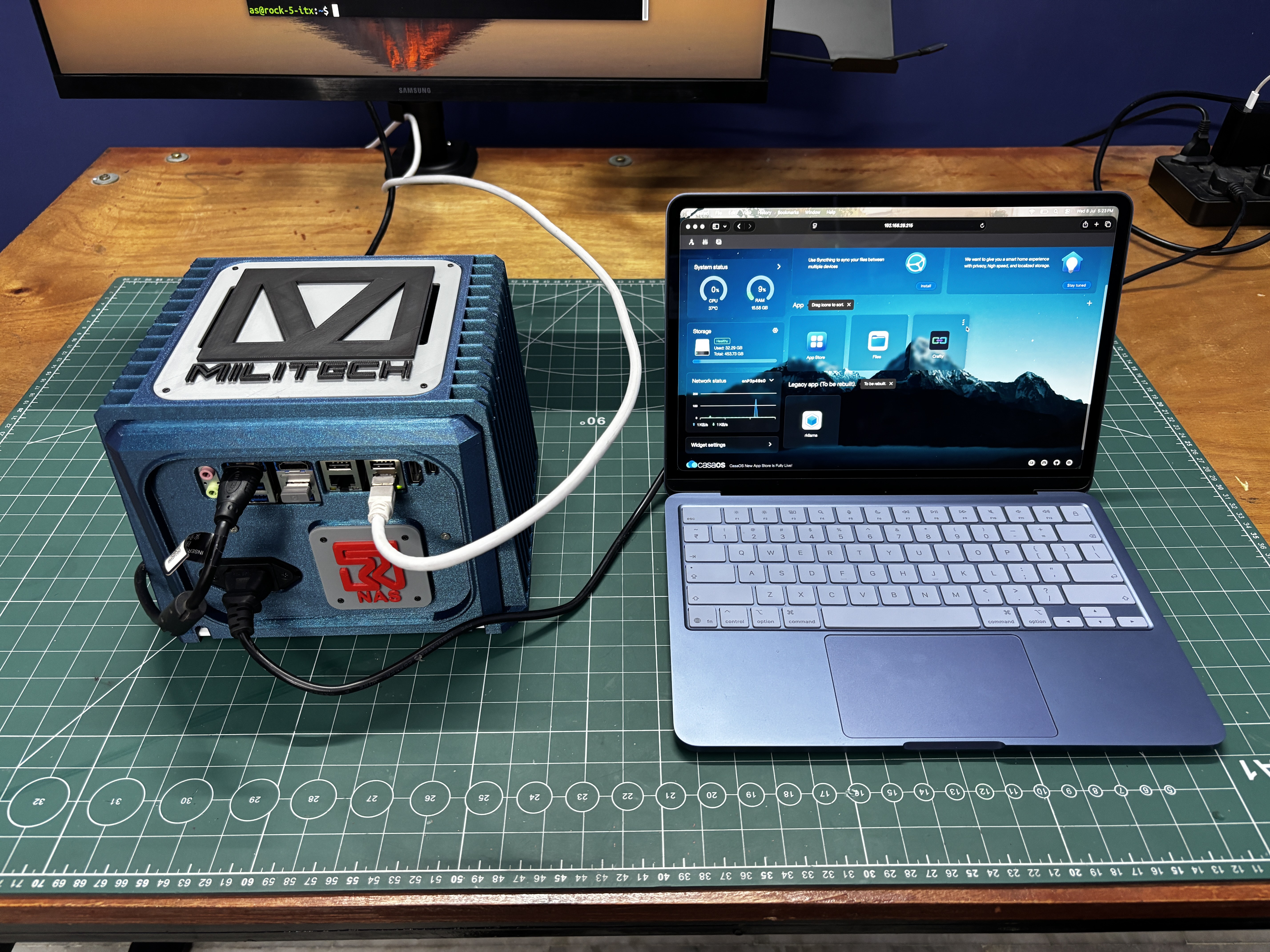
After installing CasaOS, we are able to access it using a web browser using the IP address provided by the installer.
We open a web browser on any device connected to the same network as our Debian server, using the IP address provided by the installation.
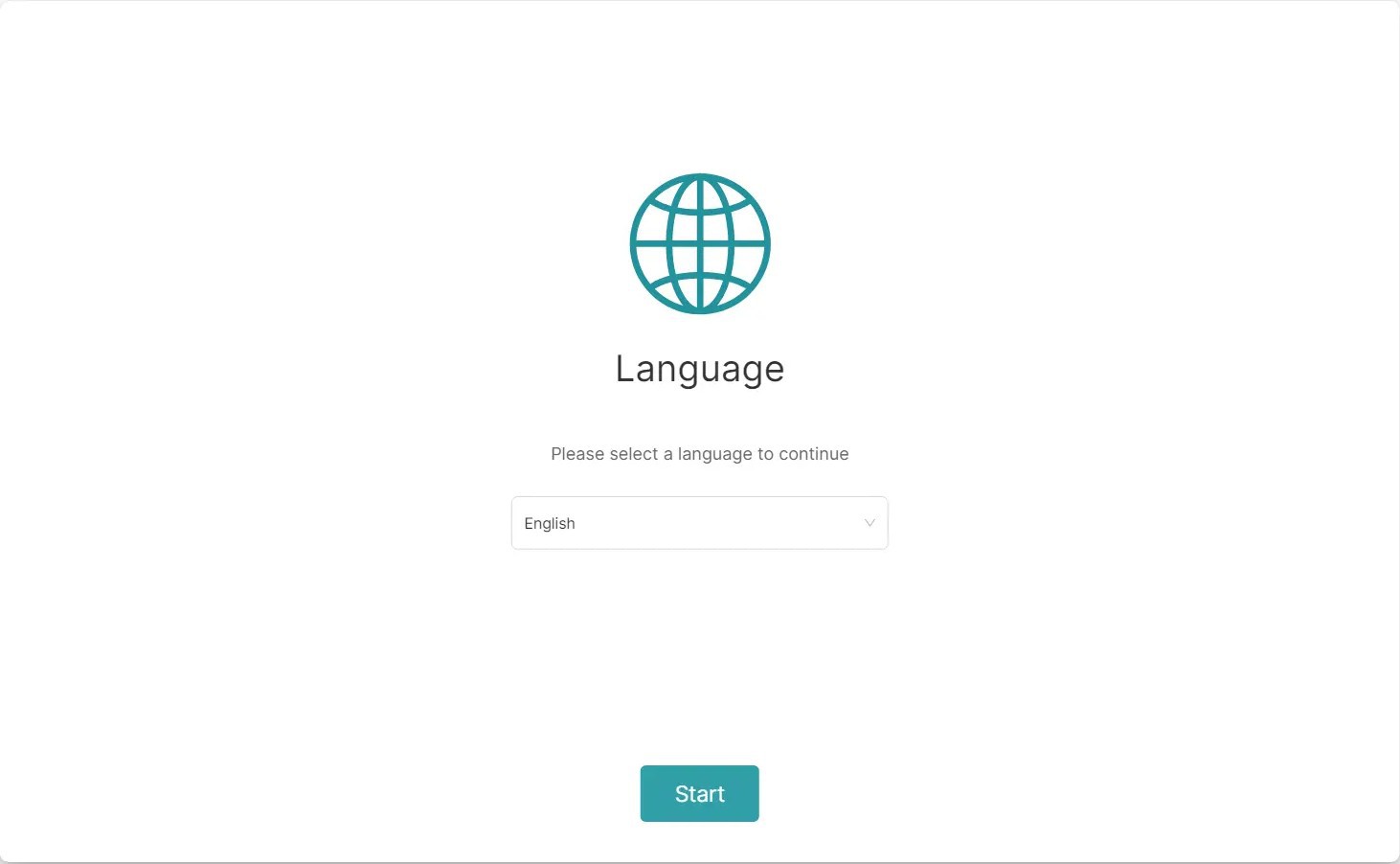
We follow the instructions displayed on the screen to finish the initial setup and create our CasaOS account.
By following the above steps, CasaOS is installed on our Radxa Rock 5 ITX system; we can now use the App Store to explore and install a range of self-hosted applications with a single click, manage our files with simplicity using the file browser, and monitor our system resources with the built-in widgets.
10
GAMES- HALF LIFE 2
The most fun part of this project was seeing just how capable the hardware is beyond being a NAS. Thanks to Steam and Valve's Linux compatibility tools, I was even able to do a bit of Linux gaming.
To install Steam, I once again used Pi-Apps, which makes the process incredibly simple. Pi-Apps also installs Box64, a compatibility layer that allows many x86 Linux applications to run on ARM processors. Combined with Proton, this opens the door to a surprisingly large library of games.
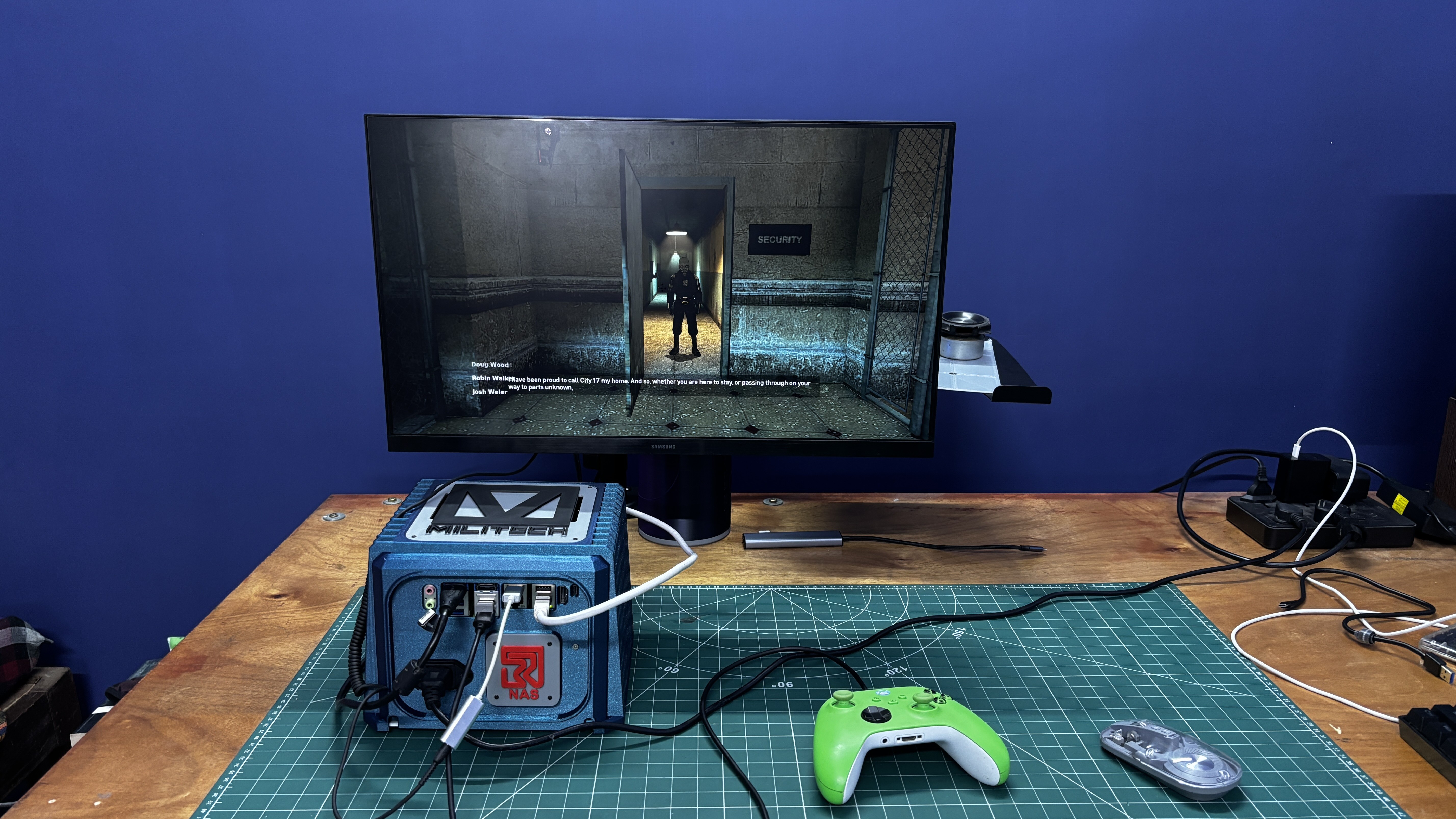
The first game I tested was Half-Life 2. Sure, it's almost 20 years old, so getting it to run isn't exactly groundbreaking, but it ran smoothly and provided a very enjoyable experience. For an ARM-based single-board computer, that's still quite impressive.
 Arnov Sharma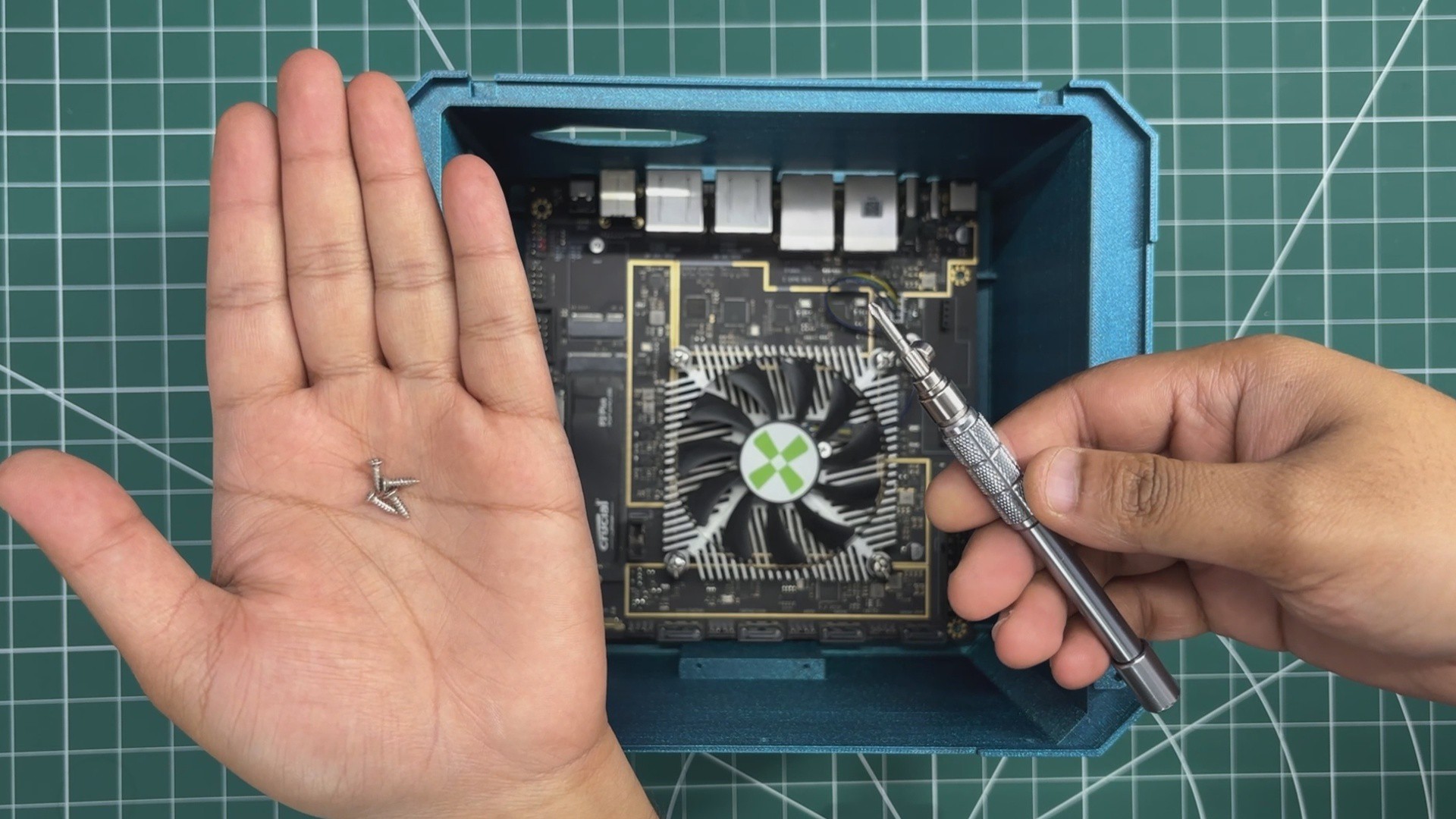
Discussions
Become a Hackaday.io Member
Create an account to leave a comment. Already have an account? Log In.