diddy
diddy-
version 3.9 is now on github
01/11/2026 at 01:13 • 0 commentsVersion 3.9 has a few updates applied
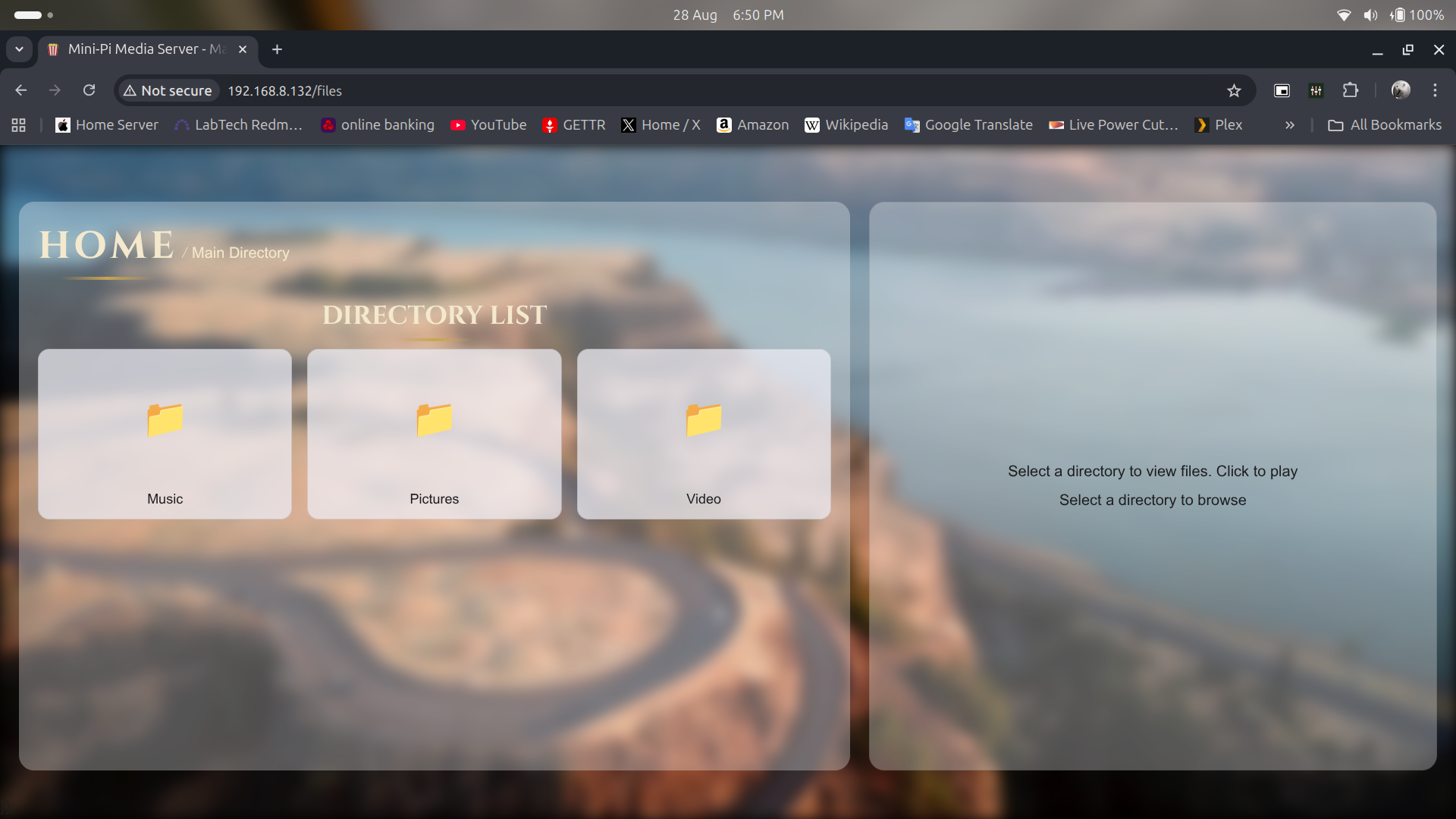
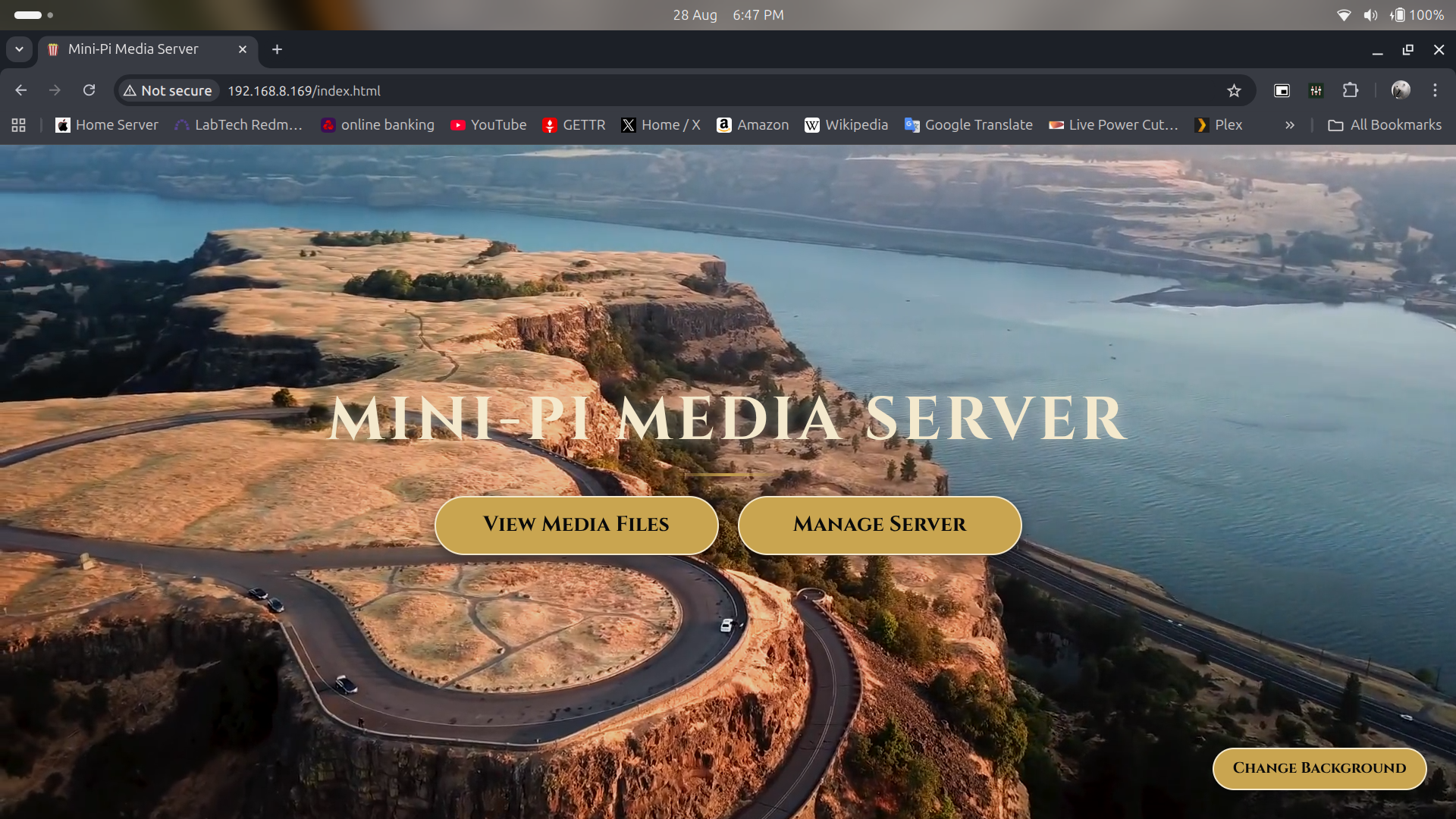
glassmorphism look completly added to the file and directory listing now.
user can select media to play then navigate off to another directory without stopping media playing.
Adhock and Wifi modes now update in the main index page and show properly
in adhoc mode, any web browser address redirects to 192.168.50.1
mkv to mp4 re-encoding now makes a converting file and then renames the mp4 file on complete conversion and then removes the mkv file for /var/lib/minidlna directory. good if a power loss and the re-encoding kicks off again. it tidies up and converting files and starts over.
a few other tweaks and performance optimisations.
This new version can be installed by :-
wget -qO main.zip https://github.com/diddy-boy/mini-pi-media-server/archive/refs/heads/main.zip && unzip -o main.zip && cd mini-pi-media-server-main && unzip -o pi-setup*.zip && cp -rf pi-setup ~/ && cd ~ && rm -rf mini-pi-media-server-main main.zip && cd ~/pi-setup && chmod +x ./*.sh && sudo ./mini-pi-setup.sh
-
Full list of what this media server does
01/06/2026 at 23:16 • 0 comments1. Media Server Core
The Mini‑Pi Media Server provides a complete media ecosystem:
- DLNA streaming via MiniDLNA (videos, music, photos)
- Multiple simultaneous clients supported (4 tested)
- Samba file sharing for easy drag‑and‑drop media management
- Unified media folder used by DLNA, Samba, and the web UI
This makes the Pi behave like a tiny NAS and media hub, even in a car or offline environment.
2. Web Interface & Customization
The built‑in web UI is lightweight but surprisingly capable:
- Custom backgrounds using images or MP4s placed in the DLNA “pictures” folder
- Animated backgrounds supported
- Live system indicators:
- System Load LED (green/amber/red)
- CPU temperature warning above 75°C
- Disk usage percentage
- Media counts (videos, music, photos)
- Wi‑Fi connection status
- USB sync status pop‑ups
- Server sync status pop‑ups
Everything updates automatically, giving users a clear view of what the server is doing.
3. Automated Media Syncing
This is one of the most powerful parts of the system.
Nightly Rotational Sync (if configured)
- Runs at a user‑defined time (e.g., 1am) every night
- Pulls down new MP4/MKV files from a NAS / server
- Syncs only files newer than a user‑defined retention window (e.g., last X months)
- Keeps the library fresh without manual intervention
USB Auto‑Sync
- Plug in a USB drive → automatic import begins
- Web UI shows live sync progress
- Ideal for offline setups or quick media transfers
4. Intelligent Transcoding & Remuxing (if enabled)
This is where the project really steps into “appliance” territory.
Smart MKV → MP4 Pipeline
- Runs the night after the sync job
- Detects whether video/audio already match target formats
- Remuxes when possible (no re‑encode)
- Re‑encodes only when necessary
Performance
- Pi Zero 2W: ~8 fps using hardware encoding (2 threads)
- Pi 5: ~50 fps using software encoding (2 threads)
Concurrency Guard
- If an encode job is still running at midnight, a new one will not start
- Prevents overload, SD wear, and UI lag
This pipeline is fully automated and requires no user input.
5. Network Intelligence
The server is designed to always be reachable:
- Wi‑Fi fallback mode If Wi‑Fi doesn’t connect within 50 seconds, the Pi automatically switches to AP mode. If configured
- Perfect for car installations or travel where home Wi‑Fi isn’t available.
6. Server Administration
A “Manage Server” button in the web UI opens Cockpit, giving users:
- File browser
- Service management
- OS updates
- Logs and monitoring
- User management
This makes the system fully maintainable without SSH.
7. One‑Command Installer
The entire system can be rebuilt in minutes using a single command that:
- Downloads the latest GitHub release
- Extracts and installs / upgrades everything
- Sets up services and cron jobs
- Prepares the web UI
This makes the server effectively stateless — if the SD card dies, just flash Pi OS Lite, run the command, and re‑sync your media.
8. Design Philosophy
The Mini‑Pi Media Server is built around:
- Low power usage
- Automation
- Reliability
- Ease of recovery
- Customization
- Zero‑maintenance operation
It behaves like a mini NAS + DLNA server + sync engine + transcoding appliance, all running on a Pi Zero 2W.
-
Version 3.8 is now available on Github
01/06/2026 at 18:32 • 0 commentsVersion 3.8 is now up for grabs
What is new
tidied up the index file listing for 'HOME' and 'Main Directory' links for easier viewing on lighter backgrounds
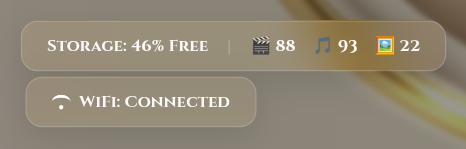
Disk space free now shows How many Music, Pictures and Video files exist and also will show a warning if the cpu temp hits above 75C
USB syncing now shows in the web page title bar and when complete a ding sound will happen
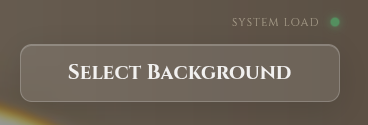
Added a system Load LED - green = unstressed, Amber = Moderate load and Red = Under heavy load
Also included a license file for people to use freely and modify if they wish![]()
![]()
- the download can be ran on a raspberry pi by :-
wget -qO main.zip https://github.com/diddy-boy/mini-pi-media-server/archive/refs/heads/main.zip && unzip -o main.zip && cd mini-pi-media-server-main && unzip -o pi-setup*.zip && cp -rf pi-setup ~/ && cd ~ && rm -rf mini-pi-media-server-main main.zip && cd ~/pi-setup && chmod +x ./*.sh && sudo ./mini-pi-setup.sh
- the download can be ran on a raspberry pi by :-
-
How to get media files onto your newly setup Pi Zero server
01/02/2026 at 11:05 • 0 commentsThere are four different methods to getting media onto your new media server :-
Copy media files from a USB pen drive
Copy media files across the network
Synchronise a media folder from a server on the same network
Synchronise a media folder but only the past X number of months worth
1. Insert a USB pen drive into the Pi Zero 2W containing Video, Music, Pictures directories.
this will automatically mount and copy the media from these directories into the /var/lib/minidlna folder
works out of the box on a fresh install.
2. Copy media files manually via samba share to mini-pi.local across the network.
This can be slow.
works out of the box on a fresh install.
3. Run Configure_server_sync.sh file.
This script will walk the user through setting up a timed synchronisation from a media folder from a server or a nas box at 1 am by default. Note this can take a while to run and WILL sync the whole contents of that folder every day, so you need to know how much data is needed for this.
Not enabled by default but the user is asked if they want to set this up during install.
4. Rotating-server-sync.sh.
This script can be setup to sync a folder form a server or a nas box at a set time every day and will sync the past X number of months of media.
Can be setup to sync Music or Video to the /var/lib/minidlna folder.
The script is intelligent that if it sees a media file already named the same but the file type is .mp4, it wont re-sync this file down.
This is because a user can set up a mkv2mp4 batch convert script that runs every night at midnight that looks for mkv files in the /var/lib/minidlna/Video folder and transcodes / transmuxes these mkv files into a mp4 file.
Ideally the end user would either set up a rotating server sync or a configure server sync on the mini-pi, not both.
by default these two synchronisations are not setup.
so the options are up to you how you want to set up your media server.
happy media streaming.
-
Version 3.7 is now on github
10/03/2025 at 09:53 • 0 commentsVersion 3.7 is now available on Github.
The only update is to the installer script to work on Pi OS Trixie
- the download can be ran on a raspberry pi by :-
wget https://github.com/diddy-boy/mini-pi-media-server/archive/refs/heads/main.zip && unzip main.zip && cd mini-pi-media-server-main && unzip pi-setup*.zip && mv pi-setup ~/ && cd ~ && rm -rf mini-pi-media-server-main main.zip && cd pi-setup && chmod +x ./*.sh && sudo ./mini-pi-setup.sh
- the download can be ran on a raspberry pi by :-
-
Version 3.6 is now on github
09/10/2025 at 12:19 • 0 commentsVersion 3.6 has revised look and feel within the web browser for the new 'Tahoe' look with glass like icons.
Also moved the web page background images and video from the web directory to /var/lib/minidlna/Pictures folder.
Now users can add or remove background pictures that the user can now set in the web page.
just copy up your image over the network to the Pictures folder or place on a USB pen drive in a Pictures folder, this will synchronise the image to the /var/lib/minidlna/Pictures folder.
Your backgrounds just the way you want it.
Web page backgrounds can be jpg, gif images or mp4 files.
the download can be ran on a raspberry pi by :-
wget https://github.com/diddy-boy/mini-pi-media-server/archive/refs/heads/main.zip && unzip main.zip && cd mini-pi-media-server-main && unzip pi-setup*.zip && mv pi-setup ~/ && cd ~ && rm -rf mini-pi-media-server-main main.zip && cd pi-setup && chmod +x ./*.sh && sudo ./mini-pi-setup.sh
-
version 3.5 is now available on Github
09/07/2025 at 09:08 • 0 commentsUpdated to version 3.5
Rewrote the index.html web page with fade in and out effects for the status popup windows for Disk space free, wifi status when in wifi access point mode and usb syncing.
added more backgrounds for the user to select and now the user can select a background from a popup window that appears for much faster selection.Of course the current background is remembered on next page visit.
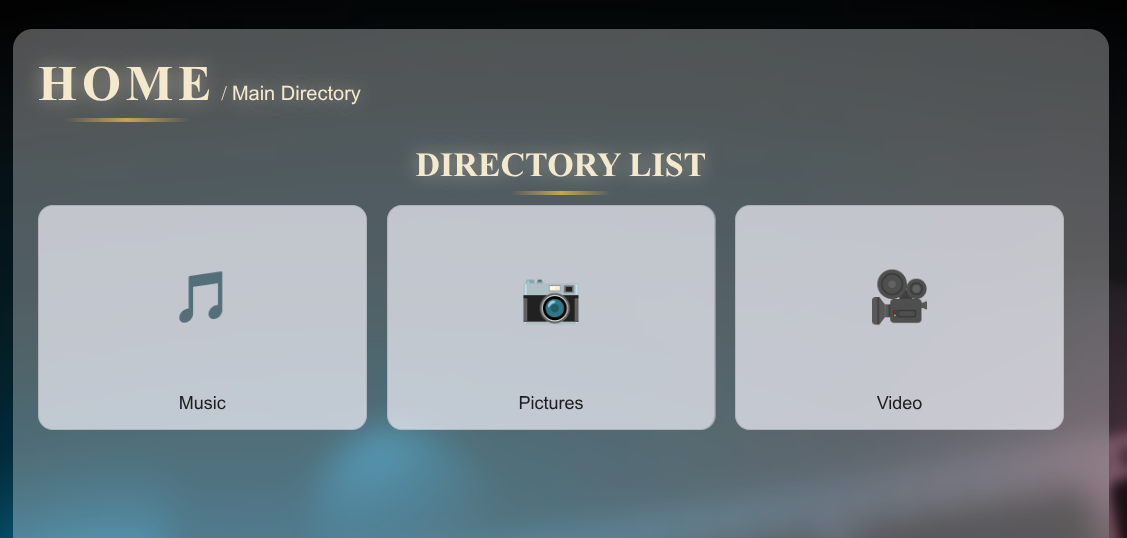
Changed icons on the directory listing so now its easy to see what is music, pictures and movies, this is detected based on the files within a directory
![]()
![]()
Can be installed by running the command on a raspberry pi :-
wget https://github.com/diddy-boy/mini-pi-media-server/archive/refs/heads/main.zip && unzip main.zip && cd mini-pi-media-server-main && unzip pi-setup*.zip && mv pi-setup ~/ && cd ~ && rm -rf mini-pi-media-server-main main.zip && cd pi-setup && sudo ./mini-pi-setup.sh
-
Version 3.4 is now available on github
09/05/2025 at 12:31 • 0 commentsVersion 3.4 now has a mkv to mp4 batch conversion script that converts any mkv videos to streamable mp4 videos in the /var/lib/minidlna/Video directory.
During the setup (mini-pi-setup.sh), the user is asked if they want to set up a timed conversion of mkv files to mp4 (at midnight). that will batch convert any mkv videos to mp4.
The script will attempt to use hardware encoding on the Pi Zero 2 w (around 8fps) and on the pi 4 (around 20fps) but on the raspberry pi 5 will use software encoding (around 50fps).
Bearing in mind how low spec the pi zero 2 w is, 8fps conversion speed at full 1080p video is actually quite impressive.
50fps on a pi 5 is also quite good for a cheap mini computer. I spent a few nights optimising the ffmpeg compression and speed.
The script will intelligently probe the mkv files before hand and if it contains a mp4 video and aac audio just remux the file into a mp4 file.
But the script will also cater for if the audio is in correct format but the video is not then it remuxes audio but converts the video or if the audio is in the wrong format but the video is in the correct format will convert the audio and remux the video.
the script can also be ran manually by running 'sudo ./mkv-2-mp4.sh' within the config folder.
Also fixed an issue with samba write permissions.
the download can be ran on a raspberry pi by :-wget https://github.com/diddy-boy/mini-pi-media-server/archive/refs/heads/main.zip && unzip main.zip && cd mini-pi-media-server-main && unzip pi-setup*.zip && mv pi-setup ~/ && cd ~ && rm -rf mini-pi-media-server-main main.zip && cd pi-setup && sudo ./mini-pi-setup.sh
-
version 3.3 is now up on git hub
08/28/2025 at 18:01 • 0 commentsRevised Look and feel of the main page and the file view.
The user can now use cursor keys in the picture view via the web page to change image and enter to show the picture full screen.
Cursor left and right seeks backwards and forwards in music or videos and cursor up and down changes volume. Space bar pauses video or music.
Also changed the server syncronisation scripts so that it handles permissions after syncing and now syncs down mkv video files but then I apply a cheap hack to rename them to mp4 files.
If the mkv file is standard format (stream 0 is the video and stream 1 is the audio) then this will play fine in a web browser. other streams are ignored in the renamed mkv file.
The access point can be setup during the setup process or by running 'sudo ./reconfigure-wifi.sh'.
When the Raspberry PI starts up, it looks for the WIFI network the user configured for 50 seconds. if it doesn't find that WIFI connection then the WIFI card becomes the access point and all users can connect via WIFI on their devices, then just open up a web page to http://mini-pi.local or http://192.168.50.1
This version is located on github and can be downloaded, unpacked and installed with just one command.
Run this command in a shell on the Raspberry Pi you want to install media server :-
wget https://github.com/diddy-boy/mini-pi-media-server/archive/refs/heads/main.zip && unzip main.zip && cd mini-pi-media-server-main && unzip pi-setup*.zip && mv pi-setup ~/ && cd ~ && rm -rf mini-pi-media-server-main main.zip && cd pi-setup && sudo ./mini-pi-setup.sh
![]()
![]()
-
All files are now on github
08/22/2025 at 14:21 • 0 commentsTo make installation easier, I have moved the files onto Github.
This allows one command install from a fresh Raspberry Pi install.
Just ssh into the Raspberry Pi and run :-
wget https://github.com/diddy-boy/mini-pi-media-server/raw/main/pi-setupV3-3.zip && unzip pi-setupV3-3.zip && cd pi-setup && sudo ./mini-pi-setup.sh
this will download, unzip and run the install.
Mini-PI Media Server
Mini-PI Media Server for use on home network or as a wifi access point to stream media from