 Arnov Sharma
-
1PAIRING WITH SNES CONTROLLER
![]()
![]()
![]()
![]()
![]()
![]()
![]()
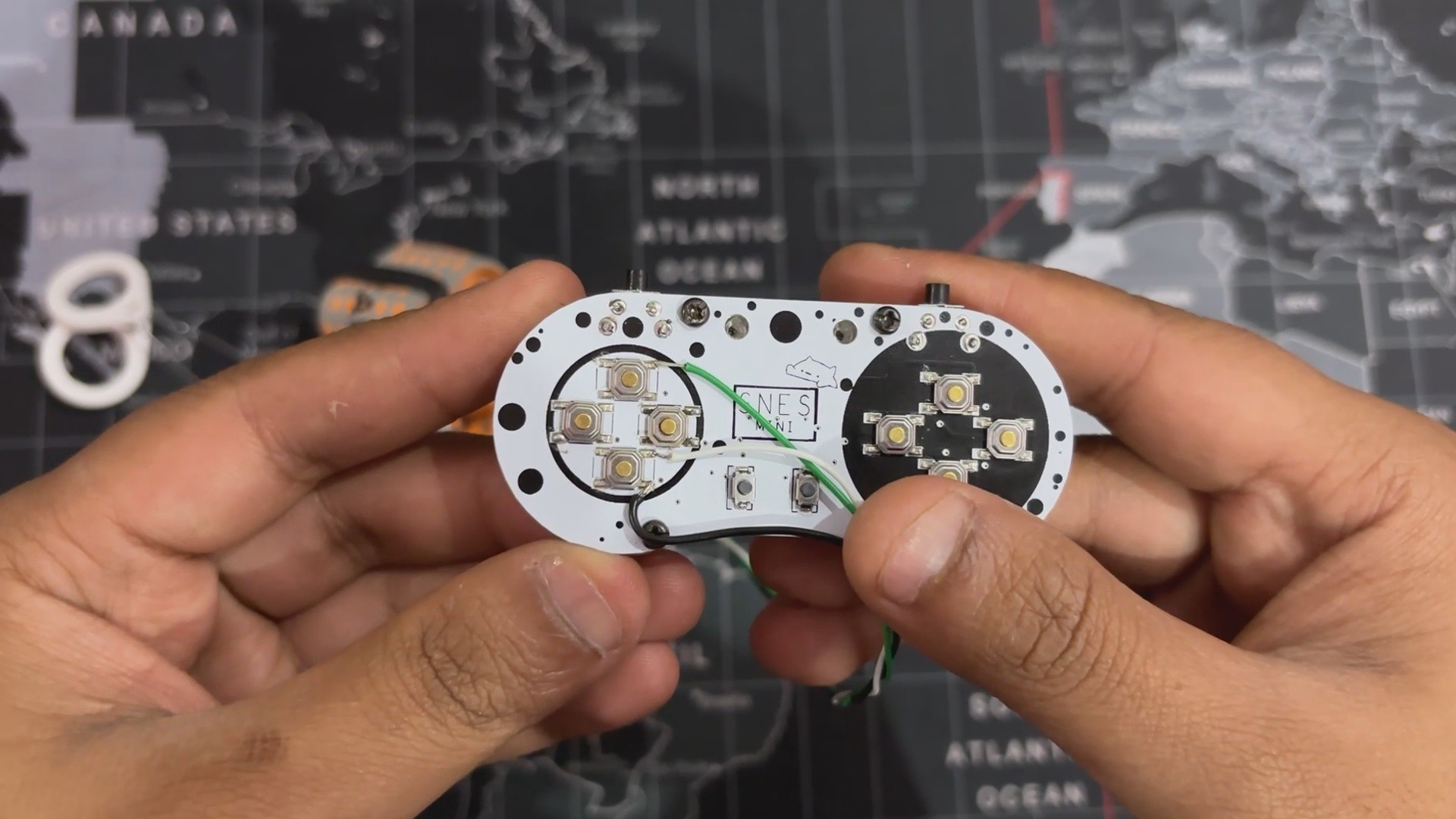
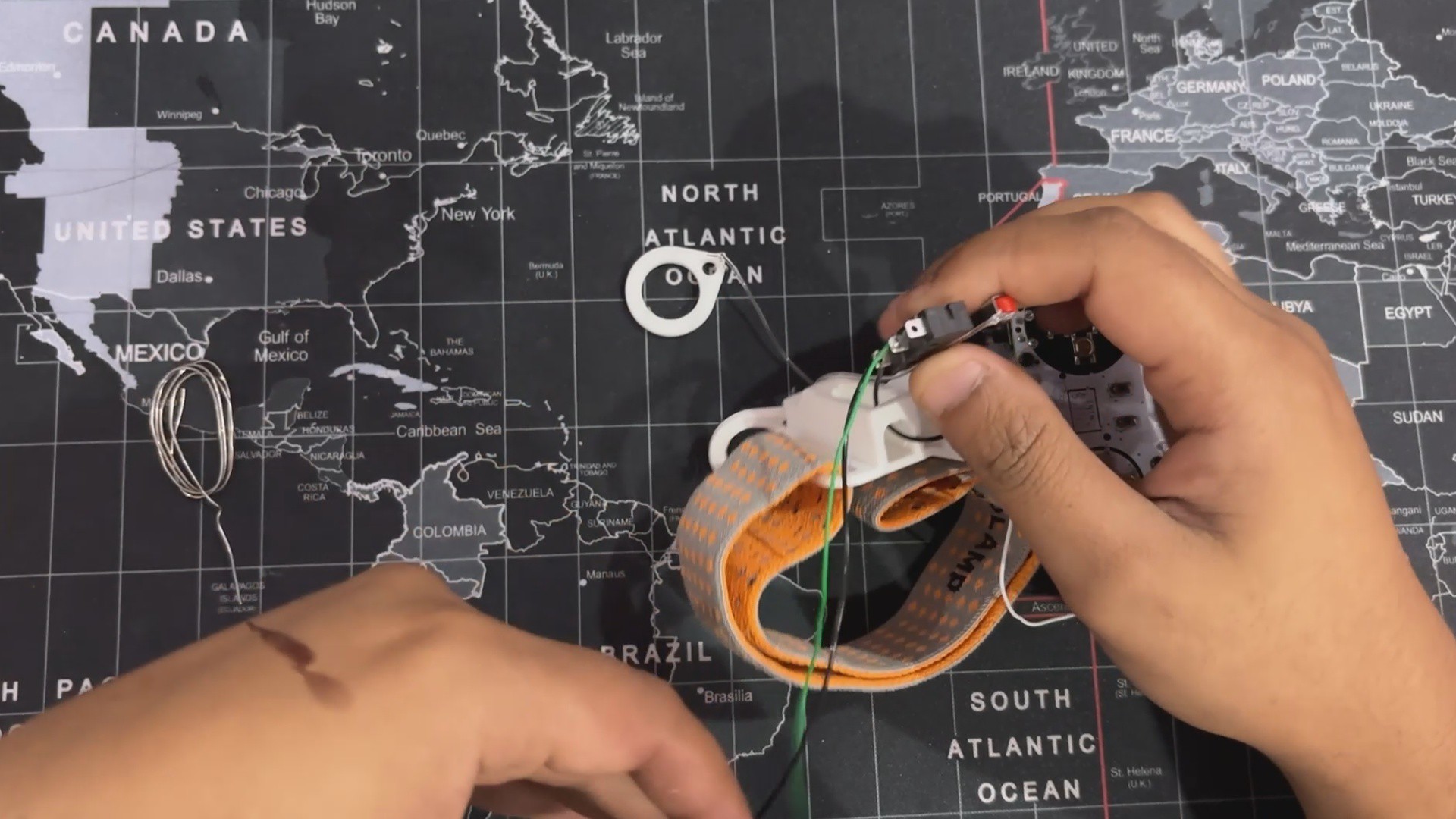
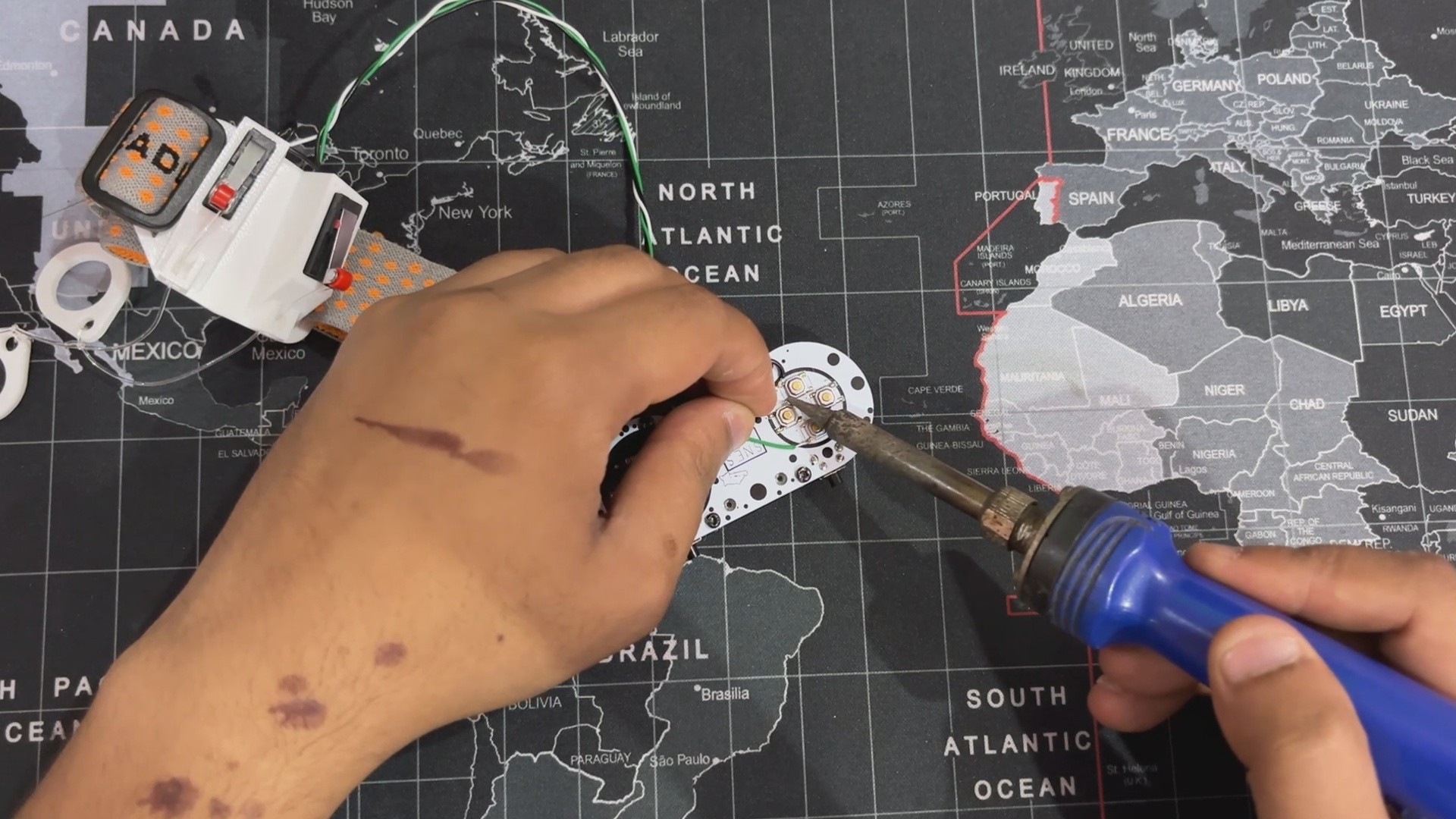
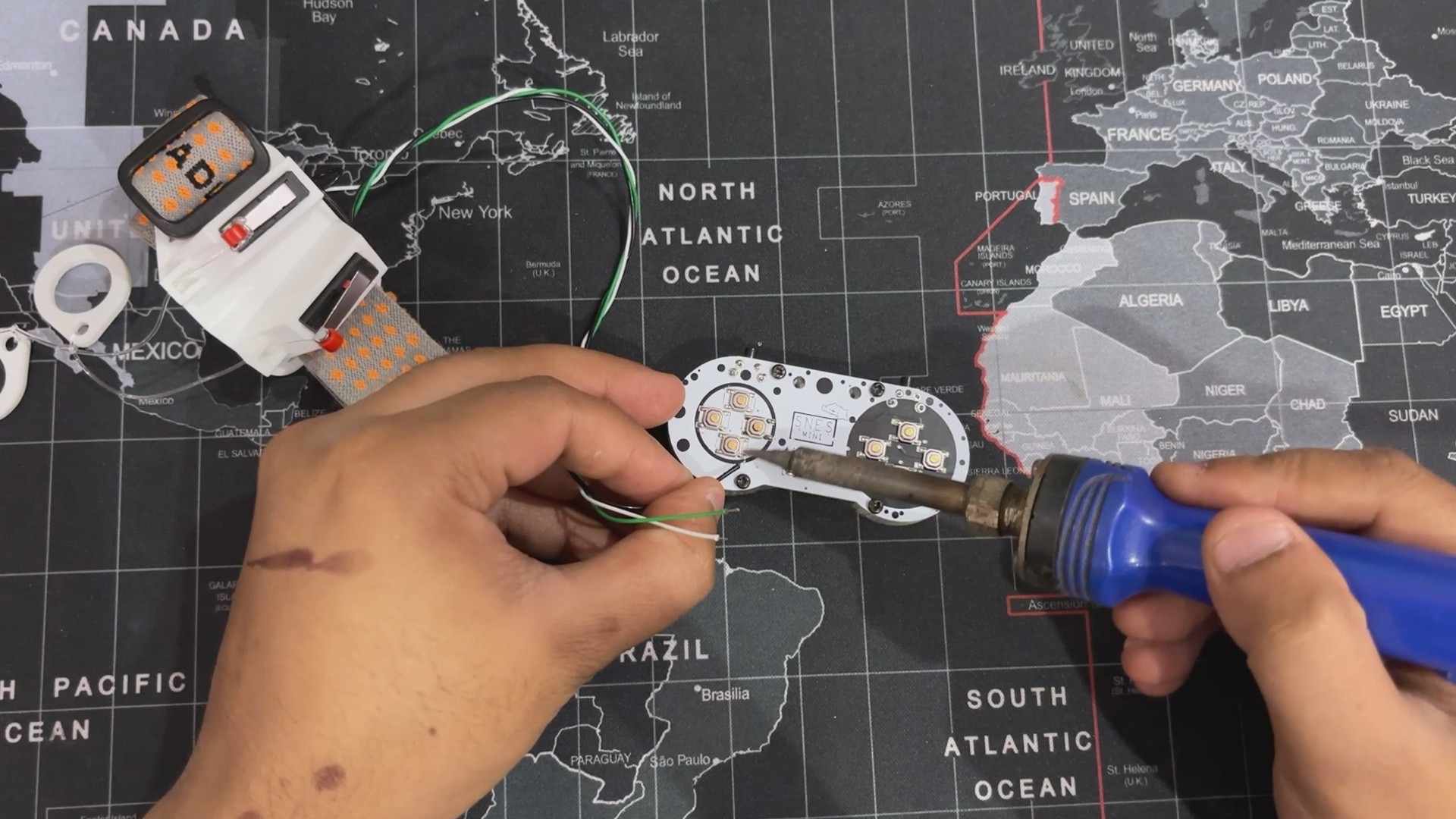
This is the main section of the project, which involves connecting the limit switches to the SNES controller.
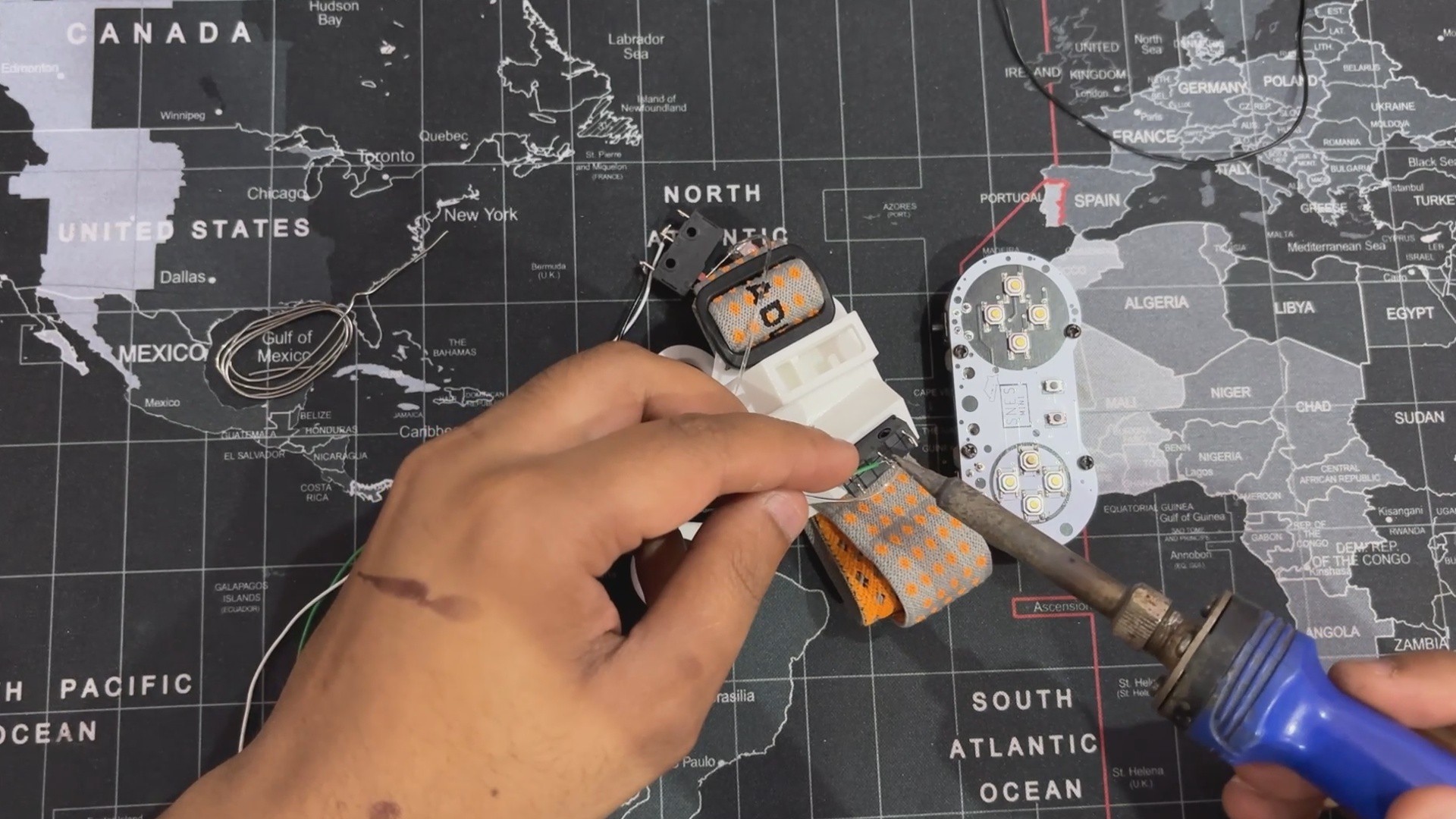
- We begin by soldering connecting wire to the first Limit switch's COM and NC terminals. We then route the wire through the opening on the back side of the holder and install the limit switch in its place.
- We then repeated the process with the second Limit switch, connecting one wire to the COM terminal and then to NC, but this time we added a single short black wire to the COM terminal, which will be connected to the first Limit switch's COM terminal. This will link both limit switch COM terminals in parallel, allowing us to connect this wire to the GND of the SNES controller.
- The three wires from the limit switches (COM, First Limit Switch NC, and Second Limit Switch NC) are connected to the SNES controller buttons. We connected a COM wire to the GND terminal of the SNES Controller. The first limit switch NC wire is attached to the left button, while the second switch NC wire is connected to the right button.
After attaching the wires, our setup is complete; now we'll add the new code to the SNES Controller and test it.
-
2CODE
![]()
![]()
Here, we're using a revised version of the code from the previous SNES project. This code works with PICO as well as any HID-enabled Arduino or other development board, providing for smooth integration and functioning across multiple platforms.
#include "Adafruit_TinyUSB.h"

// === Gamepad Setup ===
#define NUM_BUTTONS 12
const uint8_t buttonPins[NUM_BUTTONS] = {
  0, 1, 2, 3, 4, 5, 6, 7, 8, 9, 10, 11
};

// Gamepad HID Descriptor (12 buttons)
uint8_t const hid_report_descriptor[] = {
  0x05, 0x01, 0x09, 0x05, 0xA1, 0x01, 0x15, 0x00,
  0x25, 0x01, 0x35, 0x00, 0x45, 0x01, 0x75, 0x01,
  0x95, 0x0C, 0x05, 0x09, 0x19, 0x01, 0x29, 0x0C,
  0x81, 0x02, 0x75, 0x01, 0x95, 0x04, 0x81, 0x03,
  0xC0
};

Adafruit_USBD_HID usb_hid;
uint8_t report[2] = {0};

void setup() {
  for (int i = 0; i < NUM_BUTTONS; i++) {
    pinMode(buttonPins[i], INPUT_PULLUP);
  }

  // Setup USB HID
  usb_hid.setReportDescriptor(hid_report_descriptor, sizeof(hid_report_descriptor));
  usb_hid.setPollInterval(2);
  usb_hid.begin();

  while (!USBDevice.mounted()) delay(10);
}

void loop() {
  static uint32_t last = 0;
  if (millis() - last < 10) return;
  last = millis();

  // Clear report
  report[0] = 0;
  report[1] = 0;

  for (int i = 0; i < NUM_BUTTONS; i++) {
    if (digitalRead(buttonPins[i]) == LOW) {
      report[i / 8] |= (1 << (i % 8)); // Set button state in report
    }
  }

  usb_hid.sendReport(0, report, sizeof(report));
}
Let's have a Code Breakdown, and it's a simple one.
#include "Adafruit_TinyUSB.h"
Adafruit TinyUSB is added, which enables USB HID support on RP2040, allowing it to function as a gamepad.
Button Input Setup
#define NUM_BUTTONS 12const uint8_t buttonPins[NUM_BUTTONS] = {0, 1, 2, 3, 4, 5, 6, 7, 8, 9, 10, 11};Next, we define 12 button inputs, mapped to GPIO pins and use an array for cleaner code, simplifying pin initialization and scanning.
HID Report Descriptor
uint8_t const hid_report_descriptor[] = { 0x05, 0x01, 0x09, 0x05, 0xA1, 0x01, 0x15, 0x00, 0x25, 0x01, 0x35, 0x00, 0x45, 0x01, 0x75, 0x01, 0x95, 0x0C, 0x05, 0x09, 0x19, 0x01, 0x29, 0x0C, 0x81, 0x02, 0x75, 0x01, 0x95, 0x04, 0x81, 0x03, 0xC0};This section is the descriptor that defines the controller as a USB HID device with 12 buttons. It tells the operating system how to interpret input from the controller. Each button has a corresponding bit (pressed or not).
USB HID Setup
Adafruit_USBD_HID usb_hid;uint8_t report[2] = {0};This section creates a USB HID object (usb_hid) to manage data transmission and defines the HID report buffer (report), which stores button states before sending them.
Pin Initialization & USB Connection
void setup() { for (int i = 0; i < NUM_BUTTONS; i++) { pinMode(buttonPins[i], INPUT_PULLUP); } // Setup USB HID usb_hid.setReportDescriptor(hid_report_descriptor, sizeof(hid_report_descriptor)); usb_hid.setPollInterval(2); usb_hid.begin(); while (!USBDevice.mounted()) delay(10);}This section Configures button pins as INPUT_PULLUP to detect presses and Initializes the USB HID device, setting the descriptor and polling rate, then Waits for the device to mount before proceeding.
Handling Button Input & Sending Reports
void loop() { static uint32_t last = 0; if (millis() - last < 10) return; last = millis();This Section in the loop Ensures the loop updates every 10ms for smooth input processing and Prevents unnecessary processing, improving efficiency.
Detect Button Presses & Update HID Report
report[0] = 0;report[1] = 0;for (int i = 0; i < NUM_BUTTONS; i++) {if (digitalRead(buttonPins[i]) == LOW) {report[i / 8] |= (1 << (i % 8)); // Sets button state in report}}This part Scans each button, checking if it is pressed (
LOWstate) and uses bitwise operations to efficiently store 12 button states in 2 bytesSend HID Report
usb_hid.sendReport(0, report, sizeof(report));}
This section Sends the HID report to the computer, allowing button presses to be recognized.
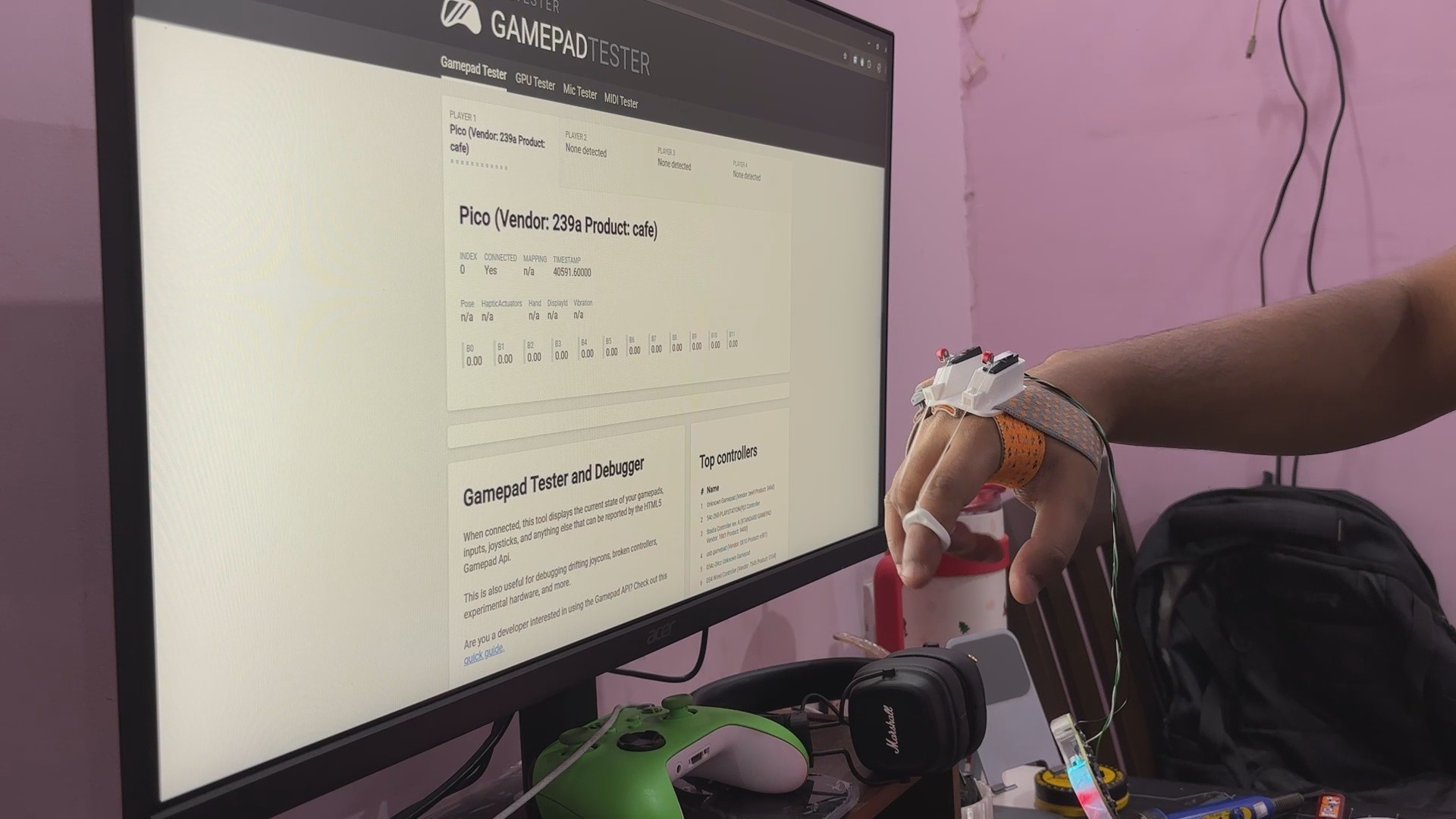
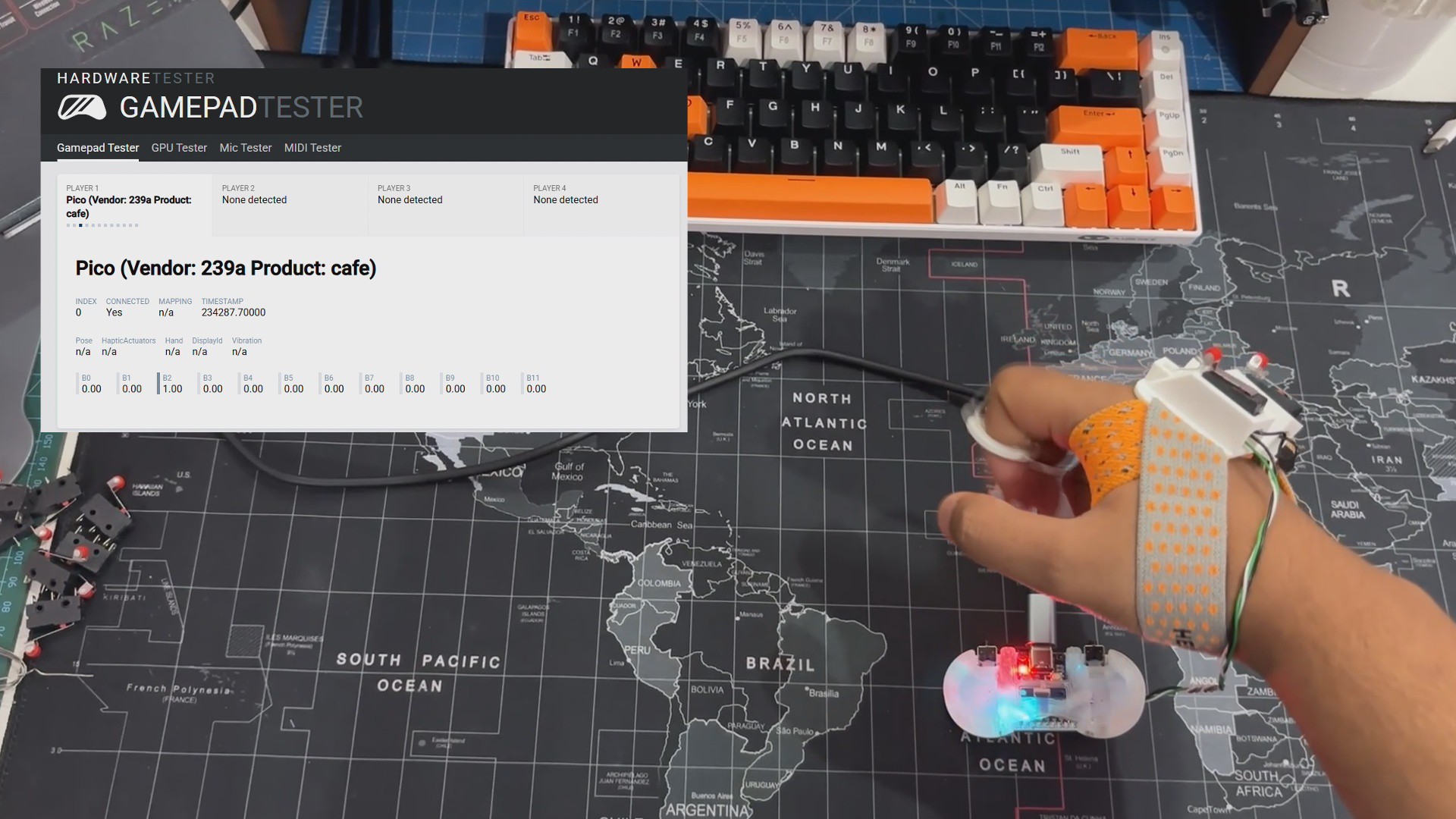
After uploading the code into our SNES Controller setup, we utilize a website called game pad tester to test that our button input functions correctly. Using this site, we were able to confirm that our device was functioning.
-
3RESULT
![]()
![]()
![]()
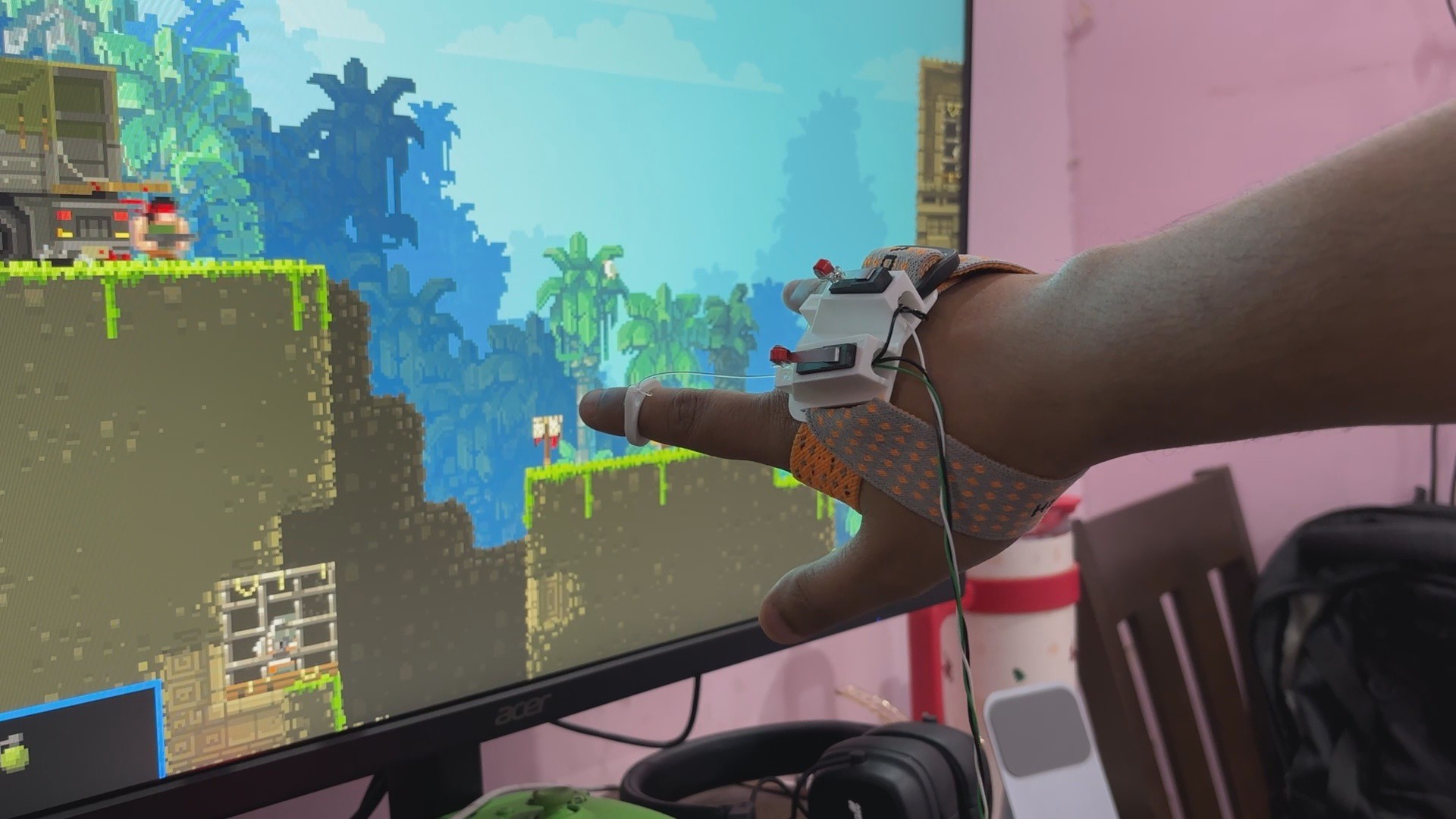
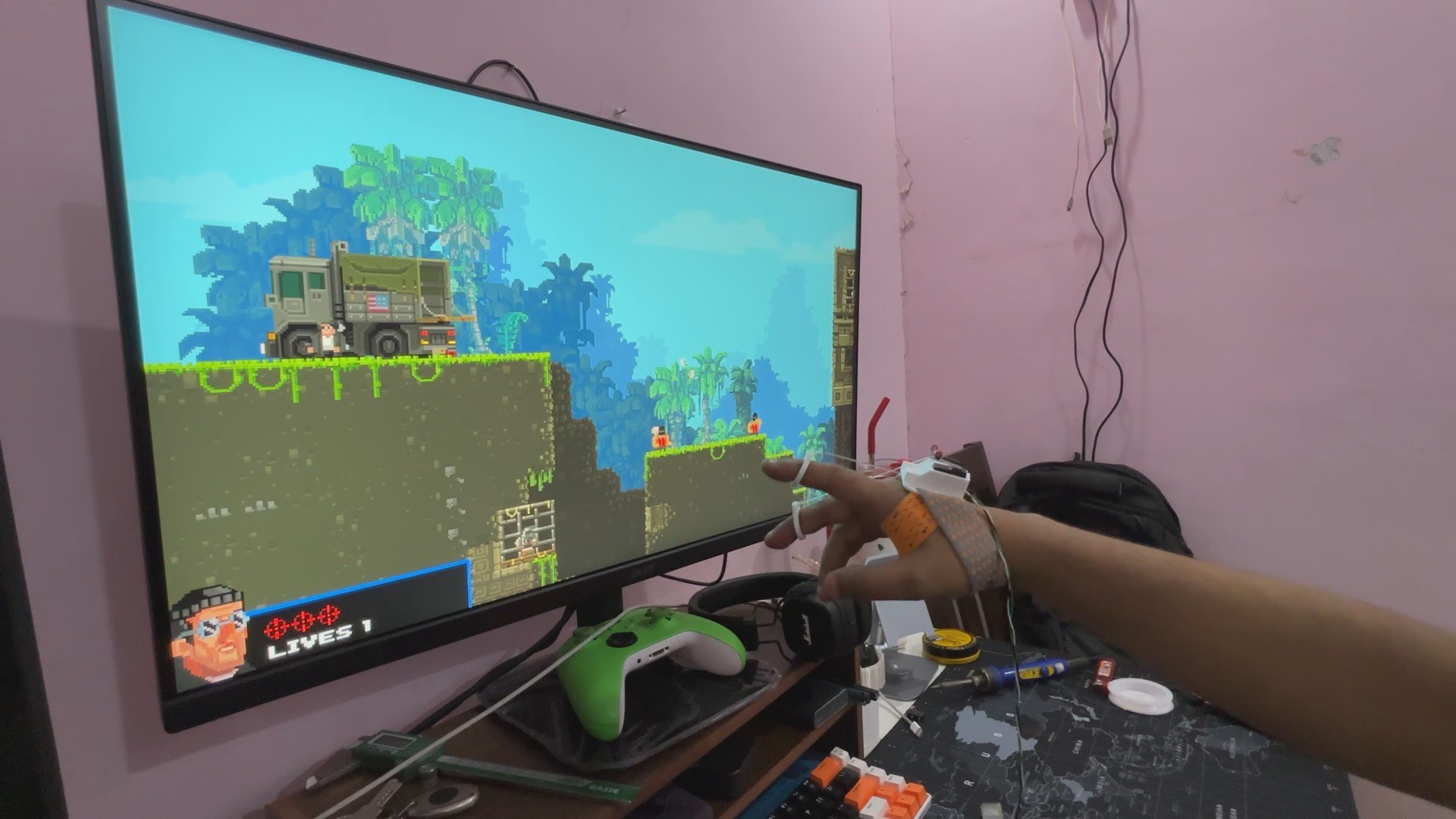
The end result of this experimental project is a wearable game controller that operates exactly like a standard one. What's the key difference? Instead of pressing buttons, movement is controlled using finger movements.
This was achieved through a simple string-based approach in which a limit switch is linked to a string. When the string is pulled downward, the switch triggers, pulling a GPIO pin to GND, which is detected by the Raspberry Pi Pico. This clever contraption allows intuitive movement control with only finger motions!
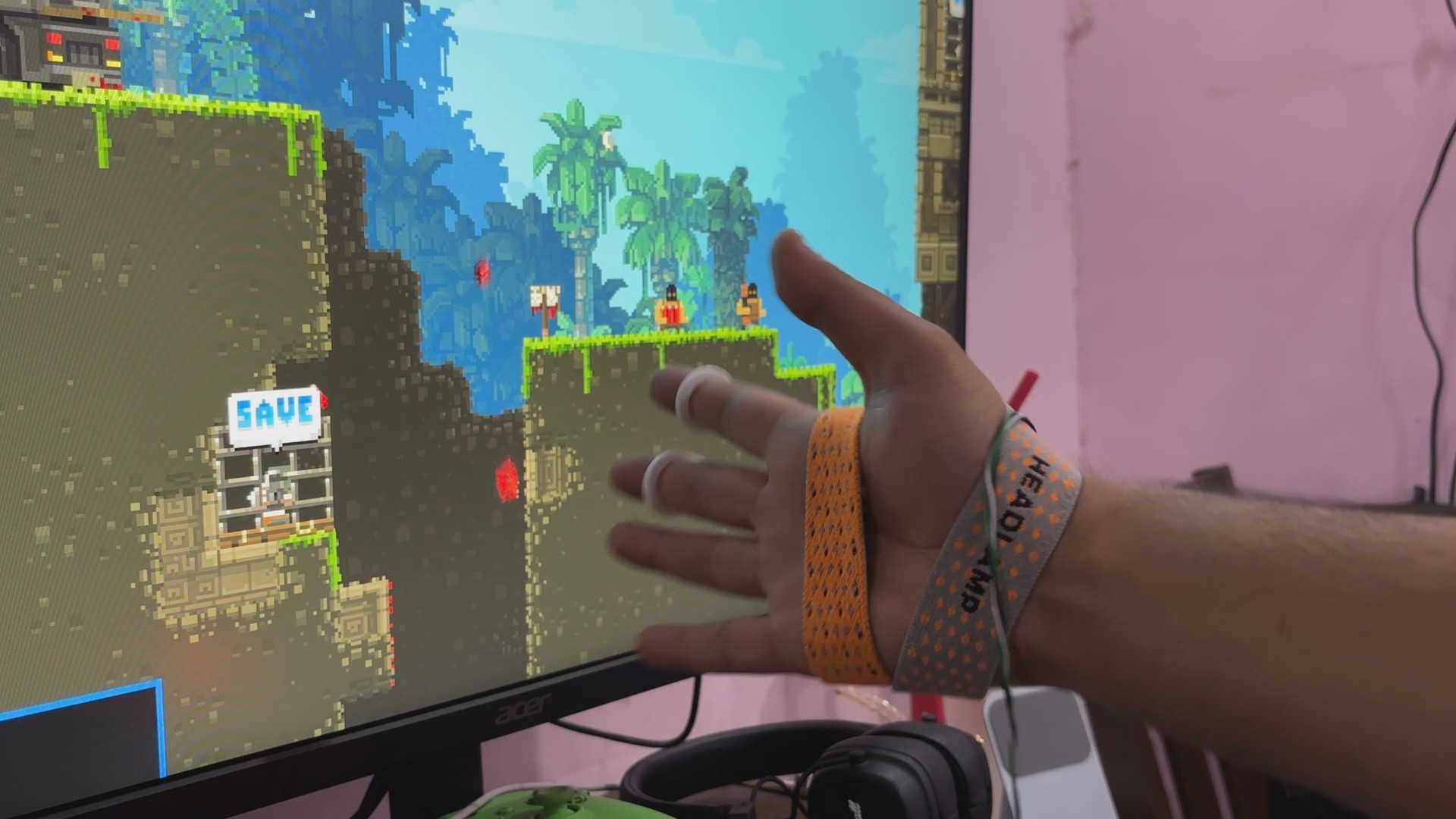
To put this to the test, we opened Broforce and mapped our controller in the Controller Mapping option. We set the first limit switch to move backwards and the second to move forwards.
We could control our character's movement with both fingertips, effortlessly moving it forward and backward. We couldn't use all of the features because the setup only had two buttons, but for an experimental project, this demonstration was ideal.
This Project was a success!
-
4WHAT'S NEXT?
![]()
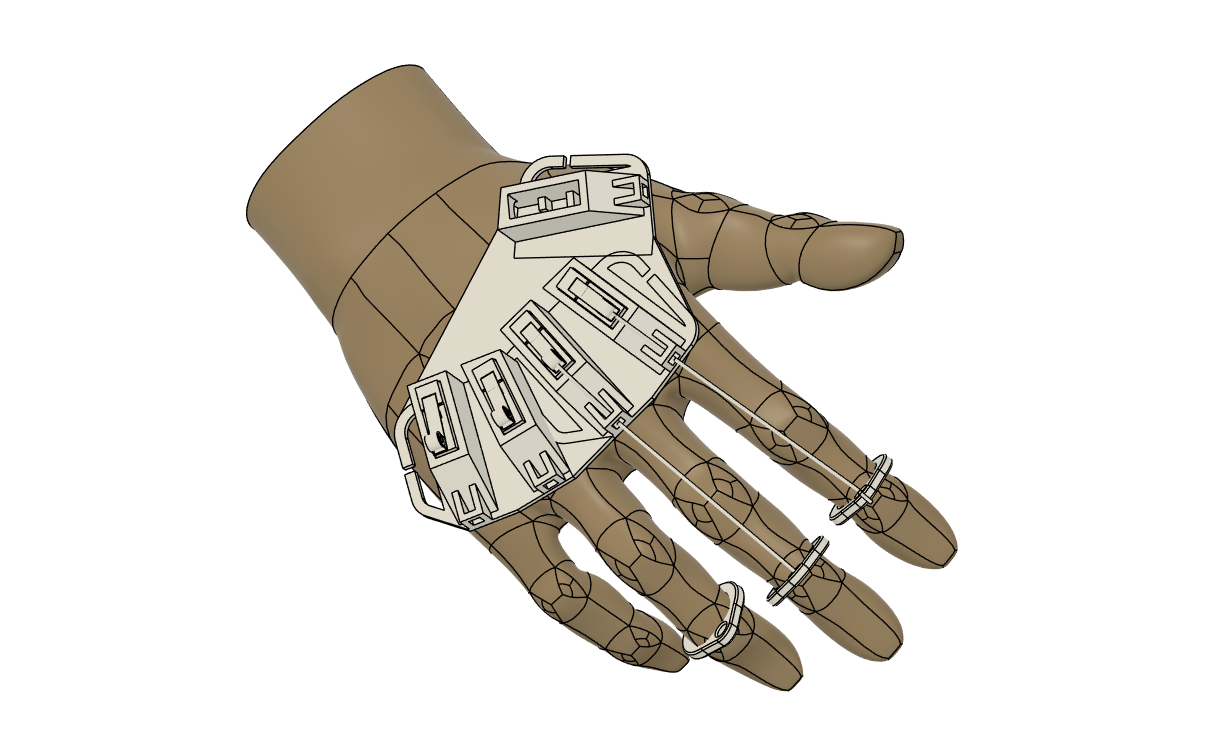
This experimental project successfully brought to life the wrist-mounted string controller, which allows two buttons to be controlled with simple finger movements. However, this is only the beginning; the ultimate goal is to create a full gauntlet-style device that serves as a one-handed controller, utilizing all five fingers and wrist movement to interact with various limit switches.
The next step is to design a complete gauntlet, drawing inspiration from Iron Man’s MK2 prototype or similar designs. The goal isn’t just to refine the concept but to push boundaries—creating a wearable controller that can handle AAA titles and stand toe-to-toe with traditional gamepads.
For the time being, this project has been completed, and all of the necessary details, including PCB files, code, and other information, are all attached.
Thanks for reaching this far, and I will be back with a new project pretty soon.
Peace.
String Controller V1
A Game Controller that you can wear and operate by movement of fingers.


Discussions
Become a Hackaday.io Member
Create an account to leave a comment. Already have an account? Log In.