 Tom Goff
-
1Relay Logic
![]()
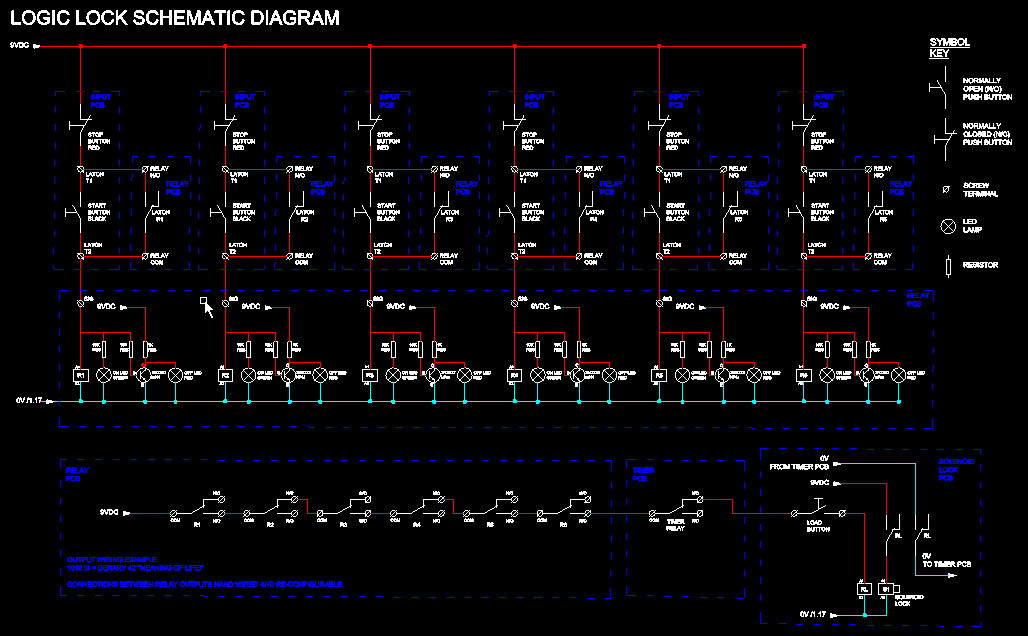
At the heart of this project is a series of six latching relays. The output of the latching relays are connected in series. The latching relays can either be latched "on", binary number 1, or latched "off" binary number 0. The contacts of all six relays is wired in series through a timer relay and a "load" button. The relays can be wired in series through either the Normally Closed contact or the Normally Open Contact.
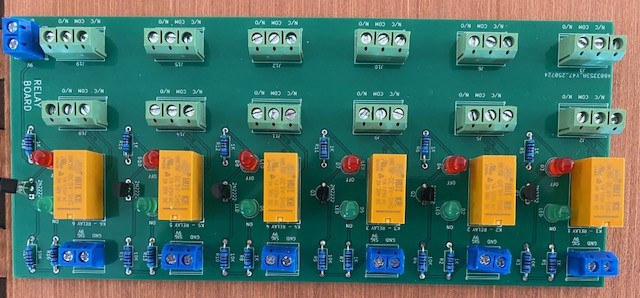
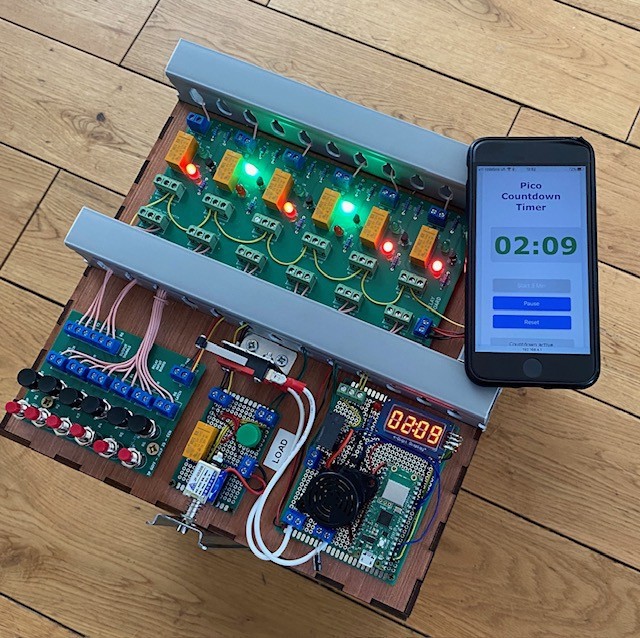
When the relay is latch on a Green LED is illuminated and when the relay is latch off a Red LED is illuminated.
The relay outputs are hand wired and you change the combination of the lock by either wiring them through the Normally Open or Normally Closed Contact. For example, if you wire the relays as follows:
Relay 1 = N/C LED = Red
Relay 2 = N/O LED = Green
Relay 3 = N/C LED = Red
Relay 4 = N/C LED = Red
Relay 5 = N/O LED = Green
Relay 6 = N/O LED = Green
The above would be represented by the binary number string 010011 and therefore Denary number 19.
Relay 6 is the Least Significant Bit, and the binary number string produced is Big-Endian.
The timer relay is in the Normally Closed state, however if the timer reaches zero before the correct combination is chosen this relay Opens and the correct combination cannot be loaded to open the lock.
When all the six relays are in the correct configuration then the loop is complete up to the load button. When the load button is pressed the lock will open.
The schematic drawing is in the files, take a look if you want to understand this system in more detail.
-
2Raspberry Pi Pico Countdown Timer
![]()
Despite having being gifted several of these microcontrollers, before undertaking this project I had never used a Raspberry Pi Pico. I have been intrigued by the the Pico for a while as very few people seem to go back to other controllers after using them (for hobby projects anyway).
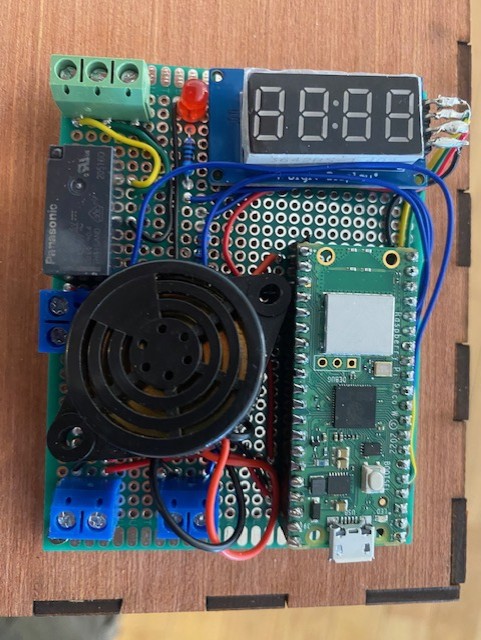
I found connecting up and writing code for the digital inputs and outputs to the Pico very straight forward, even with my limited Python coding experience. I also wanted to learn about the WiFi capability of the Raspberry Pi Pico so it is setup to be both an Access Point (AP) and web server. You can then use your phone to connect to the Pico and View, Start, Stop and Pause the timer.
There's a total of three files that need to be uploaded to the Pico, these are:
main.py - The "master program" written in MicroPython that controls the Pico and accesses the index.html and tm1637.py files.
index.html - Provides the code for the website interface.
tm1637.py - is a MicroPython driver file that provides the necessary functions and classes to control and display numbers on a TM1637 4-digit 7-segment display module. I like having the tm1637 on the board as it gives a real "Hollywood" feel to the project, especially with the clocks second ticking down at a frequency of 1Hz.
I have included all of the above files however here's an overview of how the code works
1. Wi-Fi Setup
The code begins by configuring the Raspberry Pi Pico W to act as a Wi-Fi Access Point (AP). This means it creates its own wireless network named "PicoTimer" with the password "micropython". When a phone or computer connects to this network and opens a browser, it can control the countdown timer through a web interface. This is handled by the
setup_ap()function.2. Hardware Initialization
Several GPIO pins are used to connect to physical hardware:
-
TM1637 4-digit display shows the countdown (connected to Vcc, Gnd, GPIO2 to DIO and GPIO3 to DIO).
-
Pullup Input on GPIO 12 starts the timer when connected to GND.
-
Pullup Input on GPIO 4 resets the timer to 00:00 when connected to GND.
-
Buzzer on GPIO 16 sounds when the timer finishes.
-
Output on GPIO 11 could be used to trigger an external device, like a misting system.
Each of these pins is set up at the start of the script.
3. Timer State Tracking
A dictionary named
timer_statestores everything needed for timing:-
Whether the countdown is active.
-
How many seconds are left.
-
When the last second tick happened.
-
The total duration (default is 1 minute).
This makes it easy to share and update timer information throughout the program.
4. Web Server Functionality
The Pico runs a small web server that listens for incoming HTTP requests on port 80. When someone connects (e.g. using a phone or laptop), the Pico:
-
Sends back the web page (index.html)
-
Responds to commands like
/start_timer,/pause_timer,/reset_timer, and/get_status.
The
handle_request()function processes these commands. It can also send back JSON data, which the webpage can use to display timer updates in real time.HTML is sent in small chunks to avoid memory errors. This is helpful when sending large pages over a small microcontroller.
5. Input Handling (Physical)
When the physical input is activated, the timer starts and the display is updated. The reset input stops the timer, resets it to zero, and clears the display. Debouncing (a simple timing check) is used to prevent false triggers when the input is triggered.
6. Timer Logic and Display
The main loop continuously:
-
Accepts and handles any new web requests.
-
Checks if the timer is running.
-
If a second has passed, it reduces the countdown by one.
-
Updates the display with the new time.
When the timer reaches zero:
-
The buzzer oscillates (buzzes) five times.
-
The output pin goes high to activate the external device.
-
The display is dimmed and reset to 00:00.
7. Main Program Flow
The
main()function runs everything:-
Sets up the Wi-Fi and web server.
-
Waits for web requests or button presses.
-
Manages the countdown and output hardware.
-
Uses short delays to avoid overloading the CPU.
-
-
3The Web Interface
![]()
All projects seem to need a web interface or App. For this project I decided to create a web interface so that I could control the timer from my phone.
The index.html file contains the script for the webpage, here's an overview of the code in this file.
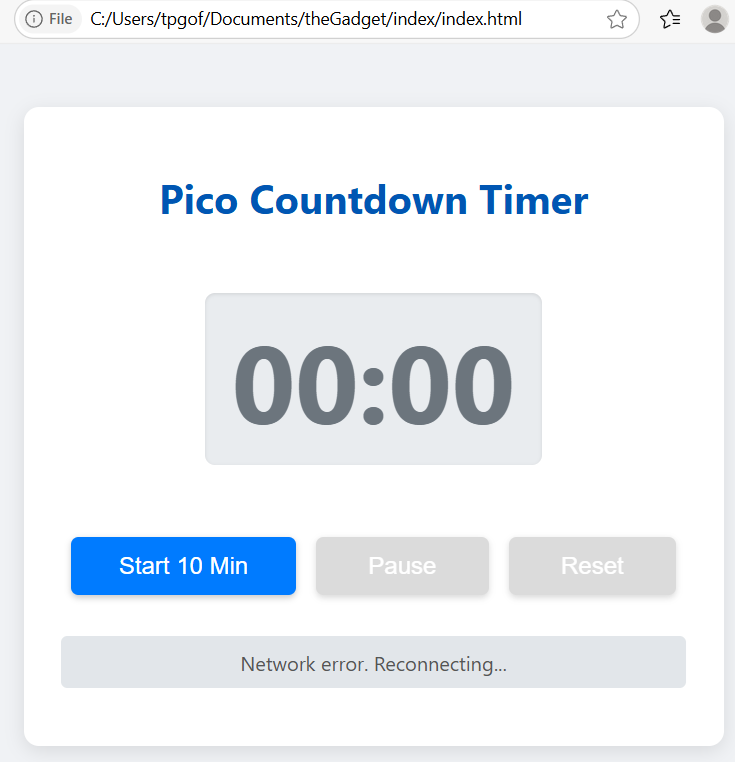
This HTML page creates a user-friendly web interface for controlling the Raspberry Pi Pico W countdown timer. Users can start, pause, and reset the timer directly from their phone or computer after connecting to the Pico’s Wi-Fi.
Layout and Styling
The page usesCSS to create a clean design:
-
A large timer display (e.g.
00:00) shows the remaining time. -
Three buttons let the user start a 10-minute countdown, pause it, or reset it.
-
A status message area shows feedback like "Countdown active" or "Network error".
-
The layout automatically adjusts for mobile screens.
Button Actions
Each button sends a command to the Pico:
-
Start sends
/start_timer -
Pause sends
/pause_timer -
Reset sends
/reset_timer
These commands are handled by the Pico's web server (in
main.py).Live Countdown Display
Every second, JavaScript on the page calls
/get_statusto:-
Get the current time left (in seconds)
-
Show it in
MM:SSformat -
Enable/disable the buttons based on the timer state
This makes the web interface update in real time, just like the physical display on the Pico.
Error Handling
The JavaScript also:
-
Detects network errors and stops polling temporarily
-
Displays helpful messages when commands fail
This keeps the page stable, even if the Wi-Fi signal is weak or if the Pico is rebooted.
-
-
4PCB Design
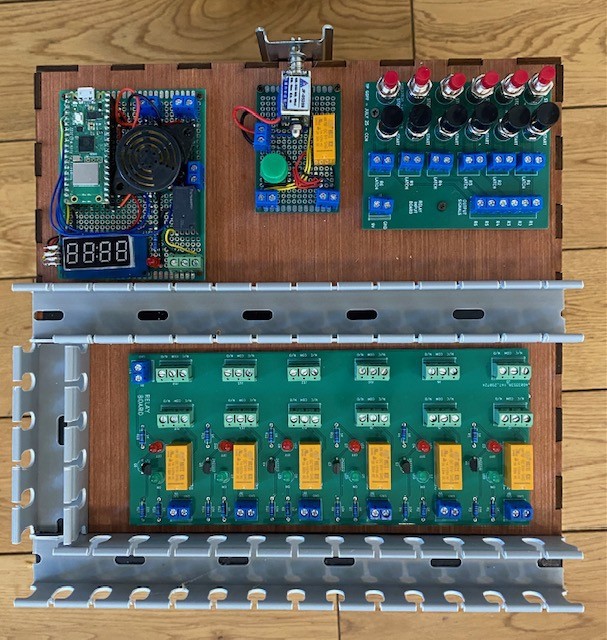
There are 4 PCBs associated with this project:
- Input PCB
- Relay PCB
- Solenoid Lock PCB
- Timer PCB
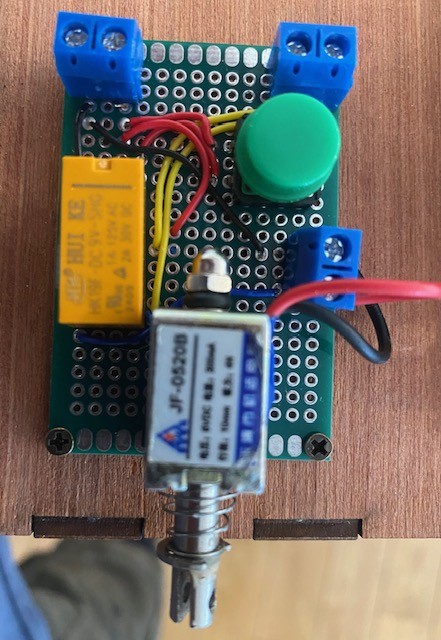
The Input and Relay PCB's were Designed on KiCAD. The Solenoid Lock and Timer PLC were constructed straight to prototyping board.
The PCB manufacturing files are in the files section should you want to order these PCBs yourself. The Solenoid Lock and Timer PCBs are very simple to hand build if you want to build them yourself. I have included the schematics for these PCBs in the files section.
Input PCB
![]()
Relay PCB
![]()
Solenoid Lock PCB
![]()
Timer PCB
![]()
-
5The Box
The lockable box was constructed out of laser cut 3mm plywood.
I usually design boxes using MakerCase, this is a brilliant website for designing laser cut boxes. I then make any modifications using a 2D CAD package.
Once designed I cut the plywood with our laser cutter at my local hackspace, Norwich Hackspace - home.
Once the box was laser cut and glued together I equipped it with all the necessary hinges and clasps.
The CAD files are in the files section if you want to build the box yourself.
-
6Final Build and testing
With the PCBs all made up and the box built it was time to put everything together..
When you build / teach industrial controls for a living, everything you do ends up involving DIN rail and clotted trunking. This is even the case for my kitchen cabinets, the Ikea mounting system seems to be identical to 40mm Top Hat DIN rail.
The first job was to mount all the components on the box lid with the slotted trunking for cable containment.
![]()
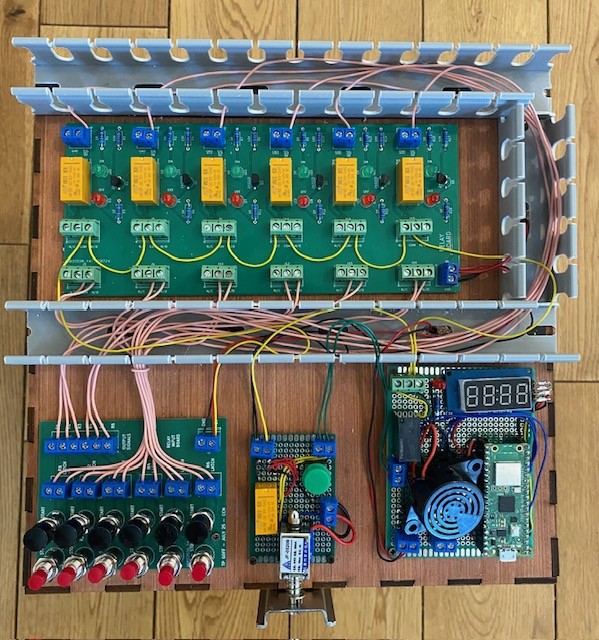
The next job was to start wiring it all up. The whole point of this project is for controls engineering students and apprentices to reverse engineer and fault find this system. This is why I made all the PCBs modular, this means they can easily work with the various components and wiring.
![]()
The latch was made from DIN rail mounted on the front of the box. The slots in the DIN rail made for handy fixing points and a hole for the lock catch.
![]()
Next, I mounted the battery packs inside the box lid. The 9V battery supplies the relay associated boards and the USB power pack powers the Pico Timer.
![]()
Finally I put it all together and tested it out.
![]()
Here's a video of the final build being tested out.
Logic Lock
Unlock a secret box with Relay Logic against Raspberry Pi Pico W countdown timer.




Discussions
Become a Hackaday.io Member
Create an account to leave a comment. Already have an account? Log In.