 alisa.wu
-
11How to connect the robot?
We offer two ways to connect to the robot's internal operating system: direct connection and remote network connection.
1.Direct connection (desktop mode)
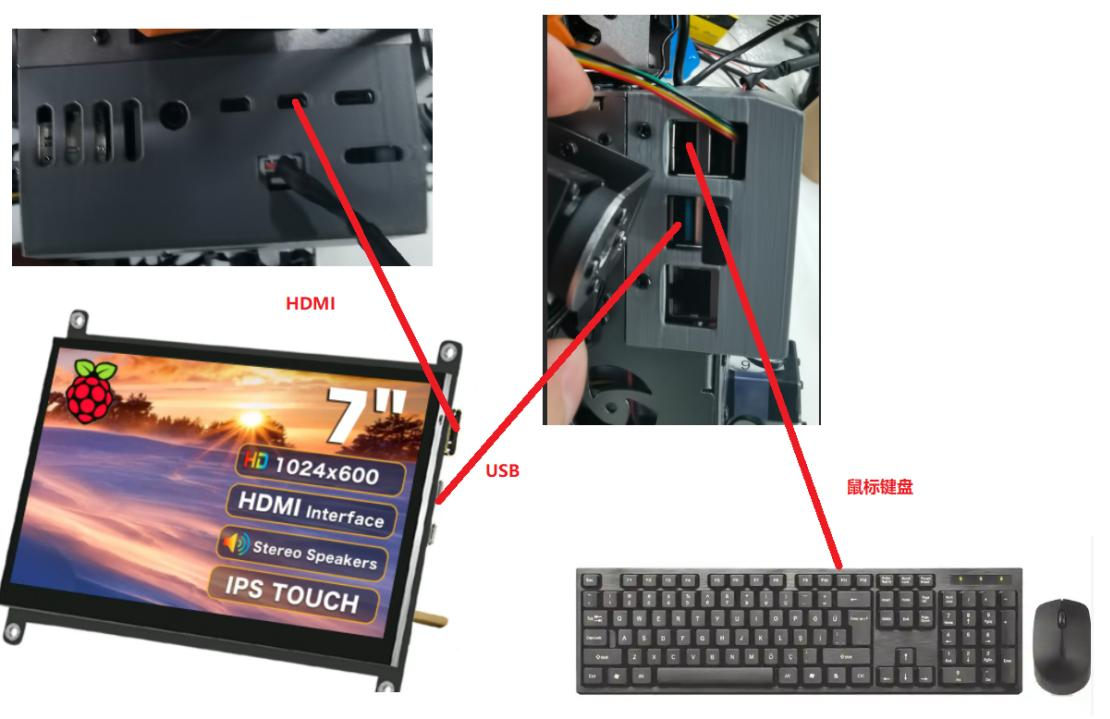
(1) Connecting the monitor: Connect the monitor to the robot's main board via an HDMI cable.
(2) Connecting the keyboard and mouse: Connect the USB keyboard and mouse to any USB port.
(3) Starting the robot: After starting the robot, the system desktop will be displayed on the screen.

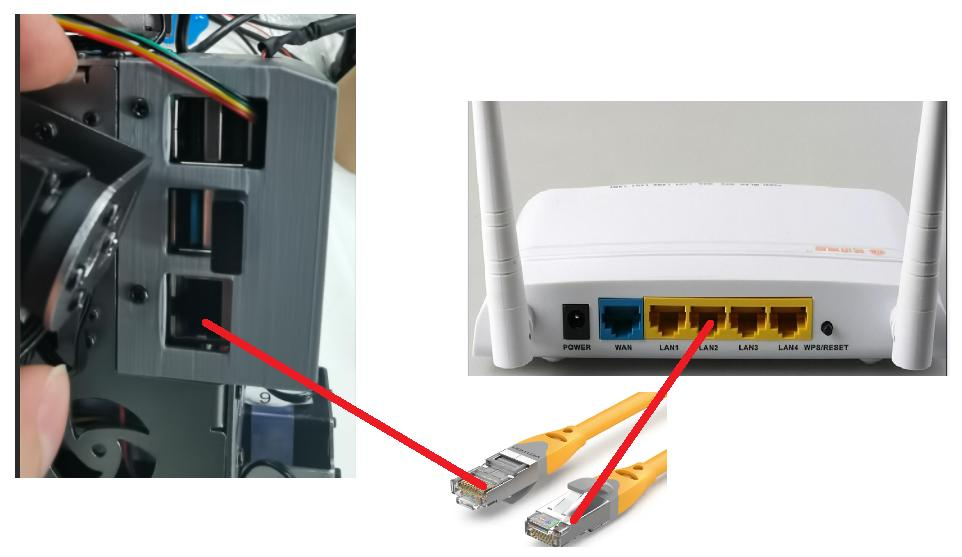
monitor2. Remote network connection (recommended) In most development scenarios, we recommend using this method. It doesn't require an external monitor and is more flexible and convenient. 2.1 Establish a network connection. Operating steps:Please choose one of the following methods to connect your computer and the robot to the same network, depending on your environment. Method 1: Wired connection (recommended):Both the computer and the robot are connected to the LAN port of the same router via Ethernet cables.Wired connection 
Wired connection
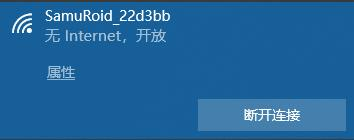
Method 2: Wireless hotspot connection:After starting the robot, search for and connect to the Wi-Fi hotspot starting with the name "SamuRoid" on your computer.
wifi
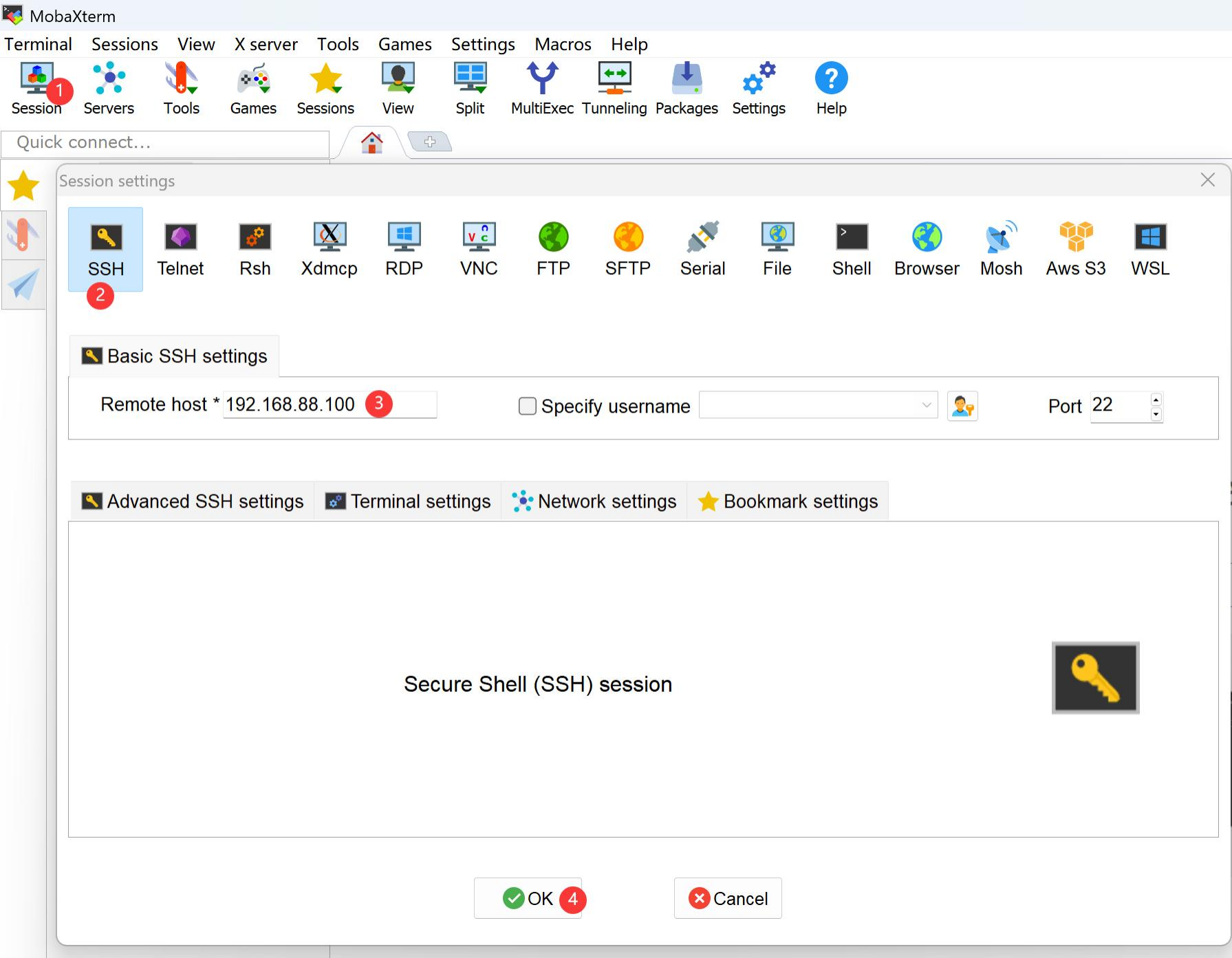
2.2 Log in using MobaXterm. (1) Install and launch the MobaXterm software on your computer. (2) Click on Session -> SSH in the menu bar. (3) Enter the robot's IP address in the Remote host field.![]()
Tip: How to determine the IP address?
If using a wireless hotspot connection, the IP address is fixed at 192.168.88.100.
If using a wired connection, you will need to log in to your router's administration panel to find the robot's IP address.
2.3 Successfully connected
After clicking the OK button, follow the prompts to enter your username and password to log in to the robot's Ubuntu system.Upon successful login, the right side of the MobaXterm interface will display the command-line terminal, and the left side will show a graphical file manager that supports drag-and-drop file uploading and downloading.Username: ubuntu Password: 123456 -
12How to connect a robot to the internet?
When performing further development on a robot, it is often necessary to install software packages using commands such as `apt install` or `pip install`. This requires connecting the robot to the internet to download the necessary resources.
>span class="ne-text">1. Wired connection
Step 1: Connect one end of the network cable to the RJ45 port on the back of the robot.
Step 2: Connect the other end of the network cable to any LAN port of an internet-connected router.
Step 3: The robot will automatically obtain an IP address through the router and connect to the internet.
2. Wireless connection (configured via mobile app)
If a network cable is not available, the robot can be connected to the router's wireless network through the network configuration process, which is described in detail in Section【2.3 Mobile APP operation】
When the robot connects to an external wireless router, its own hotspot function will automatically turn off (i.e., it will no longer broadcast a hotspot signal starting with "SamuRoid").
If you need to restart the robot's hotspot...:
1. Ensure your phone is connected to the robot's Wi-Fi hotspot (if the robot is in STA mode, you need to connect to the same Wi-Fi network first).
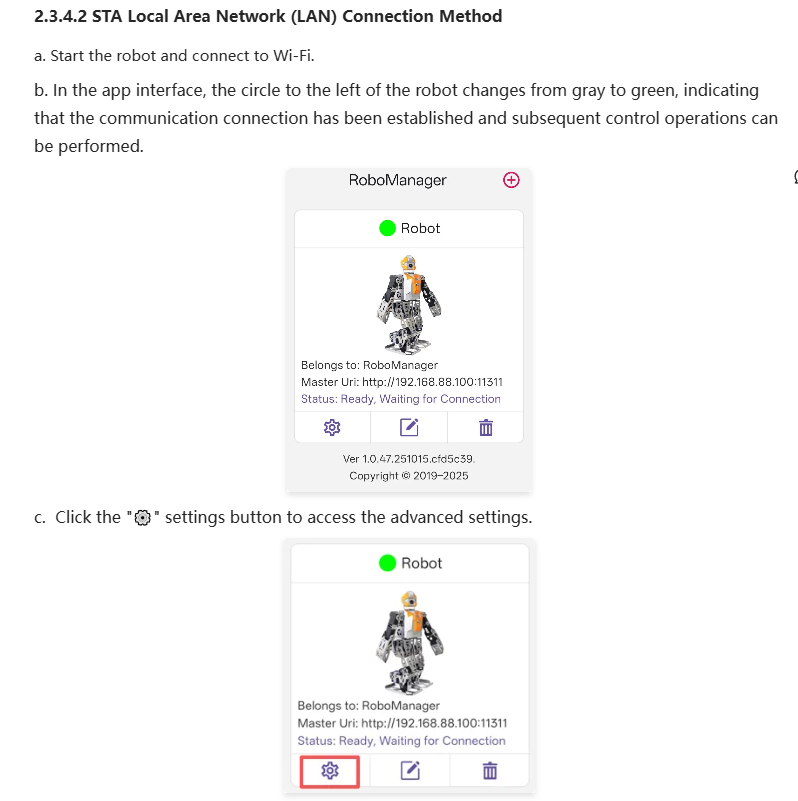
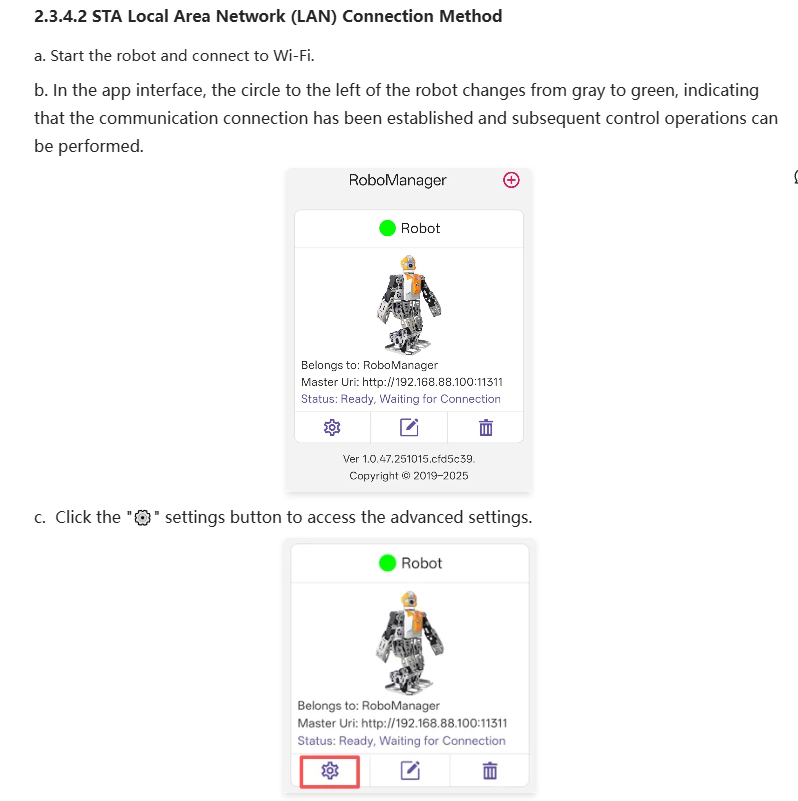
2. Open the RoboManager app, tap the "⚙" settings button, and enter the advanced operation settings.
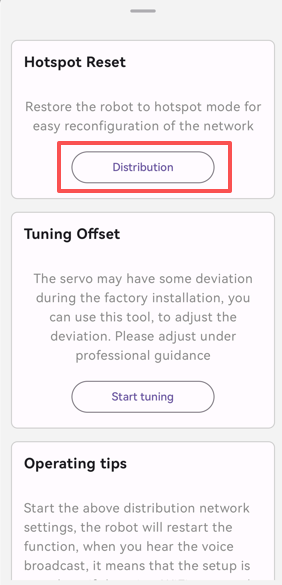
3. Go to the "Network Settings" section, and under the "Self-hosted Hotspot" option, tap the "Set Network" button. Wait for approximately 45-60 seconds; the robot will automatically restart and revert to AP direct connection mode, and a voice prompt will announce, "Mech Warrior is ready!"![]()
When the robot connects to an external wireless router, its own hotspot function will automatically turn off (i.e., it will no longer broadcast a hotspot signal starting with "SamuRoid").
If you need to restart the robot's hotspot...:
1. Ensure your phone is connected to the robot's Wi-Fi hotspot (if the robot is in STA mode, you need to connect to the same Wi-Fi network first).
2. Open the RoboManager app, tap the "⚙" settings button, and enter the advanced operation settings.
3. Go to the "Network Settings" section, and under the "Self-hosted Hotspot" option, tap the "Set Network" button. Wait for approximately 45-60 seconds; the robot will automatically restart and revert to AP direct connection mode, and a voice prompt will announce, "Mech Warrior is ready!"
Hotspot Reset ![]()
-
13Source code location
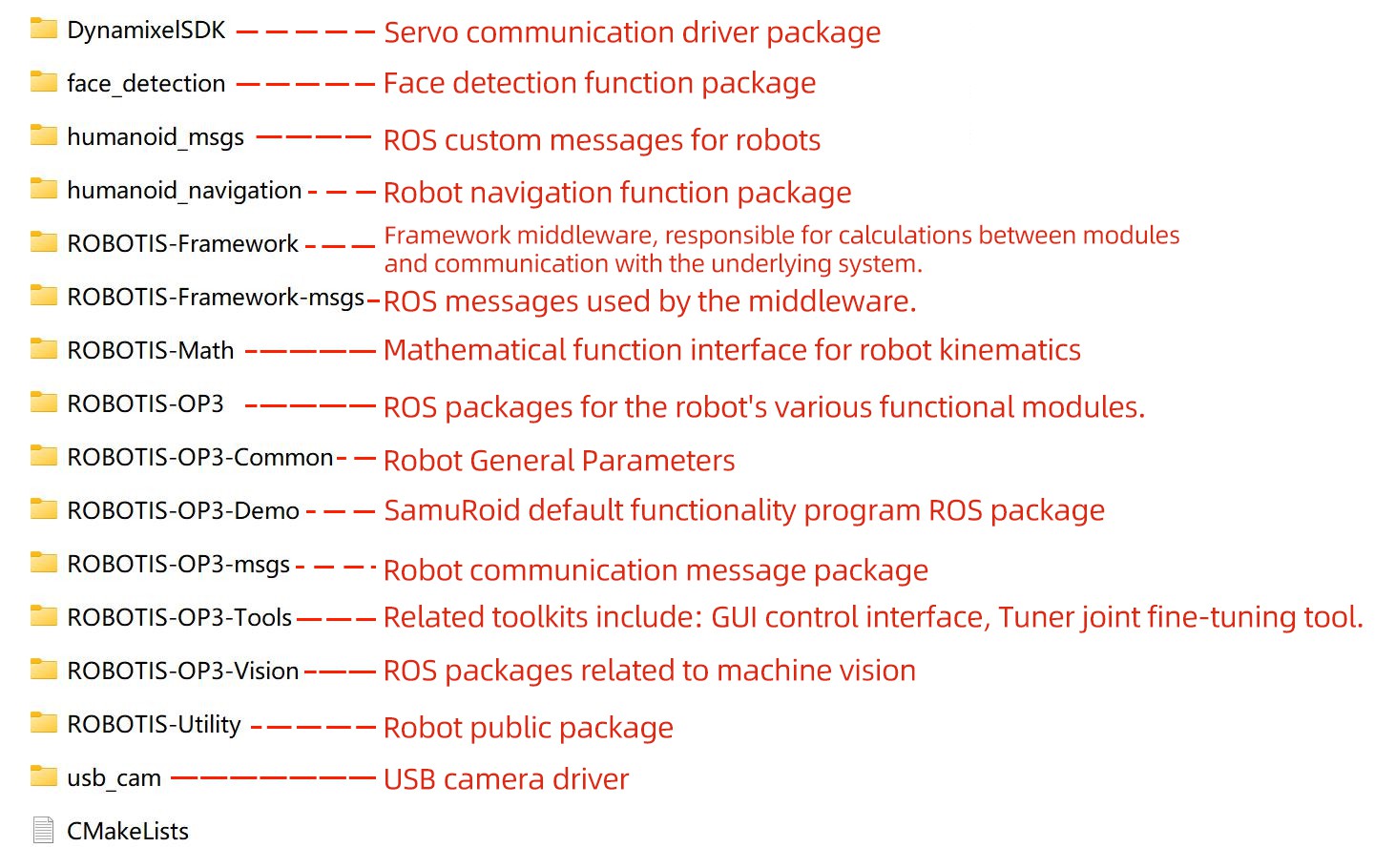
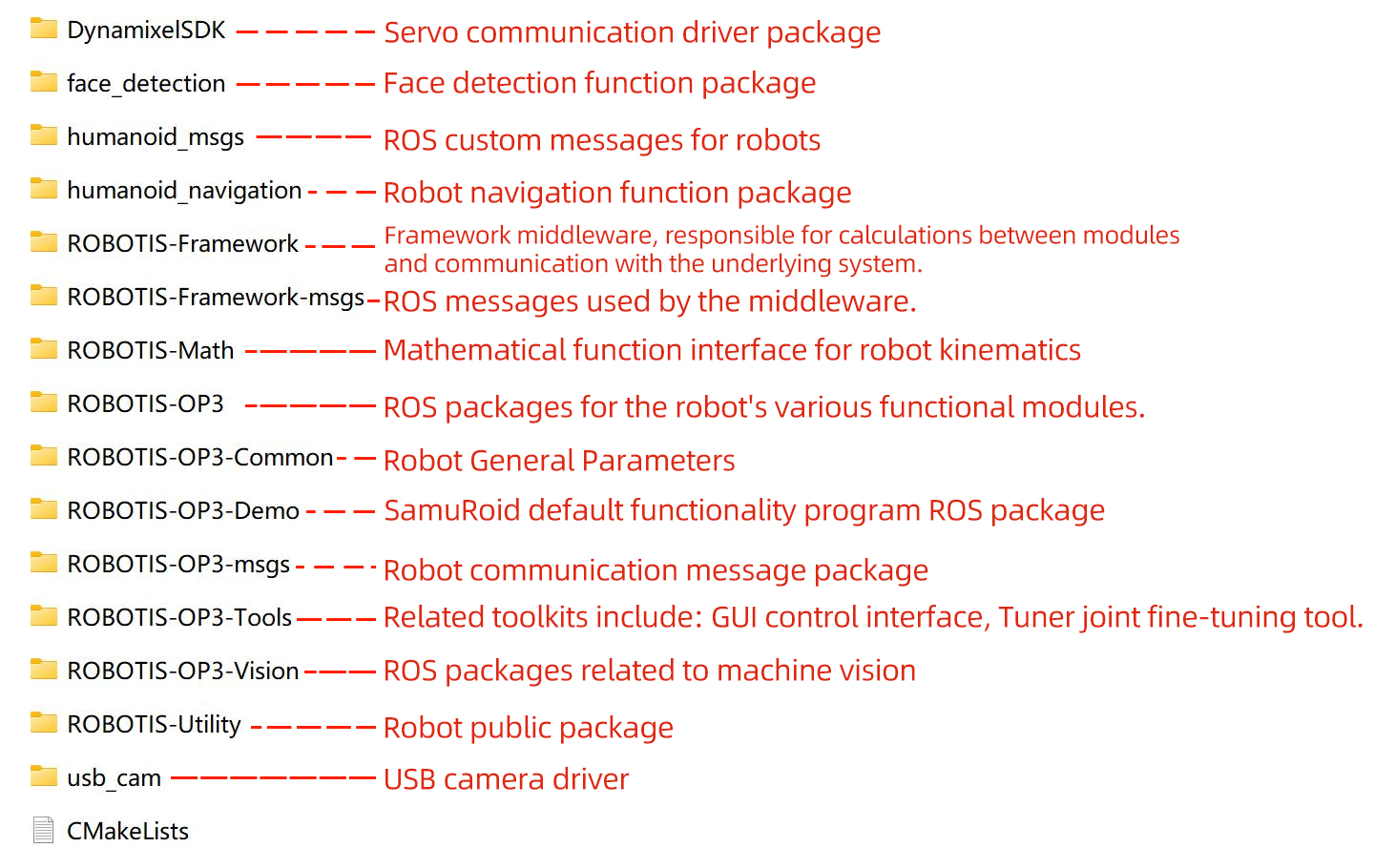
The entire source code project for the SamuRoid robot is located in the `/home/xrrobot/humanoid_ws` directory of the system. After modifying the code, you can recompile it using the `catkin_make` command in this directory.
The ROS package structure of the entire project is as follows:

ROS package ![]()
-
14Terminate the program that starts automatically upon system startup.
After each power-on, the SamuRoid robot's built-in default function program will start with the system. This program will occupy the robot's hardware resources (such as the camera, servos, etc.).
Therefore, before performing secondary development or running your own code, you need to terminate the default function program process that starts with the system to avoid resource conflicts.
Operating steps
Step 1: Log in to the system.
Please refer to the instructions in "How to connect to the robot" and successfully log in to the robot's operating system terminal via SSH or other methods.
Step 2: Execute the stop command.
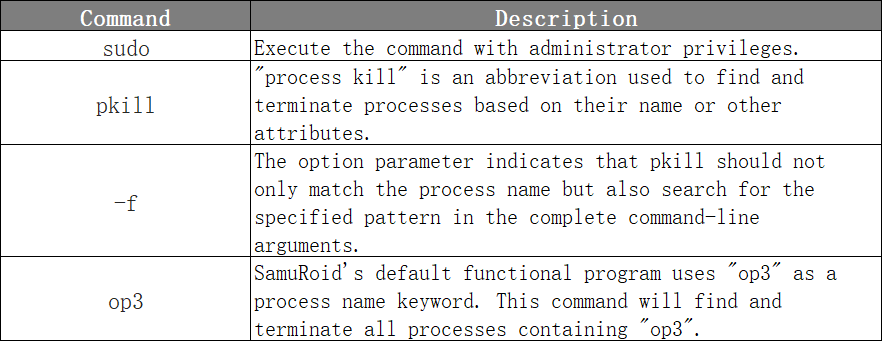
In the terminal, enter and execute the following command:sudo pkill -f op3Executing this command will terminate the main robot process that starts automatically with the system.
Command parsing
Command parsing -
15How to manually launch the default built-in programs?
The robot's default built-in functional programs (ROS packages) are located in the project directory:
ROBOTIS-OP3-Demo/op3_demo
Its startup file is located at:
ROBOTIS-OP3-Demo/op3_demo/launch/demo.launch
Therefore, after modifying the code or configuration files, you can recompile the entire project using the `catkin_make` command, and then manually start the default built-in functions using the `roslaunch op3_demo demo.launch` command.Alternatively, you can restart the robot, and the system will automatically run `demo.launch` after startup.The robot source code is located at: `/home/ubuntu/humanoid_ws/src`Other notesTo modify and recompile the robot code, first terminate the currently running robot main process using the command `sudo pkill -f op3`.Compilation method: Navigate to the directory `/home/ubuntu/humanoid_ws` and execute the command `catkin_make -DDS_SERVO=ON`.To manually start the robot main program: execute the command `roslaunch op3_demo demo.launch`.
-
16Step 16
SamuRoid: 22-DOF Embodied AI & ROS Humanoid
Open-source bipedal robot powered by Raspberry Pi 4B. Features IK-based gait, 30kg.cm bus servos, and DeepSeek LLM integration for AI resear
Discussions
Become a Hackaday.io Member
Create an account to leave a comment. Already have an account? Log In.