Close
0%
0%

Potato PC

A Raspberry Pi 5-based PC paired with a Radeon RX6500XT themed after a Potato

Similar projects worth following
0 followers
Greetings everyone, and welcome back.

This is my Potato PC project, a Raspberry Pi 5-powered computer built from Scratch.

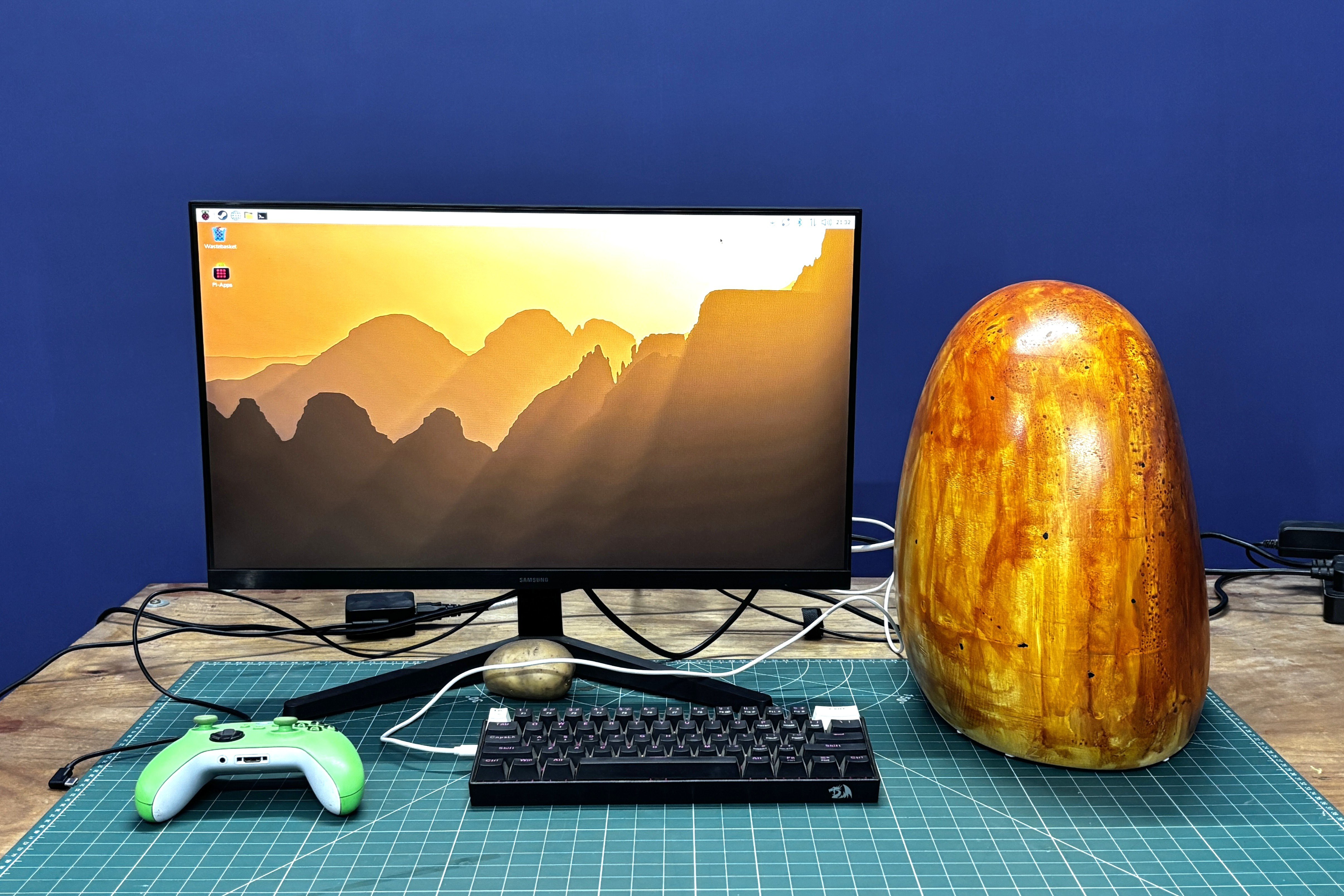
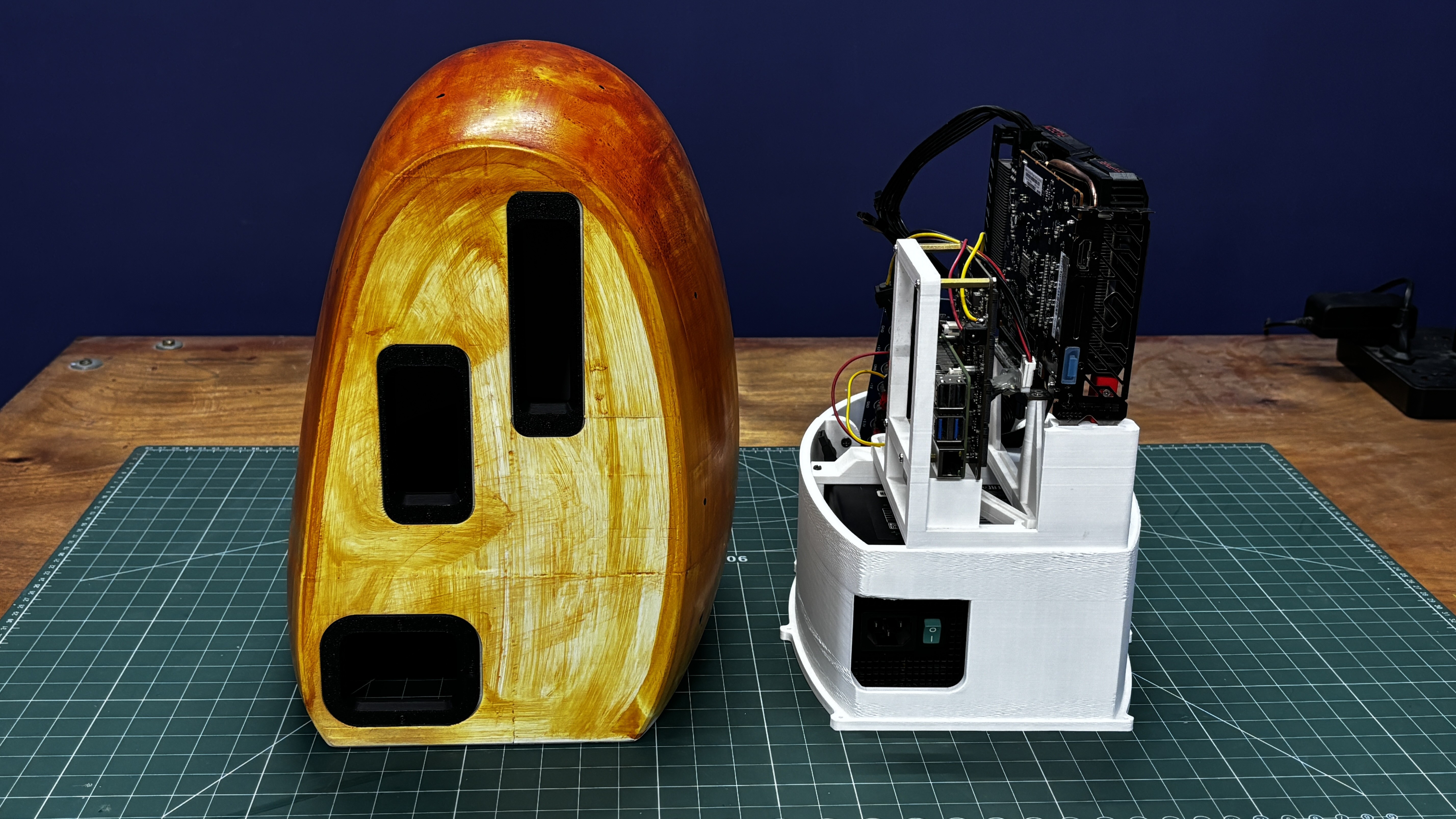
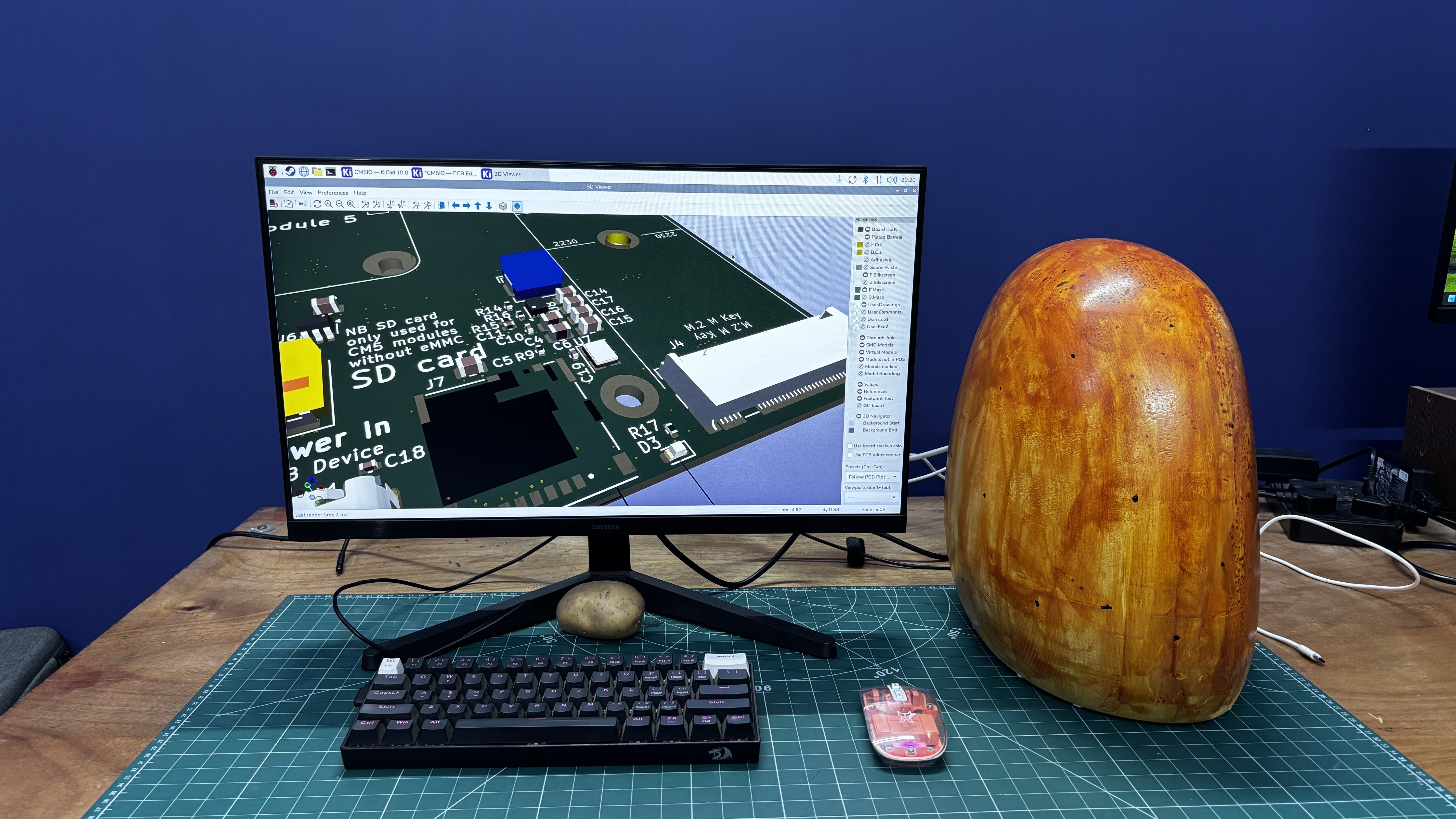
For this project, I designed a custom enclosure that looks exactly like a giant potato, but this isn’t just a random idea. The potato-shaped enclosure has a deeper meaning.

Let me explain.

A “Potato PC” is an internet slang term for an extremely low-powered computer, one so underpowered that it is jokingly compared to a potato.

Traditionally, people use this term for old or budget computers that can barely run modern software.

My project takes that meme and turns it into reality by building an actual “Potato PC”: a fully functional computer housed inside a giant potato-shaped case and powered by a Raspberry Pi 5.

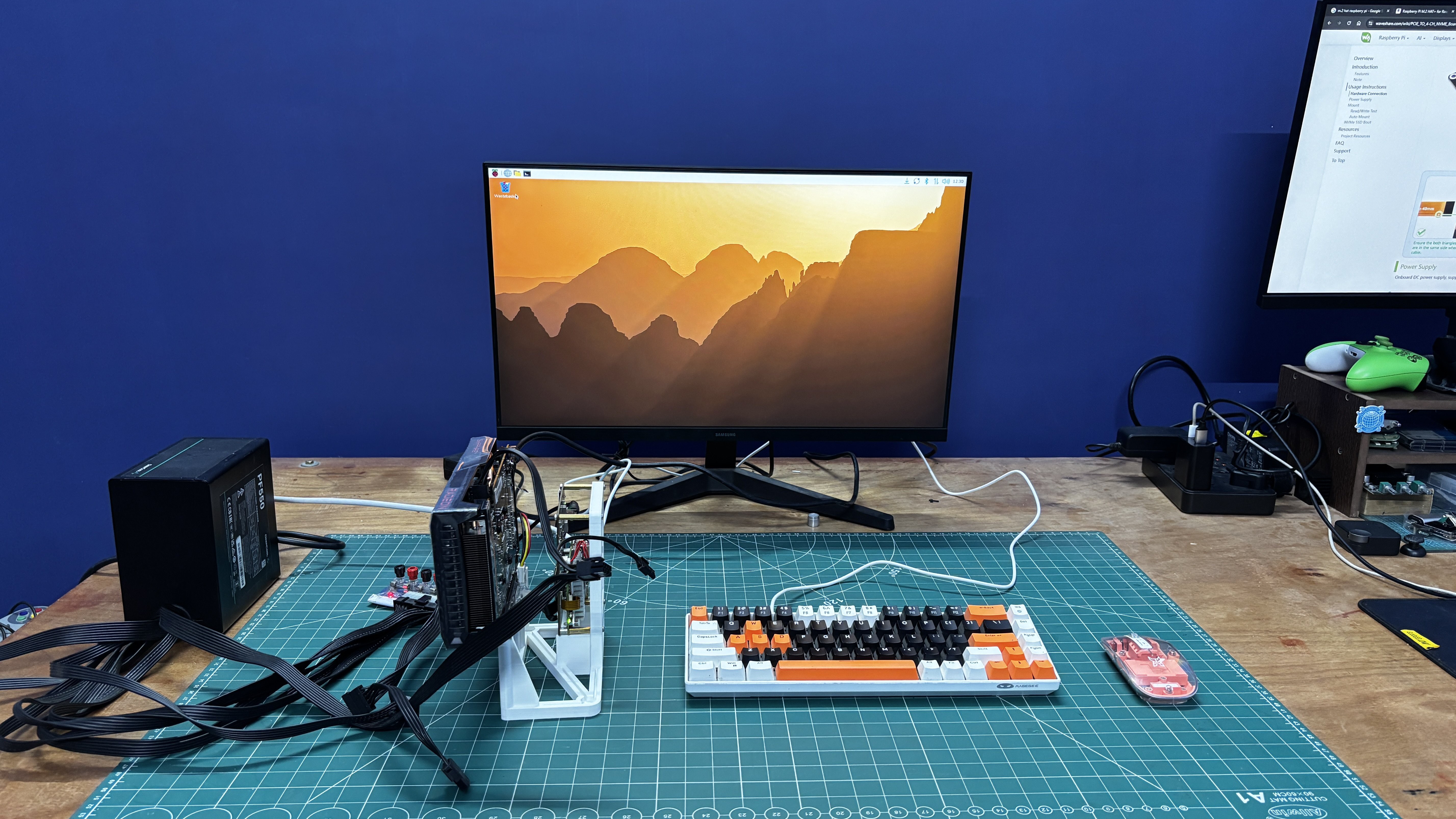
To make the system significantly more capable, I paired the Raspberry Pi 5 with a desktop-class AMD Radeon RX 6500 XT using the Raspberry Pi’s PCIe interface.

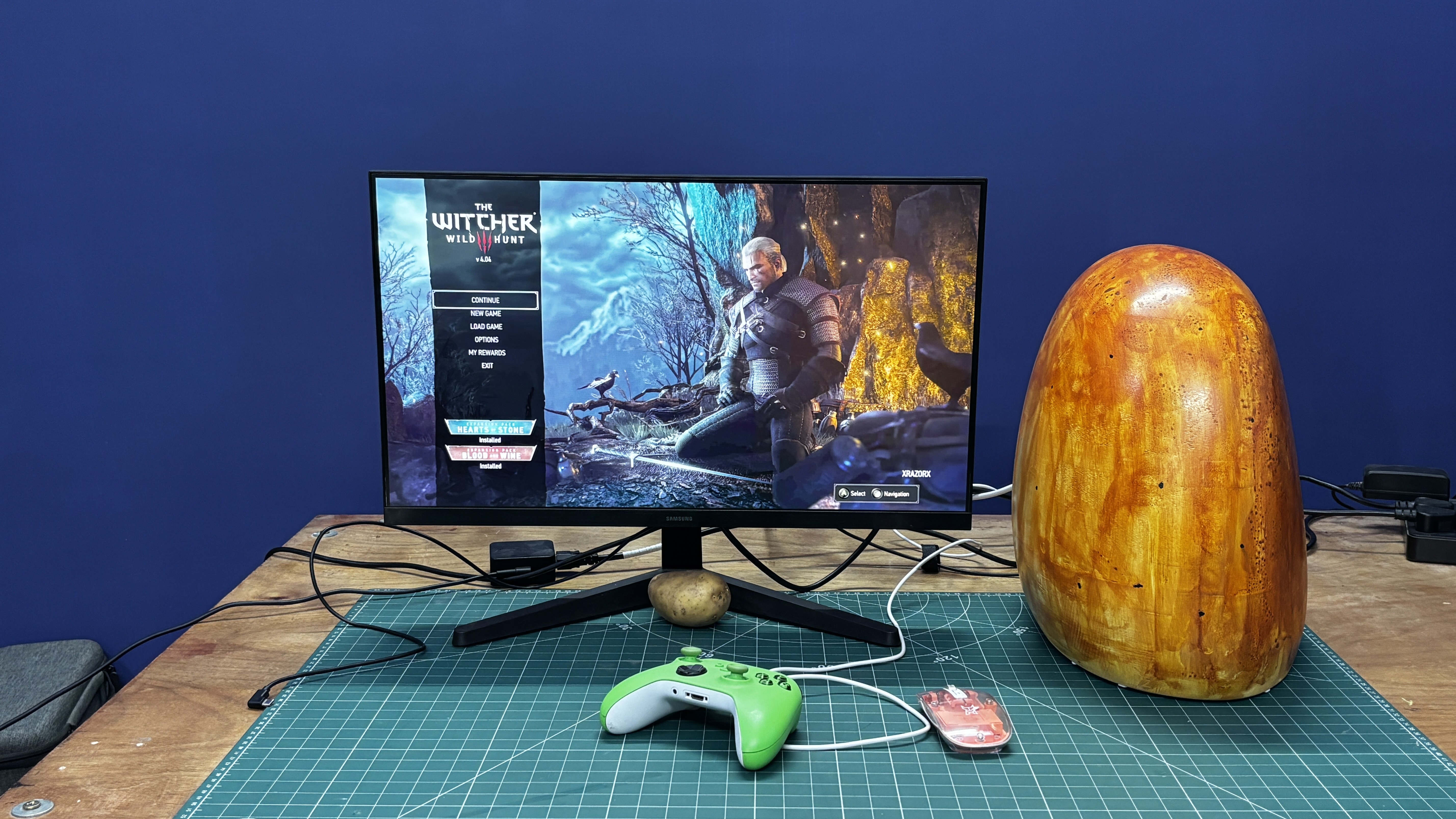
With this desktop-level GPU, the Pi is now able to function much more like a standard PC. While some applications do not run natively because the Pi uses an ARM-based SoC, I was still able to run a wide range of software, including games through Steam and many other applications.

This article covers the complete build process, from designing and constructing the Potato PC enclosure to setting up the Raspberry Pi with the GPU and assembling the final system.

HARDWARE: RASPBEERY Pi 5
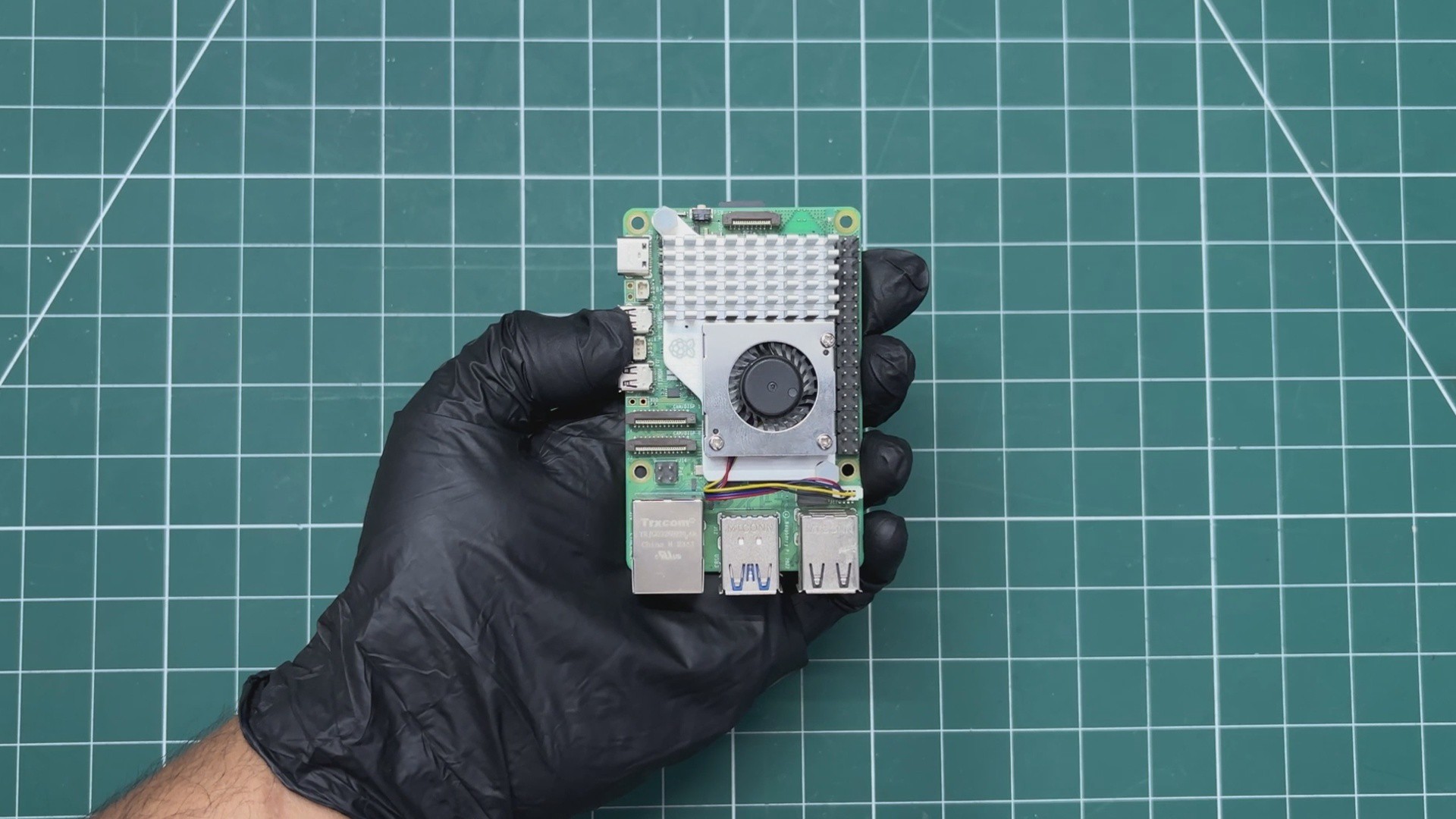
The brain of this project is the Raspberry Pi 5. I’m using the 4GB variant, but a 16GB version is recommended for this project, as I discovered that most applications run, but they often crash because of low memory issues. The Pi 5 is paired with the official Raspberry Pi 5 heatsink and fan, which keep the SoC cool.

Raspberry Pi 5 features the Broadcom BCM2712 quad-core Arm Cortex A76 processor clocked at 2.4 GHz; it also has an onboard VideoCore VII GPU, which supports OpenGL ES 3.1 and Vulkan 1.3.

My goal for using the Pi was simple: I was making a Potato PC, and the Pi fits that category perfectly. The Pi itself is a great tool for developers and makers, but when used as a daily driver, it can sometimes feel like a potato PC. So my goal was to make the Pi perform better for tasks where I would normally use a regular PC instead of a Pi.

HARDWARE: WAVESHARE 4 CH NVME BREAKOUT BOARD

Our Raspberry Pi 5 does not include a built-in NVMe slot, but it does feature a PCIe connector. This was a revolutionary addition when Raspberry Pi introduced it, as it greatly expanded the board’s storage and expansion capabilities.

Raspberry Pi also released an official HAT that provides an M.2 NVMe slot and connects to the board using the FPC PCIe connector.

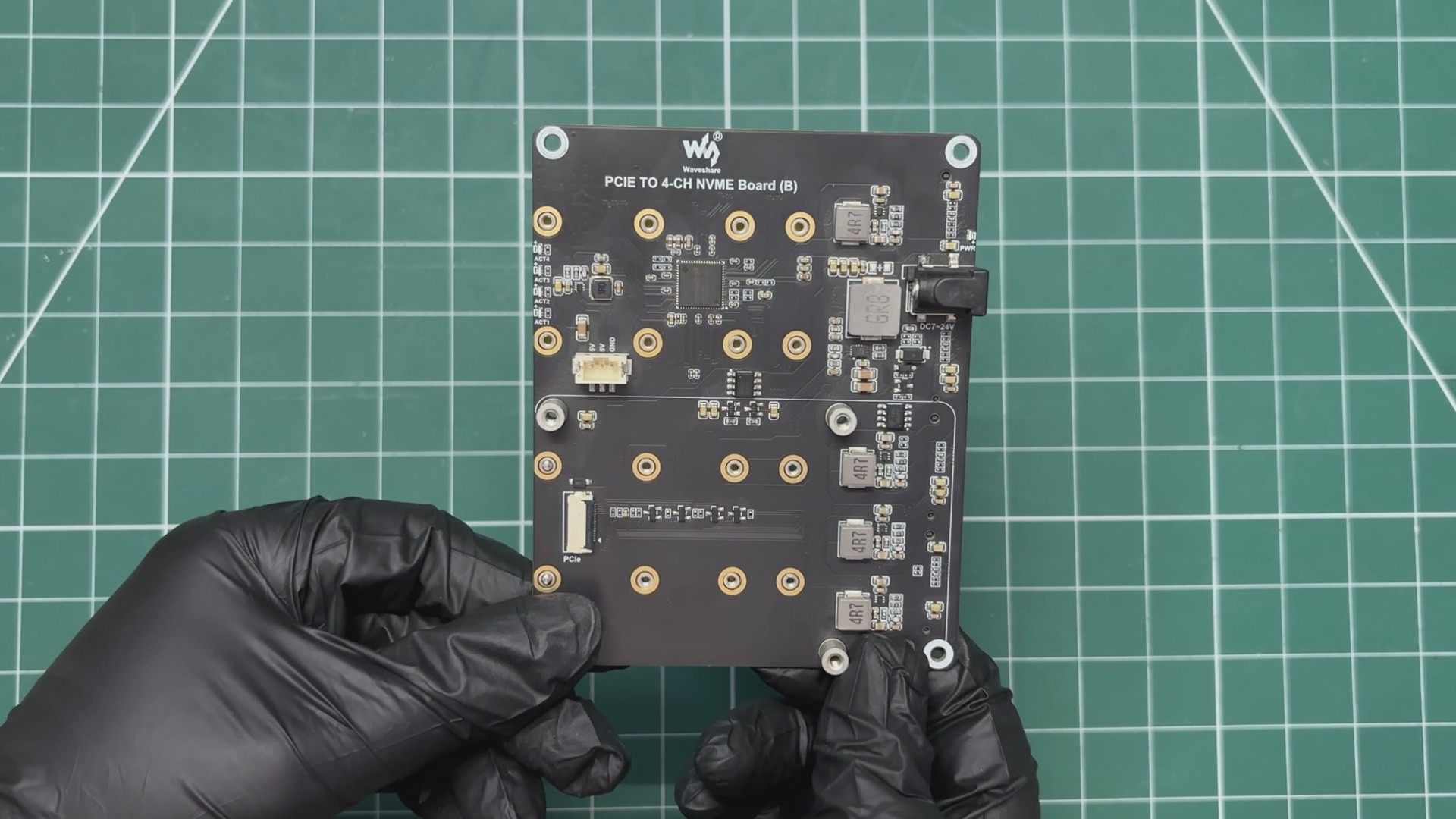
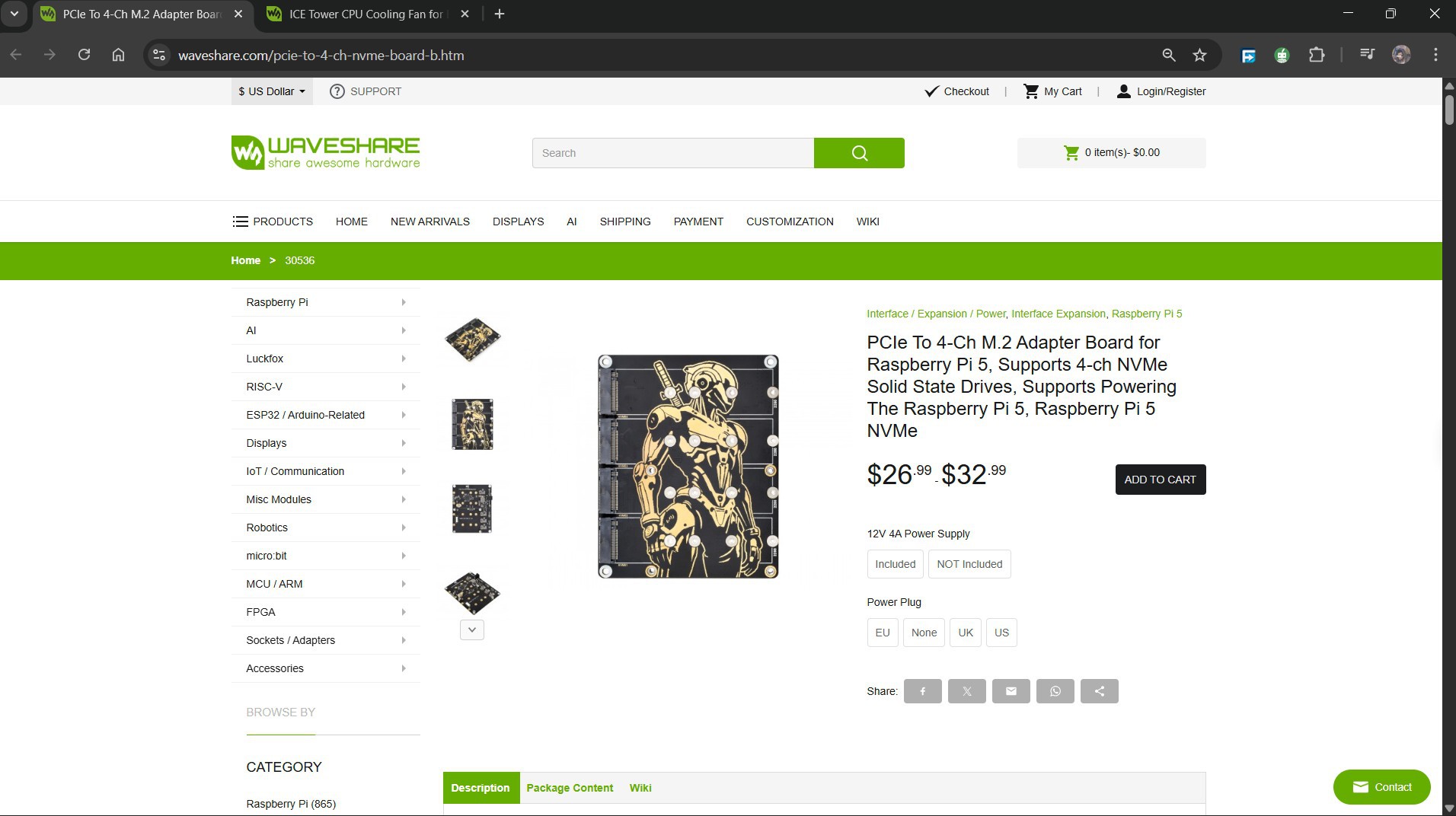
Following this, many other companies began developing expansion boards for the Raspberry Pi 5. One particularly useful option comes from Waveshare, which offers an expansion board that includes four M.2 slots.

This board connects directly to the Pi’s PCIe port and supports up to four M.2 NVMe SSDs in 2230, 2242, 2260, and 2280 sizes, all running in PCIe Gen2 ×1 mode.

One of the biggest advantages of this board is that it also supports NVMe booting, allowing the Pi 5 to start its operating system directly from an NVMe SSD instead of a microSD card, giving a huge boost in speed and reliability. We will also pair a PCIEx16 to M.2 Adaptor with this setup in order to connect our GPU to this board.

The board includes helpful onboard LEDs that show power status and drive activity, and it can even supply power back to the Raspberry Pi 5 itself, reducing cable clutter.

With these features combined, multi-drive support, NVMe boot capability, broad SSD size compatibility, and clean power handling, the Waveshare 4-Channel NVMe adapter becomes the perfect backbone for building our Potato PC.

Check out its wiki page for more in-depth info from the link below.

https://www.waveshare.com/pcie-to-4-ch-nvme-board-b.htm?&aff_id=Arnov

WAVESHARE SERVICE
Special thanks to Waveshare for providing the hardware used in this project. The PCIe to 4-Channel NVMe Adapter Board and supporting accessories were supplied as review units for testing and evaluation.

Waveshare is a leading global provider of electronic components, modules, and development tools used across robotics, IoT, automation, education, and many other fields. With a strong focus on quality, reliability, and continuous innovation, Waveshare has earned the trust of engineers, designers, hobbyists, and makers worldwide.

Their extensive product lineup, from displays and HATs to expansion boards and embedded modules, makes them a go-to choice for both professional builds and DIY projects.

Waveshare had no involvement in the build process, configuration, testing methods, or results shared...

Read more »
MID PART 2.stl

Standard Tesselated Geometry - 614.93 kB - 06/14/2026 at 11:13

Download

MID 3.stl

Standard Tesselated Geometry - 814.24 kB - 06/14/2026 at 11:13

Download

psu shield.stl

Standard Tesselated Geometry - 124.30 kB - 06/14/2026 at 11:13

Download

TOP4.stl

Standard Tesselated Geometry - 475.38 kB - 06/14/2026 at 11:13

Download

STAND.stl

Standard Tesselated Geometry - 1.57 MB - 06/14/2026 at 11:13

Download

View all 32 files

  • 1
    RASPBERRY PI 5 & WAVESHARE 4CH BOARD ASSY
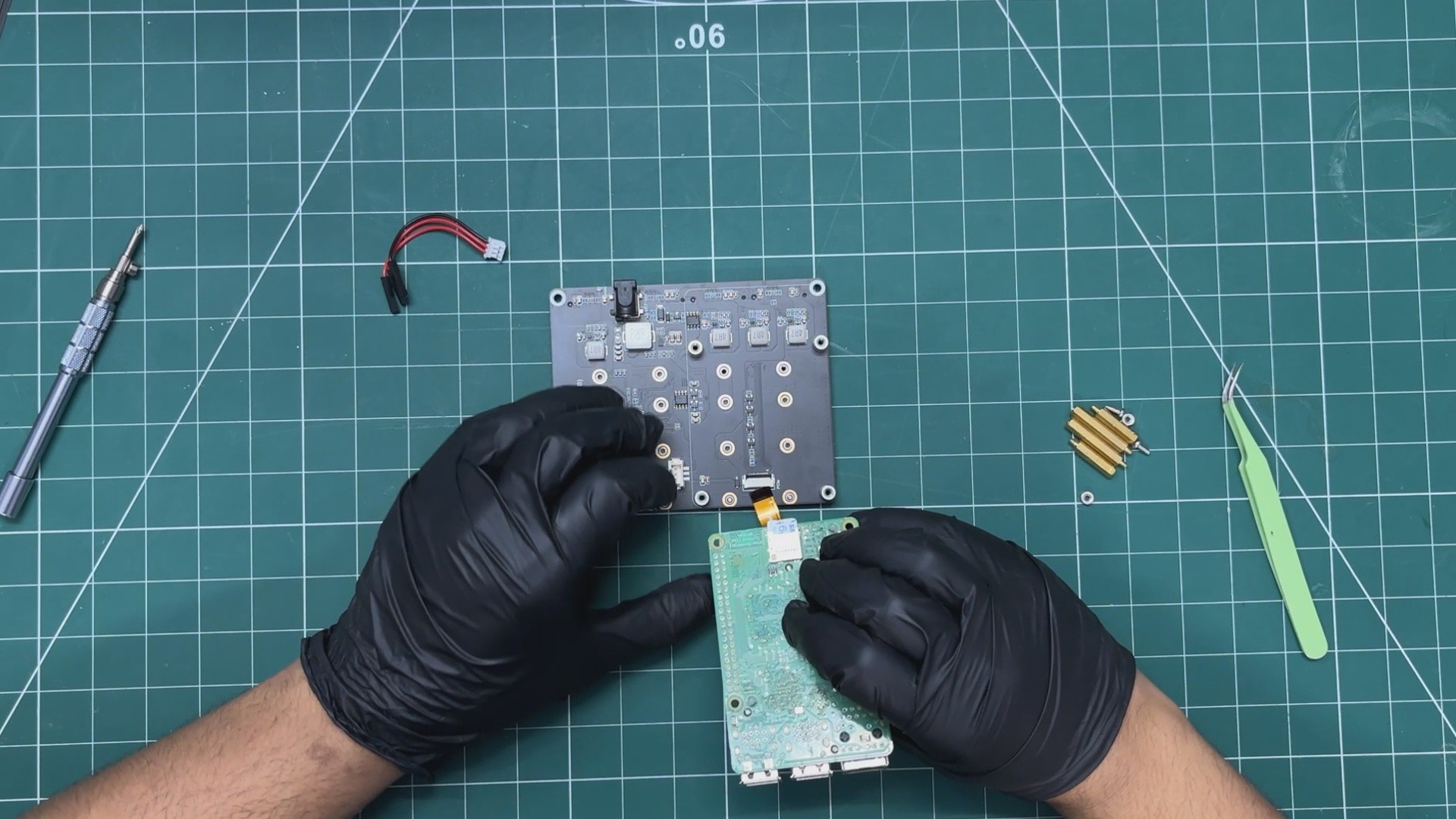
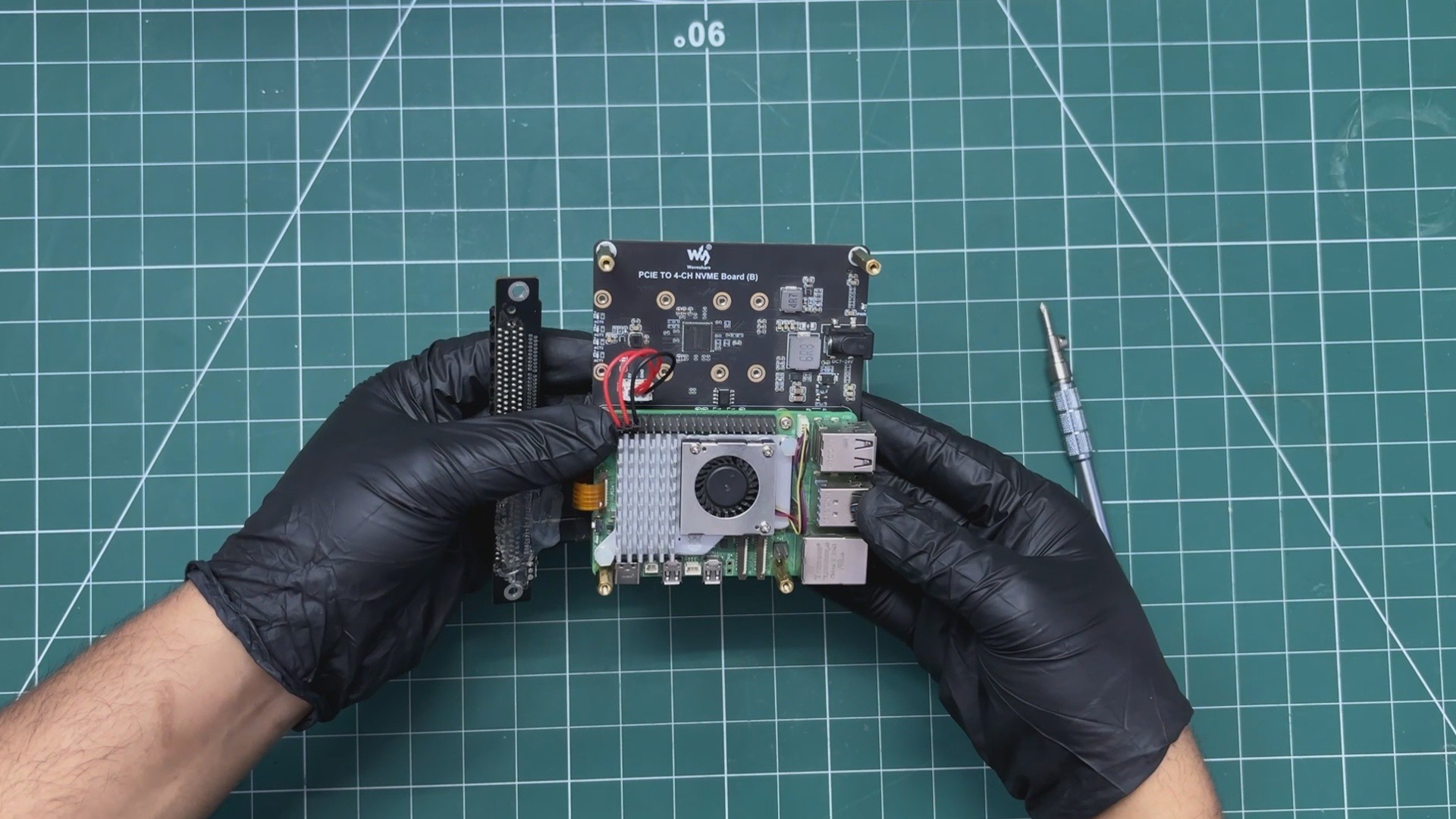
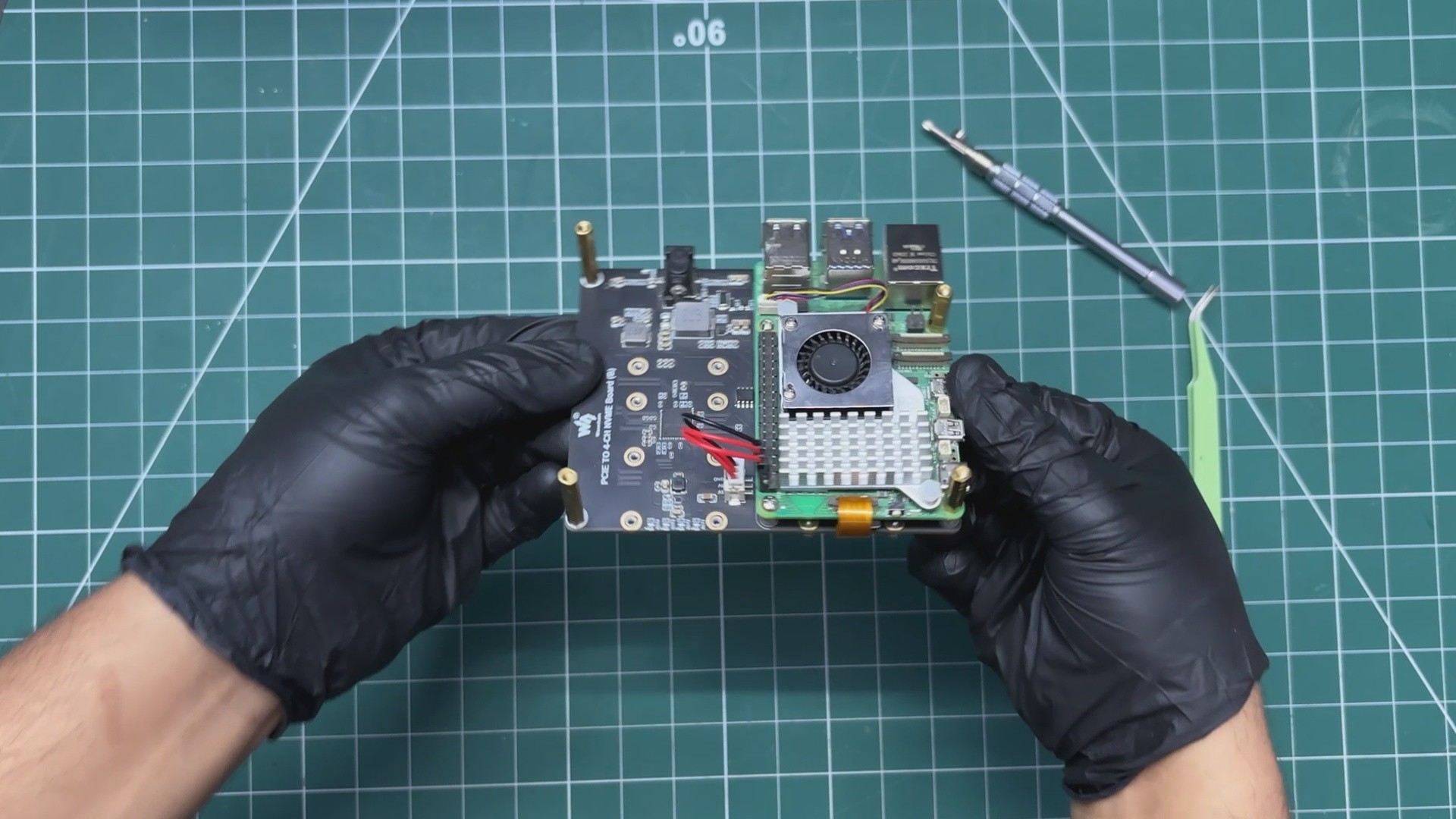
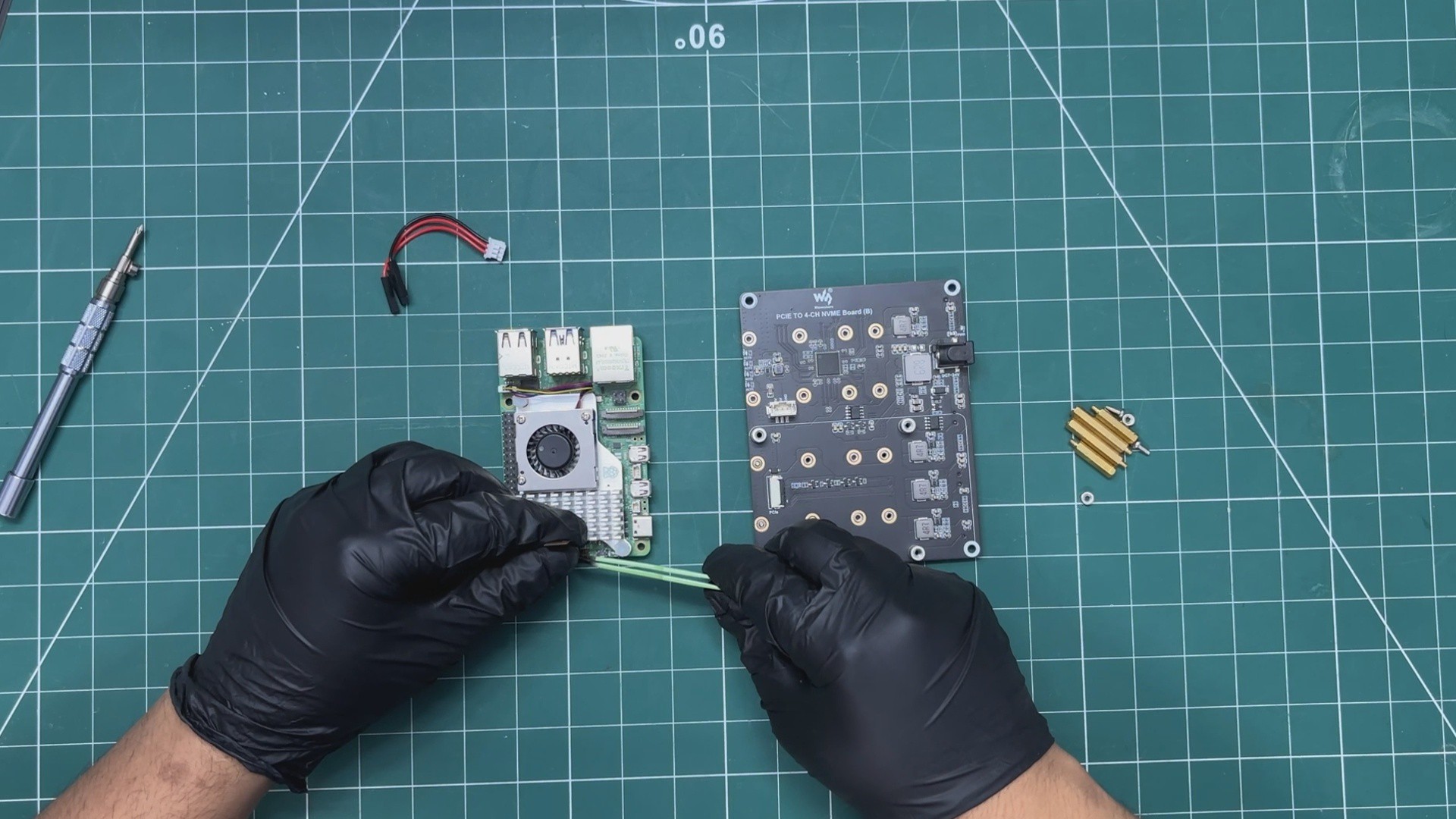
    • We begin the assembly by connecting the PCIe FFC cable to the PCIe connector on the Raspberry Pi 5. It is important to ensure that the cable is fully seated in the connector, as a loose connection can prevent the setup from working even if the software configuration is correct.
    • The other end of the FFC cable is then connected to the PCIe connector on the Waveshare four-channel NVMe expansion board.
    • Next, we mount the Raspberry Pi onto the Waveshare board. We align the mounting holes on both boards and use four M2.5 screws to secure them together.
    • The CON3 power connector included with the Waveshare board is then connected to the board. The two red wires are connected to the 5V GPIO pins on the Raspberry Pi, while the black wire is connected to one of the ground (GND) pins.
    • Finally, we install four M2.5 PCB standoffs into the mounting holes on the Waveshare board. In this build, we use 20 mm standoffs to provide the necessary clearance for the rest of the assembly.
  • 2
    Pi SETUP with PCIEx16 to NVME ADAPTOR & NVME
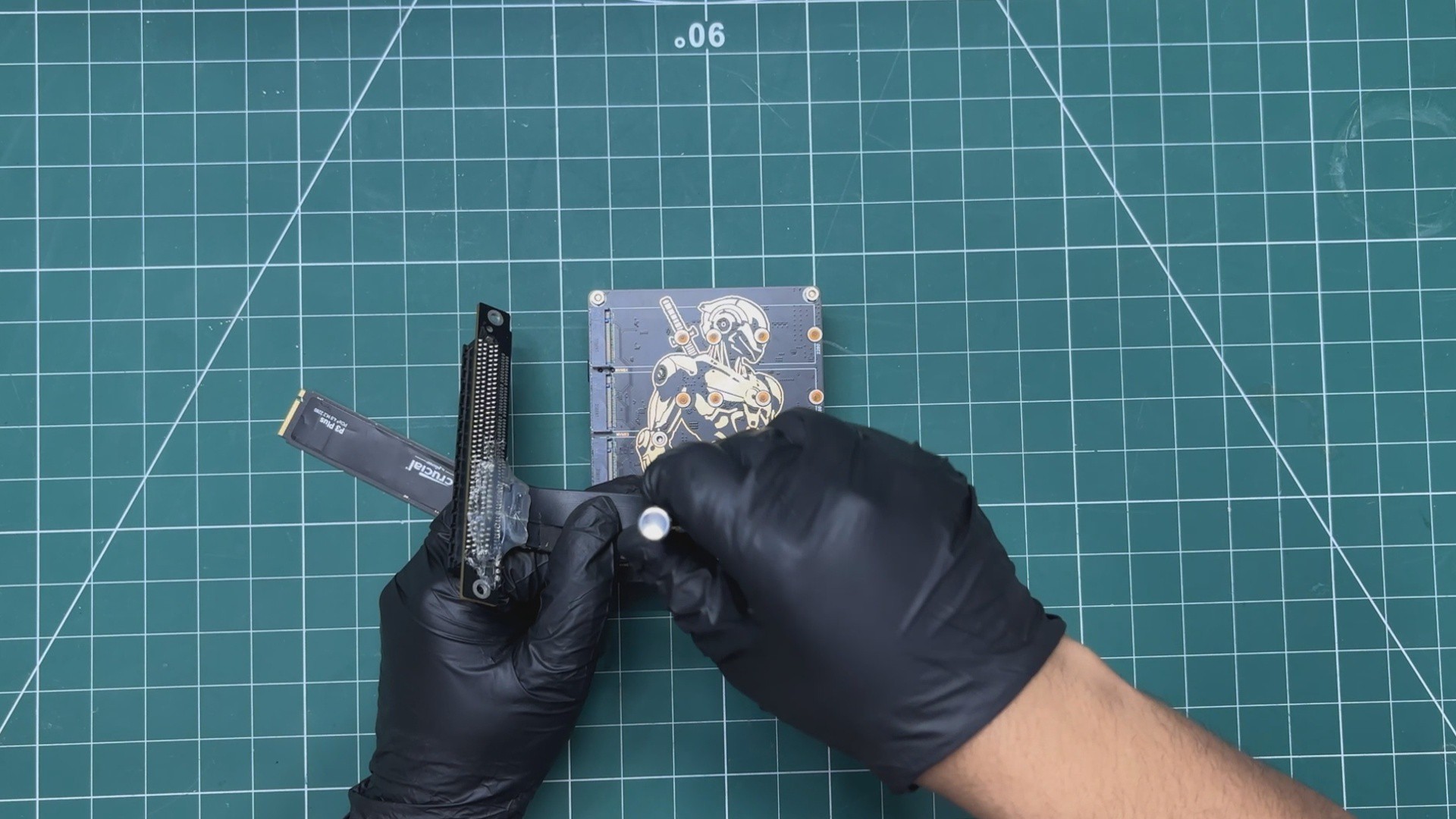
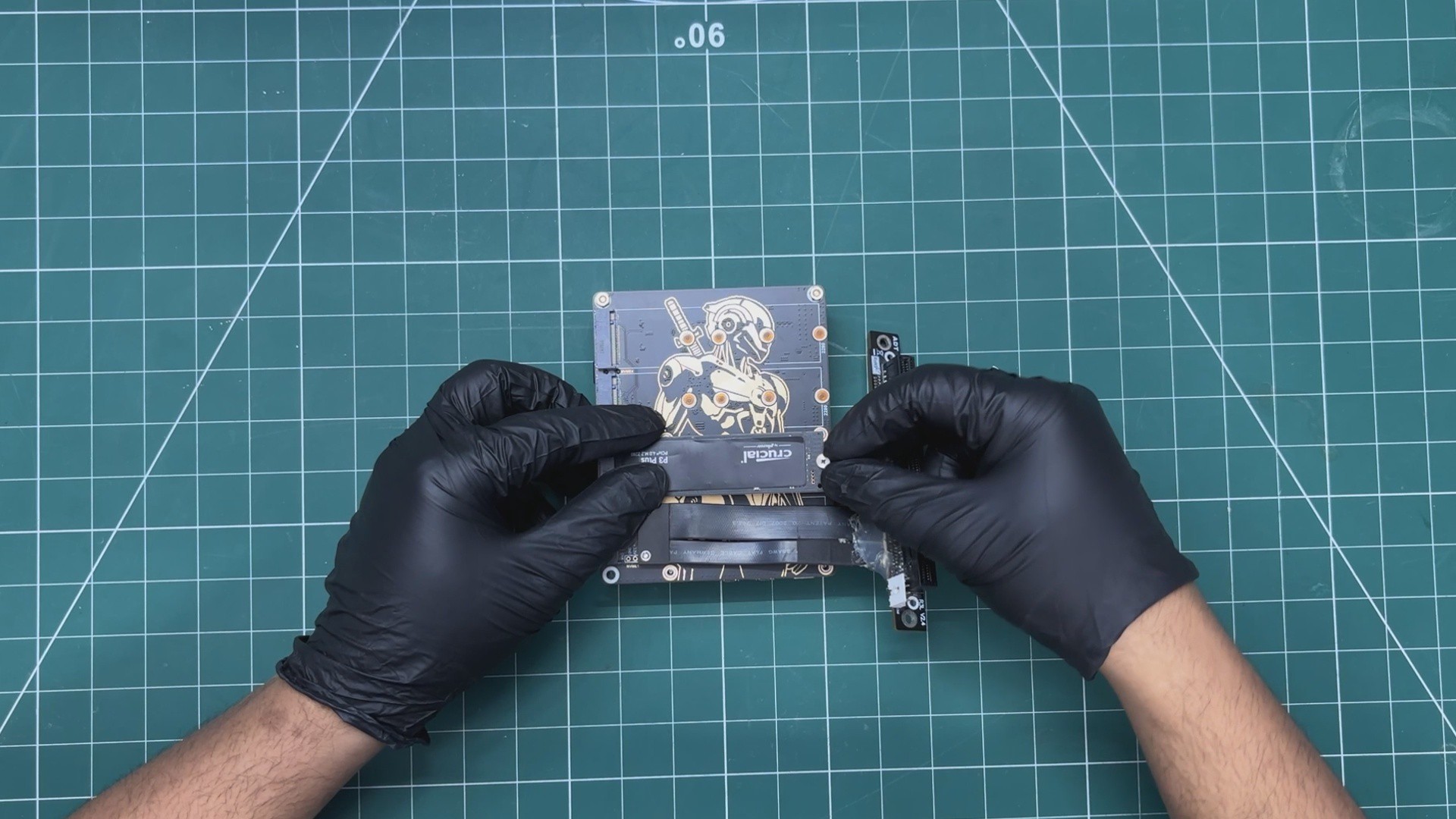
    • After flipping the Raspberry Pi 5 and Waveshare expansion board assembly over, we connected the ADT-Link M.2 NVMe-to-PCIe x16 adapter to the first M.2 slot on the Waveshare board.
    • In the second M.2 slot, we installed our Crucial P3 NVMe SSD, which serves as the system drive.
    • The PCB standoffs that we installed earlier now act as support legs for the entire assembly, keeping the Raspberry Pi and Waveshare board elevated above the surface and preventing the components on the underside from touching the ground.
  • 3
    RASPBERRY PI & GPU SETUP

    Out of the box, the Raspberry Pi 5 does not provide plug-and-play support for AMD graphics cards. To make the Sapphire Pulse Radeon RX 6500 XT work, I installed the required AMD firmware packages and used rpi-update to flash a custom kernel build that includes the necessary patches and driver support for external GPUs.

    Before making any system-level changes, the first step was to ensure that the operating system was fully up to date.

    sudo apt updatesudo apt upgrade -y

    Next, we installed the AMD firmware packages and then rebooted the system after the installation.

    sudo apt install -y firmware-amd-graphicssudo reboot

    After rebooting, we log back in and install the updated kernel version, which includes the AMD kernel module.

    sudo rpi-update pulls/7113

    This will update the Linux kernel to the one built off the PR branch. It enables AMD GPU support on both the BCM2711 used in the Pi 4 generation and the BCM2712 for the Pi 5.

    Before rebooting, we edited the config file /boot/firmware/config.txt file and added the following at the bottom.

    dtparam=pciex1_gen=3  # for faster PCIe Gen 3 speeds on Pi 5auto_initramfs=0  # to avoid 'weird boot mechanisms or file systems'

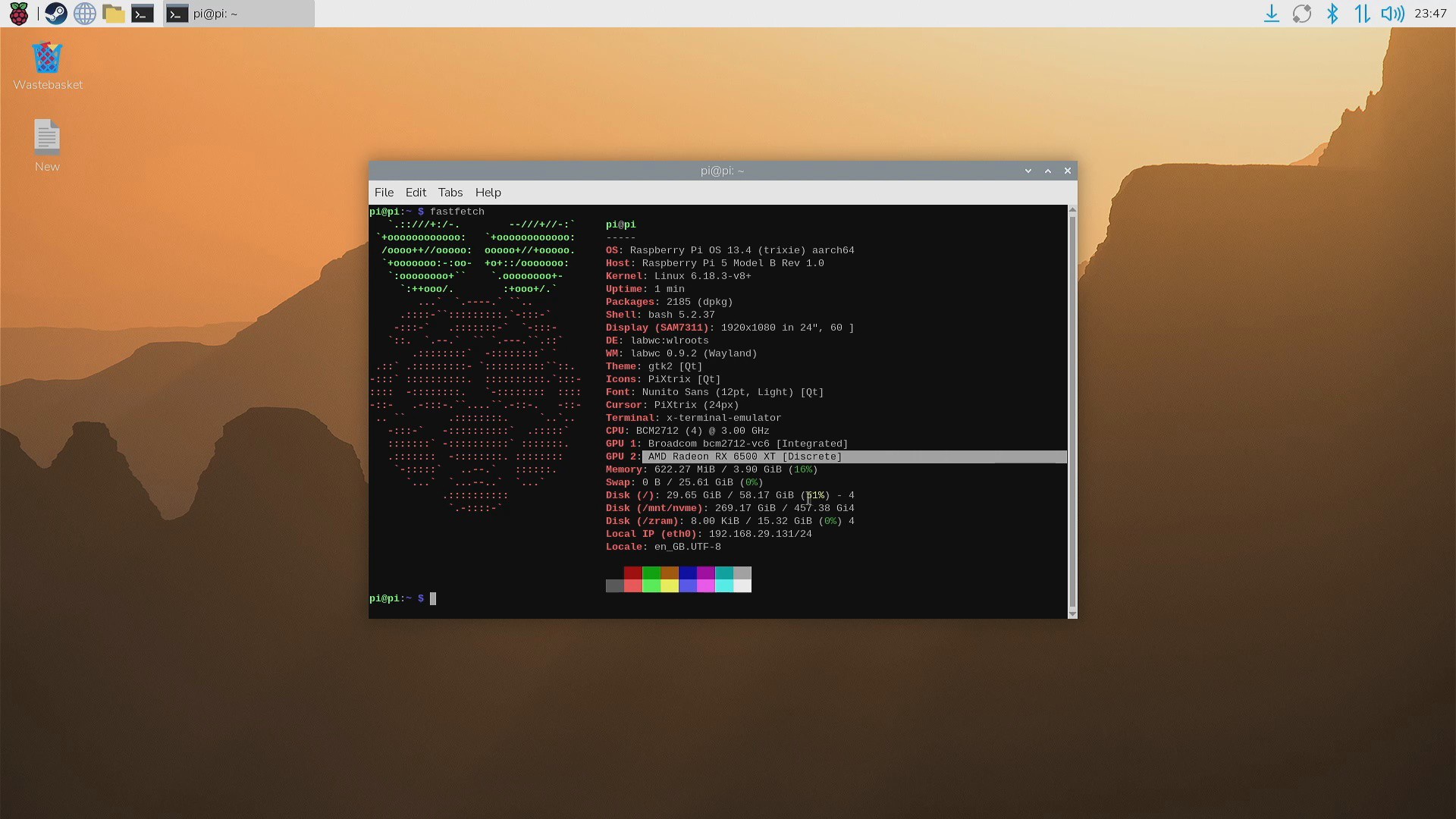
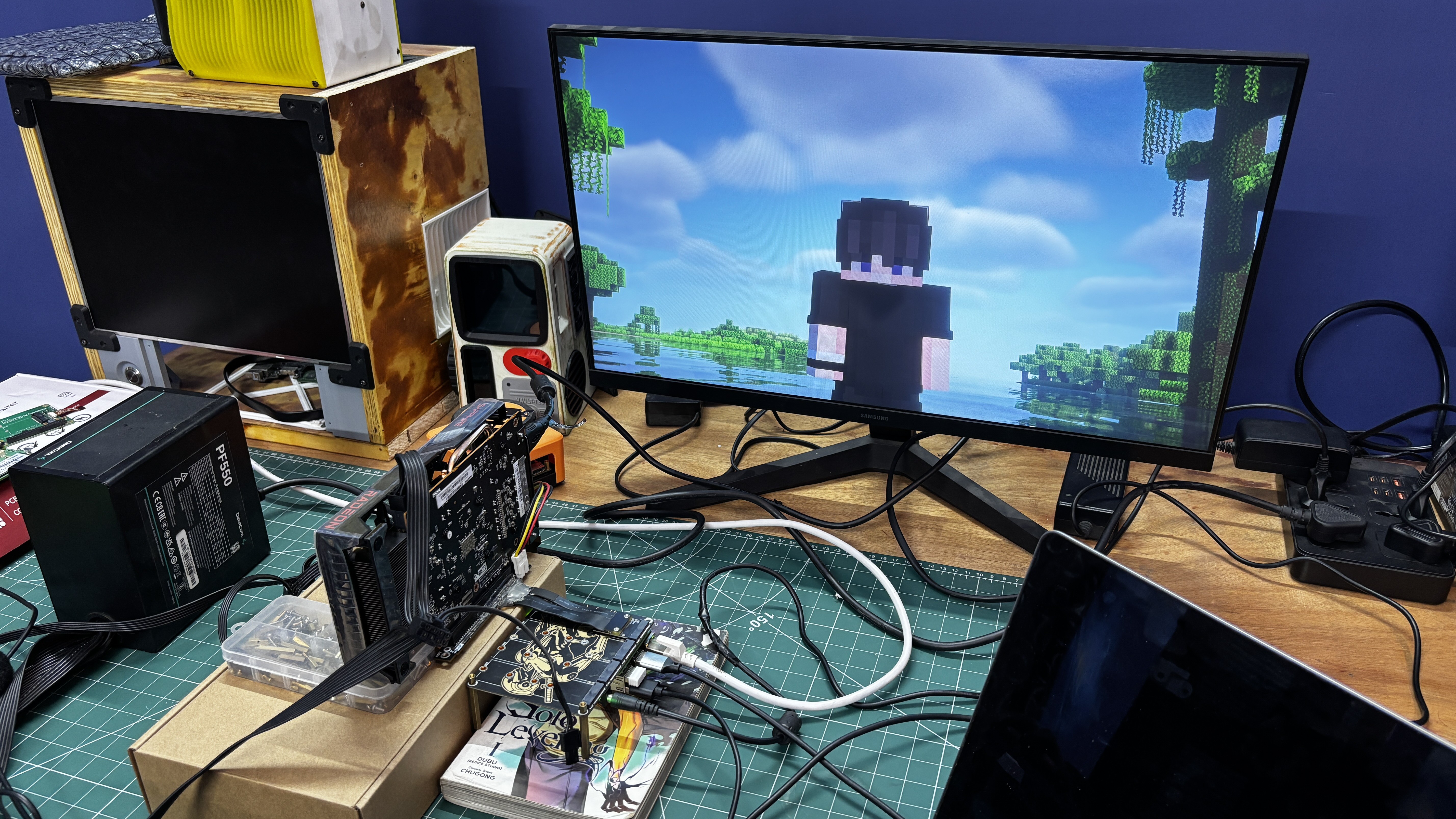
    Doing this allowed the Raspberry Pi 5 to work with our AMD Sapphire Pulse Radeon RX 6500 XT. We simply removed the HDMI cable from the Raspberry Pi’s onboard HDMI port and connected the monitor directly to the GPU, after which the setup started working.

    To verify that everything was functioning correctly, we installed Minecraft: Java Edition and ran it with BSL Shaders. The performance was incredibly smooth and did not feel like we were playing on a Raspberry Pi.

    Minecraft can run on the Pi without a dedicated GPU, but shader packs are generally too demanding for the onboard graphics. With our external GPU setup, however, the game ran smoothly even with BSL Shaders enabled.

View all 17 instructions

Enjoy this project?

Share

Discussions

Does this project spark your interest?

Become a member to follow this project and never miss any updates