Close
0%
0%

Narsil - LOTR

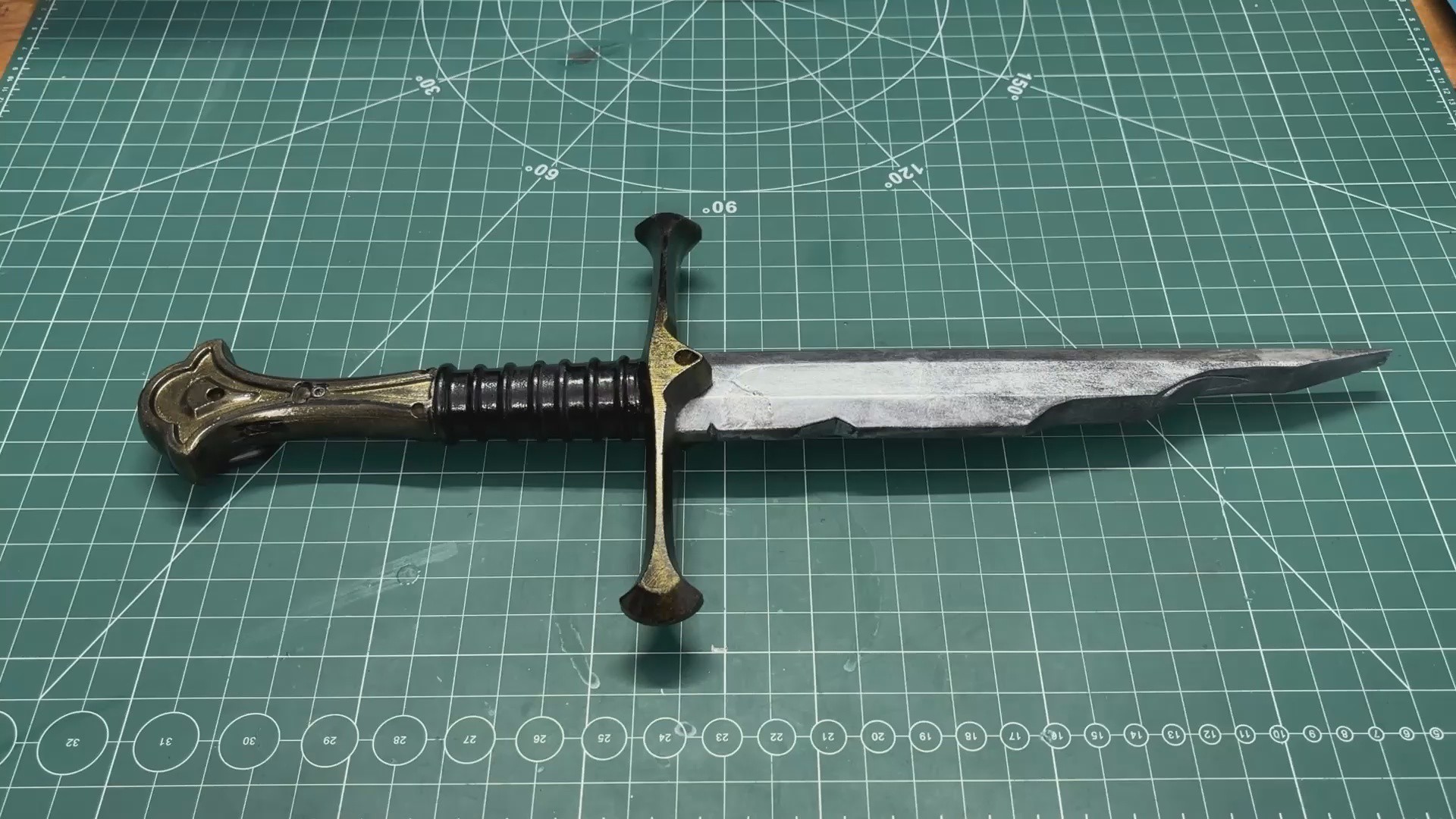
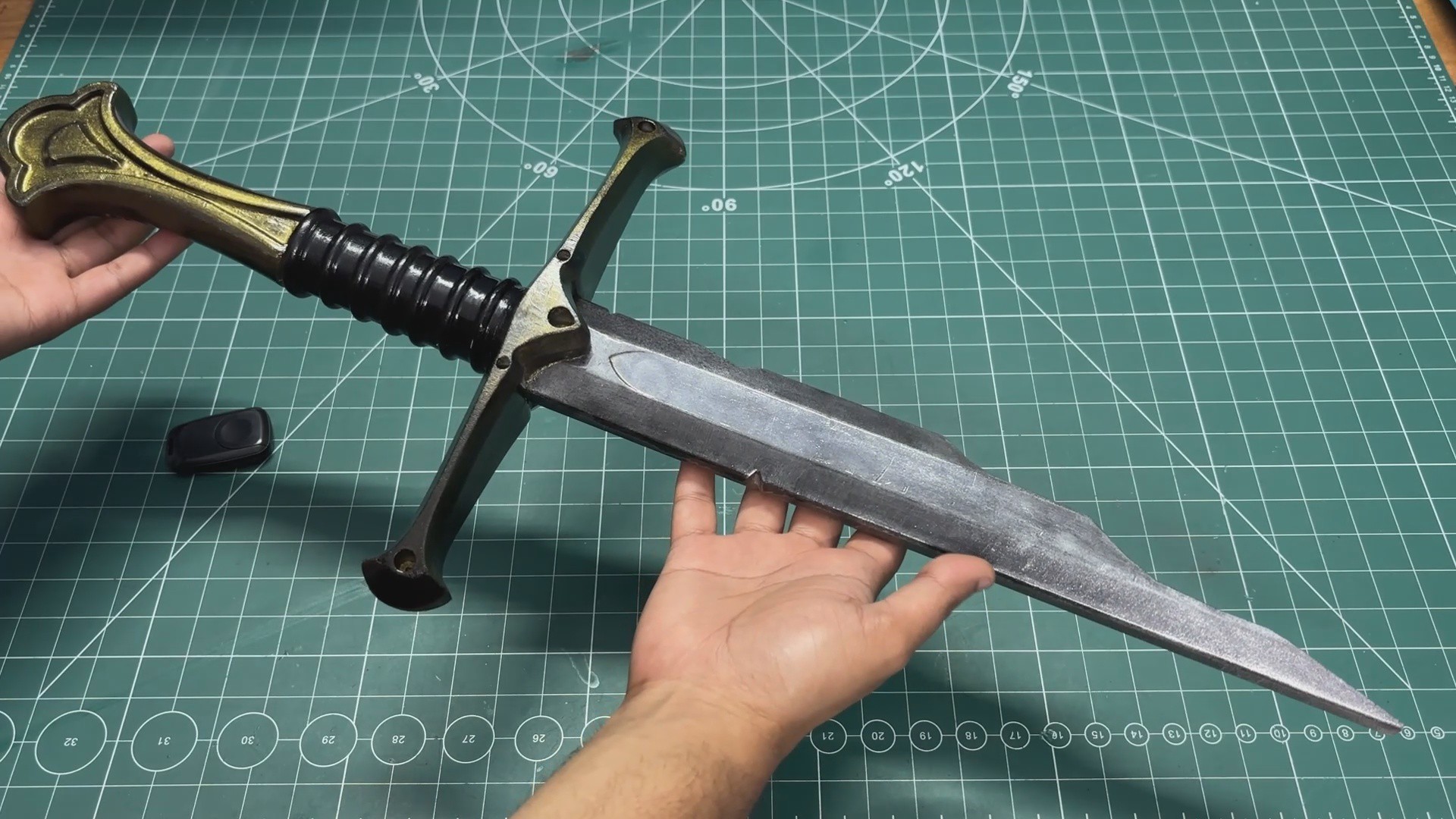
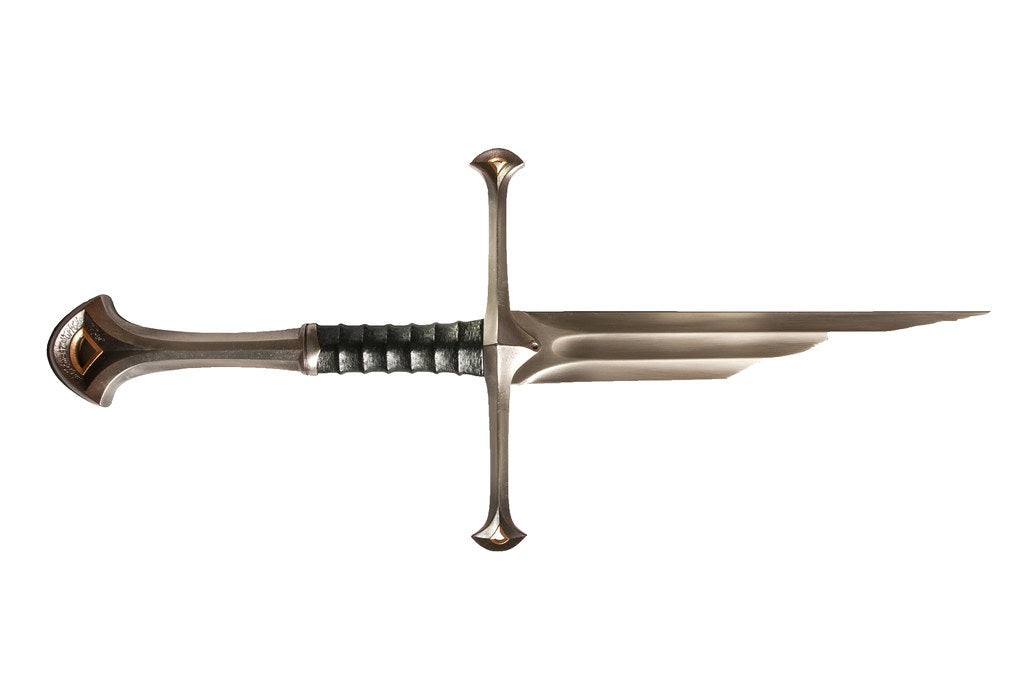
Replica of Broken Narsil sword from LOTR, equipped with electronics.

Similar projects worth following
0 followers
Greetings, everyone, and welcome back!

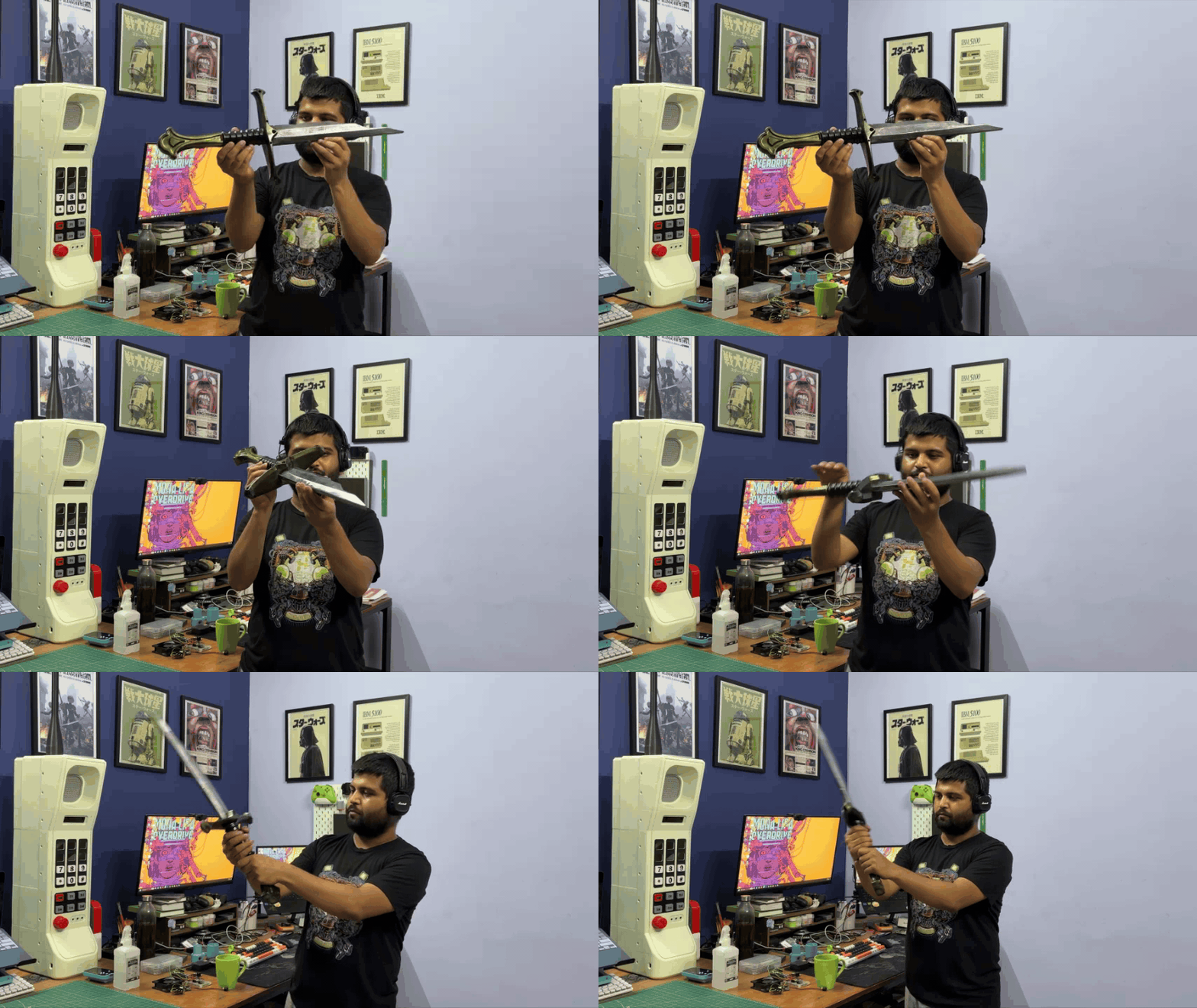
Today, I've got something strange but totally awesome to show you: Narsil, the legendary sword from The Lord of the Rings, except this one is 3D-printed, packed with electronics, and actually reacts when you swing it!

As a massive fan of the fantasy genre, I have always wanted a legendary artifact to hang on my room wall. But a static display piece just wasn’t enough. I like building things that react, interact, and feel alive.

So, I created an exact, 1:1 replica of Narsil from The Lord of the Rings and engineered a custom circuit inside the hilt to give it actual presence.

When you power this sword on, it immediately begins playing the epic Aragorn theme. But the best part is the motion sensing: when you pick it up and swing it, the blade detects the motion and blasts heavy, metallic slash and clash sound effects.

To make the sword interactive without ruining its aesthetic, the entire circuit had to be compact enough to hide completely inside the pommel.

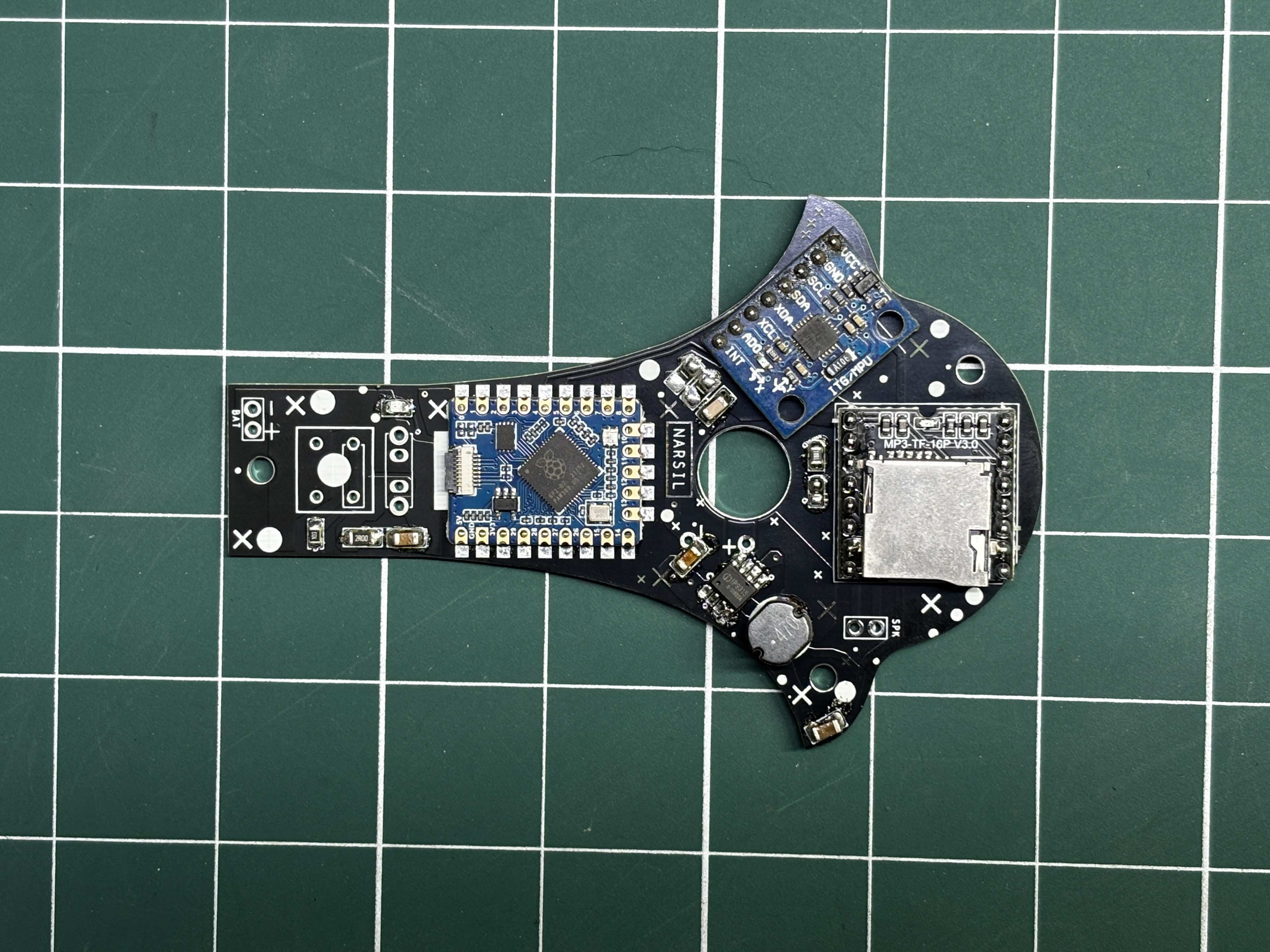
The brain of this project is the Waveshare RP2040-Tiny development board, which is paired with the DFPlayer Mini module. This reads the MP3 files from a MicroSD card and features a built-in amplifier to drive a small speaker hidden in the sword. For motion sensing, we have used the MPU6050 accelerometer and gyroscope. This tracks the physical orientation and G-forces acting on the sword in real time.

This article covers the complete build process of this project, so let's get started with the build.

NARSIL
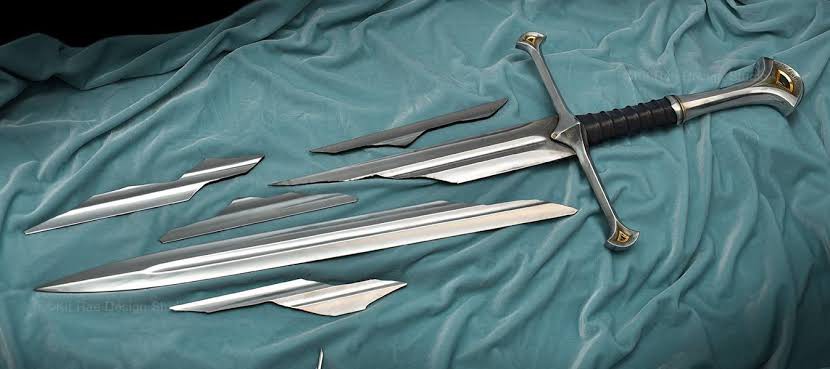
If you are familiar with LOTR, you know Narsil is one of the most famous weapons in fantasy history. Originally the sword of King Elendil, it was a symbol of the kingdom of Gondor.

During the War of the Last Alliance, Elendil fell in combat against Sauron, and Narsil shattered beneath him. His son, Isildur, took up the broken hilt and used the remaining jagged shard of the blade to slice the One Ring directly off Sauron’s hand, defeating the Dark Lord and ending the war. For thousands of years, the shards were kept as a treasured heirloom in Rivendell, symbolizing the broken line of kings, until they were eventually reforged into Andúril for Aragorn.

3D MODEL
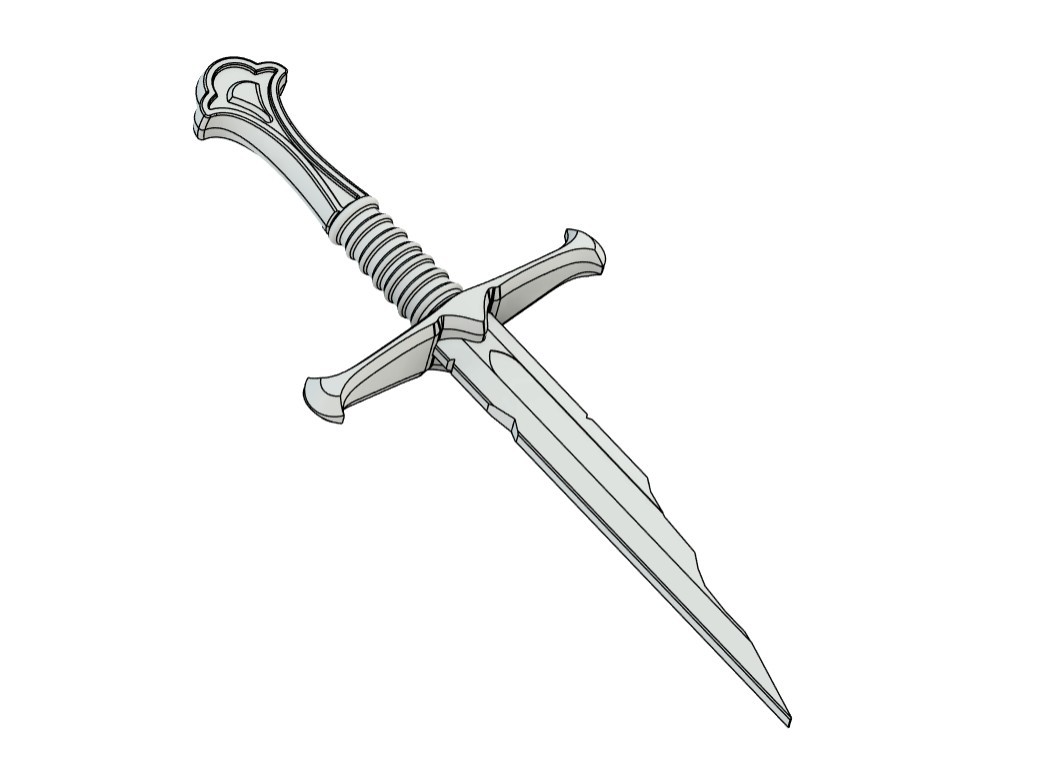
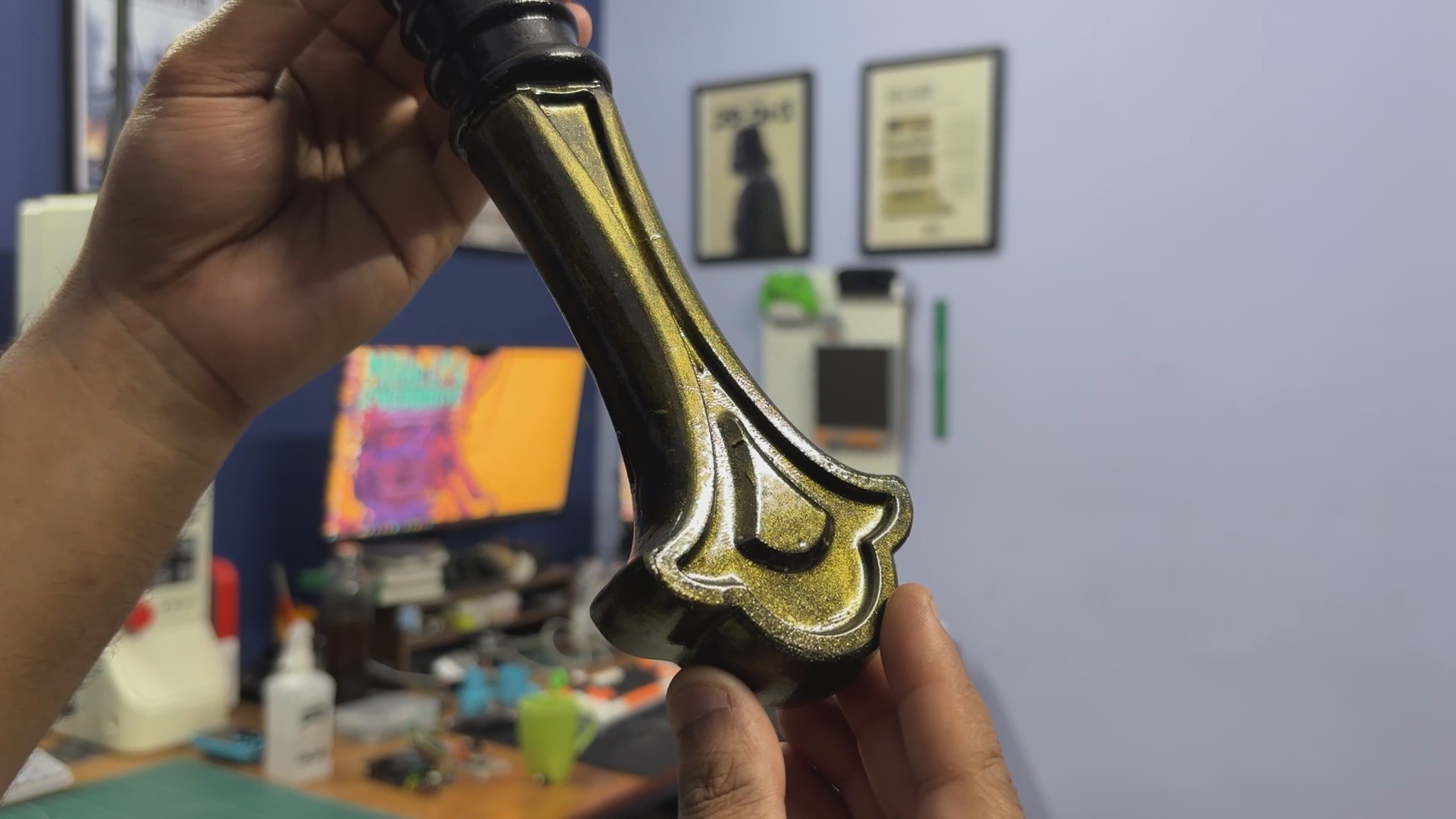
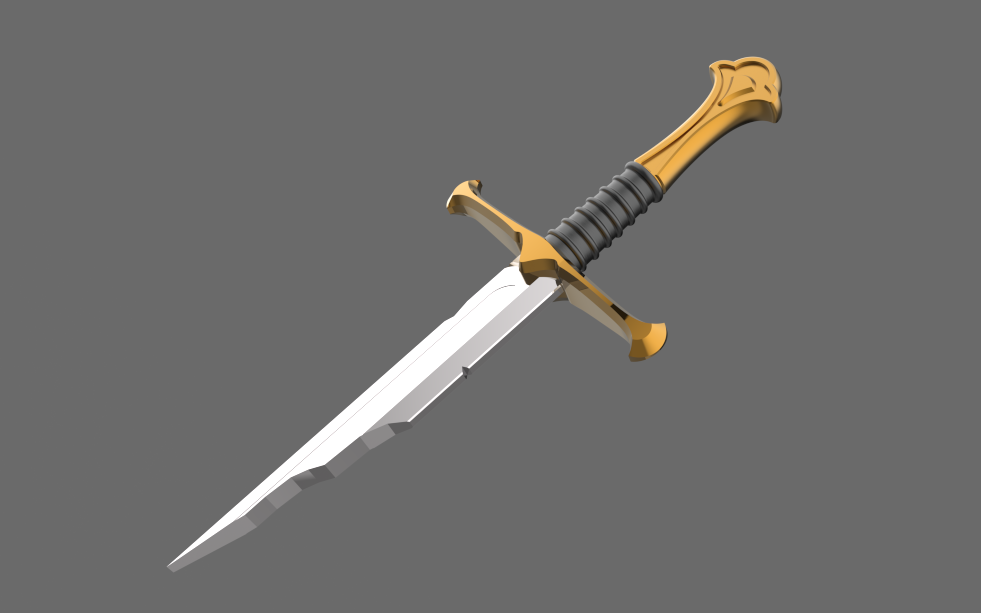
To create the 3D model of Narsil, I first searched for a front-view image of the sword and imported it into Fusion 360 using the Canvas feature. I then traced the image to recreate the overall shape of the sword, including the blade, fuller, crossguard, hilt, and pommel, while keeping the design as close to the original as possible.

I divided the model into three main sections to make the design and assembly easier. For the finer details, I referred to additional reference images and recreated the design elements directly in Fusion 360.

Since this isn't just a display piece but an interactive prop with electronics inside, I had to adjust the dimensions. The sword is slightly thicker than a regular sword to accommodate the internal electronics, with most of the circuitry housed inside the pommel.

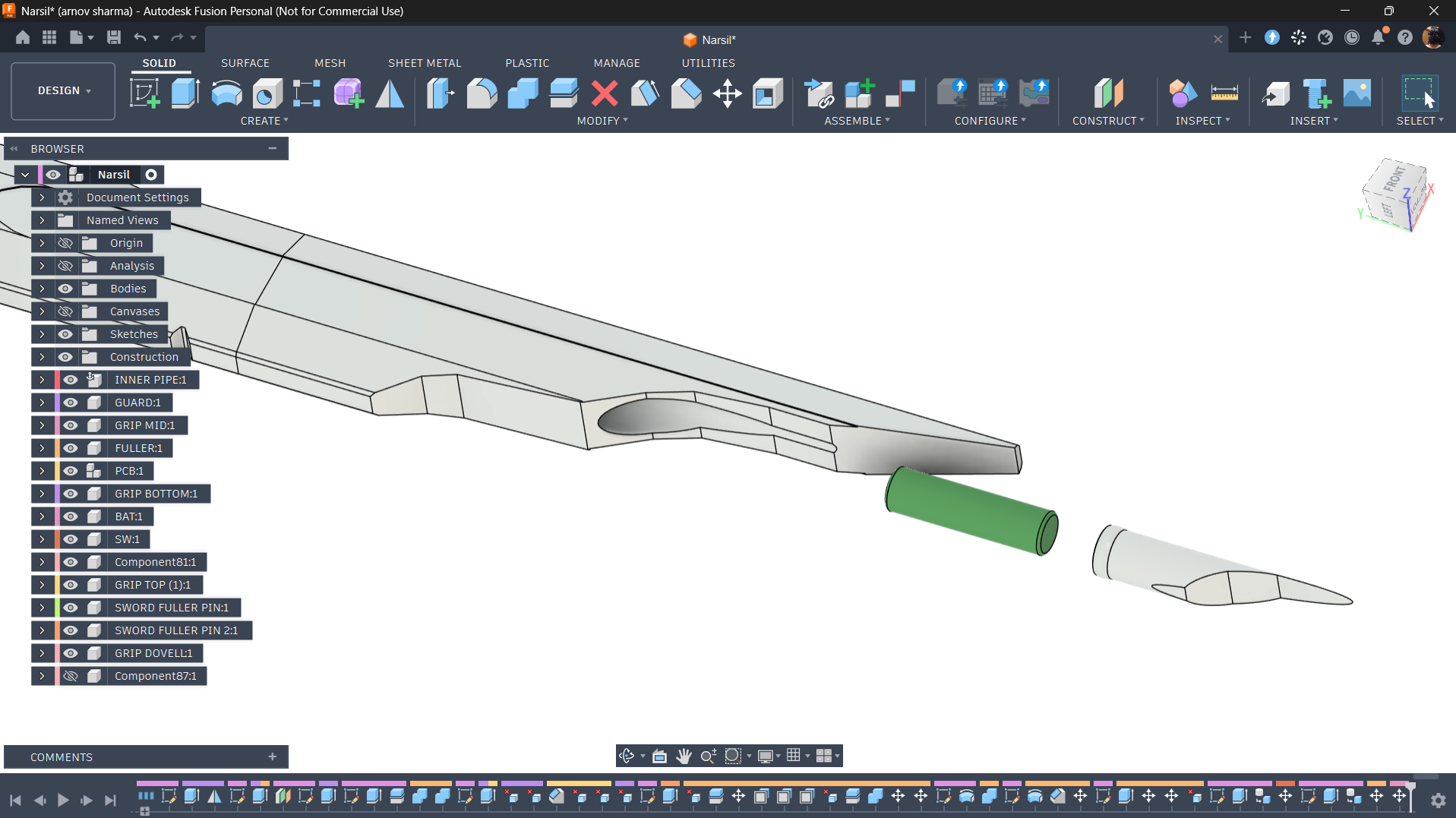
The battery was another challenge. I wanted to keep the electronics hidden without compromising the sword's appearance, so I decided to house the battery inside the fuller of the blade. I'm using a 14500 lithium-ion cell, which has a diameter of approximately 14 mm. Since the fuller section is roughly 16 mm thick, there was just enough space to fit the cell inside.

The main challenge was balancing the internal space required for the electronics with the original aesthetics of Narsil. I wanted the finished sword to look as close to the original design as possible, while still having enough room to bring it to life with the electronics.

FULLER ASSEMBLY
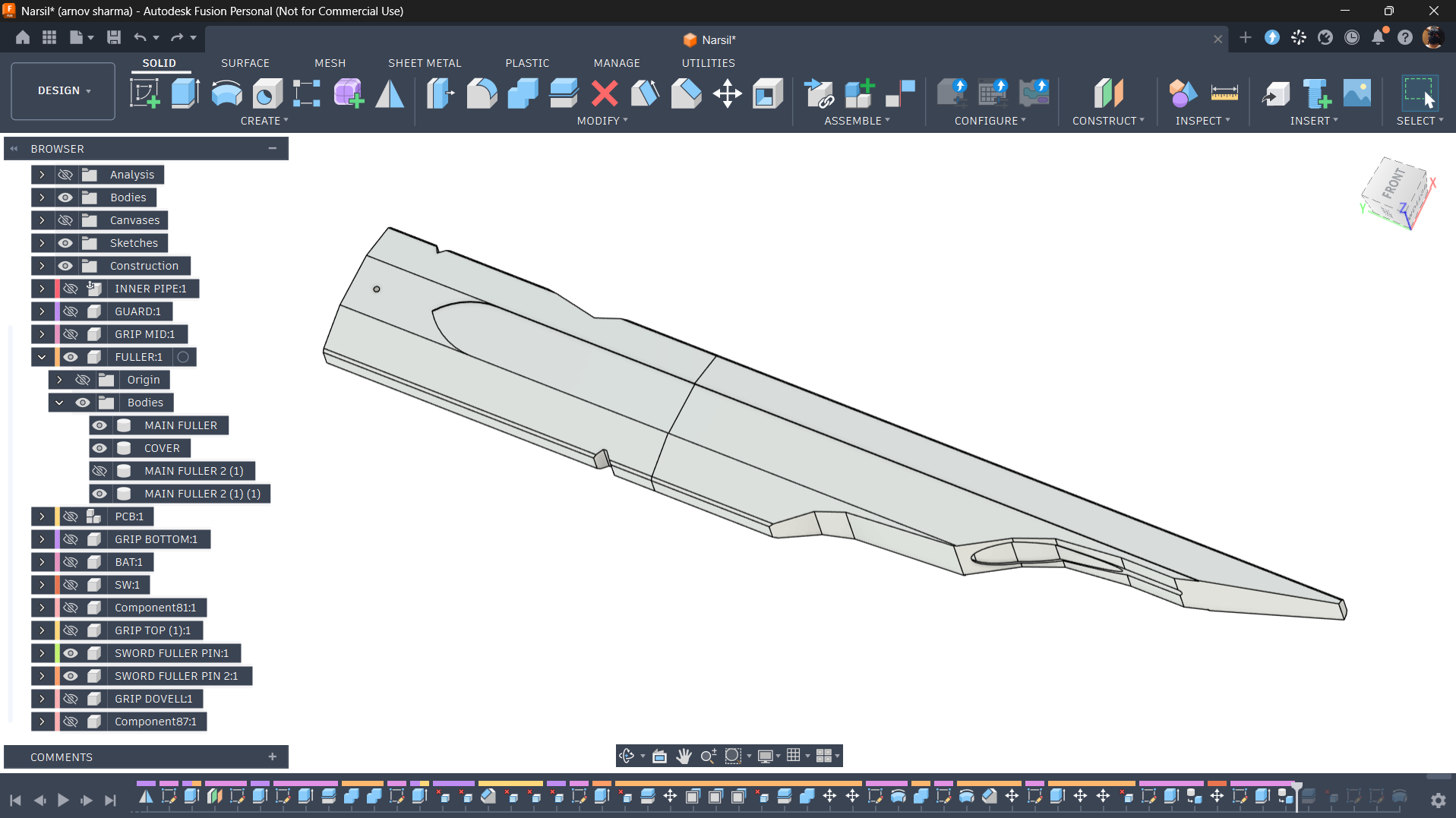
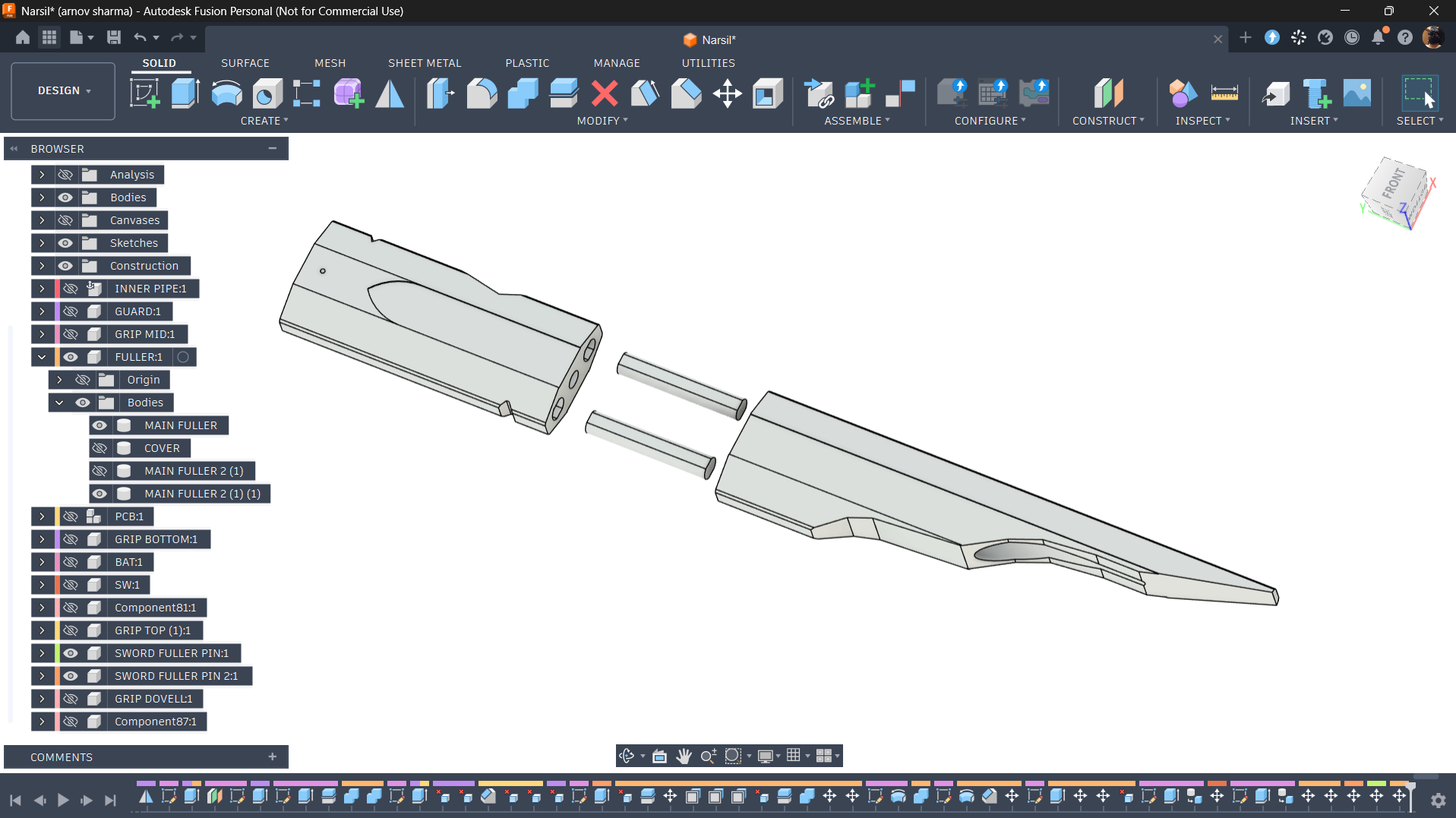
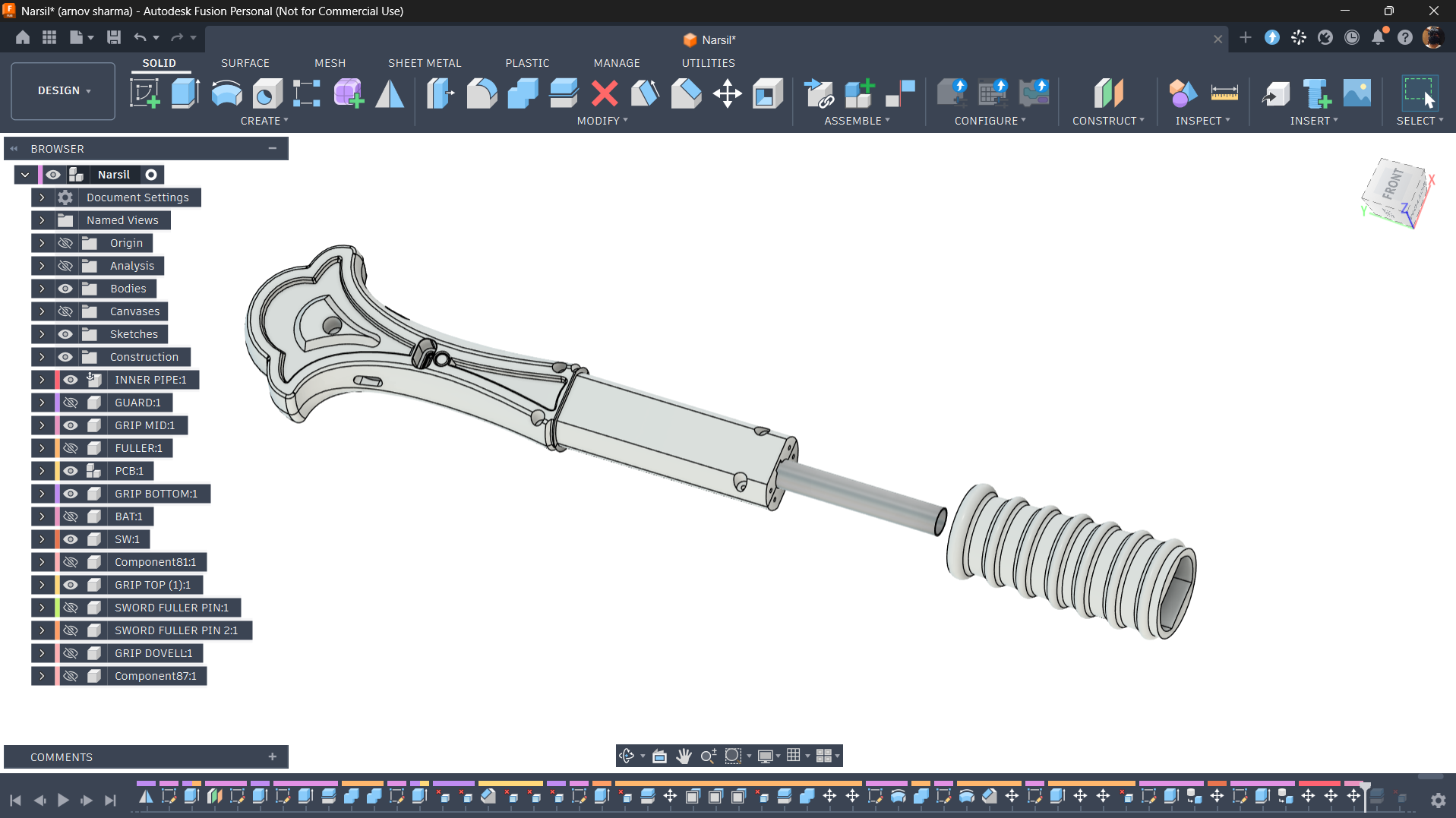
The fuller section of the sword is divided into two parts: the top and bottom sections, which are joined together using two dowel pins for alignment.

The top section houses the 14500 lithium-ion battery, keeping it completely hidden inside the blade. To accommodate the battery, I designed a cutout that can be accessed from the top. I also created a separate lid that fits over the opening to secure the battery in place. The battery wires pass through the fuller sections and connect to the electronics housed inside the hilt.

This arrangement keeps the battery neatly concealed while maintaining the sword's overall appearance without any visible battery compartment.

HANDLE ASSEMBLY
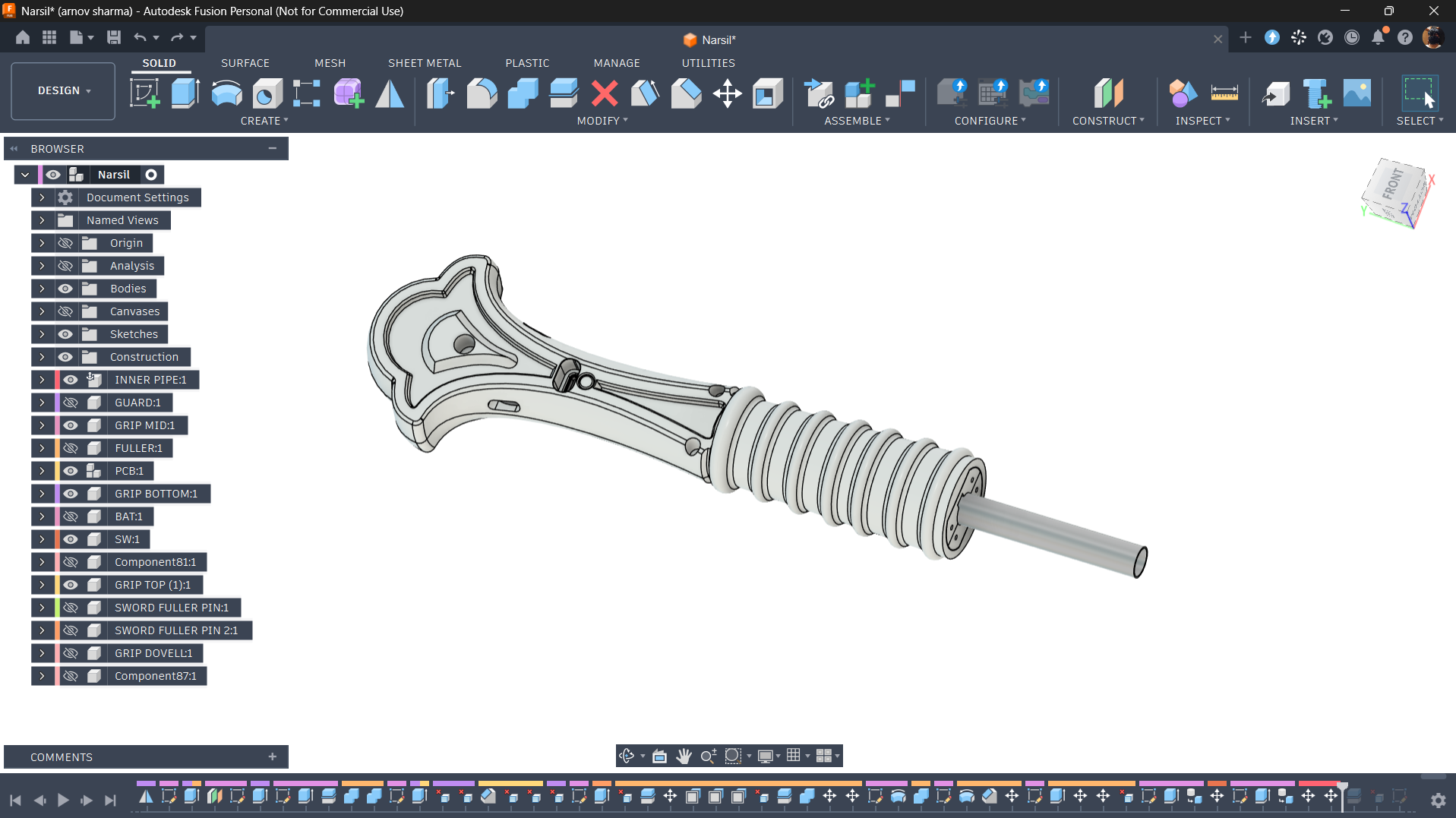
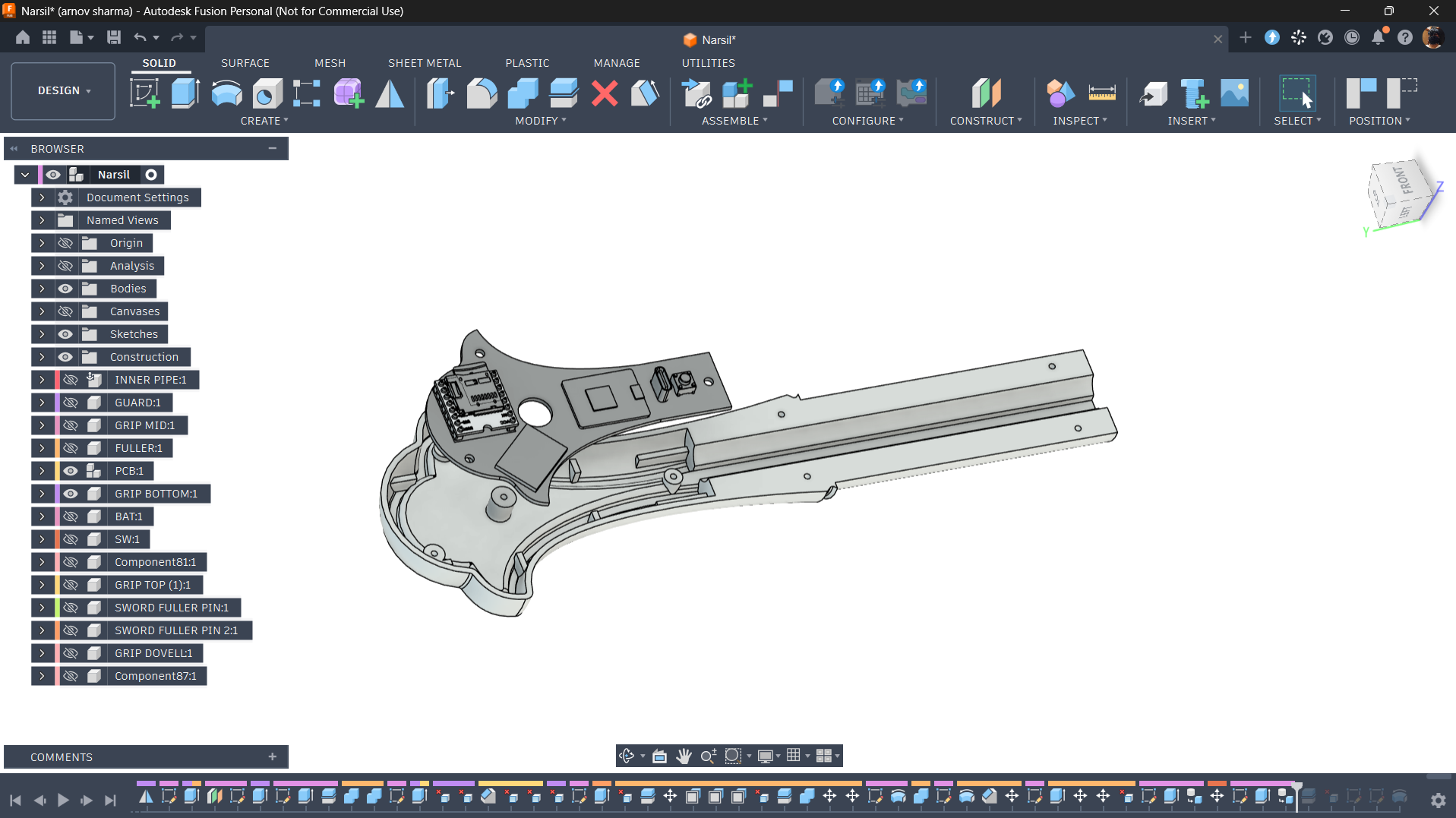
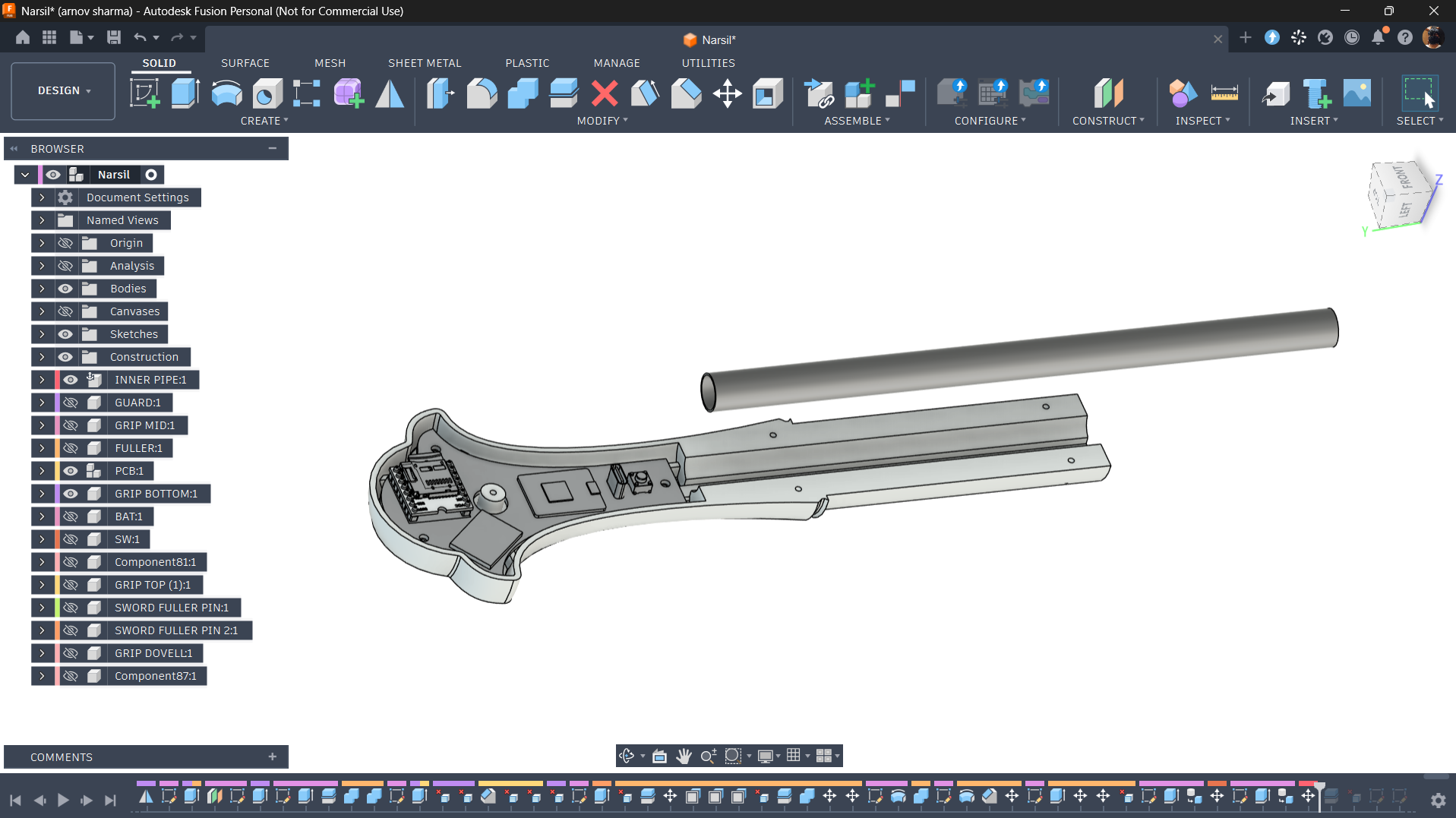
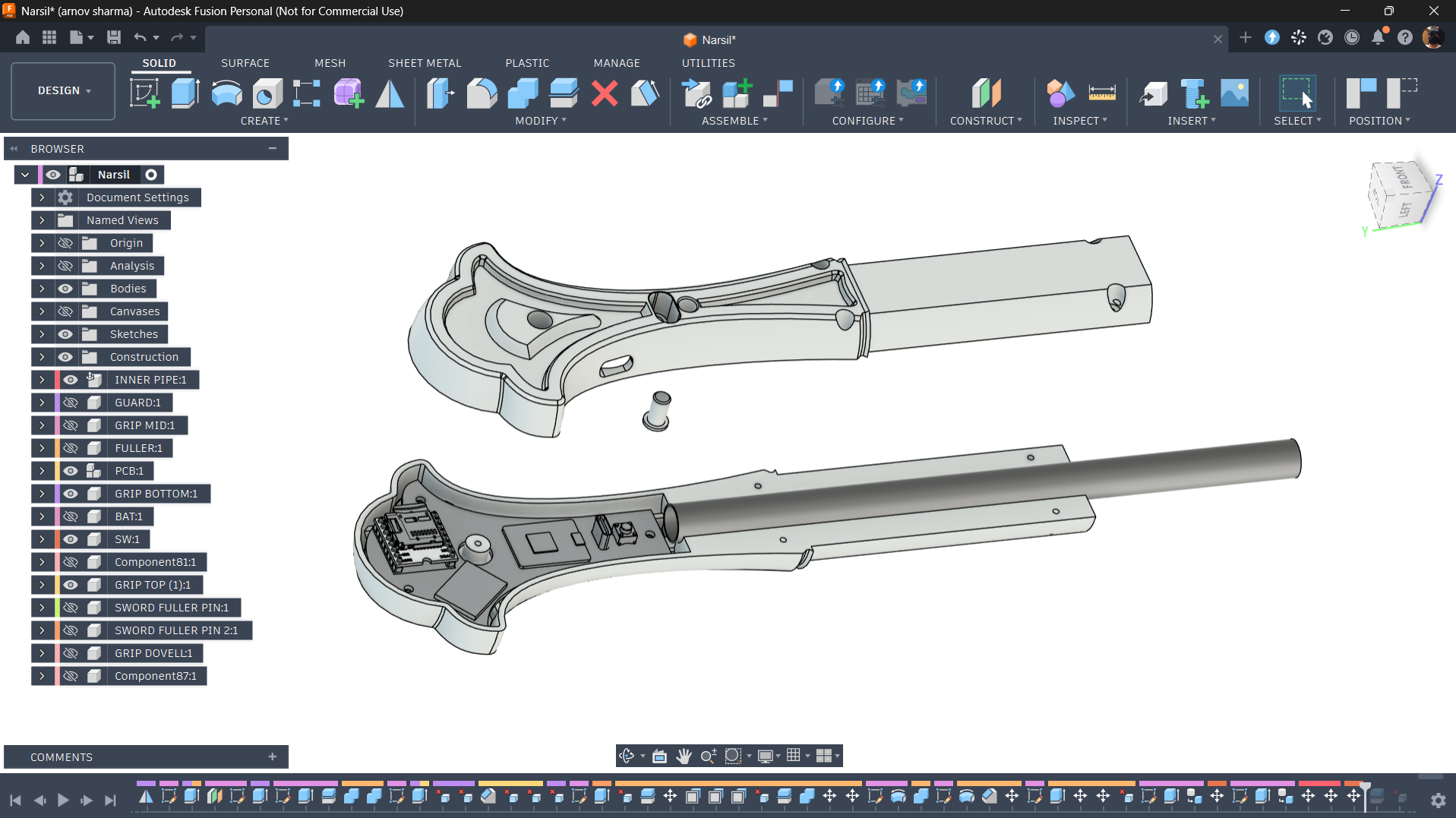
The handle section is divided into two halves, with the main circuit housed between them. I designed openings on one side to provide access to the USB Type-C charging port and the push-button switch, which is used to turn the circuit on and off.

For added structural integrity, I also incorporated a hollow metal pipe between the two halves. This pipe reinforces the handle, making the sword more rigid, while also serving as a passage for the battery wires...

Read more »
GRIP BOTTOM.stl

Standard Tesselated Geometry - 1.59 MB - 10/21/2026 at 05:46

Download

GRIP TOP (1).stl

Standard Tesselated Geometry - 1.49 MB - 10/21/2026 at 05:46

Download

GAURD2.stl

Standard Tesselated Geometry - 629.96 kB - 10/21/2026 at 05:46

Download

GRIP MID.stl

Standard Tesselated Geometry - 3.08 MB - 10/21/2026 at 05:46

Download

GAURD1.stl

Standard Tesselated Geometry - 575.86 kB - 10/21/2026 at 05:46

Download

View all 13 files

  • 1
    CIRCUIT ASSEMBLY
    • The assembly process begins with applying solder paste to the pads of each SMD component using a solder paste dispenser syringe. I'm using SnPb 63/37 solder paste for this build.
    • Next, using ESD tweezers, I carefully pick and place each SMD component in its designated position. This includes passive components such as resistors and capacitors, the IP5306 power management IC, and the Waveshare RP2040 Tiny board.
    • Once all the SMD components are in place, the PCB goes onto a reflow hotplate, which heats the board from below until the solder paste reaches its melting temperature. The solder paste melts and forms electrical and mechanical connections, securing the components to the PCB.

    TESTING THE BOARD

    Before moving on to the through-hole components, I wanted to make sure the board was working correctly.

    I connected a bench power supply set to 5V to the board's charging input. The LED on the IP5306 power management IC started blinking, indicating that the power management circuit was responding. The RP2040 also booted up and ran its default demo code, which cycles through different RGB LED colours.

    With the initial testing complete, it was time to move on to the through-hole assembly.

    • The next step was to place all the through-hole components, including the DFPlayer Mini, USB Type-C port, rocker switch, and MPU6050 module.
    • After positioning all the components, I flipped the PCB over and soldered their leads using a soldering iron.
    • Finally, I trimmed the excess leads from all the through-hole components. This is particularly important for this project because the PCB needs to fit inside the 3D-printed sword, where space is limited.
  • 2
    CIRCUIT TEST—DF MINI PLAYER
    #include "Arduino.h"
    #include "DFRobotDFPlayerMini.h"
    
    // Create the DFPlayer object
    DFRobotDFPlayerMini myDFPlayer;
    
    void setup() {
      // Initialize hardware serial for RP2040 on GP0 (TX) and GP1 (RX)
      Serial1.begin(9600);
      Serial.begin(115200);
      
      // Give the DFPlayer 2 seconds to boot and mount the SD card
      delay(2000); 
    
      Serial.println("Starting DFPlayer Mini...");
    
      // Initialize the DFPlayer and bind it to Serial1
      if (!myDFPlayer.begin(Serial1)) {
        Serial.println("DFPlayer error! Check RX/TX wiring.");
        while(true); // Stop here if it fails
      }
    
      Serial.println("DFPlayer Online.");
    
      // 1. Set volume (0 to 30) - Set to 20 for testing
      myDFPlayer.volume(20); 
      delay(500);
    
      // 2. Play Track 1 (The Slash - 0001.mp3)
      Serial.println("Playing Track 1...");
      myDFPlayer.play(1); 
      
      // 3. Wait exactly 2 seconds
      delay(2000); 
    
      // 4. Play Track 2 (Aragorn Theme - 0002.mp3)
      Serial.println("Playing Track 2...");
      myDFPlayer.play(2); 
      delay(500); // Give the chip a moment to load the new track
    
      // 5. Turn on looping for the theme
      Serial.println("Looping Track 2...");
      myDFPlayer.enableLoop(); 
    }
    
    void loop() {
      // Empty! The DFPlayer handles the audio looping completely on its own.
    }

    For this test, I used two MP3 files stored on the microSD card: 0001.mp3, which contains the metallic sword-clash sound effect, and 0002.mp3, which plays the Aragorn theme.

    The demo sketch initializes the DFPlayer Mini over UART using the RP2040 Tiny's Serial1 interface, sets the playback volume to 20 out of 30, and starts playing the first track. After two seconds, it switches to the second track and enables looping so the Aragorn theme continues playing.

    To test the setup, I connected power to the Waveshare RP2040 Tiny board. Once the DFPlayer Mini initialized and the SD card was ready, playback started automatically. This confirmed that the audio module, speaker, and serial communication were working correctly.

  • 3
    CIRCUIT TEST—MPU6050
    #include <Wire.h>
    #include <Adafruit_MPU6050.h>
    #include <Adafruit_Sensor.h>
    
    Adafruit_MPU6050 mpu;
    
    void setup() {
      Serial.begin(115200);
      
      // Initialize I2C on the RP2040-Tiny specific pins
      Wire.setSDA(4);
      Wire.setSCL(5);
      Wire.begin();
    
      Serial.println("Searching for MPU6050...");
    
      // Try to initialize the sensor
      if (!mpu.begin()) {
        Serial.println("Failed to find MPU6050 chip! Check GP4/GP5 wiring.");
        while (1) {
          delay(10); // Halt here if sensor isn't found
        }
      }
      
      Serial.println("MPU6050 Found!");
    
      // Set the accelerometer range to 8G (perfect for detecting sword swings)
      mpu.setAccelerometerRange(MPU6050_RANGE_8_G);
      
      // Print the legend for the Serial Plotter
      Serial.println("Accel_X,Accel_Y,Accel_Z,Total_Force");
    }
    
    void loop() {
      // Get fresh data from the sensor
      sensors_event_t a, g, temp;
      mpu.getEvent(&a, &g, &temp);
    
      // Read the individual axes (in m/s^2)
      float x = a.acceleration.x;
      float y = a.acceleration.y;
      float z = a.acceleration.z;
    
      // Calculate the total force magnitude (this is what we will use to trigger the woosh)
      float total_force = sqrt((x * x) + (y * y) + (z * z));
    
      // Print the data separated by commas for the Serial Plotter
      Serial.print(x);
      Serial.print(",");
      Serial.print(y);
      Serial.print(",");
      Serial.print(z);
      Serial.print(",");
      Serial.println(total_force);
    
      // A 20ms delay gives a smooth 50Hz graph on the plotter
      delay(20); 
    }

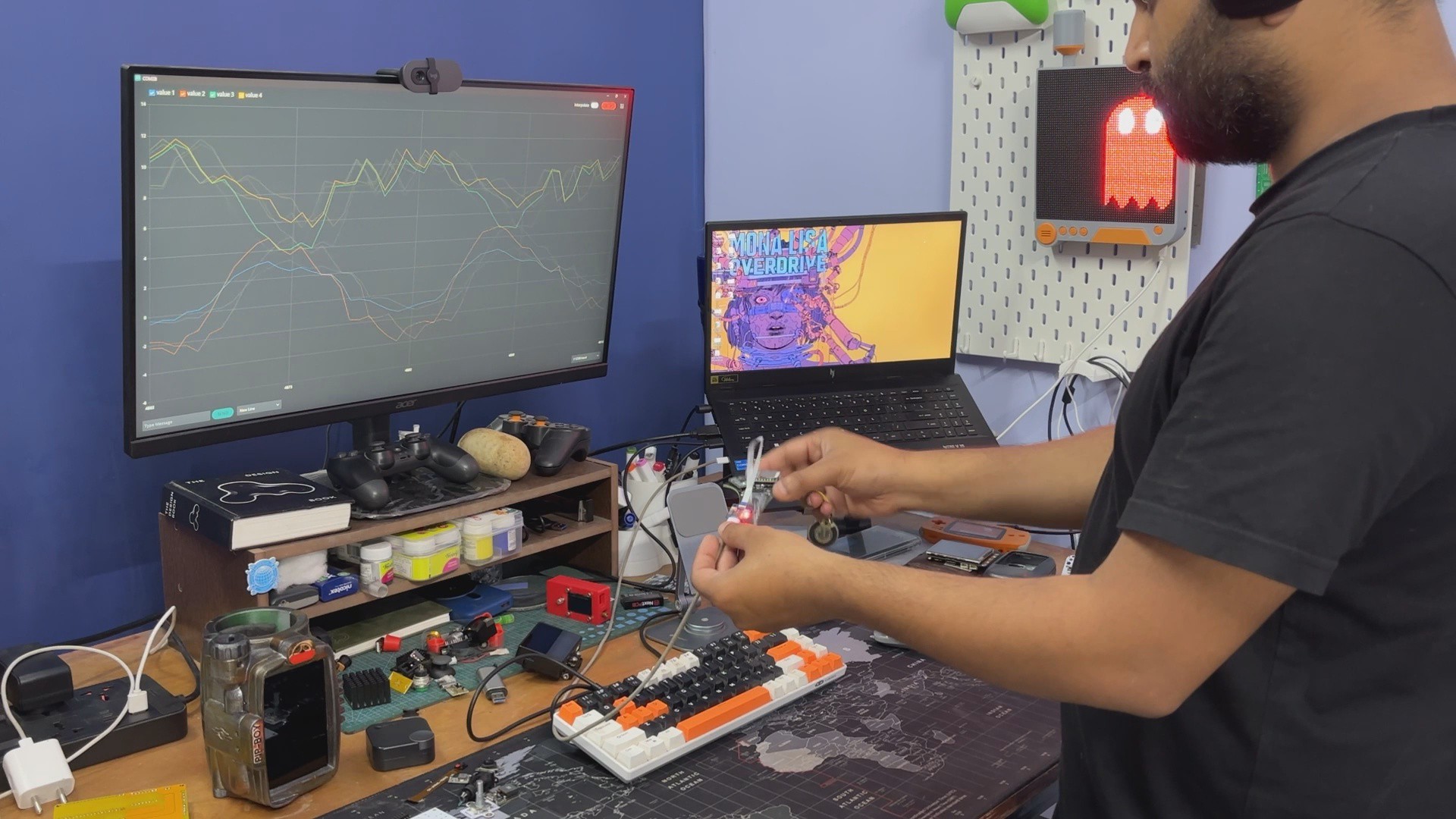
    We use the above demo sketch to test the MPU6050 accelerometer and gyroscope using the Waveshare RP2040 Tiny board.

    The code initializes the sensor over I²C using GPIO 4 (SDA) and GPIO 5 (SCL), then continuously reads acceleration data across the X, Y, and Z axes. It also calculates the total acceleration magnitude and sends all four values to the Arduino Serial Plotter at a sampling rate of approximately 50 Hz.

    By moving and swinging the circuit like a sword, I could observe how the acceleration values change in real time. This helped verify that the sensor was working correctly and gave me a better idea of how to detect sword swings for triggering the metallic sound effects.

    Once the sensor was verified, the next step was to use these readings to trigger different audio tracks through the DFPlayer Mini, depending on the intensity of the swing.

View all 20 instructions

Enjoy this project?

Share

Discussions

Similar Projects

Does this project spark your interest?

Become a member to follow this project and never miss any updates