Arnov Sharma

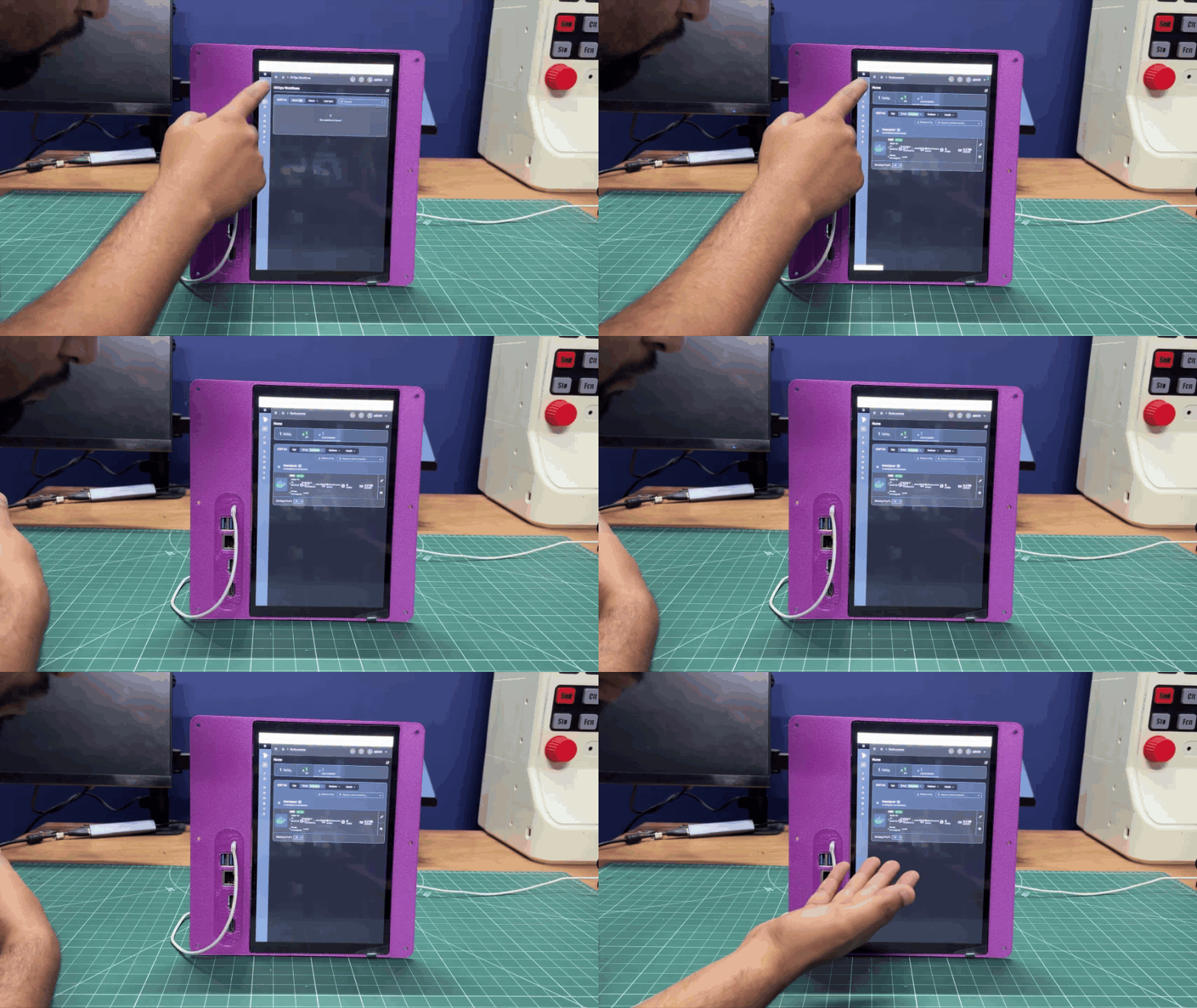
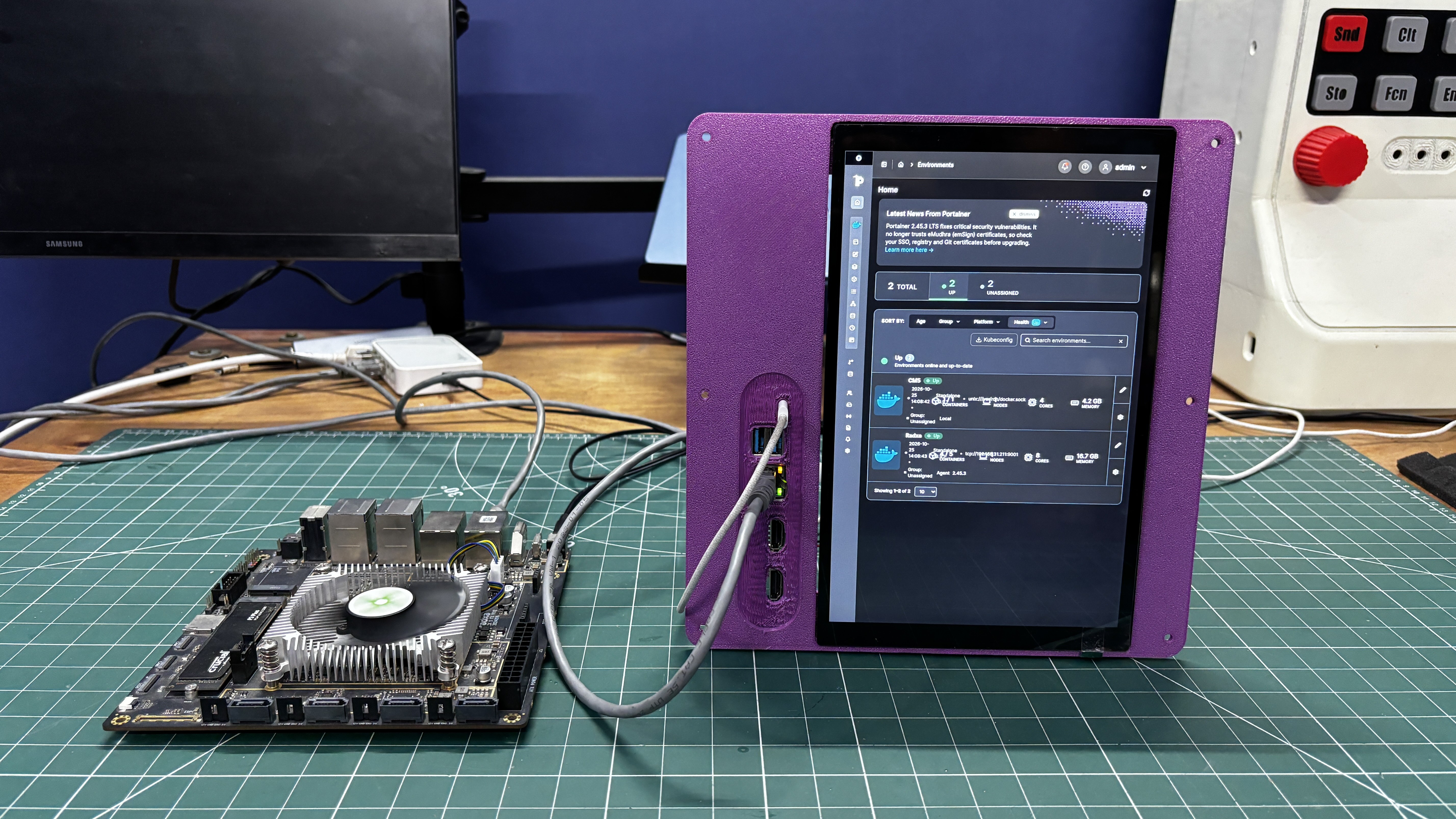
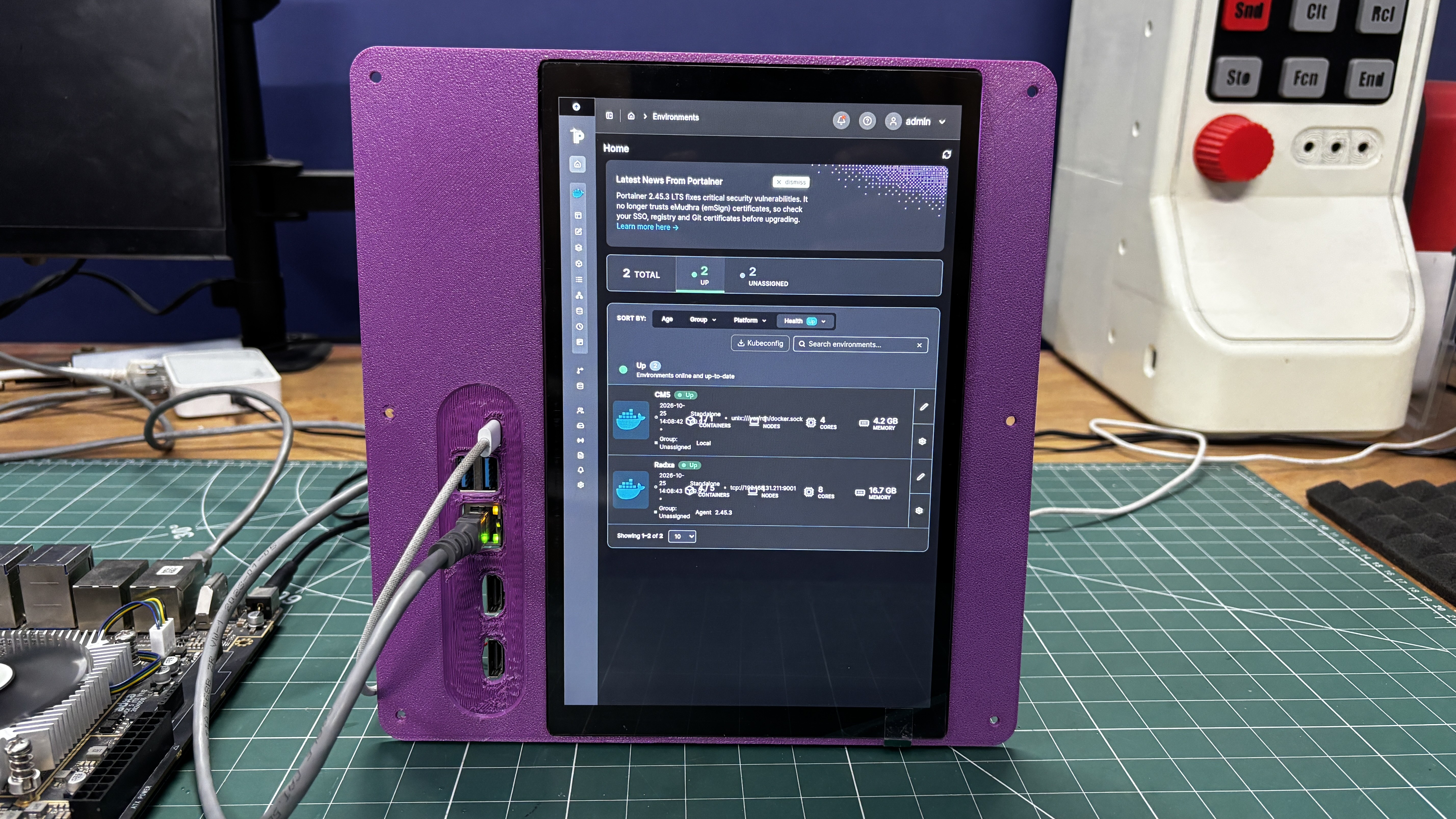
To make managing all these devices easier, I built ControlPi, a dedicated touchscreen control panel designed to monitor and manage my entire homelab from a single interface. Powered by a Raspberry Pi Compute Module 5 (CM5), ControlPi serves as the central dashboard for my collection of single-board computers, bringing device monitoring and Docker container management together in one place.
The software stack is built around Docker and Portainer Community Edition (CE). Docker provides the container runtime for running applications and services in isolated environments, making them easier to deploy, manage, and maintain. Portainer CE adds a web-based management interface that lets me monitor containers, inspect logs, manage application stacks, and control services without relying entirely on the command line.
By connecting additional Docker hosts through Portainer Agents, I can extend the management interface beyond the CM5 to compatible systems across my homelab. This allows me to manage containers running on devices such as the Radxa Rock 5 ITX, ZimaBoard 2, and other SBCs from a single dashboard.
The idea is simple: turn on ControlPi, and the dashboard is ready to go. I want to see the status of my connected devices, check system resources, monitor CPU temperatures, track memory and storage usage, and manage Docker containers without connecting a separate monitor and keyboard to every machine.
Managing multiple SBCs can quickly become a hassle, especially when each device runs different services and serves a different purpose. With ControlPi, I wanted to bring everything together into a single, dedicated touchscreen interface for monitoring system resources and managing Docker containers across my homelab.
In this article, I'll walk you through the complete build process of ControlPi, covering the hardware, software setup, Docker and Portainer configuration, and connecting additional SBCs to the system. So, without further ado, let's get started!
HARDWARE- RASPBERRY PI CM5
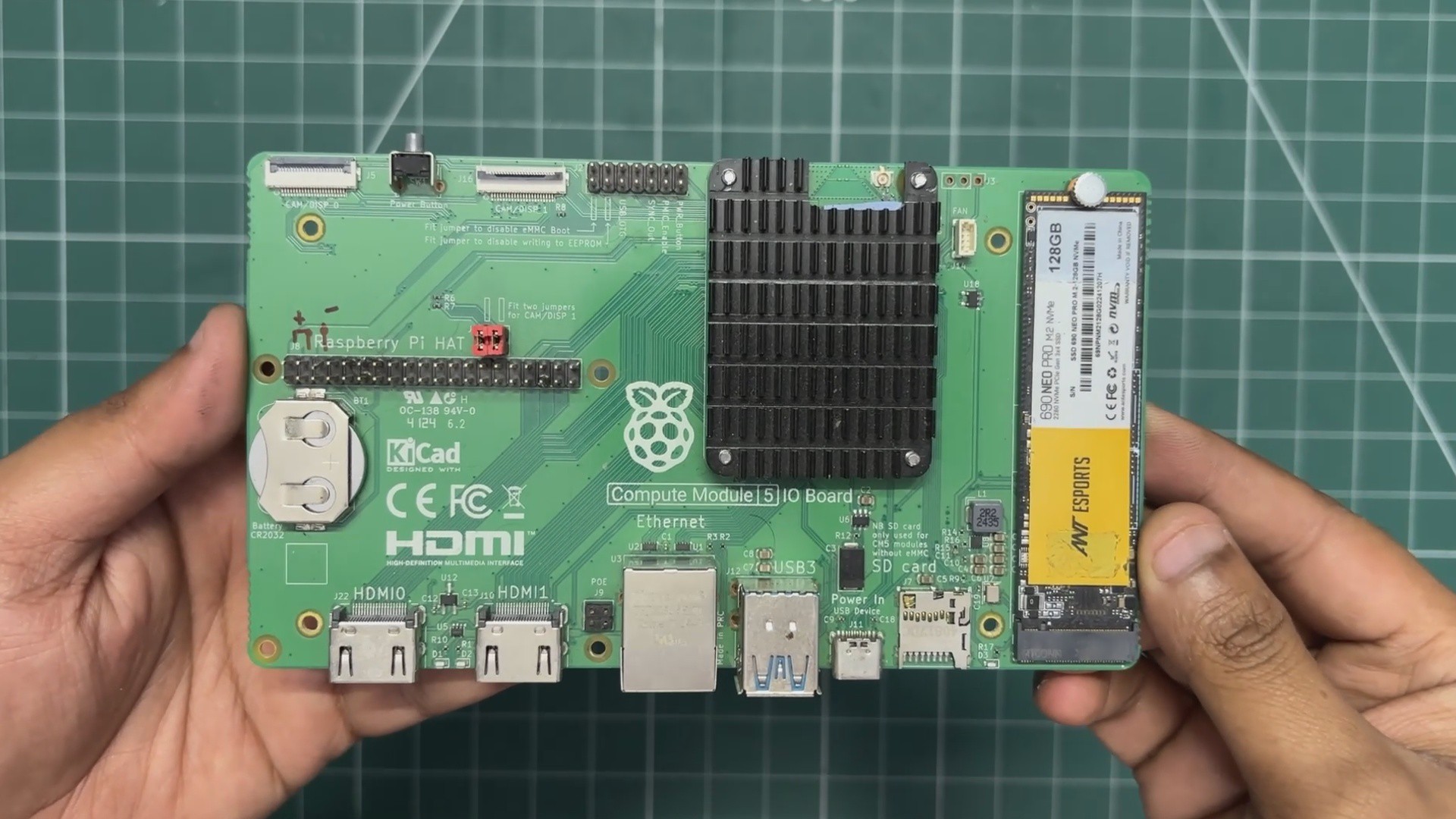
The brain of ControlPi is the Raspberry Pi Compute Module 5 (CM5), a compact, modular computing platform designed for embedded and industrial applications. It features the same Broadcom BCM2712 processor found in the Raspberry Pi 5, with a 64-bit quad-core Arm Cortex-A76 CPU running at 2.4 GHz, but in a more compact module form factor.
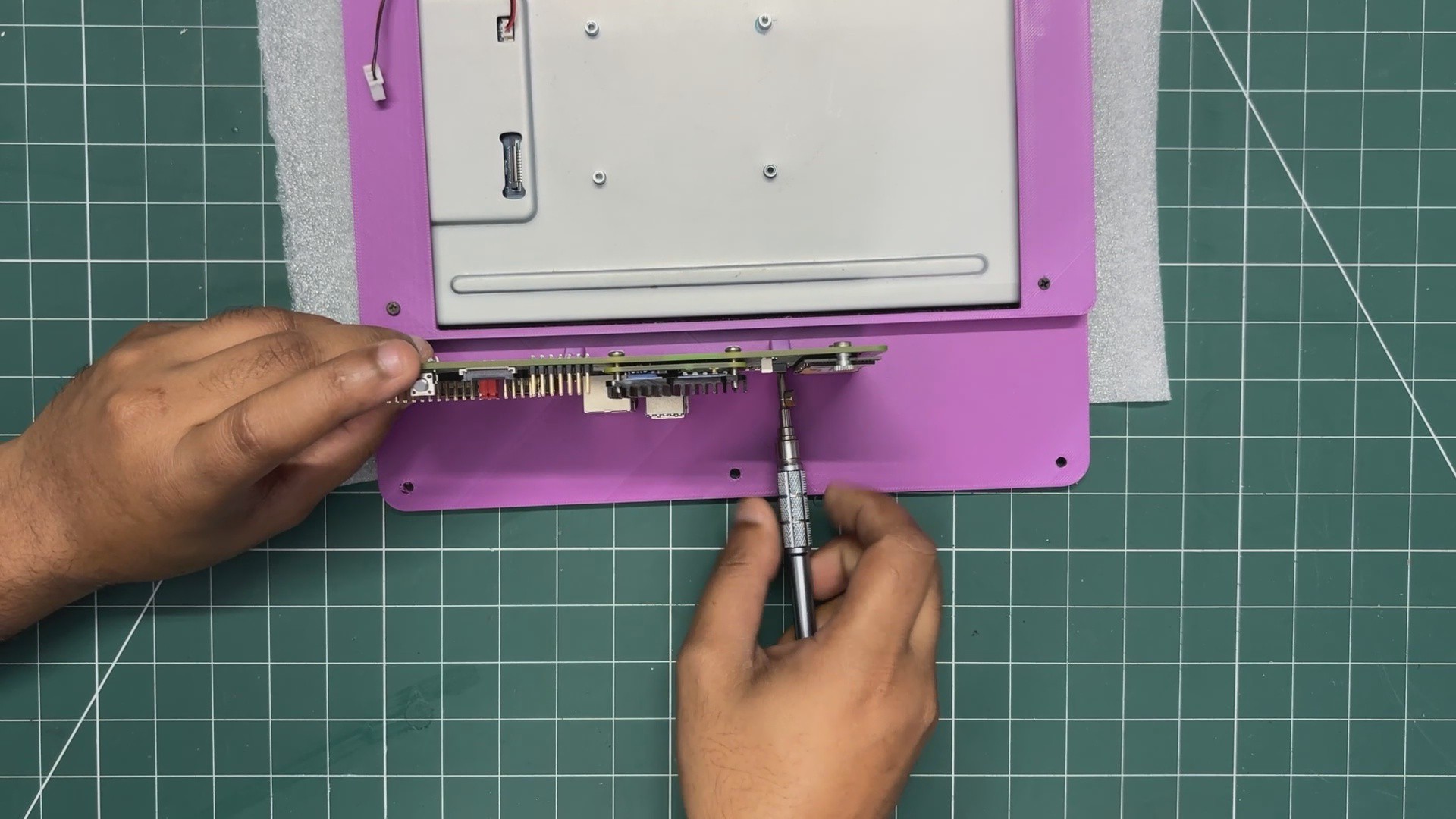
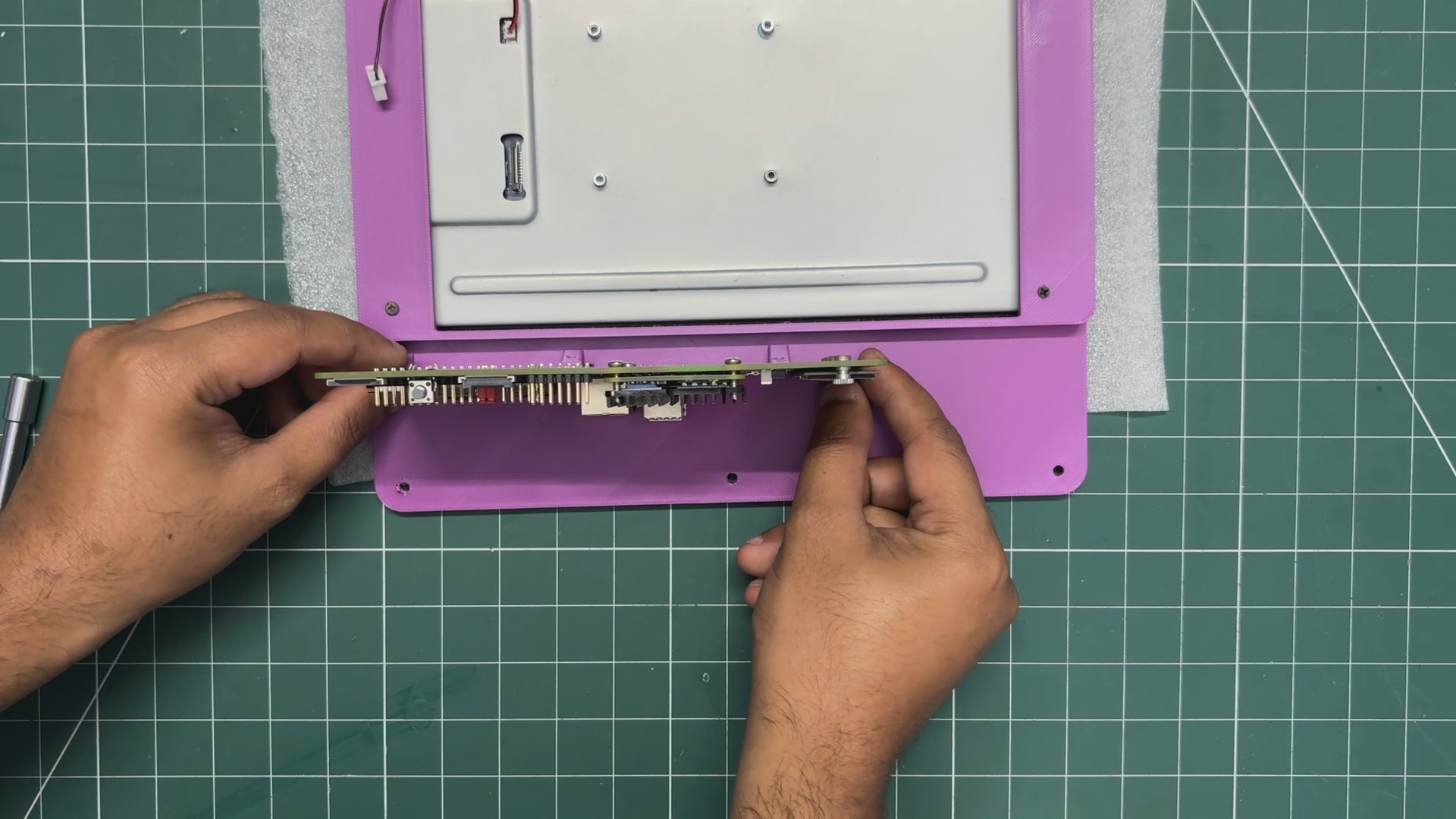
For this build, the CM5 is mounted on an evaluation board that provides access to essential connectivity options, including USB ports, Ethernet, dual HDMI outputs, GPIO headers, a microSD card slot, and an M.2 interface for connecting an NVMe SSD.
I'm using the 4GB RAM variant with 32GB of onboard eMMC storage.
For the operating system, I chose the latest Raspberry Pi OS based on Debian Trixie. Instead of running the OS from a microSD card, I installed it on an NVMe SSD for faster storage access and improved overall responsiveness.
I used Raspberry Pi Imager to flash the operating system onto the NVMe drive. To do this, I connected the SSD to my computer using an M.2-to-USB adapter and selected the appropriate OS image in Raspberry Pi Imager.
Once the flashing process was complete, I installed the NVMe SSD in the CM5 evaluation board and powered on the system. The CM5 successfully booted directly from the SSD, providing a fast and responsive foundation for ControlPi.
HARDWARE- WAVSHARE 10.1 INCH DSI SCREEN
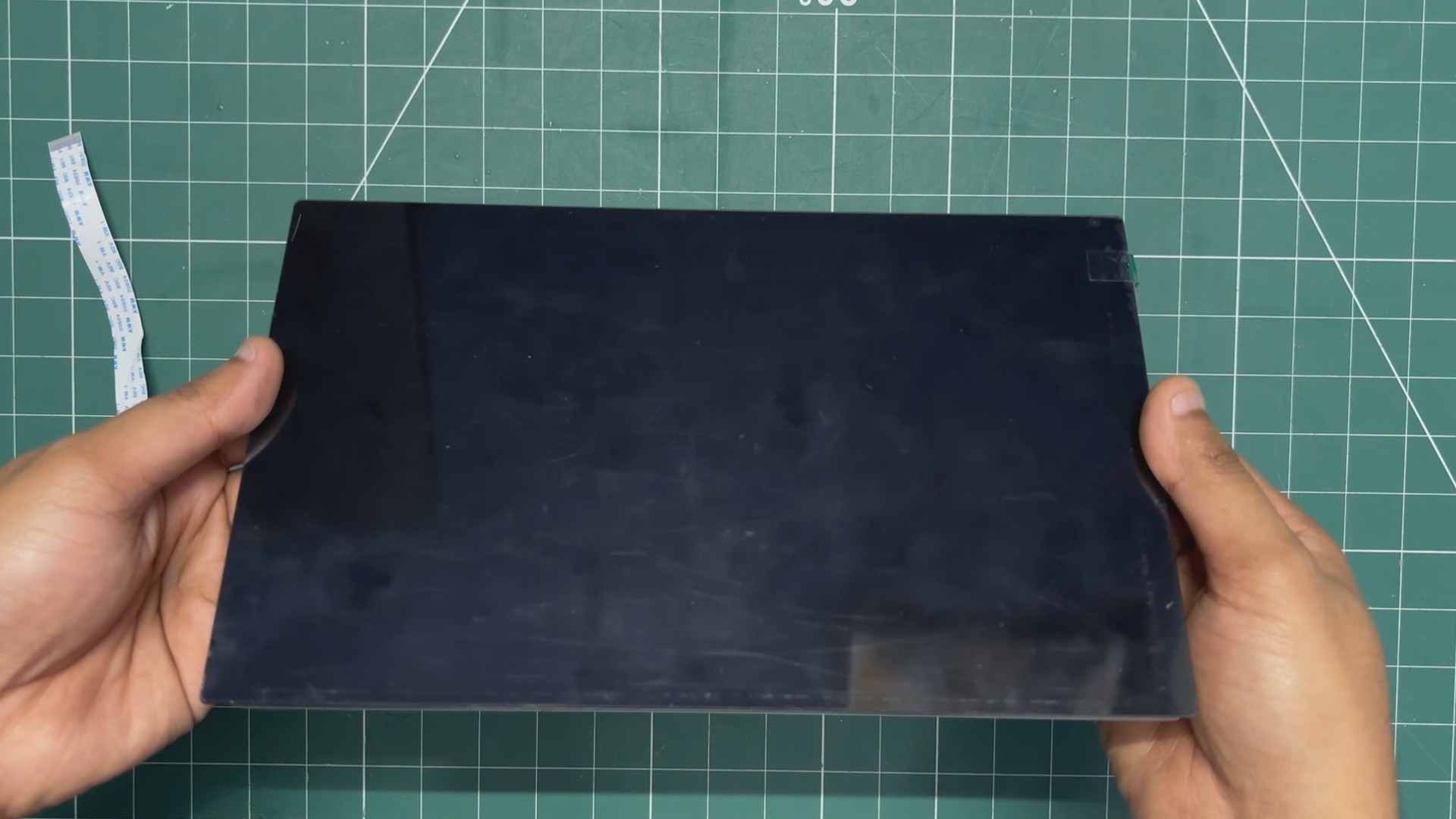
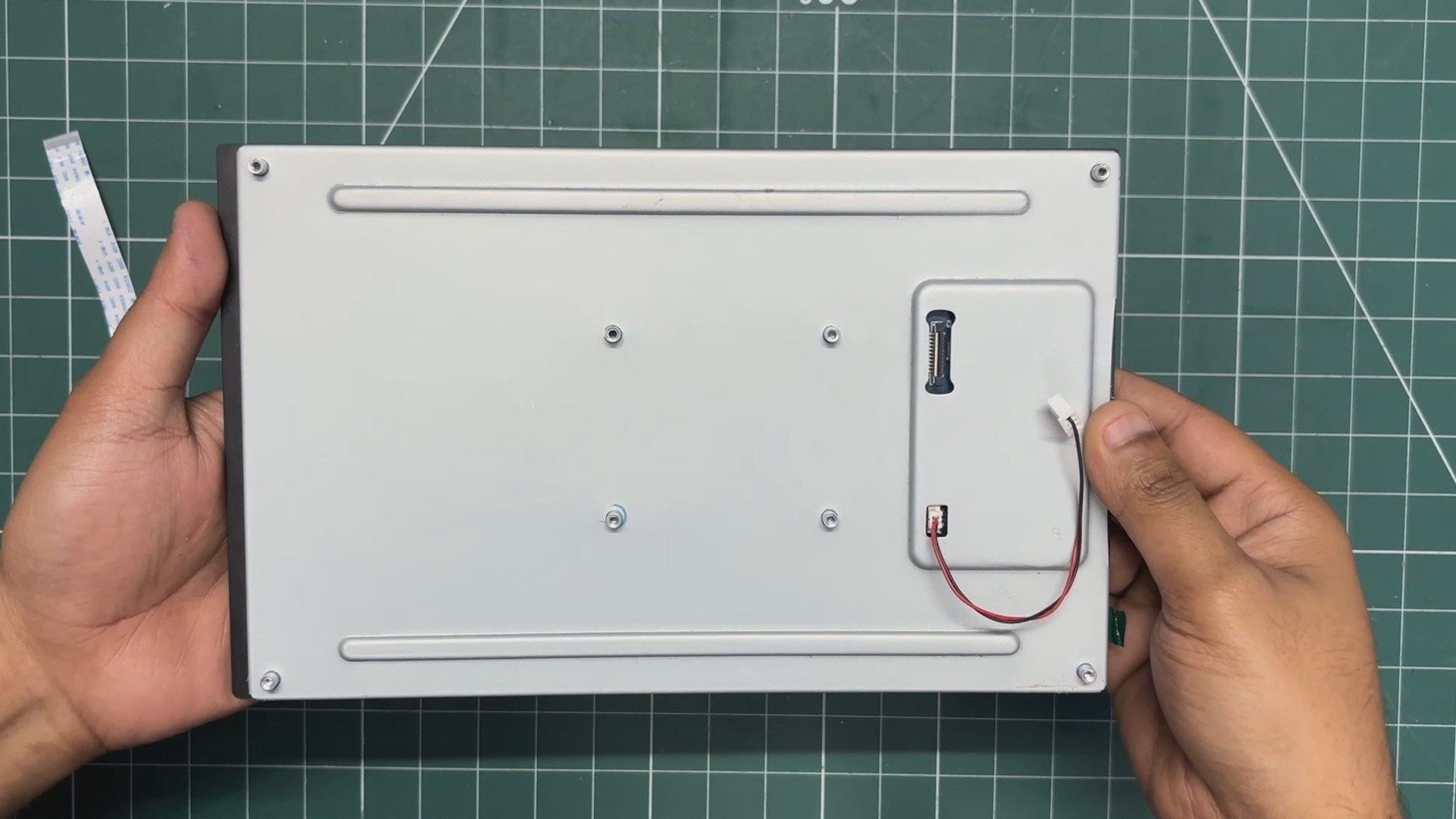
For the main display, I wanted something huge, not the average 7-inch size, but something larger.
Connectivity was also an important factor, as I wanted a DSI interface instead of HDMI.
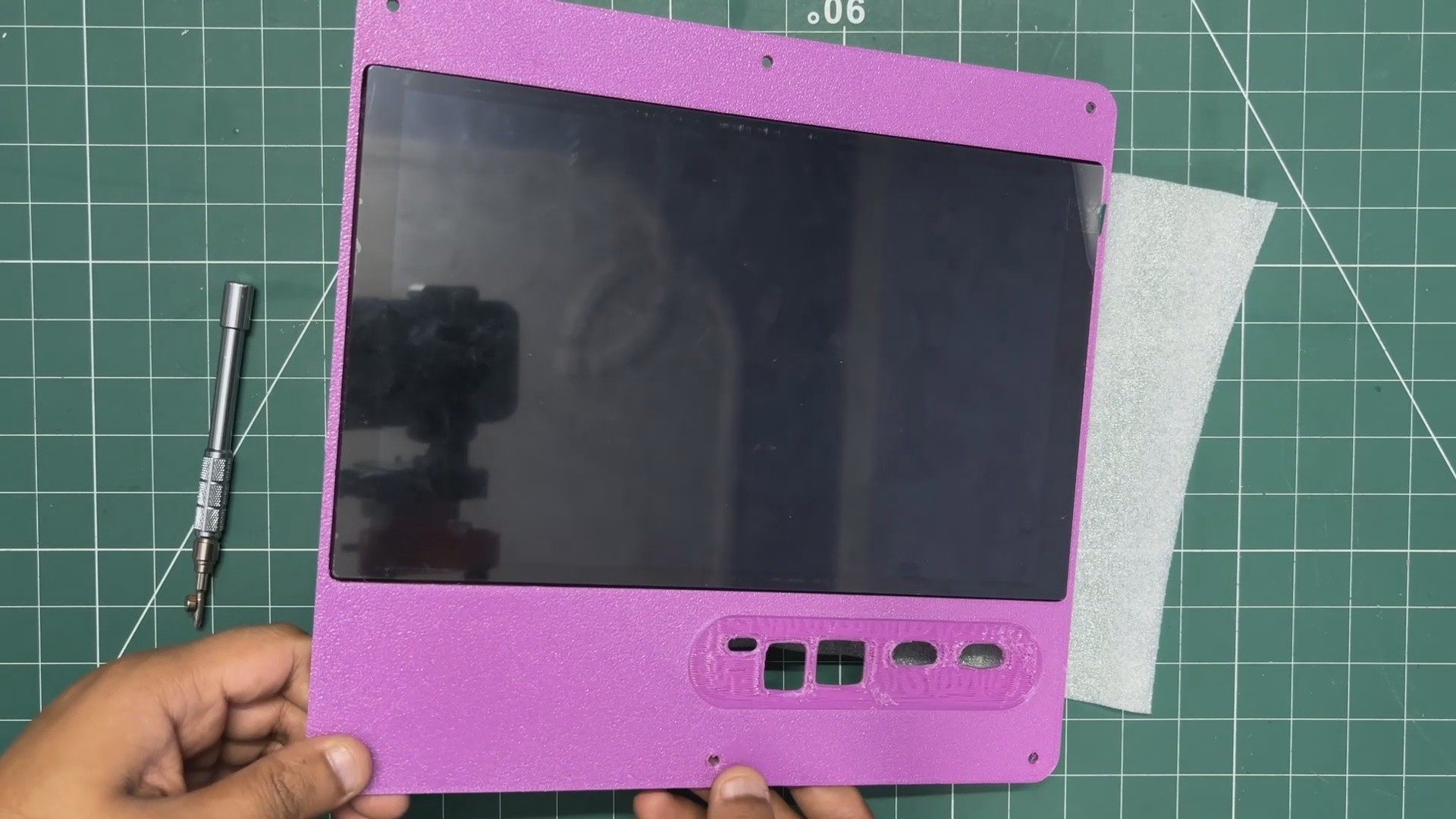
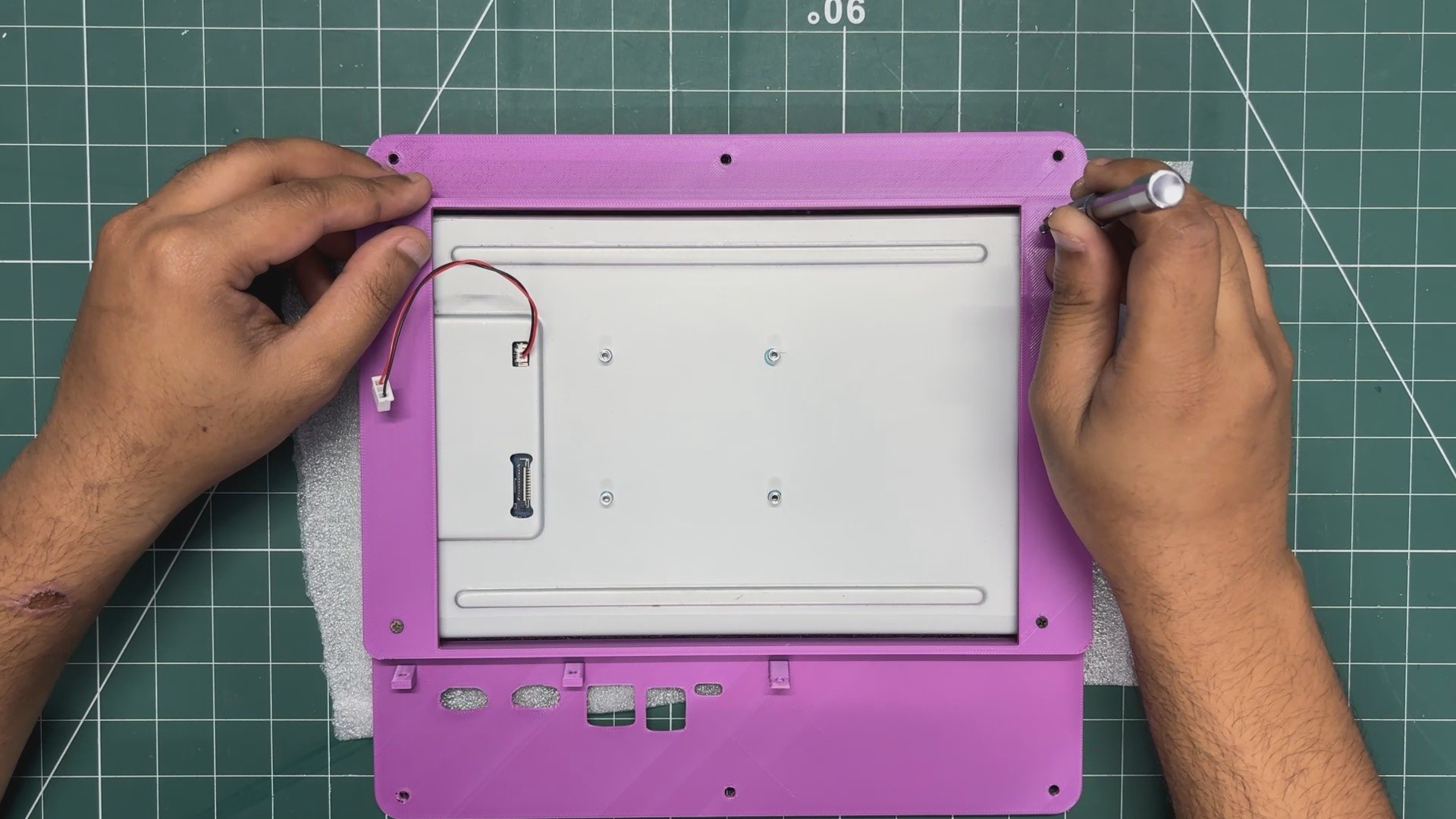
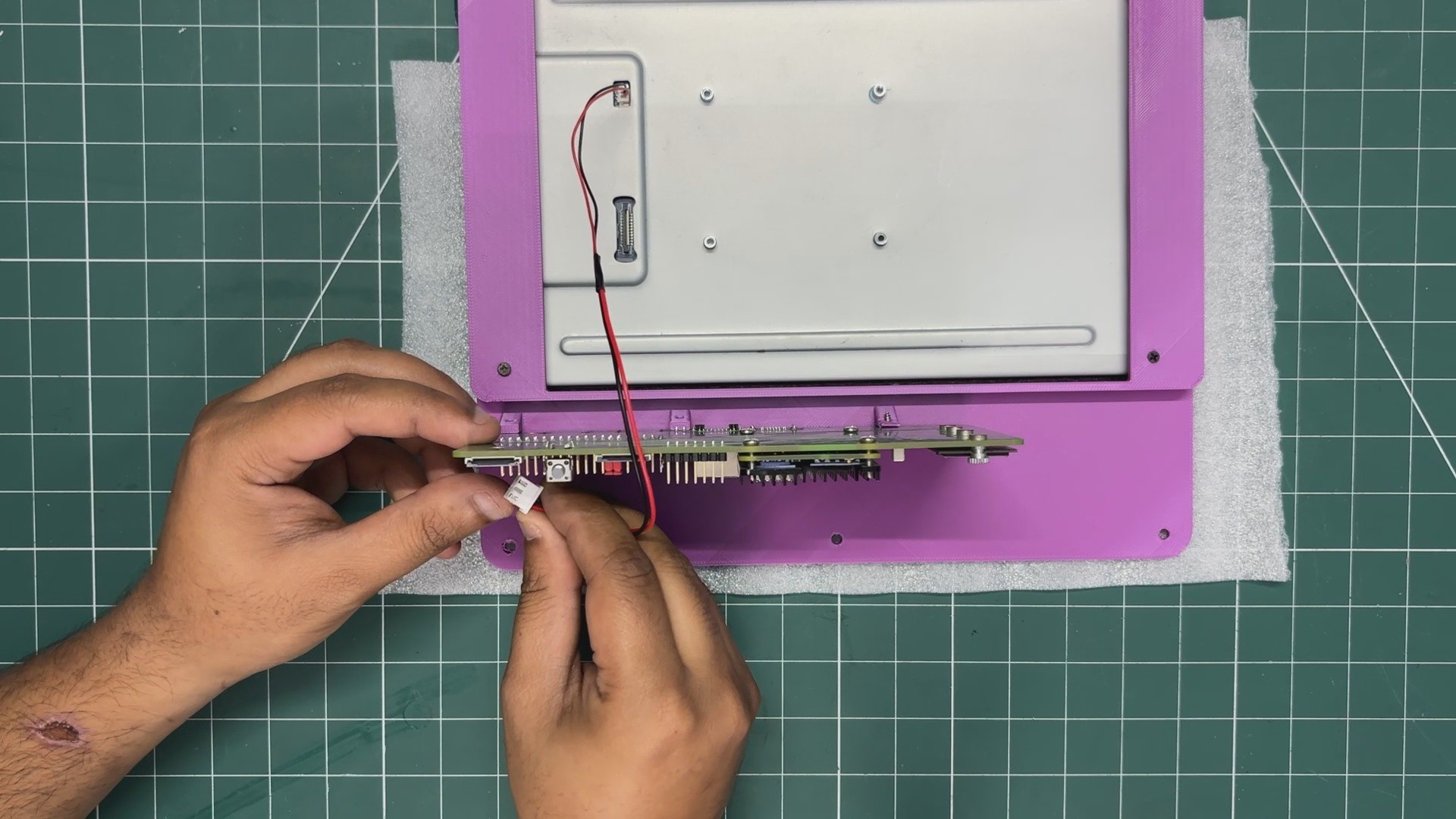
So, I selected Waveshare's 10.1-DSI-TOUCH-A display for this project. It is a portrait touchscreen LCD display with ten-point capacitive touch control. The display uses an IPS panel with a hardware resolution of 800×1280, which is perfect for our tablet application.
The LCD pairs with the Raspberry Pi through the DSI interface and supports a refresh rate of up to 60 Hz, which is more than enough...
Read more »
 Dmitry