 Arnov Sharma
-
1FRAME 3D MODEL
![]()
![]()
![]()
![]()
![]()
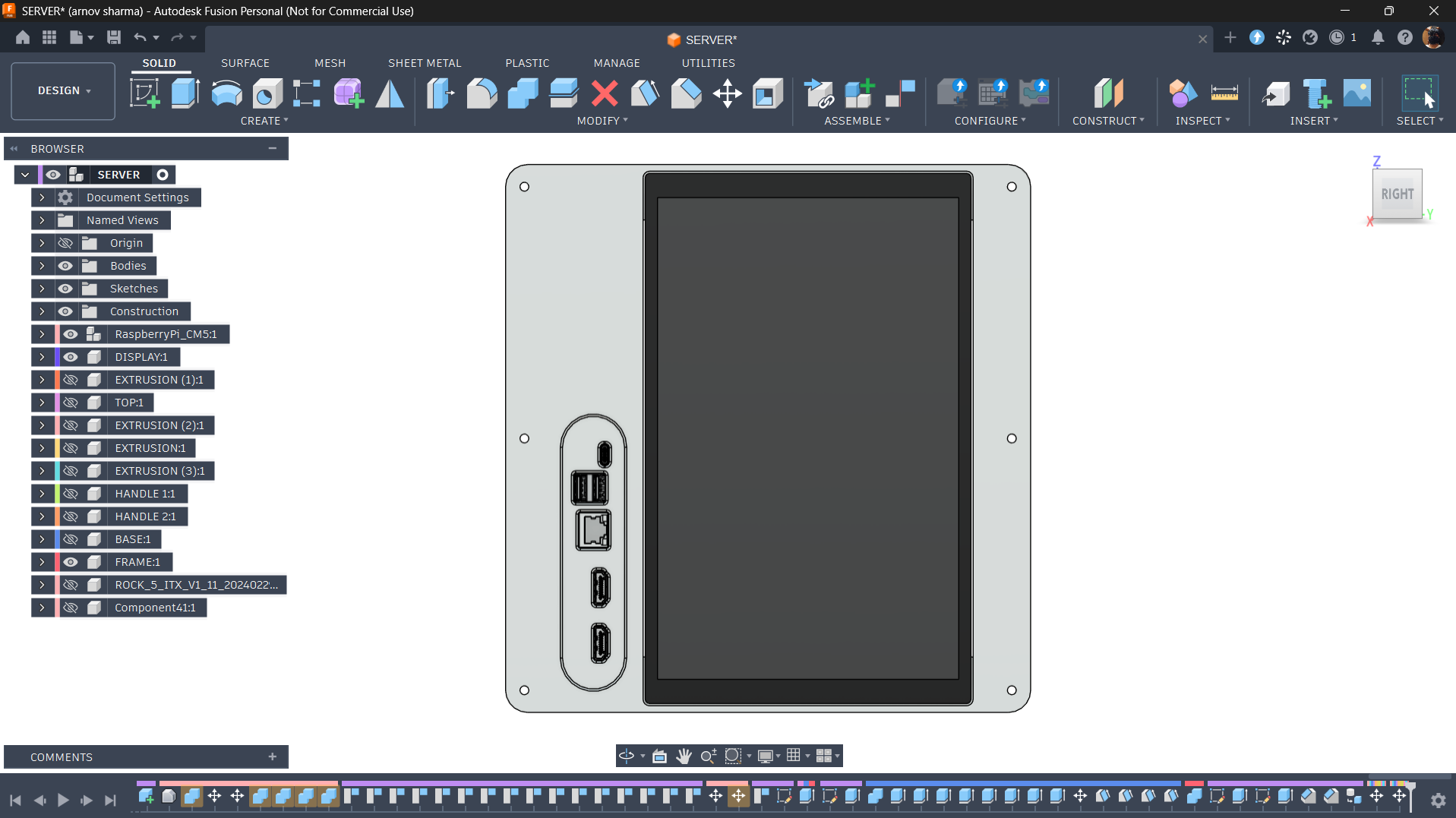
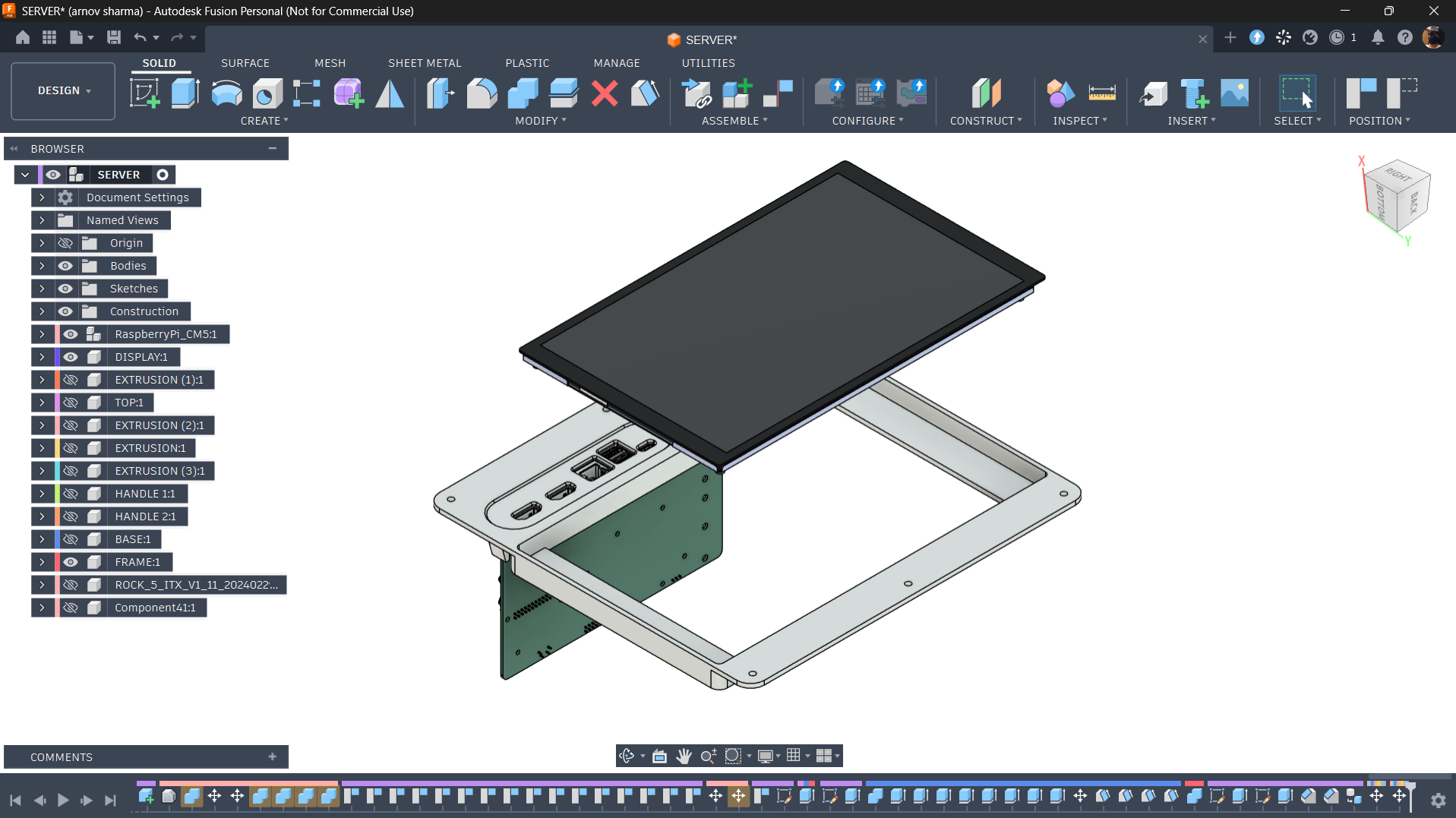
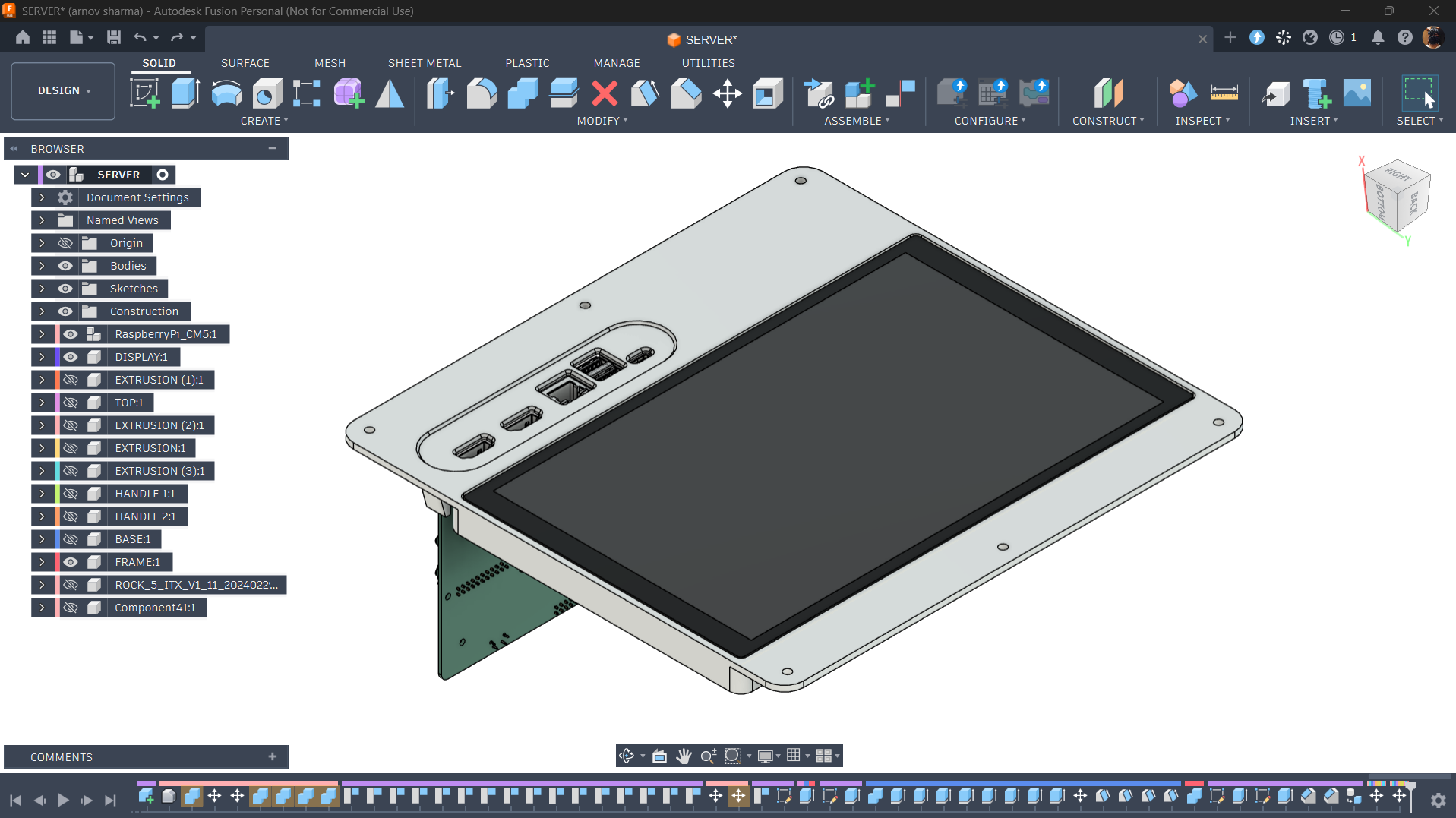
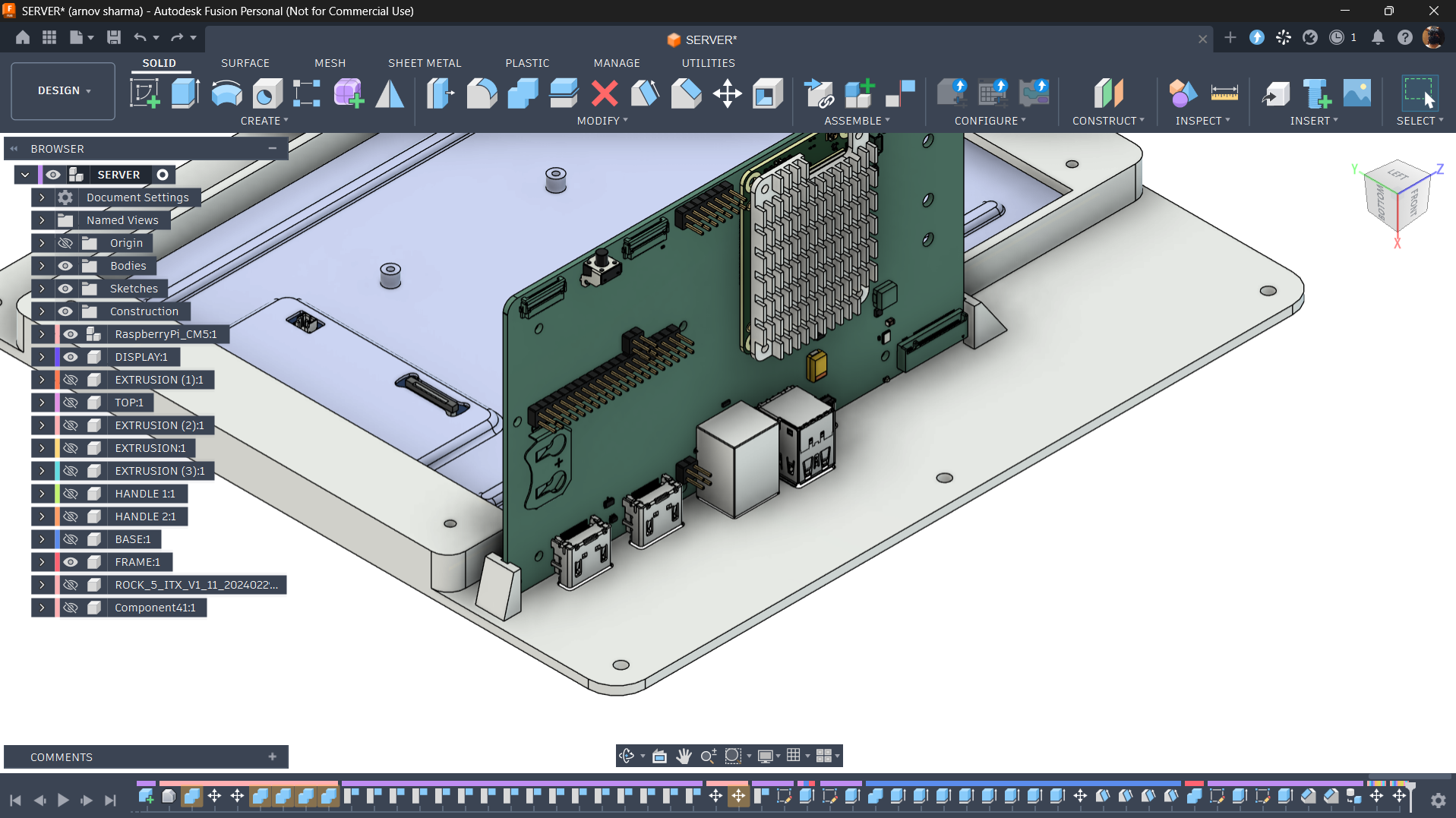
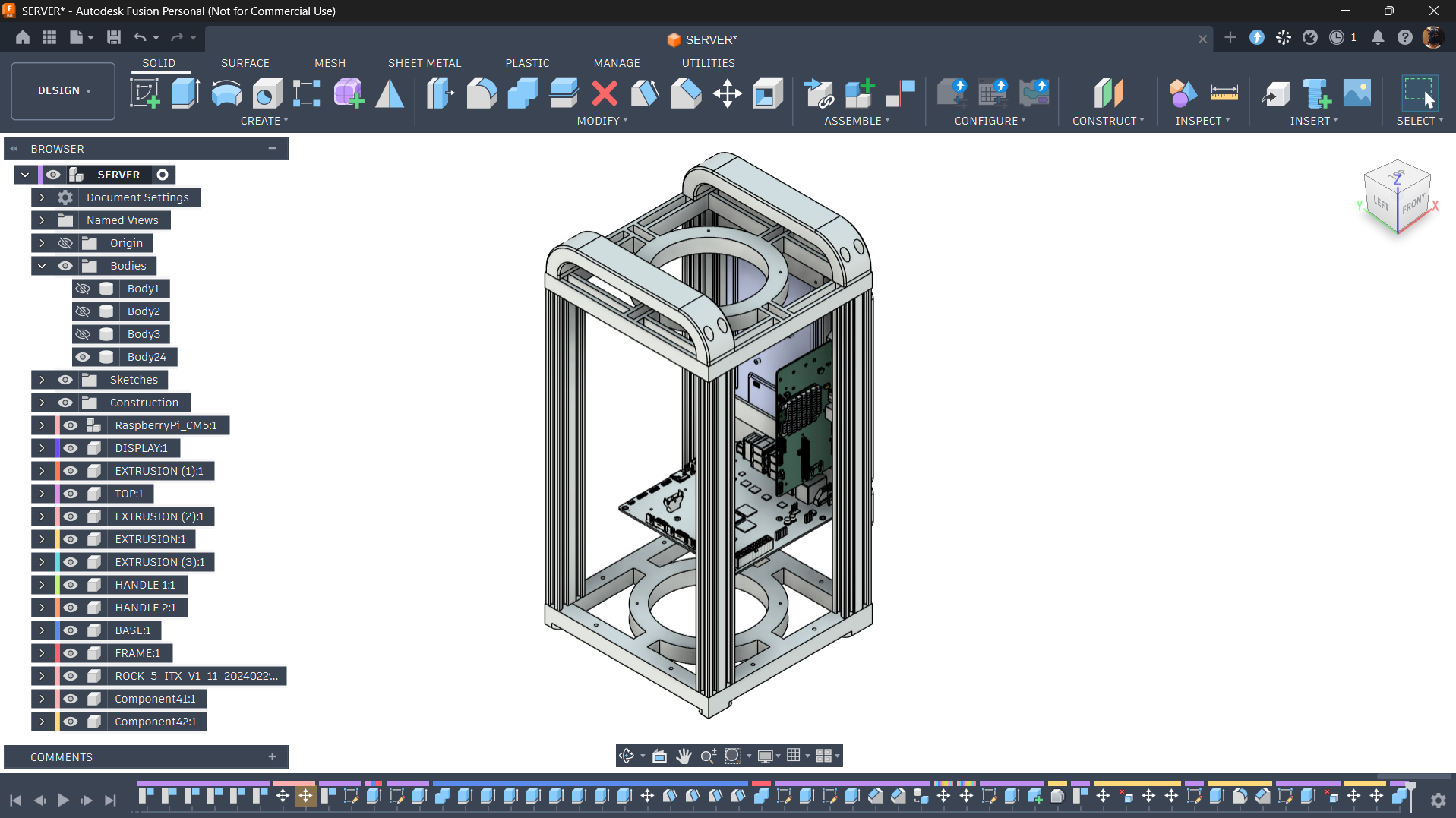
For the 3D Model of ControlPi, I opted for a portrait orientation for the display, positioning the evaluation board's I/O ports vertically alongside it.
This arrangement keeps all the essential ports accessible from the front, making it easier to connect peripherals and access the board once ControlPi is mounted in the homelab rack.
Another important consideration was the size of the frame. I wanted the entire design to fit within a 250 × 250 × 250 mm build volume, allowing it to be printed on most standard desktop 3D printers with a 250 mm build area. This was also one of the reasons I chose the portrait orientation for the display.
The display is mounted from the front of the frame. I designed dedicated mounting points that align with the display's PCB standoffs, allowing the screen to sit securely in place when fastened.
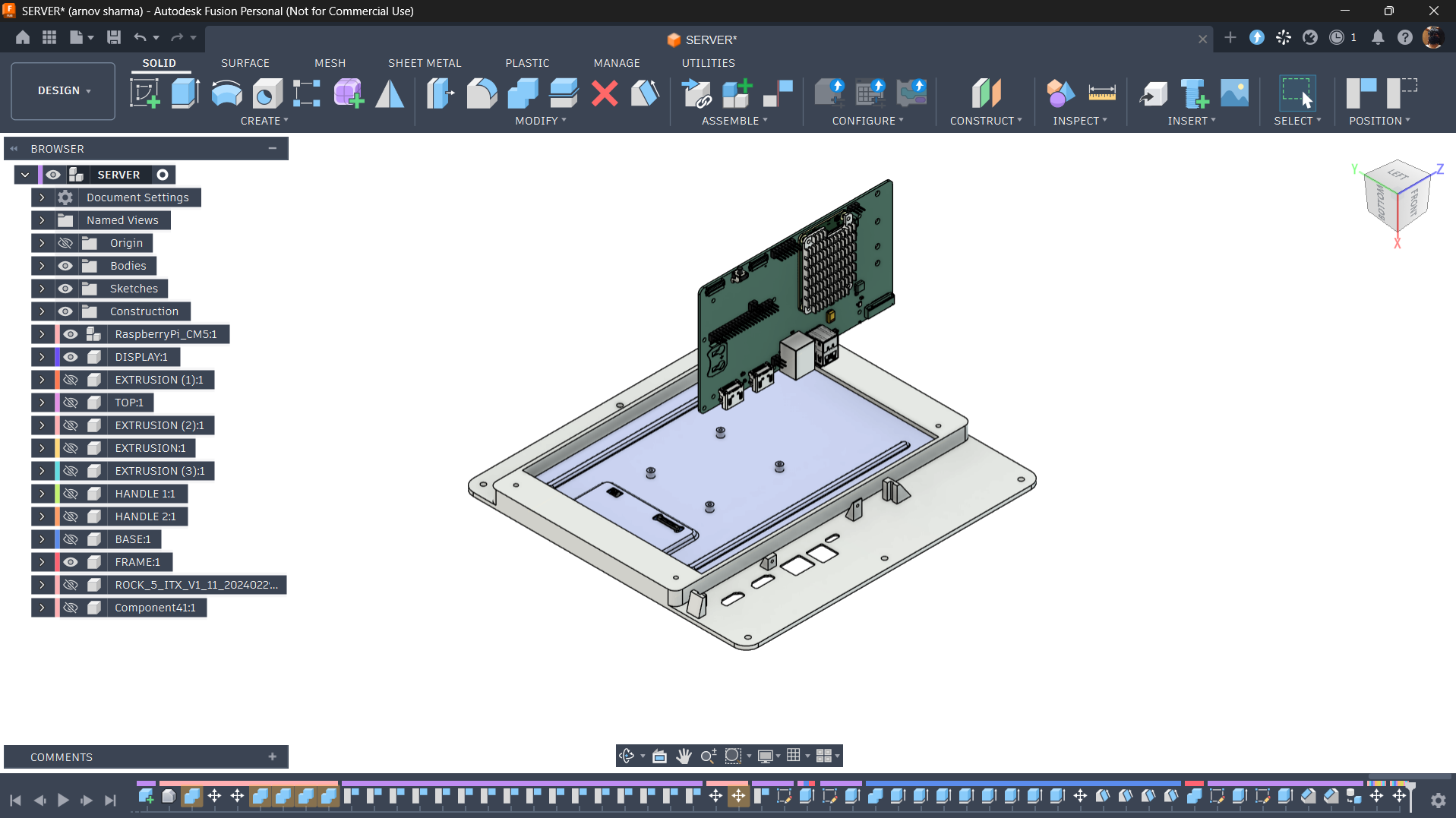
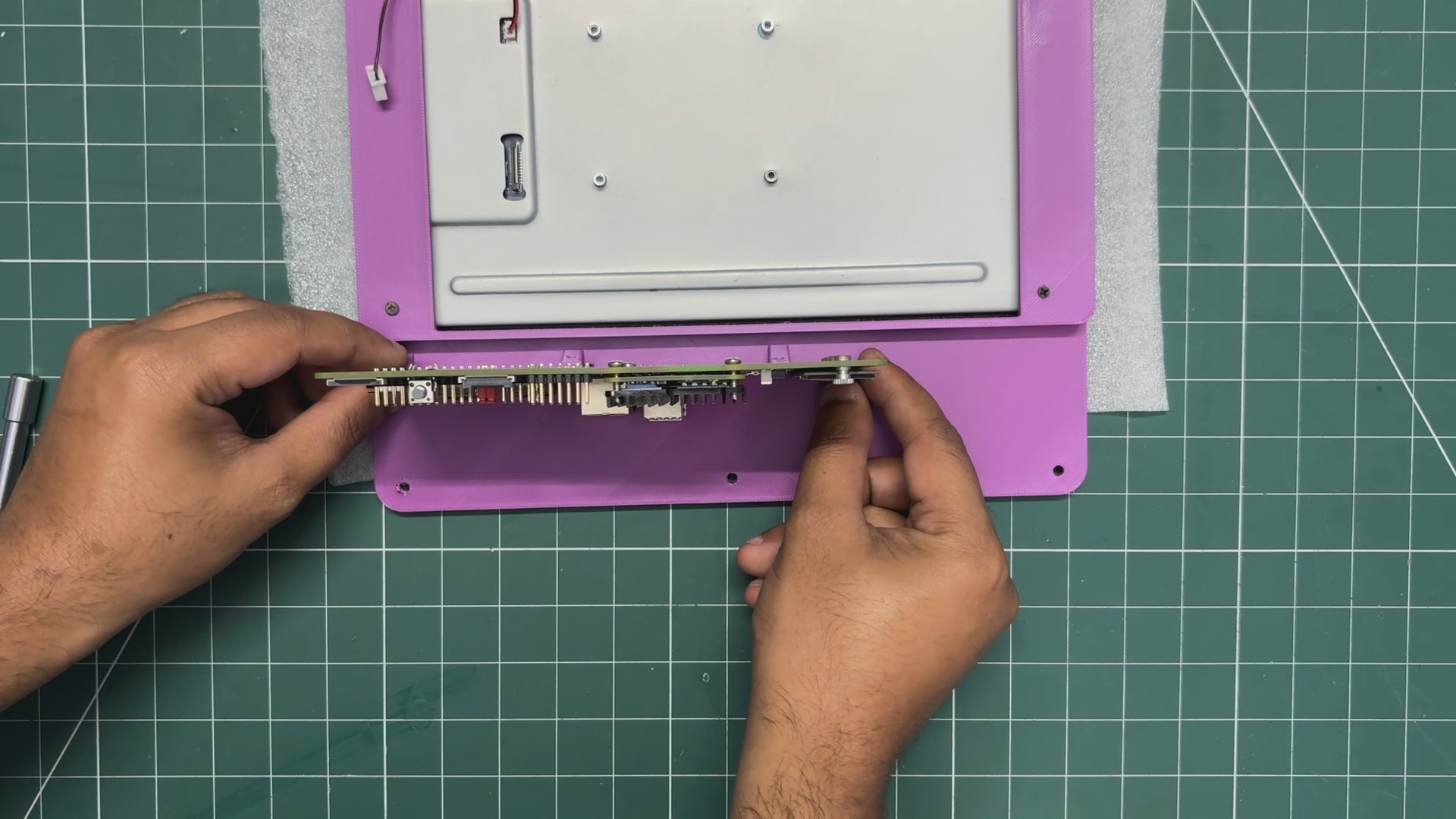
The CM5 evaluation board is mounted vertically on the back of the frame, with its I/O ports facing the front. To secure it, I incorporated three mounting ribs with 2 mm holes, positioned to align with the board's existing mounting holes near the I/O section. Three M2 screws hold the evaluation board firmly in place.
This arrangement keeps the display and computing hardware neatly integrated into a compact assembly while ensuring that the necessary ports remain accessible from the front of the rack.
-
23D PRINTED PART
![]()
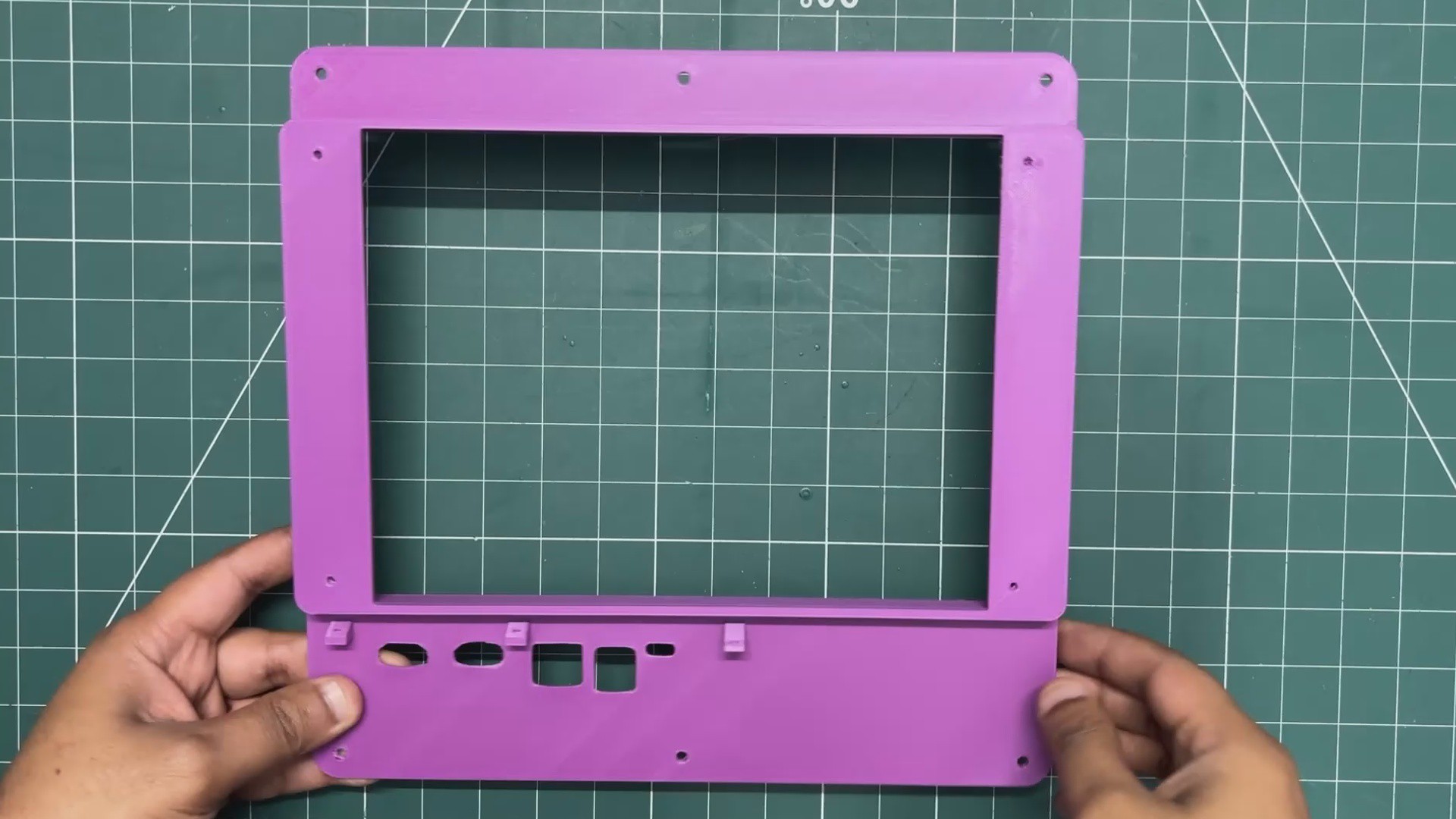
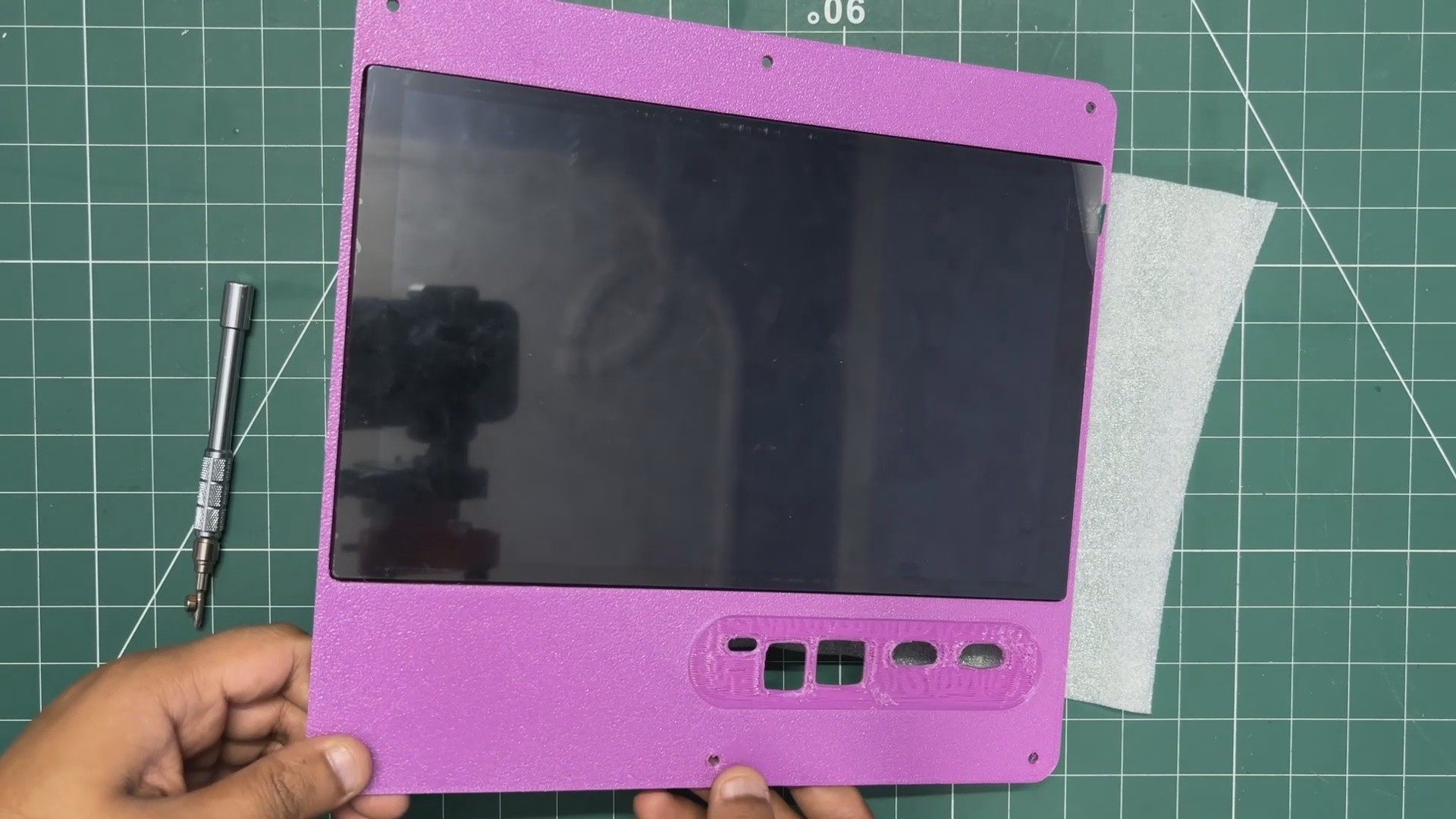
The model was exported as a mesh file and 3D printed using purple Hyper PLA. The print settings included a 0.4 mm nozzle, 25% gyroid infill, and a 0.16 mm layer height, with tree supports and a top Z distance of 0.3 mm.
-
3SETUP ASSEMBLY
![]()
![]()
![]()
![]()
![]()
![]()
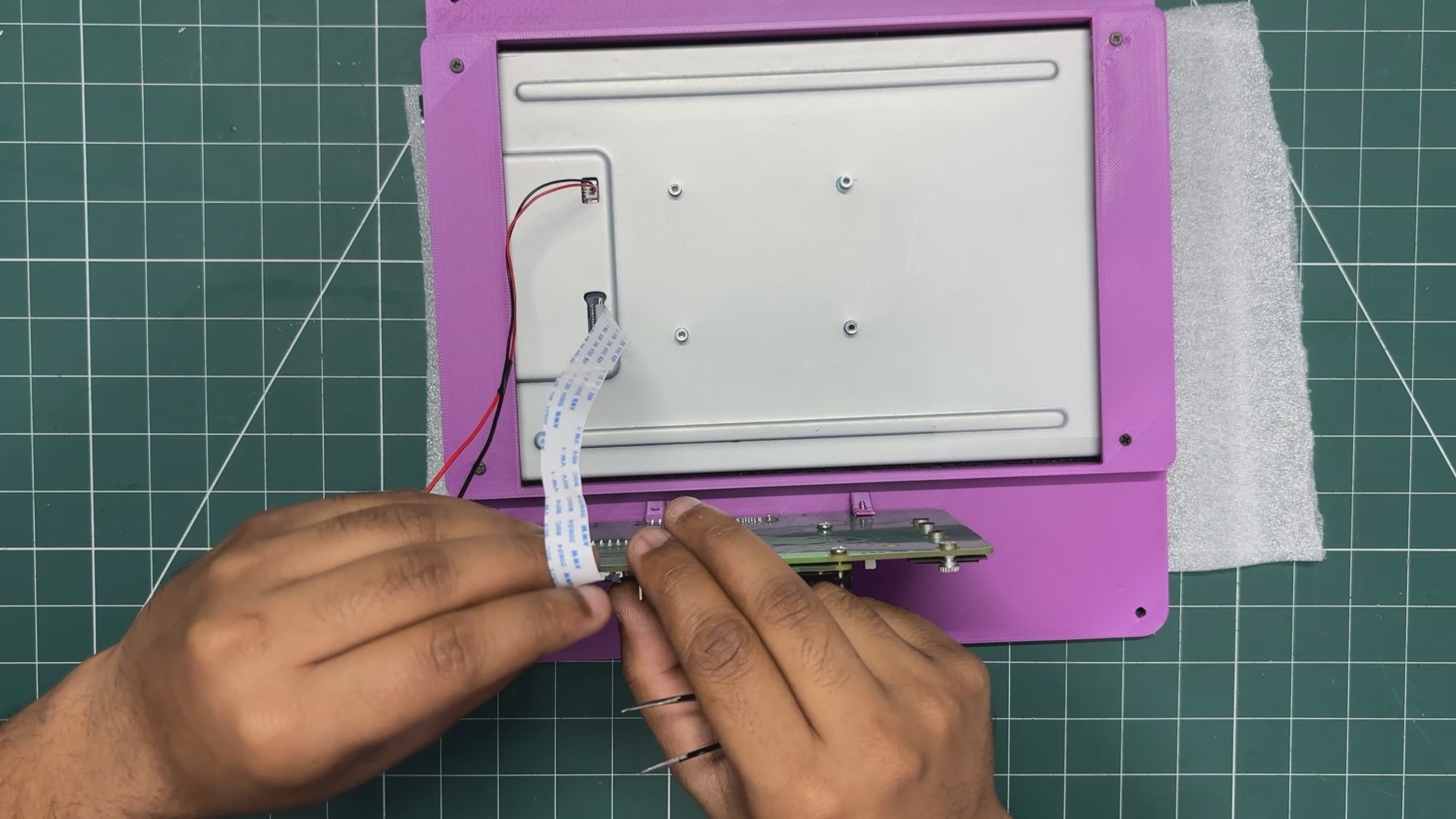
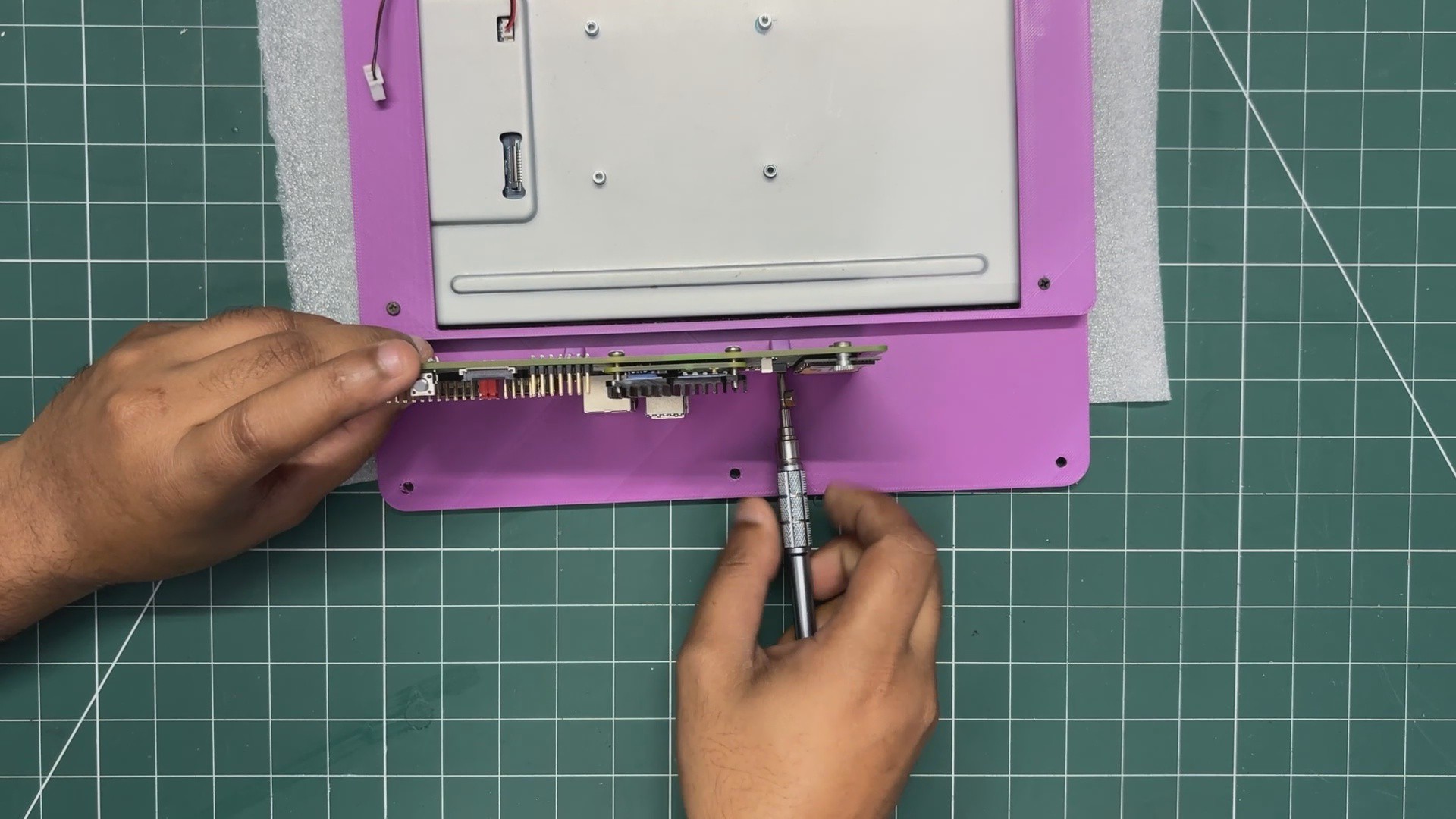
The assembly process was straightforward.
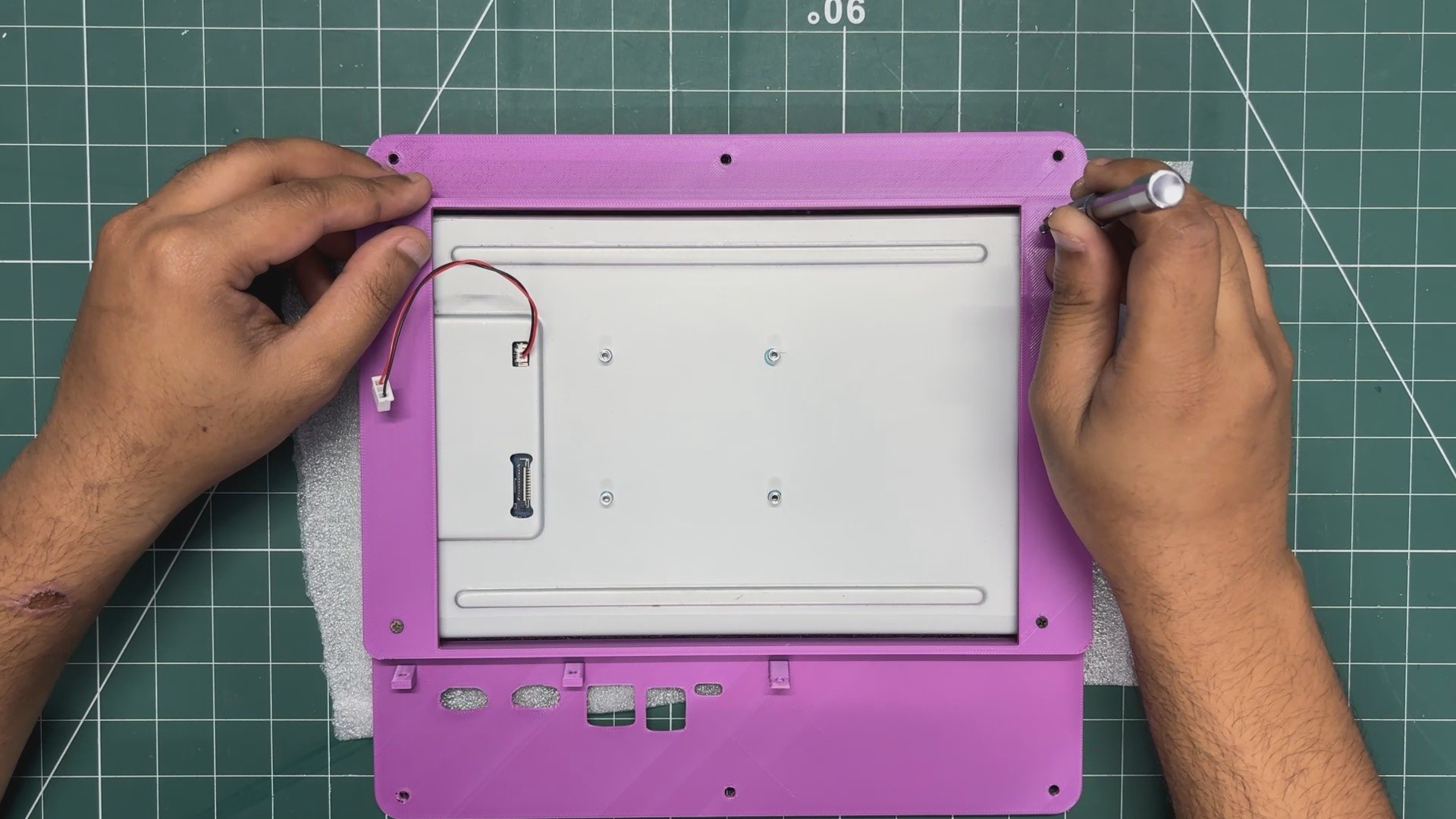
- First, we positioned the frame over the back of the 10.1-inch DSI display, aligning the mounting holes with the display's PCB standoffs.
- Using the four M2.5 bolts included with the display kit, we secured the display and frame together.
- Next, we positioned the CM5 evaluation board vertically in its designated place and secured it to the frame using three M2 screws.
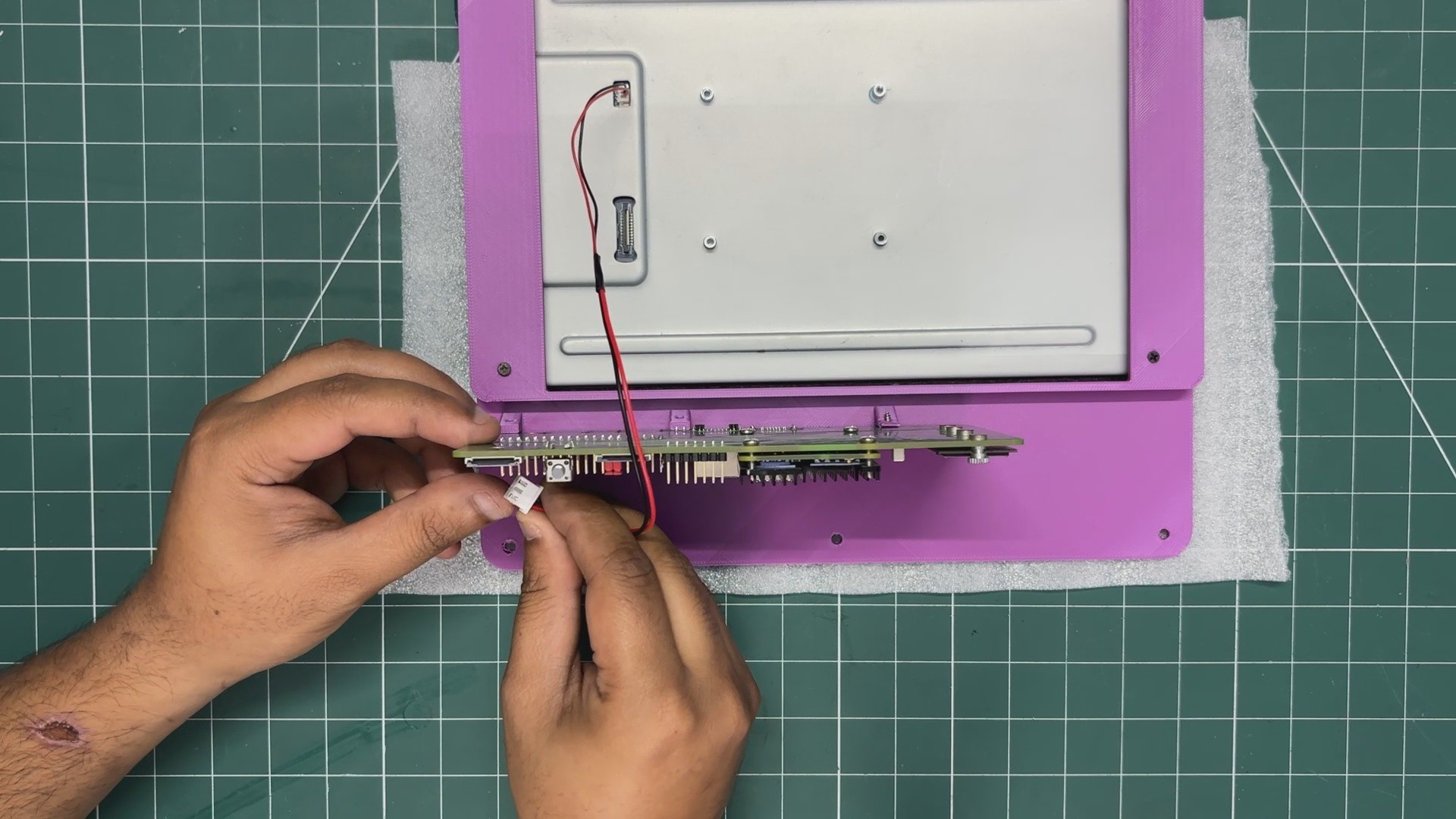
- We then connected the display's JST power connector to the 5V and GND pins on the CM5 evaluation board's 40-pin GPIO header, connecting 5V to 5V and GND to GND.
- Finally, we connected the 10.1-inch display to the CM5 evaluation board using the DSI flex cable, completing the hardware assembly.
-
4CONFIG FILE EDIT
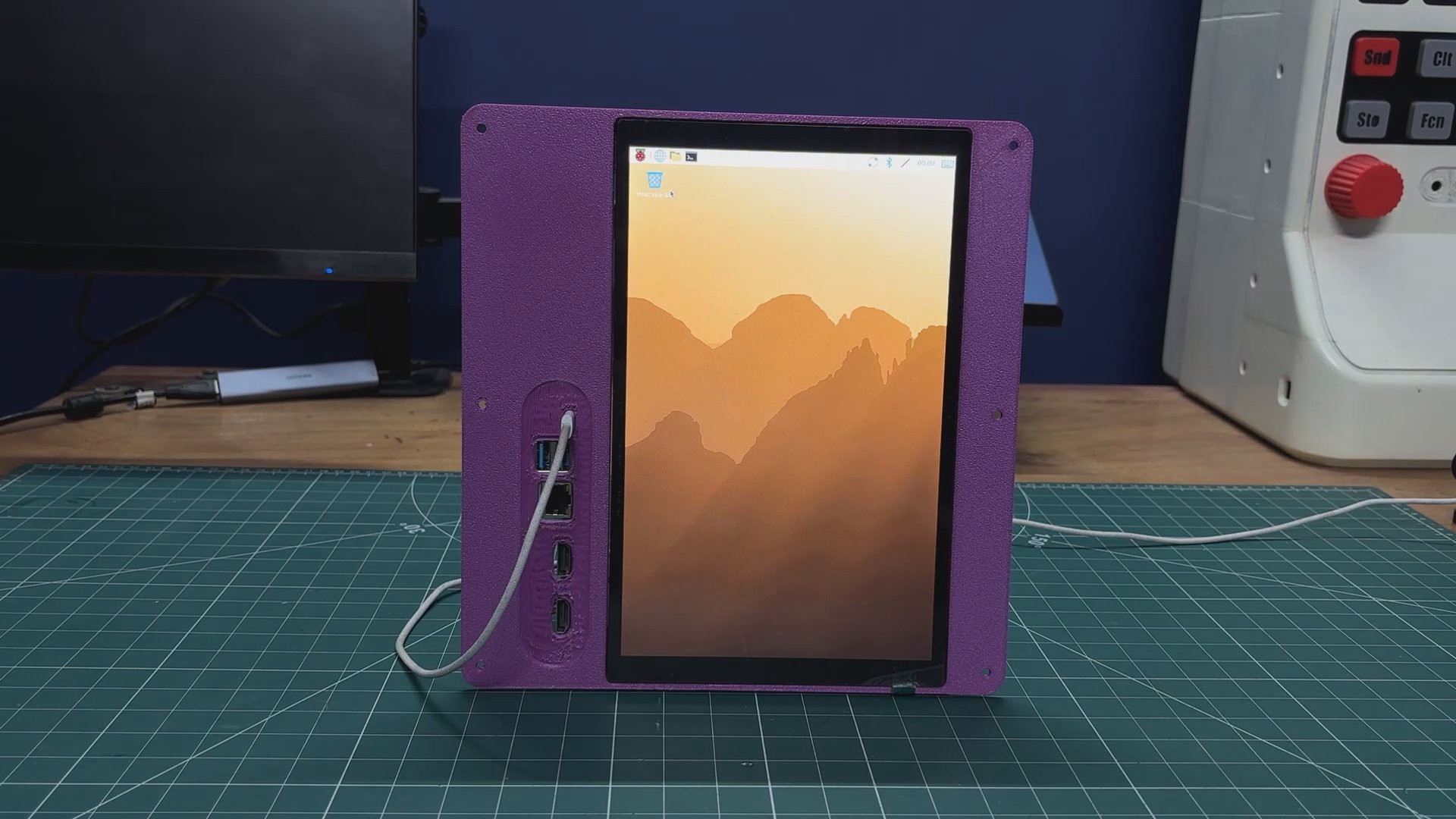
We plugged in the power and were hoping this would be a plug-and-play job, but things are never that simple, and the display didn't work straight away.
We needed to connect an external monitor to our CM5, open a terminal, and then edit the
config.txtfile.We added the following line at the bottom of the file.
dtoverlay=vc4-kms-v3d#DSI1 Usedtoverlay=vc4-kms-dsi-waveshare-panel-v2,10_1_inch_a#DSI0 Use# dtoverlay=vc4-kms-dsi-waveshare-panel-v2,10_1_inch_a,dsi0
On the wiki page for this display, to Waveshare's credit, they did include a custom pre-flashed Raspberry Pi OS Trixie image. If we use that image and flash our Raspberry Pi with it, the display boots up without requiring any manual edits to the configuration files.
-
5SOFTWARE SETUP
![]()
![]()
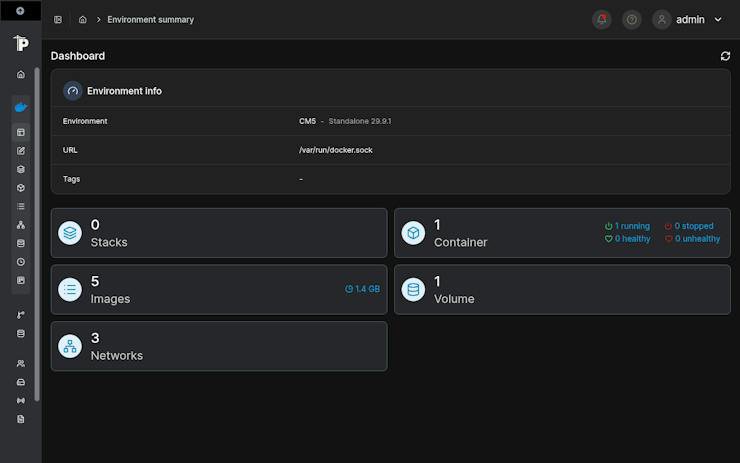
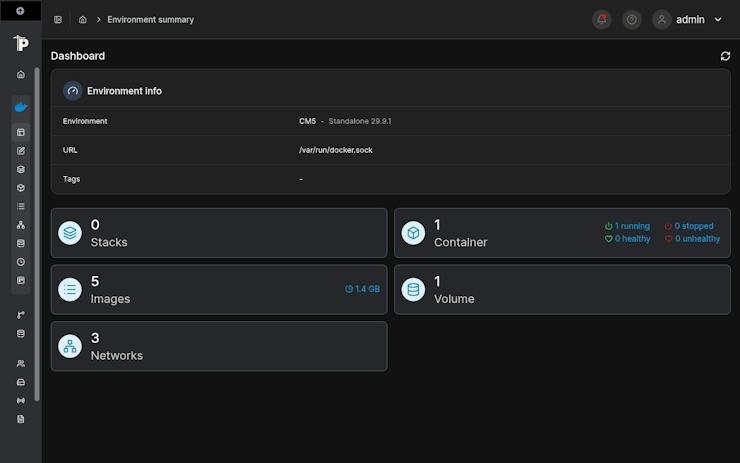
ControlPi uses a combination of Docker, Portainer CE, and Chromium kiosk mode to transform the Raspberry Pi Compute Module 5 into a dedicated touchscreen control panel for my homelab.
The goal is to create an interface that starts automatically when the device is powered on, displays the management dashboard on the touchscreen, and allows me to monitor and manage containers running across multiple single-board computers without needing a keyboard or mouse.
Container Management with Docker
The foundation of ControlPi is Docker, which provides the containerization environment for running services and infrastructure tools.
Docker runs natively on the Raspberry Pi CM5, allowing it to host management services independently of the desktop environment. Once installed, Docker can start automatically at boot and manage the containers required by ControlPi.
Portainer CE: The Control Center
For the management interface, I use Portainer Community Edition (CE). Portainer provides a web-based dashboard for managing Docker environments without relying entirely on the command line.
By deploying Portainer as a Docker container and connecting it to the local Docker socket (
/var/run/docker.sock), I can use the touchscreen to:- Monitor container health and status.
- Track CPU and memory usage.
- Start, stop, and restart containers.
- Inspect container logs.
- Deploy applications and manage container stacks.
- Connect to additional Docker environments running on other SBCs.
This makes Portainer the central management interface for ControlPi.
Managing Multiple SBCs
ControlPi is designed to manage more than just the Raspberry Pi CM5 itself. By deploying Portainer Agents on additional single-board computers, such as a Radxa Rock 5 ITX, I can connect multiple Docker environments to the same Portainer instance.
This provides a unified interface for monitoring and managing services across my homelab without needing to access each machine individually.
Automated Startup and Kiosk Mode
Since ControlPi is intended to function as a dedicated appliance, I want the dashboard to appear automatically whenever the device is powered on.
For this, I configure Raspberry Pi OS Desktop to start its graphical environment and launch Chromium in kiosk mode.
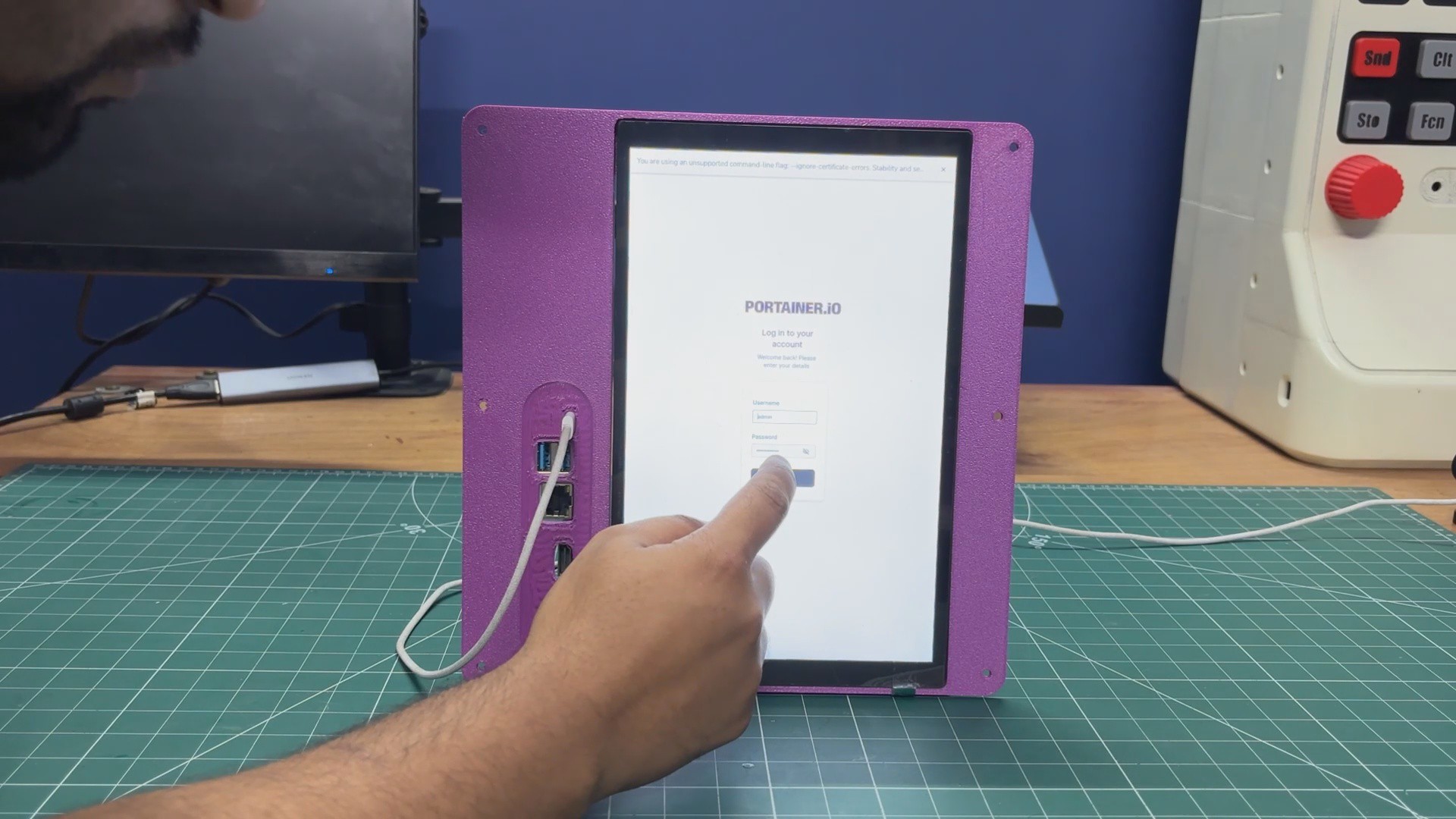
Chromium opens directly to the Portainer dashboard in full-screen mode, hiding the browser interface and desktop elements to provide a clean, touchscreen-friendly experience.
Handling Startup Dependencies
One challenge with an automatically starting kiosk is that the browser may launch before Docker and Portainer are ready.
To address this, I use a custom startup script called
start-kiosk.sh. The script checks whether the Portainer web interface is responding before launching Chromium.The startup sequence is therefore:
- The Raspberry Pi CM5 powers on.
- Raspberry Pi OS starts the desktop environment.
- The kiosk startup script begins running.
- The script waits until Portainer is available.
- Chromium launches in full-screen mode.
- The Portainer dashboard appears on the touchscreen.
This reduces startup failures caused by services taking longer to initialize than the graphical environment.
Chromium Configuration
Chromium is launched with kiosk-related options to keep the interface suitable for an always-on display.
Options such as
--kioskand--noerrdialogshelp provide a clean presentation, while--password-store=basiccan avoid certain desktop keyring prompts.These options should be selected according to the installed Chromium version and desktop environment. I avoid disabling certificate validation globally; instead, the dashboard should use a correctly configured HTTPS connection when remote access or encrypted connections are required.
Authentication and Security
Although ControlPi is designed to operate without requiring a keyboard or mouse during normal use, the management interface must remain protected.
Portainer should be initialized with a strong administrator password, and its authentication mechanism should be configured appropriately for the deployment.
The dashboard can remain visible on the touchscreen, but unattended access to container-management controls introduces security risks. Anyone who can access a Portainer instance connected to the Docker socket may effectively gain extensive control over the host.
For this reason, I recommend keeping ControlPi on a trusted network, avoiding direct exposure of Portainer to the public internet, and using proper authentication rather than relying on saved sessions or automatically bypassing the login screen.
-
6RESULT
![]()
![]()
![]()
![]()
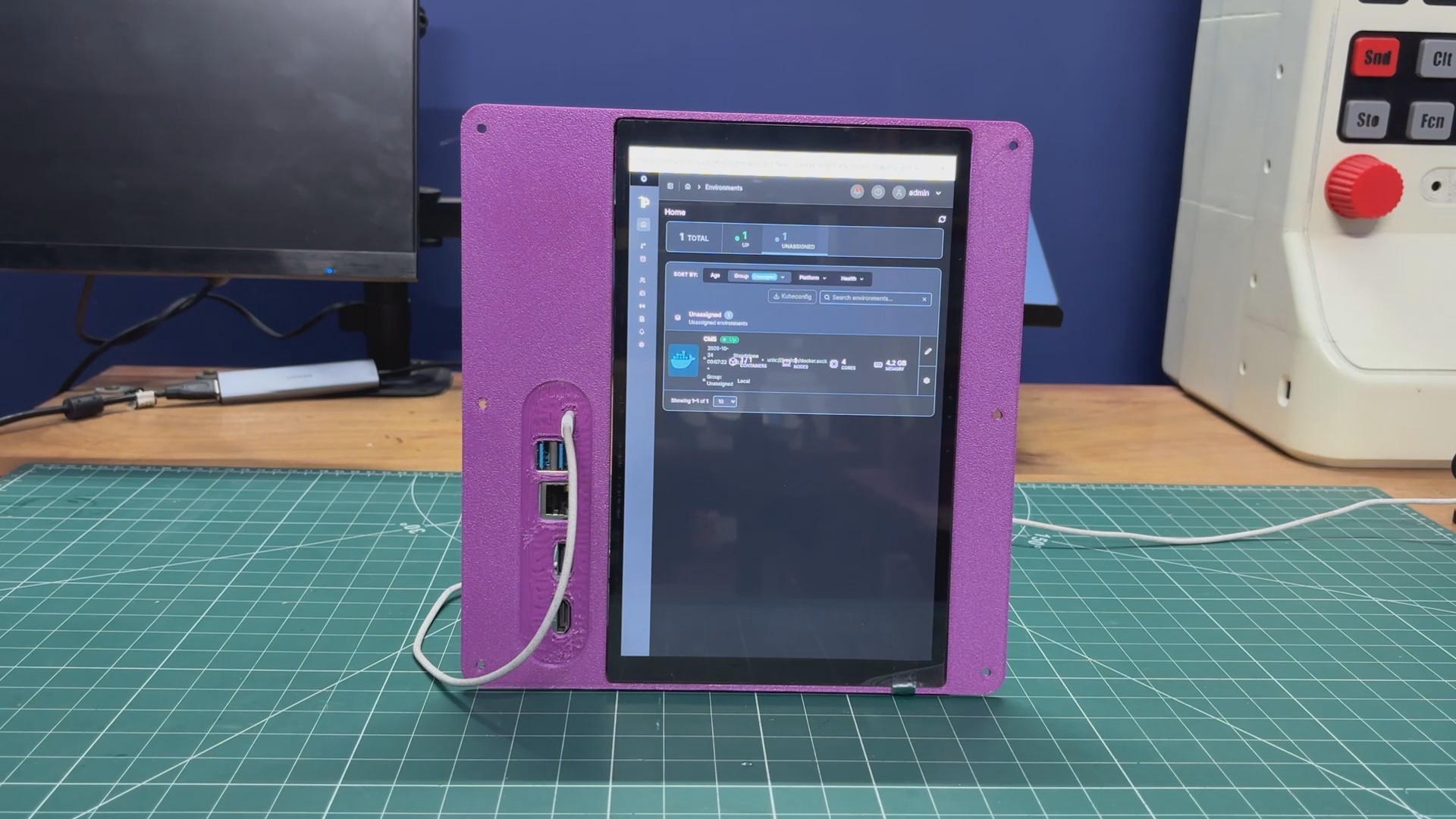
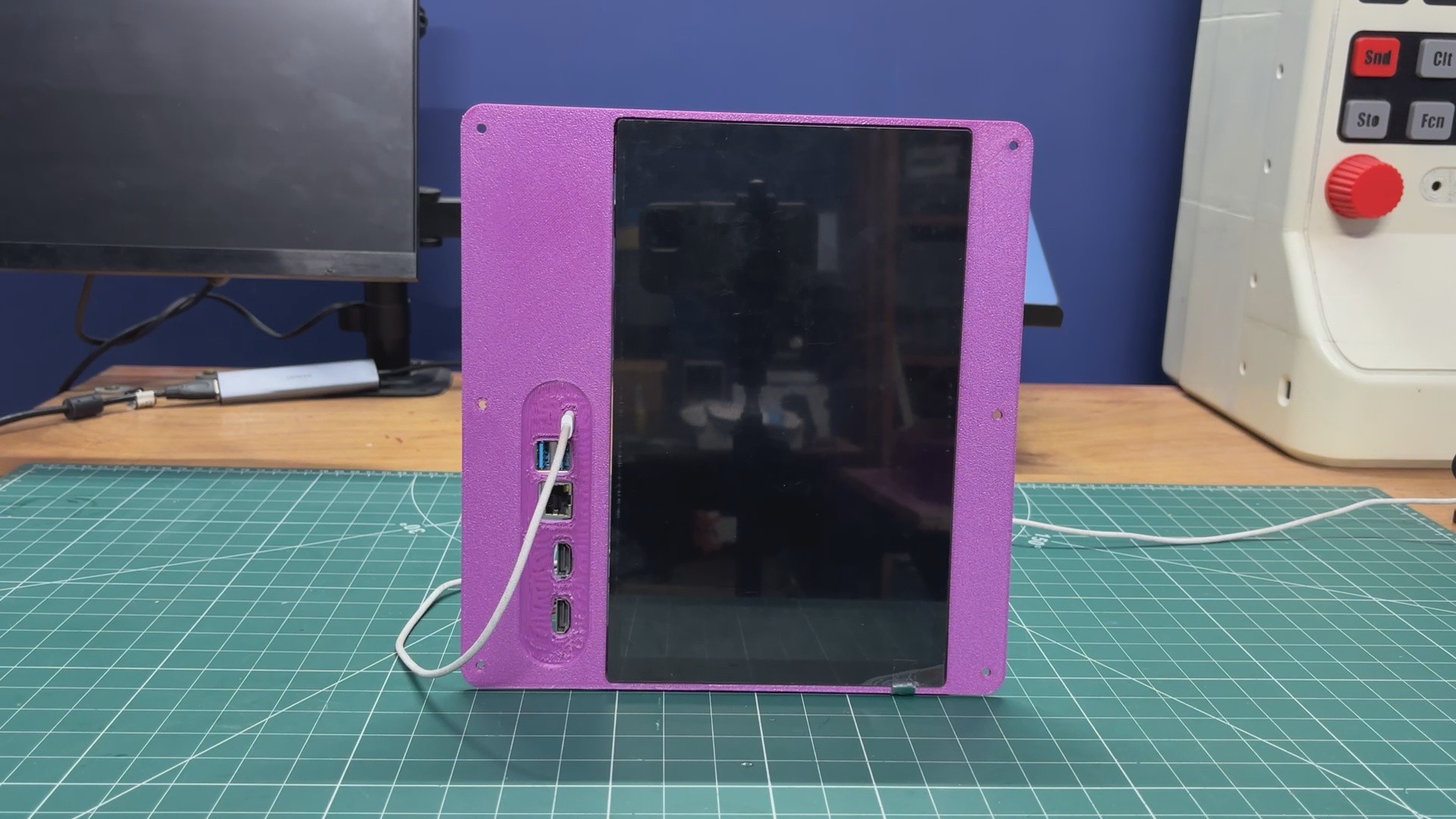
With Docker providing the container runtime, Portainer acting as the management interface, and Chromium kiosk mode handling the display, ControlPi becomes a dedicated touchscreen command center for my homelab.
The system is designed to boot automatically, wait for the management services to become available, and present the dashboard without requiring manual interaction during normal startup. Additional SBCs can be connected through Portainer Agents as the homelab expands.
For this demonstration, I'm powering the CM5 setup through its USB Type-C port using a smartphone charger. However, my plan is to integrate an ATX power supply into the homelab rack to power the entire CM5 system along with the other components.
-
7CONNECTING MULTIPLE SBCs TO ControlPi
![]()
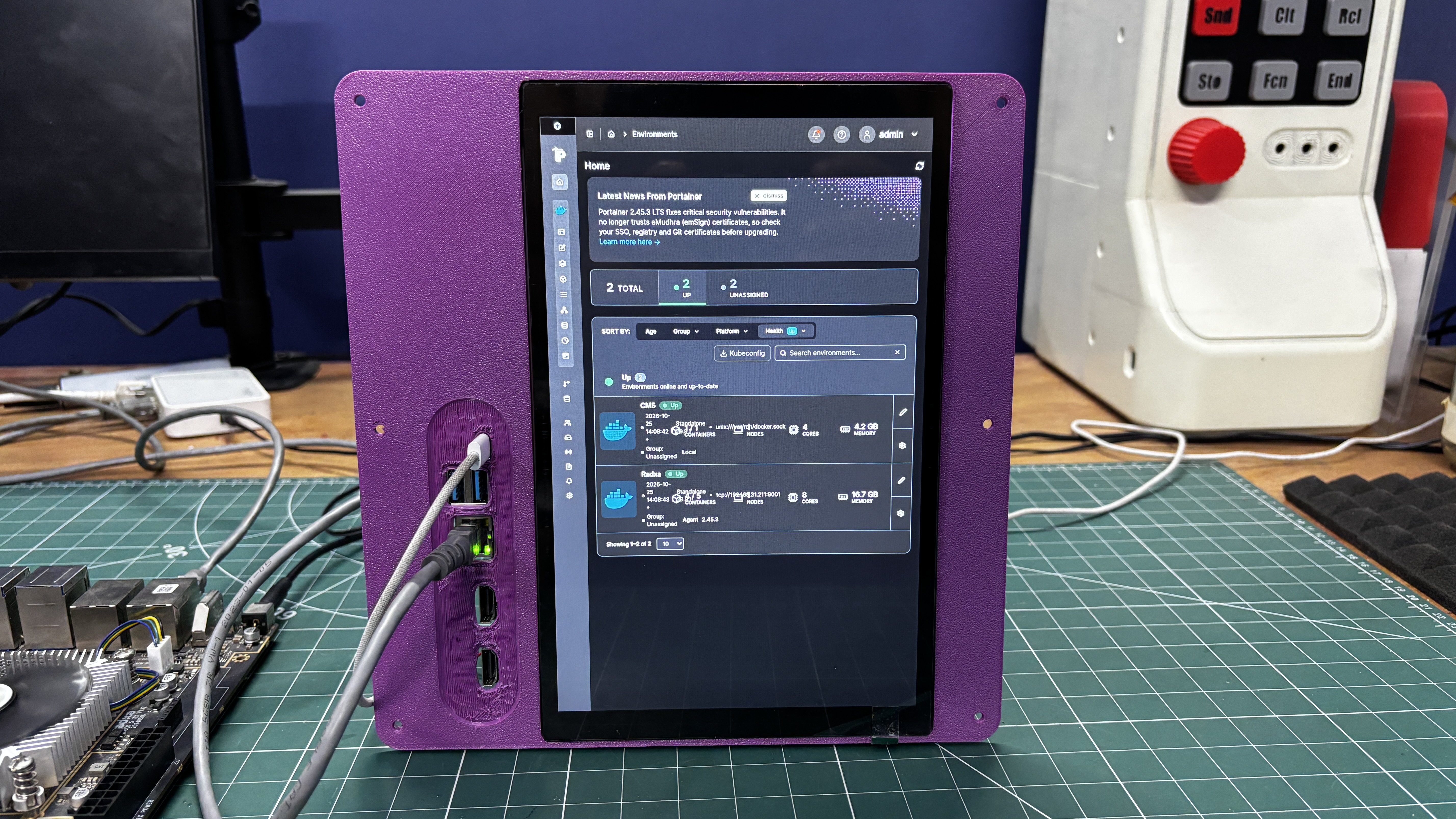
One of the main features of ControlPi is the ability to manage Docker containers across multiple SBCs from a single dashboard. To achieve this, I connected Radxa Rock 5 ITX to the same network as ControlPi.
On Radxa, I installed Docker and deployed the Portainer Agent. From the Portainer CE interface running on ControlPi, I then added the device as a separate environment using its IP address and the agent's listening port.
Once connected, the additional devices appeared in the Portainer dashboard, allowing me to switch between environments and manage their Docker containers from the ControlPi touchscreen.
This setup makes it easy to expand my homelab: whenever I add another SBC, I can configure it as a Docker host and connect it to ControlPi.
-
8WHAT'S NEXT
![]()
![]()
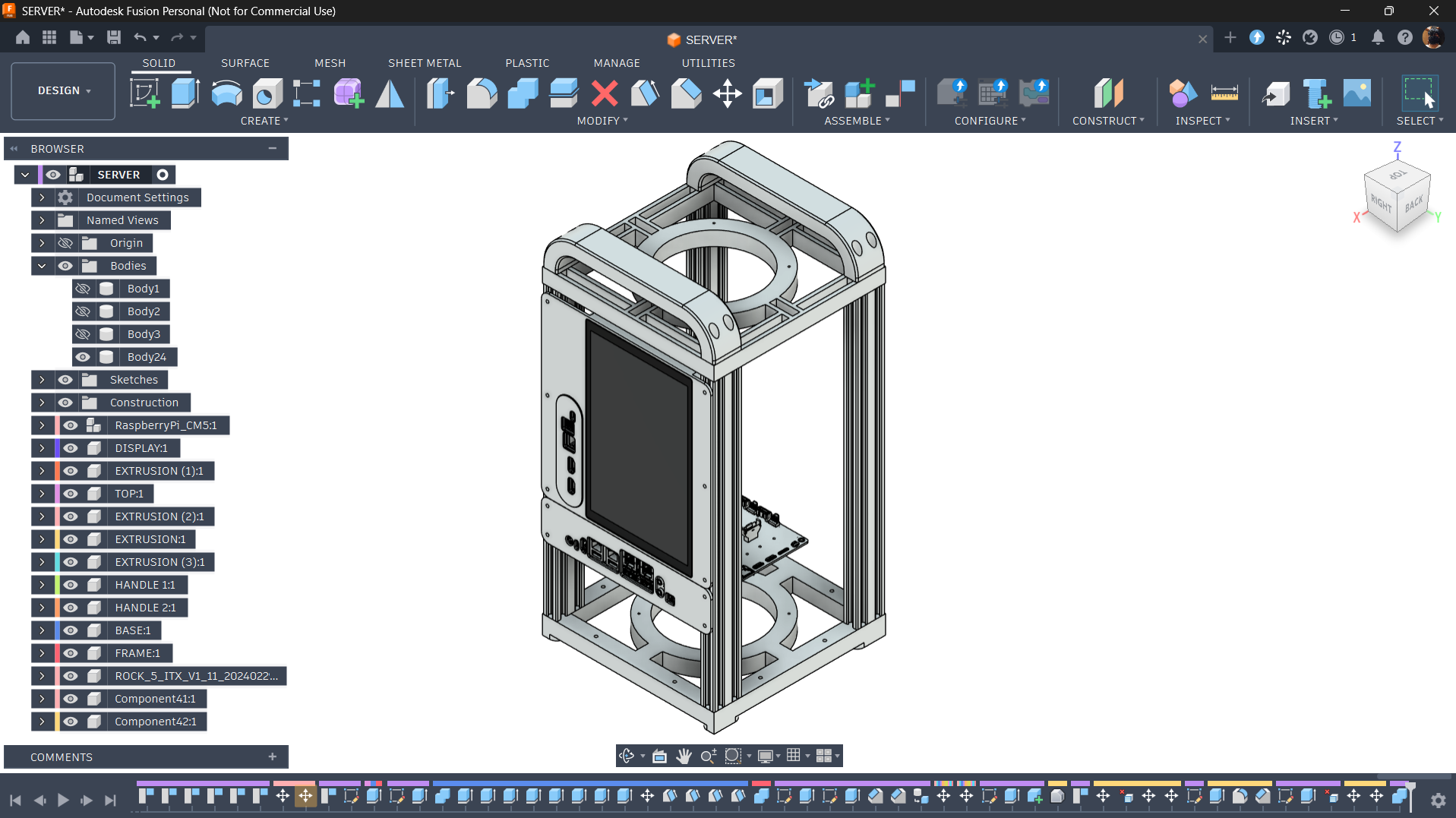
For the next phase of this project, I'm building the full rack using 40×20 mm aluminium extrusions for the frame, plus 3D-printed parts and laser-cut metal plates.
ControlPi is just one part of this larger build. I plan to integrate an ATX power supply, dedicated mounts for 2.5-inch and 3.5-inch SSDs and HDDs, PC fans with a dedicated control unit, and perhaps even an onboard battery to make this a truly portable, wireless homelab that I can take with me anywhere!
For now, though, the ControlPi project is complete and working exactly as intended, and I'm really happy with the result.
This article includes all the details, files, code, and wiring information, so be sure to check them out.
Thanks for sticking around until the end! I'll be back with a new project real soon.
PEACE!
ControlPi
A Raspberry Pi CM5-powered Control Center for my upcoming homelab project that manages SBCs and Docker Containers from a single Interface.
Discussions
Become a Hackaday.io Member
Create an account to leave a comment. Already have an account? Log In.