diddy
diddy-
version bump to 4.72
02/26/2026 at 09:34 • 0 commentsJust a small update to version 4.72
Fixed a small logic bomb in the version.txt that wasn't being written correctly to the apache web directory on install / upgrade. Result was that every user was notified of an update which they were already on.
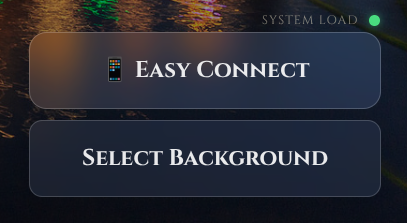
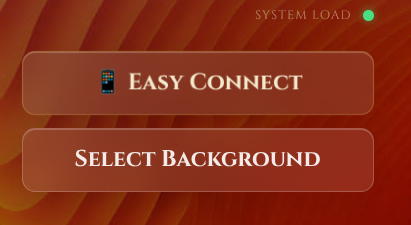
this has also given me the chance to set the 'Easy Connect' button size and spacing correctly on the main page![]()
You can download / upgrade by running the following on the Raspberry Pi (either SSH into the Pi or on the actual Pi) :-
wget -qO- https://raw.githubusercontent.com/diddy-boy/mini-pi-media-server/main/install.sh | bash
-
Version 4.7 is out and its a big update
02/24/2026 at 20:47 • 0 commentsVersion 4.7 is now available with the following :-
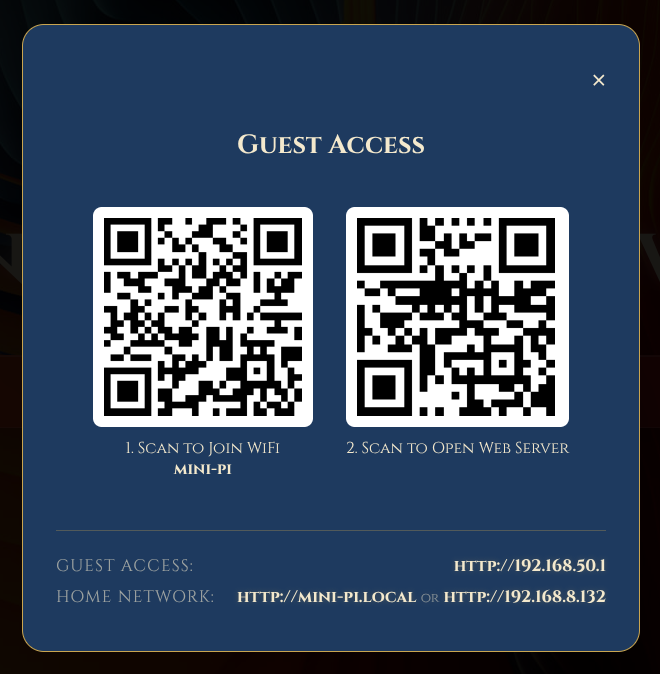
Fixed popup for USB syncing (the backend was working and Rsyncing data)Now comes with 'Easy Connect' Technology..... well actually just QR code generation for connecting to the Pi WIFI Access point via camera on a mobile device or tablet.
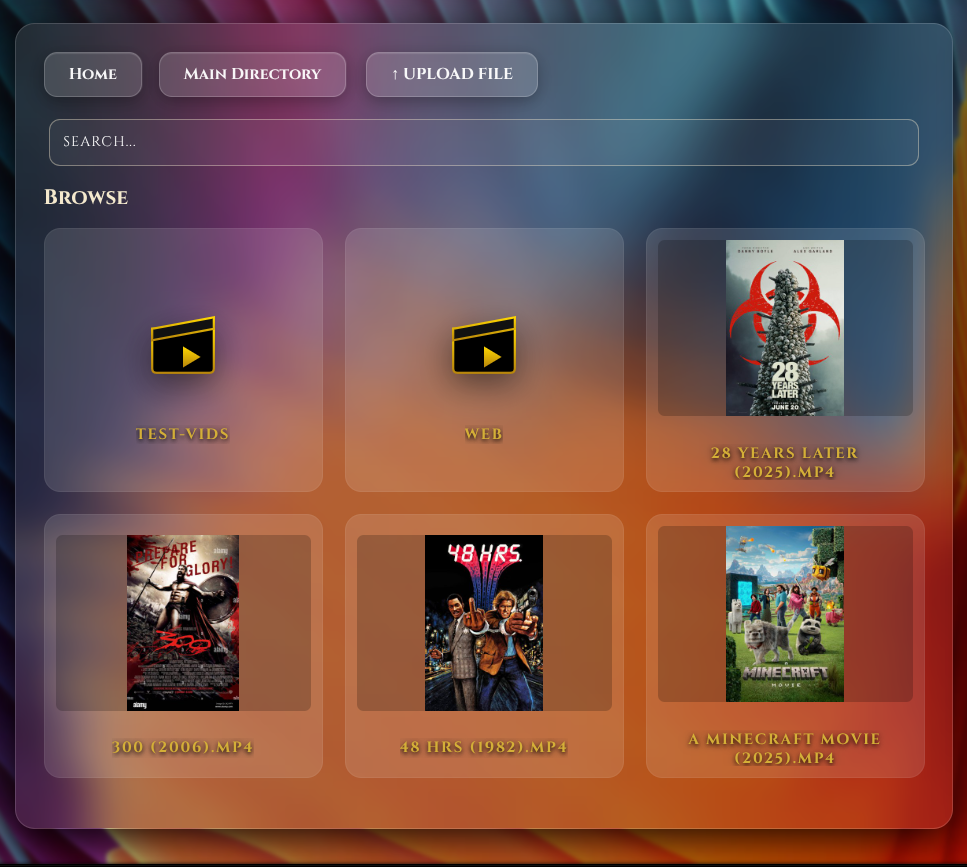
Added an Upload button for Music, Video OR Pictures folder. Only upload supported file types.
Version update check once a week, users will be notified on the main web page if there is a newer version with a link this this hackaday page for future instructions.
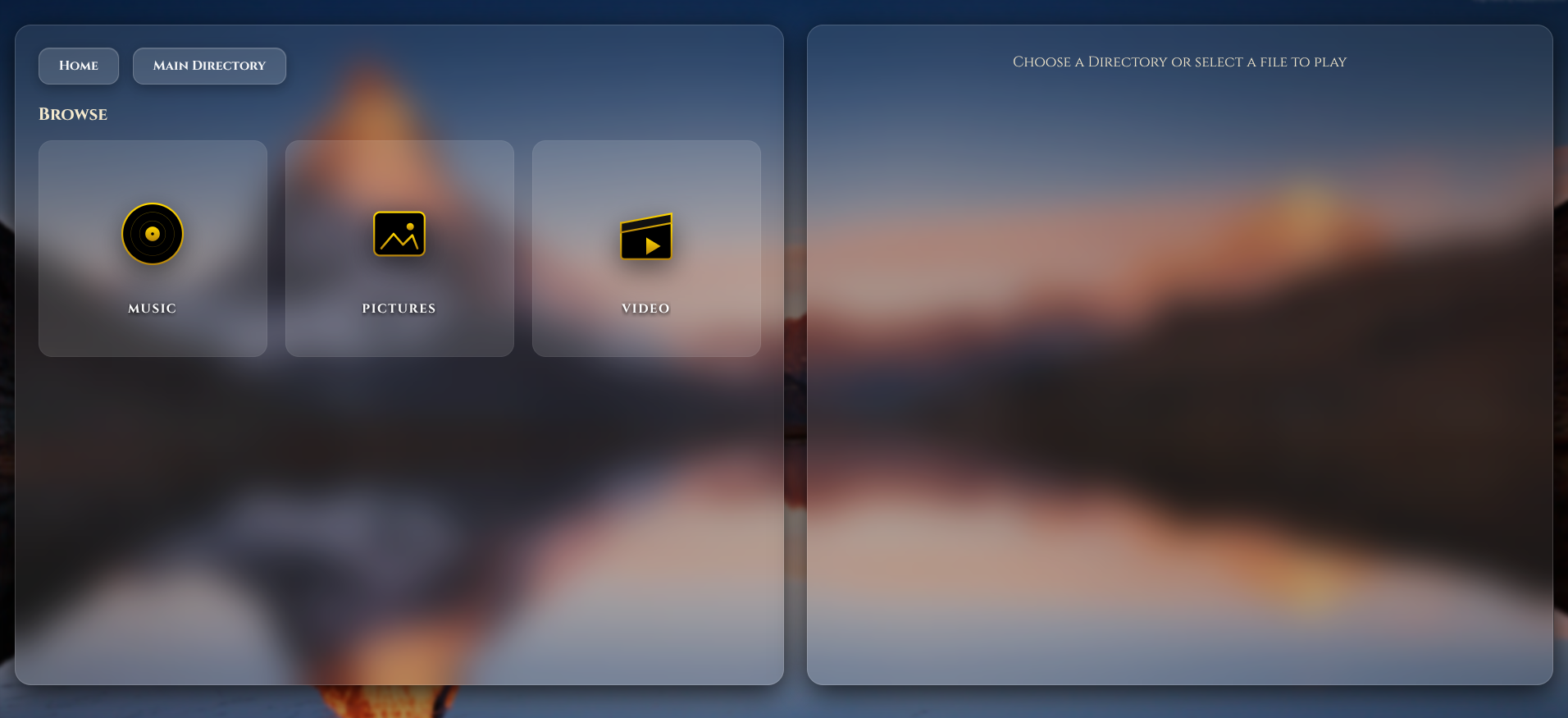
Also added a zoom in view on page opening and fade out when selecting to View Media Files or Manage Server
![]()
![]()
![]()
![]()
![]()
You can download / upgrade by running the following on the Raspberry Pi (either SSH into the Pi or on the actual Pi) :-
wget -qO- https://raw.githubusercontent.com/diddy-boy/mini-pi-media-server/main/install.sh | bash
-
Version 4.6 has just dropped
02/20/2026 at 20:11 • 0 commentsVersion 4.6 is now available with the following changes :-
Updated the media scraper so that movie description AND plot is now downloaded to a limit of 600 words per movie.
The previous intelligence of stripping out the movie 'Plot' was temperamental on some films.
This new method is more reliable
Added a tooltip for keyboard controls
Added system status popup of main services - Green, all running, Red service not running
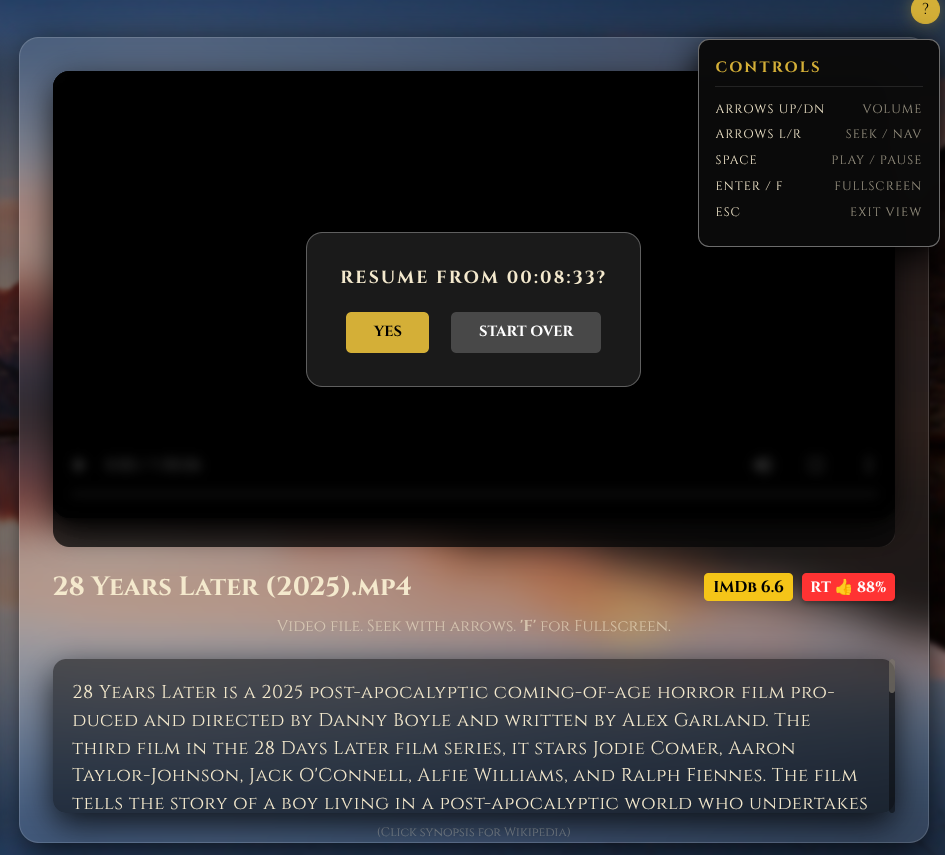
Updated the resume a previously watched media file, instead of a browser popup, this message is now inline with the movie playing window and in the correct theme
![]()
![]()
You can download / upgrade by running the following on the Raspberry Pi (either SSH into the Pi or on the actual Pi) :-
wget -qO- https://raw.githubusercontent.com/diddy-boy/mini-pi-media-server/main/install.sh | bash
-
Version 4.5 is now available
02/13/2026 at 20:32 • 0 commentsVersion 4.5 adds the following :-
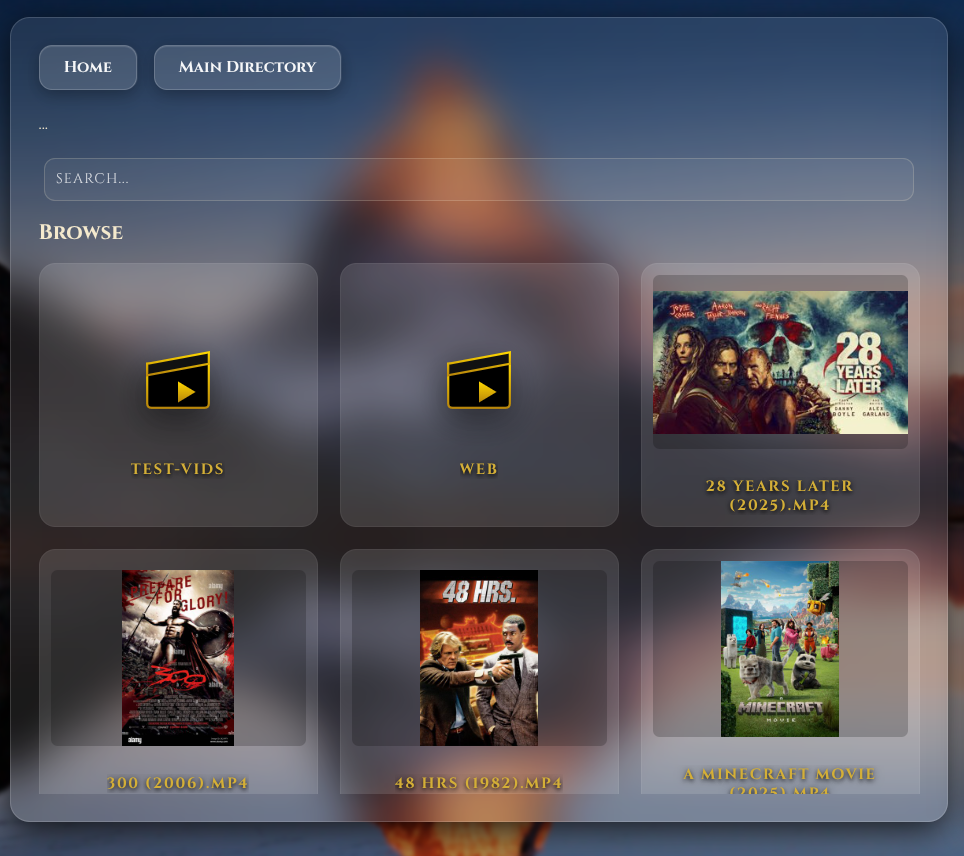
Search Bar : for searching media in the current directory and directories below
Universal Cloud Integration: expanded the "Cloud Sync" capabilities from just Google Drive to include OneDrive and MEGA, making the project accessible to a much wider audience. Just use one type when selecting during the install.
SVG Icon Graphics for Media types
![]()
![]()
You can download / upgrade by running the following on the Raspberry Pi (either SSH into the Pi or on the actual Pi) :-
wget -qO- https://raw.githubusercontent.com/diddy-boy/mini-pi-media-server/main/install.sh | bash
-
Pi zero 2 w running powerbank use
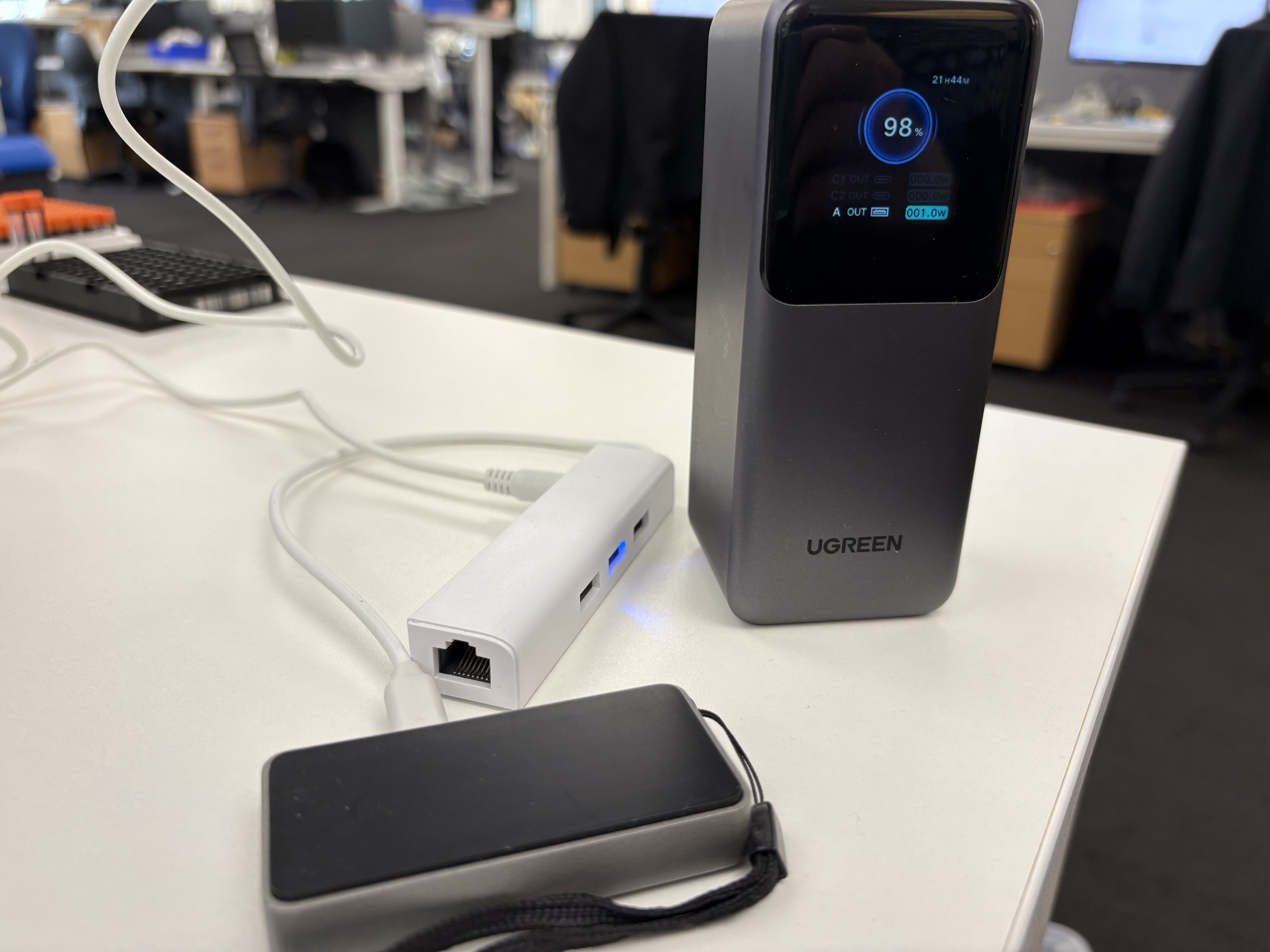
02/10/2026 at 10:48 • 0 commentsSince the Pi zero 2 w can be powered off a power bank.
A 20,000 mah power bank easily gives over 24 Hours of use !
Only drawing 1 watt of power with everything booted up and idle and that's with the usb to etherent adapter connected as well.
![]()
You can download / upgrade by running the following on the Raspberry Pi (either SSH into the Pi or on the actual Pi) :-
wget -qO- https://raw.githubusercontent.com/diddy-boy/mini-pi-media-server/main/install.sh | bash
-
Version 4.4 is now available with Google Drive sync
02/07/2026 at 19:38 • 0 commentsI’ve just pushed an update (v4.4) to the Mini-Pi Media Server that introduces automated cloud syncing. You can now drop video files into a specific Google Drive folder (Video folder) from another PC and have your Pi Zero 2W automatically download them and refresh the MiniDLNA library every 30 minutes.
How it Works
The integration uses Rclone, an open-source command-line program to manage cloud storage. I’ve wrapped the logic into a new interactive setup script (
rclone-setup.sh) to keep the process "headless-friendly."Key Features of the Update:
- Automated Sync: The system checks your Google Drive every 30 minutes.
- Smart Refresh: The
minidlnaservice only restarts if the script detects a change in the file count—saving CPU cycles on the Pi Zero. - Permission Management: Automatically fixes file permissions (
755) and ownership (www-data) after every sync so files are immediately playable. - Background Service: Once configured, it runs as a systemd service, meaning it starts automatically on boot and checks every 30 minutes.
The Setup Workflow
I designed the bash script to be a step-by-step wizard. Here is the process for users:
- Software Prep: The script installs Rclone and sets up the local directory structure at
/var/lib/minidlna/Video/Web. - Folder Mapping: Users provide a specific Google Drive Folder ID. This keeps the sync scoped to just your "Video" folder rather than your entire drive.
- Headless Auth: Since the Pi Zero usually runs without a browser, the script allows you to paste an authentication token generated via
rclone authorizefrom another machine. - The "Set and Forget" Service: The script generates a systemd unit file that handles the timing and the sync logic.
So where do synchronised media files go ?
Running this script creates a Web folder within the Video folder, your media is synchronised there.
Minidlna, samba and apache will show the media files in this directory.
Technical Snippet: The Sync Logic
The heart of the sync is this one-liner executed by the service that runs every 30 minutes :-
Rclone-sync systemd service
The script has been designed to fail silently if no internet availability.
So this scirpt will not crash if the pi is running away from an internet connection (ethernet unplugged).
When next connected to the home network, the sync service will run at the next 30 minute slot, connect and just sync again.
Unattended, automatic - just the way things should be.
Why Google Drive?
While I love local storage, the Pi Zero could just sync new media and with media scraper at 5am will download the movie art and synopsis for the movie.
So where does it sync media to ?
Every 30 minutes a rclone-sync service runs and checks with your local copy of the web folder and pulls down any different media files that you have locally from your google drive Video folder.
Other updates:-
A couple of optimisations for the WiFi access point on a Pi 5 to get the speed faster when connected via WiFi access point (which should get faster as firmware updates to the wifi chip are released).Updated the mini-pi-setup.sh script to include the google drive setup synchronisation
NOTE: the mkv conversion to mp4 overnight system task will NOT work on media files in the Web (synchronised) folder. They are left as is from whatever is synchronised.
____________________________________________________________________☁️ Google Drive Sync User Guide
Prerequisites
- A Google Drive account is obviously needed.
- A PC/Laptop with a web browser to perform the initial authentication.
- Sudo access on your Mini-Pi.
Step 1: Prepare your Google Drive
Before running the script, you need to identify the specific 'Video' folder you want to sync.
- Open Google Drive in your web browser.
- Create a new folder named "Video" (or any name you prefer).
- Open that folder. Look at the URL in your browser's address bar.
- Copy the Folder ID. This is the long string of random letters and numbers at the end of the URL (after the last
/).- Example:
https://drive.google.com/drive/u/0/folders/1abc123_XYZ-789_ID_HERE
- Example:
In the example above the '1abc123_XYZ-789_ID_HERE' is the Folder ID you need to copy and paste, your folder id will be a different code.
Step 2: Either run the mini-pi-setup.sh script OR run rclone-setup.sh
Access your Mini-Pi via SSH and launch the script:
Select Option 1 ([Setup]): This installs Rclone, creates the local directories at
/var/lib/minidlna/Video/Web, and asks you to paste the Folder ID you copied in Step 1- Select Option 2 ([Auth]):
- Since the Pi is "headless" (no browser), you must authorize it from another computer.
- On your PC, visit
- rclone.org/commands/rclone_authorize/ or run
rclone authorize "drive"in a terminal. - Follow the Google login prompts.
- Copy the resulting JSON code block (the text between
{and}) and paste it into the script prompt on your Pi.
Step 3: Enable the Background Service
Once configured, you need to tell the Pi to start syncing automatically.
- Select Option 3 ([Start]): This creates a systemd service that runs in the background.
- Sync Frequency: The server will now check for new files every 30 minutes.
- Automatic Refresh: If the script finds new files, it will automatically restart the MiniDLNA service so your new media appears on your TV immediately.
Step 4: Maintenance & Logs
If you want to see the sync in action or troubleshoot, use Option 4 ([View]) in the script menu. This pulls the real-time logs from the system service, showing you which files are being downloaded or deleted.
Pro Tip: To delete a movie from your Pi, just delete it from your Google Drive folder. The script uses
--delete-during, which keeps your Pi storage perfectly mirrored to your cloud folder.
You can download / upgrade by running the following on the Raspberry Pi (either SSH into the Pi or on the actual Pi) :-wget -qO- https://raw.githubusercontent.com/diddy-boy/mini-pi-media-server/main/install.sh | bash
-
Mini‑DLNA Server — v4.3 Release
02/01/2026 at 16:24 • 0 commentsVersion 4.3 is the biggest network overhaul this project has ever had. After days of deep‑dive testing across the Pi Zero 2 W, Pi 4B, and the notoriously difficult Pi 5, the entire Wi‑Fi and routing system has been rewritten from the ground up for reliability, portability, and seamless use at home or on the move.
During the setup process the user is asked if they want to reconfigure the WiFi card, selecting yes will run a script asking the user for a WiFi access point name (leave for the system name or provide your own), a password and the country of use (important for WiFi band frequency use).
This update finally delivers what the community has been asking for: a stable, always‑on Wi‑Fi access point that works consistently across all Raspberry Pi models — including the Pi 5, despite its current firmware limitations (there is a few known issues with firmware for the WiFi card and kernel support for it on a Pi 5).
So now the Raspberry Pi is not just a media server, but a WiFi router too.... ok its still WiFi at 2.4Ghz but 5Ghz was just too much pain to get right. plus my head already hurts from the Pi 5 access point issues.
What’s New in v4.3
1. Complete Wi‑Fi Access Point Rewrite
The AP setup has been rebuilt to avoid the silent failures, driver crashes, and misleading success messages that plague the Pi 5’s current firmware. The new logic:
- auto‑detects the Pi model
- applies model‑specific wireless settings
- avoids the Pi 5 channel‑setting bug
- prevents PMF negotiation failures with modern Linux clients
- ensures the AP comes up cleanly every time
This is the most stable AP implementation this project has ever had. none of that previous detect home WiFi and if not found turn the Pi into an access point.
2. Seamless “Always‑On AP” Mode
The Pi now broadcasts its access point all the time, regardless of where you are.
- Away from home: Lets say the Pi runs from a power bank, clients connect to the AP, and all services (Samba, Apache, Cockpit, MiniDLNA) are available.
- Back home: Plug in Ethernet and routing activates instantly — no reboot, no reconfiguration, no reconnecting clients with tablets and phones or even having to reconnect to the home WiFi.
Your devices never need to switch networks. The Pi handles everything automatically.
3. Intelligent Ethernet Detection
The script now:
- detects USB‑Ethernet adaptors on the Pi Zero 2 W (users will need to buy a USB to Ethernet adaptor for home streaming)
- handles unplugged cables gracefully
- falls back safely when no WAN interface is present
- avoids NetworkManager conflicts and stale profiles
This makes the system genuinely plug‑and‑play.
4. Pi 5 Firmware Workarounds
The Pi 5’s AP mode is currently unstable due to upstream firmware issues. v4.3 includes:
- channel auto‑selection (required on Pi 5)
- PMF disabled to prevent Linux client timeouts
- strict RSN/CCMP security for compatibility
- forced cleanup of conflicting services
- recovery logic for driver dropouts
This is one of the few working Pi 5 AP setups available today (after searching the web for answers).
5. Fully Stateless, Self‑Recovering Network Stack
All configuration is generated dynamically. No fragile manual edits. No leftover profiles. No dependency on hostapd or dnsmasq.
NetworkManager handles:
- DHCP
- NAT
- DNS
- routing
- interface monitoring
The result is a system that behaves like a commercial travel router, but tiny, portable, and running your own services.
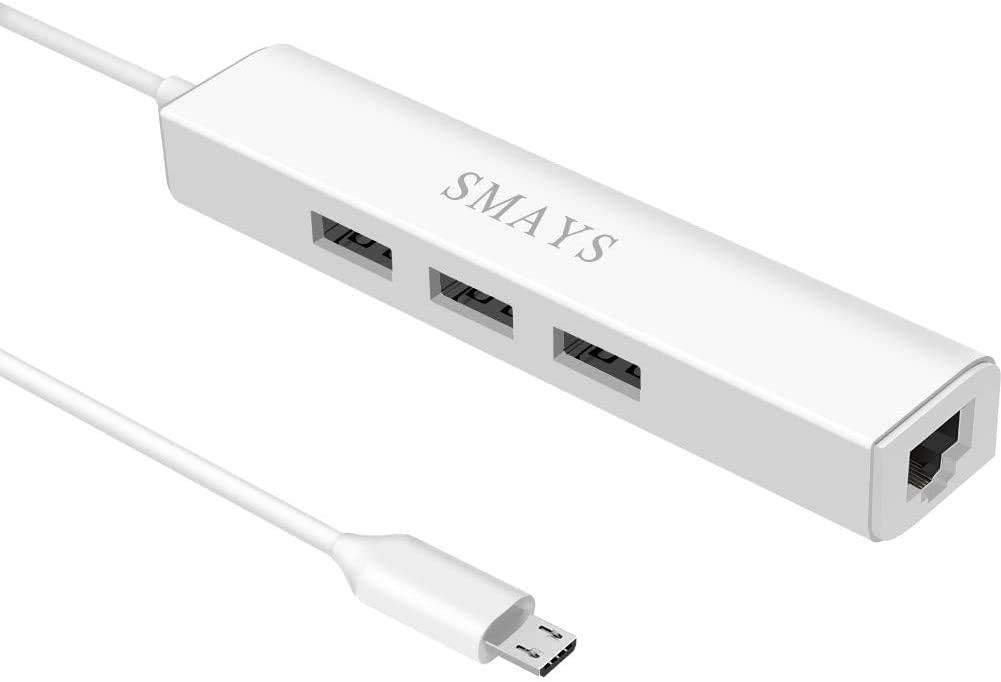
for Pi zero 2 w users, you WILL need a USB to Ethernet card to stream media at home, like this one from Amazon :-
https://www.amazon.co.uk/dp/B08XW2VWPJ![]()
Version 4.3 can be downloaded / upgraded by :-
wget -qO- https://raw.githubusercontent.com/diddy-boy/mini-pi-media-server/main/install.sh | bash
-
Version 4.2 is now available
01/27/2026 at 22:08 • 0 commentsSo whats new ?
No new functionality in this release but plenty of bug fixes due to Pi OS Trixie madness
1. the introduction of rpi-swap played havoc with zram-tools for memory compression and swap space
2. kernel page size setting to 16k is great for performance boost on a pi5, absolutely useless on a Pi Zero 2 W with 512mb ram. any PI with 1GB of ram of less will struggle with this latest introduction.
3. had to completely re-write the WiFi and Adhoc WiFi management for the pi's onboard wifi card.
NOTE: only tested the WiFi and Adhoc WiFi on the Pi Zero 2 W.
so many race conditions with services on startup. got there in the end.
4. On the main web page, updated the popup status for the network connection type Now shows if connected via WiFi, Ethernet or running as an access point. the old method was sometimes wrong.
5. a couple of new backgrounds added for the web page. looked good to me.
can be downloaded by :-
wget -qO main.zip https://github.com/diddy-boy/mini-pi-media-server/archive/refs/heads/main.zip && unzip -o main.zip && cd mini-pi-media-server-main && unzip -o pi-setup*.zip && cp -rf pi-setup ~/ && cd ~ && rm -rf mini-pi-media-server-main main.zip && cd ~/pi-setup && chmod +x ./*.sh && sudo ./mini-pi-setup.sh
-
Version 4.1 is now up for grabs
01/16/2026 at 21:15 • 0 commentsHot on the heels of Version 4 and the addition of the media scraper tool, I have updated the media scraper (that runs at 5am) :-
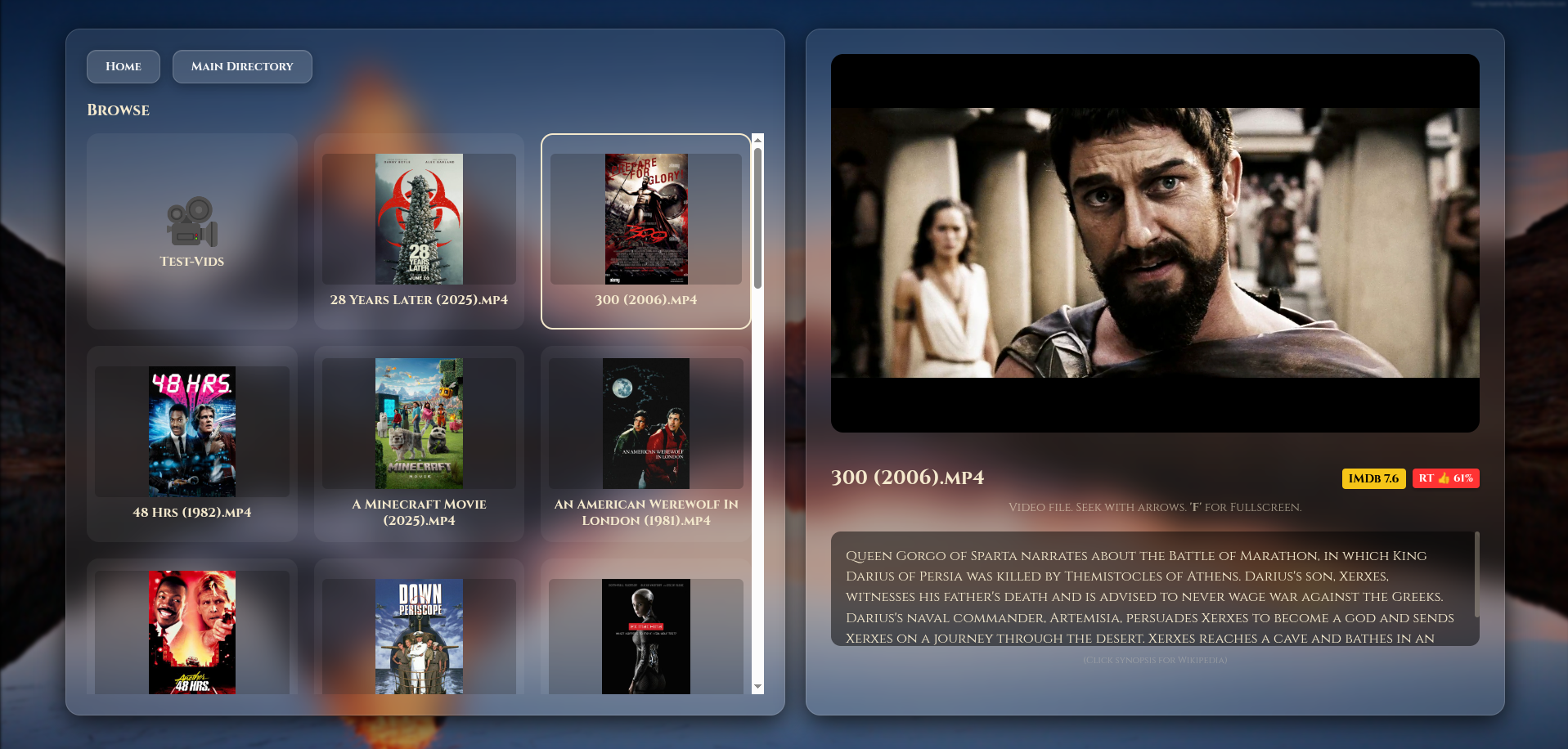
Media scraper matches your movies and then downloads Movie art, Movie synopsis and now downloads IMDB rating as well as Rotten tomato movie rating.
also added the synopsis as a clickable link to the movie on wikipedia for film buffs to check out.
Fixed issues with 125 DPI scaling
Fixed placement of the movie window and the synopsis window
Made the Movie scraper with tolerance to not be blacklisted from duckduckgo when searching for hundreds of movie art. it no longer spams the search engine to get blacklisted on searches.
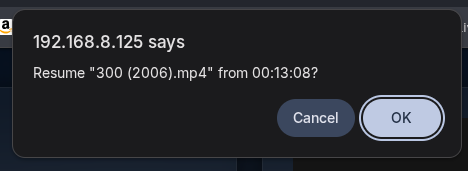
Added resume option on previously watched movies
![]()
Resume on previously watched movie :
![]()
can be downloaded / upgraded by running :-
wget -qO main.zip https://github.com/diddy-boy/mini-pi-media-server/archive/refs/heads/main.zip && unzip -o main.zip && cd mini-pi-media-server-main && unzip -o pi-setup*.zip && cp -rf pi-setup ~/ && cd ~ && rm -rf mini-pi-media-server-main main.zip && cd ~/pi-setup && chmod +x ./*.sh && sudo ./mini-pi-setup.sh
-
Version 4 is now available with media scraping for movies
01/13/2026 at 19:19 • 0 commentsVersion 4.0: The "Cinematic" Update
This version transforms the web server from a simple file streamer into a rich media gallery. The headline feature is a completely custom-built, lightweight metadata engine designed specifically for the limited resources of the Pi Zero.The user is asked during install if they want to setup a media scraper service which will run at 5am and download media art and movie synopsis.
New Feature: Automated Wikipedia "Plot" Scraper
Unlike most media servers that require complex API keys and heavy databases, V4 introduces a "Zero-Config" scraper.Narrative Extraction: Using advanced HTML parsing (BeautifulSoup4), the scraper identifies the specific "Plot" or "Synopsis" section of a movie's Wikipedia page.
Anti-Clickbait Logic: Implemented a sophisticated filtering system to bypass SEO "teaser" text (e.g., "Ending explained...") and non-narrative facts, ensuring only the story is displayed.
Multi-Sentence Formatting: Automatically cleans Wikipedia citations (like [1], [2]) and trims the synopsis to a perfectly formatted 4-sentence blurb to maintain a clean UI.
New Feature: Intelligent Poster Gallery
Auto-Sourcing: The engine automatically finds high-quality movie posters via DuckDuckGo Image Search.Resource Optimized: Images are automatically downloaded, converted to RGB, and resized to a standard 300x450px thumbnail. This saves significant disk space and ensures the web interface loads lightning-fast on the Pi Zero 2W.
Improved: Rich Metadata Interface
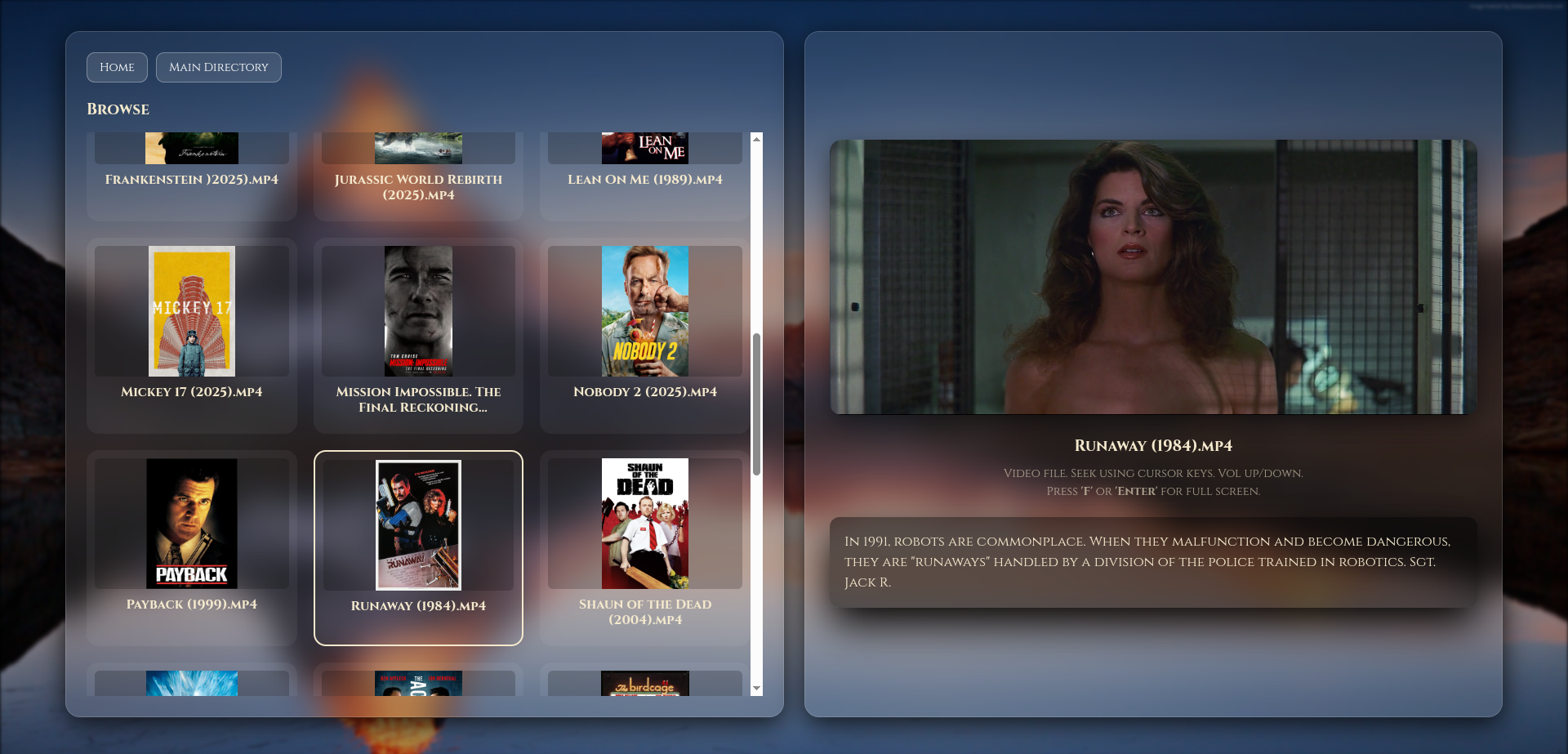
Plot Overlay: The web UI now features a dedicated synopsis window below the movie preview.CSS Line-Clamping: Uses modern CSS logic to ensure text never overflows, keeping your library looking professional and uniform regardless of description length.
Daily Automation: A new Systemd timer-service automatically runs the scraper at 5:00 AM daily, finding metadata for any new movies you've added while you slept.
Developer Notes :
Environment Isolation: The scraper now runs in a Python Virtual Environment (venv), ensuring dependencies like Pillow and BeautifulSoup4 don't interfere with your system-wide Python installation.Permissions Logic: The setup script automatically manages minidlna group permissions, ensuring the web server can always read and display your metadata.
Media-scraper service is set to run at 5am but can be ran at any time from within cockpit (remote administration) and search for media-scraper under services
how does it work ?
when the scraper.py runs (at 5am), this script will search DuckDuckGo search engine for movie art posters for your movie files then search Wikipedia for the plot of every movie to get the actual plot.
this is then displayed when browsing the Video section and the user clicks on a movie. The synopsis is displayed below the playing movie.
it's about 95% correct. small indie movies are hit and miss.can be download upgraded by :-
wget -qO main.zip https://github.com/diddy-boy/mini-pi-media-server/archive/refs/heads/main.zip && unzip -o main.zip && cd mini-pi-media-server-main && unzip -o pi-setup*.zip && cp -rf pi-setup ~/ && cd ~ && rm -rf mini-pi-media-server-main main.zip && cd ~/pi-setup && chmod +x ./*.sh && sudo ./mini-pi-setup.sh
![]()
Mini-PI Media Server
Mini-PI Media Server for use on home network or as a wifi access point to stream media from