Close
0%
0%

Vertical LED digit display boards

Hang on, is that a display on your wall?

Similar projects worth following
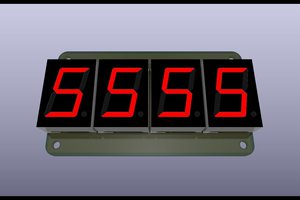
Large 2 digit LED displays with segments formed by domed LEDs that are stacked vertically for multiples of 2 digits

Vertical display

This is the latest iteration of displays that use discrete domed LEDs to form segments developed for #6 segments suffice and implemented in #6 segment 2 digit LED display board and #7 segment 2 digit LED display board as well as other side projects such as #Ancient PMOS technology clock and #Ancient 12 hour display. But the time has come to declare a new project as several design decisions have been made for this series of displays.

  1. Vertical stacking versus horizontal stacking. Horizontal stacking seems natural to make multiples of 2 digits. However while looking in a shop window in Llanes, I saw a consumer LED clock where the digits were stacked vertically. I also realised that the clock on my smartphone lock screen also stacks vertically. Several advantages accrue:
    1. No separator between hours and minutes (and seconds, if present) is needed. The traditional blinking colon can be changed to a less prominent flashing dot.

    2. Portrait format instead of landscape which makes it easier to hang on walls. The MCU board can be attached to the bottom board providing some weight to keep the stack orthogonal.

    3. The display could be used to display say temperature and humidity without confusion from horizontal stacking.

  2. Chained shift registers with static drive for each segment versus segment-digit multiplexed display. The latter requires less components: a set of segment drivers and a set of digit drivers, whereas the former requires more drivers, one for each segment. Also a multiplexed scheme requires more MCU output pins and firmware support whereas a shift register chain only requires 3 lines minimum and 1 more if PWM dimming is implemented. Static drive also allows increasing the height of the stack with no change in lines, only chaining. If I use LED filaments later multiplexing becomes harder as the current per segment is around 30 mA so a fully lit digit would draw 210 mA divided by the per digit duty cycle, requiring more care with board tracks.

  3. Constant current LED drive. The 6 segment font has 4 or 5 LEDs per segment in the same display whereas it's fixed at 3 or 4 for all segments in the 7 segment font. This either requires different limiting resistors for the segments, which introduces a dependency on the supply voltage and the voltage drop of the LEDs which depends on the colour (junction type). This becomes even more important for LED filaments which I hope to use as segments in a future design. For this reason I have chosen to implement constant current drive. In a previous iteration I used the TL431 to generate a bias rail for the drivers. Then it occurred to me that there already is a reference rail, the 3.3 V supply for the MCU. (This is also a good opportunity to transition to 3.3 V MCUs as the 5 V MCUs are getting fewer.) Granted this is bit high and results in wasting about 2.5V across the limiting resistor. But I have elected to use boost converters to provide the LED power which provide flexibility.

  4. Surface mount versus through hole technology. More transistors and resistors in the static drive method push the design towards SMT where the parts are cheaper and more can be packed on the board. It also allows automated assembly for those who want to avoid soldering lots of small parts.

  5. Eliminate flying wires. The connector on the display board is designed to plug into an 8 pin Dupont pin socket on the MCU drive board, no other connections are required.

  6. Use a boost converter to provide the LED power. I used to worry about the voltage provided by wall warts, usually 5V or 12V and this was reflected in the design that resulted. Now a wide range of wall wart voltages is accepted as the LED supply voltage can be adjusted by trimpot, and a small SMD LDO regulator provides a calm 3.3 V rail for the MCU, which does not need much current.

First prototype
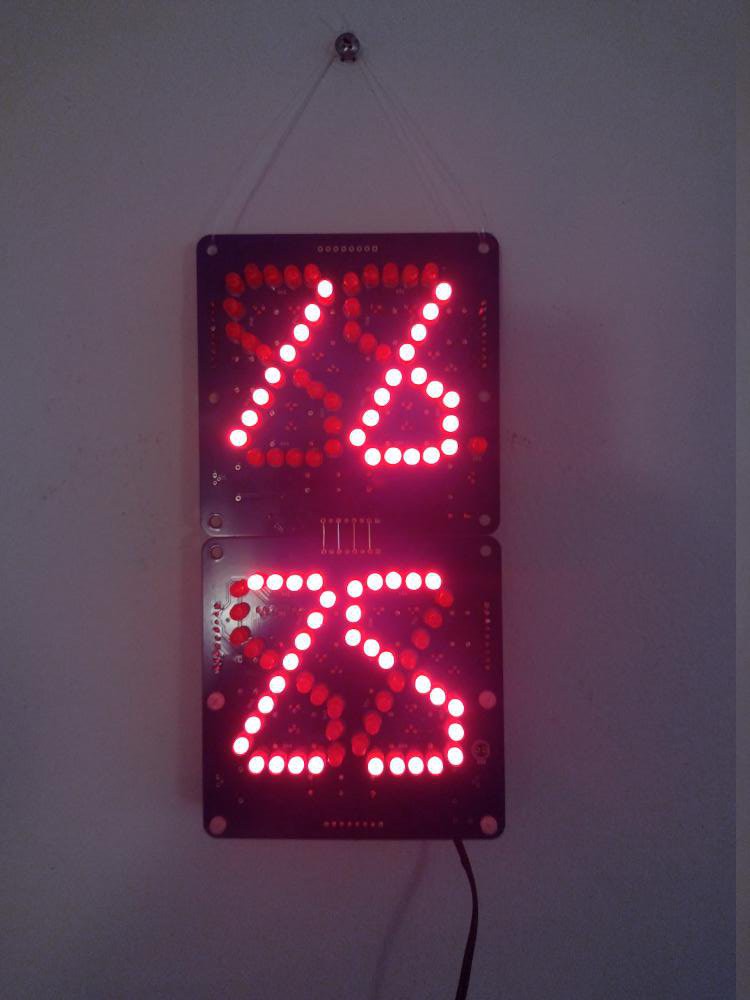
I made a prototype with the vertical design and it looked like this. Straight away I realised that the proportion was wrong, the digit...

Read more »
  • An assessment of the assembled boards

    Ken Yap2 hours ago 0 comments

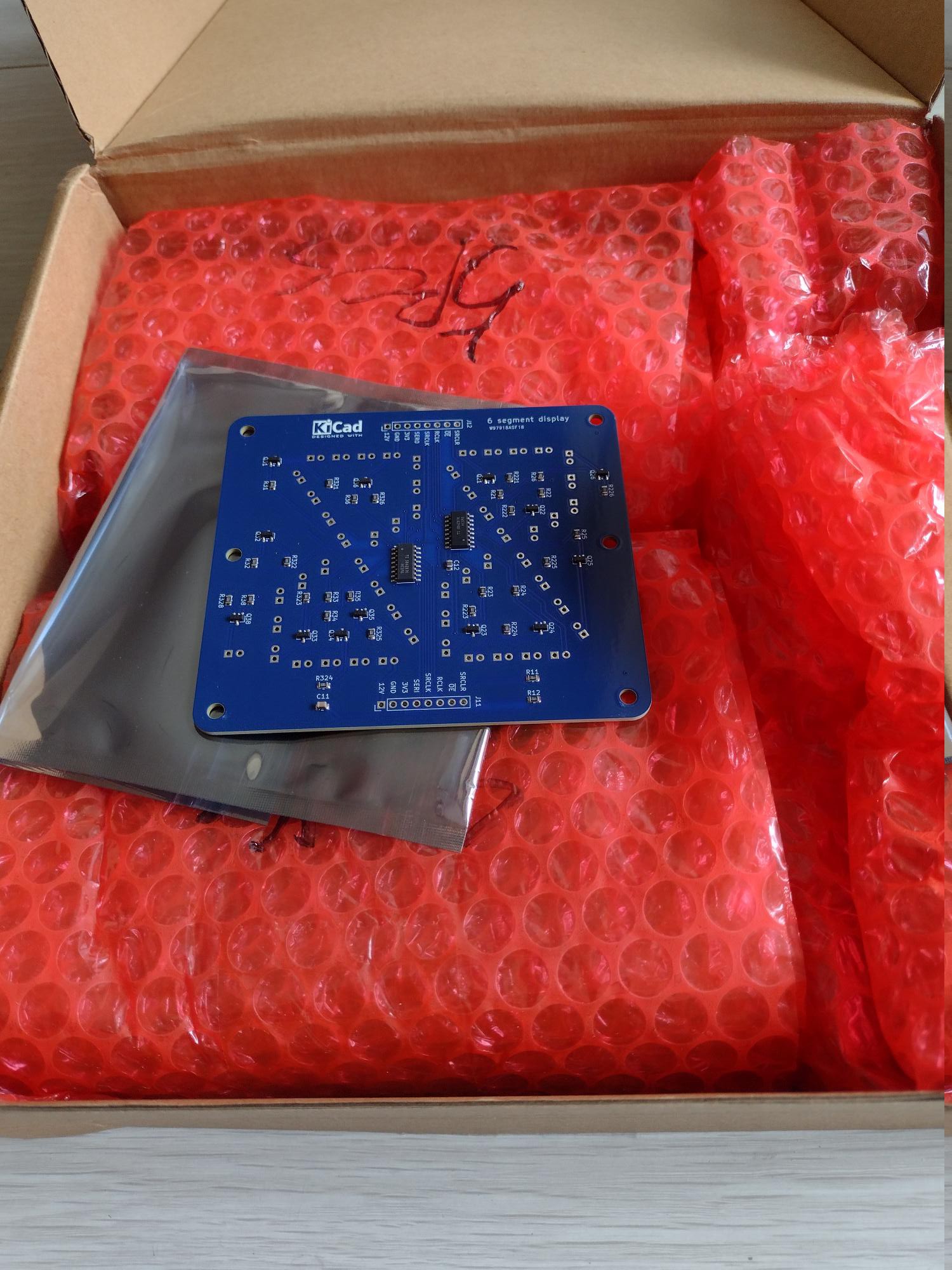
    The assembled boards have arrived from PCBWay, wrapped extremely well in plastic bubble and each board in a reusable anti-static bag. I was half expecting a stack of boards, but of course that's wrong as the boards have SMD components mounted.

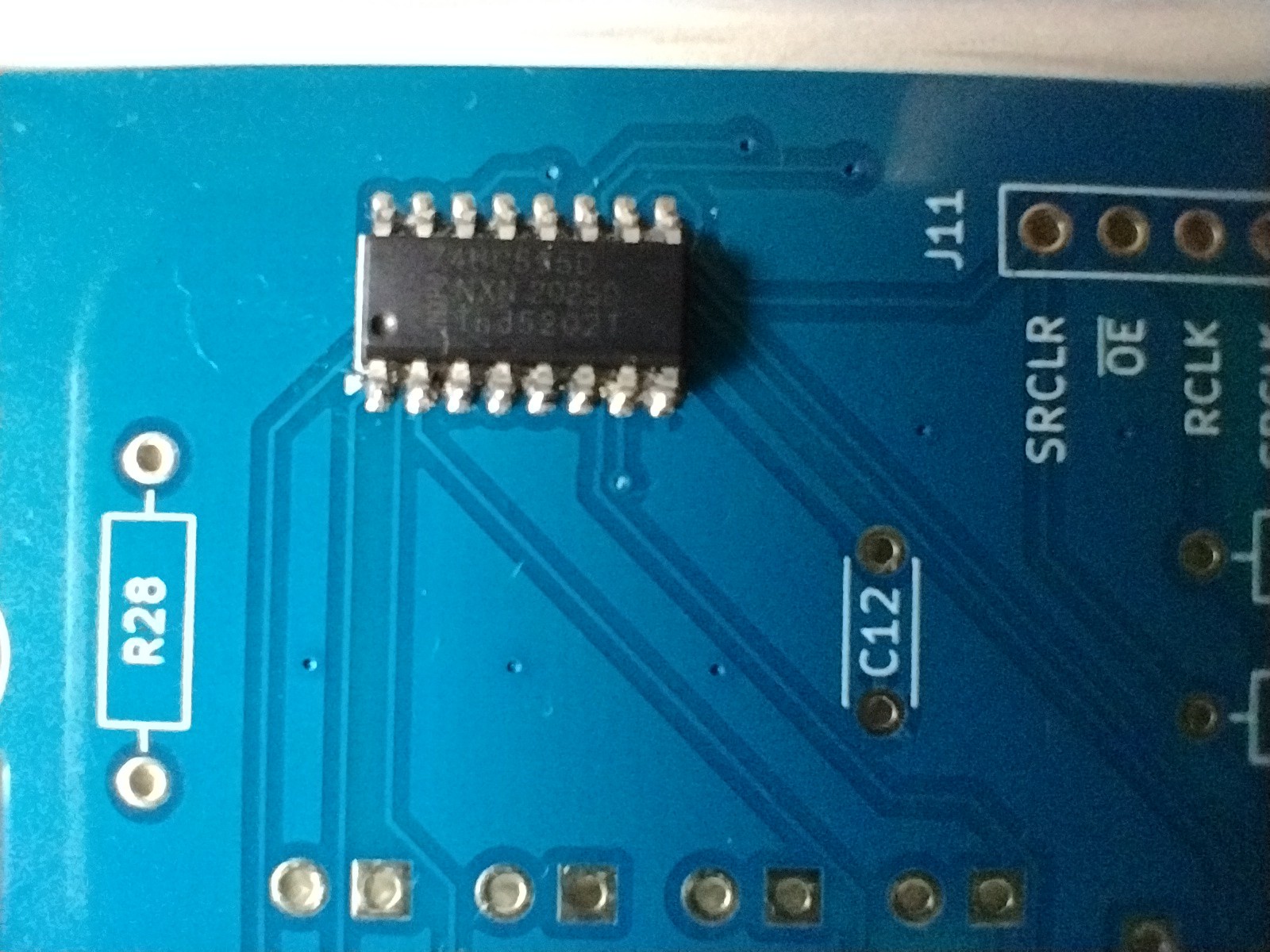
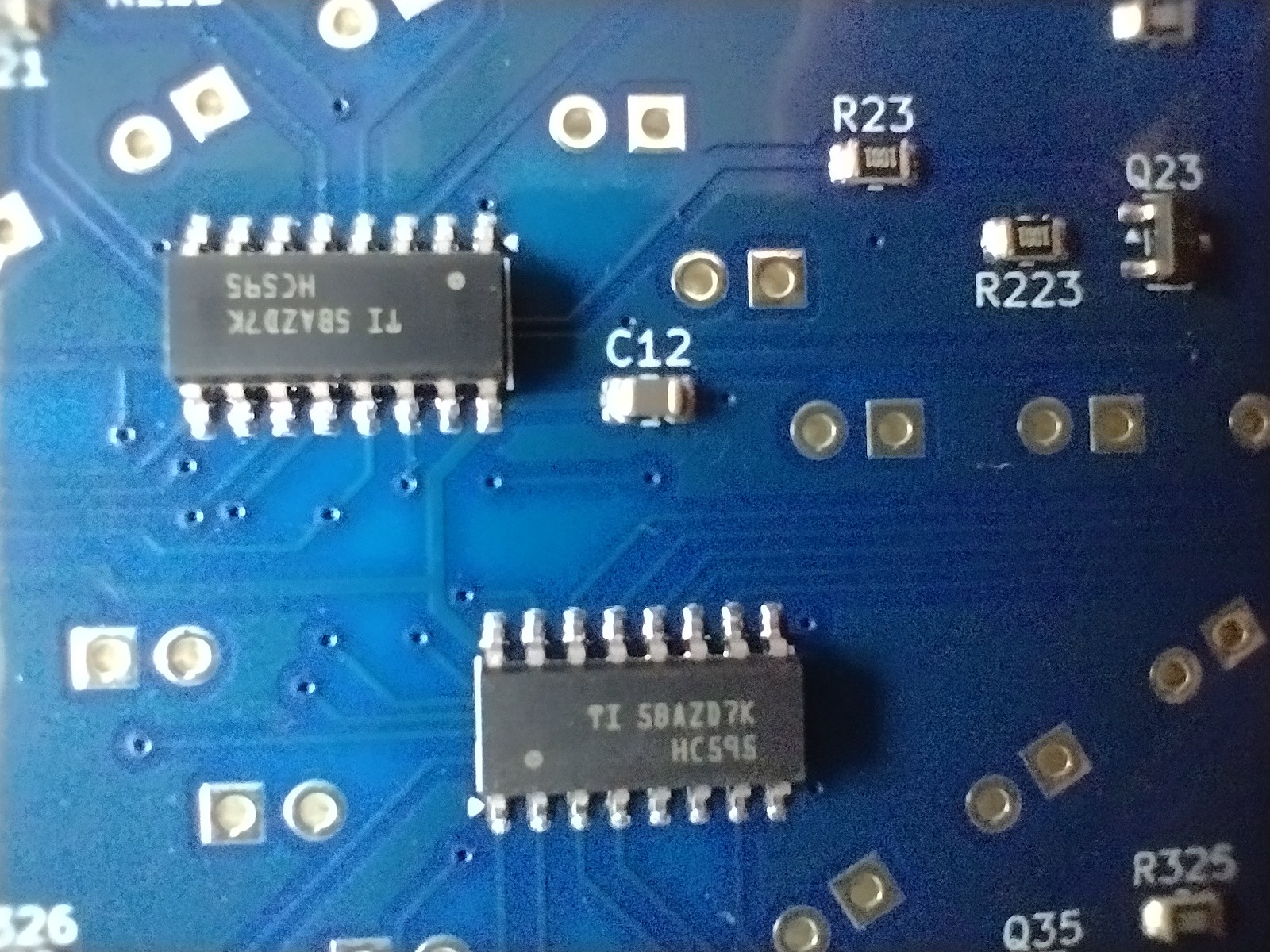
    The quality as you can see is impeccable. They sent me a picture of the first board to confirm that the placement of the parts was correct. It was a photo of a real board because the SS8050 SMD transistors had the marking Y1, the short code for this part.

    Naturally my manual but adequate soldering shown above is no match for reflow soldering. The pictures also show that I'm not really set up to take good macro photos, there is reflection from the shiny solder. Maybe I need one of those digital microscopes.

    So what were the durations and costs? Bear in mind that this will vary widely with project.

    • Day 0: The order was placed and PCB fabrication started on May 19.
    • Day 3: The boards were completed on May 22.
    • Day 9: The required parts were collected by May 28.
    • Day 15: Board assembly boards was completed and they were shipped on June 3. Interesting that the estimated build time was 25-30 days, perhaps for leeway for complex boards or hard to source parts. This project only requires 2 copper layers and widely available parts.
    • Day 23: I had opted for cheap Global Express shipping so the boards arrived June 11. Note that the local handling (customs, last km courier) took a few days, so it's not just transport time from China.

    As for the costs, the boards are under 100x100 mm so each of 10 boards is $0.50. Parts were $0.71 and assembly was $2.90 resulting in $4.11 per board. Naturally this is highly dependent on the parts and the complexity of the board. You have to decide if it's worth paying for professional assembly. A factor is whether you are a hobbyist or a commercial firm. If you are in a hurry because it's a commercial project, then the cost shoots up for rush jobs. If there are several iterations then the cost multiplies. Then again, manual assembly is more prone to errors, and you have to clean off soldering residue.

    So now to populate the boards with 5 mm LEDs, stitch two together and get a display working. By the way if you are building displays out of discrete LEDs like me, eschew 3 mm LEDs and go for 5 mm LEDs. Not only do they look more attractive, like glowing domes rather than points of light, but they are also more robust. The 3 mm LED leads break off easily if soldered more than once, after all the pin spacing is 2.54 mm. Naturally go for diffused bodies rather than clear bodies.

  • Generating PCB production files with kicad-cli

    Ken Yap05/17/2026 at 23:31 2 comments

    For a couple of versions now, KiCad has had a command line tool for generating production outputs. How does this improve the workflow? For one thing, instead of specifying outputs and options, and generating files from the GUI, you do it from the command line. This allows you to use scripts which gives reproducible results, free from having to ensure that all the right boxes have been filled in or ticked in the GUI. For this project i have used a Makefile. Here it is:

    PROJECT=6segment
    VERSION=7
    SCHFILE=$(PROJECT).kicad_sch
    PCBFILE=$(PROJECT).kicad_pcb
    LAYERS=F.Cu,B.Cu,F.Mask,B.Mask,F.Silkscreen,B.Silkscreen,Edge.Cuts
    OUTPUTDIR=output
    BOMFIELDS=$${QUANTITY},Reference,Value,Footprint,Description,Type,Manufacturer,MPN
    BOMLABELS=Quantity,Designator,Value,Package,Description,Type,Manufacturer,MPN
    BOMFILE=$(OUTPUTDIR)/$(PROJECT)-bom.csv
    POSFILE=$(OUTPUTDIR)/$(PROJECT)-pos.csv
    ZIPDIR=/var/tmp/Tmp
    ZIP=$(ZIPDIR)/$(PROJECT)-v$(VERSION).zip
    
    all:    gerbers bom pos zip
    
    $(OUTPUTDIR):
            mkdir -p $(OUTPUTDIR)
    
    gerbers:        $(PCBFILE) $(OUTPUTDIR)
            mkdir -p $(OUTPUTDIR)
            kicad-cli pcb export gerbers -o $(OUTPUTDIR) --no-protel-ext -l $(LAYERS) $<
            kicad-cli pcb export drill -o $(OUTPUTDIR) --excellon-separate-th $<
            kicad-cli pcb export ipcd356 -o $(OUTPUTDIR)/$(PROJECT)-netlist.ipc $<
    
    bom:    $(SCHFILE) $(OUTPUTDIR)
            kicad-cli sch export bom -o $(BOMFILE) --fields '$(BOMFIELDS)' --labels '$(BOMLABELS)' --group-by Value --ref-range-delimiter '' $<
    
    pos:    $(PCBFILE) $(OUTPUTDIR)
            kicad-cli pcb export pos -o $(POSFILE) --format csv --units mm --side back --use-drill-file-origin --smd-only $<
            sed -i -e '1s/Ref,Val,Package,PosX,PosY,Rot,Side/Designator,Value,Footprint,Mid X,Mid Y,Rotation,TB/' -e 's/bottom/B/' $(POSFILE)
    
    zip:    gerbers
            rm -f $(ZIP)
            zip -jo $(ZIP) $(OUTPUTDIR)/*.{gbr,drl,ipc}

    For the gerbers rule we generate the layers specified, then generate the two drill files, and finally a IPC-D-356 netlist to help the fabricator test the boards. A zip rule combines them into a file ready to upload.

    The other two rules generate the Bill of Materials (BOM) and Component Placement List (CPL, also called POS) files containing assembly information. I looked at PCBWay's instructions for BOM and POS file format, and tried to follow it as close as possible.

    For the BOM, the order of the labels and content of the columns is specified with the --labels and --fields arguments to the kicad-cli sch export bom command. ${QUANTITY} is a meta-field, it will be replaced with the number of items in that row. The $$ is to get a single $ past Makefile escaping rules. Here's what the BOM contains:

    "Quantity","Designator","Value","Package","Description","Type","Manufacturer","MPN"
    "1","C11","10u","Capacitor_SMD:C_0805_2012Metric","Unpolarized capacitor, small symbol","SMD","",""
    "1","C12","100n","Capacitor_SMD:C_0805_2012Metric","Unpolarized capacitor, small symbol","SMD","",""
    "13","Q21,Q22,Q23,Q24,Q25,Q26,Q31,Q32,Q33,Q34,Q35,Q36,Q38","SS8050","Package_TO_SOT_SMD:SOT-23","General Purpose NPN Transistor, 1.5A Ic, 25V Vce, SOT-23","SMD","",""
    "2","R11,R12","47k","Resistor_SMD:R_0805_2012Metric","Resistor, small symbol","SMD","",""
    "26","R21,R22,R23,R24,R25,R26,R31,R32,R33,R34,R35,R36,R38,R221,R222,R223,R224,R225,R226,R321,R322,R323,R324,R325,R326,R328","1k","Resistor_SMD:R_0805_2012Metric","Resistor, small symbol","SMD","",""
    "2","U1,U2","74HC595D","Package_SO:SOIC-16_3.9x9.9mm_P1.27mm","8-bit serial in/out Shift Register 3-State Outputs","SMD","",""
    

    The Type field is an additional attribute that was added to each symbol to be assembled and is always SMD, as the assembly of the THT LEDs and the Dupont pin header will be done by me. The Manufacturer and MPN fields were left blank (actually kicad-cli will generate blank content for non-existent attributes) so that PCBWay can do the sourcing of the parts. Like nearly all other PCBA companies in China, PCBWay is not a stockist and will look on the market for the parts you specified. A couple of the tickboxes...

    Read more »

View all 2 project logs

  • 1
    Populating the boards with LEDs

    This is the process I use to populate a display board with 5 mm LEDs.

    Firstly, I recommend that you buy the LEDs in bulk in factory bags, usually 500 or 1000 units, so that you get consistency in the batch. Distrust those deals where they offer a bag of 100 LEDs because they may be seconds. Mind you they will be perfectly fine as single indicator LEDs where you will not notice variations in the brightness.

    By convention KiCad assigns pin 1 of the symbol to the cathode, and pad 1 on footprints is usually square. The shorter leg of LEDs is these days the cathode (but ancient LEDs varied) so my mantra when inserting the LED is: short leg square pad. There is also a flat on the circular base near the cathode pin, but I find this difficult to see. Make sure you get this right, otherwise the segment will not work and you're in for painful desoldering. And double check all these steps, trust nobody.

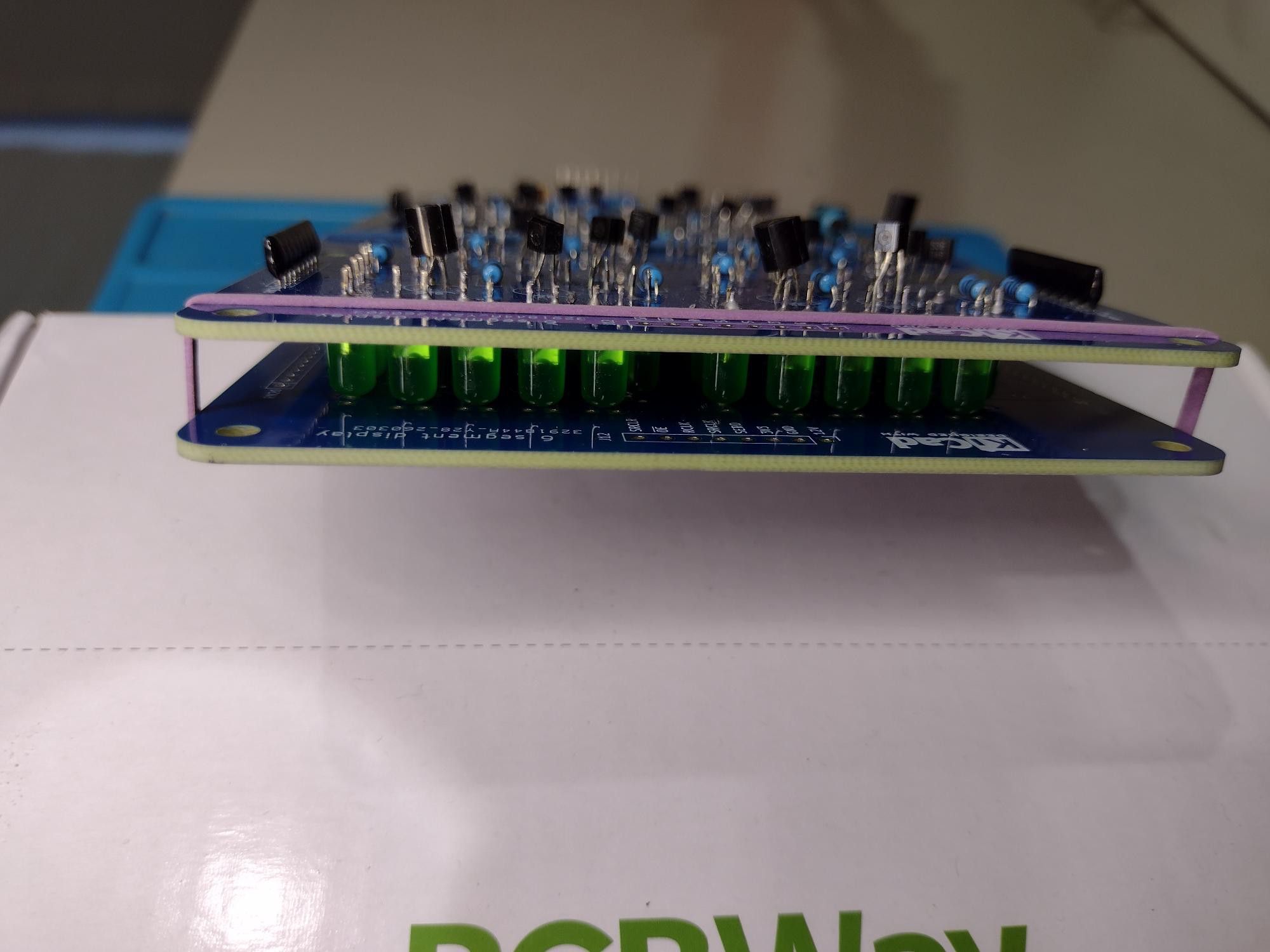
    After inserting the LEDs and tamping them down, I place an unpopulated PCB on top and bind the "sandwich" with rubber bands as depicted in the photo. I usually use 4 rubber bands.

    Then I pull the legs as straight as I can and then solder all the anode pins (or all the cathode pins, your choice). Be careful not to melt the rubber band with the soldering iron.

    I then disassemble the "sandwich". Hopefully you have not missed any pads or the LED will fall out.

    Due to variance in pin diameter and the LEDs not being perfectly straight in the "sandwich" some LEDs will not be flush with the PCB. Now is your chance to make them all upright by applying the soldering iron to the pad for each LED that needs straightening. When all the LEDs are flush with the board and orthogonal to your satisfaction, you can solder the other set of pads.

    If you are wondering about the THT components in the photo when this design is SMT, this was the previous prototype board. The other THT components were soldered in first, but for the SMT design, there is nothing to solder first.

  • 2
    Wire stitching the display boards

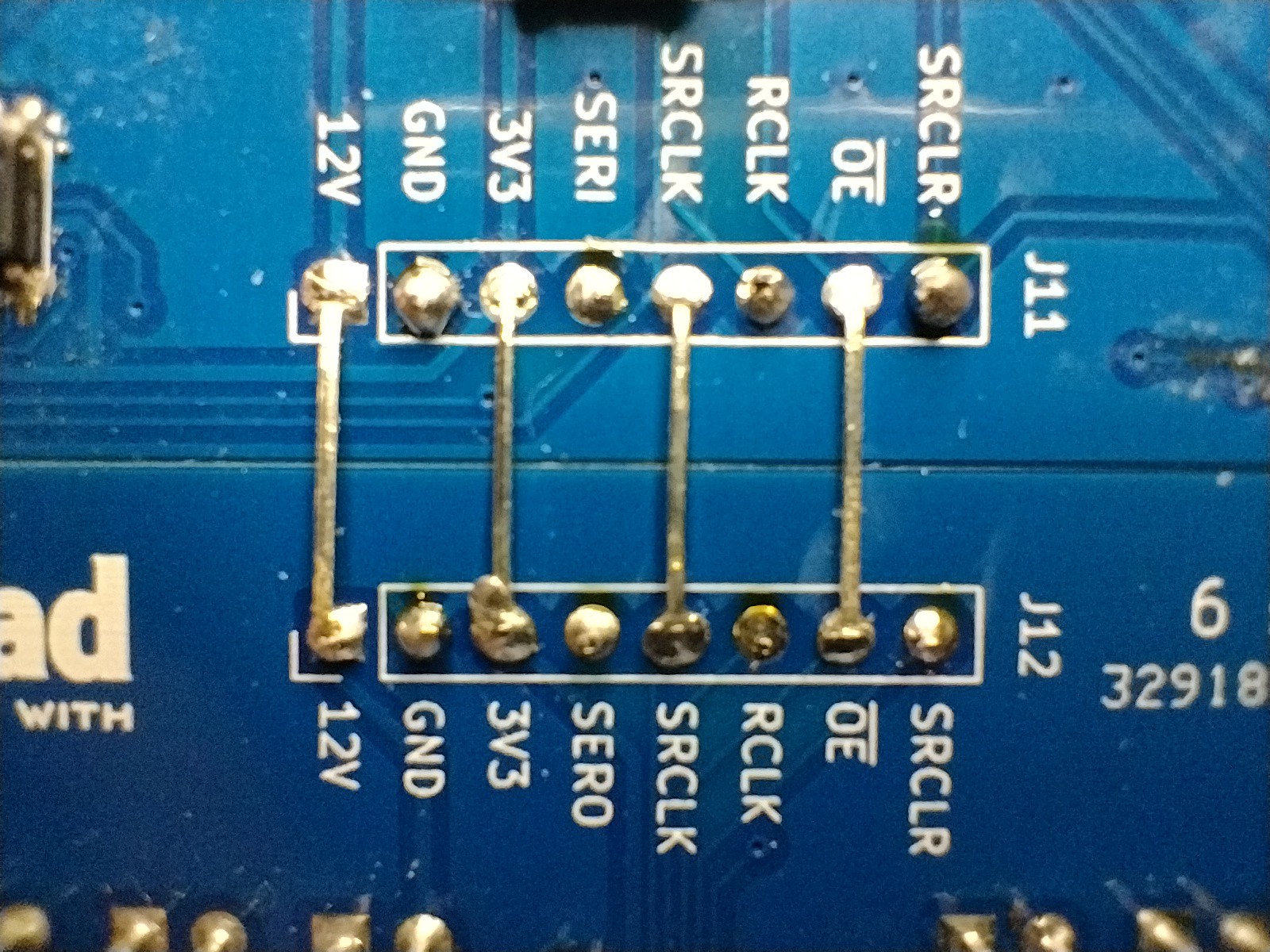
    The display boards are designed to daisy-chain, the top of one board connecting to the bottom of the next board by wire links. There are 8 lines in total. Alternating between front and back links they also provide resistance to flexing.

    First clamp the two boards to each other with bulldog clips, or these paper clips.

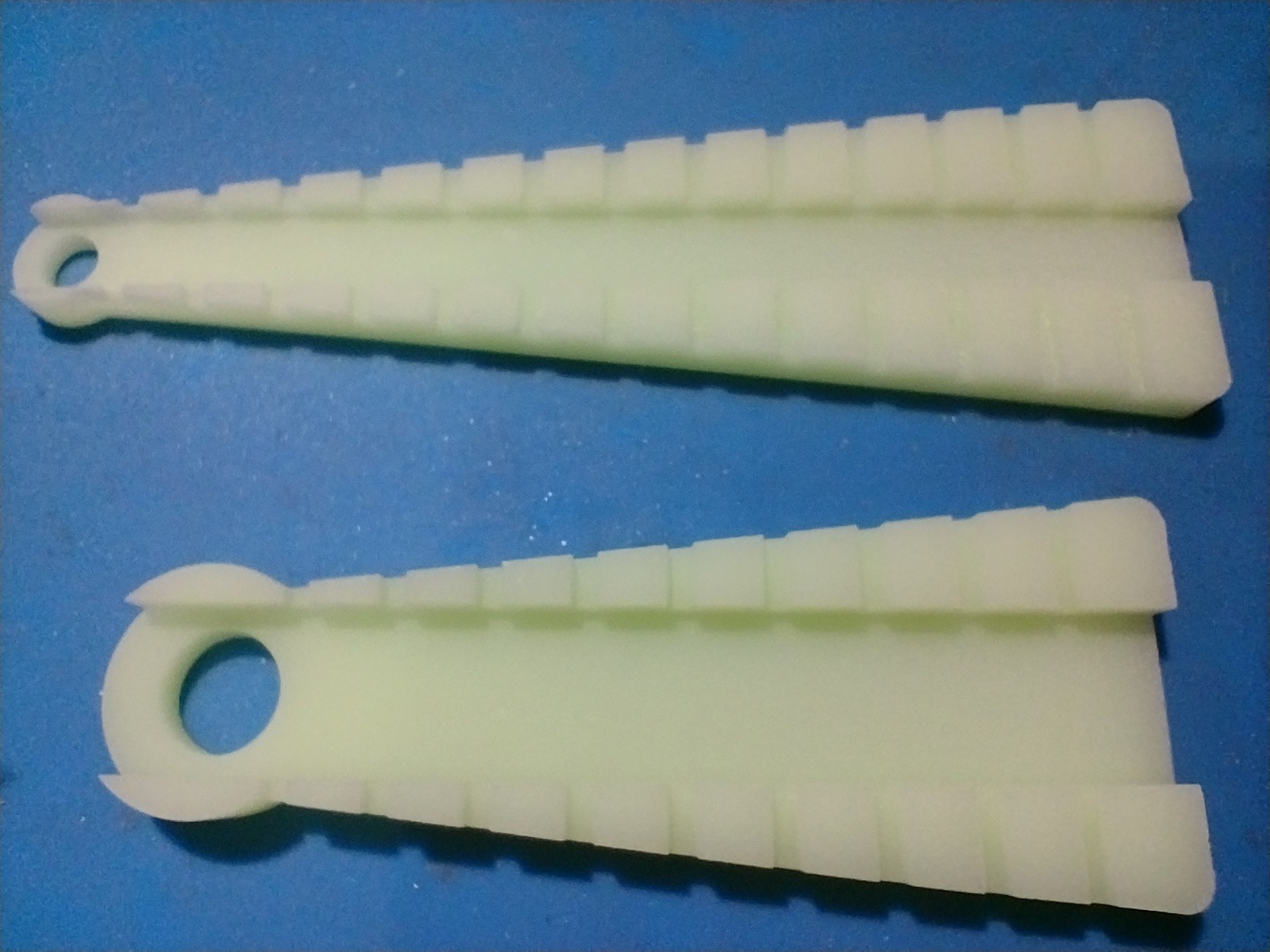
    Take component leads that you clipped off from the LEDs and form them into a rectangular U shape using an axial resistor former like this:

    You can also buy such formers from AliExpress, in a different, and IMO more logical, shape. If the gap is short, pliers can be used to form the wire.

    Insert half of the links (4) from the front, secure them to the boards with sticky tape, and solder on the back side. Then insert the other half from the back and solder on the front side. It's important that the links are flat and straight so that they resist stretching, and thus flexing of the boards.

    Now you can remove the sticky tape, bulldog clips or paper clips.

View all instructions

Enjoy this project?

Share

Discussions

Similar Projects

Does this project spark your interest?

Become a member to follow this project and never miss any updates