Close
0%
0%

Coding like it's October 17, 2000

PC/GEOS on 3Com Audrey

Similar projects worth following
0 followers
The 3Com Audrey was a 2000 internet appliance running QNX, dead within a year. I gave it new life with the correct OS. Linux is a squeeze in 32 MB of RAM and 16 MB of flash; FreeDOS + PC/GEOS leaves plenty of headroom and still brings a full desktop: office apps, browser, email. It all fits in the 16 MB flash, and boots from a CF card without touching it.

Audrey firmware only boots QNX images and offers no BIOS beyond video, so my bootloader poses as a QNX image and brings its own mini-BIOS for DOS. Then every part needed a driver for DOS and PC/GEOS: the IR keyboard, touchscreen, dial, buttons, LEDs, LCD and sound. A from-scratch USB 1.1 stack runs keyboards, mice, hubs, floppy, CD-ROM, card readers and Ethernet, so GEOS browses the web again. The 56k WinModem got a clean-room driver and fwcutter.

GeoBridge imports C64 geoWrite, geoPaint and geoPublish files into PC/GEOS' geoWrite and geoDraw.

DOS games just work. Confirmed: DOOM, Warcraft.

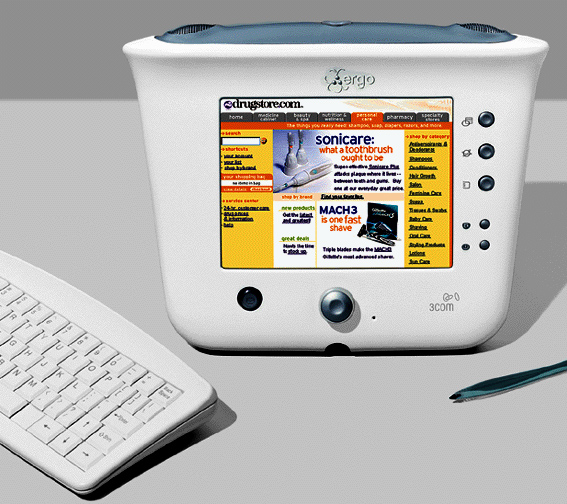
A product photograph of the 3Com Audrey with its keyboard and stylus. The 3Com Audrey with its keyboard and stylus. Product photo via The Fiscal Times.

The 3Com Audrey (2000–2001) was a kitchen-counter internet appliance. 3Com dropped it within a year. It has:

  • a 200 MHz National Geode GX1;
  • 32 MB of RAM and 16 MB of flash;
  • a 640×480 colour touchscreen;
  • a wireless IR keyboard, a dial and buttons, and speakers;
  • two USB 1.1 ports, a CompactFlash slot and a 56k modem.

It ran QNX.

Why PC/GEOS:

  • Linux is a squeeze in 32 MB of RAM and 16 MB of flash.
  • ELKS or uClinux would fit, but give you little to use.
  • Some form of Windows might work like CE or something. But...

PC/GEOS is the sweet spot and an incredible OS for its own time. It leaves the hardware plenty of headroom and still brings a full desktop: word processor, spreadsheet, drawing, database, presentations, calendar, contacts, a web browser and email. The whole thing, every app and font, fits in the Audrey’s 16 MB flash with FreeDOS and all my drivers.
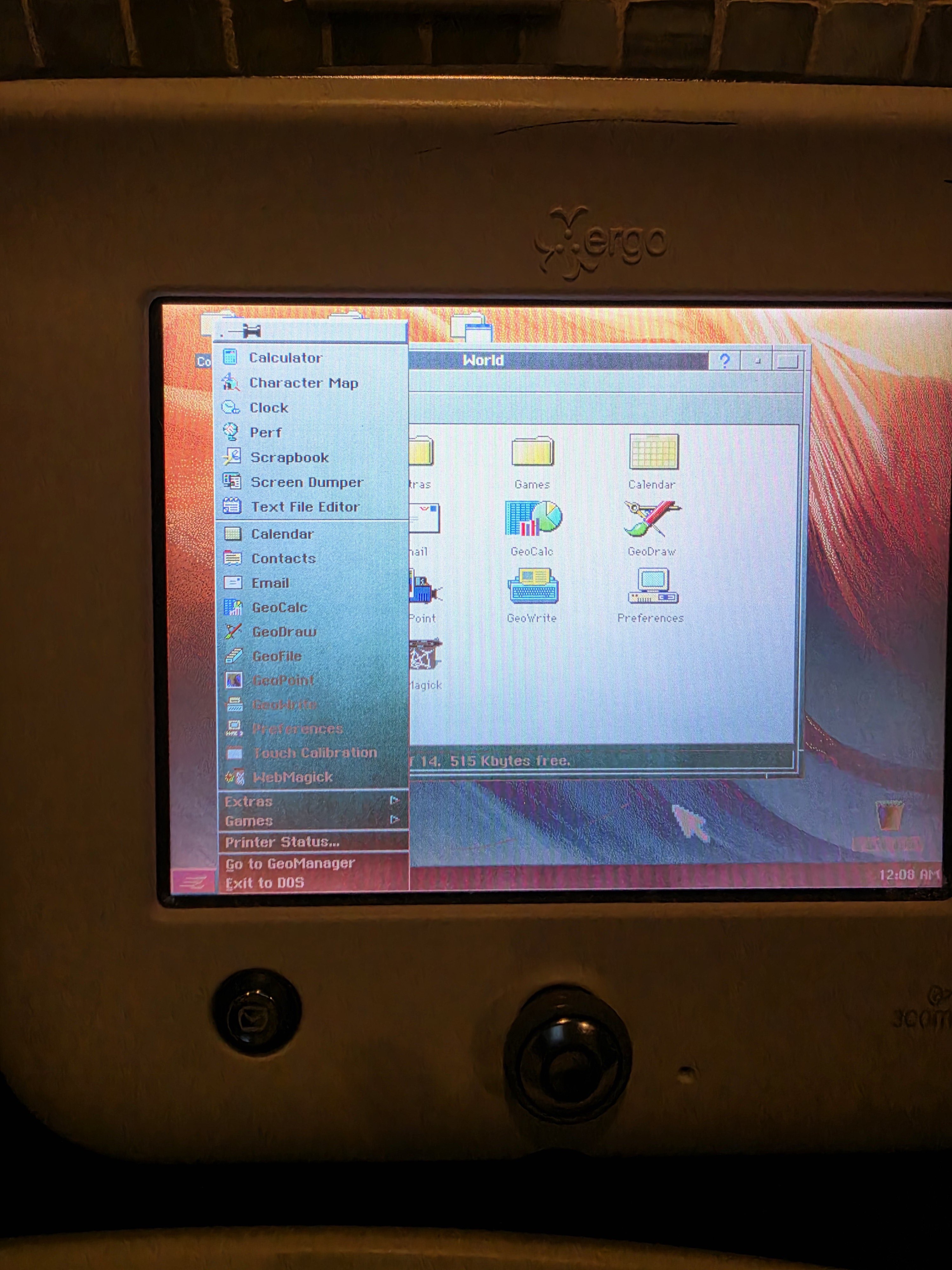
PC/GEOS running on the Audrey with the application menu open. PC/GEOS on the Audrey, with the application menu open.

About the project photos: these are photographs of the actual Audrey running the software. Its original LCD is a pretty poor screen, and it does not photograph gracefully. The washed-out colours, glare and moiré are part of the experience.

The approach:

PC/GEOS is a 16-bit real-mode system that runs on top of DOS. So the job wasn’t a kernel port. It was:

  1. make the Audrey boot DOS, which it was never meant to do;
  2. write a driver for every piece of hardware that isn’t a standard PC part.

That turned out to be nearly all of it.

Challenge 1: there’s no BIOS

The wall: I built a probe image and ran it on a unit. The firmware offers exactly one real-mode PC service, video. Every other interrupt vector points to a bare return. The timer doesn’t count. There’s no memory map, no disk services and no keyboard services. DOS can’t boot on that.

The fix: A mini-BIOS from scratch. It provides the BIOS data area, timer, AT keyboard, memory map, real-time clock, A20 gate, serial port and disk services, so FreeDOS sees an ordinary PC.

Challenge 2: the firmware only boots QNX

The wall: 3Com’s loader doesn’t jump to arbitrary code. It scans the image for a QNX startup header, checks two checksums, and only then enters it in 32-bit protected mode. Cards also need a 3Com trailer, or it says “Invalid image.”

The fix: my bootloader, FlashBoot, is packaged as a QNX startup image. 3Com’s loader accepts it. It drops back to real mode, installs the mini-BIOS, and boots FreeDOS from its disk image.

The safe path: holding Datebook at power-on makes the firmware copy a card into RAM and run it without touching the flash. That’s how the whole system runs: from a 32 MB CF card, with the stock QNX still in the flash, untouched.

One rule all along: the firmware’s boot region, the top 256 KB of flash, is never touched.
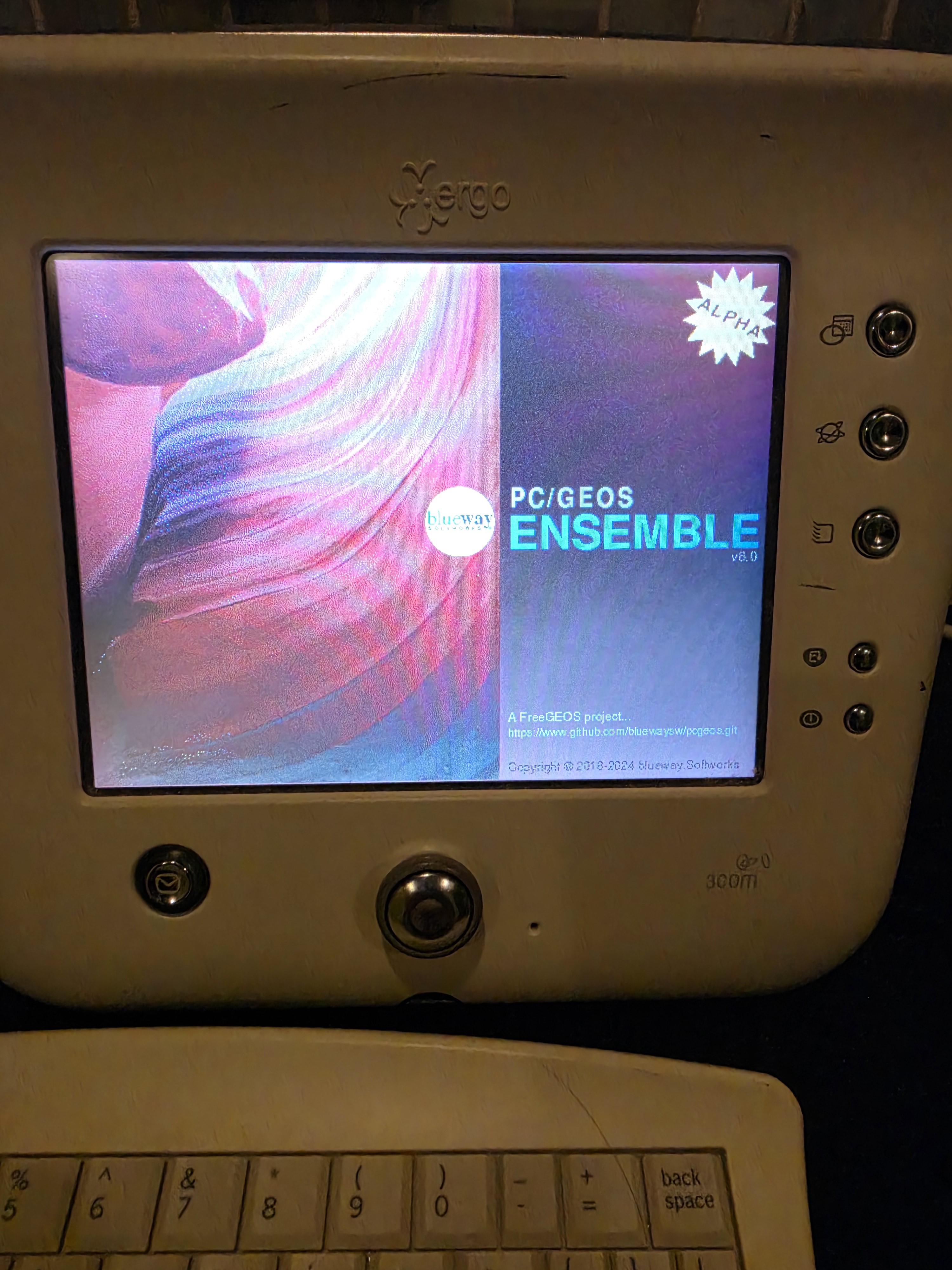
PC/GEOS Ensemble starting on the Audrey. PC/GEOS Ensemble starting on the Audrey.

Challenge 3: fitting it all in 16 MB

What fits: FreeDOS plus the full PC/GEOS Ensemble, with every app and font, plus all my drivers, fit in an image sized for the Audrey’s internal flash.

Run from a card: the image lives in RAM while it runs. A second partition on the card holds files that must survive a power-off, plus a boot log.

Challenge 4: the CF slot isn’t IDE

How it’s wired: the slot hangs off a general-purpose chip select on the CS5530 chipset. I read 3Com’s own CF driver to learn the wiring and the commands.

Two quirks of 3Com’s driver, which explain years of “this card works, that one doesn’t” folklore:

  • It only reads the low 16 bits of the card’s size. A 2 GB card looks like 8 MB to it.
  • It rejects cards that identify themselves as fixed disks.

The boot log: every boot writes BOOT.LOG to the card, so every test on the real unit came back with a full report, even when nothing showed on screen.

Challenge 5: input the Audrey way

The IR keyboard isn’t a keyboard controller at all. It’s raw consumer-IR samples arriving on a UART in...

Read more »
audrey-pcgeos-card.zip

All you need.

x-zip-compressed - 12.35 MB - 10/27/2026 at 13:03

Download

audrey-pcgeos-drivers.zip

x-zip-compressed - 120.70 kB - 10/27/2026 at 13:03

Download

geobridge-translators.zip

x-zip-compressed - 35.63 kB - 10/27/2026 at 12:28

Download

audrey-emulator-kit.zip

x-zip-compressed - 16.71 kB - 10/27/2026 at 12:28

Download

  • 1 × 3Com Audrey
  • 1 × 32 MB CompactFlash card
  • 1 × USB Keyboard
  • 1 × USB Mouse
  • 1 × Genesys Logic 4-port USB 2.0 hub

View all 9 components

  • 1
    Put PC/GEOS on your Audrey


    Step 1: What you need

    • A 3Com Audrey and its IR keyboard.
    • A 32 MB CompactFlash card, and a PC with a CF card reader.
    • audrey-pcgeos-card.zip from this project's files.
    • Optional USB devices: keyboard, mouse, hub, floppy drive, CD-ROM drive, card reader, and a USB Ethernet adapter with CDC-ECM support (the Realtek RTL8152 is one).

    Step 2: Make a card image for your card

    The Audrey only accepts a card image made for that card's exact size. Unzip audrey-pcgeos-card.zip, then find your card's size in 512-byte sectors:

    • Linux: sudo blockdev --getsz /dev/sdX
    • Windows: in PowerShell, run Get-Disk and divide Size by 512.
    • macOS: diskutil info /dev/diskN, the "512-Byte-Units" figure.

    If the number is 63744, use audrey-pcgeos-card.img as it is. Otherwise run:

    python3 mkcf.py --log audrey-pcgeos.cf SECTORS mycard.img

    --log adds the card's D: drive, and needs mtools and dosfstools (Linux, or WSL on Windows).

    Step 3: Back up the Audrey's flash

    Nothing in these instructions writes the flash. Keep a backup anyway.

    1. Open a QNX terminal on the Audrey. Mine had one in the start menu, so that's what I used. If yours doesn't, getting a shell on the Audrey isn't covered by this project, but how to do it is easy to find in the Audrey community.
    2. Start the card driver: put a 32 MB card in the slot and run /nto/bin/devb-cf &. It should report at least 16,515,072 bytes.
    3. Copy the flash to the card: cat /dev/fs0p0 /dev/fs0p1 > /dev/cf
    4. Save it: power off. On the PC, read the whole card into a file, qnx-backup.img, and keep it safe.

    Step 4: Write the PC/GEOS card

    Write mycard.img (or audrey-pcgeos-card.img) to the whole card.

    • Linux: run lsblk to find the card, then sudo dd if=mycard.img of=/dev/sdX bs=1M conv=fsync. Pick the wrong disk and you overwrite it.
    • Windows or macOS: use Win32 Disk Imager or balenaEtcher.

    Step 5: Boot it

    1. Unplug the Audrey and put the card in.
    2. Hold Datebook(top-right button) and plug the power in. Keep holding until the loader's green "booting" message appears.
    3. FlashBoot's messages come first, then FreeDOS, then the GEOS desktop.

    Holding Datebook and Power together WRITES the card into the FLASH.

    Step 6: Get around in GEOS

    • The pen: works as the mouse. If taps land in the wrong place, open World → Touch Calibration.
    • Keyboards: the IR keyboard works, and a USB keyboard or mouse can be plugged in at any time.
    • Ctrl+Esc opens the Express menu, GEOS's start menu.
    • The dial and buttons work in GEOS and DOS.

    Step 7: Save your work in the right place

    • C: runs from RAM, so changes to it are lost at power-off.
    • Where to save:
      • D: is the card's own partition, and keeps its files;
      • A: is a USB floppy drive;
      • F: is a USB card reader or memory stick.
    • To switch off: Express menu → Exit to DOS, take the card out, then unplug.

    Step 8: USB devices

    Plug them in at any time, directly or through a hub:

    • Floppy drive: A:.
    • CD-ROM drive: E:.
    • Card reader or memory stick: F:.
    • Ethernet adapter: GEOS gets an address by DHCP, and World → WebMagick browses the web.

    At the DOS prompt, USBHID /S lists what's connected.

    Step 9: DOS and games

    • Getting to DOS: Express menu → Exit to DOS gives a C:\> prompt. Run games from D:, A:, E: or F:, in DOS or GEOS.
    • Sound: the Sound Blaster is set as A220 I7 D1.
    • Back to GEOS: cd \ENSEMBLE, then loader.

    Step 10: Boot switches

    An empty file on D: changes the next boot. echo x > D:\NOGEOS.TXT creates one, and del D:\NOGEOS.TXT removes it.

    FileEffect
    NOGEOS.TXTstop at the DOS prompt
    MODEM.TXTload the modem driver before GEOS
    NOUSB.TXTleave USB out
    NOMOUSE.TXTleave the DOS mouse out
    NOIR.TXTleave the IR keyboard out
    NOBTN.TXTleave the buttons out

    Every boot also writes D:\BOOT.LOG.

    Step 11: The modem (optional, experimental)

    1. Cut the firmware. It's 3Com's and isn't included, so cut it from an Audrey image that contains 3Com's modem driver (/kojak/rsmodem), such as MrAudrey:
      python3 rsmodem-fwcutter.py MrAudrey.cf AUDREY.FW
      • The tool is in the MODEM folder of audrey-pcgeos-drivers.zip. Keep it next to qnx-f3s.py, which it uses.
      • Some units' own flash doesn't contain the driver, if a previous owner modified it.
      • The tool only accepts the driver version it knows.
    2. Put it on the card: copy AUDREY.FW to D:, and create D:\MODEM.TXT.
    3. Use it: the next boot loads the driver. DOS terminal programs reach it as COM2, through INT 14h or FOSSIL. \MODEM\AUDDIAG status shows its state.

    Step 12: Back to QNX

    Power off, take the card out, and power on as usual. The flash was never touched.


  • 2
    Using GeoBridge

    Step 1: Get Commodore GEOS documents as CVT files

    Convert 2.5 on a C64 makes them from disk files. Plenty are already in the archive at zimmers.net (/pub/cbm/geos).

    Step 2: Install the translators

    They're already installed on the Audrey card. For any other PC/GEOS, copy geobridg.geo and geogrfx.geo from geobridge-translators.zip into PC/GEOS's SYSTEM\IMPEX while PC/GEOS isn't running.

    Step 3: Get the files onto the machine

    On the Audrey, use a USB stick or card reader (F:), a floppy (A:), a CD (E:), or the card's D: drive.

    Step 4: Import a geoWrite document

    1. In GeoWrite, choose File → New/Open → Import, and pick the CVT file. The format, "C64 geoWrite document (CVT)", is detected.
    2. A notice lists anything that couldn't be carried over.
    3. Save the result as a GeoWrite document.

    Step 5: Import a geoPaint picture or a geoPublish page

    1. In GeoDraw, with a document open, choose File → Import Graphic, and pick the CVT file.
    2. The format is detected: "C64 geoPaint image (CVT)" or "C64 geoPublish graphics (CVT)".
  • 3
    Using the emulator

    Step 1: What you need

    • Linux and audrey-emulator-kit.zip.
    • The card image from audrey-pcgeos-card.zip.
    • On Debian or Ubuntu, these packages:
      sudo apt install build-essential ninja-build pkg-config python3-venv curl libglib2.0-dev libpixman-1-dev libgtk-3-dev libsdl2-dev libslirp-dev

    Step 2: Build QEMU

    Unzip the kit and run:

    sh qemu/build-qemu.sh ~/audrey-qemu

    It downloads QEMU 8.2.2 and adds the Audrey's hardware. This takes a few minutes.

    Step 3: Copy the card image

    The emulator writes to the image just as the Audrey writes to a card, so keep the original:

    cp audrey-pcgeos-card.img mycard.img

    Step 4: Run it

    sh run-card.sh mycard.img ~/audrey-qemu
    • For Ethernet: add --net for a USB Ethernet adapter on QEMU's own network.
    • For sound: start it with AUDIO=pa in front.

    Step 5: Use it

    • What you get: it boots the same way the Audrey does. The mouse pointer acts as the pen, and a USB keyboard is plugged in.
    • The switches: the boot switches from Part 1 work too.
    • No window? Without GTK or SDL, add -display vnc=:0 and connect a VNC viewer to localhost:5900.

View all 4 instructions

Enjoy this project?

Share

Discussions

Similar Projects

Does this project spark your interest?

Become a member to follow this project and never miss any updates