 Arnov Sharma

VIDEO-
Concept

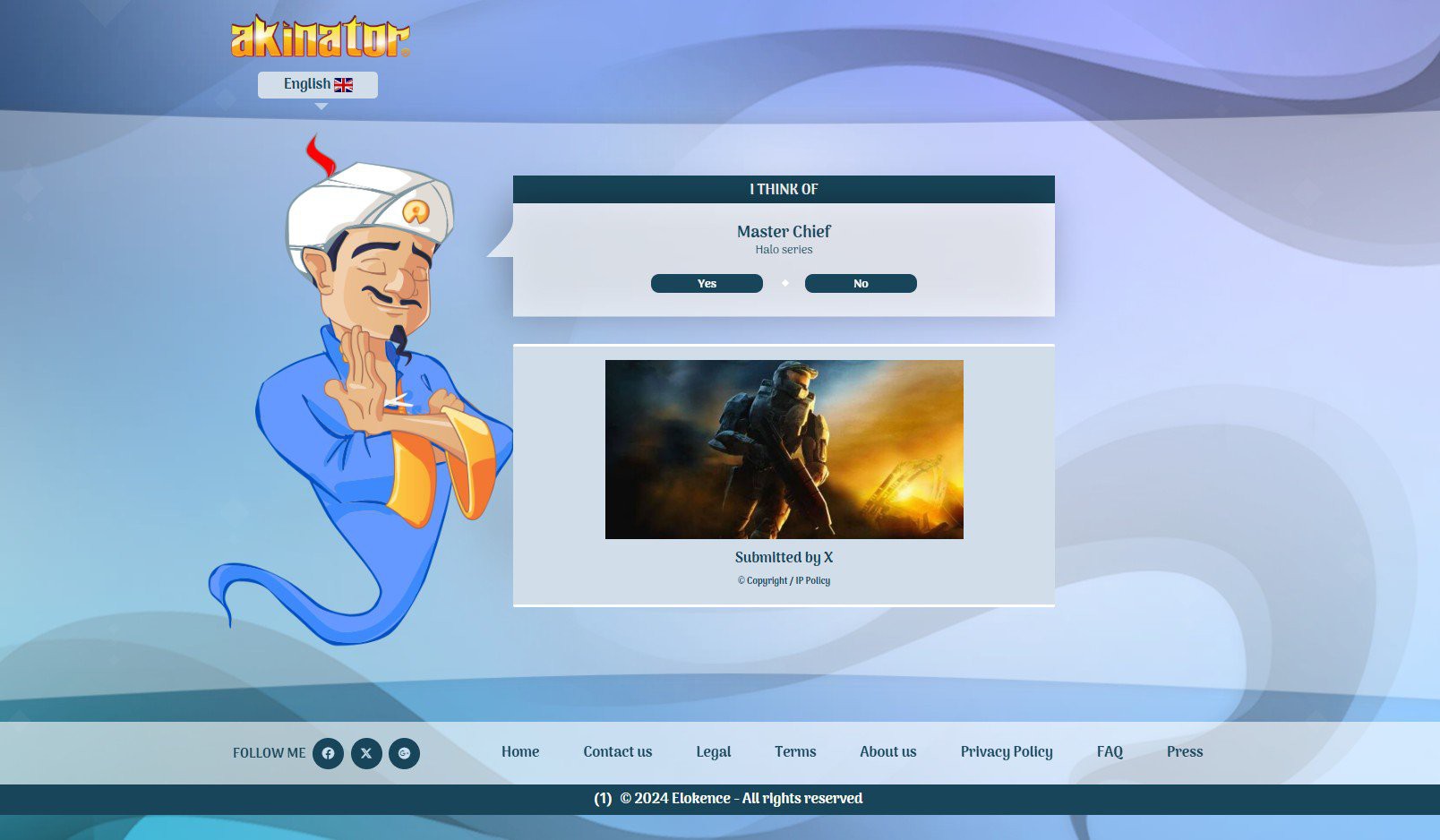
Guessatron is based on the well-known online guessing game Akinator, which amazes players by using AI and huge datasets to guess what they are thinking. However, I wanted to create something that seemed solid, grounded, and local rather than depending on machine learning or cloud-based intelligence. A guessing game that only uses embedded logic and doesn't use the internet or artificial intelligence.
Guessatron makes no claim of being intelligent, in contrast to Akinator. It isn't real-time adaptation or learning from millions of players. It does, however, provide a delightful, standalone experience: an ESP32-powered guessing game that selects your object from a carefully selected library of 70 objects (and counting) and poses yes/no questions.
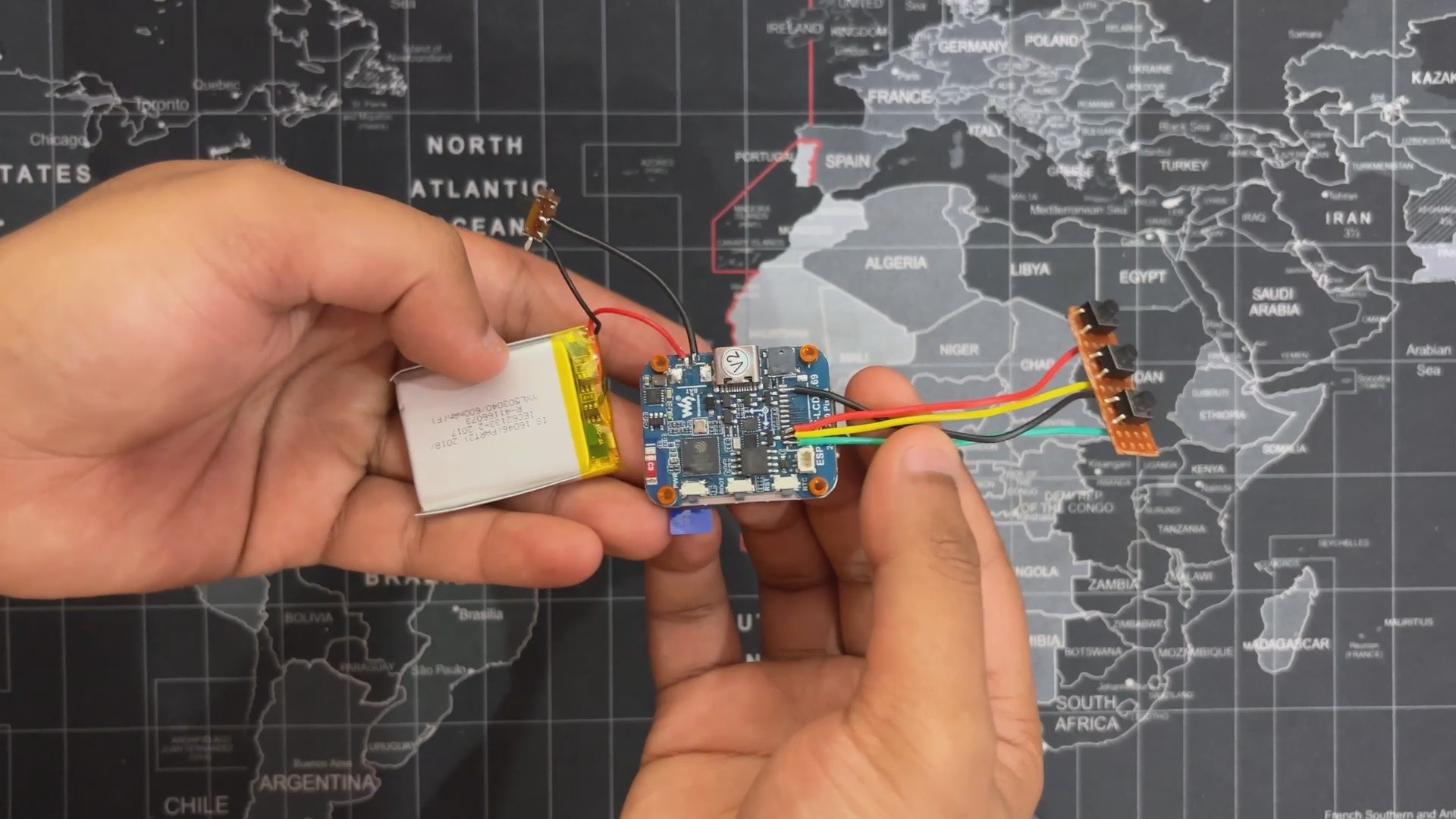
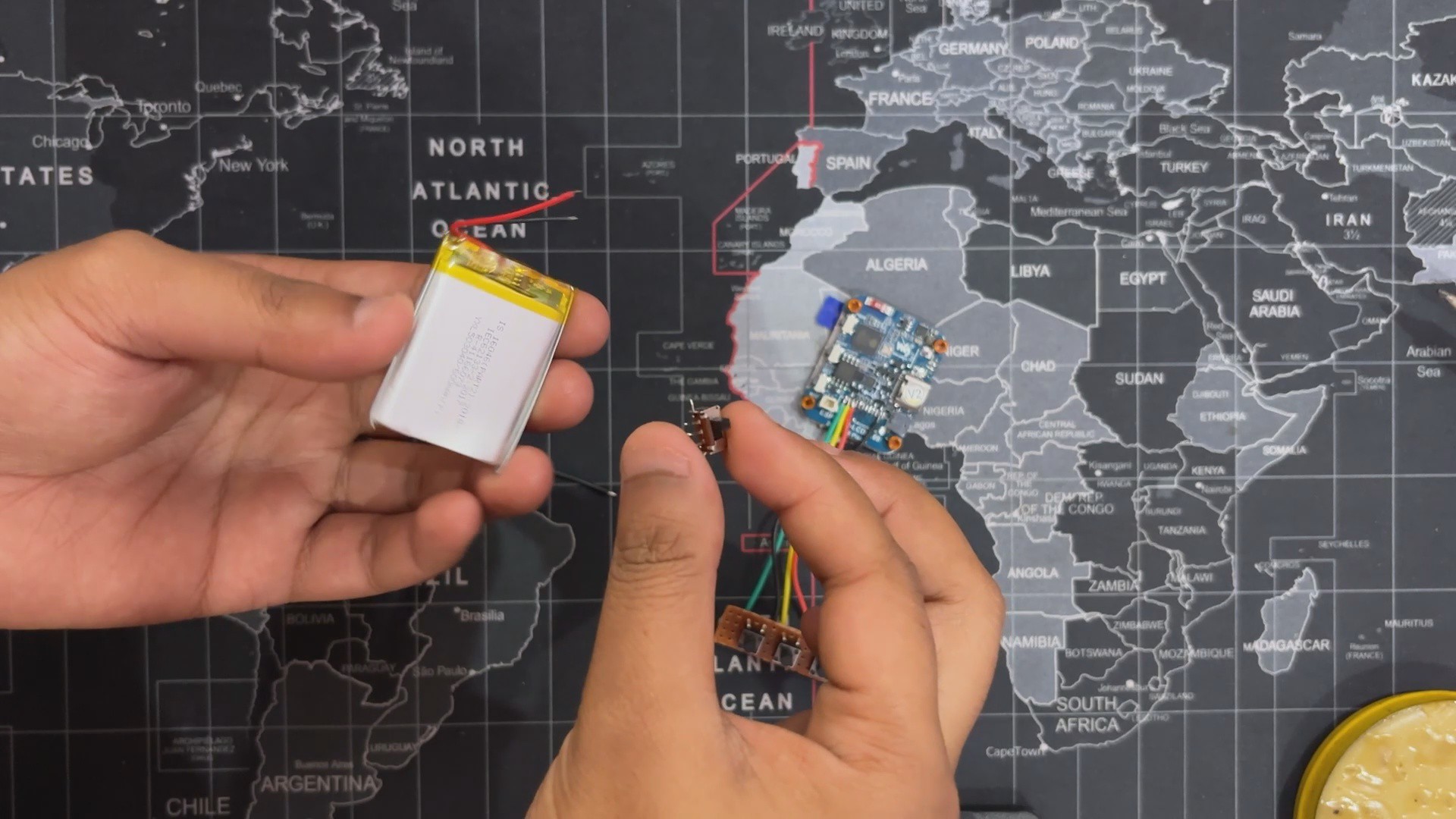
This project is also a technical playground—combining a custom 3D-printed enclosure, onboard power via a 3.7V 2000mAh LiPo cell, and a crisp display interface. It’s designed to be held, played with, and expanded. Guessatron may not be as smart as Akinator, but it’s something you can build, hold, and proudly show off.
DESIGN
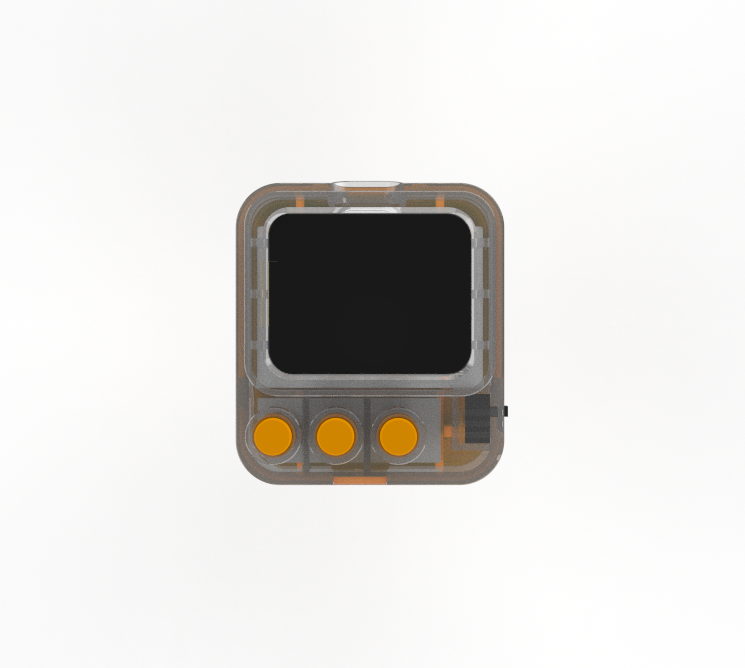
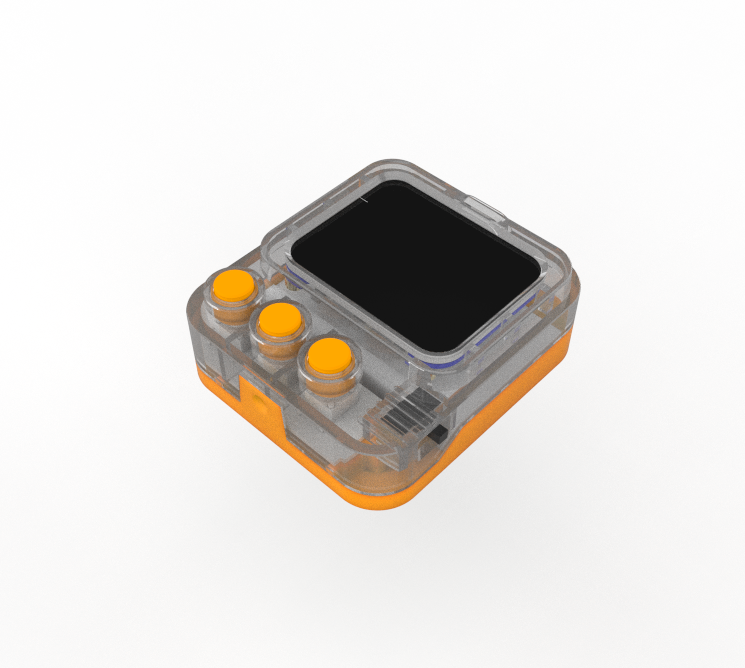
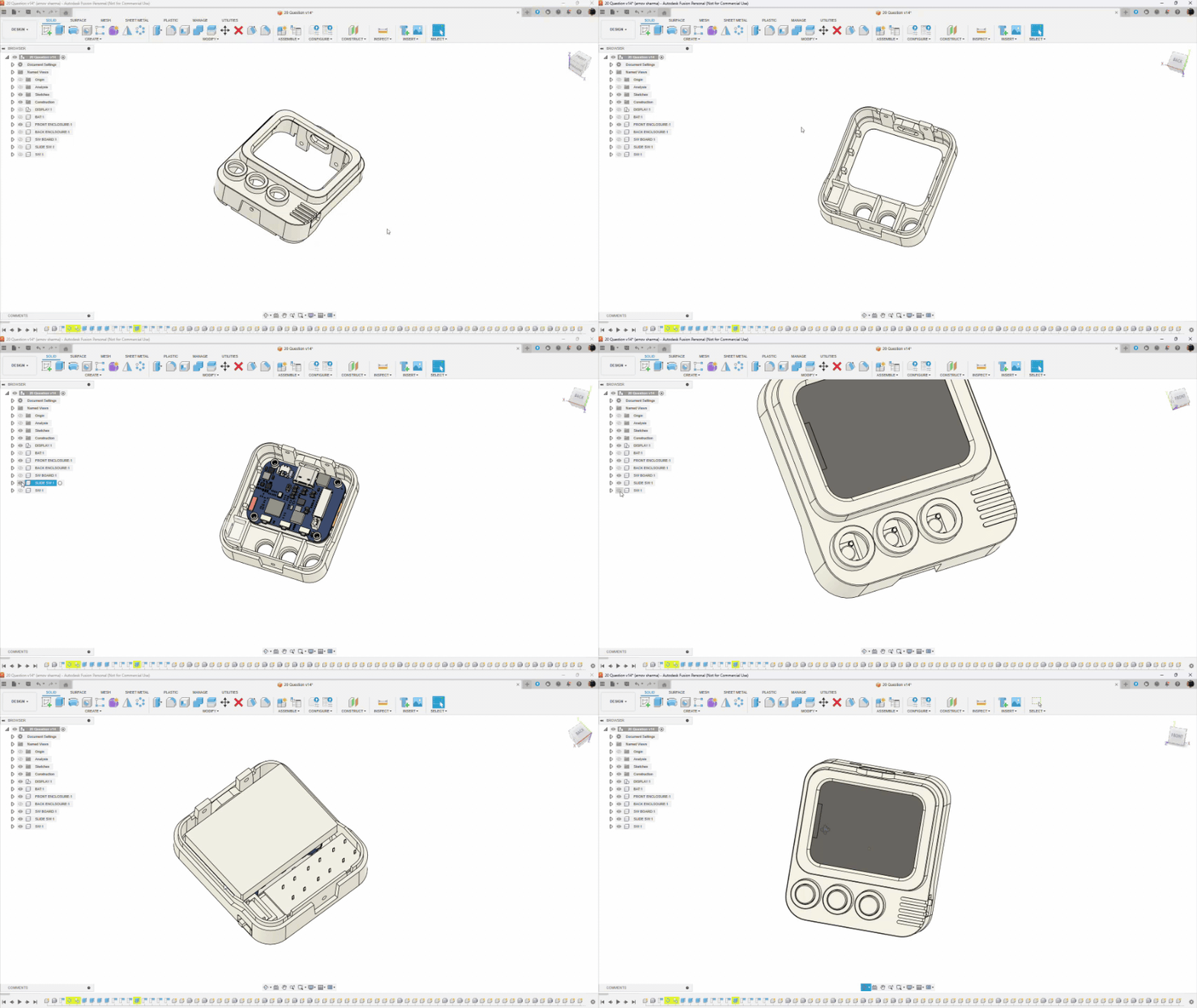
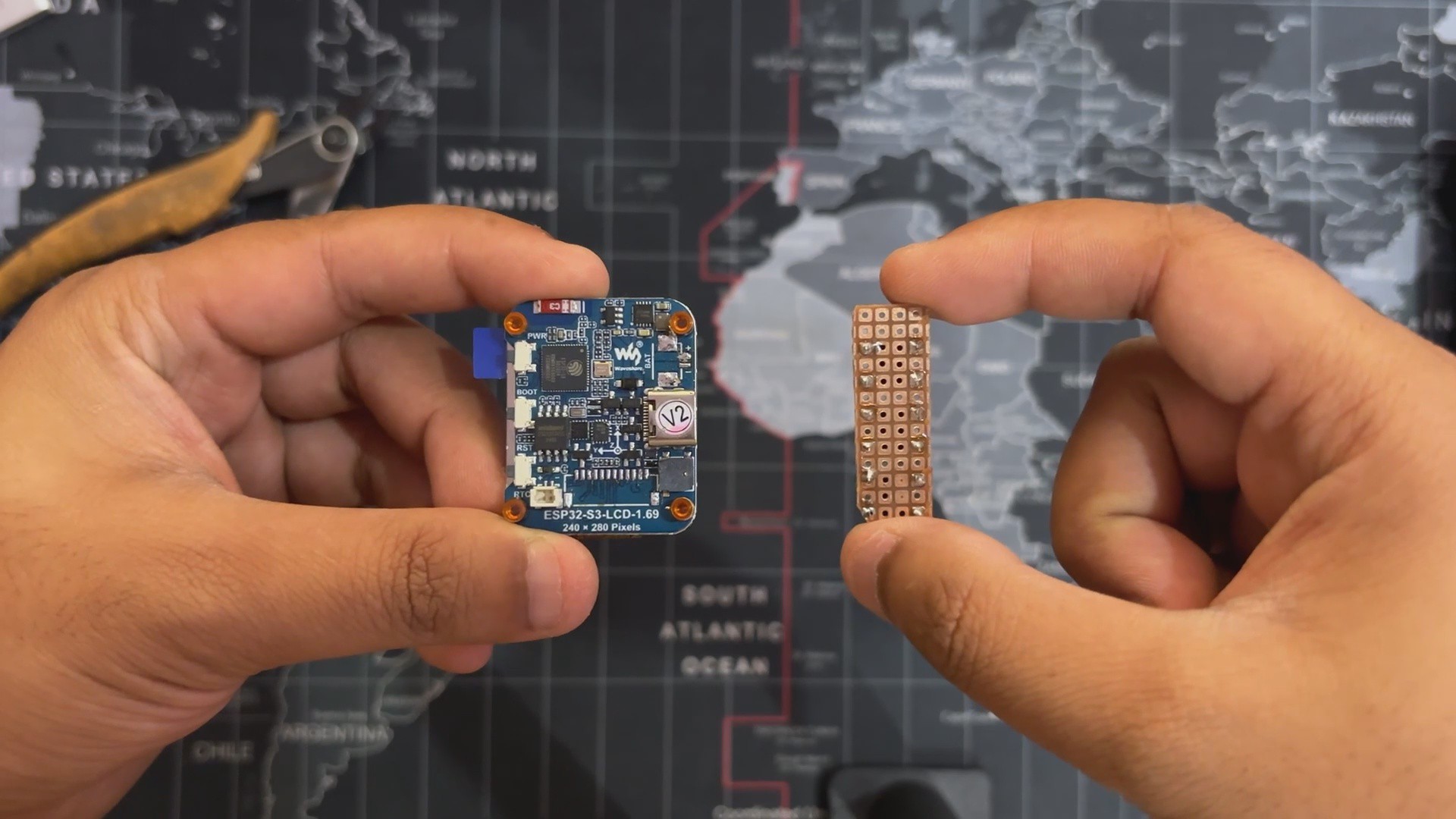
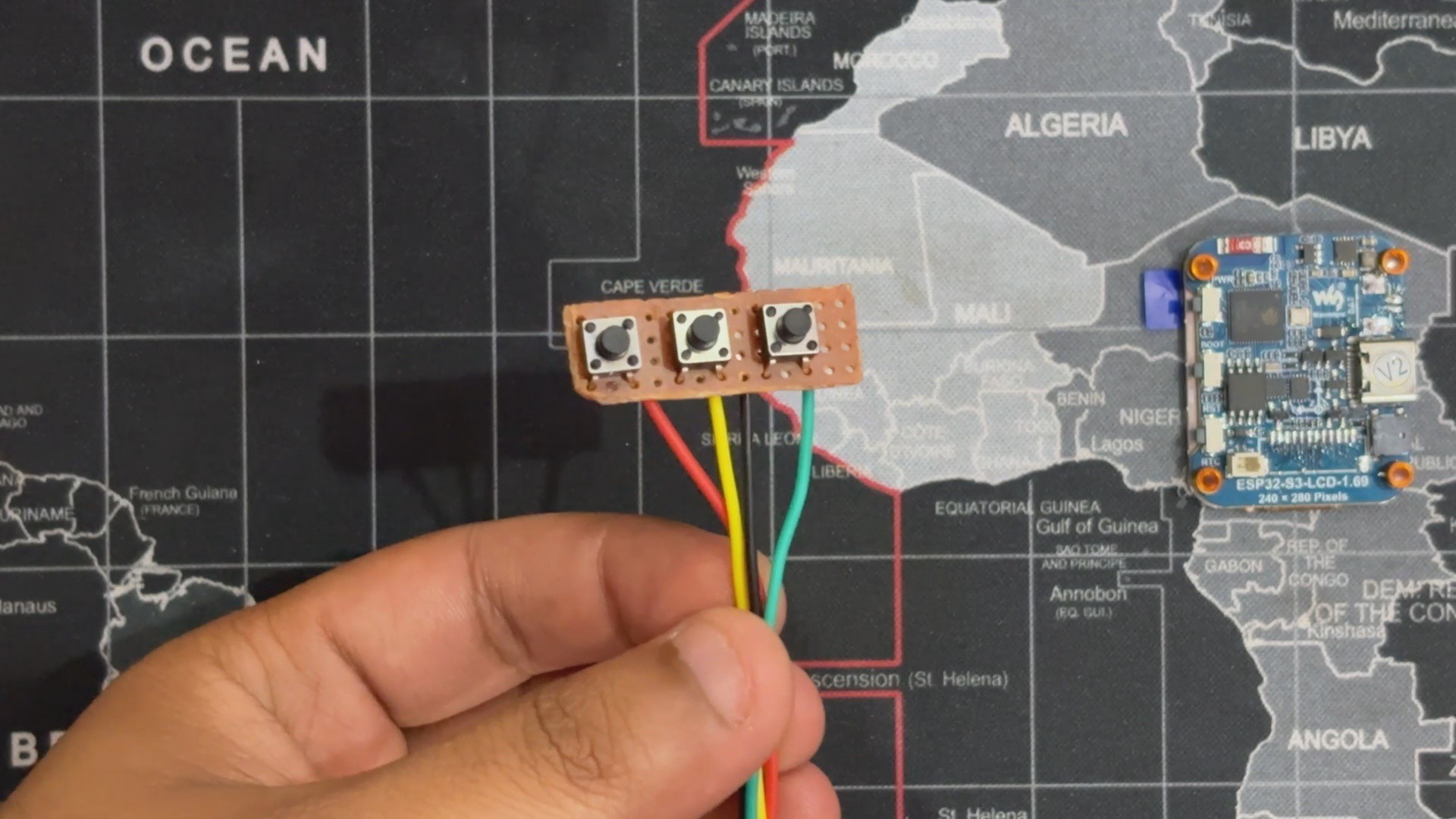
We began the project's design or development process by first importing the screen into Fusion360, along with the models for the slide switch, lithium battery, and switchboard with three push buttons.
The objective was to design a very portable and robust device that anyone could hold in their hand. It will include three buttons that users can press to operate the device.
Following the guidelines, we positioned the switchboard below the display with a slight leftward shift and the display in the center. The sliding switch was positioned on the right side of the model, aligned with the switchboard, and the lithium battery was positioned on the opposite side of the display.
Now comes the design part; We created a shape that resembles a cuboid with rounded corners, drawing inspiration from an old television. The ESP32 display was raised just above the switchboard's level, and we created a box-like part around it that creates an illusion that the screen is positioned slightly outside. This created an intriguing design element and enhanced the device's visual appeal.
Similarly, we modeled the buttons that are positioned above the enclosure boundary for switch actuators.
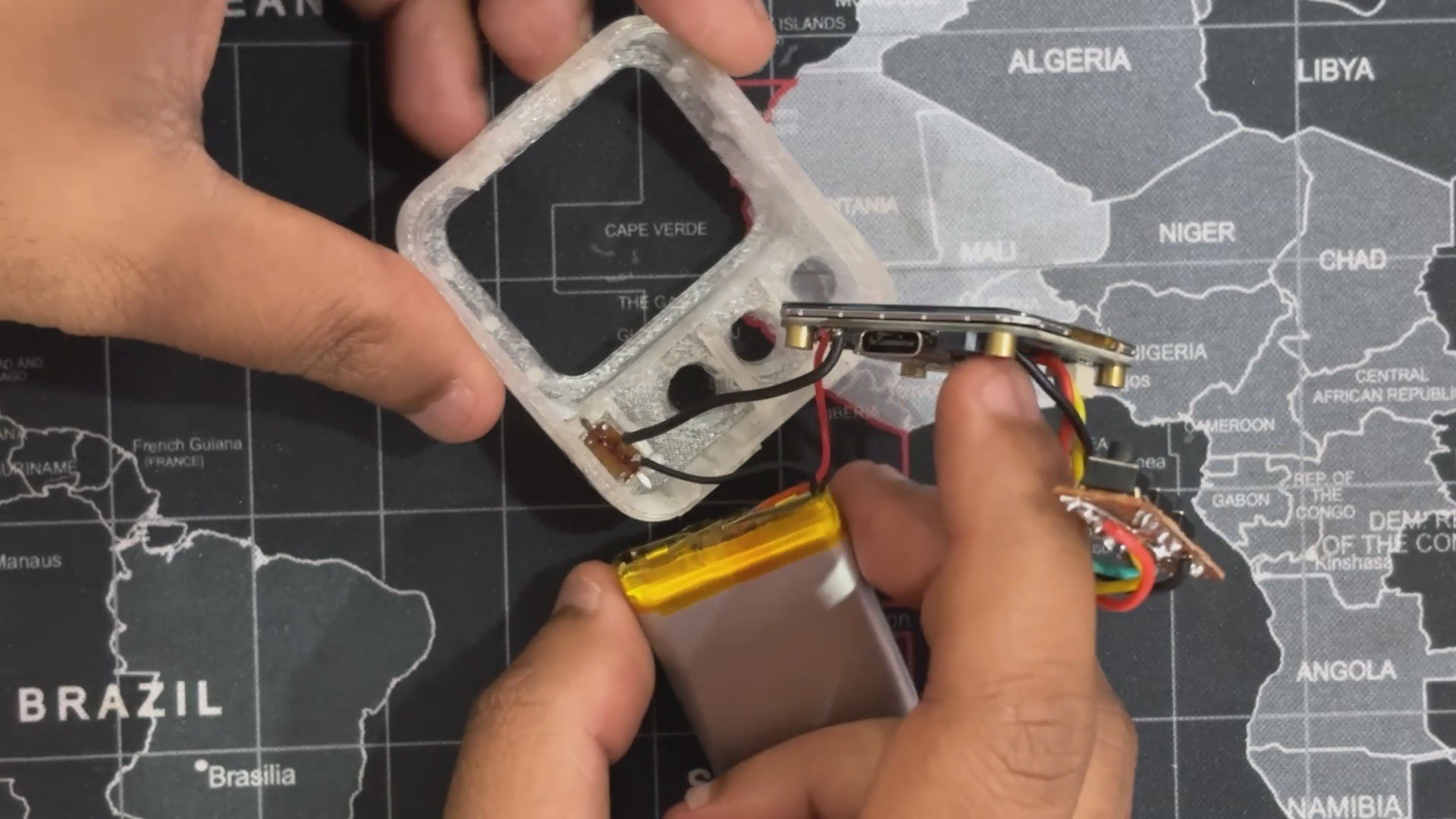
Following the completion of the design, we proceeded to accurately model the entire device by splitting it into two parts: the front and back ends, shelling out both bodies, creating ribs that line up with the display and switchboard, and even creating a holding part for the slide switch.
The front and rear enclosures were joined together by three holes on each body; we essentially assembled them and fastened them together with three M2 screws. Since we didn't have much room for screw bosses, we decided to use hot glue to secure the remaining components in place.
By the way, if you're diving into plastic part design, I strongly recommend checking out design guides from companies like DuPont, 3M, and GE Plastics. These resources offer deep insights into the entire engineering process—from proper part construction to critical factors like shrinkage, tooling, and material behavior. Studying these guides can significantly simplify the design workflow and help you avoid common pitfalls.
We exported the mesh files for every component after finishing the design; the front enclosure was printed in transparent PLA. The back enclosure and switch actuators were printed using our Creality K10 Max with orange PLA.
ESP32 S3 Display
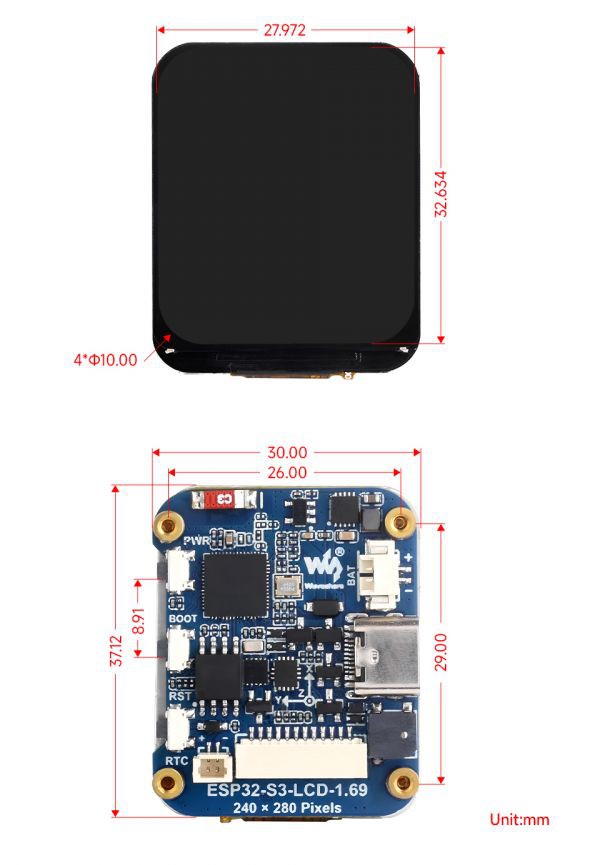
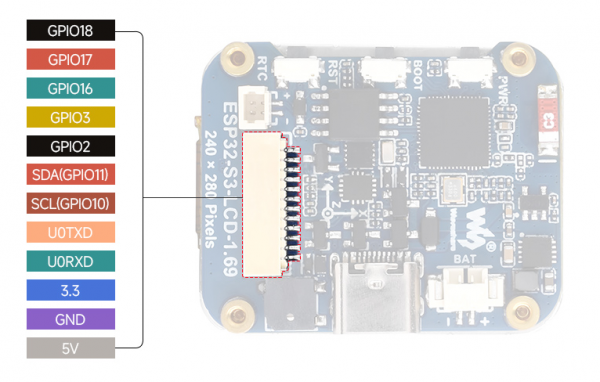

The ESP32-S3-LCD-1.69 is the real star of this setup. Despite its small size, it is incredibly powerful. Its dual-core Xtensa LX7 processor, which can run at up to 240 MHz, provides seamless performance for everything from input handling to display rendering. With its integrated Wi-Fi and Bluetooth 5, it can connect without the need for additional modules or complicated wiring.
Memory-wise, it’s stacked: 512KB of SRAM, 384KB...
Read more »
 vishal soni
 Max.K
Max.K
 fcipaq
 Ruslan Nadyrshin