Marco Tabini
-
Some Windows-related updates
04/24/2026 at 14:30 • 0 commentsEvery operating system has its quirks and flaws—you just get used to dealing with them when you have to face them every day. It’s only when you switch to another OS that things suddenly start to look weird.
Most of my daily work happens in macOS, with the occasional dip into Linux or BSD to maintain some server-side components. Dr. PD, however, needs to run well on Windows, where most of its users are going to be. Therefore, I make sure to test all major changes on my PC as well.
The most recent round of updates has added two important features that had long been on my to-do list: log persistence and over-the-air firmware updates directly from the web app.
A bit of background
Dr. PD’s firmware is written entirely in C++ and resides on the device itself. It uses TinyUSB to expose several USB interfaces for different purposes: USBTMC for device operation, CDC for debugging over serial, and a vendor reset interface used to place the device in DFU mode for flashing new firmware onto it.
The web app then uses the WebUSB API to access the device’s USB interfaces and communicate with it. WebUSB is only supported in Chrome and Chromium-based browsers, but it is nonetheless a very convenient way of providing an essentially instant-on experience for the user: there are no drivers to install, no apps to set up, no accounts to create, and so forth. You just plug the device into your computer, and Chrome helpfully pops up a notification that directs you to the client app.
On Mac and Linux-based OSs, this is all seamless. No drivers need to be installed, and things “just work” (plus or minus the inevitable bugs). Reflashing the firmware requires a bit of extra work to avoid having to ask to reconnect to the device manually when you put it in DFU mode, but it's relatively easy to come up with a fully seamless experience without too much trouble.
On Windows… well, Windows is a bit more complicated.
First of all, Windows has very limited USB support without installing additional drivers. This means, for example, that WebUSB cannot talk directly to the USBTMC interface on Dr. PD unless you install dedicated software. This software is widely available, but I view the ability to just “plug-and-play” Dr. PD into your computer as a defining feature, and having to install a third-party driver completely undermines that.
Luckily, Windows does come with a default library, called WinUSB, that can be used to provide what Microsoft calls “simple” functionality over USB without dedicated drivers. It does have several limitations (such as the fact that only one client can be connected at any one time), but they do not affect Dr. PD.
Unfortunately, I can’t just move all the functionality under WinUSB, because the USBTMC interface would no longer be compatible with systems that depend on it, such as LabVIEW. That would make Dr. PD useless to anyone who wants to use it with an automated setup.
Thus, the solution I landed on was to implement both a traditional USBTMC interface and a WinUSB-based interface. The web app preferentially uses WinUSB so that it works properly under Windows, while Dr. PD remains compatible with every other piece of software that requires USBTMC.
Enter firmware updates
As you may know, the RP2350 MCU that runs Dr. PD's hardware comes with its own DFU implementation that allows flashing new firmware over USB. If you've ever uploaded firmware to a Raspberry Pi Pico, you've seen this interface at work.
Sadly, we can’t use this interface from the web app, because the RP2350 changes its product identifier when it enters DFU mode. This causes WebUSB to see it as a new, unpaired device that it has never encountered before and that, therefore, the user has not authorized Chrome to connect to. To make it possible to upload new firmware from inside the web app, we would have to require the user to pair with the device again, which would be confusing and likely error-prone.
The solution I landed on was to create my own custom bootloader, which gets launched by the built-in RP2350 bootloader. The custom code can then enter its own DFU mode without changing the device identifiers, allowing Chrome to recognize it as the same Dr. PD device it already has permission to connect to. The new firmware can then be flashed as a completely seamless operation.
Notably, when Dr. PD is in DFU mode, there is no reason for it to expose any of the USB interfaces that are normally available. Since the only allowed operation is uploading new firmware, exposing WinUSB, USBTMC, CDC, and so on would be completely redundant. Thus, when it enters DFU mode, Dr. PD effectively disconnects from the USB bus and then reconnects as a “simpler” device.
Alas, Windows likes to cache device descriptors, and it gets rather upset when it detects that a device for which it already has a record has reconnected with a completely different set of interface descriptors. When that happens, it decides that something catastrophic has occurred and disables the device altogether.
Eventually, I solved this problem by simply exposing all the interfaces, even in DFU mode. The web frontend can tell whether the device is in DFU mode and act accordingly. Simple enough, but certainly more of a rabbit hole than I originally expected.
In case you want to implement in your own project, this new set up is now also part of the T76 Instrument Core.
Log permanence pains
From the beginning, it was important for me to give Dr. PD strong logging capabilities. While most USB-PD transactions are short and involve just a handful of messages, it is not uncommon to deal with complicated exchanges, and sometimes it takes hours or days for a problem to materialize.
Thus, I wanted to make sure that Dr. PD could handle an ideally limitless amount of log data — at least to the extent supported by storage on the host computer. Given that the frontend runs in a web browser and works completely client-side, with no backend for storing data, implementing this functionality was a bit more involved than you might imagine.
Dr. PD actually ships with a copy of SQLite implemented in Web Assembly. This brings the power of SQLite to the browser with near-native performance, giving the client access to a powerful database engine that has access to local storage through OPFS. As a result, you can save several days' worth of both analog and digital traces without any noticeable loss of performance.
At least, that's true on macOS and Linux. On Windows… well, Windows is a bit more complicated.
The initial implementation of the logging feature took a fairly naïve approach to saving data as it streamed in from the device. Favouring durability over performance, it committed each row to the database individually. Admittedly, this required quite a bit of back-and-forth between the SQLite code and the OPFS driver, but since it wasn’t noticeably affecting performance under macOS, I didn’t think much of it. After all, an easy solution that works well means less complexity in the code.
It turns out that, on Windows, my naïveté was not well received: OPFS was so slow that the frontend couldn’t keep up with the device and ended up dropping messages under even moderate streaming loads.
In this case, the solution was to batch the writes and commit data to the database only every 100 ms or so, in a separate thread. This makes Windows happy and keeps things zippy for everyone.
All these changes are now in the 0.9.10 release.
-
So you want to design a USB-C pass-through
04/16/2026 at 03:34 • 0 commentsIn my previous project update, I mentioned that the CC lines in a USB-C connection are used to determine the orientation of the plug within the receptacle. Let’s explore how that works and why it poses a particular challenge for a device like Dr. PD, which needs to interpose itself between two USB-C devices.
The double life of the CC lines
Despite the fact that there are two CC pins, only one is used for USB-PD communication between the two ports. The other may be used to supply VCONN, and in a passive cable it typically does not continue through to the far-end CC pin. Instead, VCONN is primarily used to power electronics inside the cable, such as an e-marker, or electronics in certain captive-cable devices such as docks designed to attach to laptops or tablets.
When you plug a cable into a device, then, from the device's perspective, one of the CC lines will be floating, while the other will be able to carry a signal across to the other device.
The problem is, which of the two CC lines do you use for transmission? Because the USB-C plug is mechanically—but not electrically—reversible, either CC pin may end up being the active one, depending on how the user inserts the cable. Thus, a device must be prepared to communicate on either pin, and the very first thing it needs to do is to figure out which one is actually connected through.
Analog signaling
The way the USB-PD designers have solved this challenge is to first define what a valid CC connection must look like.
At one end, there is a downstream-facing port, or DFP. The DFP is typically a host or power supply and is responsible for sourcing current on VBUS.
At the other end, there is an upstream-facing port, or UFP, that wants to sink current from a UFP.
(Sometimes, a device can act as both a UFP and a DFP, in which case it is called a dual-role port. For simplicity's sake, we will ignore this for now, but we'll come back to it in a future post.)
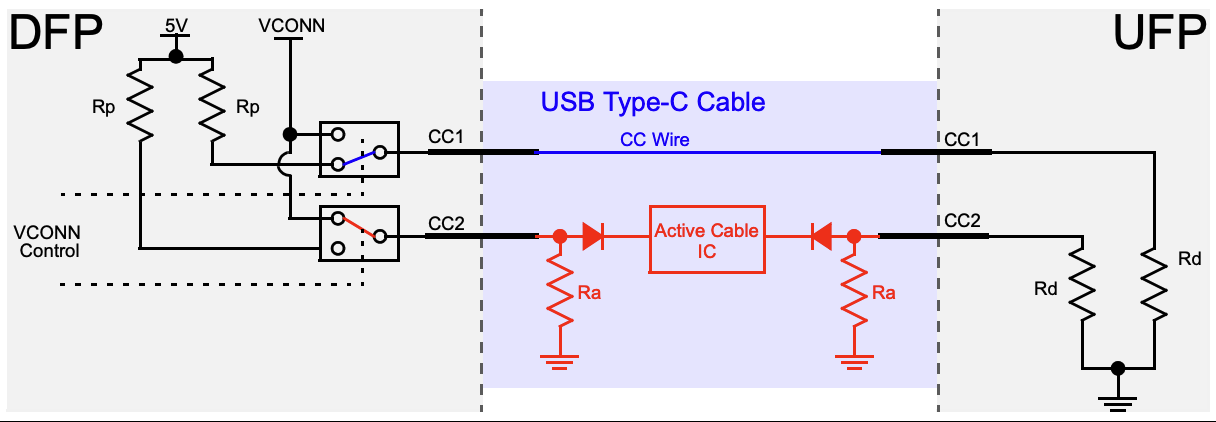
When they are connected, the UFP and DFP must form a complete circuit, with the DFP pulling both its CC lines to either 5V or 3.3V (the latter being much more common these days), and the UFP pulling both its CC lines down to ground, as you can see in the diagram below, borrowed from this very informative Microchip application note:
![]()
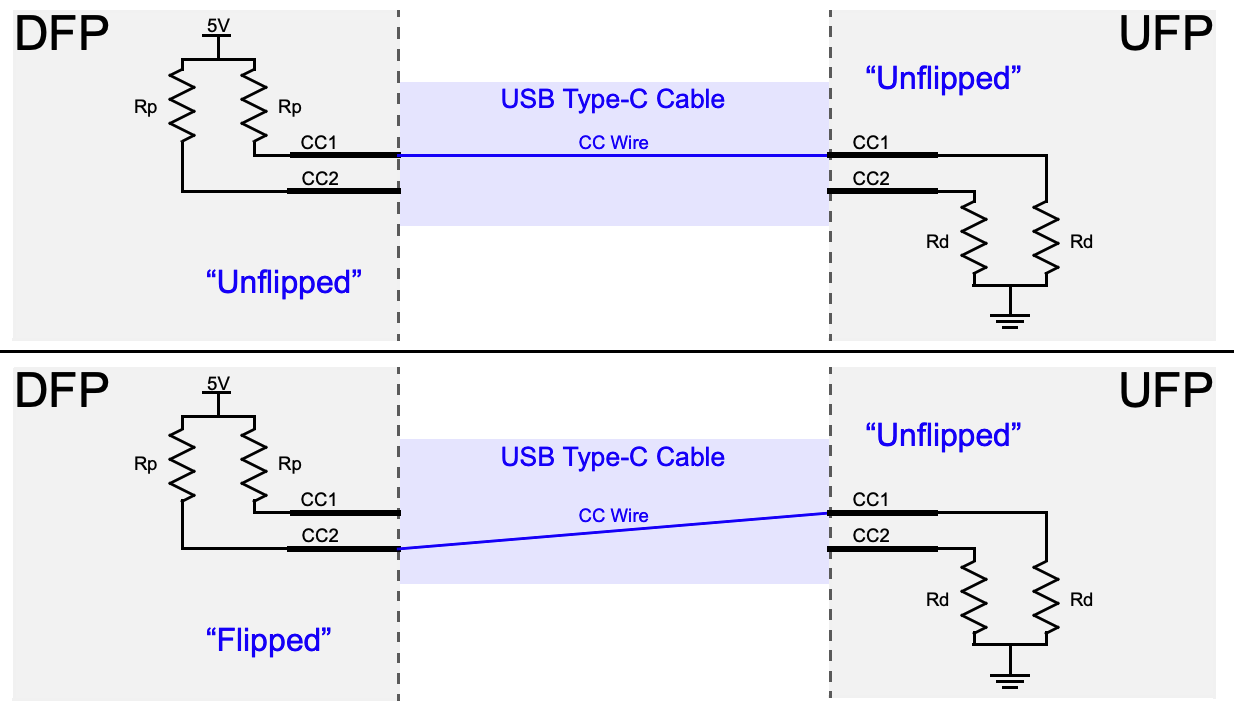
When a connection is successfully established, one of the two CC pins will complete a circuit between the two devices; all the devices need to do is monitor both pins for a valid CC voltage and, when they detect one on either pin, select that pin as the communication channel for USB-PD data. In the diagram above, CC1 is connected at both ends, but either CC pin could end up being the connected one on each device depending on the cable’s orientation.
![]()
Well, this complicates things…
Having to deal with two possible cable orientations is a bit of a pain, but most devices never have to worry about this problem because someone else has already solved it for them. Even the most basic USB Type-C or USB-PD port controller can monitor both CC lines and automatically communicate over the one that is connected through to the other side, and more advanced chips may even provide a dedicated pin that changes state depending on which CC line is detected as active and can be fed directly into other controllers that reroute the signals on the high-speed lines accordingly.
Dr. PD, on the other hand, is not a “traditional” USB-C device. In some cases, it must interpose itself between two devices while appearing electrically transparent to both, so that it can “listen” to and decode the USB-PD data being exchanged between them. In other cases, Dr. PD will be the UFP and will have to communicate with a DFP connected to one of its ports.
Traditionally, this kind of interconnectivity can be managed using a crossbar switch that is capable of connecting either of the CC lines on one port to either of the CC lines on the other. Analog crossbar switch ICs are plentiful, inexpensive, and easy to use, but they do present a few challenges for our use case.
First, crossbars perform all their switching internally. While that's sufficient to connect one device to another, Dr. PD also needs to intercept and decode the communication that's happening, and this would require either using two physically separate pins on the microprocessor (four if you want to be able to monitor each port separately), or adding one more multiplexer to reduce that number down to one pin. I/O is always a constrained resource, and so this is generally not a good thing.
Second, one of Dr. PD's defining features is a dedicated “CC” output that can be connected to an oscilloscope to independently monitor activity on the CC line without having to worry about which line is currently carrying the signal. With a normal crossbar switch, this would be difficult to do, again at least without the use of another mux.
Making a “crossbar” switch, the hard way
The way I ultimately ended up solving this problem is to use three 2:1 muxes to do the job of a single crossbar switch, plus a few extra bits:
![]()
The RS2057XH takes two analog signals on pins 1 and 2, and connects one of them with the common end on pin 4 depending on the state of the IN line on pin 6. Basically, it's a solid-state SPDT switch capable of routing signals up to 5.5V.
U503 connects to the two CC lines on the “DUT” port of Dr. PD, while U505 connects to the same lines of the “US/DS” port. (The names of these ports are somewhat arbitrary, since USB-C is a bidirectional standard.) The common line of both of these chips is connected to U504, which just acts as a simple switch that can be used to disconnect one port from the other. The COM line of U503 is what is then used by the system as the “unified” CC line that is monitored for messaging.
At runtime, the firmware then implements this simple algorithm:
- Disable the connection between the two ports by driving the IN line of U504 so that it is routes to its NC connection.
- Cycle through all four CC lines, looking for one that carries a voltage of at least 3V. When you find one, mark it as a likely DFP candidate.
- Now cycle through the CC lines on the other line and look for one that, when connected to the DFP candidate port, brings the voltage down to below 2V. If you find one, mark this as a UFP candidate and mark the connection as established.
This works remarkably well, although it took quite a bit of effort to determine good debounce times for the various states. In particular, when you connect two dual-role devices, which periodically switch between acting as a UFP and a DFP while trying to establish communication, you have to give each device enough time to settle into the right state for a connection to be established.
So, there you have it: A relatively simple solution to an unexpectedly complex problem—one of many I've encountered while designing Dr. PD.
-
The curiously complex taxonomy of USB plugs
04/14/2026 at 02:17 • 0 commentsDr. PD is crowdfunding soon! Sign up at our prelaunch page on Crowd Supply to receive product updates.
In the last decade or so, USB-C has become the dominant standard for power and data transmission. Despite the occasional attempt at proprietary formats (Lightning, anyone?), practically every device these days comes with the ubiquitous rounded port.
Without a doubt, this success is well deserved: USB-C cables are easy to acquire and inexpensive, compatible power supplies can be had for less than the cost of an espresso beverage, and inserting a plug into a receptacle does not require a degree in quantum physics.
These capabilities, however, come at a cost. USB-C receptacles and cables are surprisingly complex, and designing hardware around them can be challenging even if you decide to use off-the-shelf parts.
Anatomy of a USB-C port
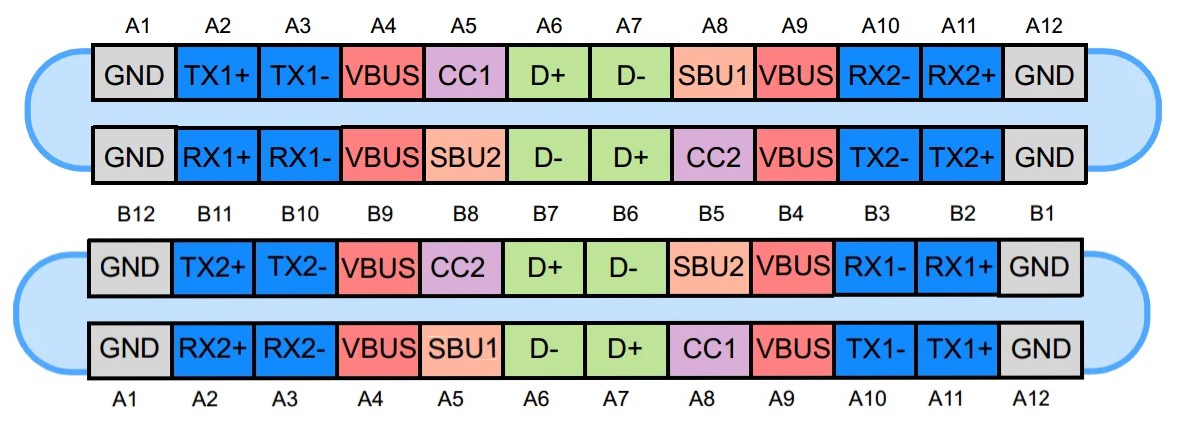
Let's start by looking at a “full” USB-C port and its signals:
![]()
Let's go through these in detail:
- GND and VBUS carry power to and from a device. By default, only 5V is available, with analog signaling on CC1 and CC2 used to advertise or detect up to 3A of current. By using Power Delivery, however, devices can negotiate various voltage and current combinations up to 48V and 5A—a whopping 240W of power.
- CC1 and CC2 can be used for four (!) purposes:
- By manipulating the analog characteristics of these lines, a device can advertise 5V at either 500mA, 1.5A, or 3A without the need for more advanced digital negotiation. Default USB current corresponds to the legacy USB current level, typically 500 mA for USB 2.0 or 900 mA for USB 3.x.
- One of the two lines can be used to provide VCONN, a special 5V power rail capable of providing up to 1W of power that can be used to power accessories independently of VBUS. This is useful because an accessory may need 5V to function, but then request a higher (or lower) voltage to be delivered on VBUS to power some of its peripherals or another device. Notably, VCONN does not normally pass through the cable end-to-end; it is used to power circuitry in the cable or plug assembly and is typically not presented as a usable rail at the far end.
- The other line can be used for Power Delivery signaling. By using a dedicated serial protocol, devices can exchange information, negotiate a power contract to deliver a voltage different from the standard 5V alongside specific power and current capabilities, or enter Alternate Modes that repurpose some of the data lines in the cable for something other than ordinary USB communication. For example, monitors use an Alternate Modes to receive video data from a host device.
- Because each line takes on a different role, their relative position is used to determine the orientation of the cable in the receptacle.
- The SBU pins are used for “sideband” data. They provide an independent low-speed (up to 1MHz) channel that can be used for custom out-of-band communication between compatible devices. For example, DisplayMode Alternate Mode uses them for AUX signaling, and USB4 can also use them for sideband functions during link management and initialization.
- D+ and D- are traditional USB 2.0 data lines. These represent a single differential pair and run as a twisted pair inside the physical cable, and are capable of serial speeds up to 480Mbps.
- TX+, TX-, RX+, and RX- are SuperSpeed differential pairs. In a full-featured USB-C connection, these high-speed pairs can be used for protocols such as USB 3.x, USB4, Thunderbolt, or Alternate Modes. In the newest USB4 mode, the total link rate can reach 80 Gb/s symmetrically or 120 Gb/s in one direction with reduced bandwidth in the other. As I mentioned above, these lines can also be repurposed to carry non-USB data through Alternate Modes.
If this seems complicated… well, it is. A good, if somewhat reductionist, way of looking at how all these lines relate to each other is:
- D+ and D− are legacy USB 2.0 data lines. They are there to support devices that use the physical USB-C connector but are not necessarily interested in the more advanced communication features associated with USB 3.x or USB4.
- The CC lines are used to detect attachment and cable orientation, advertise or detect default USB-C current, carry USB Power Delivery signaling, and, on the unused CC conductor, potentially provide VCONN. They therefore play the central role in determining how the two devices on the cable will use the remaining lines.
- The TX and RX lines are used for high speed communication; the kind of data they carry depends on the mode in which the two devices set up their link. In a conventional USB3 or USB4 connection, they are used as SuperSpeed lanes; in an Alternate Mode, they can be repurposed to carry other kinds of information, such as video data.
- SBU1 and SBU2 are used for dedicated for signaling specific to the type of link that the two devices establish with each other. They are separate from the TX/RX lines because they are meant for low-speed auxiliary signaling without disturbing the main high-speed data path. They are also separate from CC1/CC2 so that they can carry arbitrary data without having to either implement or interfere with the USB-PD communication that happens on the CC lines.
What is a USB-C port, though?
Despite the fact that I just spent a considerable amount of words telling you about the many pins that make up a USB-C cable, it might surprise you to learn that there isn't just “one” kind of USB-C port. In fact, a device may use one of several connector variants, depending on what subset of functionality it requires.
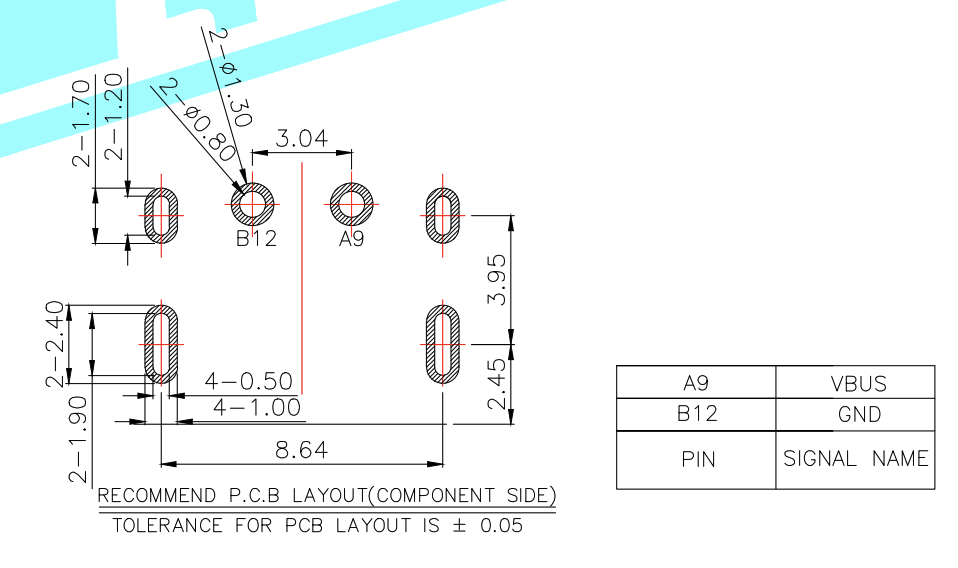
Typically, hardware manufacturers market plugs and receptacles based on the number of populated contacts (or positions) they provide. If all you care about is a basic 5V power supply, you can buy so-called 2P receptacle that only contains a pin connected to VBUS and one connected GND:
![]()
If, on the other hand, you want to take advantage of Power Deliver to negotiate higher voltages and currents, you could upgrade to an 8P plug, which gives you access to the CC lines and USB2 data:
![]()
And so on, all the way up to the 24P ports, which support every line.
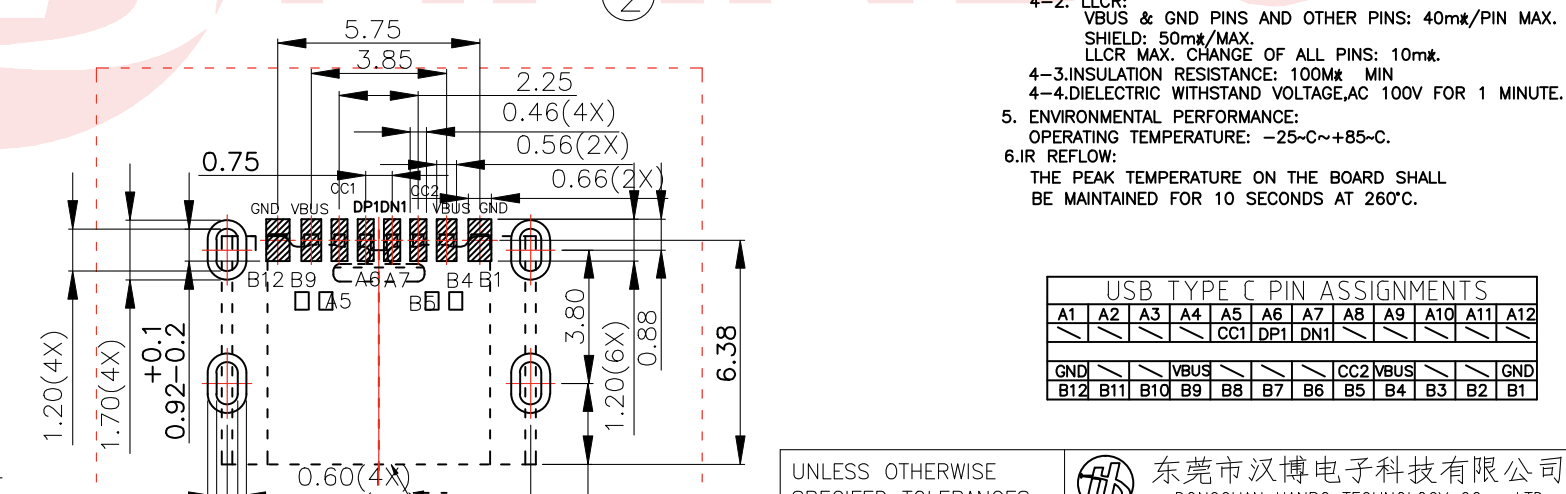
A notable oddity is a particular kind of 12p port that provides VBUS, CC, D+/-, and, inexplicably, the SBU lines:
![]()
At first sight, this makes little sense, since SBU1 and SBU2 are typically only used in modes that also involve additional USB3/4 functionality that requires at least some of the TX and RX high-speed lanes. It turns out, however, that there is a special “audio adapter” mode that uses (though I think the more appropriate term here would be “misuses”) several of the digital lines to transmit analog audio. In that mode, D+ and D− can carry right and left audio, while SBU1 and SBU2 can be used for microphone and analog ground functions.
This complexity is not limited to plugs and receptacles; cables—which we'll examine in detail in a future project update—are even more confusing: They can be power only, USB2 and power, or USB3/4 with one or two TX/RX pairs… plus, they can also act as active repeaters for longer run or noisy environments, and even require active circuitry in order to support higher voltages and currents.
But wait, it gets worse
Particularly compared with their predecessors, USB-C ports are a great step forward in terms of usability for the simple reason that they are reversible: it doesn't matter which way you attempt to plug them in—they will always work.
This is great news for anyone who has ever attempted to blindly insert a USB-A or micro-USB cable into the back of their computer, but the folks who designed the USB-C electrical layout elected not to extend the same courtesy to engineers who want to incorporate a USB-C port into their designs.
Let's look at the port layout from the beginning of this post again, only this time placed top-to-bottom with a copy that has been rotated by 180 degrees to simulate what happens when the user chooses either orientation:
![]()
As you can see, from an electrical point of view there is very little reversibility here.
GND, VBUS, and the USB 2.0 lines occupy effectively the same positions in both orientations. This makes sense because handling reversibility on the power rails would be difficult, especially at higher voltages and currents, and the USB 2.0 connection must remain compatible with an older standard that has no concept of reversibility at all. USB-C handles this by duplicating the relevant receptacle contacts so that both plug orientations connect to the same USB 2.0 pair and power rails.
Meanwhile, the TX/RX and SBU lines are effectively reversed, which means that the host or port controller must somehow determine the plug orientation so that it can route the appropriate signals to the correct pins. This is accomplished using the CC lines: the system detects which of CC1 or CC2 is actually connected, and from that determines plug orientation and configures the SuperSpeed signal routing accordingly (don't worry if this sounds confusing, there will be a post about this, too!).
Why is USB-C so successful then?
If this seems overly complicated—well, it is. USB-C bears all the hallmarks of a designed-by-committee standard that somehow had to find a compromise among the needs of a disparate group of stakeholders. If you look at the list of people who contribute to the various standards that make up USB3 and USB4 and their employers, you will find a veritable who's who of the tech industry: Apple, Dell, Samsung, Microsoft, Texas Instruments, and many, many more. It's no surprise that they ended up with a standard that mixes analog and digital signals, repurposes lines, and requires a nontrivial amount of work to figure out which lines to use and how.
Still, USB-C is enormously successful because it is designed with the convenience of the end user in mind. It's much easier to use and more capable than earlier USB connectors, and has been adopted so widely that the cost of ownership is rapidly converging on the material cost of cables and power supplies. It's a winner in almost every sense (one notable exception being cables, which, as we'll see in a later post, are not as user-friendly as they should be), and that's why users have enthusiastically adopted.
On the implementer side, the complexity is usually mitigated by the use of specialized chips that handle orientation detection and power negotiation, exposing straightforward configuration interfaces that are easy to implement in just about any hardware product.
Sure, these chips cost money, but they are widely available and relatively inexpensive. In return, designers get access to extremely capable power supplies at a fraction of the cost of anything custom you would otherwise have to acquire separately, and can almost always count on the user having access to several compatible cables and power supplies, reducing waste and support costs.
The major downside is that the entire USB-C physical and power stack becomes completely opaque; if anything goes wrong—or even if you just want to characterize your power supply to make sure that it meets your needs—your choices are either manual probing with an oscilloscope, or relying expensive closed-source tools.
Of course, that's where Dr. PD comes into play! If you want your own, you can join our prelaunch page on Crowd Supply for product updates, or stay tuned here for more posts on USB-C, Power Delivery, and the hardware design behind Dr. PD.
Dr. PD USB-PD protocol analyzer
A fully featured, open-source USB Power Delivery protocol/power analyzer and programmable sink for testing, logging, and debug.